Best Selling Products

Freepik Premium Account
59 USD

Genuine Adobe Illustrator account
99 USD

Plugin Retouch4me
69 USD

Adobe Premiere Pro Account
99 USD

Genuine Cheap Canva Pro
39 USD

Upgrade genuine Capture One account
120 USD

Copyright Adobe Lightroom Account
59 USD

MidJourney Account
29 USD

Capcut Pro 1 Year
39 USD

Upgrade Genuine Office 365
49 USD

Upgrade Duolingo Super
29 USD

Windows 10 & 11 Pro Key
36 USD

Autodesk All App Account Copyright
120 USD

ChatGPT Plus Account (GPT-4)
16 USD

Adobe Photoshop Copyright - Full App
120 USD
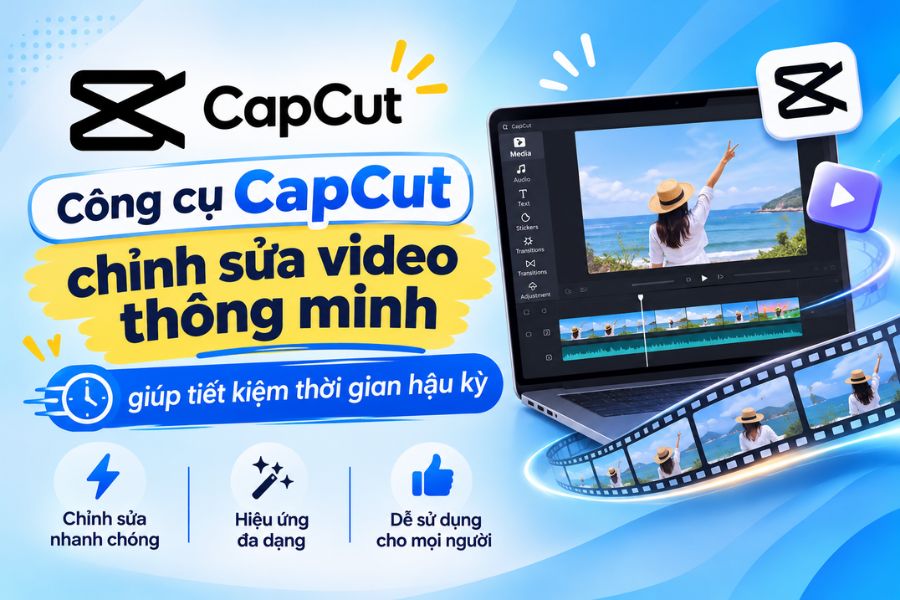
CapCut is a smart video editing tool that saves post-production time.
Nội dung
- 1. What is CapCut? Why is this tool so popular?
- 2. Outstanding smart features of CapCut
- 2.1. AutoCut automatically cuts and merges videos.
- 2.2. Auto Captions create automatic subtitles.
- 2.3. AI Background Remover removes video backgrounds.
- 2.4. AI Video Translator supports translating video content.
- 2.5. AI Clipper creates short videos from longer content.
- 2.6. Text-to-Speech converts text into speech.
- 3. Quick guide to using templates on CapCut
- 4. Tips for using CapCut effectively and shortening post-production time.
- 5. Things to note when using CapCut to edit videos
- 6. Conclusion
In the rapidly evolving era of short videos, creating visually appealing, polished, and engaging content has become a necessity for many individuals, content creators, and businesses. However, post-production often consumes a significant amount of time, especially tasks like cutting, splicing, adding subtitles, color grading, and audio processing. CapCut emerged as a convenient video editing tool, integrating many intelligent features to simplify these processes. Users don''t need to be proficient in complex video editing techniques to create impressive videos thanks to AI support and a diverse resource library. Let''s explore it with Sadesign!
1. What is CapCut? Why is this tool so popular?
CapCut is a popular video editing tool thanks to its intuitive interface, simple usage, and rich feature set. Users can use CapCut on their phones, computers, or web browsers to perform video editing tasks as needed. From basic tasks like cutting, merging, and adding music to advanced operations such as creating automatic subtitles, removing backgrounds, or using AI, CapCut provides suitable solutions. CapCut's highlight lies in its ability to combine manual editing with AI-powered automation. This allows users to actively control content while saving time on stages that don't require individual operations.
Some notable advantages of CapCut:
-
Easy to use: The interface is intuitively designed, suitable even for beginners.
-
Intelligent AI integration: Supports automation of many video editing processes.
-
Extensive resource library: Provides a wide variety of background music, effects, filters, stickers, and video templates.
-
Flexible editing: Allows for cutting, splicing, adjusting speed, color, sound, and layout.
-
Save time: Reduce repetitive post-production tasks.
2. Outstanding smart features of CapCut
CapCut is not simply a typical video editing tool; it also integrates many features to support automatic editing. Each feature handles a separate step, helping users process materials quickly and create more polished content.
2.1. AutoCut automatically cuts and merges videos.
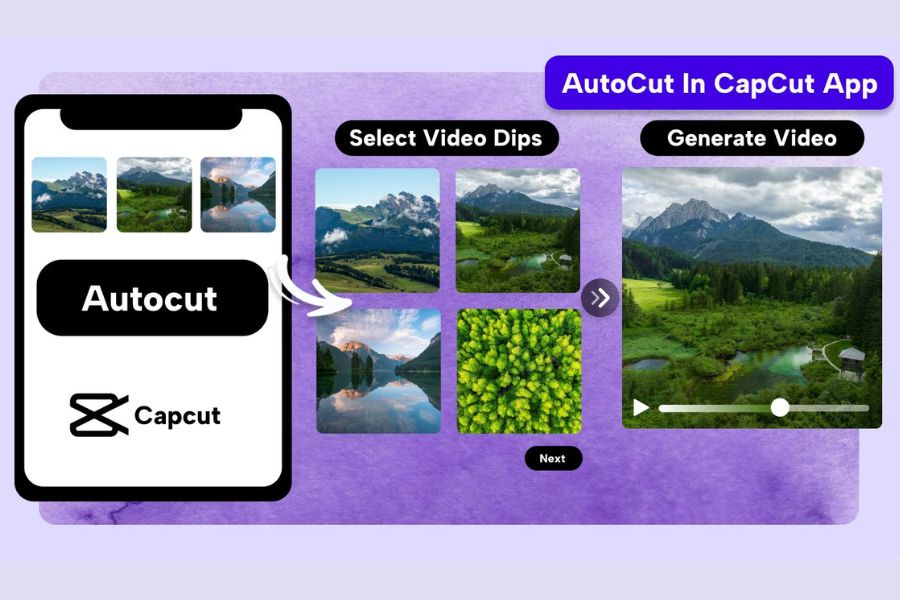
AutoCut is a feature that supports automatic video editing based on images and video clips provided by the user. Instead of manually selecting each scene, arranging the order, and adjusting the transitions, you can let AutoCut handle these tasks. Depending on the template and mode used, the feature can combine images with background music, effects, and transitions to suit the user's needs.
This feature is especially useful when you want to create TikTok videos, travel vlogs, or compilation videos of memorable moments.
-
Automatically assists in arranging and cutting/splicing video clips.
-
Combine images with background music and effects.
-
Create videos quickly from existing materials.
-
Reduce the time spent manually editing each scene.
2.2. Auto Captions create automatic subtitles.
Auto Captions converts dialogue in videos into text displayed on the screen using speech recognition technology. This is a very useful feature for those who frequently create videos to share knowledge, reviews, tutorials, or sell products online. Instead of listening to each sentence and manually typing subtitles, you simply activate the feature and let CapCut process the content.
After completion, users can still edit inaccurate words, change the font style, color, and appearance time of the subtitles.
-
Automatically recognizes dialogue in videos.
-
Quickly convert speech to text.
-
Supports customization of font, size, and color.
-
Adjust the position and timing of subtitle display.
-
This helps make the video easy to follow even when the viewer has the sound turned on.
2.3. AI Background Remover removes video backgrounds.
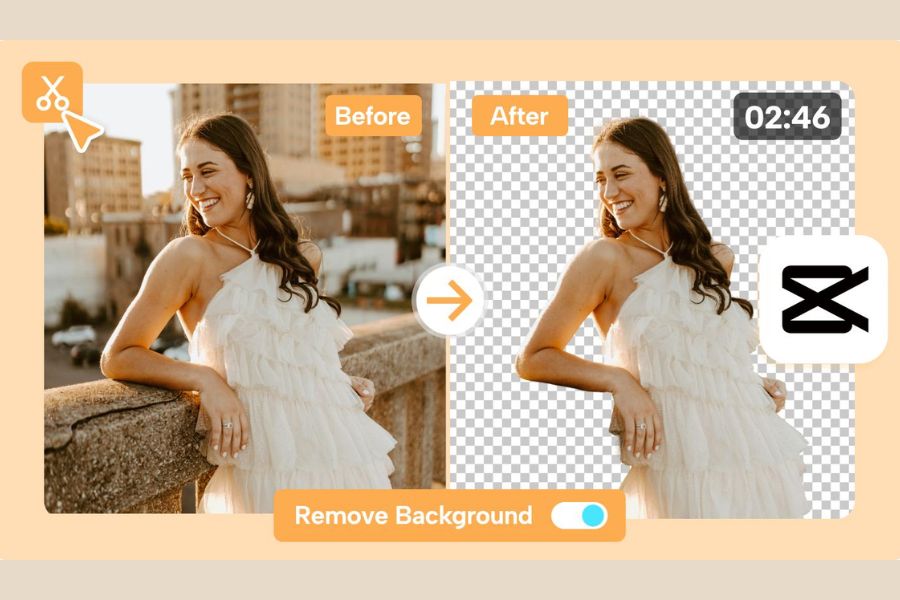
AI Background Remover is a feature that helps separate the subject from the original background using artificial intelligence technology. Instead of having to film videos at a location with a beautiful backdrop or use complex background removal techniques, you can utilize this tool to change the space behind the subject.
This solution is suitable for product introduction videos, sales content, tutorial videos, or any film that requires a creative setting.
-
Identify and separate the subject from the video background.
-
Supports replacing the background with a different image or color.
-
Create a new setting without having to start from scratch.
-
It helps make the video look more professional and visually appealing.
2.4. AI Video Translator supports translating video content.
If you want to bring your videos closer to an international audience, CapCut's AI Video Translator is a noteworthy feature. The tool supports translating dialogue into other languages and can combine subtitles and speech processing depending on the supported version. This allows users to leverage existing videos to develop content for a wider audience.
-
Supports translating video content into other languages.
-
Reduce processing time for multilingual subtitles.
-
Supports several voice transformation options.
-
Suitable for educational videos, introductions, and knowledge sharing.
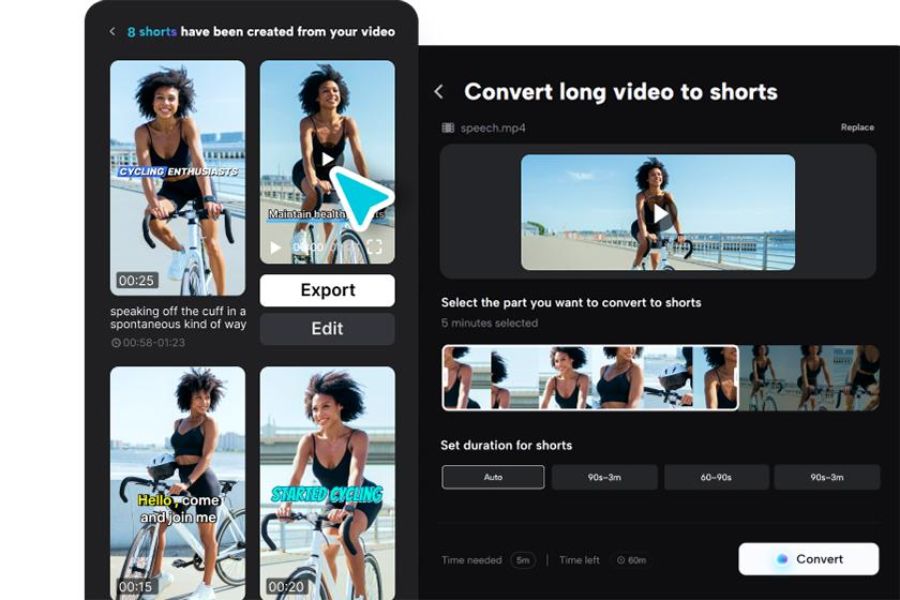
2.5. AI Clipper creates short videos from longer content.
AI Clipper is a feature that helps extract the most impactful segments from longer videos. The tool saves users time searching for suitable moments to create short videos. Instead of reviewing the entire video and manually marking each segment, you can leverage AI to suggest potential scenes.
This feature is especially suitable for people who create podcasts, livestream, conduct interviews, or share experience videos.
-
It helps in finding noteworthy pieces of content.
-
Create short videos from longer source material.
-
Save time viewing and selecting scenes.
-
Leverage existing content to post on TikTok, Reels, and Shorts.
2.6. Text-to-Speech converts text into speech.
Don't want to record your own voiceover but still need narration for your video? Text to Speech can solve this problem. This feature uses AI to convert text content into speech, allowing users to choose a voice that suits their video style. Simply prepare your script, enter your content, and create the audio to use in the editor.
-
Convert text to automatic speech.
-
Offers multiple voice options depending on the version.
-
Limit the time spent on recording and editing audio.
-
Suitable for storytelling videos, product reviews, and product introductions.
3. Quick guide to using templates on CapCut
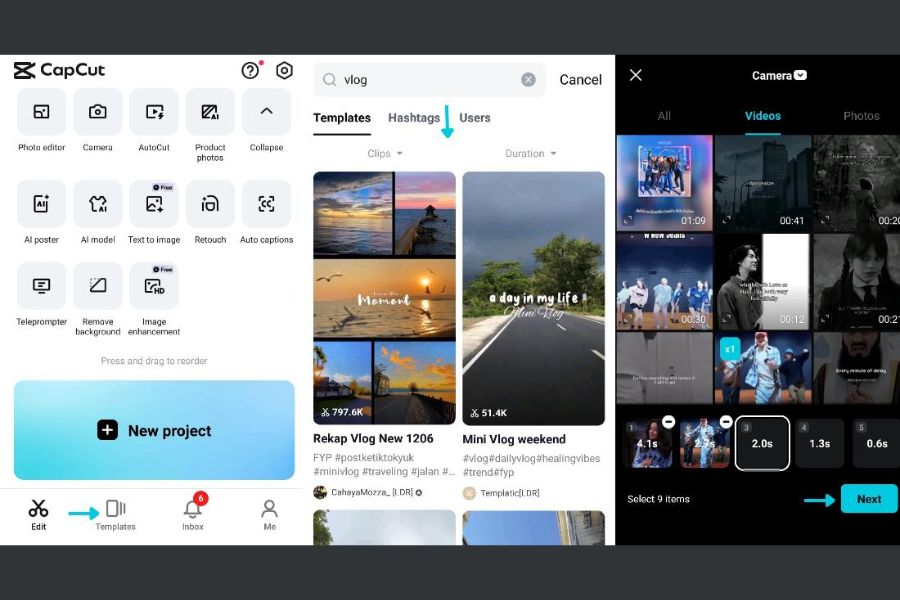
Templates are one of the most popular features of CapCut. Instead of having to build layouts, choose effects, and adjust each video segment yourself, you can use pre-made templates and replace the images with your own. This method is especially suitable for beginners or those who want to keep up with current video trends.
Step 1: Open CapCut and access Template
First, open the CapCut app on your phone. On the main interface, find and tap on the Templates section to access the available video library. Here, you will see many templates categorized by different styles and themes.
Step 2: Choose your favorite video template
You can browse the library or use the search bar to find a template that suits your content. For example, if you're making a product introduction video, prioritize templates with clear layouts, fast transitions, and eye-catching effects. Don't forget to preview the template to see how many images you need to prepare and how the video will look after completion.
Step 3: Add personal photos or videos
After selecting a template you like, click "Use Template". Next, choose images or videos from your phone's library according to the template's requirements. You should prepare high-quality materials with clear content that matches the length of each scene to ensure a seamless video after editing.
Step 4: Preview and adjust the video
CapCut will automatically insert the materials into the corresponding positions within the selected template. Now, review the entire video to check the layout, effects, sound, and image order. If you're not satisfied, you can replace images, adjust the framing, or edit the text content according to the template's customization options.
Step 5: Export and share the video.
Once finished, press Export to save the video to your device. Choose a resolution suitable for your upload platform and wait for CapCut to process it. Before sharing to TikTok, Facebook Reels, or Instagram, you should review the video again to ensure there are no errors in image, sound, or subtitles.
4. Tips for using CapCut effectively and shortening post-production time.
To make the most of CapCut's smart features, you should establish a logical editing process from the start. Preparing your materials and choosing the right tools will help speed up the post-production process and minimize the need for multiple edits.
-
Prepare your materials before editing: Organize images, videos, and audio into folders for easy searching.
-
Leverage AI features: Use Auto Captions, AutoCut, or AI Clipper for appropriate tasks.
-
Maintain a consistent video style: Choose one font, color scheme, and transition style throughout to save time.
-
Save frequently used settings: Take advantage of suitable editing templates for videos with a similar style.
-
Avoid overusing effects: Prioritize clear content, beautiful visuals, and natural transitions instead of adding too many effects.
-
Pre-export review: Review the audio, subtitles, frame rate, and video quality to avoid needing further editing.
5. Things to note when using CapCut to edit videos
Despite supporting many automated operations, CapCut still requires user control to ensure the video achieves the desired quality. Some AI features may not accurately identify or produce results that are not entirely suitable for the original content.
Therefore, you should take note of the following issues:
-
Carefully check the auto-subtitles for spelling errors and speech recognition.
-
Choose effects that suit the message, avoiding those that make the video look cluttered.
-
Please be aware of copyright issues regarding background music, images, and templates when using them for commercial purposes.
-
Choose a resolution and aspect ratio that are appropriate for the uploading platform.
-
Check which features require CapCut Pro or have usage restrictions based on your account.
-
Ensure a stable internet connection when using online AI tools.
6. Conclusion
CapCut is a useful video editing tool for those who want to optimize post-production time while still creating visually appealing and professional content. With intelligent features like AutoCut, Auto Captions, AI Background Remover, AI Clipper, and Text-to-Speech, users can quickly handle many stages without needing to perform all operations manually. In particular, the Template feature makes it easy for beginners to create videos in popular and creative styles. Knowing how to combine the right tools will save you time, improve video quality, and maintain long-term content creation effectiveness.





















VIP Products








Best Selling Products
Freepik Premium Account
59 USD
Genuine Adobe Illustrator account
99 USD
Plugin Retouch4me
69 USD
Adobe Premiere Pro Account
99 USD
Genuine Cheap Canva Pro
39 USD
Upgrade genuine Capture One account
120 USD
Copyright Adobe Lightroom Account
59 USD
MidJourney Account
29 USD
Capcut Pro 1 Year
39 USD
Upgrade Genuine Office 365
49 USD
Upgrade Duolingo Super
29 USD
Windows 10 & 11 Pro Key
36 USD
Autodesk All App Account Copyright
120 USD
ChatGPT Plus Account (GPT-4)
16 USD
Adobe Photoshop Copyright - Full App
120 USD