Best Selling Products

Genuine Adobe Illustrator account
99 USD

Autodesk All App Account Copyright
120 USD

Plugin Retouch4me
69 USD

Genuine Cheap Canva Pro
39 USD

Adobe Premiere Pro Account
99 USD

Copyright Adobe Lightroom Account
59 USD

Freepik Premium Account
59 USD

Windows 10 & 11 Pro Key
36 USD

Upgrade genuine Capture One account
120 USD

Upgrade Genuine Office 365
49 USD

Adobe Photoshop Copyright - Full App
120 USD

ChatGPT Plus Account (GPT-4)
16 USD

Capcut Pro 1 Year
39 USD

MidJourney Account
29 USD

Upgrade Duolingo Super
29 USD
A step-by-step guide to using Google Gemini to create beautiful, detailed photos for beginners.
Nội dung
- 1. What is Google Gemini? Can it create images?
- 2. Preparation before using Google Gemini to create images
- 3. How to use Google Gemini to create images step-by-step
- Step 1: Access Google Gemini and open the photo creation feature.
- Step 2: Enter the image creation command (Prompt)
- Step 3: Edit the image using Nano Banana 2
- Step 4: Download or share the image
- 4. Tips for writing prompts to create beautiful images using Google Gemini
- 5. Common mistakes when using Gemini to create images
- 6. Conclusion
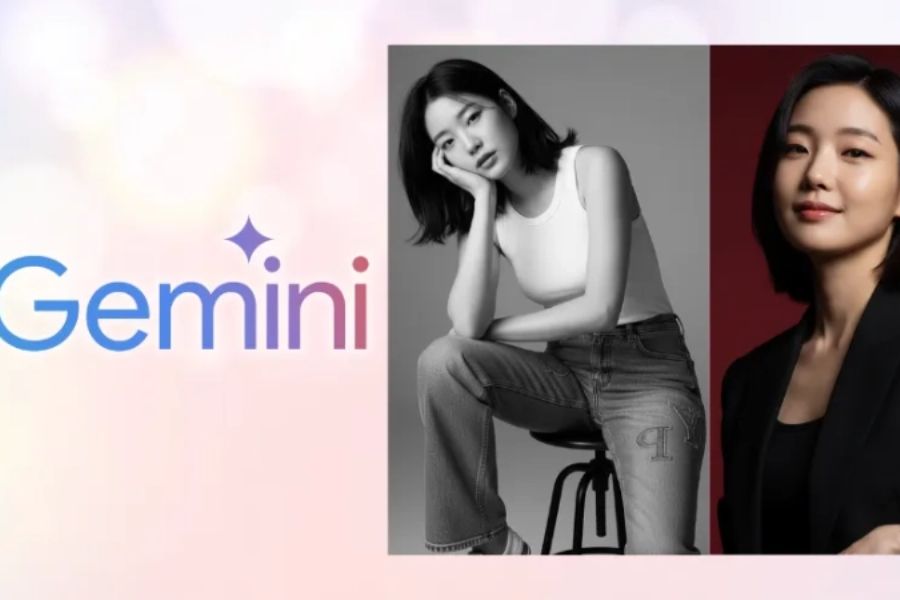
Google Gemini is becoming a useful AI tool that helps users transform creative ideas into images with just a few lines of description. You don''t need to be proficient in Photoshop or have in-depth design knowledge; you can still quickly create illustrations, product photos, artwork, or images for your work. Especially with the support of Nano Banana 2, Gemini also allows for custom image editing using natural language. In this article, let''s explore how to use Google Gemini to create images from basic to advanced levels, along with tips for writing prompts to make your images more beautiful and impactful.

1. What is Google Gemini? Can it create images?
Google Gemini is a multimodal artificial intelligence model developed by Google, capable of receiving and processing various data types such as text and images. This tool assists users in answering questions, writing content, finding ideas, and performing many creative tasks. Notably, Gemini integrates AI-powered image creation capabilities, transforming text descriptions into visual images without the need for professional design software. Some of Gemini's outstanding capabilities when working with images include:
-
Create images from text: Transform descriptions written in natural language into images based on your desired theme.
-
Image editing: Change the color, background, clothing, lighting, or details in the photo.
-
Combine multiple images: Use reference images to create a new layout or idea.
-
Idea generation support: Suggesting content and optimizing prompts to ensure images have a more suitable layout and style.
2. Preparation before using Google Gemini to create images
Before you begin, you need to prepare a few basic elements to use the image creation feature smoothly. The setup process is quite simple and does not require installing design software or having in-depth graphic design knowledge. Things you need to prepare include:
-
Google account: Use your Gmail account to log in to Gemini.
-
Access devices: You can use a computer, laptop, or smartphone.
-
Internet connection: Ensure a stable connection to send requests and upload images.
-
Visual concept: Determine the subject, setting, colors, and style you want to express.
-
Prompt description: Prepare the command as clearly as possible so that the AI understands your intentions correctly.
3. How to use Google Gemini to create images step-by-step
Creating images with Gemini doesn't require complicated steps. You just need to log in, select the appropriate feature, enter a description, and wait for the AI to process it. Below is a detailed step-by-step guide to help you easily follow the steps, even if you've never used this tool before.
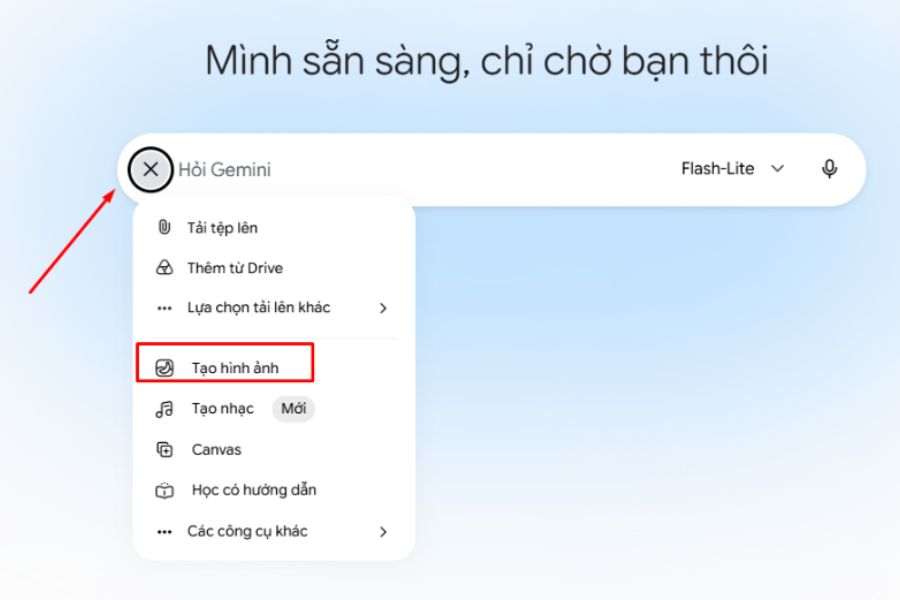
Step 1: Access Google Gemini and open the photo creation feature.
First, open your browser on your computer or phone, then access the Google Gemini interface. Log in with your Google account to use the tool's features. On the main interface, you will see a content input box at the bottom of the screen where you can ask questions or send requests to the AI.
To begin creating an image, follow these steps:
-
Open Google Gemini and sign in to your Google account.
-
Click the plus icon or the tool area next to the input box.
-
Find and select the Create images option if it appears.
-
Check the current mode before entering the command.
Once the feature is activated, Gemini will be ready to receive your description and convert your request into an image. If the interface doesn't display a separate option, you can try directly typing your image creation request into the chat box.
Step 2: Enter the image creation command (Prompt)
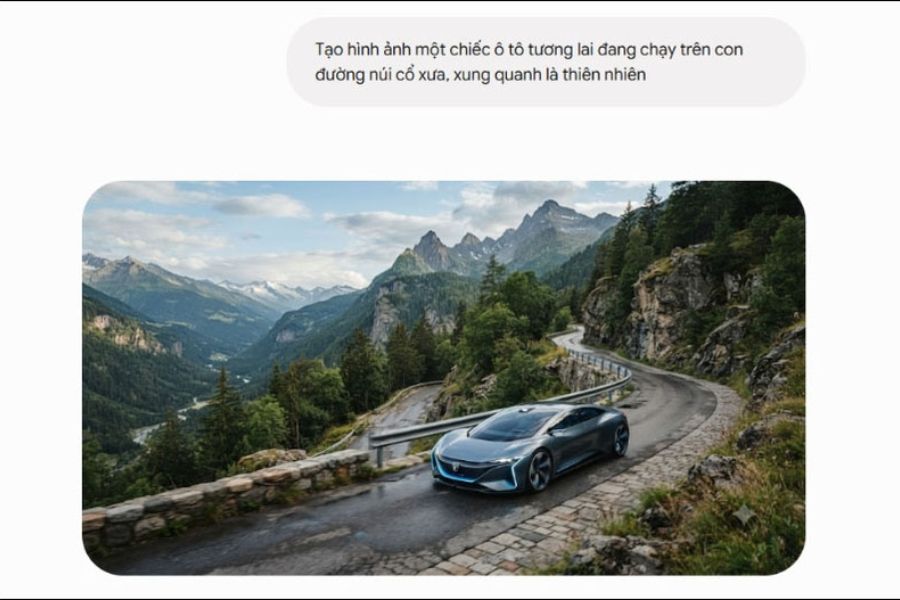
This is a crucial step that determines whether the resulting image meets your expectations. Instead of just entering a few short words, you should specifically describe the subject, activity, surrounding space, and image style. Gemini can understand commands in Vietnamese, so you don't necessarily need to use English.
For example, if you want to create an image of a dog playing on the beach, you can enter:
-
Create an image of a Corgi dog surfing on the sea, with clear blue water, a sunny sky, a realistic photographic style, and bright colors.
-
Create an image of a futuristic car driving on a winding mountain road, surrounded by lush green forests, with a cinematic angle and sunset light.
-
Create an image of a tropical forest with a flowing river, lush green trees, and sunlight filtering through the foliage, in a watercolor style.
After completing the command, press Submit and wait for Gemini to process it. The image creation time may vary depending on the complexity of the request and system status. When the result appears, check if the image correctly depicts the desired subject, colors, and composition.
Step 3: Edit the image using Nano Banana 2
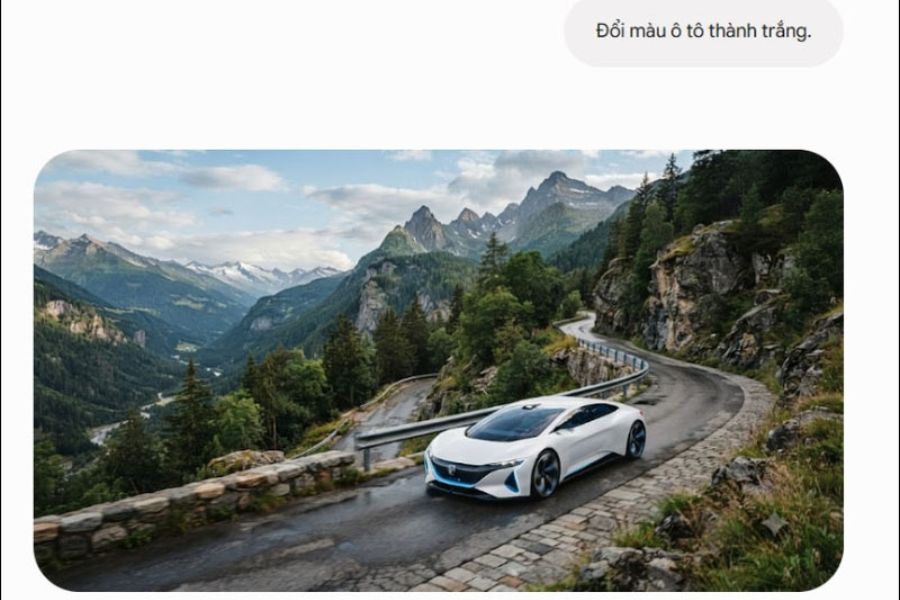
There's no need to recreate the image from scratch if you only want to change a few details. Gemini supports image editing through natural commands, allowing you to adjust the results as desired without using manual editing tools. With Nano Banana 2, you can continue to interact with the AI to refine the image through multiple edits.
Some common editing operations include:
-
Choose the image you want to edit: Use the image you just created on Gemini or upload an existing image from your device to the chat.
-
Enter your change request: Describe precisely the details you want to adjust, such as changing colors, replacing the background, or adding objects.
-
Send command: Press Send for Gemini to receive the request and process the image.
-
Verify the results: Observe the new version to determine if the AI has correctly edited the areas and preserved the necessary details.
-
Continue refining: If you're not satisfied, you can add more requests to make adjustments until you achieve the desired result.
For example, if you want to change the color of a car in an image, you simply enter: "Change the color of the car to white, keeping the style, position, angle, and surrounding background the same."
Clearly defining the details that need to remain unchanged will help prevent AI from altering even unrelated components.
Step 4: Download or share the image
After completing the creation and editing process, you can save the image to your device for use in your work or to share with others. This is the final step to preserve your creative work without needing to perform any further complex processing.
Here's how to do it:
-
Find the complete image in a conversation with Gemini.
-
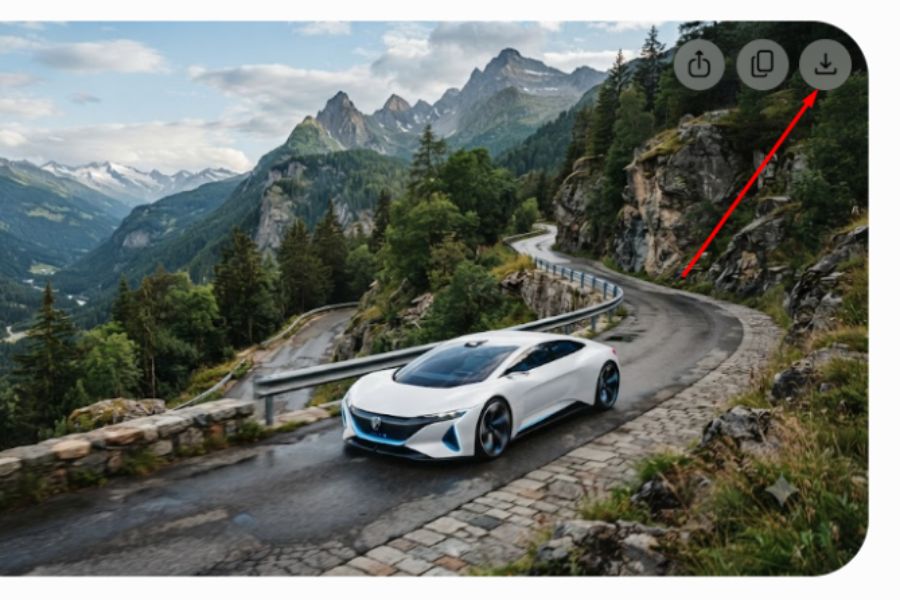
Click on the image to enlarge and view a larger version.
-
Find the download icon on the visual interface.
-
Tap download and wait for the device to save the image to the default folder.
-
Open the storage folder to check the image quality after downloading.
Additionally, you can use the sharing option if you want to send the image to friends or colleagues. Before posting to social media or using it for commercial purposes, please double-check the content, details, and usage rights of the image.
4. Tips for writing prompts to create beautiful images using Google Gemini
Prompts are a crucial element that directly impacts the quality of AI-generated images. A clearly defined prompt will help Gemini accurately understand the subject, space, and style you desire. Instead of entering general requests, build prompts based on specific components to create results with depth and a unique personal touch.
An effective image creation prompt typically includes:
-
Subject: Clearly identify the person, object, or scene appearing in the image.
-
Context: Describe the location, time, and surrounding environment.
-
Style: Choose from realistic, anime, 3D, cinematic, or illustrated.
-
Lighting: Add descriptions such as natural light, golden hour, neon, or studio lighting.
-
Shooting angle: Determine whether it's a wide shot, close-up, top view, or eye-level angle.
-
Color: Specify the main color palette to ensure image harmony.
Here's an example of an unoptimized prompt:
"Creating an image of a city of the future."
Here's a more detailed example prompt:
"Creating an image of a futuristic city at night, with skyscrapers of modern architecture, dazzling blue-purple neon lights, bustling streets, wide-angle shots from above, realistic cinematic style, sharp images and depth."
In addition, you can apply some of the following tips:
-
Clearly specify the number of subjects to prevent the AI from adding or removing objects arbitrarily.
-
Determine the aspect ratio, such as 1:1, 4:5, or 16:9, if a specific composition is required.
-
Add requirements regarding emotion, posture, and expression if creating a portrait.
-
Avoid including too many unrelated ideas in a single prompt.
-
Try changing the lighting, colors, or camera angle to find the best version.
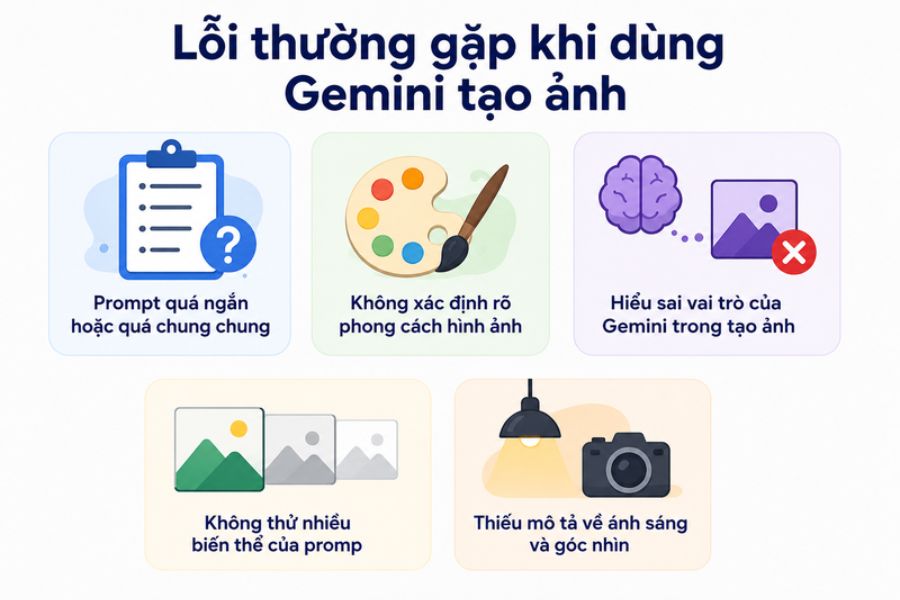
5. Common mistakes when using Gemini to create images
When using Google Gemini, beginners sometimes encounter situations where images don't match the description, the layout is unnatural, or the results aren't as high-quality as expected. Most of these problems stem from poorly written prompts, unclear editing requests, or limitations of AI technology. Here are some common errors to watch out for:
-
Prompts are too short or too general: Statements like "a beautiful city" don't provide enough information about context, lighting, and style. You should add specific details so Gemini can clearly understand the idea.
-
Image style not specified: If you don't specify whether it's a realistic image, anime, 3D, or illustration, the results may differ from what you intended. Please select a style in the initial prompt.
-
Lack of description of light and perspective: Images can become monotonous if the direction of light, distance, or shooting angle are not specified. Add these elements to increase the depth of the composition.
-
Editing too many details at once: When requesting changes to many components in a single command, the AI may not process it correctly. You should break the request down and edit each part separately.
-
Don't try too many versions of the prompt: A command may not produce perfect results the first time. Change the wording, add details, and create more variations to choose from.
-
Expect AI to perfectly reproduce every detail: Image creation tools can still make mistakes regarding hands, handwriting, small objects, or intricate details. Therefore, you should carefully check the image before using it.
6. Conclusion
Google Gemini is a useful tool that makes image creation simpler and more accessible. With just a Google account and a few descriptive commands, you can create new images, edit existing ones, and refine your ideas in your own style. For best results, focus on writing prompts that clearly describe the subject, background, lighting, and shooting angle. Hopefully, this guide on using Google Gemini to create images will help you effectively utilize this AI tool and create beautiful, creative images for your studies, work, and personal needs.





















VIP Products








Best Selling Products
Genuine Adobe Illustrator account
99 USD
Autodesk All App Account Copyright
120 USD
Plugin Retouch4me
69 USD
Genuine Cheap Canva Pro
39 USD
Adobe Premiere Pro Account
99 USD
Copyright Adobe Lightroom Account
59 USD
Freepik Premium Account
59 USD
Windows 10 & 11 Pro Key
36 USD
Upgrade genuine Capture One account
120 USD
Upgrade Genuine Office 365
49 USD
Adobe Photoshop Copyright - Full App
120 USD
ChatGPT Plus Account (GPT-4)
16 USD
Capcut Pro 1 Year
39 USD
MidJourney Account
29 USD
Upgrade Duolingo Super
29 USD