Best Selling Products

Genuine Adobe Illustrator account
99 USD

Windows 10 & 11 Pro Key
36 USD

Adobe Premiere Pro Account
99 USD

Upgrade Genuine Office 365
49 USD

Plugin Retouch4me
69 USD

Autodesk All App Account Copyright
120 USD

Copyright Adobe Lightroom Account
59 USD

ChatGPT Plus Account (GPT-4)
16 USD

MidJourney Account
29 USD

Capcut Pro 1 Year
39 USD

Freepik Premium Account
59 USD

Upgrade Duolingo Super
29 USD

Upgrade genuine Capture One account
120 USD

Genuine Cheap Canva Pro
39 USD

Adobe Photoshop Copyright - Full App
120 USD
ChatGPT reports "Your Card Has Been Declined": Causes and solutions.
Nội dung
- 1. What is the "Your Card Has Been Declined ChatGPT" error?
- 2. Why does ChatGPT show the error "Your Card Has Been Declined"?
- 3. How to fix the "Your Card Has Been Declined" error on ChatGPT
- 3.1 Double-check your card information and billing address.
- 3.2 Check your card balance and payment limit.
- 3.3 Complete 3D Secure or SCA authentication
- 3.4 Turn off VPN and other extensions that may block payments.
- 3.5 Clear your cache and cookies, or try a different browser.
- 3.6 Check the country and place of card issuance
- 3.7 Contact the bank to open a transaction.
- 3.8 Try other supported payment methods
- 4. What should I keep in mind to avoid ChatGPT payment errors?
- 4. Conclusion
When registering for or upgrading ChatGPT Plus or Pro, many users encounter the message "Your Card Has Been Declined" and are unable to complete the payment. This error may stem from incorrect card information, insufficient balance, bank blocking the transaction, or unsupported payment methods. If you are experiencing a similar situation, let Sadesig help you understand the causes and solutions below to ensure a smoother account upgrade process.
1. What is the "Your Card Has Been Declined ChatGPT" error?
"Your Card Has Been Declined" is a ChatGPT message that appears when the payment system rejects a transaction using a bank card. This error often occurs when users register for a new service, upgrade to ChatGPT Plus or Pro, or renew an existing service package. In this case, the payment has not been successfully processed, and the account cannot activate the benefits of the new package.
This notification does not mean your ChatGPT account is locked or experiencing a serious problem. The cause may lie with the card-issuing bank, payment information, or transaction processing unit. Therefore, you should check each factor before trying again to avoid wasting time.
2. Why does ChatGPT show the error "Your Card Has Been Declined"?
There are many reasons why ChatGPT might reject a payment card. In some cases, it only requires correcting the information, but in other situations, you need to contact the bank directly for assistance.
-
Incorrect card information entered: Card number, expiration date, CVV code, or cardholder name does not match the bank's data.
-
Cards that do not support international payments: Domestic cards or cards that have not had international online payment functionality activated may not be able to complete transactions.
-
Insufficient balance: Your account does not have enough money to pay the subscription or renewal fee for the ChatGPT package.
-
Exceeding transaction limits: The bank limits the amount or number of online payments, causing the transaction to be rejected.
-
The bank suspects unusual transactions: Some international transactions may be automatically blocked by security systems to mitigate risk.
-
Authentication not complete: The user skipped the 3D Secure verification request, OTP, or the bank's security method.
-
Unsupported payment regions: The country that issued the card or the payment information does not meet the service's support requirements.
-
Payment system issues: Connection errors or temporary glitches from the payment processor can also cause transactions to fail.
3. How to fix the "Your Card Has Been Declined" error on ChatGPT
When encountering the "Your Card Has Been Declined ChatGPT" error, you shouldn't repeatedly re-enter your information and attempt payment multiple times. Instead, check the following factors in order to identify the problem and choose the appropriate solution.
3.1 Double-check your card information and billing address.
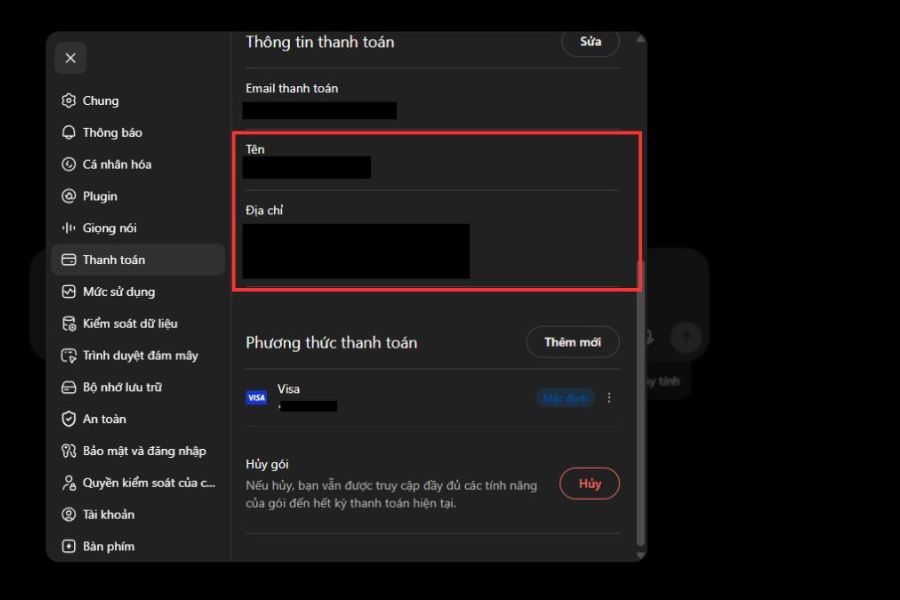
Incorrect payment information is one of the most common reasons for transaction rejection. You should compare the cardholder's name, card number, expiration date, security code, and billing address with the information registered with the bank.
-
Step 1: Open ChatGPT and click on your personal account icon in the bottom corner of the interface.
-
Step 2: Select the Settings option .
-
Step 3: Access the Billing section or service package management.
-
Step 4: Check the payment method, update the information if you find any errors, and try again.
Please note that the billing address must match the information stored by the bank. Do not change the country or use an incorrect address to bypass the verification process.
3.2 Check your card balance and payment limit.
Even if your card is still valid, transactions may fail if your balance is insufficient or your online payment limit has been reached. Open your bank's app to check your current balance, spending limit, and international payment status. Besides service fees, it's advisable to set aside a small amount for exchange rate differences or bank fees. If your account is low, top it up; if you've reached your limit, contact your bank to adjust it before attempting any new transactions.
3.3 Complete 3D Secure or SCA authentication
Some banks require additional verification to ensure the transaction is indeed being made by the cardholder. If this step is not completed, the ChatGPT payment may be rejected even if the card information is completely accurate. When making a payment, pay attention to verification notifications from the bank, OTP codes, or approval requests on the app. After successful confirmation, return to the payment page and check the transaction status. Do not share the OTP code or security information with anyone during the process.

3.4 Turn off VPN and other extensions that may block payments.
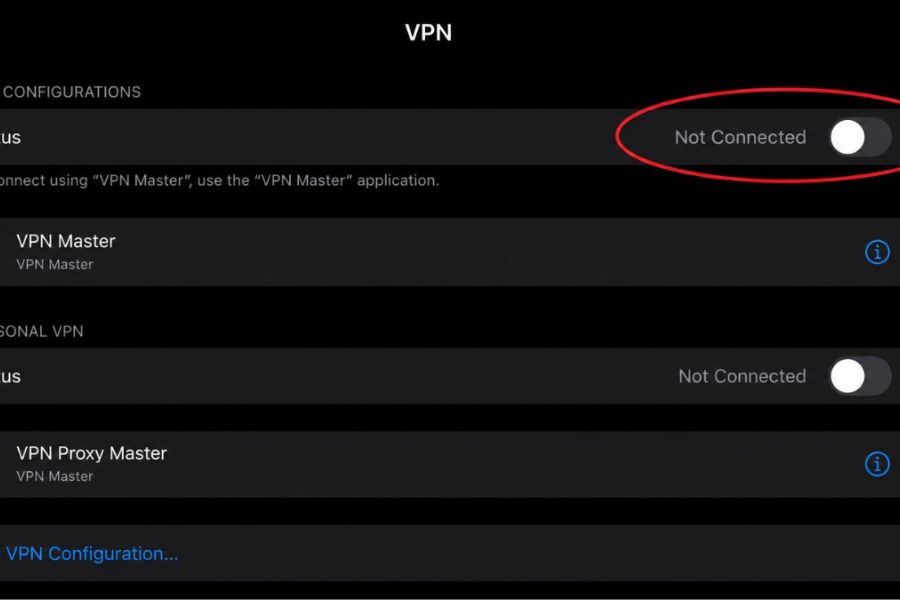
VPNs or proxies can change your IP address, causing your access location information to be inconsistent with your payment region. This can sometimes lead to transactions being flagged as suspicious. You should turn off your VPN or proxy and try again using a normal internet connection in your region. If you are using extensions that may block scripts or cookies, temporarily disable them to test. Then reload the ChatGPT page and proceed with the payment. Do not use VPNs to spoof your country or change your region information to bypass payment restrictions.
3.5 Clear your cache and cookies, or try a different browser.
Outdated browser data can sometimes conflict with the payment page, preventing the ChatGPT subscription process from working as intended. You can clear your cache and cookies by following these steps:
-
Step 1: Click the three-dot icon in the upper right corner of your browser, then select Settings .
-
Step 2: Access the Privacy and Security section .
-
Step 3: Select Delete browsing data .
-
Step 4: Select Cookies and website data, as well as files and images that are cached , then click Delete data .
After completion, log back into ChatGPT and try paying again. If the problem persists, you can try a different browser such as Chrome, Microsoft Edge, Firefox, or Safari. It's advisable to double-check the website address before entering your card information to ensure security.
3.6 Check the country and place of card issuance
ChatGPT has specific conditions regarding supported countries and payment methods. If the card was issued in an ineligible region or the billing address information is incorrect, the transaction may be rejected. You should check the list of countries and territories supported by OpenAI and ensure that the card was issued in an eligible region. Do not use third-party cards or payment information that is not your own without verifying its validity.
3.7 Contact the bank to open a transaction.
If you've checked all the information but ChatGPT still says "Your Card Has Been Declined," contact the customer service department of your card-issuing bank. You can ask a representative to check the reason for the international transaction rejection, the online payment status, and any applicable security restrictions. When speaking with them, provide the transaction time, the expected amount, and the name of the recipient. The bank may guide you on enabling international payment functionality or provide additional verification if needed. Absolutely do not provide your OTP code, PIN, or any other confidential card information.
3.8 Try other supported payment methods
If your current card is incompatible with the payment system, you may consider using a different international card that meets OpenAI's requirements. Before changing cards, check online payment capabilities, limits, and issuance regions. Additionally, users who registered via the ChatGPT app on their phones can check the available payment methods through the App Store or Google Play. Conditions and fees may vary depending on the platform, so please review the information carefully before confirming.
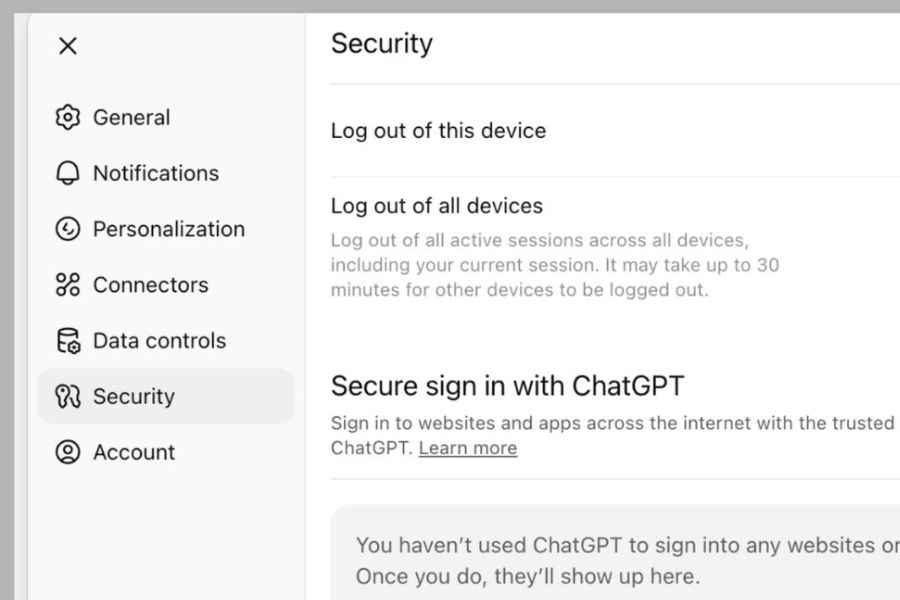
4. What should I keep in mind to avoid ChatGPT payment errors?
To minimize the recurrence of the "Your Card Has Been Declined" message, you should proactively check your payment method before each registration or renewal. A few small habits will help ensure stable transactions and better protect your account.
-
Use a card registered in your name that supports international and online payments.
-
Ensure you have sufficient funds to cover the registration or renewal fees.
-
Check your card's expiration date and limit regularly.
-
Enter accurate payment information that matches your bank data.
-
Use a stable internet connection and avoid sudden IP address changes.
-
Do not attempt to pay repeatedly after a transaction has just been rejected.
-
Only conduct transactions on the official ChatGPT website and do not share your card information with others.
4. Conclusion
The "Your Card Has Been Declined" error on ChatGPT is often related to card information, balance, credit limit, or bank security regulations. When you encounter this message, you should identify the cause and try each troubleshooting option instead of repeatedly making payments. If you have checked but the issue persists, contact your bank or OpenAI support for assistance. Preparing a valid payment method will help ensure a smooth ChatGPT Plus and Pro registration process and minimize interruptions during use.





















VIP Products








Best Selling Products
Genuine Adobe Illustrator account
99 USD
Windows 10 & 11 Pro Key
36 USD
Adobe Premiere Pro Account
99 USD
Upgrade Genuine Office 365
49 USD
Plugin Retouch4me
69 USD
Autodesk All App Account Copyright
120 USD
Copyright Adobe Lightroom Account
59 USD
ChatGPT Plus Account (GPT-4)
16 USD
MidJourney Account
29 USD
Capcut Pro 1 Year
39 USD
Freepik Premium Account
59 USD
Upgrade Duolingo Super
29 USD
Upgrade genuine Capture One account
120 USD
Genuine Cheap Canva Pro
39 USD
Adobe Photoshop Copyright - Full App
120 USD