Best Selling Products

ChatGPT Plus Account (GPT-4)
16 USD

Upgrade Genuine Office 365
49 USD

Adobe Photoshop Copyright - Full App
120 USD

Upgrade genuine Capture One account
120 USD

Plugin Retouch4me
69 USD

Windows 10 & 11 Pro Key
36 USD

Genuine Cheap Canva Pro
39 USD

Capcut Pro 1 Year
39 USD

MidJourney Account
29 USD

Upgrade Duolingo Super
29 USD

Genuine Adobe Illustrator account
99 USD

Copyright Adobe Lightroom Account
59 USD

Adobe Premiere Pro Account
99 USD

Autodesk All App Account Copyright
120 USD

Freepik Premium Account
59 USD
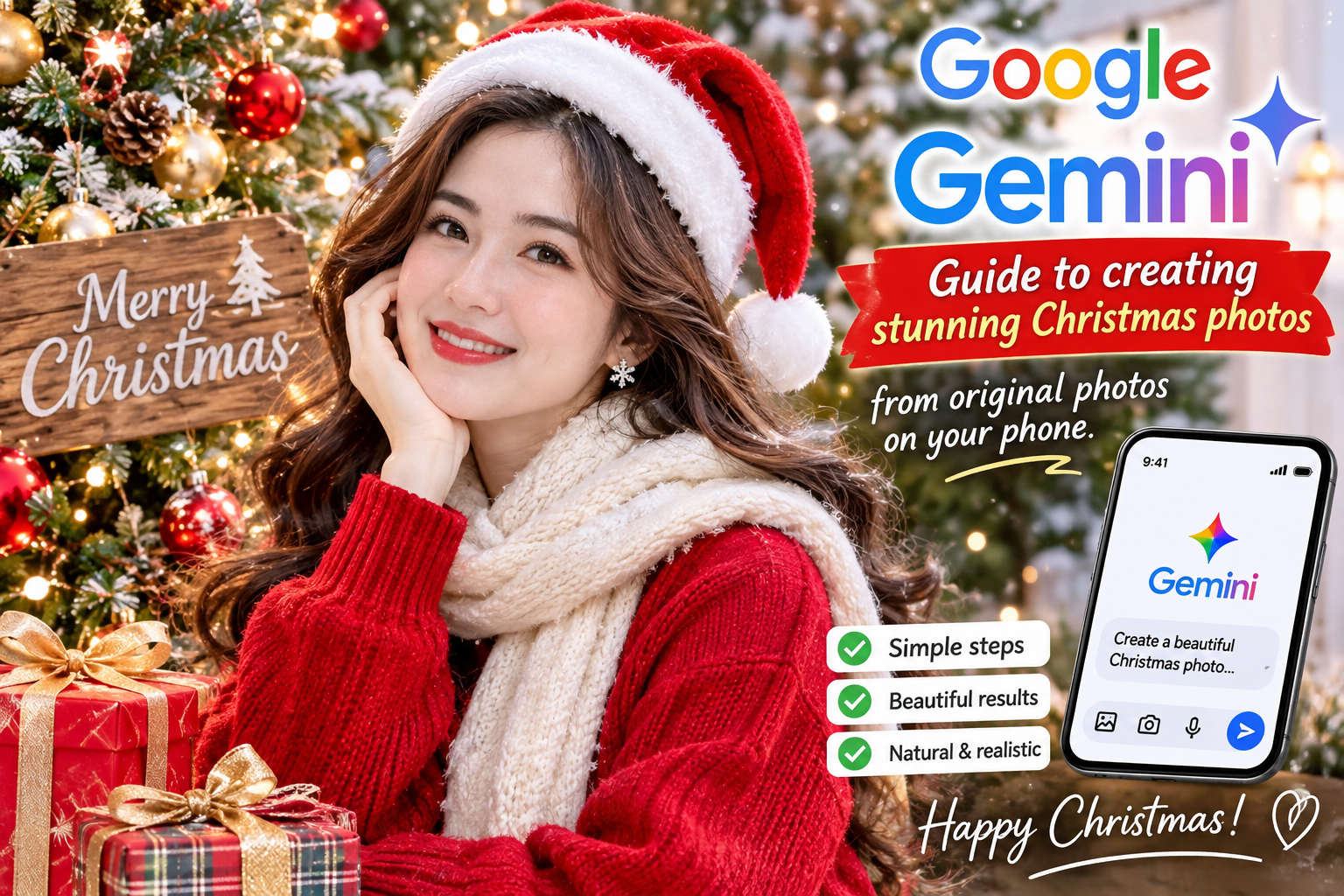
Guide to creating stunning Christmas photos using Gemini from original photos on your phone.
Nội dung
- 1. What's so fun about creating Christmas images using Gemini from original photos?
- 2. What do I need to prepare before creating Christmas photos using Gemini?
- 3. Instructions on creating Christmas images using Gemini from original photos on your phone.
- Step 1: Prepare a portrait photo.
- Step 2: Open the Gemini app on your phone.
- Step 3: Upload the original image to Gemini
- Step 4: Enter the prompt to create a Christmas image.
- Step 5: Check and download the image to your phone.
- 4. Tips to make your Christmas photos created with Gemini look more beautiful and natural.
- 5. Common mistakes when creating Christmas images using Gemini
- 6. Some ideas for creating Christmas photos using Gemini from original images.
- 7. Conclusion
Christmas is the perfect time to capture memorable moments with family, friends, and loved ones. Instead of preparing outfits, finding a studio, or spending a lot of money on photography, you can easily create stunning Christmas photos right on your phone using Gemini. With just an existing portrait photo and a few appropriate commands, AI can transform your image into a colorful Christmas scene. In this article, let''s explore with Sadesign how to create Christmas photos using Gemini from your phone''s original photos with simple steps, easy to follow even if you''ve never used AI tools before.
1. What's so fun about creating Christmas images using Gemini from original photos?
Gemini is Google's artificial intelligence tool that helps users create and edit images through natural language commands. Instead of manually adding details like Christmas trees, gift boxes, or snow, you simply upload a portrait photo and describe your desired Christmas scene. Gemini will use the original image to create a new version in your chosen style. The interesting thing about this method is that you can unleash your creativity without needing design skills or professional editing software. Even an ordinary photo can be transformed into a Christmas-themed portrait with warm yellow lights, striking red outfits, and a romantic snowy scene.
Some advantages of creating Christmas photos using Gemini:
-
Preserving facial features: You can instruct the AI to retain the features, expressions, and identifying characteristics from the original image.
-
Many styles to choose from: From Christmas muse and girl by the Christmas tree to luxurious studio photography.
-
Saves time: No need to prepare costumes, props, or travel to a photoshoot location.
-
Easy to edit: You can continue to ask Gemini to change the colors, background, lighting, or outfits.
-
Do it right on your phone: No computer or complex image editing skills required.
2. What do I need to prepare before creating Christmas photos using Gemini?
To ensure high-quality images after creation, you should prepare a suitable original photo. This is crucial because Gemini will use the image you provide to identify faces, body shapes, and features to retain. If the original photo is too blurry, underexposed, or obscures many details, the results may not be as desired.
Before we begin, please note the following:
-
Choose a clear portrait photo: Prioritize a frontal shot or one taken from a slight angle, ensuring the face is not obscured.
-
Natural light: It's best to choose photos taken during the day, with even lighting and no backlighting.
-
Limit face-covering accessories: Avoid photos where you wear sunglasses, a face mask, or a hat that covers most of your face.
-
Avoid excessive editing: Natural, unedited photos will help the AI recognize features better.
-
Prepare a specific prompt: Determine in advance the style, costumes, colors, and Christmas setting you want to create.
3. Instructions on creating Christmas images using Gemini from original photos on your phone.
Even if you've never used AI before, you can still create your own Christmas images in just a few minutes. The process is quite simple, mainly involving uploading an image, entering a command, and waiting for Gemini to process it. Below are detailed step-by-step instructions.
Step 1: Prepare a portrait photo.
First, open your phone's photo gallery and select a portrait photo you want to use. It's best to choose a photo with a clear face, good lighting, no obstructions, and relatively high quality.
You don't necessarily have to wear Christmas attire in the original photo. Gemini can use the description to adjust the clothing, background, and decorations to match the Christmas theme. However, choose a photo with a natural pose for a more harmonious result.
Step 2: Open the Gemini app on your phone.
After preparing your photos, you need to access Gemini using your browser or the app on your phone. If you haven't installed it yet, search for Google Gemini on the App Store for iPhones or Google Play for Android phones. Next, open the app and log in with your Google account to use the chat and image creation features.

Step 3: Upload the original image to Gemini
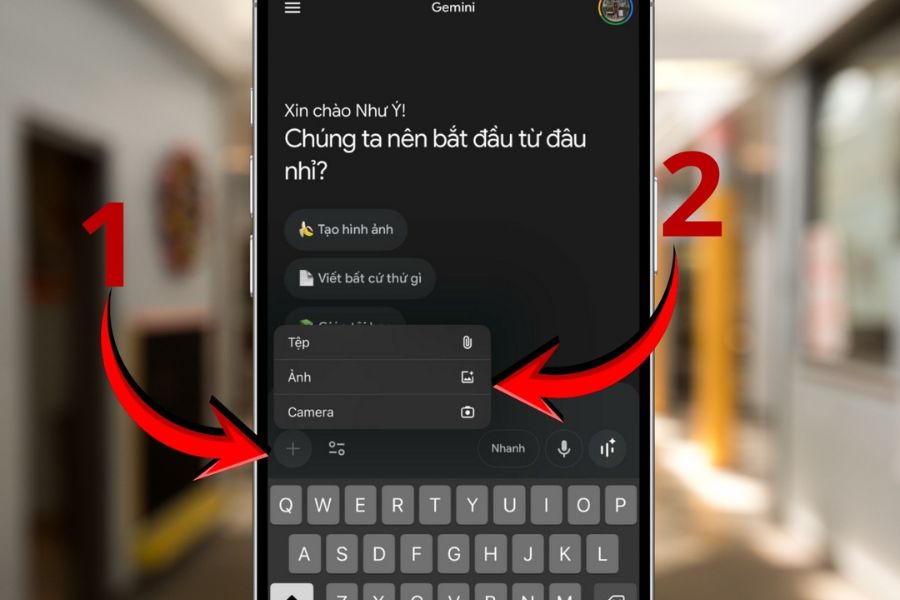
In the chat interface, tap the plus (+) icon or the add file icon next to the input field. Then, select the image or photo library option to find the prepared portrait.
Once the image has been successfully uploaded, double-check that Gemini has recognized the correct image. If you want to create an animation from a specific portrait, you should only upload that image to avoid the AI confusing different people.
Step 4: Enter the prompt to create a Christmas image.
This step determines the style and quality of the image after AI processing. Enter a command that clearly describes the scene, clothing, lighting, pose, and requests to keep the face from the original image.
For example, you can use the following prompt:
"From the portrait photo I uploaded, create a professional studio-style Christmas photo. Keep the face, features, expression, and identifying characteristics of the person in the original photo. Change the outfit to an elegant red velvet dress, combined with delicate Christmas accessories. The setting should be a room decorated with a Christmas tree, gift boxes, warm yellow lights, and white snow by the window. The lighting should be soft, the colors harmonious, the image realistic, high-resolution, and beautifully composed, just like a studio photo."
After completing the command, press submit to have Gemini start creating the image.
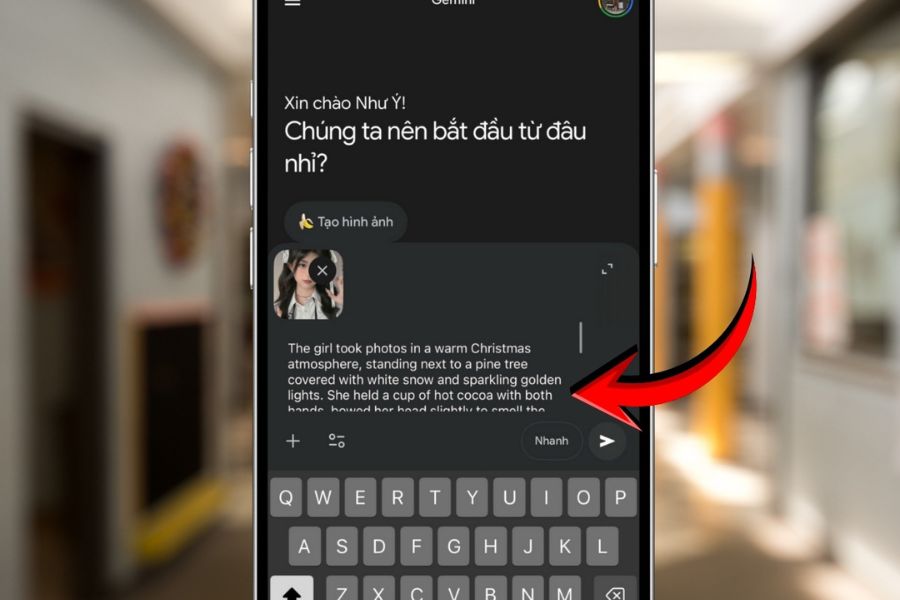
Step 5: Check and download the image to your phone.
Wait a moment for Gemini to process the image. Once it's complete, check the face, clothing, hands, and decorative details to see if the result meets your expectations. If you're not satisfied, you can continue to submit editing requests directly in the chat, such as changing the red dress to a white dress, adding snow, or making the lighting more sparkling.
Once you have a photo you like, tap on the image to enlarge it, then select the download icon or save the image to your phone's gallery. That's it! You've completed your Christmas photoshoot using Gemini without needing a studio.
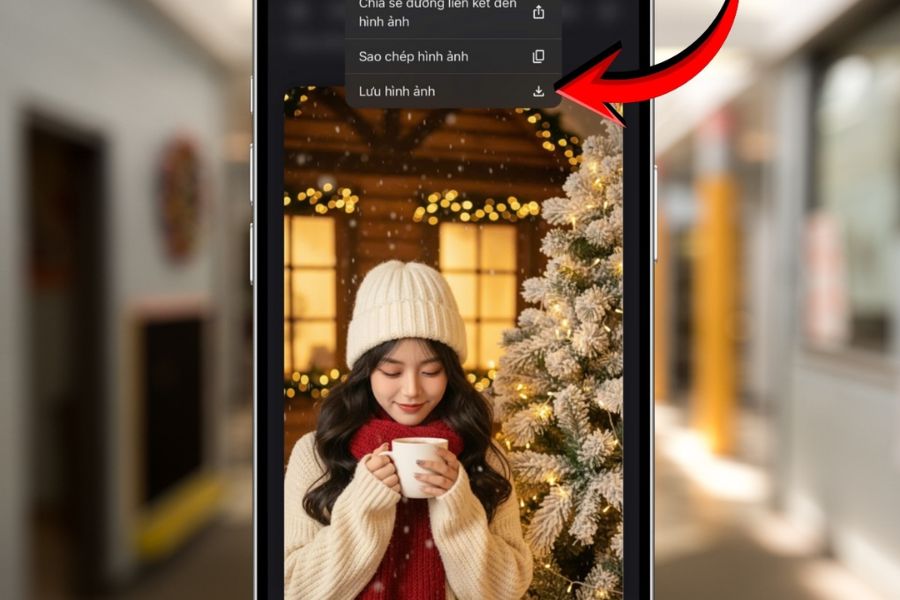
4. Tips to make your Christmas photos created with Gemini look more beautiful and natural.
The images generated by AI don't always perfectly match the original intentions. Sometimes faces are altered, clothing colors are incorrect, or decorative details aren't harmonious. To minimize this, pay attention to how you write your prompts and select the original images carefully.
Here are some helpful tips you can apply:
-
Emphasize the requirement to preserve the face: Add a statement such as "Preserve the identity, face, and natural features of the person in the original image."
-
Provide a specific description of the outfit: Instead of just writing "beautiful Christmas dress," describe a red velvet dress, a white flared dress, or a Christmas sweater.
-
Choose a suitable setting: You can request a studio setting, a cozy room, a snowy garden, or a Christmas night street.
-
Don't make too many requests: A prompt focused on one style will help create a clearer image composition.
-
Edit every detail: If you're not satisfied, ask Gemini to change individual parts instead of rewriting the entire description.
Another point to note is that you shouldn't expect AI to perfectly preserve the face every time you create an image. If the result doesn't match the original, try using a clearer portrait and add specific requests about which features to retain.
5. Common mistakes when creating Christmas images using Gemini
During use, some users may encounter issues such as images not loading, Gemini not generating images, or results that differ significantly from the description. Most of these problems can be resolved by checking the input image and the operation performed.
Here are some common mistakes:
-
Unable to load image: Check your internet connection, file size, and the app's photo library access permissions.
-
Gemini isn't generating images: Try rewriting the prompt to be more concise and clear, or check the feature's usage limits.
-
Face altered: Select a clear original photo and add the requirement to preserve the identity and facial features.
-
The outfit does not match the description: Specify the style, material, and color of the outfit in the command.
-
The image lacks detail: Gemini is requested to improve sharpness, lighting, and composition, but without changing the subject.
Additionally, you should avoid uploading private or sensitive images without thoroughly understanding the service's data policy. Use your own photos or photos that you have the right to use.
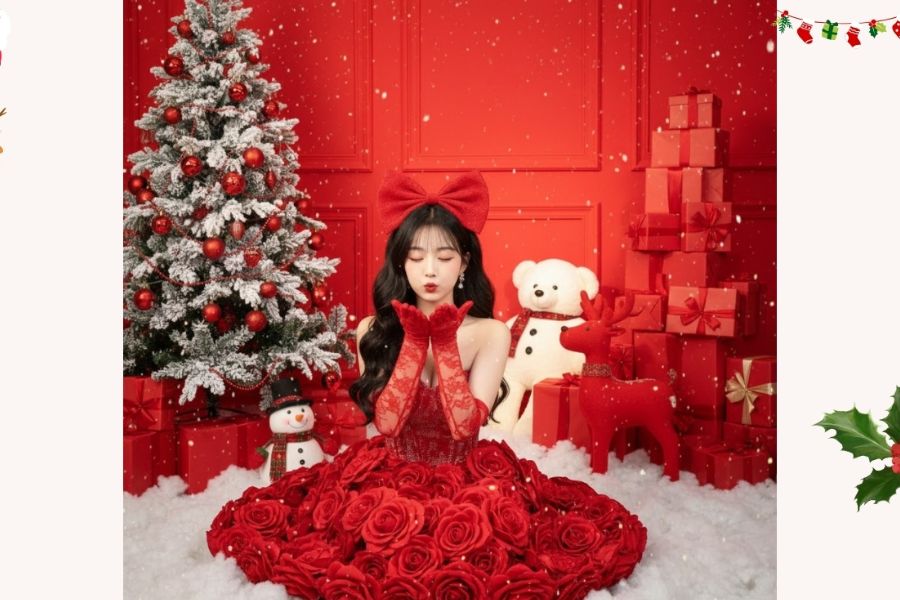
6. Some ideas for creating Christmas photos using Gemini from original images.
If you're unsure which style to choose, you can try different concepts to create a diverse Christmas photoshoot. Each style will bring its own unique feel, from gentle and feminine to elegant and striking.
-
The Christmas muse: A pristine white dress, gently flowing hair, standing amidst a scene of falling snow and twinkling lights.
-
Girl by the Christmas tree: Striking red outfit, holding a gift box, with a beautifully decorated Christmas tree behind her.
-
Korean Christmas style: White sweater, short skirt, red scarf, and a cafe setting filled with festive atmosphere.
-
Winter Queen: A white dress with silver accents, sparkling accessories, and a magical snow-covered castle setting.
-
Elegant Christmas: Red velvet dress, exquisite jewelry, golden lighting, and a professional studio backdrop.
You can use the same original photo to experiment with different styles. This is also a fun way to create a cohesive photo series while still maintaining variety in outfits, colors, and backgrounds.
7. Conclusion
Creating Christmas photos using Gemini from your phone's original images is a simple way to have beautiful Christmas pictures without investing a lot of time or money in photography. With just a clear portrait, a few steps to upload the image, and a suitable prompt, you can transform yourself into a winter muse in dazzling scenes. Try changing outfits, backgrounds, and styles to discover many different versions of yourself. Don't forget to save your favorite photos and share them on social media to spread the Christmas spirit!





















VIP Products








Best Selling Products
ChatGPT Plus Account (GPT-4)
16 USD
Upgrade Genuine Office 365
49 USD
Adobe Photoshop Copyright - Full App
120 USD
Upgrade genuine Capture One account
120 USD
Plugin Retouch4me
69 USD
Windows 10 & 11 Pro Key
36 USD
Genuine Cheap Canva Pro
39 USD
Capcut Pro 1 Year
39 USD
MidJourney Account
29 USD
Upgrade Duolingo Super
29 USD
Genuine Adobe Illustrator account
99 USD
Copyright Adobe Lightroom Account
59 USD
Adobe Premiere Pro Account
99 USD
Autodesk All App Account Copyright
120 USD
Freepik Premium Account
59 USD