Best Selling Products

Windows 10 & 11 Pro Key
36 USD

Freepik Premium Account
59 USD

Adobe Premiere Pro Account
99 USD

Copyright Adobe Lightroom Account
59 USD

MidJourney Account
29 USD

Autodesk All App Account Copyright
120 USD

Upgrade genuine Capture One account
120 USD

Plugin Retouch4me
69 USD

ChatGPT Plus Account (GPT-4)
16 USD

Upgrade Genuine Office 365
49 USD

Upgrade Duolingo Super
29 USD

Adobe Photoshop Copyright - Full App
120 USD

Genuine Cheap Canva Pro
39 USD

Genuine Adobe Illustrator account
99 USD

Capcut Pro 1 Year
39 USD
What is Lightroom copyright? How to use Lightroom legally and safely.
Nội dung
- Lightroom is a familiar photo editing tool for photographers, content creators, and photography enthusiasts alike. However, besides its professional color correction, brightness adjustment, and image processing features, the issue of Lightroom's licensing is also a concern for many. Using licensed software not only allows you to fully utilize its features but also minimizes risks related to security, data, and legal issues. So, what is Lightroom licensing, what types of licenses are there, and how do you use the software correctly? Let's explore the details in the article below!
- Content
- 1. What is Lightroom copyright?
- 2. Why should you use a licensed version of Lightroom?
- 3. Common types of Lightroom licenses currently available
- 4. How to check if Lightroom is licensed
- 5. Risks of using unlicensed Lightroom
- 6. Guide to purchasing and registering a genuine Lightroom license.
- 7. Some important notes when using Lightroom licenses.
- 8. Where is a reputable place to buy a Lightroom license?
- 9. Conclusion
Lightroom is a familiar photo editing tool for photographers, content creators, and photography enthusiasts alike. However, besides its professional color correction, brightness adjustment, and image processing features, the issue of Lightroom''s licensing is also a concern for many. Using licensed software not only allows you to fully utilize its features but also minimizes risks related to security, data, and legal issues. So, what is Lightroom licensing, what types of licenses are there, and how do you use the software correctly? Let''s explore the details in the article below!
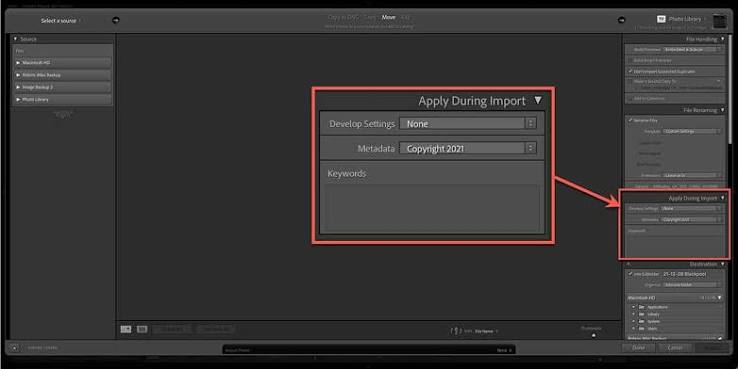
What is Lightroom copyright? How to use Lightroom legally and safely.
Lightroom is a familiar photo editing tool for photographers, content creators, and photography enthusiasts alike. However, besides its professional color correction, brightness adjustment, and image processing features, the issue of Lightroom's licensing is also a concern for many. Using licensed software not only allows you to fully utilize its features but also minimizes risks related to security, data, and legal issues. So, what is Lightroom licensing, what types of licenses are there, and how do you use the software correctly? Let's explore the details in the article below!
Content
- 1. What is Lightroom copyright?
- 2. Why should you use a licensed version of Lightroom?
- 3. Common types of Lightroom licenses currently available
- 4. How to check if Lightroom is licensed
- 5. Risks of using unlicensed Lightroom
- 6. Guide to purchasing and registering a genuine Lightroom license.
- 7. Some important notes when using Lightroom licenses.
- 8. Where is a reputable place to buy a Lightroom license?
- 9. Conclusion
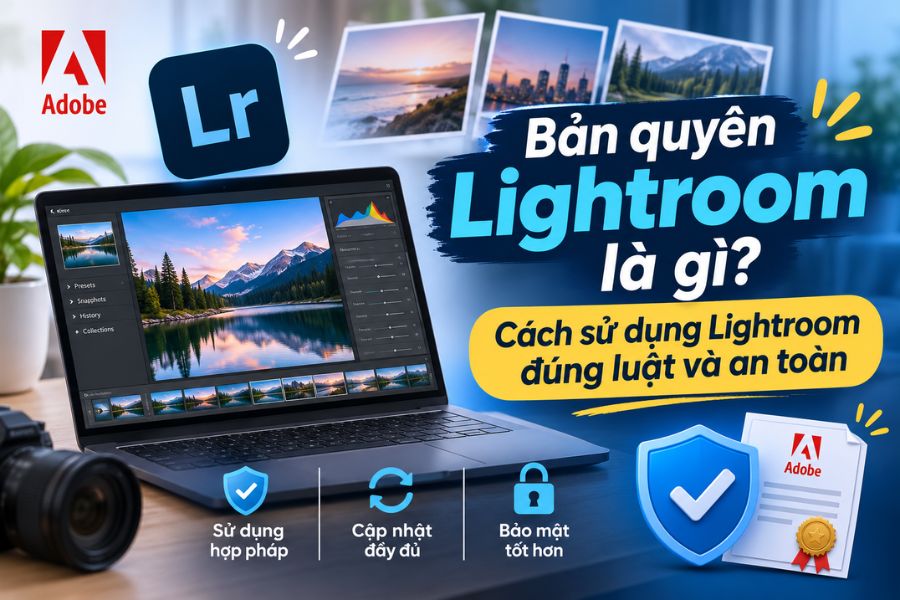
Lightroom is a familiar photo editing tool for photographers, content creators, and photography enthusiasts alike. However, besides its professional color correction, brightness adjustment, and image processing features, the issue of Lightroom's licensing is also a concern for many. Using licensed software not only allows you to fully utilize its features but also minimizes risks related to security, data, and legal issues. So, what is Lightroom licensing, what types of licenses are there, and how do you use the software correctly? Let's explore the details in the article below!
1. What is Lightroom copyright?
Lightroom licenses grant the right to use the photo editing software released by Adobe, subject to the terms and conditions set by the provider. When subscribing to a valid service package, users are granted access to the features corresponding to their chosen package for the duration of the subscription. This means you are purchasing the right to use the software, not ownership of the entire source code or distribution rights for Lightroom. Adobe manages licenses through Adobe ID accounts and an online authentication system. Depending on your subscription package, you can use Lightroom on computers, phones, or other supported devices.
Some of the benefits of using a licensed version of Lightroom include:
-
Use the software legally: You have been granted access in accordance with Adobe's terms of service.
-
New version updates: Receive feature updates, performance improvements, and bug fixes for the duration of your subscription.
-
Data synchronization: Supports synchronization of images, edits, and settings between compatible devices depending on the service plan.
-
Utilize the full features: Take advantage of the photo editing tools provided in your subscription plan.
-
Adobe support: Access to official support channels is available according to applicable policies.
2. Why should you use a licensed version of Lightroom?
Many people choose to download unofficial versions of Lightroom to save money. However, this can lead to numerous problems, especially when frequently editing photos for work. A legitimate, licensed account provides stability and peace of mind when handling important projects. Here are the reasons why you should prioritize using a licensed version of Lightroom:
-
Ensuring device security: Downloading software from official sources reduces the risk of encountering malware, viruses, or tracking programs that may be included in versions from unknown sources.
-
Avoid errors during editing: The official version is supported by Adobe with updates and bug fixes, resulting in a more stable workflow.
-
No worries about unexpected software suspension: You can use features within the validity period of your license without constantly having to reactivate them.
-
Embracing new technologies: Adobe regularly adds and improves its editing tools, including features that utilize artificial intelligence.
-
Protecting long-term workflows: Minimize interruptions while editing photos for clients, personal projects, or business activities.
3. Common types of Lightroom licenses currently available
Adobe offers Lightroom through various service packages to meet diverse needs. Depending on your equipment, storage capacity, and actual workflow, you can choose the right package instead of subscribing to services with many unnecessary features.
Lightroom
This version focuses on editing and managing images across multiple devices. The software supports cloud storage, making it more convenient for users to access and continue editing their photos.
Some highlights:
-
Adjust the color, lighting, and contrast.
-
Crop, rotate, and adjust the image layout.
-
Use presets to create your own color style.
-
Synchronize images across compatible devices.
-
Conveniently manage your photo library.
Lightroom Classic
Lightroom Classic is primarily designed for computer users, especially photographers who need to manage large numbers of images.
Notable features include:
-
Manage images using a catalog system.
-
Edit RAW images with a variety of advanced tools.
-
Categorize images by folder, keyword, and collection.
-
Supports batch processing to save time.
-
Integrating tools to support professional post-production workflows.
The Lightroom package is part of Creative Cloud.
In addition to the standalone Lightroom package, Adobe also offers Creative Cloud packages that include Lightroom or combine Lightroom Classic with other applications, depending on availability and region. This is a suitable option if you frequently work with multiple creative tools. Before subscribing, check the list of applications, storage capacity, and terms of use to avoid choosing the wrong package.

4. How to check if Lightroom is licensed
If you're using Lightroom but aren't sure if your account has a valid license, you should check the information directly on the Adobe system. This verification will help you know your subscription status, expiration date, and the services you're authorized to access. You can follow these steps:
Step 1: Access the Adobe website.
Open your browser and go to the official Adobe website at adobe.com. This is where you can find information about products, accounts, and subscription packages.
Step 2: Log in to your Adobe account
Choose to sign in and use the Adobe ID account you used to register for Lightroom. Make sure you're signing in with the correct email address, especially if you have multiple accounts.
Step 3: Open the account management section.
After logging in, access the account management section to view your personal information and the services you are currently using.
Step 4: Check your subscription plan.
Look for the Plans or Plans and Payment section to see if Lightroom is listed in the subscription packages. If it is, you can check your subscription status, expiration date, and payment information.
Step 5: Check directly on the application.
Open Lightroom on your computer, access your logged-in account, and check the activation status. If the application prompts you to log in or displays a license expiration message, cross-check the information on your Adobe account.
5. Risks of using unlicensed Lightroom
Unlicensed versions of Lightroom are often shared as modified software, with tampered activation mechanisms or accounts from unknown sources. While this may save on initial costs, these versions pose significant risks that users should not overlook. Some common risks include:
-
Risk of malware infection: Installation files from untrusted websites may contain viruses, spyware, or malware that steals information.
-
Not fully updated: Modified versions may not receive bug fixes and new features from Adobe.
-
Errors during use: The software may freeze, close unexpectedly, or encounter errors when processing large image files.
-
Loss of access: Unofficial activation tools may stop working after operating system or software updates.
-
Data risk: Important images, project files, and personal information could be compromised if the device experiences a security breach.
-
Violation of terms of use: Installing or using the software without authorization may lead to legal issues regarding copyright and software usage rights.
6. Guide to purchasing and registering a genuine Lightroom license.
Registering for a licensed copy of Lightroom isn't overly complicated. You can do it directly on the Adobe website or through an authorized provider. Below is the basic process if you want to purchase directly from Adobe.
Step 1: Access the Adobe website.
Open adobe.com and search for Lightroom in the product catalog. Here you can find information about features, service packages, and terms of use.
Step 2: Choose the appropriate package.
Consider your photo editing needs to choose Lightroom, Lightroom Classic, or the Creative Cloud package that includes this application. Don't forget to check storage capacity and included features.
Step 3: Log in or create an account
If you already have an Adobe ID, simply log in. If you don't have an account yet, register using your personal email address for easier license management later.
Step 4: Proceed with payment
Choose a payment method supported by Adobe in your region. Carefully check the subscription price, payment cycle, and renewal conditions before confirming.
Step 5: Download Lightroom to your device.
After completing the registration, you can download the application through Adobe Creative Cloud or the official installation source provided by Adobe.
Step 6: Log in and start using.
Open Lightroom, log in with the account you used to purchase the service, and wait for the application to verify your license. Once complete, you can start editing photos as needed.
7. Some important notes when using Lightroom licenses.
To avoid problems during use, you should pay attention to some principles related to accounts and software licenses. This is also a way to protect data and maintain a stable photo editing experience.
-
Do not share your account indiscriminately: Sharing login information can increase the risk of losing control of your account and violating Adobe's terms.
-
Use a personal email address: It's recommended to register using an email address you can access regularly to easily recover your account if needed.
-
Check your subscription expiration date: Monitor your billing cycle to avoid your service package expiring while you're working.
-
Download the software from official sources: Do not install Lightroom files shared on websites of unknown origin.
-
Back up your images regularly: Don't rely entirely on one device or storage location. Create copies of important images and projects.
-
Read the terms of use carefully: Each Adobe package may have its own regulations regarding devices, storage capacity, and access permissions. You should check them before subscribing.
8. Where is a reputable place to buy a Lightroom license?
If you want to use Lightroom long-term but are unfamiliar with the direct registration process on Adobe, you can look for reputable software service providers. However, you shouldn't choose based solely on advertised prices; you need to carefully check the origin of the license and the accompanying benefits. When choosing a provider, you should prioritize those with clear information, transparent support policies, and specific activation instructions. Some criteria to consider:
-
Source of license: The entity must clearly explain the type of Lightroom package being offered and the form of license granting.
-
Transparent pricing: Specific information is provided regarding the timeframe, costs, and any additional charges.
-
Dedicated support: We have a team to guide you through login, installation, and troubleshooting common issues.
-
Warranty policy: There are clear regulations regarding what to do if the account malfunctions or becomes inaccessible.
-
Convenient payment: Supports multiple payment methods and provides transaction confirmation.
You can also consider Sadesign's Lightroom upgrade service if you want to save time researching and receive support during the registration process. Before purchasing, be sure to discuss the service package, usage period, account management rights, and support policy clearly to ensure you choose the option that best suits your needs.
9. Conclusion
A proper Lightroom license is crucial for users to legally, stably, and securely utilize the photo editing software. Instead of using unofficial versions with many potential risks, you should prioritize subscribing to an official service package that suits your needs and budget. Hopefully, the information above has helped you better understand the different types of licenses, how to check them, and the process of registering a genuine Lightroom license. Choose wisely from the start to ensure a smooth and professional image creation process!





















VIP Products








Best Selling Products
Windows 10 & 11 Pro Key
36 USD
Freepik Premium Account
59 USD
Adobe Premiere Pro Account
99 USD
Copyright Adobe Lightroom Account
59 USD
MidJourney Account
29 USD
Autodesk All App Account Copyright
120 USD
Upgrade genuine Capture One account
120 USD
Plugin Retouch4me
69 USD
ChatGPT Plus Account (GPT-4)
16 USD
Upgrade Genuine Office 365
49 USD
Upgrade Duolingo Super
29 USD
Adobe Photoshop Copyright - Full App
120 USD
Genuine Cheap Canva Pro
39 USD
Genuine Adobe Illustrator account
99 USD
Capcut Pro 1 Year
39 USD