Best Selling Products

Autodesk All App Account Copyright
120 USD

Genuine Cheap Canva Pro
39 USD

Windows 10 & 11 Pro Key
36 USD

Genuine Adobe Illustrator account
99 USD

Upgrade genuine Capture One account
120 USD

Copyright Adobe Lightroom Account
59 USD

Plugin Retouch4me
69 USD

Freepik Premium Account
59 USD

Upgrade Duolingo Super
29 USD

Adobe Photoshop Copyright - Full App
120 USD

Capcut Pro 1 Year
39 USD

Adobe Premiere Pro Account
99 USD

Upgrade Genuine Office 365
49 USD

ChatGPT Plus Account (GPT-4)
16 USD

MidJourney Account
29 USD
10 Prompt AI-powered method to remove people from photos incredibly naturally, leaving no trace.
Nội dung
- 1. Prompt removes the person in the background.
- 2. Prompt to remove a specific person from the photo.
- 3. Prompt simultaneously removes both extra people and objects.
- 4. Prompt removes the entire crowd from the image.
- 5. Prompt removes people and restores a realistic background.
- 6. Tips for optimizing the prompt to naturally and realistically remove people from photos.
- 7. Some errors when using the prompt to delete people and how to fix them.
- 8. Which AI tool should I use to remove people from photos?
- 9. Conclusion
Have you ever regretted having a beautiful photo "ruined" by a stranger accidentally walking into the frame? Just a few people in the background can ruin the harmony of a photo, overshadowing the main subject and diminishing its inherent beauty. Instead of spending hours manually editing, you can completely rely on artificial intelligence (AI) to handle unwanted details. With the right commands, AI can identify people in the photo, remove them, and recreate the background as naturally as possible. In this article, let''s explore 10 easy-to-use AI prompts for removing people from photos, along with helpful tips to help you create beautiful pictures with minimal editing traces.

1. Prompt removes the person in the background.
When taking photos at popular tourist spots, parks, or crowded streets, it's inevitable that strangers will appear in the background. These details can sometimes make the photo look cluttered, especially when you want to focus all attention on the main subject. Instead of cropping out part of the frame, you can use AI to remove people in the background while maintaining the original composition. Here are some English prompts you can use:
-
Prompt 1: "Remove all people in the background while keeping the main subject unchanged." (Remove all people in the background while keeping the main subject unchanged.)
-
Prompt 2: "Erase the crowd of tourists behind the main subject and naturally reconstruct the background." (Remove the crowd of tourists behind and naturally reconstruct the background).
-
Prompt 3: "Clear the background of all human figures, preserving the original scenery, lighting, and perspective." (Remove the people in the background, preserving the original scenery, lighting, and perspective.)

2. Prompt to remove a specific person from the photo.
You don't always want to remove everyone from the frame. Sometimes, a photo is beautiful, but there's a stranger standing right next to, behind, or in the corner of the shot. In this case, use a prompt that precisely describes the location, clothing, or characteristics of the person to be removed so the AI doesn't mistakenly process other objects. You can combine the command with the action of selecting the person to be removed. Some easy-to-use prompt templates include:
-
Prompt 4: "Remove the man wearing a red jacket on the right side of the image." (Remove the man wearing the red jacket on the right side of the image.)
-
Prompt 5: "Erase the person wearing a black hat near the left edge of the frame, keeping everything else unchanged." (Remove the person wearing a black hat near the left edge of the frame and keep everything else unchanged.)
3. Prompt simultaneously removes both extra people and objects.
Sometimes, details that detract from a photo's aesthetics aren't just passersby; they can also include trash cans, motorbikes, road signs, or other objects scattered within the frame. Editing each detail individually would be time-consuming and laborious. Instead, leverage AI to process multiple objects simultaneously with a single command. When writing the prompt, clearly list the elements to be removed and instruct the system to maintain the overall composition and color scheme. Refer to the following examples:
-
Prompt 6: "Remove all people, trash cans, and unwanted objects from the background. Reconstruct the scene naturally." (Remove people, trash cans, and unwanted objects from the background, and reconstruct the scene naturally.)
-
Prompt 7: "Erase all pedestrians and parked vehicles from the street while preserving the original buildings and road details." (Remove all pedestrians and parked vehicles from the street, while preserving the original buildings and road details).
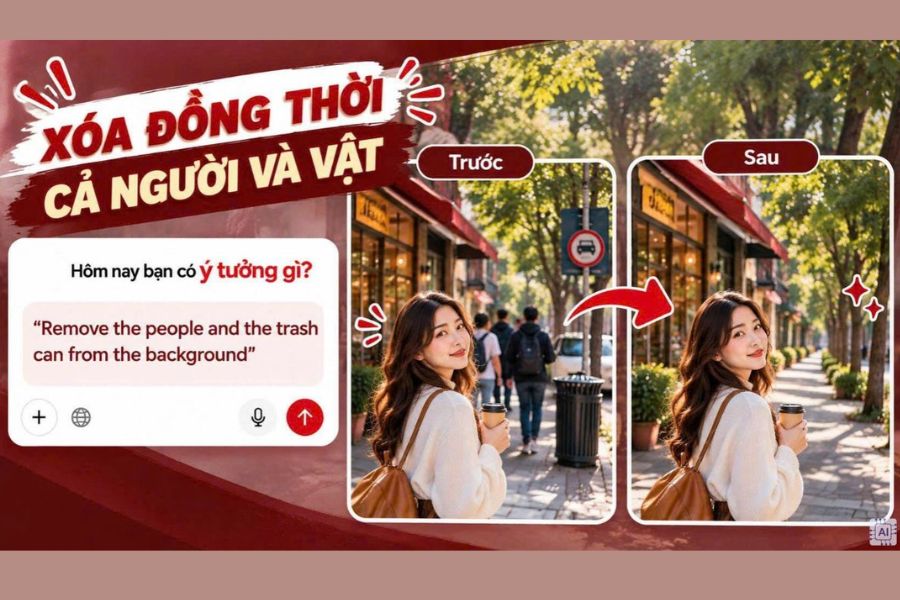
4. Prompt removes the entire crowd from the image.
Photos taken in squares, beaches, or tourist areas often feature large crowds. If you want to transform a crowded scene into a spacious, tranquil area, you can use a prompt to instruct the AI to remove the entire crowd. The key is to clearly describe the areas you want to keep so the tool can accurately recreate the obscured areas. To prevent the edited photo from looking empty or having strange backgrounds, you should ask the AI to restore the architecture, trees, and surrounding environmental details. Here are some commands you can try:
-
Prompt 8: "Remove everyone from the image except the main subject. Restore the background realistically." (Remove everyone except the main subject and restore the background realistically.)
-
Prompt 9: "Make the entire street completely empty of people while maintaining the original architecture and natural lighting." (Remove all people from the street, preserving the original architecture and natural lighting).
5. Prompt removes people and restores a realistic background.
One common problem when using AI to remove people is that the background after editing doesn't match the original photo. For example, the person being removed might be standing in front of a brick wall, but the recreated area might have a different color or pattern. This makes the editing easily noticeable, even though the extra person has completely disappeared. To fix this, you should ask the AI to recreate the background based on the existing texture, color, lighting, and shooting angle. Here's the 10th prompt you can use:
-
Prompt 10: "Remove the unwanted person and seamlessly reconstruct the hidden background. Match the original textures, shadows, colors, lighting, and perspective. Make the result look like an untouched original photograph."
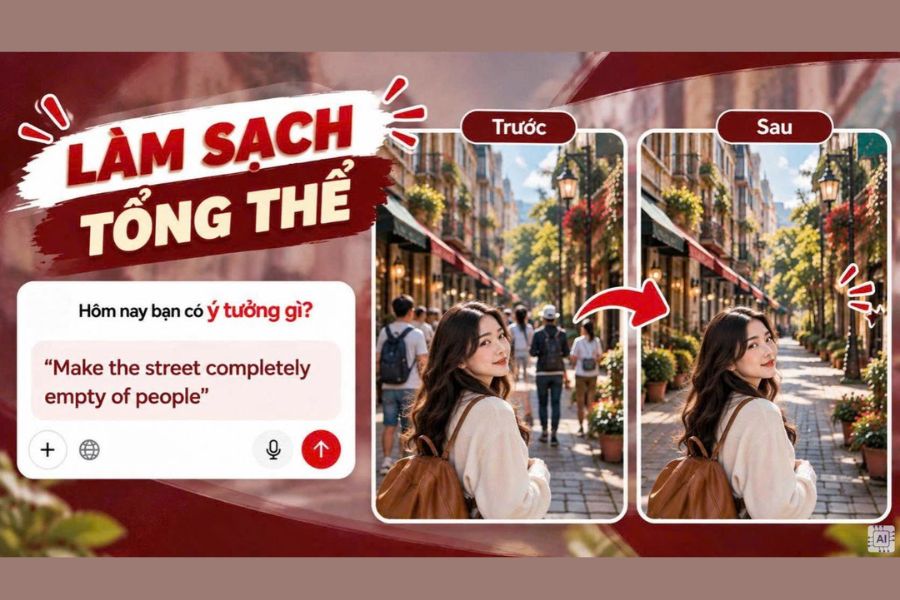
6. Tips for optimizing the prompt to naturally and realistically remove people from photos.
A good command doesn't simply tell the AI to remove an object; it also needs to instruct the tool on how to process the rest of the image. If the prompt is too short or lacks information, the result may show unusual details, blurred areas, or uneven colors. Therefore, you should add specific instructions so the AI understands your intentions correctly from the start. Here are some helpful tips to improve image quality after editing:
-
Prioritize English prompts: Many AI tools handle English commands well. You can use phrases like "Remove unwanted people," "Preserve original background," or "Seamless reconstruction."
-
Describe the background area that needs replacing: Don't just ask to remove people; clearly state how the AI needs to restore that area. For example: "Fill the removed area with natural green grass matching the surrounding lawn."
-
Precisely define the area: Use the Brush or Inpainting tool to paint over the person you want to remove. Avoid selecting too large an area, as this may affect surrounding details.
-
Requirement to keep the main subject unchanged: Add the command "Keep the main subject completely unchanged" to prevent the AI from arbitrarily editing the main character's face, clothing, or physique.
-
Check the lighting and shadows: Ask the AI to maintain the same light direction, contrast, and shadows so that the new background doesn't look out of place in the overall image.

7. Some errors when using the prompt to delete people and how to fix them.
Even with increasingly intelligent AI tools, the editing results sometimes still lack the desired realism. Errors such as distorted backgrounds, the appearance of foreign objects, or the main subject being deformed often stem from inaccurate targeting or incomplete commands. Instead of repeating the entire process, you can adjust the prompt and address the problematic area separately.
Here are two common mistakes and how to fix them that you should know:
Error 1: Background is distorted
-
Signs: The area that was just erased shows strange patches of color, curved lines, or patterns that don't match the surrounding scenery.
-
Reason: The AI lacks sufficient information to reconstruct the obscured background or the selection area is too large.
-
Solution: Reduce the selection area and add a description of the material and texture of the background. You can use the command "Restore the original brick wall texture and align the patterns naturally".
Error 2: The main subject was accidentally deleted or distorted.
-
Symptom: The main character loses parts of their clothing, face, or body details after editing.
-
Reason: The person to be erased is standing too close to the main subject, or the selected area overlaps.
-
Solution: Zoom in on the image, carefully select the area, and add the command "Remove only the selected person. Keep the main subject completely untouched".
8. Which AI tool should I use to remove people from photos?
Each AI photo editing tool has its own strengths, depending on the user's needs and level of editing. If you only need to remove a few people in the background, automatic object removal features are a quick and easy option. Conversely, for photos with many complex details or requiring meticulous background reconstruction, you should prioritize tools that support command-line editing for better control over the results. You can choose a tool based on the following criteria:
-
ChatGPT: Suitable for communicating in natural language, describing the person to be removed, and requesting specific details to be edited in an image. Editing capabilities depend on the features and account access permissions.
-
Adobe Firefly: Suitable for those who need to remove objects, restore backgrounds, and perform complex image editing.
-
Canva: Easy to use for beginners, especially when you want to combine character removal and image design for social media.
-
Google Photos: A convenient option for quickly editing photos taken with your phone.

9. Conclusion
With the help of artificial intelligence, removing people from photos has now become much simpler and more time-saving. Simply choose the right prompt, clearly describe the subject to be removed, and instruct the AI to restore the background, and you can significantly improve the quality of your image. Hopefully, these 10 AI-powered prompts for removing people from photos, along with the tips shared in this article, will help you easily create beautiful, harmonious, and natural-looking images. Try applying them now to transform those photos with unnecessary details into perfect moments as you wish!





















VIP Products








Best Selling Products
Autodesk All App Account Copyright
120 USD
Genuine Cheap Canva Pro
39 USD
Windows 10 & 11 Pro Key
36 USD
Genuine Adobe Illustrator account
99 USD
Upgrade genuine Capture One account
120 USD
Copyright Adobe Lightroom Account
59 USD
Plugin Retouch4me
69 USD
Freepik Premium Account
59 USD
Upgrade Duolingo Super
29 USD
Adobe Photoshop Copyright - Full App
120 USD
Capcut Pro 1 Year
39 USD
Adobe Premiere Pro Account
99 USD
Upgrade Genuine Office 365
49 USD
ChatGPT Plus Account (GPT-4)
16 USD
MidJourney Account
29 USD