Best Selling Products

Upgrade Duolingo Super
29 USD

Copyright Adobe Lightroom Account
59 USD

Genuine Adobe Illustrator account
99 USD

Capcut Pro 1 Year
39 USD

ChatGPT Plus Account (GPT-4)
16 USD

Genuine Cheap Canva Pro
39 USD

Adobe Photoshop Copyright - Full App
120 USD

Plugin Retouch4me
69 USD

Autodesk All App Account Copyright
120 USD

Upgrade genuine Capture One account
120 USD

Freepik Premium Account
59 USD

MidJourney Account
29 USD

Adobe Premiere Pro Account
99 USD

Upgrade Genuine Office 365
49 USD

Windows 10 & 11 Pro Key
36 USD
How to quickly and easily recover a deleted project in Canva.
Nội dung
- 1. Why is it important to know how to recover a deleted project in Canva?
- 2. How to recover a deleted project in Canva using a computer.
- Step 1: Access Canva and log in to your account.
- Step 2: Open the Trash folder in Canva
- Step 3: Find the deleted design
- Step 4: Select Restore
- Step 5: Check the project after restoration.
- 3. Instructions on how to recover a deleted project in Canva using your phone.
- Step 1: Open the Canva app on your phone.
- Step 2: Access the Project area
- Step 3: Identify the design that needs to be restored.
- Step 4: Click Restore to get the design back.
- Step 5: Reopen and check the design.
- 4. What to do if you can't find your project in the Canva Trash?
- 5. Important notes to avoid losing your design on Canva
- 6. Conclusion
Did you accidentally delete an important Canva design after hours of editing? Don''t worry or start over, because in many cases, you can still find the project through the Recycle Bin feature. Whether you''re using a computer or a phone, with the right steps, you''ll have a chance to recover posters, videos, presentations, or previously saved designs. This article from Sadesign will provide detailed instructions on how to recover deleted projects on Canva, and also share useful tips to help you manage and protect your creative work more effectively.
1. Why is it important to know how to recover a deleted project in Canva?
Canva is a widely used design tool for creating social media posts, advertising banners, CVs, presentation slides, and videos. Accidental deletion of projects can happen during library cleanup, when working too quickly, or when confusing files with similar names. Without knowing how to handle this, you could waste a lot of time rebuilding the layout, finding images, and editing every detail. Therefore, knowing how to recover a design will help you be more proactive when problems arise and minimize the impact on your work. Below are the practical benefits of knowing how to recover deleted projects in Canva:
-
Save time: No need to redesign completed content from scratch.
-
Retain creative ideas: You can utilize details from the old design for new projects.
-
Ensuring project timelines: Timely restoration helps minimize disruptions when delivering designs to clients.
-
Protecting important documents: Presentations, study materials, or promotional content can be recovered if they still meet the recovery criteria.
-
Manage your projects more effectively: Understanding how to use the Recycle Bin will give you confidence in organizing and cleaning up your design library.

2. How to recover a deleted project in Canva using a computer.
Step 1: Access Canva and log in to your account.
First, open your web browser on your computer and go to the Canva homepage at canva.com. Next, log in using your Google, Facebook, Apple account, or the method you used when creating your initial design. You should double-check your login information, especially if you use multiple Canva accounts for work and personal purposes. After successfully logging in, wait for the homepage to fully load before continuing to search for projects.
Step 2: Open the Trash folder in Canva
On the main interface, find the Projects area or navigation menu to access where you manage your designs. Next, find the Trash folder, which contains files that have been moved to the deletion area. Depending on your Canva version, the location of this folder may vary, so please observe the options on the screen. Once you open the Trash folder, you can check the list of deleted projects and find the file you want to retrieve.
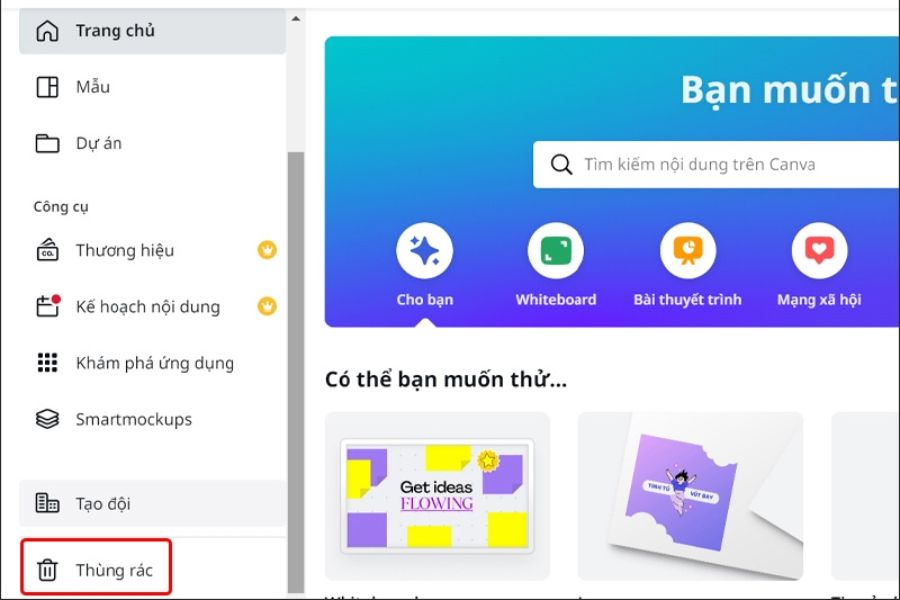
Step 3: Find the deleted design
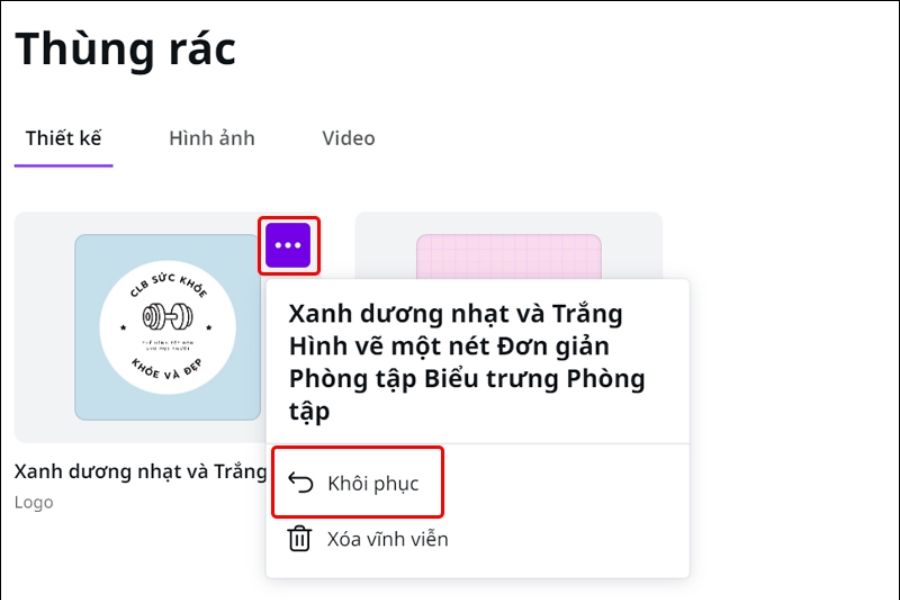
In the Recycle Bin, review the list to identify the correct project to restore. Pay attention to the file names, thumbnails, and displayed content, especially if there are many similar designs. If you can't find it immediately, double-check the list and confirm you're using the correct account. For projects within a collaborative team, also check the correct workspace to avoid missing any files.
Step 4: Select Restore
After locating the design, hover your mouse over the thumbnail or open the corresponding action menu. If a three-dot icon appears, click it to view management options. Next, select Restore if available. This will remove the design from the Recycle Bin and restore it to the appropriate storage location in your account. Before clicking, double-check the project name to avoid making a mistake.
Step 5: Check the project after restoration.
Once you've finished, return to the Projects section or the Canva homepage to find the restored design. You can use the search bar to locate it more quickly. Then, open the file and check the layout, images, text, and other important details to ensure the project displays as intended. If the design doesn't appear immediately, try refreshing the page or waiting for the system to update before proceeding with other actions.
3. Instructions on how to recover a deleted project in Canva using your phone.
Step 1: Open the Canva app on your phone.
First, open the Canva app on your phone and log in with the same account you used to create the design. If you have multiple accounts, check your login information to ensure you're accessing the correct project library. Once you're on the main screen, wait for the app to load the list of designs. If the screen is slow due to a network connection, switch to a more stable network before continuing.
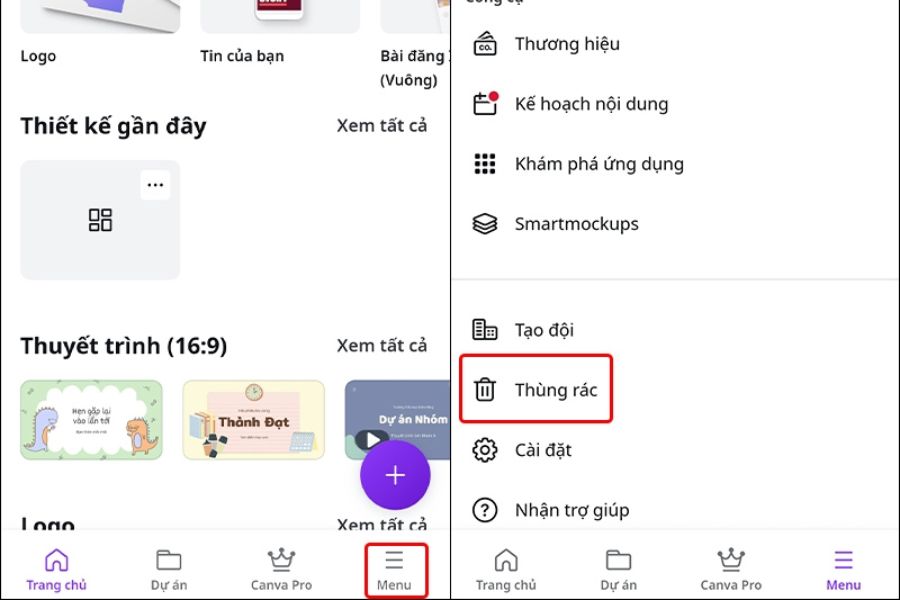
Step 2: Access the Project area
In the app interface, find the Projects section or the navigation menu to open the design management area. Observe the displayed options and look for the Trash option. Because the interface on a phone may differ from that on a computer, check the menu items if you don't see the Trash option immediately. Once you've accessed the correct area, you can begin searching for previously deleted designs.
Step 3: Identify the design that needs to be restored.
In the Recycle Bin list, find the project you want to retrieve by checking the file name and thumbnail. Because phone screens are smaller than computer screens, you should carefully read the displayed information to avoid confusion between designs with similar content. If you don't see the project, check your account or workspace again. You can also try accessing Canva using a computer browser for easier searching.
Step 4: Click Restore to get the design back.
Once you've correctly identified the project, click the three-dot icon or the file operation menu if it's displayed. Next, select Restore to return the design to the appropriate storage location. Carefully check the options before clicking, as the menu may contain other operations related to deleting or managing files. If you don't see the restore option, you should check the design's status in your computer's browser.
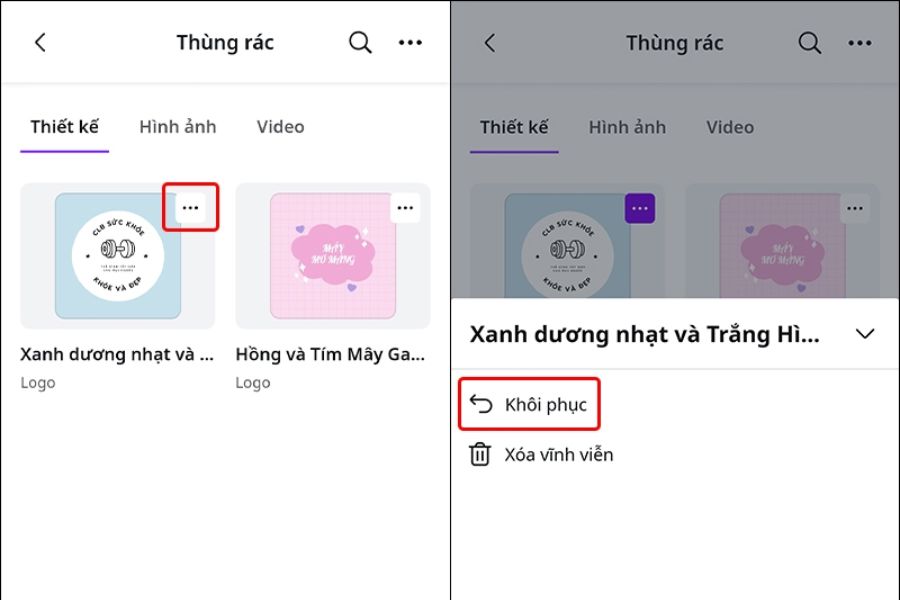
Step 5: Reopen and check the design.
After restoring, return to the Project area in the app to check if the file has reappeared. Open the design and review important content such as images, text, layout, and elements that need editing. If the project doesn't update immediately, you can refresh the interface or close and reopen the app. Once you've found the design, consider creating a backup copy to mitigate risks during subsequent edits.
4. What to do if you can't find your project in the Canva Trash?
In some cases, you might open the Recycle Bin but still not find the design you need to retrieve. This could be due to logging in with the wrong account, accessing the wrong workspace, or the project being permanently deleted. Instead of rushing to recreate it from scratch, you should check these common causes to determine if the design is still recoverable.
-
Verify your account: Log back in with the account you used to create the original project if you have multiple Canva accounts.
-
Searching the library: Use the search bar in the Project area to check if the file still exists outside of the Recycle Bin.
-
Verify the workspace: If the design belongs to a team, confirm you are accessing the correct space and have permissions to view the file.
-
Check the deletion status: If the file has been permanently deleted, the recovery option may no longer be available.
-
Contact Canva support: If an important project disappears unexpectedly, provide information about the design and when the issue occurred for guidance.
5. Important notes to avoid losing your design on Canva
Recovering a project after accidentally deleting it is a helpful solution, but proactively protecting your data is still better. If you frequently work with many designs, you should develop a habit of storing files systematically and carefully checking them before deleting them. The simple steps below will help you reduce the risk of data loss and save time when you need to retrieve documents.
-
Create a backup before making major edits: Keep the original version so you can revert to it if you're not happy with the new changes.
-
Give your designs clear names: Use memorable names, possibly including the creation date or version number to avoid confusion.
-
Organize by folder: Categorize projects into groups such as social media posts, videos, learning materials, or client designs.
-
Check carefully before deleting: Review the file name and thumbnail before proceeding to avoid accidentally deleting the wrong file.
-
Download the final version: Save the appropriate PNG, JPG, or PDF file to your computer or personal device.
-
Check save status: Make sure changes have been saved before closing the browser or switching to another device.
-
Take prompt action when you discover a lost file: Check the Recycle Bin as soon as you realize you've accidentally deleted it to avoid missing any chance of recovery.
6. Conclusion
Recovering deleted projects on Canva becomes easier when you know how to access the Recycle Bin, correctly identify the design, and select Restore on your computer or phone. If the file isn't found, check your login credentials, workspace, and deletion status before contacting Canva support. To minimize the risk of future data loss, you should create copies of important designs, organize your folders efficiently, and download final versions for separate storage. These small habits will help you manage projects more effectively, protect your creative work, and save time when working with Canva.





















VIP Products








Best Selling Products
Upgrade Duolingo Super
29 USD
Copyright Adobe Lightroom Account
59 USD
Genuine Adobe Illustrator account
99 USD
Capcut Pro 1 Year
39 USD
ChatGPT Plus Account (GPT-4)
16 USD
Genuine Cheap Canva Pro
39 USD
Adobe Photoshop Copyright - Full App
120 USD
Plugin Retouch4me
69 USD
Autodesk All App Account Copyright
120 USD
Upgrade genuine Capture One account
120 USD
Freepik Premium Account
59 USD
MidJourney Account
29 USD
Adobe Premiere Pro Account
99 USD
Upgrade Genuine Office 365
49 USD
Windows 10 & 11 Pro Key
36 USD