
Best Selling Products
Upgrade genuine Capture One account
120 USD

Upgrade Duolingo Super
29 USD
Genuine Cheap Canva Pro
39 USD

Capcut Pro 1 Year
39 USD
Adobe Photoshop Copyright - Full App
120 USD
Copyright Adobe Lightroom Account
59 USD
Plugin Retouch4me
69 USD
Upgrade Genuine Office 365
49 USD
Autodesk All App Account Copyright
120 USD

MidJourney Account
29 USD
Adobe Premiere Pro Account
99 USD

Freepik Premium Account
59 USD
Windows 10 & 11 Pro Key
36 USD

ChatGPT Plus Account (GPT-4)
16 USD
Genuine Adobe Illustrator account
99 USD
A simple guide to creating videos from photos and music using CapCut for beginners.
Nội dung
- 1. Why should you create videos from photos and music with CapCut?
- 2. Prepare images and music before editing.
- 3. Instructions on creating videos from photos and music using CapCut on your phone.
- 3.1. Step 1: Create a new video project
- 3.2. Step 2: Adjust the display duration of the image
- 3.3. Step 3: Add background music to the video
- 3.4. Step 4: Add transition effects between images
- 3.5. Step 5: Insert text and adjust image color
- 3.6. Step 6: Preview and export the video
- 4. How to create videos from photos and music using CapCut on a computer.
- 5. Tips for creating more beautiful and engaging videos from photos and music using CapCut
- 6. Conclusion
Want to turn your cherished photos into a lively video to post on TikTok, Facebook, or send to loved ones, but don''t know where to start? CapCut is an easy-to-use video editing tool that helps you combine multiple images, add background music, insert text, and create transition effects with just a few taps. No professional video editing skills are needed; you can still create a beautiful video right on your phone or computer. In this article, let''s explore with Sadesign how to make videos from photos and music with CapCut, step-by-step!

1. Why should you create videos from photos and music with CapCut?
Instead of posting individual photos, you can combine images with your favorite music to create a more emotionally resonant story. CapCut offers many convenient editing tools, suitable for both beginners and those who frequently create content on social media. Some notable advantages of using CapCut to create videos from photos include:
-
Simple operation: The intuitive interface makes it easy to add photos, arrange their order, and adjust their display duration.
-
Diverse music library: You can choose background music that matches the video's theme or import existing audio files.
-
Rich effects: Transition effects, color filters, and motion effects help make videos less monotonous.
-
Easily add text: Add titles, greetings, dates, or quotes to give your video a personal touch.
-
Versatile support: From travel videos, birthdays, and anniversaries to product introduction clips, CapCut can effectively meet basic needs.
2. Prepare images and music before editing.
Before opening CapCut, take some time to select your images and audio. This preparation, though simple, significantly impacts the final video quality. A consistent set of images, combined with suitable background music, will create a cohesive content and make a better impression on viewers. You should prepare the following elements:
-
Images: Select approximately 5 to 20 photos, depending on the desired video length. Prioritize clear, well-lit photos that are related to each other.
-
Background music: Choose a song with a melody that matches the emotion you want to convey, such as cheerful, gentle, or profound.
-
Text content: Prepare a title, greeting, or short descriptive sentences if you want the video to have more impact.
-
Aspect ratio: TikTok and Reels videos are typically suited to a 9:16 vertical aspect ratio, while videos displayed on widescreen monitors may use a 16:9 ratio.
-
Arrangement idea: Determine the order of the images beforehand so that the video has a clear beginning, main content section, and ending.
3. Instructions on creating videos from photos and music using CapCut on your phone.
CapCut on your phone is a convenient option for those who want to edit videos quickly. You can perform the entire process directly on your device without transferring images to a computer. Here are the specific steps.
3.1. Step 1: Create a new video project
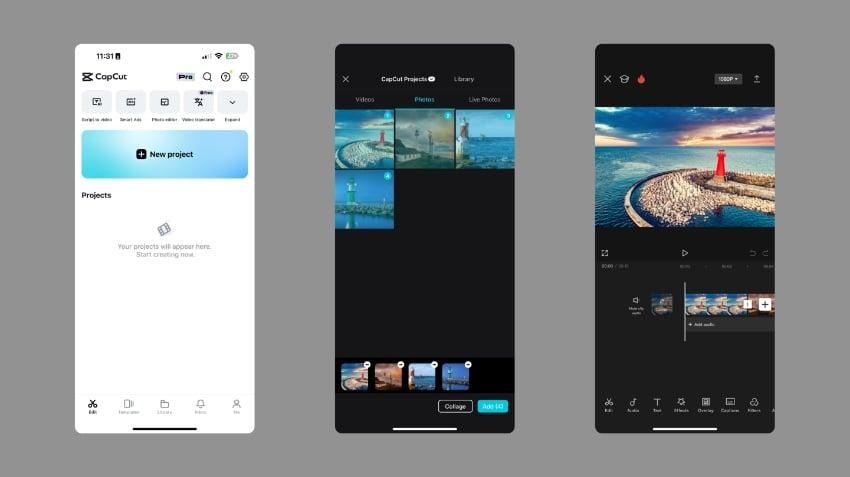
First, open the CapCut app on your phone. On the main screen, select "New project" to start creating your video. Next, grant access to your photo library if the app requests it and select the images you want to use. Once you've selected them, press the "Add" button to bring all the images into the editing area. The images will appear in the order you selected and will be displayed on your timeline.
Here are some things to keep in mind when performing this step:
-
Choose photos in the order you want to tell the story.
-
Avoid using too many images with similar content.
-
Check if the image is rotated incorrectly or if important details are missing.
-
To change the order, press and hold the photos on the timeline and drag them to the desired position.
3.2. Step 2: Adjust the display duration of the image
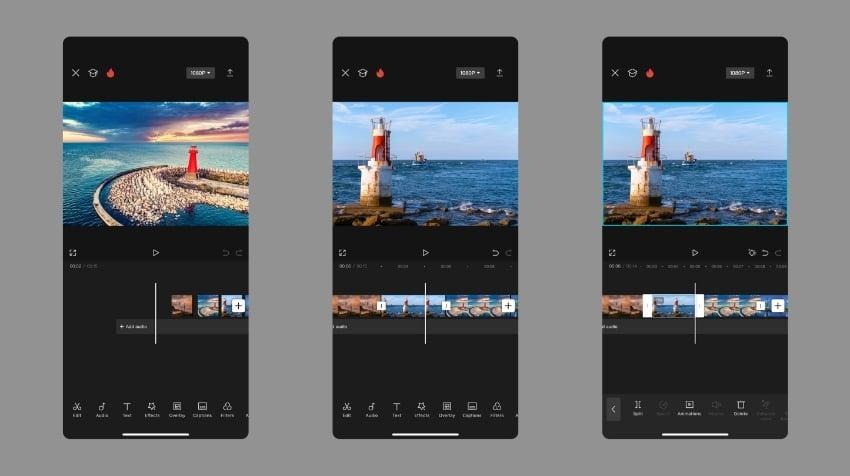
After adding photos, you need to adjust the display time of each image to create a natural rhythm in the video. Typically, each image can be displayed for about 2 to 4 seconds, depending on the content and the speed of the background music. To edit, tap on the image on the timeline and then drag the two edges of the image segment to change the duration. Images with more detail can be displayed longer, while simple transition images only need to appear for a short time.
You can try some of the following tips:
-
Keep the image longer if you want viewers to read the content or observe the details.
-
Shorten the duration with photos that have similar compositions.
-
Balance the total video length with the background music.
-
Preview the video after editing to avoid the feeling that the image changes too slowly or too quickly.
3.3. Step 3: Add background music to the video
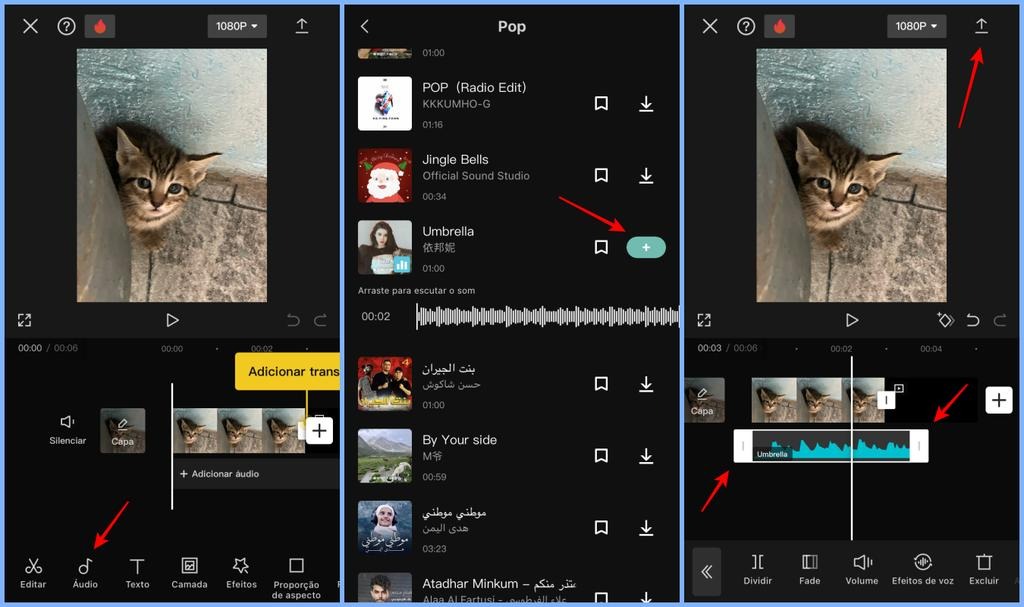
This step helps make the video more emotional and engaging. On the toolbar, select the Audio option, then find the section to add music or pre-existing sound. Depending on the application version, you can choose a song from the provided library or import an audio file from your device. After adding music, an audio clip will appear below the images on the timeline. You can drag the music clip to adjust the starting point, cut out unnecessary parts of the audio, and adjust the volume as needed.
To make the video sound more natural, please note:
-
Choose music with a rhythm that matches the content of the images.
-
Time the image transitions to match the rhythm of the music if you want to create a professional feel.
-
Adjust the volume so the music isn't too loud or unpleasant.
-
Use the volume increase or decrease effect at the beginning and end if your version of CapCut supports it.
-
Verify music usage rights before posting videos publicly or using them for commercial purposes.
3.4. Step 4: Add transition effects between images
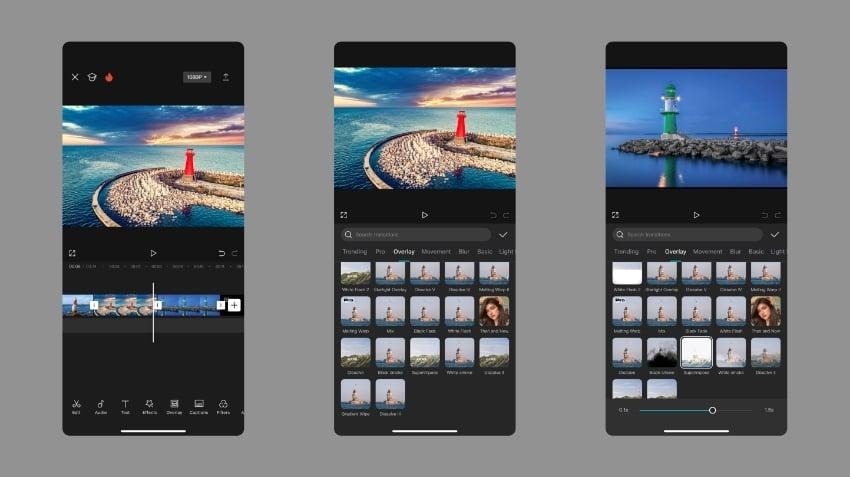
If the images appear consecutively without transitions, the video can look rather stiff. To fix this, tap the transition icon located between the two image segments on the timeline. Then, select a suitable effect and adjust the duration as desired. CapCut offers many different transition styles, from blurring, zooming in, and zooming out to eye-catching motion effects. However, you shouldn't use too many styles in the same video as it can distract viewers from the main content.
Here are some tips to help your video look more harmonious:
-
Use a blur effect for commemorative videos or family photos.
-
Choose fast transitions for fashion, travel, or fast-paced content videos.
-
Prioritize a few consistent effects rather than constantly changing them.
-
Keep the transition duration to a reasonable level so as not to disrupt the video's rhythm.
3.5. Step 5: Insert text and adjust image color
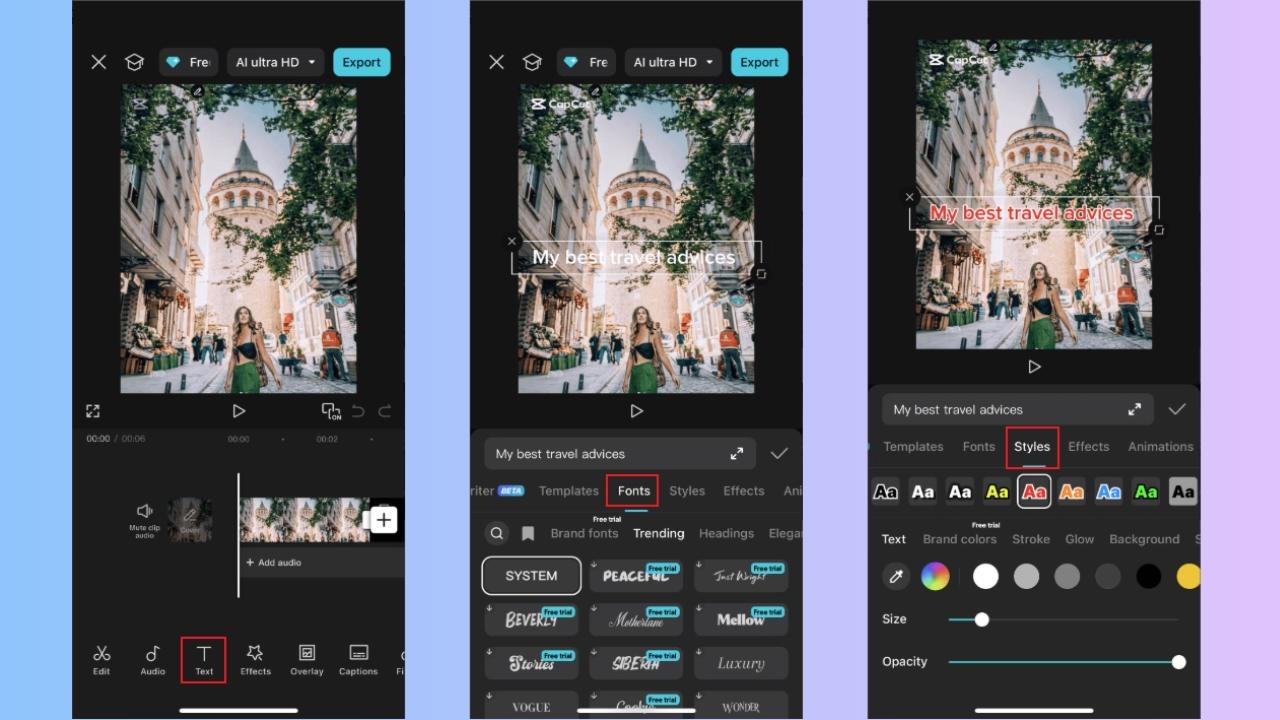
To give your video a unique touch, you can add a title, greetings, or short captions. Select the Text option, create a new text layer, and then enter the content you want to display. Next, adjust the font, size, color, and position for easy readability. You can also use color filters to unify the visual style. For example, warm tones are suitable for celebratory videos, while bright colors can create a youthful feel for travel videos.
When editing, please note:
-
Write concise sentences, avoiding cramming too much text into a single image.
-
Position the text so that it doesn't obscure the main subject.
-
Use text colors that have good contrast with the background image.
-
Adjust the colors moderately so that the photo still retains a natural look.
-
Check the text's display time to ensure viewers have enough time to read it.
3.6. Step 6: Preview and export the video
Once you've finished merging the photos, adding music, and adjusting the effects, play the video from beginning to end to check the overall quality. This is a crucial step to help you spot minor errors before saving the final product. Check the following elements:
-
Do the images appear in the correct order?
-
Is the background music out of sync, abruptly cut off, or too loud?
-
Is the text obscured or appearing too quickly?
-
Are the transition effects appropriate for the content?
-
Does the video have a natural beginning and ending?
Next, tap Export in the upper right corner. You can choose the resolution and frame rate according to your needs. For typical photo videos, 1080p resolution is a suitable choice in many cases. Finally, wait for the application to process and save the video to your device.
4. How to create videos from photos and music using CapCut on a computer.
If you frequently edit many photos or want to view the timeline on a larger screen, you can use the desktop version of CapCut. The basic process is similar to the phone version, but drag-and-drop functionality and content management can be more convenient. The steps are as follows:
-
Step 1: Open CapCut on your computer, create a new project, and set the appropriate aspect ratio.
-
Step 2: Select the file import feature (Import), then upload the images and music files you want to use in your project.
-
Step 3: Drag the photos down the timeline, arrange them in order, and adjust the duration of each photo.
-
Step 4: Add music to a separate audio timeline, then align the start and end points.
-
Step 5: Add transition effects, text, and color filters if needed.
-
Step 6: Play back the video, check the audio, and select output parameters before saving.
The advantage of the desktop version is that you can view multiple video and audio clips simultaneously. This is especially useful when creating long videos, product introductions, or content that requires precise timing to match the music. Depending on the version of CapCut, the names and locations of some tools may vary. If you can't find the desired function, check the toolbar or update the application to the appropriate version.
5. Tips for creating more beautiful and engaging videos from photos and music using CapCut
Knowing how to combine photos and music is just the beginning. To make a video truly engaging, you need to pay attention to rhythm, composition, and how you convey the content. A well-produced video will provide a better experience without needing too many complicated effects. Here are some tips you can apply right away:
-
A captivating opening: Place the most striking image at the beginning of the video or add a short headline to pique curiosity.
-
Choose music that matches the mood: Anniversary videos are well-suited to soft, gentle music, while fashion videos can use faster-paced music.
-
Add motion to still images: If your version of CapCut supports it, try subtle zoom-in or zoom-out effects to make the image less monotonous.
-
Synchronize images with the music: Shifting images to highlight key musical passages helps create a more rhythmic and engaging video.
-
Maintain a consistent style: Avoid mixing too many different fonts, colors, and effects.
-
Optimize video aspect ratio: Choose the correct frame rate for the upload platform to minimize blank spaces or cropped video segments.
-
Respect copyright: Prioritize images you own and audio you are permitted to use, especially when the video is for business purposes.
6. Conclusion
Creating videos from photos and music with CapCut isn't too complicated if you understand the basics, such as creating a project, adding images, inserting audio, adjusting effects, and exporting the video. With just a favorite set of photos and a suitable song, you can create a video to preserve memories, share memorable moments, or build content for social media. Start with a short video, focusing on beautiful images and natural transitions before trying more advanced techniques. Once you're familiar with CapCut's tools, you'll easily create many different video styles, transforming static photos into lively stories with your own unique touch.












VIP Products


Best Selling Products
Upgrade genuine Capture One account
120 USD
Upgrade Duolingo Super
29 USD
Genuine Cheap Canva Pro
39 USD
Capcut Pro 1 Year
39 USD
Adobe Photoshop Copyright - Full App
120 USD
Copyright Adobe Lightroom Account
59 USD
Plugin Retouch4me
69 USD
Upgrade Genuine Office 365
49 USD
Autodesk All App Account Copyright
120 USD
MidJourney Account
29 USD
Adobe Premiere Pro Account
99 USD
Freepik Premium Account
59 USD
Windows 10 & 11 Pro Key
36 USD
ChatGPT Plus Account (GPT-4)
16 USD
Genuine Adobe Illustrator account
99 USD