Best Selling Products
Genuine Cheap Canva Pro
39 USD
Upgrade Duolingo Super
29 USD
Autodesk All App Account Copyright
120 USD
Copyright Adobe Lightroom Account
59 USD
Plugin Retouch4me
69 USD
Upgrade genuine Capture One account
120 USD

ChatGPT Plus Account (GPT-4)
16 USD
Adobe Photoshop Copyright - Full App
120 USD
Genuine Adobe Illustrator account
99 USD
Windows 10 & 11 Pro Key
36 USD
Capcut Pro 1 Year
39 USD
Adobe Premiere Pro Account
99 USD

MidJourney Account
29 USD
Freepik Premium Account
59 USD
Upgrade Genuine Office 365
49 USD
How to easily convert mind maps and infographics into animated images in Canva
Nội dung
- 1. The benefits of converting mind maps and infographics into animated images.
- 2. How to convert mind maps and infographics into animated images in Canva
- Step 1: Upload images to Canva
- Step 2: Open the image editor.
- Step 3: Separate the layer and open the motion tool.
- Step 4: Add motion effects
- 3. How to download and share animated images after designing them in Canva
- 4. Notes on converting mind maps and infographics into animated images in Canva
- 5. Reliable and affordable Canva Pro upgrade service at Sadesign
- 6. Conclusion
Mind maps and infographics are designed to convey information visually, but adding animation makes the content much more lively and engaging. Instead of using monotonous static images, you can transform each branch of the diagram, icon, or prominent piece of information into eye-catching moving details right in Canva. The process is quite simple and doesn''t require professional design skills. Let''s explore how to convert mind maps and infographics into animated images in Canva in 4 steps below!
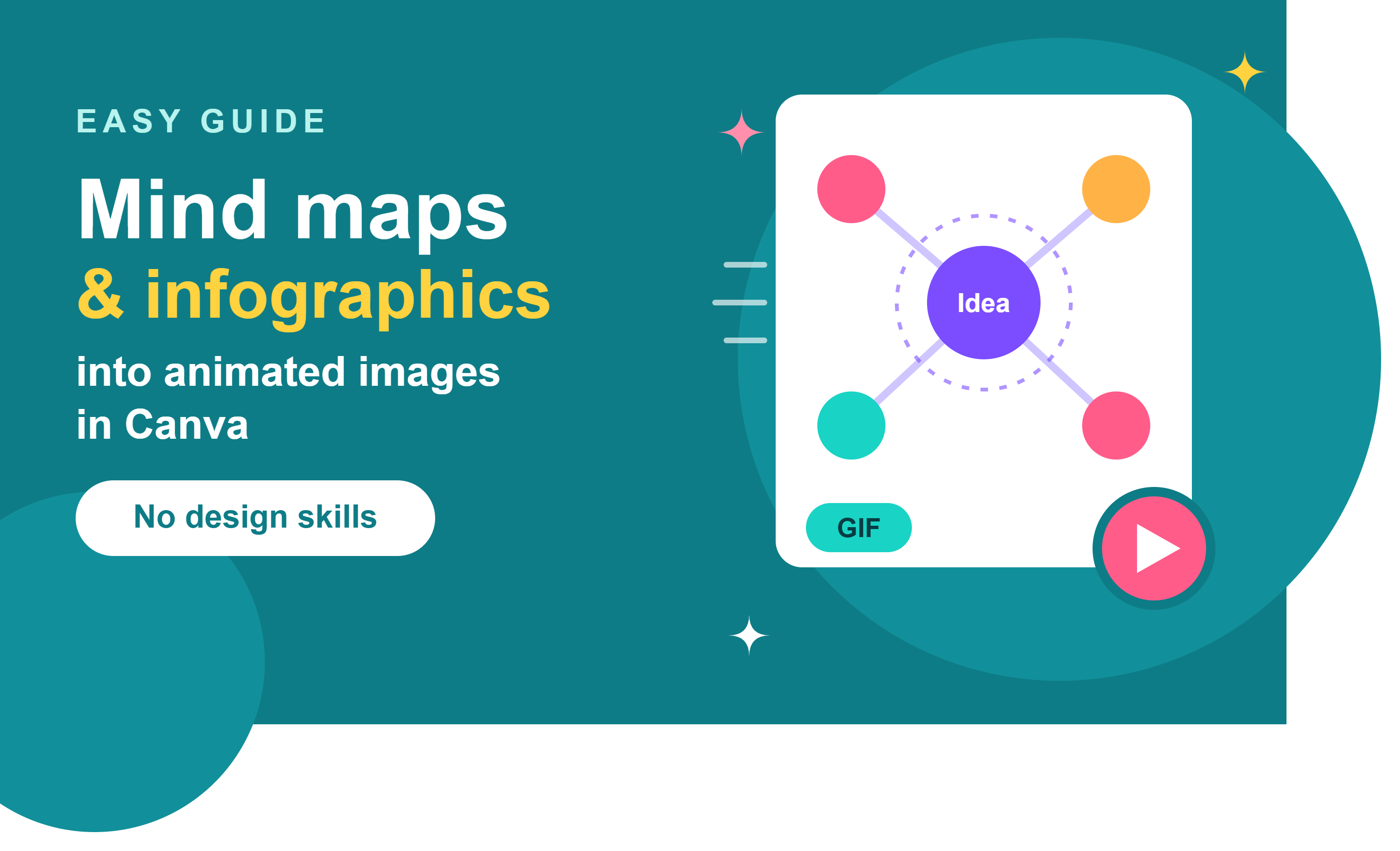
1. The benefits of converting mind maps and infographics into animated images.
Adding animation effects not only makes images more visually appealing but also offers many benefits for learning, teaching, and content creation. Instead of having all the information appear at once, you can highlight each section, making it easier for viewers to follow and remember the important points.
-
Make lectures and presentations more engaging: Motion effects create a fresh feel and reduce boredom when presenting a lot of information.
-
Capture the viewer's attention: Details that appear through special effects will draw the viewer's attention more to the prominent content.
-
Present information clearly: You can highlight each branch of the mind map or each section of the infographic, making the content more coherent.
-
Enhanced memory: The combination of images and movement makes key points easier to identify and remember.
-
Save design time: Canva provides ready-made tools and effects, allowing you to create animated images without using complex animation software.

2. How to convert mind maps and infographics into animated images in Canva
Canva supports many tools for editing and creating animation effects for images. In particular, the Magic Layer Separation feature can help separate elements in an image for individual customization when available. Thanks to this, a familiar mind map or infographic can be transformed into a dynamic animated image with just a few clicks.
Step 1: Upload images to Canva
First, you need to prepare the mind map or infographic you want to turn into an animation. Prioritize images with good resolution, clear text, and an easy-to-read layout for easier processing by Canva. Then, access Canva and open the Magic Layer Separation tool on the interface if your account supports it. Next, upload images from your computer or select images from your library. Once complete, wait for Canva to process them before moving on to the next editing step.
If you don't have suitable images yet, you can design a mind map or infographic first using the templates available on Canva. A clean layout will make creating animation effects in later steps easier.
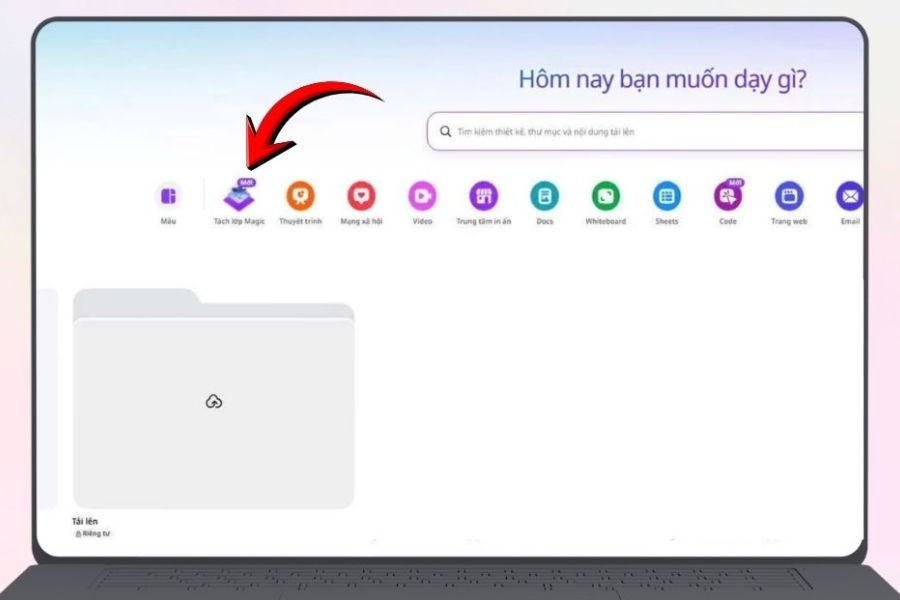
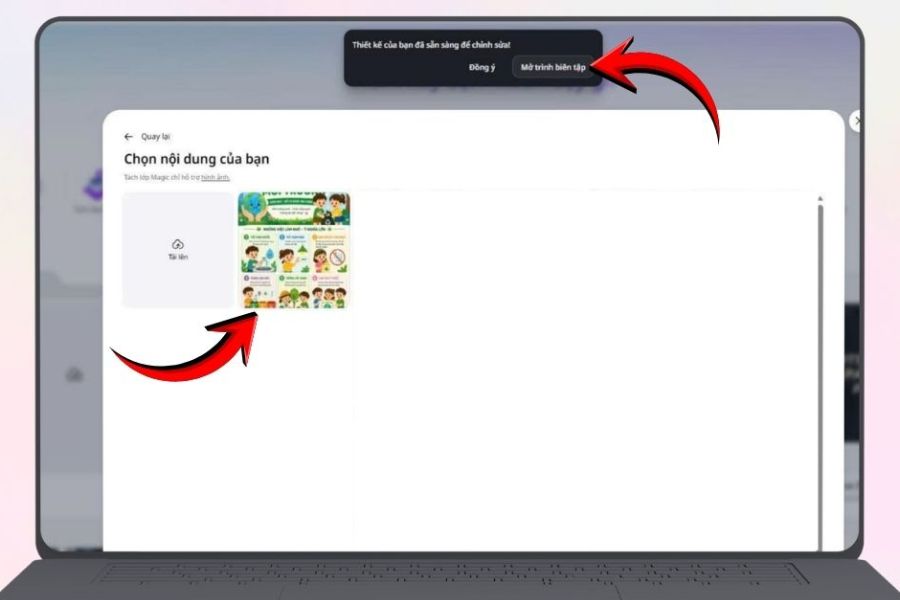
Step 2: Open the image editor.
After uploading the image, Canva will display an interface or options for you to continue editing. At this point, click " Open Editor" if the option appears to bring the image into the workspace. Once the image is open, you should check the layout, size, and clarity of the details. This is also a good time to adjust any unbalanced parts, avoiding situations where the text is too small or the diagram branches are too close together, making the image difficult to follow.
Make sure all the important content is fully displayed before moving on to the next step. If the image has a lot of detail, you should determine beforehand which parts need to be highlighted to make the editing process faster and more efficient.
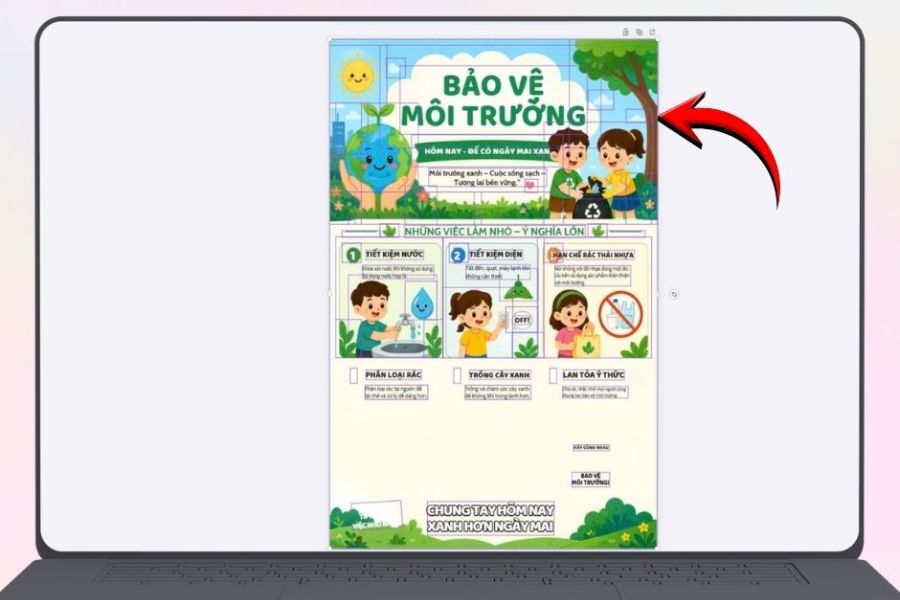
Step 3: Separate the layer and open the motion tool.
In its editing interface, Canva can separate image elements into distinct layers using the Magic Layer Separation feature. This allows you to customize each object individually instead of applying the effect to the entire mind map or infographic. However, the results of layer separation depend on the quality and structure of the original image.
After reviewing the elements, click on the Motion option in the upper right corner of the screen to open the effects library. Depending on the Canva interface, the location or name of the tool may vary slightly. This step helps you transform static images into more dynamic content. If you want to create a sense of information being gradually explored, you can prioritize subtle effects for diagram branches, icons, or content that needs emphasis.
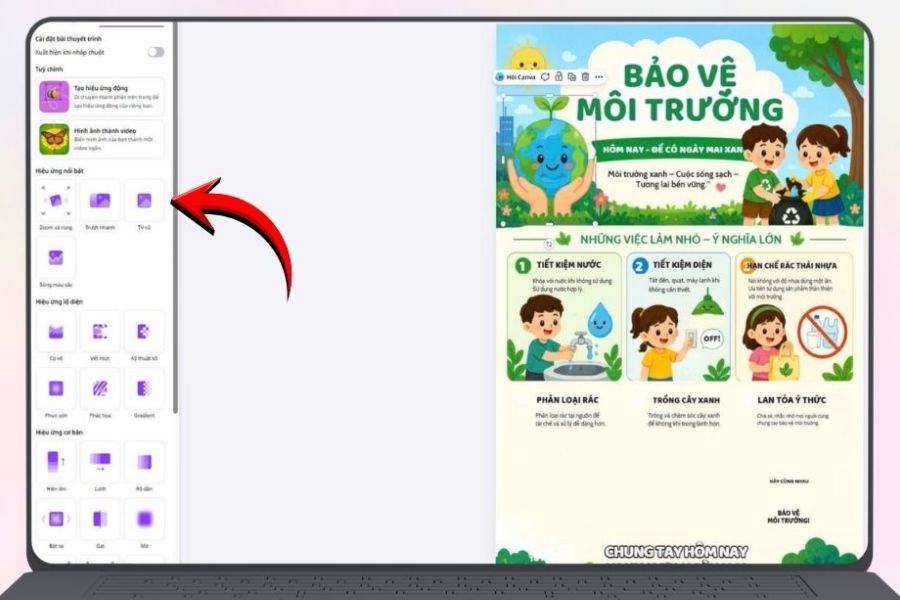
Step 4: Add motion effects
After opening the Motion section , you'll see effects that can be applied to the selected design or object. Try each effect and preview the result to find the motion style that best suits your content. Canva allows you to apply effects in many ways depending on the type of design and object. You can create motion for the entire image or select individual elements if they have been successfully separated into layers.
To ensure the final image is visually appealing and easy to follow, please note the following:
-
Choose appropriate effects: Prioritize gentle animation for mind maps and lectures; use more prominent effects for headings or important data.
-
Create a deliberate focal point: You don't need to make every detail move. Focus on the parts you want the viewer to notice most.
-
Organize the content logically: If possible, adjust the order of presentation, starting with the main topic and then sub-topics to make it easier for viewers to grasp the information.
-
Preview the final product: Check the text, icons, and layout to ensure the effect doesn't clutter the content.
Additionally, some advanced options such as speed or intensity may depend on the effect and account package being used. Once complete, you can download the design in GIF or MP4 format, if these options are supported. GIF is suitable for short animations, while MP4 is more suitable for presentation videos or social media content.
3. How to download and share animated images after designing them in Canva
After completing the animation effects, you can download the mind map or infographic to your computer for use in lectures, presentations, or posting on social media. Canva supports many file export formats, giving you flexibility to choose according to your needs.
The steps are quite simple:
-
Step 1: Click the Share button in the upper right corner of the Canva interface.
-
Step 2: Select Download to open the file export options.
-
Step 3: Choose GIF format if you want to save it as an animated image, or MP4 if you want to use it as a video.
-
Step 4: Adjust the available settings if needed, then press Download to save the file to your device.
After downloading, open the file to check the animation effects, text clarity, and how details appear. If using infographics in presentations, prioritize formatting that is compatible with the presentation software. For content posted on TikTok, Facebook, or Instagram, check the aspect ratio to ensure the images display well on each platform. Additionally, you can share your design directly from Canva via a link if you want others to view or edit it. This is especially useful when working in teams, preparing lectures, or creating content with colleagues.
4. Notes on converting mind maps and infographics into animated images in Canva
To make animated images both visually appealing and effective in conveying information, you should pay attention to the choice of effects and content arrangement. A design with too much movement can sometimes distract viewers instead of helping them remember the important information.
-
Avoid overusing effects: Only add movement to necessary details to maintain a clear composition.
-
Prioritize high-quality images: Sharp images make details easier to identify and aid in the editing process.
-
Check the layout after layer separation: Ensure that text, icons, and lines are not misaligned or obscured.
-
Choose the appropriate format: Use GIF for short animated images or MP4 if you need to present it as a video.
-
Check account features: Some layer separation tools and advanced options may not be available with all Canva accounts.
5. Reliable and affordable Canva Pro upgrade service at Sadesign
If you frequently design mind maps, infographics, or media content, Canva Pro will give you access to more resources and tools to support your creative work. Choosing a reputable upgrade provider is also crucial for a convenient experience and to avoid unwanted problems. Sadesign is a place you can consider when you need to upgrade Canva Pro. Their service focuses on convenience with affordable prices and customer support throughout the usage process. Therefore, you can find an upgrade package that suits your personal design, study, or work needs. When choosing to upgrade Canva Pro at Sadesign, you should carefully review the service package information, usage period, and support policy before making a payment. Some benefits you might be interested in include:
-
Reasonable cost: Easy to find options that fit your budget.
-
Dedicated support: You can contact us for guidance or to answer any questions.
-
Convenient to use: Continue to create designs to support learning and work.
6. Conclusion
In just four simple steps, you can transform your mind map or infographic into a more dynamic animated image right in Canva. From uploading images and opening the editor to separating layers and selecting effects, each step contributes to making the content more visual, easy to understand, and engaging. Try applying this method to lectures, presentations, or social media content to create impressive designs without spending too much time.









VIP Products

Best Selling Products
Genuine Cheap Canva Pro
39 USD
Upgrade Duolingo Super
29 USD
Autodesk All App Account Copyright
120 USD
Copyright Adobe Lightroom Account
59 USD
Plugin Retouch4me
69 USD
Upgrade genuine Capture One account
120 USD
ChatGPT Plus Account (GPT-4)
16 USD
Adobe Photoshop Copyright - Full App
120 USD
Genuine Adobe Illustrator account
99 USD
Windows 10 & 11 Pro Key
36 USD
Capcut Pro 1 Year
39 USD
Adobe Premiere Pro Account
99 USD
MidJourney Account
29 USD
Freepik Premium Account
59 USD
Upgrade Genuine Office 365
49 USD