Best Selling Products

Capcut Pro 1 Year
39 USD

ChatGPT Plus Account (GPT-4)
16 USD

Upgrade genuine Capture One account
120 USD

Adobe Premiere Pro Account
99 USD

Freepik Premium Account
59 USD

Genuine Cheap Canva Pro
39 USD

Upgrade Duolingo Super
29 USD

Adobe Photoshop Copyright - Full App
120 USD

Plugin Retouch4me
69 USD

MidJourney Account
29 USD

Genuine Adobe Illustrator account
99 USD

Copyright Adobe Lightroom Account
59 USD

Autodesk All App Account Copyright
120 USD

Upgrade Genuine Office 365
49 USD

Windows 10 & 11 Pro Key
36 USD
A very simple guide to asking ChatGPT questions with images, perfect for beginners.
Nội dung
- 1. What is ChatGPT using images?
- 2. Instructions on how to send ChatGPT messages using images on a computer.
- 3. Instructions on how to ask ChatGPT questions using images on your phone.
- 4. Prompting ChatGPT using images yields accurate results.
- 5. Image-based ChatGPT question limits for each account package.
- 6. Tips for asking ChatGPT questions more effectively using images.
- 7. Common mistakes when asking ChatGPT questions using images
- 8. Conclusion
Do you want to know what an item in an image is, read the content from a picture, or have AI explain a chart or document? Instead of describing everything in text, you can now directly send images and ask questions to ChatGPT. The image analysis feature helps users access information quickly, saving time and making many tasks more convenient. If you don''t know where to start, let''s explore how to ask ChatGPT questions using images on your computer and phone with the detailed instructions below!
1. What is ChatGPT using images?
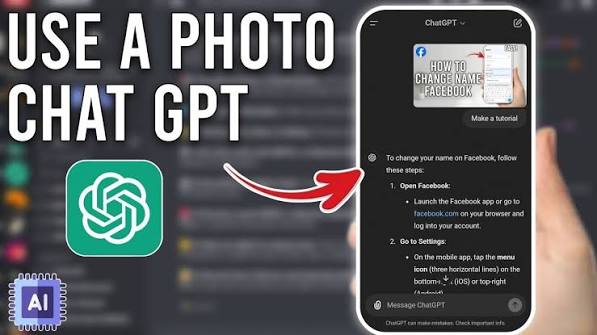
Asking ChatGPT questions using images is a method that uses images as input data for AI to analyze and answer user requests. Instead of typing in the entire content you want to know, you simply upload an image to the chat window and then ask a related question. ChatGPT can recognize visual details, read text, explain information, and support processing various types of content. For example, when you come across a recipe in an image, you can send the image to ChatGPT to ask for an explanation of how to make it. If you are studying, you can also take a picture of your homework and ask the AI to guide you through the solution step by step.
Some tasks that can be performed using this feature include:
-
Image recognition: Learn the name, characteristics, and uses of objects in an image.
-
Text extraction: Read content from photos of documents, invoices, or notes.
-
Explain the chart: Analyze the data, statistics, and visual information.
-
Learning support: Explain the exercises, formulas, or concepts that appear in the image.
-
Design analysis: Comment on the layout, colors, and details in the image.
2. Instructions on how to send ChatGPT messages using images on a computer.
On your computer, you can upload images directly from your storage folder without installing any additional software. With just a few simple steps, ChatGPT will receive the images and respond according to your request.
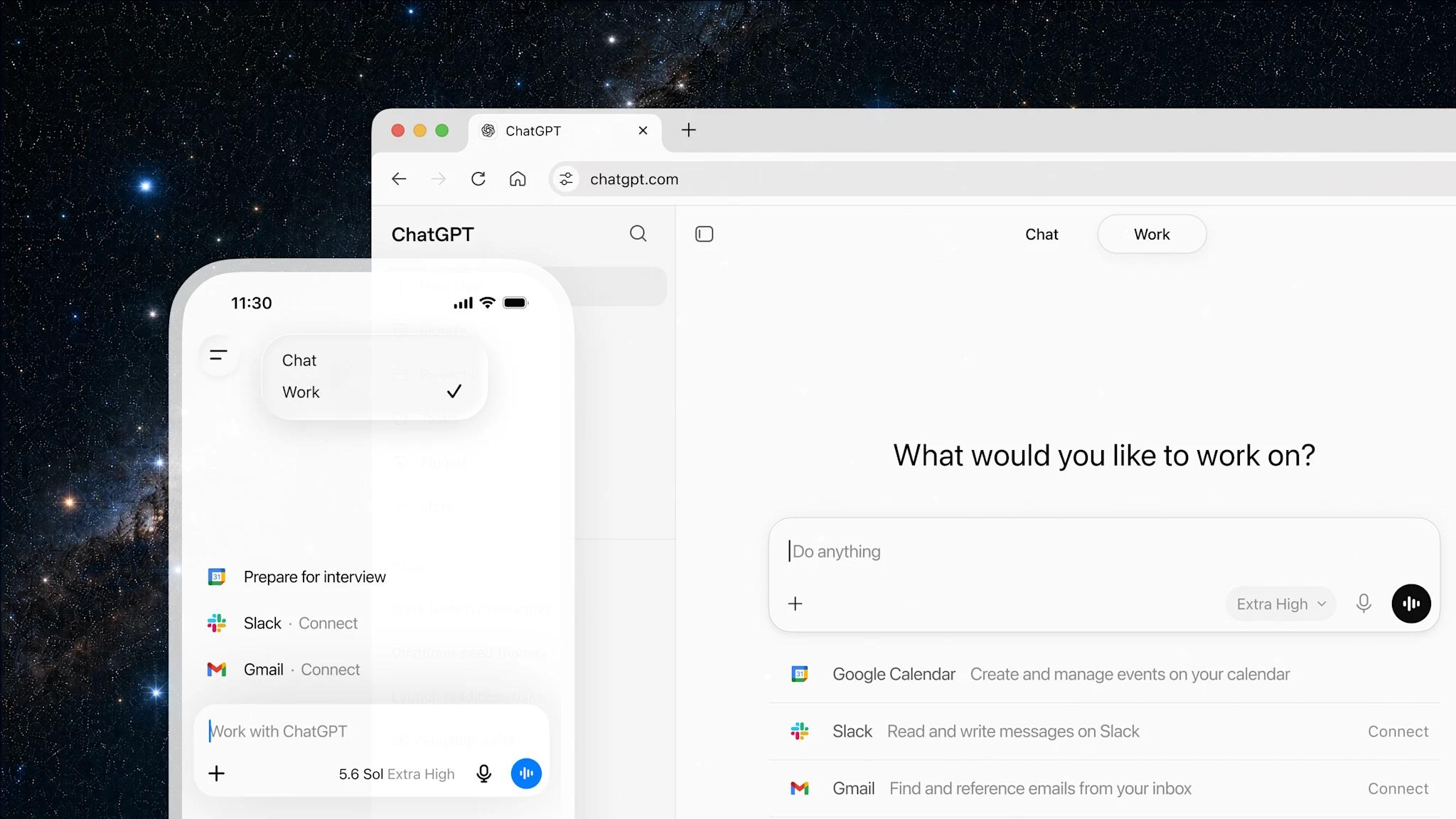
Step 1: Open a web browser on your computer, access the ChatGPT homepage at chatgpt.com, and log in to your personal account.
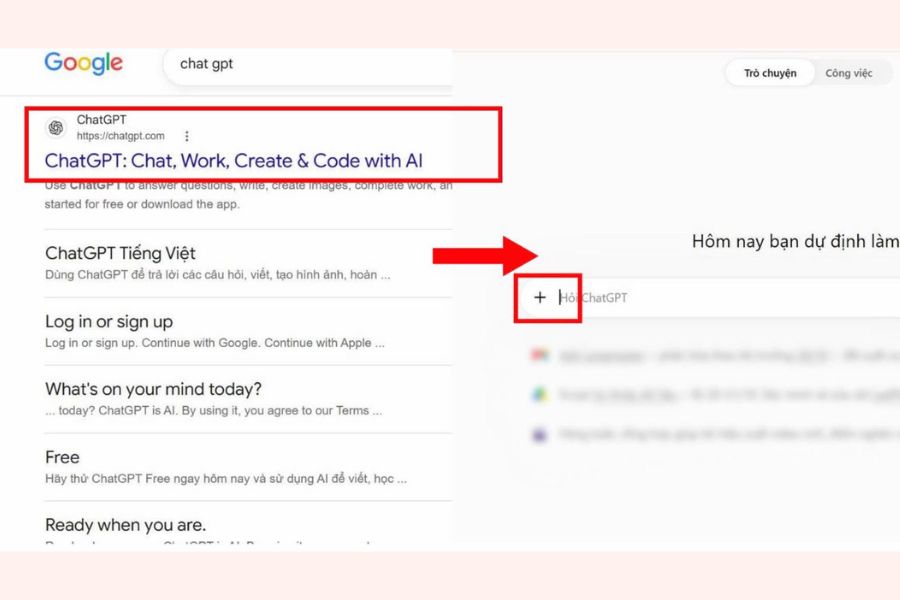
Step 2: In the chat interface, find the plus (+) icon to the left of the input bar. Click on this icon to open the options for attaching data.
Step 3: In the menu that appears, select "Add images & files". Next, find the folder containing the images you want to analyze, select the images, and click "Open" to upload them.
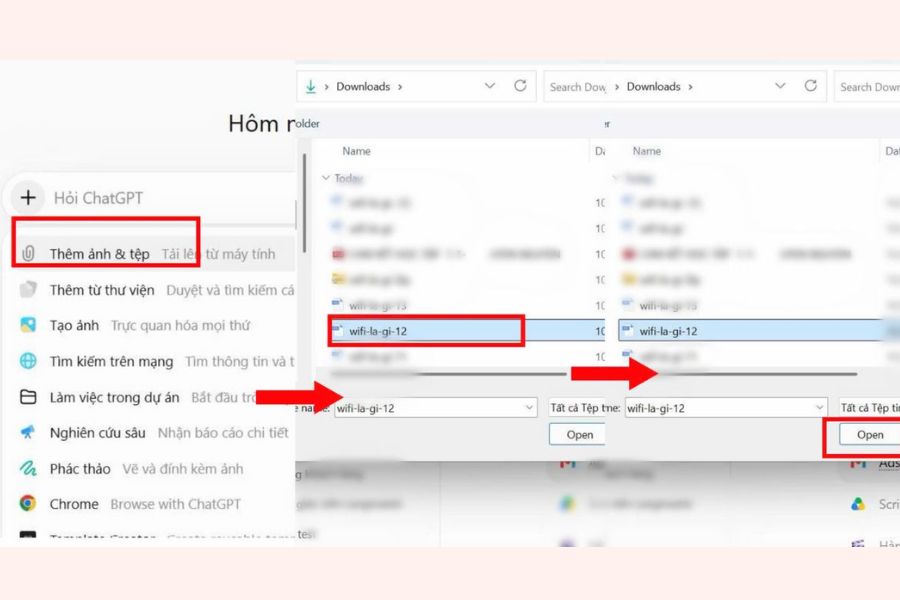
Step 4: When the image appears in the chat window, type your question or specific request into the input field. For example: "Read the entire content in the image and summarize it into 5 main points."
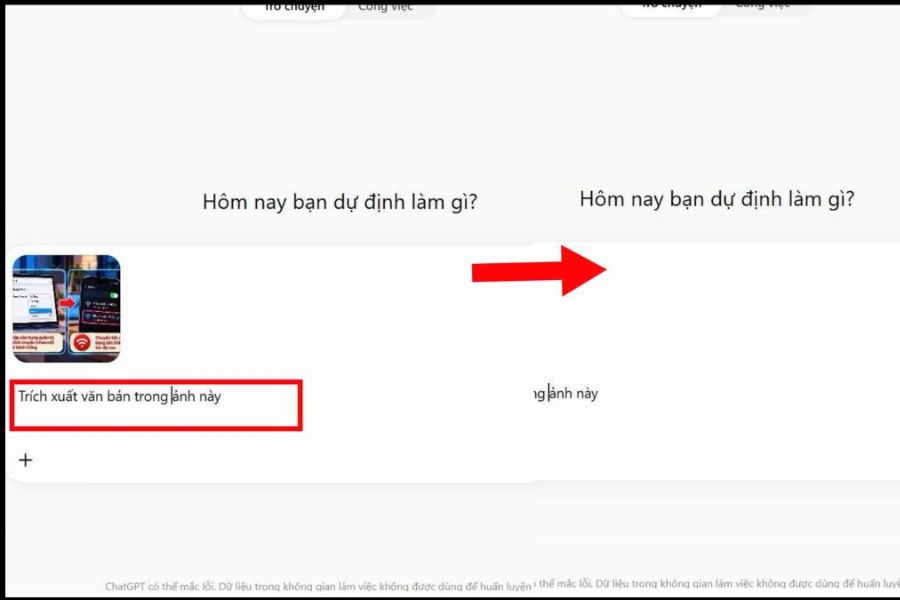
Step 5: Press the submit button for ChatGPT to receive your request and analyze the image. After a few seconds, the system will display the answer for your reference. If the result is not as expected, continue asking questions so the AI can clarify any missing details.
3. Instructions on how to ask ChatGPT questions using images on your phone.
If you frequently use your phone, you can also take advantage of the image analysis feature right within the ChatGPT app. The process is quite intuitive, suitable even for those experiencing this AI tool for the first time.
Step 1: Open the ChatGPT app on your Android or iPhone. Make sure you are logged in to your account to use the chat feature.
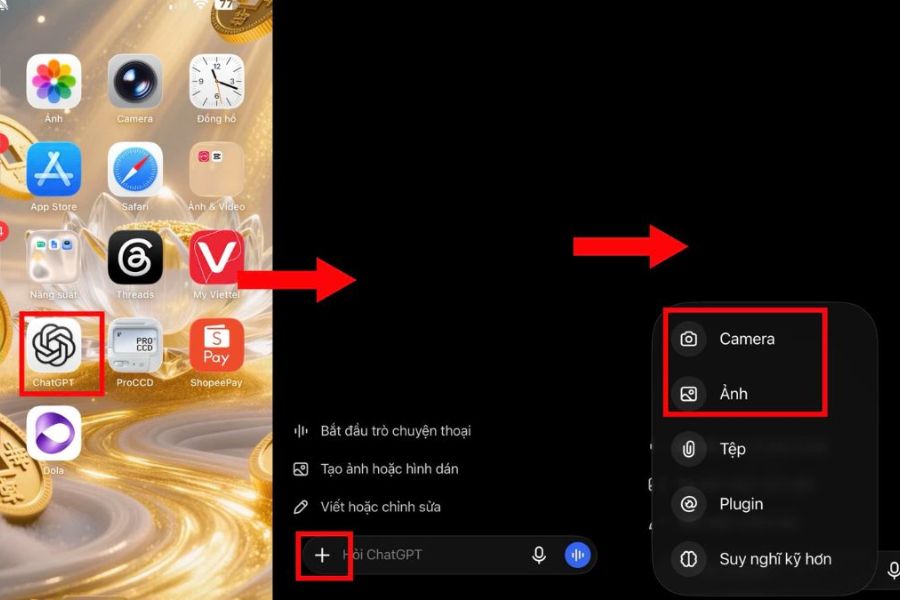
Step 2: On the main interface, tap the plus (+) icon next to the message input box to open the list of attachment options.
Step 3: Choose the image download method that best suits your needs:
-
Camera: Directly capture the document, object, or scene you want ChatGPT to analyze.
-
Photo Gallery: Select images already saved on your phone.
Step 4: After taking or selecting an image, check if the image contains the correct content to send. Next, enter your specific question in the chat box so that ChatGPT understands your request.
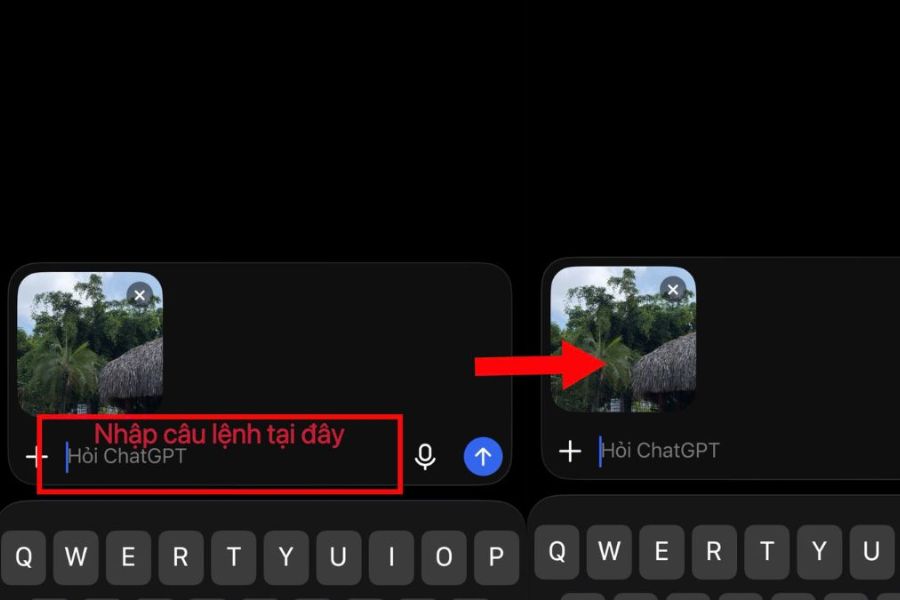
Step 5: Tap the upward arrow icon to send a message with the image. ChatGPT will receive the data, analyze it, and respond directly within the chat. You can continue the conversation to request further explanation or additional necessary information.
4. Prompting ChatGPT using images yields accurate results.
Uploading images to ChatGPT is just the first step. To get the right, focused response, you need to know how to formulate clear and well-directed prompts. A good prompt should include three elements: the action to be taken, the content to be analyzed, and the desired output format.
You can apply the following simple formula:
[Action] + [Content to be analyzed] + [Specific requirements for the result].
For example, instead of simply sending a chart image and asking "What is this?", you could include a more detailed instruction such as: "Analyze the chart in the image, identify three prominent trends, and explain the meaning of each trend in clear, understandable language."
Here are some useful prompt templates you can use right away:
-
Read the text: "Extract all the text that appears in the image and present it as complete text with punctuation."
-
Document analysis: "Read the content of the document in the image, summarize the important information, and break it down into clear points."
-
Solve the problem: "Solve the problem in the image step-by-step, explaining the method so that even a beginner can understand."
-
Object identification: "Tell me the name, characteristics, and function of the object that appears in the picture."
-
Analyzing the chart: "Read the data in the chart, compare the outstanding values, and draw conclusions."
-
Design suggestion: "Analyze the layout and colors of the image and suggest ways to edit it to make the design look more harmonious."
You can also request ChatGPT to respond in the form of a table, bulleted list, or short paragraph. The clearer you describe your request, the easier the results will be to use.
5. Image-based ChatGPT question limits for each account package.
The ability to upload images and submit analysis requests on ChatGPT may be limited depending on the account plan, the model being used, and the policies at any given time. Therefore, users should check the limits before using it regularly, especially when processing many images in their work.
Some points to note:
-
Free Package: Users can experience image uploading and image analysis features, but with a limited usage limit. Once the limit is reached, you may need to wait for the system to grant you more usage.
-
Plus Package: Offers a higher usage limit than the free package, suitable for those who frequently upload images for study, work, and research.
-
Business Package: Supports the use of AI in a team-based work environment, with benefits and limitations depending on the service package policy.
-
ChatGPT API: For developers who want to integrate image processing capabilities into their applications or systems. Costs are calculated based on usage and the specific API model.
Please note that the number of photos you can upload is not always fixed. The limit may change over time and vary by account. You should check the notifications directly on ChatGPT to see your current usage status.
6. Tips for asking ChatGPT questions more effectively using images.
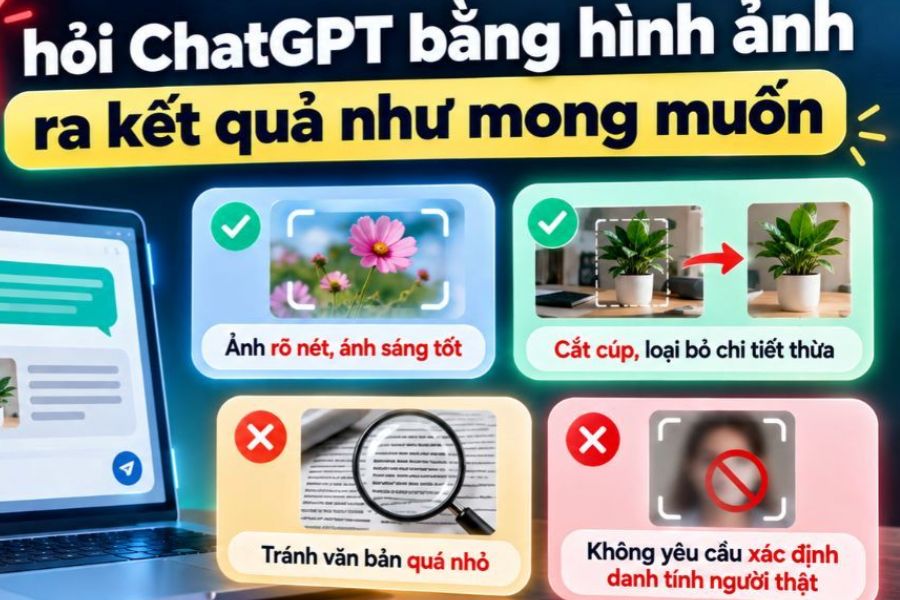
Simply uploading an image doesn't guarantee AI will accurately analyze every detail. Image quality and the way you phrase your request both affect the final result. To minimize misidentification or incomplete responses, you should apply the following tips:
-
Prioritize clear images: Choose images with good resolution, free from blurring, shaking, or loss of focus. This is especially important when reading text and numbers.
-
Ensure adequate lighting: Avoid taking photos that are too dark, backlit, or have shadows obscuring the content to be analyzed.
-
Crop the image to the right area: If the image has too much detail, crop the part you need to ask about so that ChatGPT can focus on the important content.
-
Ask specific questions: Instead of general questions, specify whether you want the AI to read text, explain images, or compare objects.
-
Break down complex requests: For images containing multiple pages of documents or charts, you should process each part separately for easier verification of results.
-
Verify the information: Important data such as the amount of money, date, proper names, or technical specifications need to be compared with the original image.
Additionally, you should avoid uploading images containing passwords, bank account information, or sensitive personal data unless absolutely necessary. ChatGPT also has certain limitations in recognizing and identifying real people through facial recognition. Therefore, please use this feature appropriately and be mindful of protecting your privacy.
7. Common mistakes when asking ChatGPT questions using images
During use, new users may encounter some issues such as images not uploading or ChatGPT not responding as expected. Instead of repeatedly resending messages, you should identify the cause to find a suitable solution.
-
Unable to load image: Check your internet connection, file format, and file size. You can also try reloading the page or reopening the application.
-
ChatGPT cannot read text in images: Please use higher resolution images, and avoid text that is too small or obscured.
-
The answer is off-topic: Please make the question more specific, clearly stating the area to be analyzed and the information you want to receive.
-
Unable to upload more photos: Your account may have reached its upload limit. Please check your notifications and wait for the limit to be restored.
-
The AI misidentified the detail: Provide a clearer image or send additional photos from a different angle so ChatGPT has more data for comparison.
If the problem persists after trying the above methods, you can check your service status or update the ChatGPT app to the latest version.
8. Conclusion
Above is a simple guide on how to ask ChatGPT questions using images, applicable to both computers and phones, for beginners. Simply upload an image, combine it with a clear command, and you can ask the AI to read text, explain charts, identify objects, and assist with various other tasks. Don't hesitate to experiment with new prompt methods to better utilize ChatGPT's capabilities, making your learning and work faster and more convenient every day.





















VIP Products








Best Selling Products
Capcut Pro 1 Year
39 USD
ChatGPT Plus Account (GPT-4)
16 USD
Upgrade genuine Capture One account
120 USD
Adobe Premiere Pro Account
99 USD
Freepik Premium Account
59 USD
Genuine Cheap Canva Pro
39 USD
Upgrade Duolingo Super
29 USD
Adobe Photoshop Copyright - Full App
120 USD
Plugin Retouch4me
69 USD
MidJourney Account
29 USD
Genuine Adobe Illustrator account
99 USD
Copyright Adobe Lightroom Account
59 USD
Autodesk All App Account Copyright
120 USD
Upgrade Genuine Office 365
49 USD
Windows 10 & 11 Pro Key
36 USD