Best Selling Products

Capcut Pro 1 Year
39 USD

Adobe Photoshop Copyright - Full App
120 USD

ChatGPT Plus Account (GPT-4)
16 USD

Upgrade genuine Capture One account
120 USD

Upgrade Genuine Office 365
49 USD

Genuine Adobe Illustrator account
99 USD

Adobe Premiere Pro Account
99 USD

Genuine Cheap Canva Pro
39 USD

MidJourney Account
29 USD

Windows 10 & 11 Pro Key
36 USD

Freepik Premium Account
59 USD

Autodesk All App Account Copyright
120 USD

Upgrade Duolingo Super
29 USD

Plugin Retouch4me
69 USD

Copyright Adobe Lightroom Account
59 USD
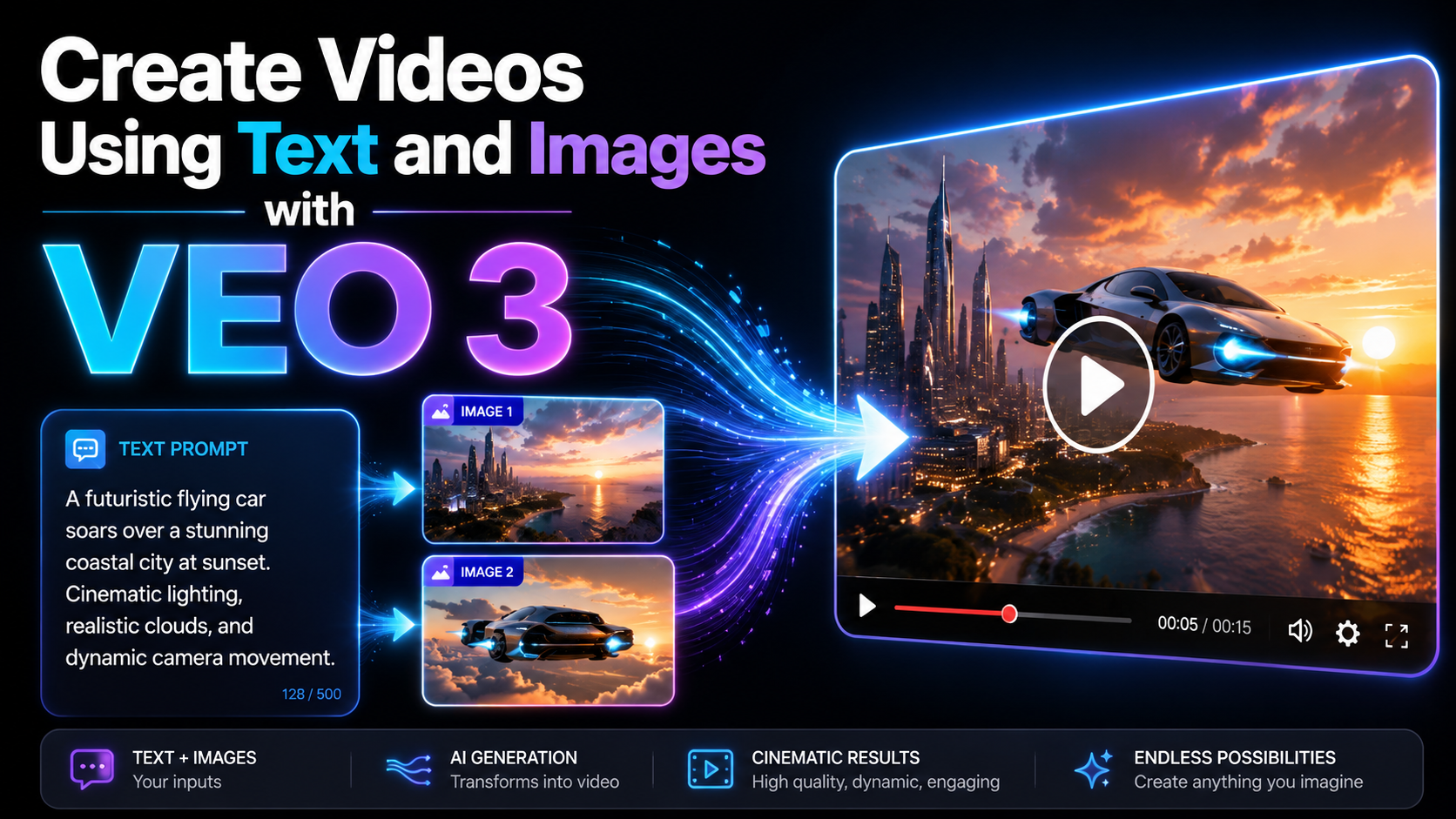
Create Videos Using Text and Images with VEO 3
Nội dung
- 1. What is Veo 3?
- 2. Comparing Veo 3 with its competitors
- 3. Key features of Veo 3
- 3.1 Creating videos from text and images
- 3.2 Perfectly synchronized sound
- 3.3 Controlling camera angle and movement
- 3.4 Maintaining character consistency
- 3.5 Flexible Editing
- 3.6 High resolution up to 4K
- 3.7 Realistic Physics Effects
- 4. Conditions for using Veo 3
- 4.1 Premium Google Account
- 4.2 Use a VPN if you are not in the US
- 4.3 Prompt language
- 5. Instructions on using Veo 3 to create AI videos
- 5.1 Creating videos using Gemini
- 5.2 Creating videos via Flow
- 5.3 Creating videos from images (Image to Video)
- 6. Conclusion
Veo 3 is a modern AI-powered video creation tool developed by Google, allowing users to convert text and images into high-quality videos with naturally synchronized audio.
1. What is Veo 3?
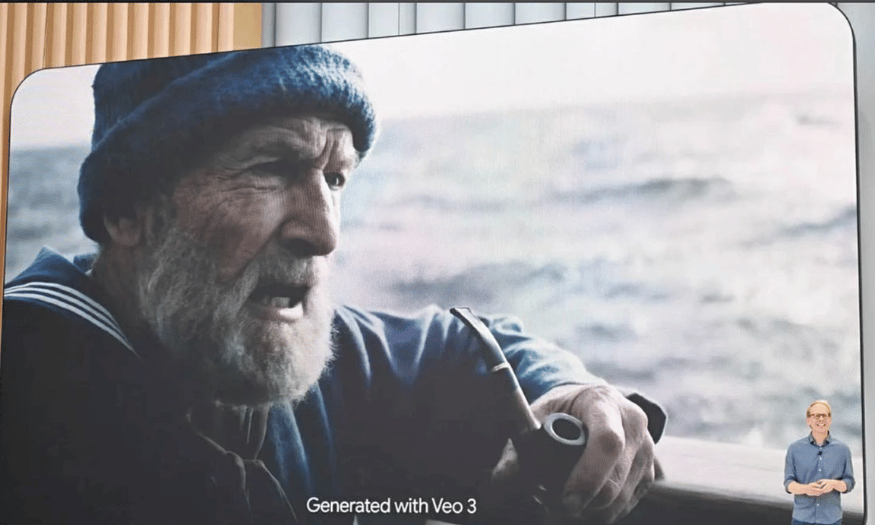
Veo 3 is an advanced artificial intelligence model for video production, introduced by Google at the Google I/O 2025 event. Developed by the Google DeepMind team, Veo 3 assists filmmakers, content creators, and ordinary users in transforming text and images into high-quality videos. This tool not only creates animations but also integrates original audio, including dialogue, ambient sound effects, and background music, providing a realistic and immersive experience for viewers.
Using Veo 3, users can easily create videos not only for entertainment but also for education, marketing, and many other fields. Veo 3's AI technology optimizes the production process, from scripting to video completion, saving time and effort.
Furthermore, Veo 3 offers many unique features, allowing users to customize elements such as sound and visual effects, helping them express their individuality and style in each video product. With Veo 3, content creation becomes easier than ever, opening up new opportunities for everyone in storytelling and message delivery.
2. Comparing Veo 3 with its competitors
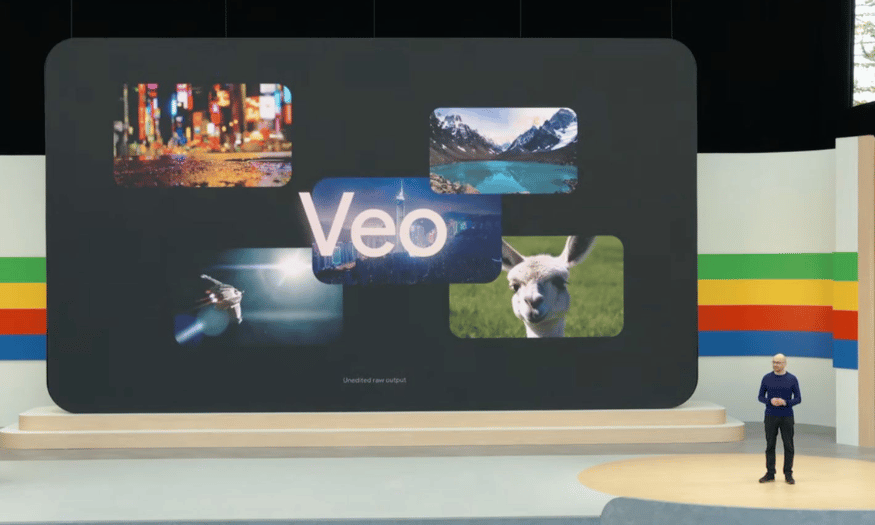
When comparing Veo 3 to competing tools like OpenAI's Sora and Adobe's Firefly, Veo 3's standout feature is its ability to synchronize audio and video from a single prompt. While Sora and Firefly can only create videos with basic background music, Veo 3 offers a more comprehensive experience with diverse audio including dialogue, environmental sound effects, and appropriate background music. This helps create video products that are not only visually rich but also acoustically vibrant, resulting in a more engaging viewing experience.
Another strength of the Veo 3 is its ability to maintain consistency in characters, settings, and camera angles throughout the footage. This is crucial in video production, especially when creating commercials or social media content. This seamlessness not only helps viewers easily follow the story but also enhances the professionalism of the video. Furthermore, with its high resolution up to 4K, the Veo 3 truly meets the needs of both individual and professional users, from family videos to advertising projects and short films.
Furthermore, Veo 3 offers flexible editing capabilities, allowing users to easily fine-tune videos without requiring complex technical skills. This opens up opportunities for those without in-depth video production knowledge who still want to create impressive content. With its user-friendly interface and easy-to-use features, Veo 3 is truly an ideal tool for anyone wanting to express their creativity in video.
3. Key features of Veo 3
3.1 Creating videos from text and images
Veo 3 allows users to easily create high-quality videos with just a piece of text or an image. This feature saves time and effort for those without video production experience. Users simply input their desired content, and Veo 3 automatically converts it into vibrant footage, ensuring sharp image quality and smooth motion. This not only enhances creativity but also makes content creation more enjoyable.
Furthermore, this conversion capability opens up many opportunities for content creators to undertake various projects, from promotional videos to educational content. Using text and images to create videos also helps personalize the product, giving each user-generated video a unique touch.
3.2 Perfectly synchronized sound
One of Veo 3's strengths is its comprehensive audio integration. This tool not only provides background sound but also includes dialogue and environmental sound effects such as wind, ocean waves, and footsteps. These elements create a realistic and immersive experience for viewers. The audio is automatically synchronized with the visuals, making videos more engaging and enhancing the message they convey.
This natural integration of sound not only highlights the content but also helps viewers feel a deeper connection to the video's context. This is crucial, especially in projects that require strong emotions and a connection with the audience.
3.3 Controlling camera angle and movement
Veo 3 gives users complete control over camera angles and movement during filming. This feature includes effects such as zoom in, pan left, and many other cinematic effects. This flexibility makes it easy for users to create videos with their own style, from artistic films to professional advertising videos.
By allowing for adjustments to camera angles and movement, Veo 3 makes content creation more diverse. Users can express their ideas visually, making videos more engaging and captivating. This is especially beneficial for filmmakers and content producers who want to create unique and impressive products.
3.4 Maintaining character consistency
Veo 3 stands out for its ability to maintain character consistency across multiple shots. This is crucial in creating videos with tightly linked storylines, making it easy for viewers to follow and understand the narrative. Veo 3's AI technology ensures that characters retain their appearance and identifying characteristics throughout the video, creating a consistent and seamless experience.
Maintaining this consistency not only improves video quality but also builds trust with the audience. They will find it easier to connect with the characters and the story, thereby enhancing the effectiveness of the message the video aims to convey
3.5 Flexible Editing
Veo 3 offers flexible editing features, allowing users to easily add or remove elements from their videos. With a user-friendly interface, even those without advanced technical skills can make changes as desired. This helps users feel more comfortable during the creative process and encourages them to experiment with new ideas.
This editing capability also allows users to quickly adjust content as needed, ensuring that the final video meets audience expectations and needs. This is crucial in today's competitive environment, where creativity and flexibility are key to success.
3.6 High resolution up to 4K
Veo 3 supports high resolutions up to 4K, delivering sharp and vibrant image quality. This is crucial for video production, especially in advertising and media. With high resolution, users can create professional videos that capture attention and make a strong impression on viewers.
Good image quality not only enhances aesthetics but also helps convey the message more effectively. High-resolution videos easily attract viewers and keep them engaged longer, thereby increasing accessibility and interaction with the content.
3.7 Realistic Physics Effects
Finally, Veo 3 is equipped with realistic physics simulation technology, creating natural movements and interactions in videos. This includes elements such as object bounce, water movement, and changes in lighting, resulting in a more vivid and realistic picture.
Thanks to these effects, users can create videos that are not only visually stunning but also very lively, making viewers feel like they are experiencing it firsthand. This technology brings a new depth to content, helping your videos stand out from other products on the market.
4. Conditions for using Veo 3
4.1 Premium Google Account
To use Veo 3, users are required to have a premium Google account, such as Google One, Google AI Ultra, or Vertex AI. Free accounts are not supported, which may limit access for some users. The price of a Google AI Ultra plan ranges from approximately $125/month to $250/month, depending on the features the user wants to use. Investing in a premium account will provide the most complete experience with Veo 3's advanced features.
4.2 Use a VPN if you are not in the US
Currently, Veo 3 is primarily developed and supported for users in the United States. This means that users in other countries, such as Vietnam, may have difficulty accessing the tool's advanced features. To overcome this problem, users need to use a VPN to change their IP address to the US. Using a VPN will allow users to fully access all the functions that Veo 3 offers, ensuring unrestricted usage.
4.3 Prompt language
Another important factor is the language the user uses when entering commands (prompts) into Veo 3. Currently, the tool primarily supports commands in English. Although some users report being able to enter content in Vietnamese and still receive a response, for the most accurate results, users should use English. This not only optimizes the experience but also ensures that commands are understood and processed most effectively.
5. Instructions on using Veo 3 to create AI videos
5.1 Creating videos using Gemini
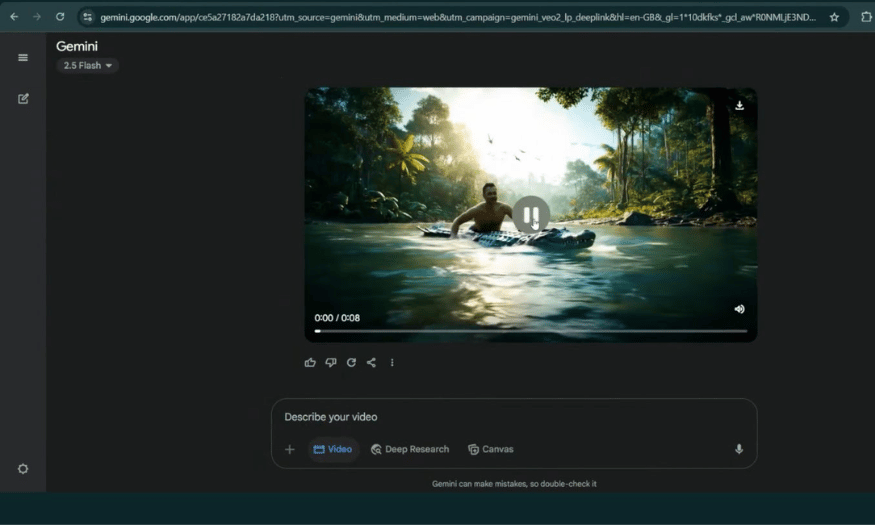
Veo 3 can be used through the Gemini platform, where you can create videos simply and efficiently. First, go to Gemini and log in with your Google AI Pro or Ultra account. After successfully logging in, you will see a user-friendly chat interface where you can interact to create videos.
Next, in the chat box, select the "Video" option and enter a prompt in English that details the content of the video you want to create. For best results, provide specific information about the characters, actions, setting, and sound. Once complete, select the video option from the suggested responses and press the submit button. The video creation process will take a few minutes, and once finished, you can download the video to your computer.
5.2 Creating videos via Flow
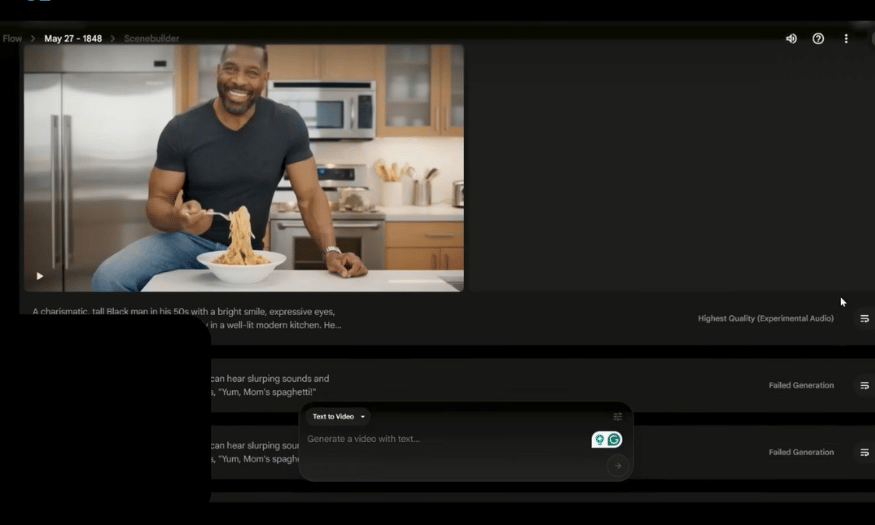
In addition to Gemini, Veo 3 can also be used via the Flow app, allowing you to have more detailed control over footage and camera angles. First, access Flow and log in with your Google AI Ultra account. Once on the main interface, you can create a new project by selecting the “New Project” option.
Once you've created your project, select "Text to Video" to enter the prompt describing your desired video. You can customize settings such as the number of output videos and video quality, choosing the top-of-the-line Veo 3 model to ensure optimal quality. After entering the detailed prompt in English, press the arrow button (Generate) to start the video creation process. After about 2-3 minutes, the video will be created, and you can use Flow's tools to edit the storyboard, adjust camera angles and audio before downloading.
5.3 Creating videos from images (Image to Video)
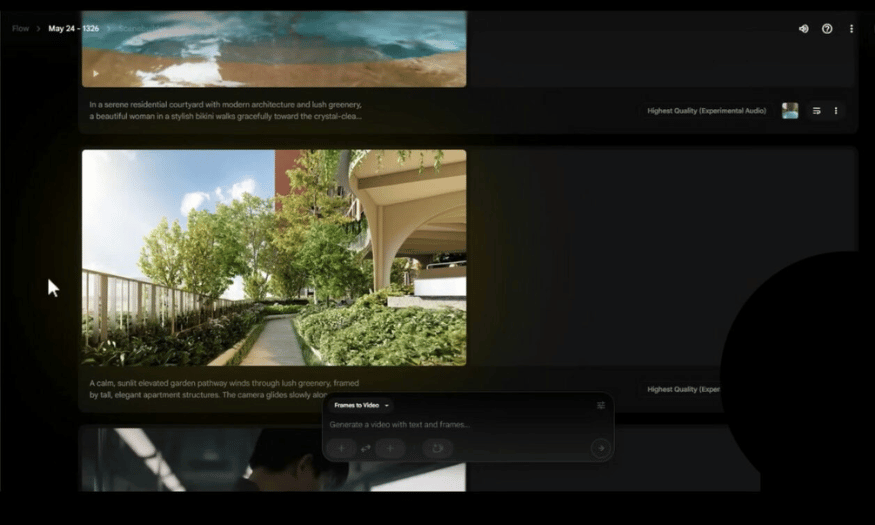
Veo 3 also supports creating videos from still images, although this feature may have been limited in Veo 2. To get started, select the “Image to Video” or “Frames to Video” option in Flow or Gemini. Next, upload the image you want to use, or create an image using AI. Then, enter a prompt describing the movement or scene you want to create, and press the (Generate) arrow button to begin the video creation process.
This process will take a few minutes to complete. Once the video is created, simply tap the arrow button to download it to your device. Note that this feature may not be stable on the Veo 3 and may not support audio. However, it's a fun way to bring your still images to life.
6. Conclusion
Veo 3 has truly revolutionized video production, easily bringing users' creative ideas to life. With its automatic conversion and audio synchronization capabilities, Veo 3 is a fantastic tool for anyone looking to enhance their video quality. Discover and leverage the power of Veo 3 to create unique and impressive content!





















VIP Products








Best Selling Products
Capcut Pro 1 Year
39 USD
Adobe Photoshop Copyright - Full App
120 USD
ChatGPT Plus Account (GPT-4)
16 USD
Upgrade genuine Capture One account
120 USD
Upgrade Genuine Office 365
49 USD
Genuine Adobe Illustrator account
99 USD
Adobe Premiere Pro Account
99 USD
Genuine Cheap Canva Pro
39 USD
MidJourney Account
29 USD
Windows 10 & 11 Pro Key
36 USD
Freepik Premium Account
59 USD
Autodesk All App Account Copyright
120 USD
Upgrade Duolingo Super
29 USD
Plugin Retouch4me
69 USD
Copyright Adobe Lightroom Account
59 USD