Best Selling Products

Genuine Adobe Illustrator account
99 USD

Genuine Cheap Canva Pro
39 USD

Plugin Retouch4me
69 USD

Capcut Pro 1 Year
39 USD

Adobe Premiere Pro Account
99 USD

ChatGPT Plus Account (GPT-4)
16 USD

MidJourney Account
29 USD

Upgrade Genuine Office 365
49 USD

Autodesk All App Account Copyright
120 USD

Adobe Photoshop Copyright - Full App
120 USD

Copyright Adobe Lightroom Account
59 USD

Upgrade Duolingo Super
29 USD

Windows 10 & 11 Pro Key
36 USD

Freepik Premium Account
59 USD

Upgrade genuine Capture One account
120 USD
How to Use Veo 3 to Create Free Videos in Vietnamese
Nội dung
- 1. What is Veo 3?
- 2. Conditions for using and registering a Veo 3 AI account
- 3. Who should use Veo 3 AI?
- 4. Key features of Veo 3
- 5. How to create a Veo 3 AI account
- 6. Instructions on how to use Veo 3: Unleash unlimited creativity
- 6.1 Create videos quickly on the official Veo 3 platform
- 6.2 Creating visual videos in Google Labs' Flow
- 6.3 Creating videos with Gemini – Google's intelligent AI assistant
- 7. Small tips for using Veo 3 most effectively
- 7.1 Always write descriptions that are as detailed as possible.
- 7.2 Choose an aspect ratio suitable for the upload platform.
- 7.3 Combining Veo 3 with post-production tools for in-depth fine-tuning
- 7.4 Leverage template scenarios and idea libraries
- 8. Conclusion
Veo 3 is emerging as a free AI-powered video creation tool, particularly useful for Vietnamese users due to its ability to understand and process Vietnamese commands. Mastering Veo 3 not only saves time but also opens up opportunities to produce unique video content without high costs or complex skills. This article from Sadesign will guide you step-by-step to master Veo 3, from creating prompts to publishing videos, all in Vietnamese, helping you realize your ideas easily and quickly.
1. What is Veo 3?
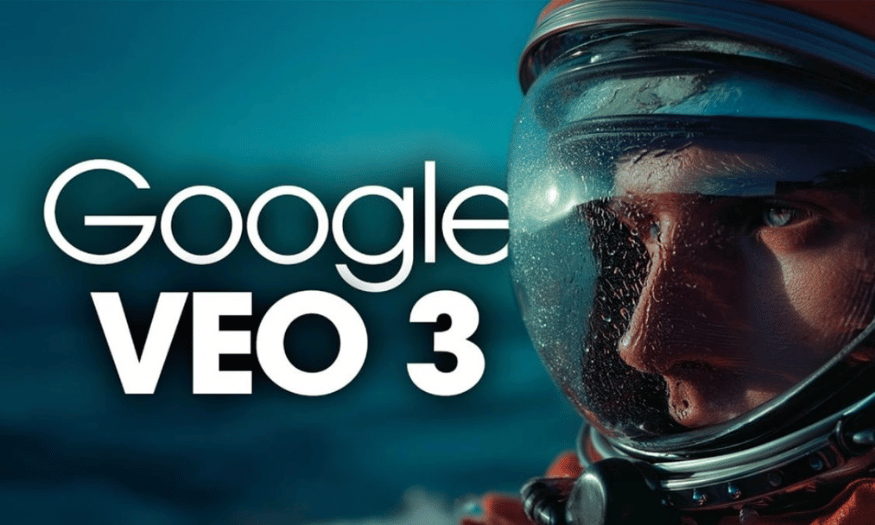
Veo 3 is an impressive breakthrough in artificial intelligence developed by Google DeepMind, offering the ability to create cinematic-quality videos from a simple text description. Unlike traditional editing tools, Veo 3 acts as a virtual director, automatically staging scenes, arranging lighting, color grading, and adding appropriate effects to transform raw ideas into a complete film. By leveraging the power of the Gemini language model, Veo 3 deeply understands the user's intentions and processes image details with astonishing smoothness and naturalness.
Beyond just scene creation, Veo 3 also has the ability to combine audio, voiceovers, add background music and sound effects in real time, making videos more dynamic and convincing, like a professional production. This is the biggest difference between Veo 3 and its predecessors, as it not only creates visual videos but also seamlessly synchronizes audio and video. As a result, users save a lot of effort in post-production editing, allowing them to focus more on content creation.
The introduction of Veo 3 opens up a new horizon for filmmaking, media, and advertising, especially for individuals or businesses without dedicated production teams. With just a few lines of description, anyone can create clips ranging from simple to complex, serving various purposes such as product promotion, short films, or illustrating ideas. It's truly a powerful tool that helps bring any idea to life in an instant.
2. Conditions for using and registering a Veo 3 AI account
To fully explore the potential of Veo 3 AI, users must have a verified and active Google account. A Google account not only provides easy access to the Veo 3 platform but also serves as the key to storing data and synchronizing video projects across multiple devices. This is the first and most crucial step in ensuring a seamless and secure user experience.
Besides having a Google account, Veo 3 is currently in a limited testing phase, primarily open for registration to content creators, video editors, or strategic partners specifically invited by Google. This allows Google to control the quality of the output and gather real-world feedback to further refine the tool before expanding to the public. Regular users who wish to participate can register on a waiting list and await approval when the next rollout is announced.
In addition to technical requirements and access rights, users must also agree to the terms of service, privacy policy, and data processing regulations issued by Google. Strict adherence to these commitments not only ensures user rights but also helps Veo 3 operate stably, avoiding risks related to copyright, privacy, or misuse of data. This is a crucial step in maintaining transparency and security when leveraging the power of this advanced AI tool.
3. Who should use Veo 3 AI?
Veo 3 AI is designed to serve a diverse range of users, but it's ideally suited for content creators, independent directors, commercial filmmakers, or media companies looking to optimize production costs. With its ability to create realistic and flexible videos from text, Veo 3 helps them realize their script ideas without hiring an expensive film crew or set designer. This is especially useful for those who frequently need to produce content quickly for short-term marketing campaigns.
Furthermore, teachers, lecturers, and those working in the education field can also utilize Veo 3 to illustrate lectures with vivid and engaging videos. Instead of using only static slides or illustrative images, Veo 3 allows them to transform complex concepts into easily understandable visuals, thereby increasing the attractiveness and effectiveness of knowledge delivery. This is also a creative way to refresh teaching methods and spark student interest.
Finally, Veo 3 is also suitable for those working in internal communications, project presentations, or any individual who wants to express ideas vividly without needing advanced filmmaking skills. By transforming words into images, Veo 3 empowers creativity for everyone, regardless of their filmmaking expertise. With just a few ideas and commands, anyone can become the director of their own story.
4. Key features of Veo 3
One of the standout features that makes Veo 3 a worthwhile choice for the creative community is its ability to automatically integrate sound and voiceovers, closely adhering to the context of the content. Thanks to advanced speech recognition technology, character mouth movements are seamlessly synchronized with dialogue, creating videos with depth and vibrancy, like professionally produced footage. This is a significant advancement that few AI tools on the market can achieve at this level of sophistication.
Beyond just sound, Veo 3 captivates users with its ultra-sharp 4K image quality, coupled with the ability to realistically reproduce lighting effects, reflections, and fluid motion. Every detail, from sunlight filtering through windows and character shadows to ripples on the water's surface, is naturally rendered, delivering a mesmerizing visual experience. Simultaneously, the background sound, environmental noises, and dialogue are also newly created and flexibly customized to suit the context of each scene.
Furthermore, Veo 3 is equipped with a powerful suite of creative tools, allowing users to maintain consistent visual style and character personalities across multiple videos. Features such as camera motion adjustment, adding or removing details within the frame as desired, and diverse input capabilities from text and images to audio, make the video design process easier than ever. In particular, Veo 3 integrates directly with Flow, enabling scripting, scene creation, and detailed editing like a mini-studio right on the digital platform.
5. How to create a Veo 3 AI account
To begin experiencing the full creative power of Veo 3 AI, you first need a Google AI Pro account — this is a requirement to activate access to Google's premium ecosystem of tools. The good news is that Google is currently offering a free 1-month trial, allowing new users to comfortably test the features before deciding to upgrade to a long-term service plan.
Step 1: Access the Google AI Pro registration page directly via the official link provided by Google. On the welcome screen, simply click the "Start Trial" button to activate your special access.
Step 2: The system will guide you through filling in all the necessary personal information. Please ensure that data such as email, phone number, and payment method are entered accurately to avoid interruptions during account verification.
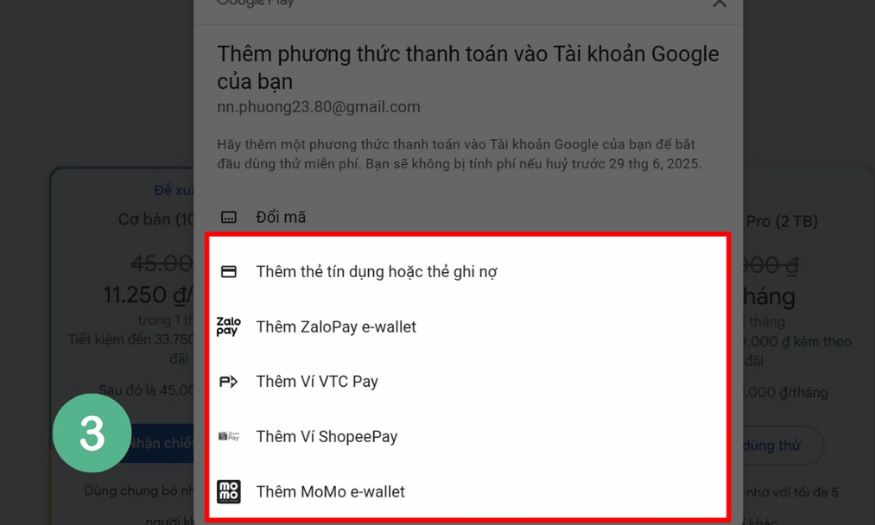
Step 3: After completing the registration form, choose a suitable payment method — you can use an international credit card or an accepted bank account. Then, simply confirm and complete the activation, and you're ready to explore Veo 3 AI with all its powerful features.
6. Instructions on how to use Veo 3: Unleash unlimited creativity
After completing registration and creating a Veo 3 account, you're ready to begin your journey of creating personalized videos in just a few simple steps. Whether you're new to AI tools or have video editing experience, Veo 3 offers an intuitive workflow, helping you turn your ideas into films in an instant. Below are detailed instructions on the three most common ways to confidently master Veo 3.
6.1 Create videos quickly on the official Veo 3 platform
The first method involves working directly on the Text-to-Video page — the core tool that Veo 3 provides. With a clean interface optimized for both beginners and professional creators, you can create a complete video in just a few minutes.
Step 1: Access the official website at https://www.veo3.io/text-to-video and log in using your Google account that has been enabled for Veo 3 access.
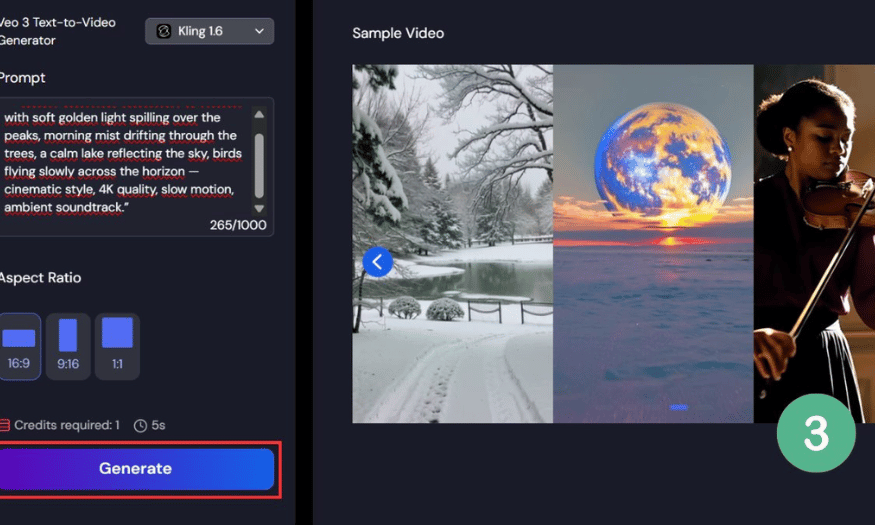
Step 2: On the video creation interface, enter a description of your idea (in English so the AI can understand it more accurately) in the Prompt box . Don't forget to choose a suitable aspect ratio (16:9 for YouTube, 9:16 for TikTok, or 1:1 for Instagram).
Step 3: Click Generate and wait a few minutes for the system to automatically build the scene, add sound, and export the complete video. You can preview, download, or share it immediately if you are satisfied with the product.
6.2 Creating visual videos in Google Labs' Flow
If you want more control over the details, you can leverage Flow —a testing platform that integrates Veo 3 with a range of AI tools to support image, video, and script design. This is an ideal choice if you want to fine-tune each shot or combine multiple scenes into a short film with a seamless storyline.
Step 1: Open the Flow interface via your Google Labs account, then click Create new project to start your own video project.
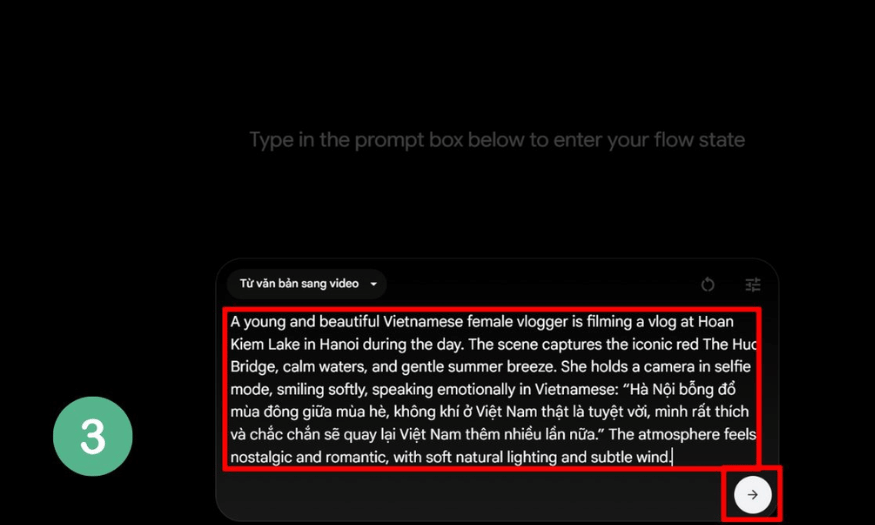
Step 2: In the workspace window, select Text to Video . This is where you will enter the content description and adjust the scene editing options in more detail.
Step 3: Fill in the description in English as clearly as possible, then click the Create Video icon . The AI will automatically analyze the meaning, create the scene, add sound, and match the motion to the content. Wait a few minutes for Flow to process, then download the complete video, ready to post on any social media platform.
6.3 Creating videos with Gemini – Google's intelligent AI assistant
The third method is for those who prefer a natural and flexible workflow: creating videos via Gemini , the powerful AI assistant integrated into Veo 3. This method allows you to "command" the AI to edit the video directly within the chat window — saving time while ensuring the video matches your vision.
Step 1: Access Gemini on the official website and log in using your Google account with the AI Pro plan to unlock all video editing features.
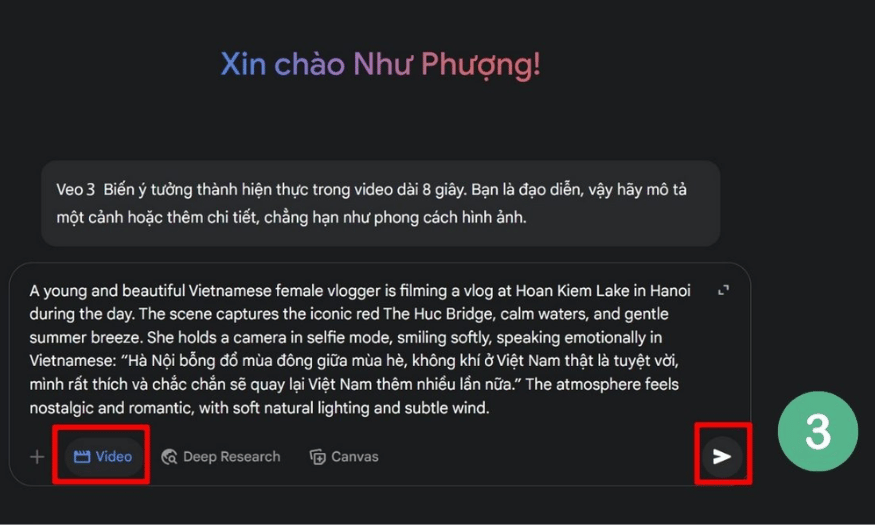
Step 2: Create a new chat message. In the chat box, simply enter a description of your desired video in English, making it as detailed as possible (for example: “Create a 30-second video of a sunrise over a calm lake with relaxing music and gentle wind sounds.” ).
Step 3: When Gemini responds, select Video if prompted. Press Send command , wait a few seconds for Gemini to work with Veo 3 to process and render the scene. Then, simply preview, edit if needed, and download or share directly.
7. Small tips for using Veo 3 most effectively
7.1 Always write descriptions that are as detailed as possible.
With Veo 3, the most important factor determining video quality is the description you enter in the prompt box . Take the time to think carefully about the content: who the main character is, where the scene takes place, the weather, the atmosphere, the actions, the emotions, and the desired visual style. The more details you provide, the better the AI understands and the more accurately it will create the scene according to your vision. For example, instead of simply writing "A girl walking in a garden," be more specific: "A young girl in a white dress walks slowly through a blooming rose garden at sunrise, with soft background music and gentle breeze sounds."
7.2 Choose an aspect ratio suitable for the upload platform.
Don't forget to adjust the aspect ratio for optimal display. If you plan on uploading to YouTube, 16:9 is the gold standard for landscape videos. For TikTok, Reels, or Shorts, prioritize 9:16 to ensure the video fits perfectly on your phone screen. If you're creating cross-platform advertising videos, a 1:1 square aspect ratio is ideal for optimizing advertising costs and reach. A helpful tip is to save your aspect ratio settings beforehand to avoid having to readjust them repeatedly.
7.3 Combining Veo 3 with post-production tools for in-depth fine-tuning
Although Veo 3 produces fairly polished videos right from the first edit, for maximum smoothness and personalization, you should still do some light post-processing using familiar video editing software like Premiere Pro, CapCut, or Canva. You can add your brand logo, subtitles, animated stickers, or adjust the audio to your liking. A video with a good story plus a few extra effects will make a stronger impression on viewers.
7.4 Leverage template scenarios and idea libraries
To save time, you should create a library of sample scripts for each video genre: product introductions, advertising videos, travel vlogs, children's animation videos, etc. When needed, simply copy the idea, adjust a few details, and import it back into Veo 3. Additionally, check out the Prompt Library shared by the Veo 3 user community. This is an incredibly useful resource that will help you learn how to write professional prompts and discover many new video editing styles.
8. Conclusion
Thus, with just a few simple steps and clear Vietnamese commands, Veo 3 has become a powerful tool for creating high-quality videos without cost. Hopefully, through this detailed guide, you will confidently make the most of Veo 3's outstanding features, transforming all your creative ideas into vivid visual products, serving both your work and personal needs. Start experiencing and enjoying the convenience that AI brings today!





















VIP Products








Best Selling Products
Genuine Adobe Illustrator account
99 USD
Genuine Cheap Canva Pro
39 USD
Plugin Retouch4me
69 USD
Capcut Pro 1 Year
39 USD
Adobe Premiere Pro Account
99 USD
ChatGPT Plus Account (GPT-4)
16 USD
MidJourney Account
29 USD
Upgrade Genuine Office 365
49 USD
Autodesk All App Account Copyright
120 USD
Adobe Photoshop Copyright - Full App
120 USD
Copyright Adobe Lightroom Account
59 USD
Upgrade Duolingo Super
29 USD
Windows 10 & 11 Pro Key
36 USD
Freepik Premium Account
59 USD
Upgrade genuine Capture One account
120 USD