Best Selling Products

Copyright Adobe Lightroom Account
59 USD

Genuine Cheap Canva Pro
39 USD

ChatGPT Plus Account (GPT-4)
16 USD

Freepik Premium Account
59 USD

Windows 10 & 11 Pro Key
36 USD

Adobe Premiere Pro Account
99 USD

Autodesk All App Account Copyright
120 USD

Plugin Retouch4me
69 USD

Upgrade Genuine Office 365
49 USD

Genuine Adobe Illustrator account
99 USD

Capcut Pro 1 Year
39 USD

Upgrade genuine Capture One account
120 USD

MidJourney Account
29 USD

Adobe Photoshop Copyright - Full App
120 USD

Upgrade Duolingo Super
29 USD
What is Gemini Live? How to Use Gemini Live on Your Phone
Nội dung
- 1. Introduction to Gemini Live
- 2. What features does Gemini Live have?
- 3. Who should use Gemini Live?
- 4. Instructions for using Gemini Live on iOS and Android
- 4.1 How to use Gemini Live on iOS via voice commands
- 4.2 How to use the screenshot feature on Gemini Live
- 4.3 Instructions for chatting via screen sharing on Gemini Live
- 5. Notes on using Gemini Live
- 6. Address to upgrade your Gemini Advanced account to use the Live feature.
- 7. Instructions for upgrading to Gemini Advanced account at SaDesign
- 8. Conclusion
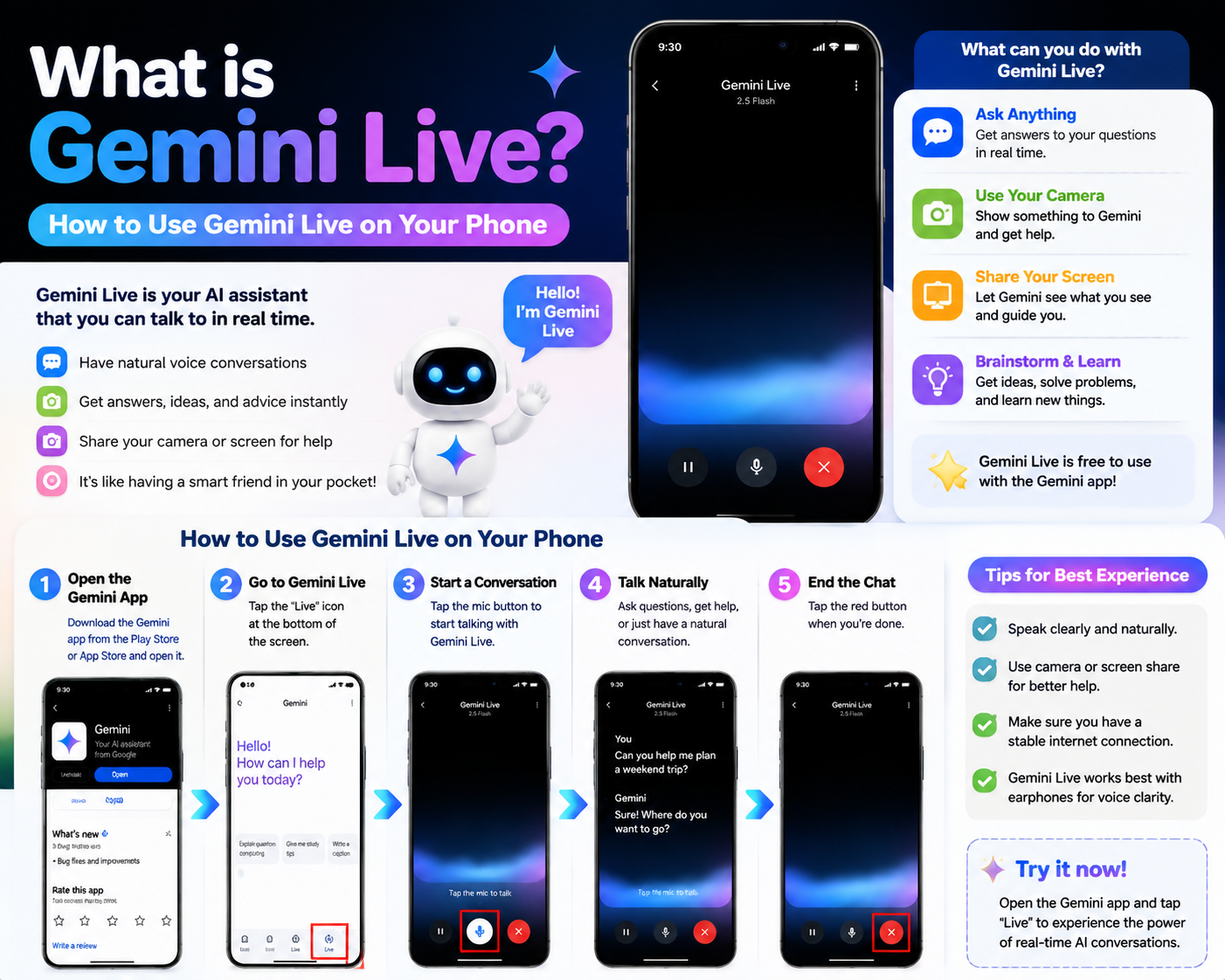
Gemini Live is an intelligent virtual assistant developed by Google, allowing users to interact through voice and text. Importantly, Gemini Live is now completely free for all users on Android and iOS operating systems, opening up many opportunities to explore and utilize AI technology in daily life. This article from Sadesign will guide you on how to use Gemini Live on your phone most effectively.
1. Introduction to Gemini Live
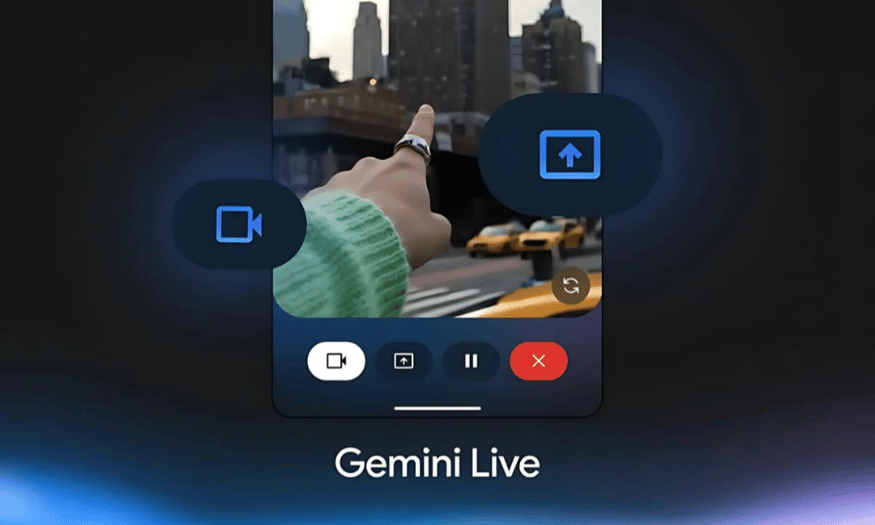
Gemini Live is emerging as one of the leading interactive voice AI tools today, directly competing with ChatGPT's Voice Mode. With the continuous development of technology, Gemini Live offers a unique interactive experience, allowing users not only to chat but also to interact directly with their surroundings via camera. This means you can ask Gemini Live to identify objects right in front of you, receiving instant and accurate responses, enhancing the user experience.
At Google I/O 2024, one of the biggest technology conferences, Google officially announced that Gemini Live would be free for all users. This is a major turning point, opening up opportunities for everyone to experience this advanced technology without having to pay extra. Especially with the launch of AI Mode on Google Search, Gemini Live has become not just a virtual assistant, but an indispensable part of our daily lives.
Previously, the live camera feature with Gemini Live was exclusive to Android users. However, with the expansion to iOS, iPhone users can now also enjoy these powerful features. Google is committed to a rapid rollout, and all iOS users will soon be able to experience Gemini Live within the next few weeks, creating synchronization and convenience across all platforms.
2. What features does Gemini Live have?
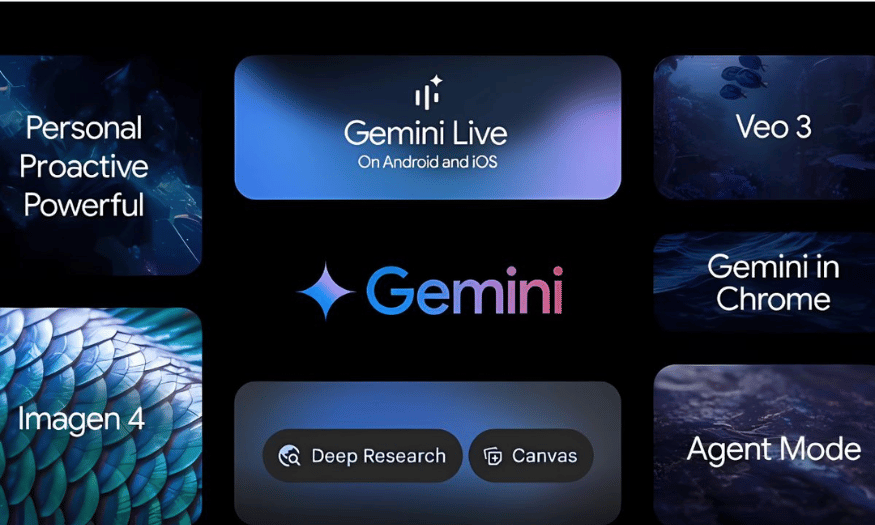
At the Google I/O event, in addition to information about its free availability and expansion to iOS, Google also introduced a series of more deeply integrated features that Gemini Live will offer in the future. One of the standout features is the ability to automatically add events to Google Calendar. This helps users no longer worry about forgetting important schedules; they simply need to tell Gemini Live about the event they want to remember.
Additionally, Gemini Live integrates Google Maps navigation. You can ask this virtual assistant to find your way to your desired destination without having to open the map app yourself. With just a simple command, Gemini Live will provide detailed directions, saving you time and effort.
Another major advantage of Gemini Live is its ability to communicate directly with other Google apps and services. This means you can use Gemini Live to perform multiple tasks simultaneously, from sending emails to checking the weather, all using only your voice. This convenience not only enhances work efficiency but also allows you to enjoy life more easily.
3. Who should use Gemini Live?
Gemini Live is an ideal tool for a wide range of users. First, those busy with daily tasks will find valuable support from this virtual assistant. With its ability to automate many tasks, Gemini Live helps users save time and effort, allowing them to focus on more important work.
Secondly, for tech enthusiasts who want to experience the latest features, Gemini Live is a great choice. With its advanced AI technology, Gemini Live not only enables intelligent interaction but also opens up many opportunities for exploration and learning. You can experiment with new features and share your experiences with the community.
Finally, Gemini Live is also very useful for older users or those unfamiliar with technology. With its user-friendly interface and voice interaction capabilities, Gemini Live makes it easy for them to use smartphones without difficulty. This is an important step in making technology more accessible and accessible to everyone.
4. Instructions for using Gemini Live on iOS and Android
Gemini Live is more than just an app; it's a pioneering tool that combines artificial intelligence with user interaction, delivering exciting and convenient experiences for everyone. With features like voice chat, live photo capture, and screen sharing, Gemini Live optimizes work, study, and entertainment, bringing technology closer to everyday life. Below is a detailed guide to help you make the most of Gemini Live's features on both iOS and Android platforms.
4.1 How to use Gemini Live on iOS via voice commands
To start using Gemini Live on iOS, you need to install the Gemini app from the App Store. Once installed, follow the steps below to experience the app's exciting features.
Step 1: Open the Gemini app
First, find the Gemini app icon on your phone's home screen and tap it to open. Gemini's interface will greet you with bright, easy-to-see colors, making you feel comfortable as you begin interacting with the virtual assistant. Note that this app is designed to be simple and user-friendly, allowing even tech-new users to easily experience it.
Step 2: Tap the Gemini Live icon
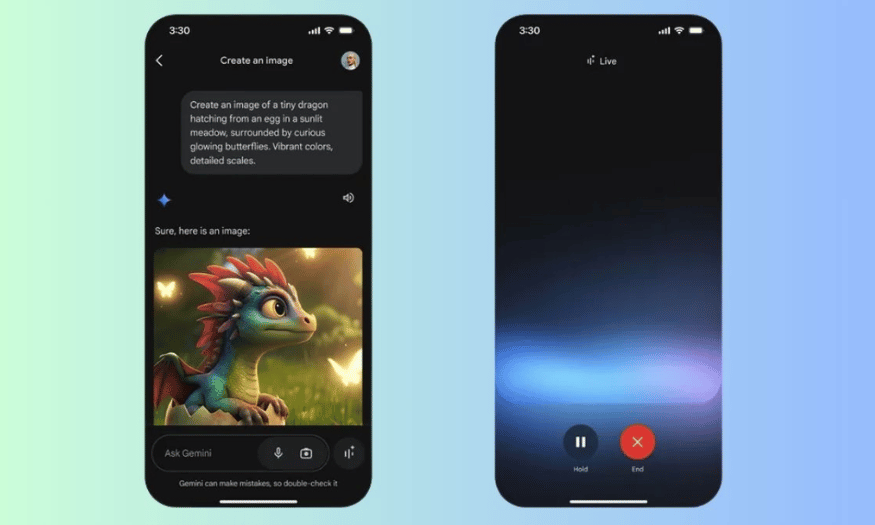
Once the app is open, you'll see a text input box in the middle of the screen. Here, find the Gemini Live icon to the right of the input box. Tap this icon to start experiencing the smart chat feature. This will open up a world of interaction that you can explore, from simple questions and answers to more complex requests.
Step 3: Start a conversation or interaction.
Now you're ready to interact with Gemini Live. You can start a voice chat or write questions, request information, or even simply say hello. What's special about Gemini Live is its highly accurate voice recognition, allowing you to communicate naturally without worrying about your expression. You can also use the camera to interact directly with what you're seeing, creating a richer and more immersive experience.
4.2 How to use the screenshot feature on Gemini Live
Step 1: Select the Gemini app
To use the screenshot feature, reopen the Gemini app as instructed in the previous step. This is an important step to ensure you can access all the features Gemini Live offers. The interface will display all the options you can use to interact with the virtual assistant.
Step 2: Click on the Gemini Live icon
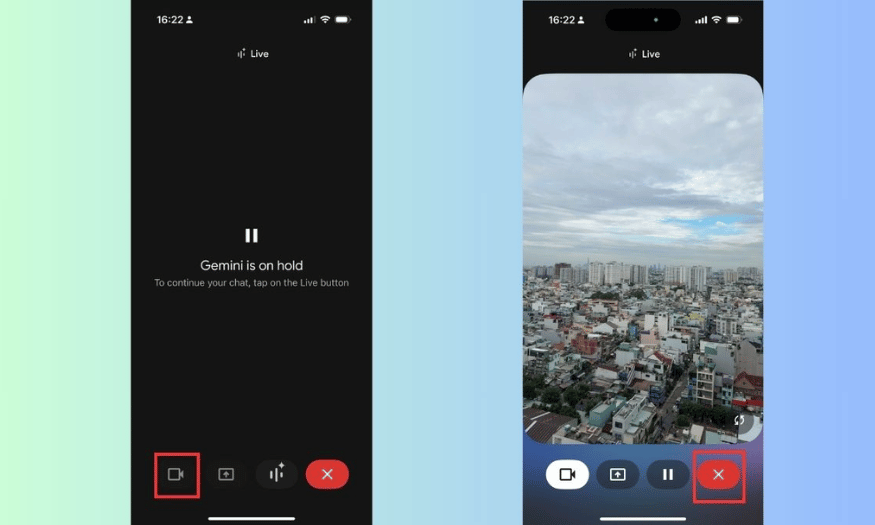
Next, tap the Gemini Live icon again. This will take you to interactive mode, where you can use the screenshot feature to record the content currently displayed on your phone screen. This will help Gemini Live better understand what you are interested in and need help with.
Step 3: Click on the screen recording icon.
After entering Gemini Live mode, you'll see a screen recording icon. Tap it to start recording your screen. You can then speak or give commands to interact with Gemini, allowing the virtual assistant to better understand what you're seeing. This feature is very useful when you need to find information from a specific website or application.
Step 4: Listen to the answer from Gemini Live
Once you've issued a command, listen for the response from Gemini Live. You can choose to return to chat mode to review the information or response the assistant provided. This not only helps you grasp information quickly but also makes learning more enjoyable. With its contextual analysis capabilities, Gemini Live can provide you with detailed and useful information based on the content you're viewing.
4.3 Instructions for chatting via screen sharing on Gemini Live
Step 1: Install and open the Gemini app.
To use the screen sharing feature, you need to open the Gemini app again. This will give you access to all the options that Gemini Live offers users. Remember that the screen sharing feature is very powerful, helping you interact more effectively with Gemini Live.
Step 2: Select the Gemini Live icon
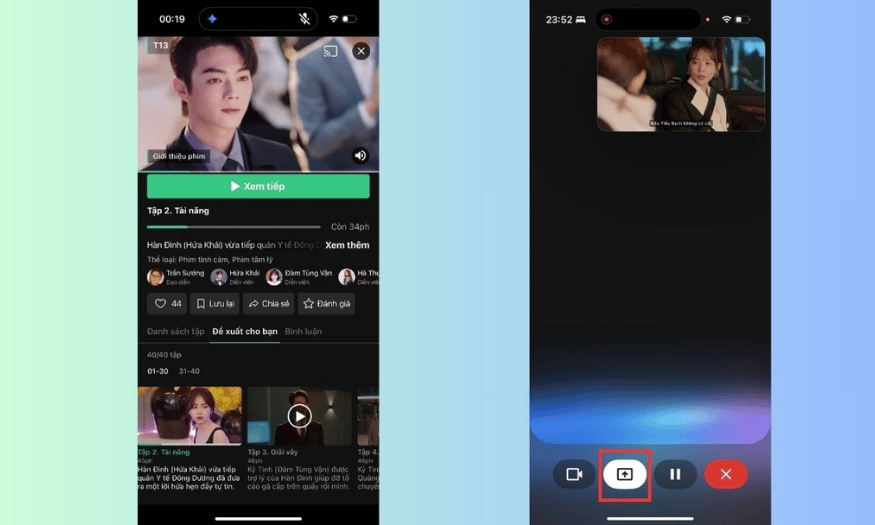
Similar to the previous steps, tap the Gemini Live icon to begin. This will take you into interactive mode that you can use to share your screen. This allows Gemini Live to see what you're doing on your phone screen, helping the virtual assistant provide more accurate information about the content you want to learn about.
Step 3: Select screen sharing and start broadcasting.
Once in Gemini Live mode, select the screen sharing icon and tap “Start Broadcast.” This allows Gemini Live to see what you’re doing on your phone screen, helping the virtual assistant provide more accurate information about the content you want to learn about. This feature is especially useful when you need help using a specific app or when you want feedback on a website.
Step 4: Ask questions related to the screen.
After you start broadcasting, you can ask questions or request information related to the content you're sharing. This is where Gemini Live shows its power, helping you get quick and accurate answers. When you're finished, tap the screen share icon again to stop the sharing process. You'll find that using Gemini Live is not only simple but also incredibly effective in assisting you in many different situations.
5. Notes on using Gemini Live
When using Gemini Live, there are a few things to keep in mind to optimize your experience. First, make sure you have updated to the latest version of the app. This not only gives you access to new features but also improves the app's performance and stability. Check for updates regularly so you don't miss out on important improvements.
Secondly, when interacting with Gemini Live, use clear and specific language. The virtual assistant can understand you better if you express your needs accurately. Avoid using vague or complex words, as these can cause confusion during communication. This will help you receive a quicker and more accurate response.
Finally, take advantage of the useful features Gemini Live offers. Don't hesitate to experiment with functions like taking screenshots, sharing your screen, and searching for information. These features not only enrich your experience but also help you work more efficiently in various situations.
6. Address to upgrade your Gemini Advanced account to use the Live feature.
If you're looking for a reputable Gemini Advanced account upgrade service, contact SaDesign immediately. SaDesign is a leading company in Vietnam specializing in providing accounts and upgrade packages for genuine digital software and applications. SaDesign is committed to providing you with the best service at a competitive price.
The company not only assists you in registering a new account but also upgrades your Gemini Advanced account with terms ranging from 3 to 12 months. With many attractive offers, you will receive the best value when choosing SaDesign. Rest assured that all transactions are processed quickly and securely, ensuring user rights are protected.
Furthermore, SaDesign provides dedicated customer service, ready to assist you throughout the account upgrade process. You won't have to worry about anything, as the company's staff are always ready to answer your questions and guide you step-by-step.
7. Instructions for upgrading to Gemini Advanced account at SaDesign
To upgrade your Gemini Advanced account at SaDesign, simply follow these easy steps. First, visit the official SaDesign website at https://sadesign.vn on your personal web browser. The user-friendly interface will help you easily find the necessary information.
After visiting the website, search for the "Gemini Advanced Upgrade" service in the search bar. You can enter keywords into the search box to quickly find the service you need. Once found, click "Add to cart" or "Buy now" to continue the ordering process.
Next, click the “Payment” button and enter your personal information along with the account details for the upgrade. This is a crucial step to ensure you receive your Gemini Advanced account correctly.
8. Conclusion
Gemini Live is more than just a virtual assistant; it's a powerful tool to optimize your smartphone experience. With its flexible voice interaction and screen sharing capabilities, Gemini Live promises to deliver exciting and convenient experiences for users. Take advantage of these amazing features to explore the world of AI technology today!





















VIP Products








Best Selling Products
Copyright Adobe Lightroom Account
59 USD
Genuine Cheap Canva Pro
39 USD
ChatGPT Plus Account (GPT-4)
16 USD
Freepik Premium Account
59 USD
Windows 10 & 11 Pro Key
36 USD
Adobe Premiere Pro Account
99 USD
Autodesk All App Account Copyright
120 USD
Plugin Retouch4me
69 USD
Upgrade Genuine Office 365
49 USD
Genuine Adobe Illustrator account
99 USD
Capcut Pro 1 Year
39 USD
Upgrade genuine Capture One account
120 USD
MidJourney Account
29 USD
Adobe Photoshop Copyright - Full App
120 USD
Upgrade Duolingo Super
29 USD