Best Selling Products

ChatGPT Plus Account (GPT-4)
16 USD

Genuine Adobe Illustrator account
99 USD

Autodesk All App Account Copyright
120 USD

Windows 10 & 11 Pro Key
36 USD

Upgrade Genuine Office 365
49 USD

Upgrade Duolingo Super
29 USD

Copyright Adobe Lightroom Account
59 USD

Adobe Premiere Pro Account
99 USD

Freepik Premium Account
59 USD

Adobe Photoshop Copyright - Full App
120 USD

MidJourney Account
29 USD

Genuine Cheap Canva Pro
39 USD

Capcut Pro 1 Year
39 USD

Upgrade genuine Capture One account
120 USD

Plugin Retouch4me
69 USD
Design Your Own Professional Ebook Using InDesign From A to Z
Nội dung
- 1. What are ebooks and what is their importance?
- 1.1. What is an ebook?
- 1.2. The Important Role of Ebooks in the Digital Age
- 2. Why should you use InDesign to create ebooks?
- 2.1. Professional layout capabilities
- 2.2. Export files in multiple formats (PDF, EPUB, HTML)
- 2.3. Optimizing the reader experience
- 2.4. Case study: Word vs InDesign
- 3. Preparation before starting
- 3.1. Defining the objectives of the Ebook
- 3.2. Content Preparation
- 3.3. Gathering design resources
- 3.4. Determine the size and format.
- 3. Instructions on creating an ebook using InDesign
- 5. Common mistakes and how to fix them when creating ebooks.
- 5.1. Missing Fonts
- 5.2. Images are blurry or pixelated during export.
- 5.3. The ebook is too large, difficult to download, or difficult to share.
- 5.4. Table of contents does not work on EPUB or interactive PDF versions.
Discover the complete ebook creation process, from layout and fonts to standard file export. You'll learn how to transform your ideas into professional, easy-to-read digital publications compatible with all devices. Suitable for beginners and designers looking to upgrade their skills.
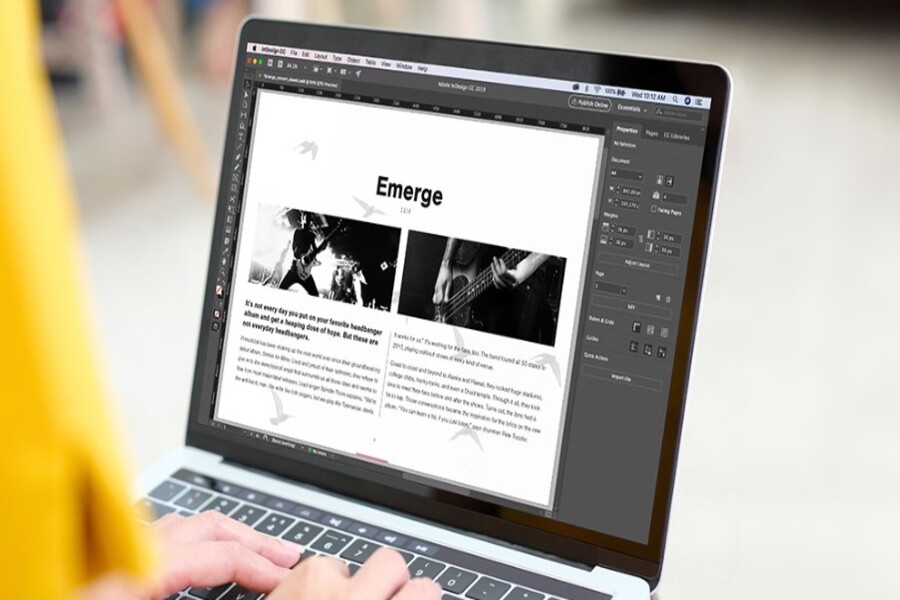
Design Your Own Professional Ebook Using InDesign From A to Z
Discover the complete ebook creation process, from layout and fonts to standard file export. You'll learn how to transform your ideas into professional, easy-to-read digital publications compatible with all devices. Suitable for beginners and designers looking to upgrade their skills.
Not only authors, but also businesses, marketers, trainers, and designers are increasingly using ebooks as a professional, flexible, and accessible means of conveying information across multiple platforms. However, to create a truly professional ebook, good content alone is not enough. Layout, typography, images, reading experience, and publishing format all play a crucial role. This is why Adobe InDesign is considered the "gold standard" tool in ebook design. Unlike Word or PowerPoint, InDesign allows for complete control over page layout, ensuring aesthetics, consistency, and technical standards for both print and digital publishing.
This article will guide you step-by-step on how to create an ebook using InDesign, from preparation and document setup to content design, optimizing the reading experience, and publishing the complete file. The content is presented in a practical, easy-to-follow process suitable for both beginners and professional designers.
1. What are ebooks and what is their importance?
1.1. What is an ebook?
An ebook (electronic book) is an electronic book published in digital format, allowing it to be read on devices such as computers, phones, tablets, or dedicated e-readers like Kindle or Kobo. Unlike traditional printed books, ebooks can integrate many interactive elements such as links, automatic table of contents, bookmarks, content search, and even animations or videos.
In terms of format, ebooks typically exist as PDF, EPUB, or HTML. PDFs maintain the same layout as printed versions, while EPUBs allow content to automatically resize to fit different screen sizes, providing a more flexible reading experience. Thanks to this convenience, ebooks are increasingly used in education, business, marketing, and personal publishing.
1.2. The Important Role of Ebooks in the Digital Age
First and foremost, ebooks facilitate the rapid and geographical dissemination of knowledge. An ebook can be downloaded and read anywhere in the world in just seconds. This opens up opportunities for readers to access vast amounts of knowledge, while also helping authors and businesses reach a global community without the costs of traditional printing or distribution.
.jpg)
Furthermore, ebooks are an extremely effective marketing tool. Many businesses use ebooks as a "customer magnet" by providing valuable content for free. A quality ebook not only helps build credibility but also increases brand awareness, creates trust, and encourages the conversion of potential customers into actual customers.
In the field of education and training, ebooks serve as a flexible learning platform. Learners can easily look up information, take notes, highlight content, and carry an entire library in a compact device. Compared to printed books, ebooks are more cost-effective, easier to update, and more environmentally friendly.
Furthermore, ebooks help individuals and professionals build their personal brand. A professionally designed ebook not only showcases knowledge but also demonstrates the author's competence and work style. This is why more and more freelancers, coaches, marketers, and designers are choosing ebooks as a tool to establish their position in their field.
Finally, ebooks offer flexibility in publishing and distribution. You can update content, correct errors, or republish without incurring printing costs. This ensures that the content remains fresh, accurate, and relevant to the reader
2. Why should you use InDesign to create ebooks?
While Word and PowerPoint are only suitable for basic documents, Adobe InDesign is considered the "gold standard" when it comes to professional ebook design. This is due to the outstanding advantages this tool offers.
(1).jpg)
2.1. Professional layout capabilities
InDesign gives you complete control over every element in your ebook, from layout, fonts, line spacing, colors to images. One of its most powerful features is the Paragraph Styles and Character Styles system. Once you've set up fonts for titles, body text, quotes, or footnotes, the entire document will be synchronized with just one click.
This ensures that the ebook remains consistent from the first page to the last, avoiding a cluttered or unprofessional appearance. Compared to Word or PowerPoint, page layout in InDesign offers much greater accuracy and flexibility, especially for ebooks that are dozens or hundreds of pages long.
2.2. Export files in multiple formats (PDF, EPUB, HTML)
One of InDesign's biggest advantages is its ability to publish in many different formats. You can create high-quality PDF files for print, EPUB for e-readers like Kindle or Kobo, and HTML for online publishing.
Thanks to this flexibility, the ebook can reach readers on multiple platforms while maintaining display quality. You don't need to redesign it from scratch for each format, saving considerable time and effort.
2.3. Optimizing the reader experience
InDesign allows for the creation of automatic table of contents, smart page numbering, internal linking, bookmarks, and even interactive ebooks. These elements help readers easily navigate, find content, and have a smoother reading experience.
.jpg)
Compared to a static PDF file created with Word, an ebook from InDesign offers a much more professional, user-friendly, and engaging feel.
2.4. Case study: Word vs InDesign
An ebook created using Word often suffers from font errors, distorted images when printed, a disjointed layout, and difficulty creating an automatic table of contents. In contrast, ebooks designed using InDesign have a consistent layout, sharp images, optimized file size, and are ready for immediate publication.
Clearly, choosing InDesign is the first step in creating a professional, aesthetically pleasing, and long-lasting ebook.
3. Preparation before starting
Before opening InDesign, thorough preparation will largely determine the quality of the ebook.
3.1. Defining the objectives of the Ebook
You need to clearly understand the purpose of the ebook. If the goal is marketing, the design should focus on attractiveness and brand recognition. If it's for educational purposes, the layout needs to be clear and easy to read. If it's a portfolio, visual elements and presentation will be more important. The clearer the goal, the more accurate the design direction.
3.2. Content Preparation
A good ebook always starts with quality content. You should build a logical structure, clearly divide chapters and sections, and ensure a consistent tone. Illustrations, charts, and infographics should be prepared in advance to avoid interruptions during the design process.
3.3. Gathering design resources
Fonts, images, icons, and templates are essential elements. Thorough preparation will help make the design process faster and more professional.
3.4. Determine the size and format.
Ebook size directly impacts the reading experience. A4 is suitable for printing, A5 is suitable for reading on tablets, while portrait ebooks are optimized for phones. Choosing the right format from the start will avoid having to revise everything later.
.jpg)
3. Instructions on creating an ebook using InDesign
Create a new document
Start by going to File > New > Document, and select the mode that best suits your publishing needs. Setting the size, margins, and bleed helps ensure proper layout and avoids printing errors. Columns help make the text easier to read and more balanced.
Set font style
Paragraph Styles and Character Styles help manage typography effectively. Headings, body text, quotes, and captions should be clearly defined to ensure consistency throughout the ebook.
Insert and process images
Use File > Place to import images, maintaining the correct aspect ratio and resolution. Text Wrap allows text to wrap around images, creating a beautiful and dynamic layout.
Create an automatic table of contents
Table of Contents makes ebooks easier to navigate, especially with long documents. This is an important feature when exporting interactive PDFs or EPUBs.
Add brand elements
Logos, colors, icons, and infographics make ebooks professional and easily recognizable. Master pages help to synchronize headers, footers, and page numbers.
Testing and optimization
Use Preflight to check for font, image, and color errors. Preview the entire ebook before exporting to ensure there are no mistakes.
Export Ebooks from InDesign
Exporting PDF is suitable for printing and sending to clients. Exporting EPUB is suitable for e-readers. Choosing the right PDF/X format and optimizing file size ensures that ebooks work well on all platforms.
.jpg)
5. Common mistakes and how to fix them when creating ebooks.
Understanding the causes and knowing how to address them will help you proactively control ebook quality, avoid wasting time on corrections later, and ensure your product always meets standards.
5.1. Missing Fonts
This is the most common error when opening or exporting ebooks from InDesign. When the file uses a font that is not available on the system or the font is not embedded in the export file, the software will replace it with the default font. The consequence is changes in layout, incorrect character spacing, and even some characters displaying incorrectly or becoming unreadable, especially in languages with diacritics like Vietnamese.
The cause often stems from using unlicensed fonts, fonts downloaded from unreliable sources, or forgetting to embed fonts when exporting files. Additionally, when transferring files between multiple computers or working in teams, missing fonts is very likely to occur if font management is not done properly.
To resolve this, you should prioritize using popular fonts or fonts from Adobe Fonts, ensuring compatibility and stability. When exporting PDF or EPUB, always check the Embed Fonts option so that fonts are directly embedded into the file. If working in a team, use InDesign's Package feature to bundle all fonts with the file, avoiding Missing Fonts errors when opening on different machines.
5.2. Images are blurry or pixelated during export.
A beautiful ebook is incomplete without sharp images. However, many people encounter blurry, pixelated, or jagged images after exporting. This often happens when the original images have low resolution, are stretched excessively, or lose quality during the export process.
In InDesign, the images displayed on the screen may only be previews, leading you to mistakenly believe the images are sharp enough. However, when exporting, if the image compression settings are not appropriate, the image quality will significantly decrease. Additionally, using small images from the internet and then enlarging them in the layout is a common cause of image pixelation.
To avoid this error, you should use 300 dpi images for printing and around 150 dpi for digital ebooks. Do not stretch images beyond their original size; instead, use the correct size from the start. When exporting PDFs, check the Compression settings and limit downsampling of important images. If you need to optimize file size, compress images before importing instead of letting InDesign automatically reduce quality.
.jpg)
5.3. The ebook is too large, difficult to download, or difficult to share.
One of the common problems when creating ebooks is the large file size. An ebook weighing tens or hundreds of megabytes will be difficult to send via email, download to mobile devices, or distribute online. Readers may abandon the ebook simply because of the long loading time.
The main causes often stem from using images with excessively high resolution, inserting too many full-page images, or using large image formats like TIFF. Additionally, if not optimized during export, InDesign may retain all image data, significantly increasing file size.
To fix this, you should optimize images before importing them into InDesign, reducing the resolution to suit your intended use. For eBooks read-only on a screen, 150 dpi is sufficient. When exporting to PDF, you can choose the Smallest File Size preset or customize the compression to reduce file size. Alternatively, you can use file compression tools like Adobe Acrobat or SmallPDF to further optimize while maintaining display quality.
5.4. Table of contents does not work on EPUB or interactive PDF versions.
The table of contents is a crucial element that helps readers easily navigate an ebook, especially long documents with many chapters. However, many people encounter situations where the table of contents is unclickable, doesn't lead to the correct page, or doesn't display at all when reading on electronic devices.
A common reason is that the table of contents is created manually instead of using InDesign's Table of Contents tool. When you only type page numbers by hand, InDesign won't create internal links, resulting in the table of contents not working when exporting to EPUB or interactive PDF. Additionally, if Heading Styles aren't set up correctly, the system won't be able to generate the Table of Contents accurately.
To avoid this error, you should always create the table of contents using InDesign's automatic Table of Contents tool. Ensure that chapter titles have been assigned the correct Paragraph Styles before creating the TOC. When exporting the file, check the bookmark and hyperlink options to ensure the table of contents works fully. After exporting, test the file on a reading device to check navigation.
A good ebook should not only be visually appealing but also function perfectly on all devices. And InDesign is the tool that helps you transform your ideas into a professional, sustainable, and impressive published product.





















VIP Products








Best Selling Products
ChatGPT Plus Account (GPT-4)
16 USD
Genuine Adobe Illustrator account
99 USD
Autodesk All App Account Copyright
120 USD
Windows 10 & 11 Pro Key
36 USD
Upgrade Genuine Office 365
49 USD
Upgrade Duolingo Super
29 USD
Copyright Adobe Lightroom Account
59 USD
Adobe Premiere Pro Account
99 USD
Freepik Premium Account
59 USD
Adobe Photoshop Copyright - Full App
120 USD
MidJourney Account
29 USD
Genuine Cheap Canva Pro
39 USD
Capcut Pro 1 Year
39 USD
Upgrade genuine Capture One account
120 USD
Plugin Retouch4me
69 USD