Best Selling Products
Adobe Photoshop Copyright - Full App
120 USD

ChatGPT Plus Account (GPT-4)
16 USD
Genuine Cheap Canva Pro
39 USD
Autodesk All App Account Copyright
120 USD
Upgrade Genuine Office 365
49 USD
Windows 10 & 11 Pro Key
36 USD
Capcut Pro 1 Year
39 USD
Upgrade Duolingo Super
29 USD
Plugin Retouch4me
69 USD
Upgrade genuine Capture One account
120 USD

Freepik Premium Account
59 USD

MidJourney Account
29 USD
Genuine Adobe Illustrator account
99 USD
Copyright Adobe Lightroom Account
59 USD
Adobe Premiere Pro Account
99 USD
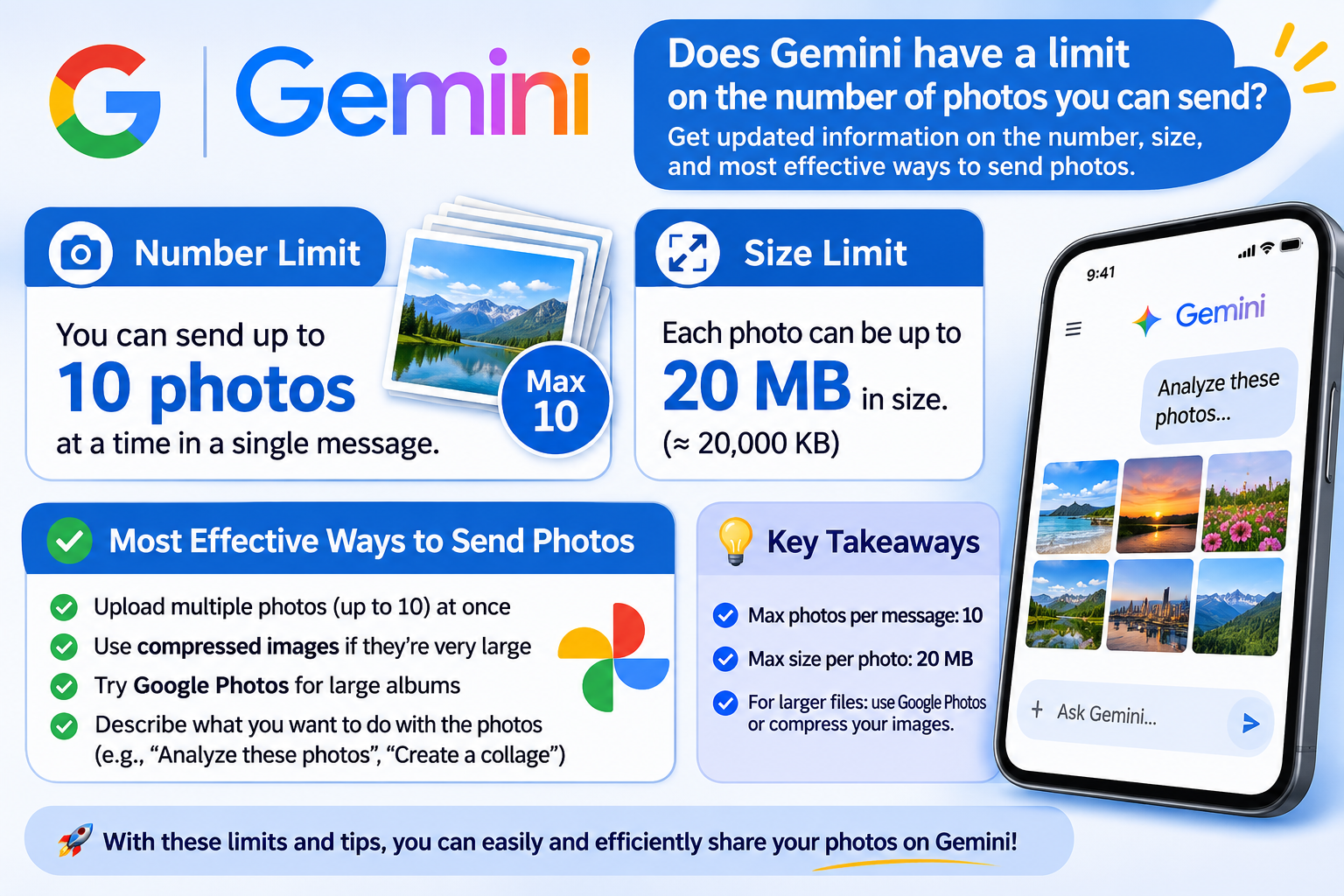
Does Gemini have a limit on the number of photos you can send? Get updated information on the number, size, and most effective ways to send photos.
Nội dung
- 1. Does Gemini have a limit on the number of photos you can upload?
- 2. Image upload limits for each Gemini package
- 2.1. Gemini Package (Free)
- 2.2. Google AI Pro Package
- 2.3. Google AI Ultra Package
- 3. Maximum image size and number when uploading to Gemini
- 3.1. Maximum image size
- 3.2. Number of images uploaded simultaneously
- 4. Image formats supported by Gemini
- 5. How to fix the error of not being able to upload photos to Gemini
- 6. Tips for effectively using the photo sending feature on Gemini
- 7. Conclusion
Gemini is becoming a familiar AI tool for many users thanks to its ability to analyze images, read image content, recognize objects, and support quick task processing. However, with frequent use, many people encounter situations where they cannot upload more images or receive notifications that they have reached their usage limit. So, does Gemini have a limit on image uploads? How many images can be uploaded at a time? What is the maximum file size, and are there daily upload limits for free accounts? In this article, let''s explore the detailed regulations for uploading images on Gemini, the differences between account packages, and some tips to help you use the tool more effectively.
1. Does Gemini have a limit on the number of photos you can upload?
The answer is Yes. Gemini has limits on image uploads , including the number of files that can be attached in a single command, the size of each file, and usage limits within a given timeframe. These limits are set by Google to allocate processing resources, maintain responsiveness, and ensure a stable user experience.
According to Google's current support information, Gemini allows uploading up to 10 files in a single command, subject to availability. This rule applies generally to supported file types such as images, documents, and videos, not 10 images plus 10 documents. For images and other regular files, the maximum size is 100 MB per file.
In addition to upload limits per submission, Gemini also applies usage limits over specific periods. Therefore, even if your photos meet all format and size requirements, you may still be unable to upload them if your account has reached its temporary limit. It's important to note that Google doesn't provide a fixed daily limit for all accounts. The actual limit can vary depending on your subscription plan, features used, request complexity, and system availability.

2. Image upload limits for each Gemini package
Gemini usage levels vary between free and paid accounts. Upgrading typically grants users higher limits, the ability to handle more content, and a larger context window.
2.1. Gemini Package (Free)
With a free account, users can still upload photos to have Gemini identify content, read text, analyze images, or answer related questions. This is a suitable option for basic needs such as explaining a photo, identifying products, reading information from screenshots, or supporting learning.
However, free accounts have standard usage limits. When frequently uploading many images, requesting complex analysis, or using resource-intensive features, you may encounter a limit notification. Google does not publish a fixed number of image uploads per day for users to apply to all situations. Therefore, if you only occasionally need to analyze images, a free account may still be sufficient. Conversely, those who frequently work with images, documents, and large amounts of input data should pay attention to the limit to proactively manage their work.
2.2. Google AI Pro Package
Google AI Pro is aimed at users who need to use Gemini more frequently. According to Google's limits, this plan offers four times the standard usage limit of accounts without an AI plan. This allows users to submit requests, upload files, and leverage AI features in their daily work. It's a suitable option for those who frequently analyze product images, read documents, research content, or need AI support for multiple tasks simultaneously.
It's worth noting that upgrading your account doesn't mean all image upload limits are removed. The maximum of 10 files per upload still applies according to Gemini's file upload guidelines, while storage and usage limits can be expanded depending on your package benefits.
2.3. Google AI Ultra Package
Google AI Ultra is a premium package for users who need to utilize AI features intensively. According to Google, the usage limit for this package can be 5 or 20 times higher than Google AI Pro, depending on the subscription version.
The advantage of the Ultra plan lies in its access to a larger usage limit, suitable for tasks requiring data processing, in-depth research, or the use of advanced AI features. Users also have more space to utilize tools within the Google AI ecosystem. However, you still need to distinguish between usage limits and the number of files that can be sent in a single command. The premium plan does not mean you can attach an unlimited number of images. When processing many images, you should still divide them into appropriate groups for more accurate analysis by Gemini.

3. Maximum image size and number when uploading to Gemini
Besides account limits, Google also specifies technical parameters for uploaded files. This is important information you should check before uploading images to minimize errors during the process.
3.1. Maximum image size
According to Gemini Apps' file upload guidelines, the maximum size for each image file and other supported files is 100 MB . Files exceeding this limit may be rejected during upload. Therefore, if your images are too large, you should use image compression or size reduction tools before submitting them. If Gemini only needs to read a portion of the content, such as a data table, text, or information on an invoice, you can crop the area to be analyzed to save space and allow the AI to focus more.
Besides file size, image quality also affects recognition results. A blurry, poorly lit image or one with too many small details can cause Gemini to misinterpret the information. Therefore, prioritize clear, well-lit images with appropriate resolution.

3.2. Number of images uploaded simultaneously
Gemini allows users to attach up to 10 files in a single command , subject to availability. This is the total file limit, including images, documents, videos, and other supported formats. For example, if you want to upload 6 product photos and 4 PDF files for Gemini to compare information, the total number of files has reached 10. You cannot attach an 11th image in the same command.
If you need to analyze 15 or 20 photos, a suitable solution is to split the submissions into multiple batches. You can upload the first 10 photos, ask Gemini to compile the information, then send the next batch of photos and ask the AI to compare the results. This method helps keep the conversation clear and minimizes the risk of missing details.

4. Image formats supported by Gemini
Gemini supports many popular image formats, making it easy for users to upload images from their phones, computers, or other devices for analysis. Some commonly used formats include:
-
JPEG/JPG: A common format on phones and cameras, suitable for general photography.
-
PNG: Often used for screenshots, illustrations, or images that need to maintain high quality.
-
WEBP: An image format that optimizes file size and is commonly found on websites.
-
HEIC/HEIF: A common format on some Apple devices, allowing for optimal image storage.
When uploading images, you should check the file format to avoid the system not recognizing them. If you encounter errors, try converting the image to JPEG or PNG and uploading again. Importantly, don't just focus on whether the image is successfully uploaded. Make sure the content in the image is clear enough for Gemini to accurately identify the text, charts, objects, or details you want to analyze.
5. How to fix the error of not being able to upload photos to Gemini
During use, you may sometimes encounter situations where images fail to upload, attachments are rejected, or Gemini notifies you that the limit has been reached. Instead of repeatedly resending, try checking some of the following common causes:
-
Check image size: If the file exceeds 100 MB, compress or reduce the image size before uploading.
-
Check the number of files: Ensure that the total number of attachments in the statement does not exceed 10.
-
Check the format: Prioritize using JPEG, PNG, or other image formats supported by Gemini.
-
Wait for the limit to reset: If you receive a message that the file download limit has been reached, wait a while and try again. Gemini uses a rotating limit mechanism, so the recovery time may vary.
-
Refresh your browser: Try reloading the page, logging out and logging back in, or using a different browser.
-
Check your internet connection: An unstable connection can also interrupt the image loading process.
6. Tips for effectively using the photo sending feature on Gemini
To make the most of Gemini's image analysis capabilities, you should build a structured data submission process instead of uploading too many images at once without specific requirements.
-
Choose images with clear content: Prioritize images that are well-lit and free from blur or shakiness. This helps Gemini better recognize text and fine details.
-
Group the images: If you need to analyze many images, divide them into smaller groups by theme for easier tracking and comparison.
-
Write specific instructions: Instead of just sending images and asking general questions, clearly state your purpose, such as reading information, finding differences, or analyzing the composition.
-
Trim unnecessary parts: If you only want the AI to read a specific section of content, you can trim that area to reduce file size and avoid clutter.
-
Monitor your account limits: If you frequently use Gemini for work, choose a subscription plan that suits the frequency and volume of data you need to process.
7. Conclusion
Thus, Gemini has image upload limits, but usage will depend on your account plan, file size, and current limits. With the ability to upload up to 10 files per command and support for many popular image formats, this tool still adequately meets the needs of daily learning, work, and content analysis. For efficient use, you should choose high-quality images, check file sizes before uploading, and split data when processing multiple images. If you frequently use Gemini for intensive work, choosing a suitable Google AI plan will also give you more limits and a more convenient experience.













VIP Products

Best Selling Products
Adobe Photoshop Copyright - Full App
120 USD
ChatGPT Plus Account (GPT-4)
16 USD
Genuine Cheap Canva Pro
39 USD
Autodesk All App Account Copyright
120 USD
Upgrade Genuine Office 365
49 USD
Windows 10 & 11 Pro Key
36 USD
Capcut Pro 1 Year
39 USD
Upgrade Duolingo Super
29 USD
Plugin Retouch4me
69 USD
Upgrade genuine Capture One account
120 USD
Freepik Premium Account
59 USD
MidJourney Account
29 USD
Genuine Adobe Illustrator account
99 USD
Copyright Adobe Lightroom Account
59 USD
Adobe Premiere Pro Account
99 USD