Best Selling Products

Copyright Adobe Lightroom Account
59 USD

Capcut Pro 1 Year
39 USD

Genuine Cheap Canva Pro
39 USD
Adobe Premiere Pro Account
99 USD

ChatGPT Plus Account (GPT-4)
16 USD

Freepik Premium Account
59 USD
Upgrade genuine Capture One account
120 USD
Plugin Retouch4me
69 USD

MidJourney Account
29 USD

Autodesk All App Account Copyright
120 USD

Genuine Adobe Illustrator account
99 USD

Adobe Photoshop Copyright - Full App
120 USD

Upgrade Duolingo Super
29 USD
Upgrade Genuine Office 365
49 USD
Windows 10 & 11 Pro Key
36 USD
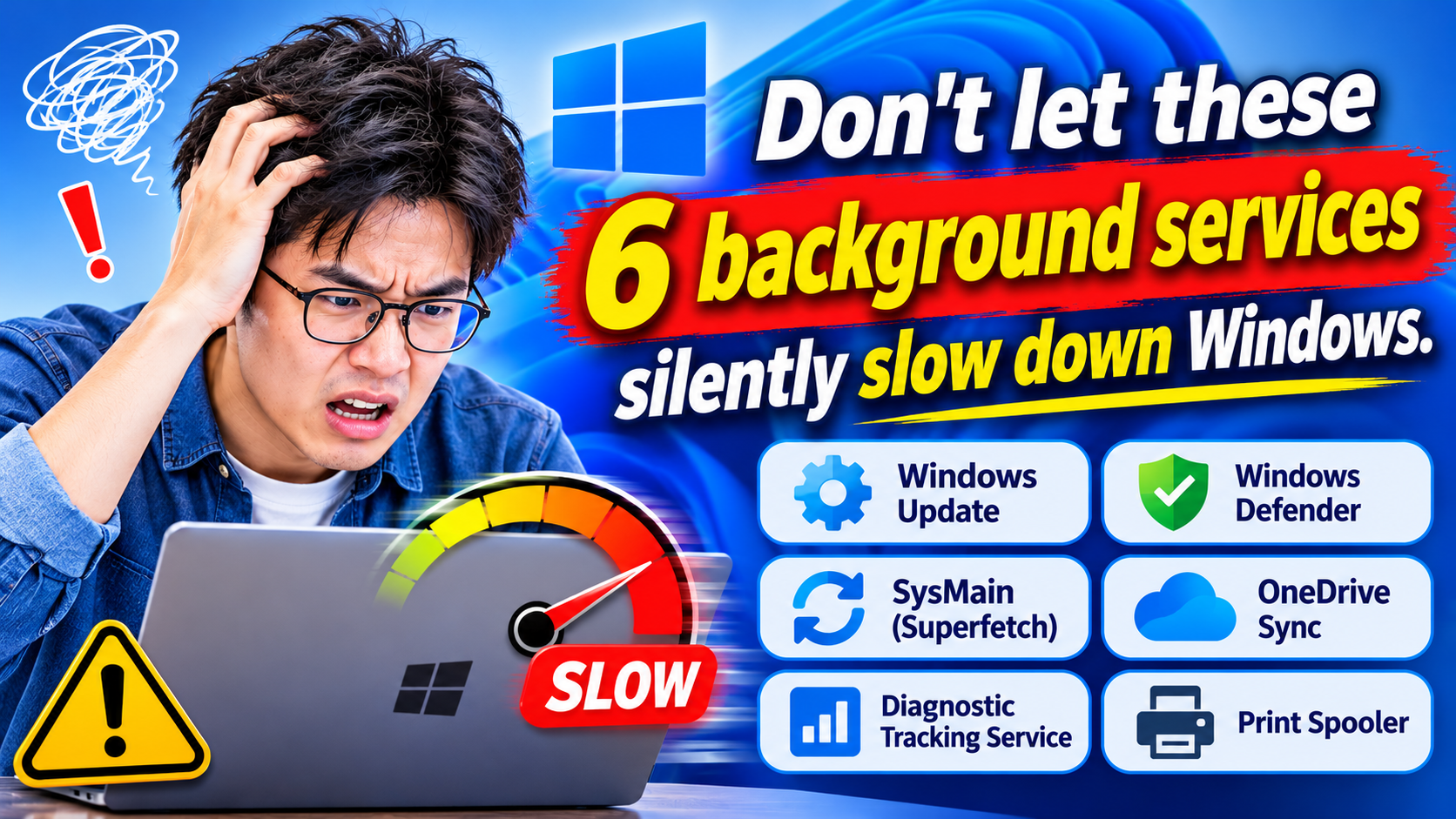
Don''t let these 6 background services silently slow down Windows.
Nội dung
Some Windows features continue to run in the background even when rarely used. Over time, coupled with third-party software services, the number of background processes can increase significantly. These are the things you should check if you want a cleaner and lighter Windows experience.
1. Delivery Optimization
Delivery Optimization is a component of Windows Update developed by Microsoft to optimize the download process for Windows updates, Microsoft Store apps, and other content.
Instead of simply downloading data directly from Microsoft servers, Delivery Optimization can receive a portion of the update data from other Windows computers. Depending on the configuration, the user's computer can also share the downloaded data with other devices on the local network or over the internet.
This mechanism is particularly useful in businesses or families with multiple Windows computers because an update doesn't necessarily need to be downloaded entirely from the internet on each machine. However, if you're only using one computer or have a limited network connection, this peer-to-peer sharing feature may not offer much benefit.
Microsoft also allows users to actively control how Delivery Optimization shares data. When the download from other devices feature is turned off, Windows Update still functions normally, and the computer still receives updates directly from Microsoft.
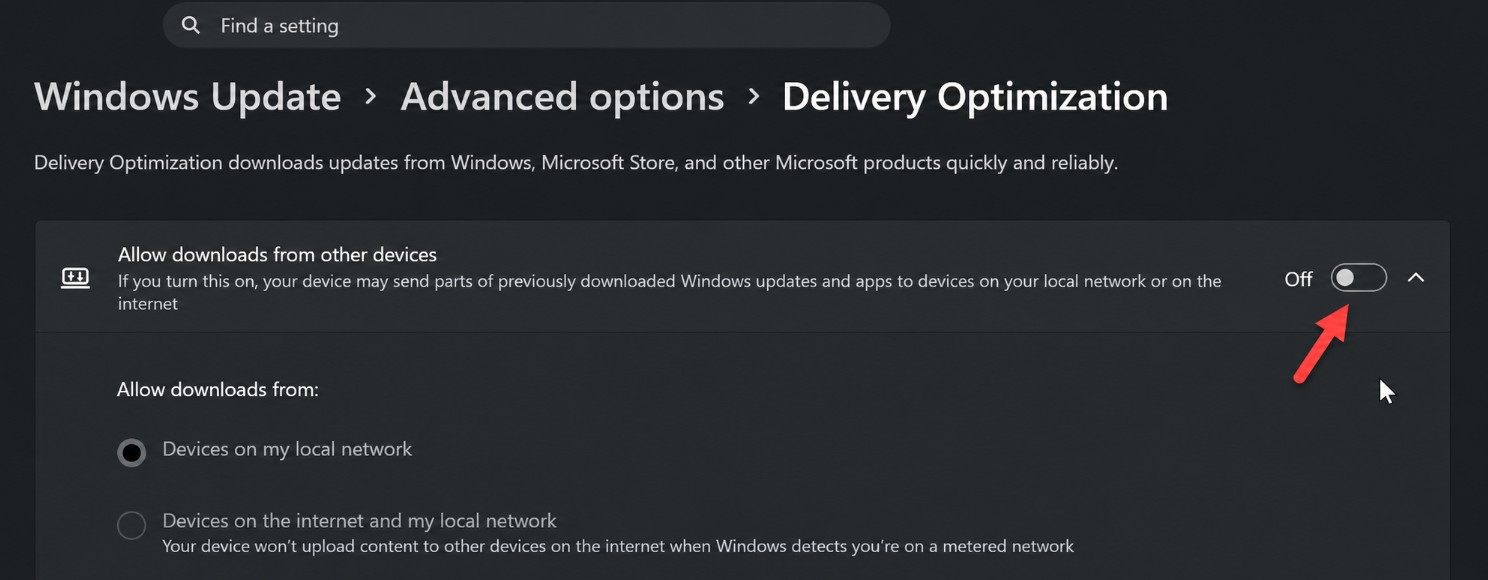
To turn it off, go to Settings > Windows Update > Advanced options > Delivery Optimization , then switch Allow downloads from other devices to Off.
If they don't want to completely disable sharing, users with multiple computers in the same household can choose to allow sharing only with devices on the local network instead of with computers on the internet.
2. Windows Mobile Hotspot
Windows supports turning your computer into a network hotspot so that other devices such as phones, tablets, or laptops can access the internet.
It's worth noting that Mobile Hotspot doesn't only work with laptops that have a SIM card. According to Microsoft, Windows can share internet connections from Wi-Fi, Ethernet, or cellular data via Wi-Fi or Bluetooth.
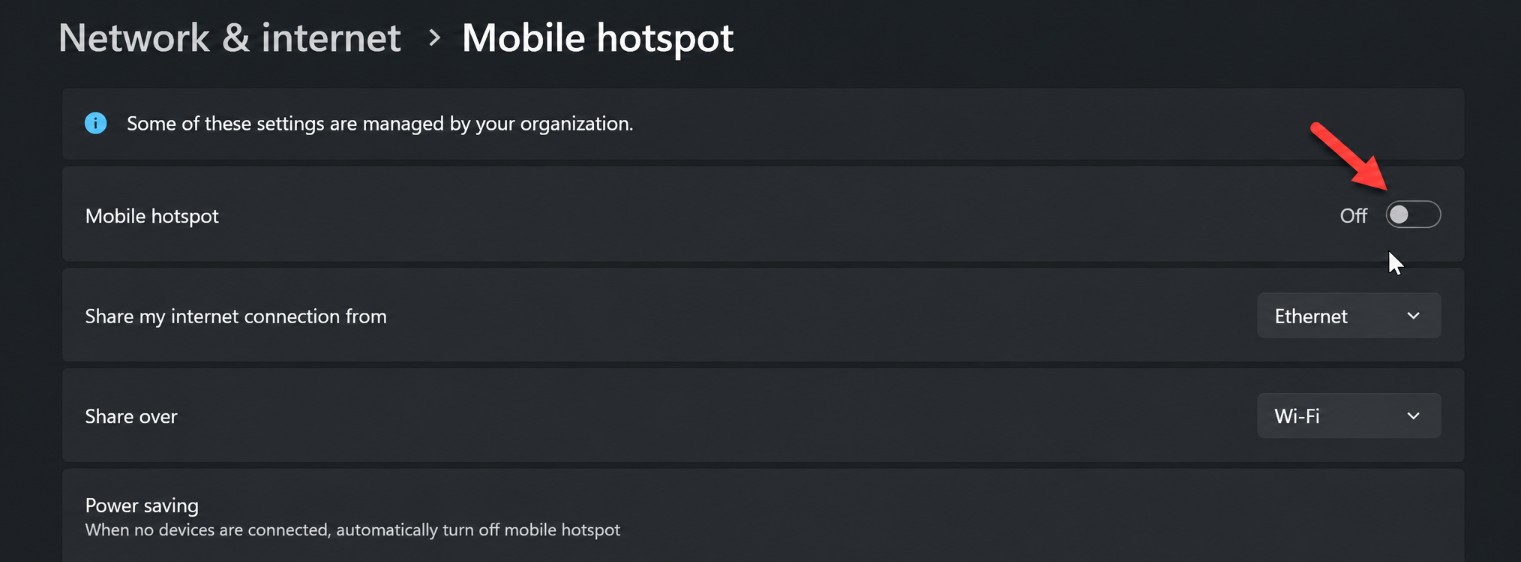
Therefore, those who frequently use their laptops as Wi-Fi hotspots should not disable this service. Conversely, if you have never used the Settings > Network & internet > Mobile hotspot function , leaving the related service available in the background is unnecessary.
Users who want to check can press Windows + R , type services.msc and press Enter. Then find the service related to Windows Mobile Hotspot Service .
Instead of completely disabling the Startup type, you can set it to Manual . This is a more balanced option because the service doesn't need to run constantly, but it can still be activated when necessary.
In reality, simply disabling the Mobile Hotspot Service is unlikely to make a significant difference in performance. However, on low-end laptops, removing many unused services can help reduce the total number of background processes.
3. Telemetry và Error Reporting
Windows uses a diagnostic data system to gather information related to the device, performance, stability, application errors, and how certain components of the operating system are functioning. Connected User Experiences and Telemetry is one of the components responsible for processing this diagnostic data.
Microsoft states that diagnostic data may include information about hardware, processors, RAM capacity, storage devices, networks, as well as events related to application performance and stability.
For users concerned about privacy or wanting to limit unnecessary data transmission, a safer solution is to go to Settings > Privacy & security > Diagnostics & feedback and turn off options to send unnecessary additional diagnostic data before directly interfering with system services.
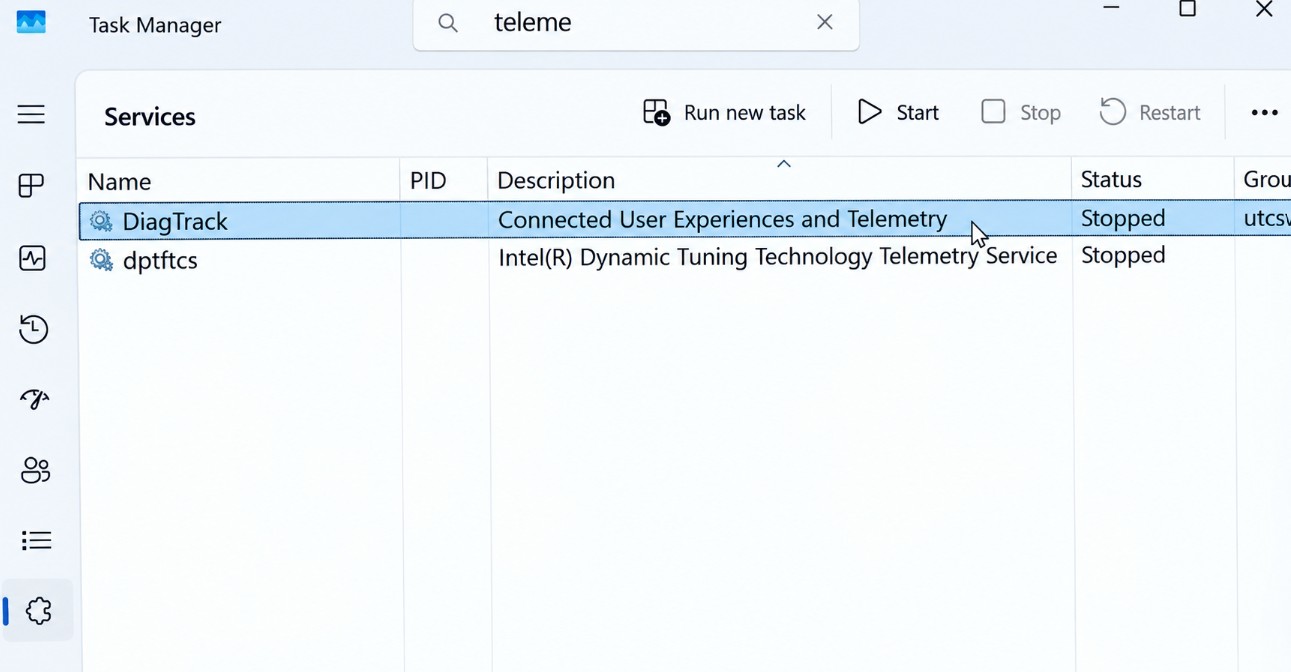
Another component is Windows Error Reporting . When a program crashes or Windows encounters a problem, this component can collect error-related data for diagnostic purposes and send the information to Microsoft.
However, it's important to understand that Windows Error Reporting doesn't always constantly consume large amounts of CPU or RAM. It primarily becomes noticeable when software errors, freezes, or crashes repeatedly.
If your computer frequently displays error messages after an application crashes, you might consider setting the Windows Error Reporting Service to Manual mode. Completely disabling it is only appropriate if you accept not sending crash reports to Microsoft and don't need this feature.
4. Program Compatibility Assistant
The Program Compatibility Assistant Service, often abbreviated as PCA in Windows, monitors certain programs installed or running on a computer to detect known compatibility issues.
This feature is particularly useful when users run older programs that were developed for previous versions of Windows. If it detects that an application might encounter problems, Windows can issue a warning or suggest appropriate compatibility settings.
Microsoft documentation describes the Program Compatibility Assistant Service as a component that helps detect program compatibility issues and confirms that this service can be disabled in environments where that functionality is not needed.
With computers primarily using newer, regularly updated software designed for Windows 11, PCA is often less important. Users can open services.msc , find Program Compatibility Assistant Service , and try changing the Startup type to Manual.
However, computers running outdated accounting software, specialized equipment, machine control programs, or long-standing business applications should keep this service enabled to avoid compatibility issues.
5. SysMain
SysMain is one of the services frequently mentioned when users encounter the 100% disk usage issue on Windows. Previously, this service was known as Superfetch.
The purpose of SysMain is to analyze computer usage and help Windows prepare data for frequently opened programs. In theory, this mechanism helps applications start up faster.
However, the effectiveness of SysMain depends heavily on the computer's configuration. On systems with fast SSDs and large amounts of RAM, users may not notice a significant difference. Meanwhile, on some machines with low RAM or frequently heavily loaded drives, SysMain sometimes appears in Task Manager along with high disk usage.
It's important not to assume that SysMain is a "redundant" service on every computer. If Task Manager shows that SysMain is running normally, there's no reason to disable it.
You should only try disabling it if your computer frequently experiences 100% disk usage, slow response times, and you identify SysMain as one of the processes using the disk heavily.
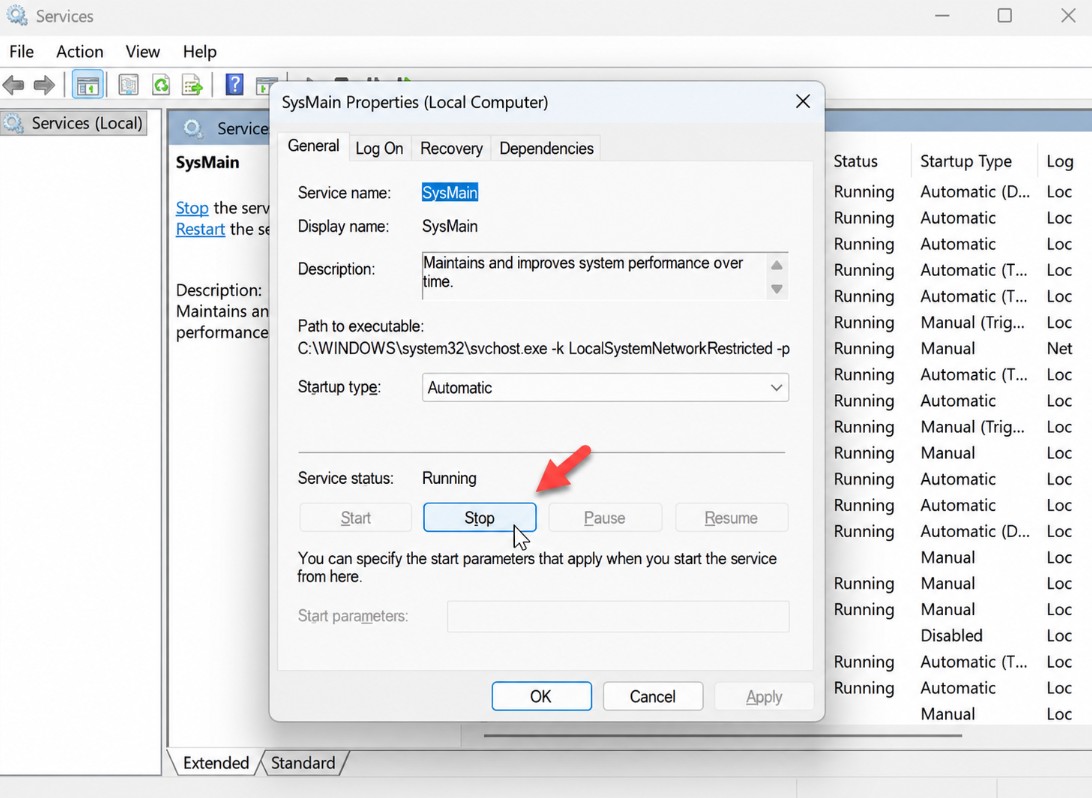
To do this, press Windows + R > services.msc , find SysMain , select Properties, click Stop, and set Startup type to Disabled. Then restart your computer and monitor performance for a few days.
If there is no improvement or the program opening speed becomes slower, users should turn SysMain back on.
6. Services from third-party software
In many cases, the reason Windows is slow is not due to Microsoft's services but rather to third-party software.
Cloud synchronization applications, printer utilities, RGB control software, automatic updaters, game launchers, messaging software, laptop manufacturer toolkits, or graphics card management applications can all install additional background services.
A single service might not use many resources, but when dozens of applications start simultaneously, the total amount of RAM and CPU consumed increases significantly.
To check, press Windows + R , type msconfig , open the Services tab, and then check Hide all Microsoft services . Windows will then only display most third-party software services.
You shouldn't immediately click " Disable all" and use your computer that way for an extended period. Microsoft primarily instructs users to click "Disable all" during the Clean Boot process to identify the faulty software and warn that the computer may temporarily lose some functionality.
A more sensible approach is to check the manufacturer's name and disable each unnecessary service. For example, a software program that is no longer in use but still has an updater running in the background is a suitable candidate to remove.
Conversely, you should not arbitrarily disable security software services, audio drivers, touchpad drivers, graphics card drivers, Bluetooth, or other hardware utilities that are actually in use.
7. How to safely turn off the service?
Optimizing Windows doesn't mean that the more services you disable, the faster your computer will be. A stable computer needs a balance between performance and full functionality.
Before disabling a service, open Task Manager and check CPU, Memory, Disk, and Network to identify which processes are actually consuming resources. If the machine is running normally, disabling multiple services often doesn't produce a significant improvement.
For services where the functionality is uncertain, it's best to switch from Automatic to Manual first. Then, use the machine normally to check if any functions are affected.
Users should also record the services they have changed so they can restore them if needed. Creating system restore points before tweaking multiple services at once is also a useful preventative measure.
Most importantly, never randomly disable Microsoft services just because you see them in Task Manager. Services related to security, Windows Update, networking, login, encryption, sound, or hardware drivers can directly affect the operating system's performance.
8. Conclusion
Delivery Optimization, Mobile Hotspot, certain Telemetry components, Program Compatibility Assistant, SysMain, and third-party software services can all be targets for optimization in appropriate situations. However, no single list of services that should be disabled is the same on every computer.
The most effective approach is to identify unused functions, check actual resource consumption, and then disable each component individually. For machines with low RAM, frequently overloaded hard drives, or heavily programmed systems, properly cleaning background processes can improve Windows responsiveness, reduce boot times, and provide a smoother user experience without needing to install additional "speed-up" tools.
















VIP Products







Best Selling Products
Copyright Adobe Lightroom Account
59 USD
Capcut Pro 1 Year
39 USD
Genuine Cheap Canva Pro
39 USD
Adobe Premiere Pro Account
99 USD
ChatGPT Plus Account (GPT-4)
16 USD
Freepik Premium Account
59 USD
Upgrade genuine Capture One account
120 USD
Plugin Retouch4me
69 USD
MidJourney Account
29 USD
Autodesk All App Account Copyright
120 USD
Genuine Adobe Illustrator account
99 USD
Adobe Photoshop Copyright - Full App
120 USD
Upgrade Duolingo Super
29 USD
Upgrade Genuine Office 365
49 USD
Windows 10 & 11 Pro Key
36 USD