Best Selling Products

Freepik Premium Account
59 USD

Plugin Retouch4me
69 USD

Genuine Cheap Canva Pro
39 USD

Windows 10 & 11 Pro Key
36 USD

Adobe Premiere Pro Account
99 USD

MidJourney Account
29 USD

Autodesk All App Account Copyright
120 USD

Adobe Photoshop Copyright - Full App
120 USD

Copyright Adobe Lightroom Account
59 USD

Upgrade Duolingo Super
29 USD

Capcut Pro 1 Year
39 USD

Upgrade Genuine Office 365
49 USD

Genuine Adobe Illustrator account
99 USD

ChatGPT Plus Account (GPT-4)
16 USD

Upgrade genuine Capture One account
120 USD
Don't Upgrade Your RAM Just Yet! 5 Tips to Make Windows Run as Smooth as New
Nội dung
- 1. Block unnecessary applications from starting up.
- 1.1. Why do they run immediately upon startup?
- 1.2. How to disable applications that start with Windows
- 1.3. Applications that should be turned off
- 1.4. Results after optimization
- 2. Close persistent background applications.
- 2.1. Why are background applications harmful?
- 2.2. How to close background applications
- 2.3. Which applications typically run in the background?
- 2.4. What happens if you accidentally turn it off?
- 2.5. The benefits of managing background applications
- 3. "Clean up" browser extensions
- 3.1. Utilities that seem harmless but consume a lot of RAM.
- 3.2. How to clean up utilities
- 3.3. Signs that your extension is consuming too much RAM
- 3.4. Effects after detoxification
- 4. Take advantage of smart memory saving features.
- 4.1. Sleeping Tabs on Microsoft Edge
- 4.2. Memory Saver on Google Chrome
- 5. Use Microsoft PC Manager to "free up" RAM.
- 5.1. “Boost” Feature: Free up RAM with just one click
- 5.2. Smart Boost: Automatically optimizes when RAM is full.
Before spending money on more RAM, you can take advantage of these extremely effective optimization tips right in Windows.
You're probably all too familiar with the feeling of your computer suddenly slowing down like a snail after just a few minutes of use. After opening a few browser tabs to find a document, your PC immediately becomes sluggish, like an airplane engine preparing to accelerate. The mouse cursor moves jerkily, switching between windows becomes slow, and File Explorer takes a few seconds to respond. This is a typical sign that Windows is consuming too much RAM, leaving the system with insufficient resources to handle tasks.
Many people rush to upgrade their hardware. However, this isn't always the best solution, especially if you only use it for office tasks, web browsing, or light design. Windows 10 and Windows 11 both have self-optimization capabilities, but they also have numerous resource-intensive background processes, system startup applications, and browser extensions that users often overlook. Before investing in new RAM, you can improve your computer's speed with simple yet highly effective software solutions. Below is a detailed guide to freeing up RAM and restoring your PC's performance.
1. Block unnecessary applications from starting up.
One of the most common reasons why computers start up slowly and consume several GB of RAM immediately upon booting is the proliferation of applications that automatically run with Windows. From cloud storage software like OneDrive, Dropbox, and Google Drive to chat applications like Teams, Telegram, and Discord, they all silently begin running the moment you press the power button.
It's worth noting that most of these applications don't need to run continuously. Having many programs occupying RAM right from startup overwhelms the system, leading to delays, lag, and even crashes when you open additional software.
1.1. Why do they run immediately upon startup?
Many applications intentionally implement autostart features to shorten the time it takes to open the next time or to synchronize in the background. This is useful in some cases, but most users don't need it.
When starting up with the system, each program can occupy 50–300 MB of RAM , or even more. If you have 10 applications of this type, the system will have already used up 2–3 GB of RAM before you can do anything else.
1.2. How to disable applications that start with Windows
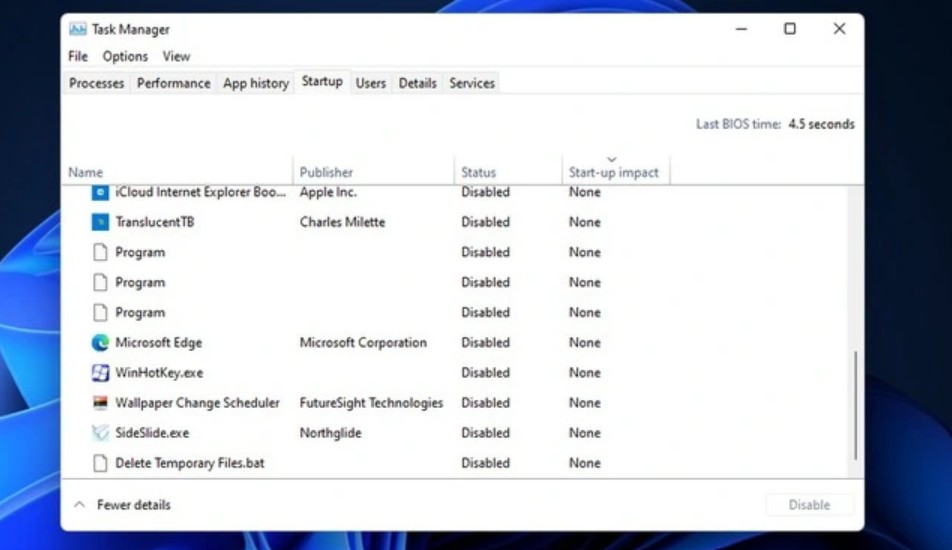
Windows provides a very intuitive tool: Task Manager → “Startup apps” tab
Here, you'll see a list of all applications that start with the system. Windows also categorizes their impact on startup speed: High, Medium, Low.
Right-click on the applications you don't actually need running immediately and select Disable .
1.3. Applications that should be turned off
• Chat applications that are not used frequently
• Photo editing and design tools
Game launchers
Audio recording and streaming software
• Printer support applications
Firmware updater
• Laptop manufacturer's features (if not important)
1.4. Results after optimization
Disabling startup applications often yields noticeable results:
• Computers boot up 30–70% faster
Free up 1–3 GB of RAM .
The CPU is not overloaded during the initial startup phase .
This is a simple yet highly effective step that every Windows user should take.
2. Close persistent background applications.
Another issue that causes RAM usage, which is less noticeable to users, is background applications . Windows allows many programs to continue running even after you've pressed the "X" button to close them. This may be for purposes such as receiving notifications, syncing files, monitoring user activity, or loading resources for next use.
2.1. Why are background applications harmful?
Because they constantly and silently consume RAM. You think you've closed 10 apps? In reality, there might be 5 other apps running in the background, each taking up several hundred MB.
For a machine with 8 GB of RAM , just a few background applications can consume 20–40% of total resources.
2.2. How to close background applications
Follow these steps: Settings → Apps → Installed apps → select the app → Advanced options → Background app permissions → select “Never”
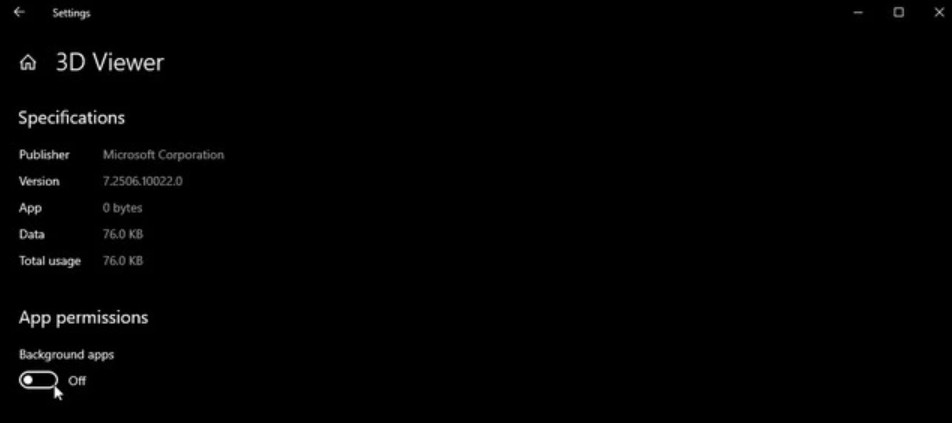
This allows Windows to force the application to stop all background activity, only running when you open it.
2.3. Which applications typically run in the background?
· Teams, Skype, Zoom
· OneDrive, Google Drive
· Spotify
· Telegram, WhatsApp, Viber
• Games (Battle.net, Epic Games Launcher)
Media server software such as Plex, Kodi
• The application updates automatically.
2.4. What happens if you accidentally turn it off?
No problem. The app is still working normally, it just won't run in the background anymore. If needed, you can always turn it back on.
2.5. The benefits of managing background applications
• Significantly reduces RAM consumption
Save battery power on your laptop.
• More free CPU, reducing the risk of overheating.
• Faster overall response speed
When combined with disabling applications that start with Windows, your computer will run noticeably smoother.
3. "Clean up" browser extensions
In the age of online work, web browsers, especially Chrome and Edge, have become the most RAM-intensive applications. However, what many people overlook is that extensions are the real culprits dragging RAM down to the bottom.
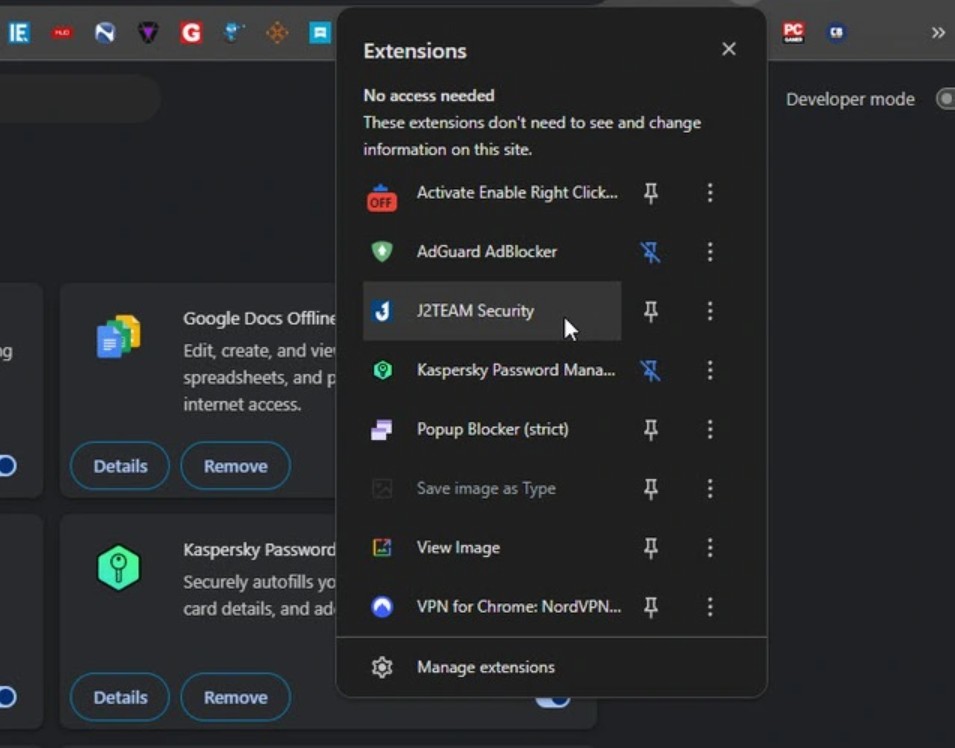
Each extension must run one or more separate processes within the browser. If you install 15 extensions, the browser may create 20–30 processes, consuming gigabytes of RAM just to maintain them.
3.1. Utilities that seem harmless but consume a lot of RAM.
Online photo editing tools
Email reader extension
Password Manager
• Note-taking and to-do list tools
Video download utility
SEO tools
Content and ad filters
Productivity-optimizing extensions
Each thing a little bit, when added together, makes a big problem.
3.2. How to clean up utilities
Open your browser and go to: Chrome/Edge → Menu → Extensions → Manage Extensions
Here, you can:
Turn off unused utilities .
Remove features that are no longer needed.
Check for unfamiliar extensions (they may contain malware).
3.3. Signs that your extension is consuming too much RAM
Chrome uses over 2–3 GB of RAM when only a few tabs are open .
The device heats up even when just browsing the web lightly.
The browser often freezes when switching tabs .
• Show multiple Chrome processes in Task Manager
Some people shared that they didn't realize they were using more than 30 extensions until they opened the manager and were shocked.
3.4. Effects after detoxification
• The browser is noticeably lighter.
• Reduce RAM consumption by 20–70%
• Reduce tab crashes
Windows runs more stably.
This is an important step for office workers, marketers, designers, or anyone who uses Chrome daily.
4. Take advantage of smart memory saving features.
Even if you've reduced the number of extensions, your browser is still the king of RAM hogging. Opening 10-20 tabs is all too common, especially when you need to browse documents or design websites.
Fortunately, modern browsers have features that help save RAM by putting unused tabs into sleep mode.
4.1. Sleeping Tabs on Microsoft Edge
Edge is currently the browser with the most powerful RAM management features.
Hãy vào: Settings → System and Performance → Save resources with sleeping tabs
When enabled, Edge automatically puts tabs that have been inactive for a certain period of time into sleep mode. The tabs still appear on the toolbar, but they don't use RAM, run scripts, or update background content.
You can also customize:
• Sleep tab duration (1 minute → 1 hour)
• List of websites that never sleep
Limit the maximum amount of RAM the browser can use.
4.2. Memory Saver on Google Chrome
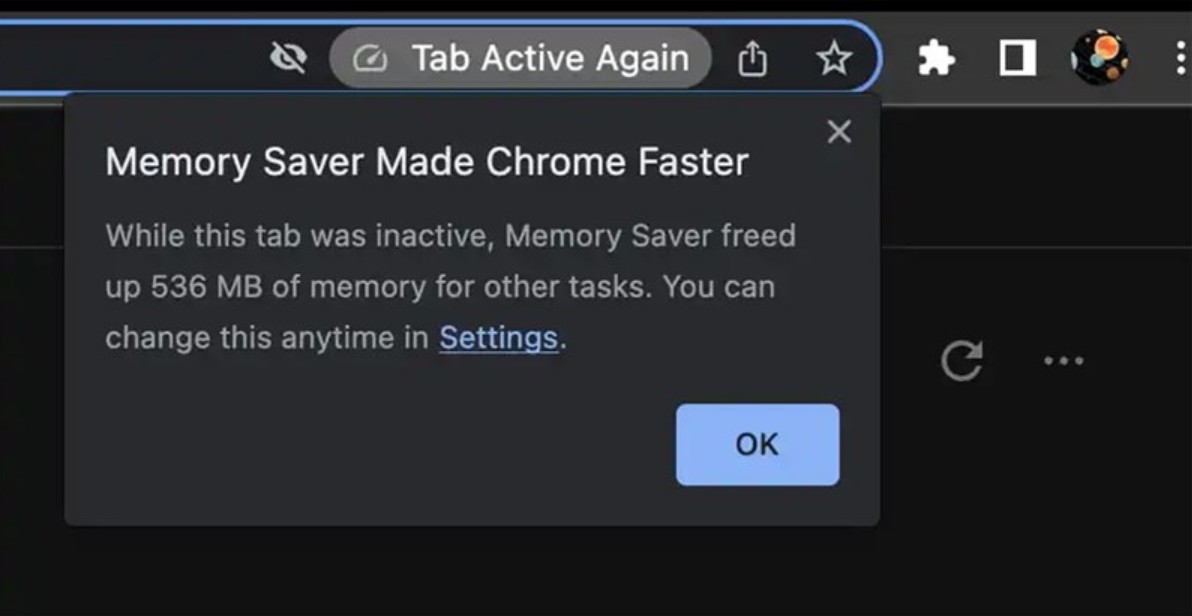
Chrome used to be known for its high RAM usage, but the new version has integrated Memory Saver , which works similarly to Edge.
Enable this feature in: Settings → Performance → Memory Saver
What happens when a tab is put into sleep mode?
JavaScript stopped running
The page stops using RAM.
Resources are freed up for other applications.
When you switch back to the tab, the page will reload quickly.
When do you need to limit your browser's RAM?
When the device only has 4–8 GB of RAM
When running multiple apps simultaneously, such as Photoshop and Illustrator.
When streaming video and having multiple document tabs open.
When using an older laptop with a weak CPU .
Benefits of enabling RAM saving feature
Reduce RAM load by 30–60%
• More stable browser
The CPU doesn't have to process the abandoned tab.
• Reduces the risk of browser-wide crashes.
For users with low-spec computers, this feature truly transforms the user experience.
5. Use Microsoft PC Manager to "free up" RAM.
If you don't want to waste time checking each application, extension, or tab, Microsoft has provided an extremely convenient tool: Microsoft PC Manager .
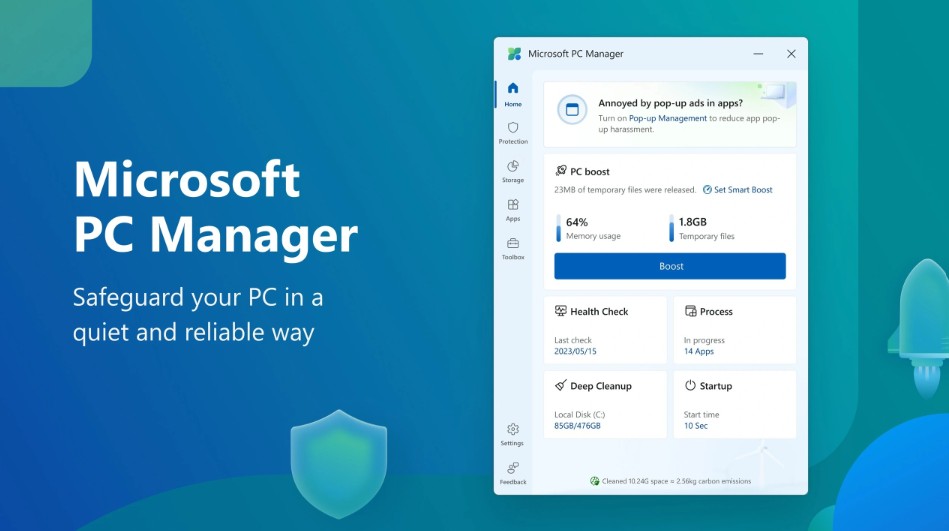
This is a free, lightweight, official Microsoft application that supports:
Clean up system junk files.
Free up RAM
• Background process management
Check temporary files and cache files .
• Control startup applications
Protect your computer from malware .
• Optimize overall performance
5.1. “Boost” Feature: Free up RAM with just one click
When you press the Boost button , PC Manager will:
• Clean up unnecessary processes
Free up occupied RAM .
Clear system cache
• Optimize resources in real time
In just a few seconds, your RAM usage can drop from 85% to 50–60%, depending on the situation.
5.2. Smart Boost: Automatically optimizes when RAM is full.
The application also features a Smart Boost mode that monitors RAM usage. When RAM usage exceeds 80–90%, PC Manager will automatically intervene and free up resources for you. This is very useful when running demanding applications such as:
· Photoshop
· Premiere Pro
Figma
· AutoCAD
Simulation tools
· Game 3D
You don't need a large budget to enjoy a significantly smoother experience.





















VIP Products








Best Selling Products
Freepik Premium Account
59 USD
Plugin Retouch4me
69 USD
Genuine Cheap Canva Pro
39 USD
Windows 10 & 11 Pro Key
36 USD
Adobe Premiere Pro Account
99 USD
MidJourney Account
29 USD
Autodesk All App Account Copyright
120 USD
Adobe Photoshop Copyright - Full App
120 USD
Copyright Adobe Lightroom Account
59 USD
Upgrade Duolingo Super
29 USD
Capcut Pro 1 Year
39 USD
Upgrade Genuine Office 365
49 USD
Genuine Adobe Illustrator account
99 USD
ChatGPT Plus Account (GPT-4)
16 USD
Upgrade genuine Capture One account
120 USD