Best Selling Products

Upgrade genuine Capture One account
120 USD

Genuine Cheap Canva Pro
39 USD

Adobe Photoshop Copyright - Full App
120 USD

Autodesk All App Account Copyright
120 USD

Freepik Premium Account
59 USD

ChatGPT Plus Account (GPT-4)
16 USD

Upgrade Duolingo Super
29 USD

Windows 10 & 11 Pro Key
36 USD

Adobe Premiere Pro Account
99 USD

Capcut Pro 1 Year
39 USD

Genuine Adobe Illustrator account
99 USD

Copyright Adobe Lightroom Account
59 USD

MidJourney Account
29 USD

Plugin Retouch4me
69 USD

Upgrade Genuine Office 365
49 USD
Discover the power of camera-based search with Google Lens.
Nội dung
- 1. What is AI Search with Google Lens and how to use it?
- 1.1. What is Google Lens?
- 1.2. Requirements for using Google Lens
- 2. Google Lens modes and how they work
- 2.1. Translation Mode
- 2.2. Text Mode
- 2.3. Shopping Mode
- 2.4. Diet
- 2.5. Location Mode
- 2.6. Tree Mode
- 2.7. Animal Mode
- 2.8. Content Mode
- 3. Benefits of Google Lens for users
Google Lens offers a whole new way to search simply by pointing the camera at an object.

Previously, to find information about a product, item, or plant, you had to manually enter keywords into Google. Now, you just point your camera, and all the information instantly appears. This technology is Google Lens , one of Google's important advancements in combining AI and image recognition to create a modern, convenient, and user-friendly search experience.
Google Lens not only helps users search for images like traditional search tools, but also expands its applications to real life: object recognition, text translation, document scanning, finding places to eat, scanning assignments, context analysis, shopping assistance, and countless other tasks that previously had to be performed manually. Once you get used to using it, you'll almost never want to go back to searching using keywords.
In this article, we will explore in detail the AI Search function using the camera with Google Lens , understanding how it works, how to use it on different platforms and modes, as well as the practical benefits this tool brings to daily life. This will be a comprehensive, easy-to-understand, and extremely useful guide for anyone who wants to maximize the power of Google Lens in the age of AI explosion.
1. What is AI Search with Google Lens and how to use it?
Google Lens AI Search is one of Google's most advanced features, allowing you to search for information using only images or your live camera. Instead of typing lengthy questions, simply point your phone at what you're curious about: an item in your hand, a tree by the roadside, someone's shoes, a product in the supermarket, or even a confusing passage in a research book. Google Lens immediately analyzes this image data using AI algorithms and provides the most relevant results.

1.1. What is Google Lens?
Google Lens is considered Google's "AI eyes," allowing you to interact with the physical world in ways previously impossible with just typing. When you point your camera at it, Google Lens recognizes shapes, colors, characters, patterns, and a host of other elements to understand what you're seeing. It then uses artificial intelligence to classify the object, compare it to vast amounts of data on the internet, and return the most relevant information.
What makes Google Lens superior is its ability to combine visual data with contextual analysis. For example, when you take a picture of a flower, Google Lens doesn't just tell you "this is a rose," but also provides information on how to care for it, its meaning, similar images, its origin, and even where you can buy that particular plant.
Depending on the intended use, Google Lens can assist users in many areas of life:
-
Identify objects and provide detailed information.
-
Search for similar products or compare prices.
-
Translate text from images without typing.
-
Copy text from an image to a document or note.
-
Learn about plants, animals, and tourist attractions.
-
Check restaurant reviews simply by pointing your phone at the menu.
-
Analyze images to create creative content such as poems, articles, and memes.
-
Assists in solving exercises by analyzing formulas or text passages.
-
Learn about fashion brands with just a quick photo.

These features demonstrate that Google Lens is not only useful for information retrieval but also a practical tool for learning, work, and shopping.
1.2. Requirements for using Google Lens
To use Google Lens, you only need one of the following devices or apps:
-
Android phones have the Google app or Google Camera.
-
iOS phones have the Google app or Google Photos.
-
Access Google Lens directly in your web browser.
-
Use Chrome's built-in Lens feature.
Simply open the Google app, and you'll see the Google Lens icon in the bottom right corner of the search bar. Tap it and grant camera access, and you can start using it right away.
2. Google Lens modes and how they work
2.1. Translation Mode
The Translation mode is one of Google Lens' most popular features, especially for travelers, international students, or anyone who frequently works with foreign language documents. When this mode is activated, Google Lens uses an OCR (Optical Character Recognition) algorithm to scan text in images. After recognizing the text, the AI system automatically identifies the language and translates it into your desired language.
The best thing about this mode is its ability to translate directly onto images without needing to retake the photo. You can point your camera at a Japanese sign, a Korean bottle label, a Thai menu, or an English article and see the translation instantly superimposed on the original image in real time. Augmented Reality (AR) technology makes the translation more natural, as if you're looking at a different version of the original image.
The practical applications of this feature are incredibly diverse. When traveling, you no longer have to worry about incomprehensible signs or directions. When learning a foreign language, you can use it to translate difficult passages in just a few seconds. When buying imported goods, you immediately know the ingredients or instructions for use without having to look them up manually.
2.2. Text Mode
While Translation mode focuses on language conversion, Text mode is geared towards handling text content from a work and study perspective. When you use Google Lens to scan a piece of text, it not only recognizes the text like a smart scanner but also allows you to copy it directly to the clipboard. This is extremely useful when you need to quote from paper documents, quickly capture lecture notes in class, or copy handwritten notes.
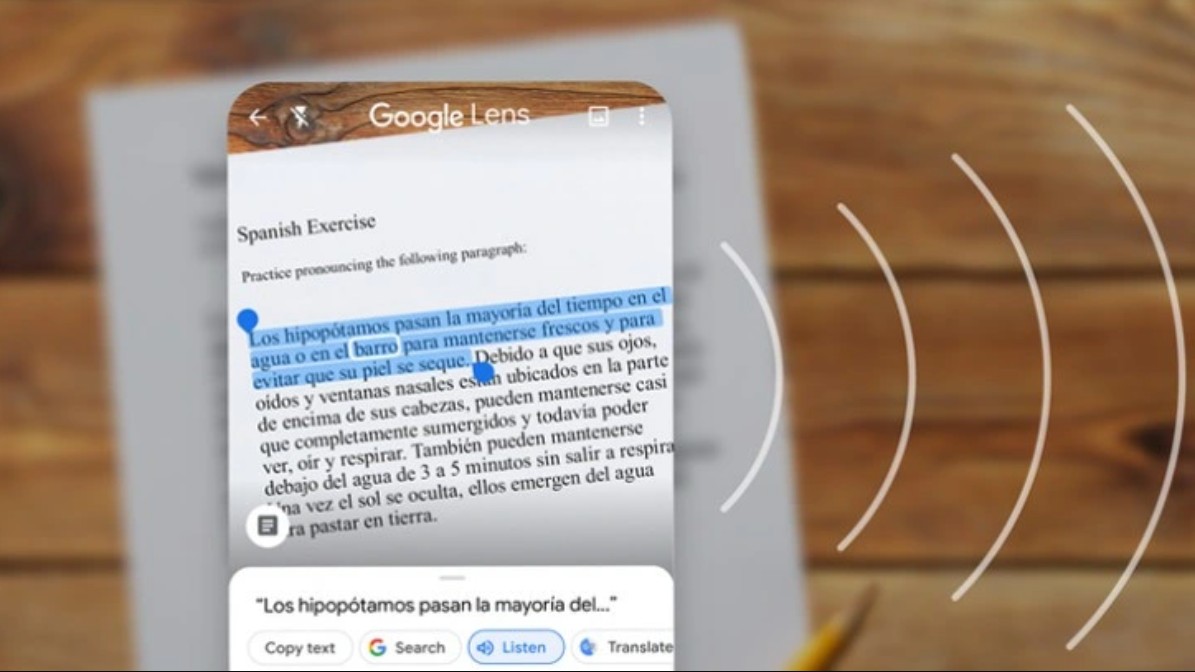
One of Google Lens' smart features is its ability to distinguish between handwriting and print. With advanced AI technology, even poorly written handwriting can be converted into digital text with impressive accuracy. You can copy the text to Google Docs, email it, or transfer it to a note-taking app with just a few taps. For students or office workers, this feature saves a significant amount of time on data entry.
Furthermore, Text mode allows you to search for information based on extracted content. For example, when you scan a description in a book, you can tap the search option to see related sources on Google. This creates a seamless and efficient learning experience.
2.3. Shopping Mode
The Shopping mode is one of the most convenient features. When you see a beautiful product, like a dress in a store, an attractive pair of shoes, a decorative vase, or a Scandinavian-style furniture set, you simply open Google Lens and take a picture. Immediately, the system analyzes the shape, color, material, and identifying characteristics of the product. From there, Google Lens returns a list of similar or matching products on e-commerce sites like Shopee, Lazada, Amazon, or brand websites.

This feature works based on image matching and object detection. Google Lens not only finds identical products but also suggests similar versions in style, size, or color. This is very useful for people who like to hunt for sales, find furniture that fits their budget, or want to buy quickly without having to search using lengthy descriptive keywords.
Additionally, the Shopping section displays prices, purchase links, and sometimes even customer reviews. This helps you make smarter shopping decisions and avoid buying the wrong item due to lack of information.
2.4. Diet
In today's rapidly evolving culinary landscape, Google Lens's Food mode has become an invaluable tool for those who enjoy exploring new restaurants, cafes, or dining establishments. When you open a restaurant menu, you can use Lens to scan a dish. The tool will immediately display images of the dish, customer reviews, popularity, preparation methods, and even suggestions for the most frequently ordered dishes.
This feature is especially useful when you encounter a menu without pictures or a dish with an unfamiliar name that you've never tried before. Additionally, the Dining mode helps locate similar restaurants near you, making it easier to choose a different location if needed.
2.5. Location Mode
Google Lens goes beyond simply analyzing images. With its Places mode, it combines data from Google Maps and Google Business to help you discover information about places right at your fingertips. When you photograph a building, shop, historical landmark, or architectural structure, Google Lens will identify the location's name, display opening hours, history, user reviews, and provide directions.
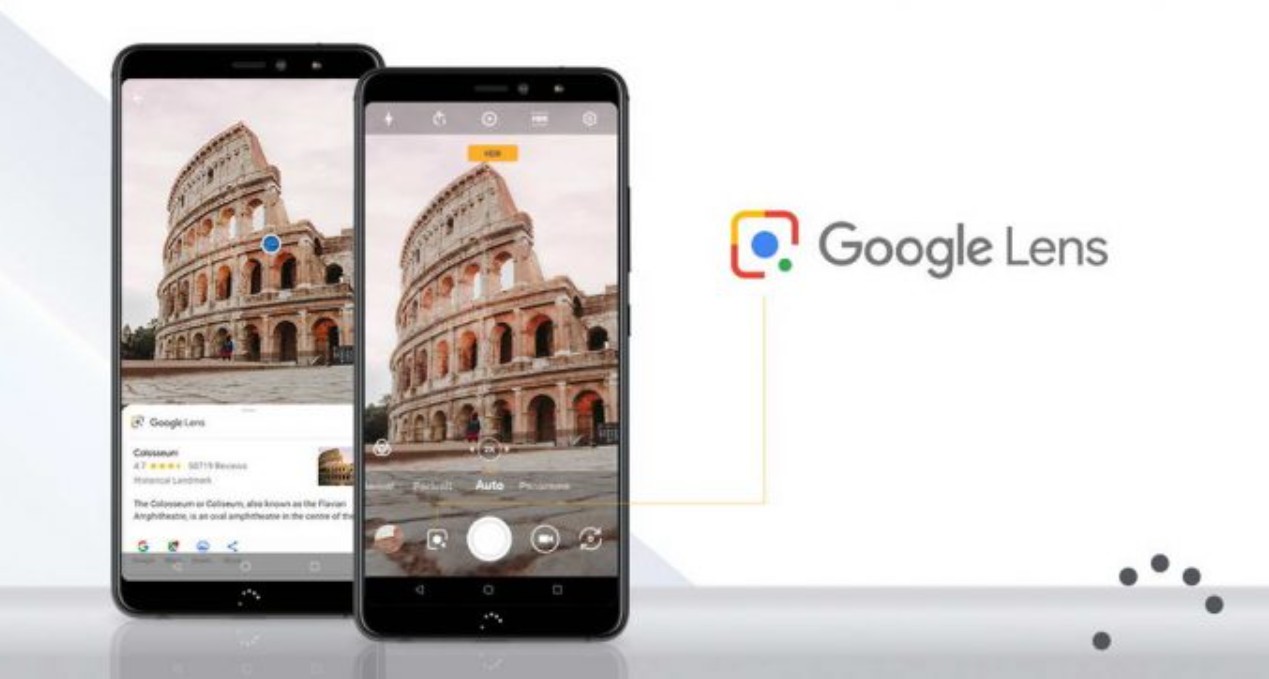
This feature is especially useful for tourists exploring a new city without knowing where to start. Simply point your phone, and all the necessary information will appear in seconds. This is a much more intuitive and natural exploration experience compared to manually typing place names into Google.
Furthermore, Google Lens helps you identify famous landmarks even if you don't know their names. This is a great way to find out more about a beautiful place by chance, without having to ask around.
2.6. Tree Mode
Those who love nature, plants, or gardening will certainly appreciate the Plants mode. With this feature, Google Lens not only identifies the name of the plant but also provides detailed information such as its origin, biological characteristics, growing conditions, heat tolerance, and care instructions.

This feature is helpful for beginners in bonsai or those who frequently encounter unfamiliar plant species while walking, hiking, or visiting parks. Identifying plants becomes simpler than ever and minimizes confusion between similar-looking species.
Many people have used Google Lens to detect poisonous, irritating, or unsuitable plants for indoor cultivation. This feature has therefore become a useful tool for protecting users' health and safety.
2.7. Animal Mode
Google Lens also supports animal recognition using a similar mechanism to the Tree mode. You can take photos of dogs, cats, birds, fish, insects, or wildlife to see basic information such as their scientific name, behavior, species, characteristic color, and care instructions (if they are common pets).

This mode is perfect for pet lovers or those who frequently explore nature. When you spot a beautiful bird or an unusual creature, you don't need to guess; Google Lens will provide complete information within seconds. It's also a great tool for students working on assignments related to animals or conducting scientific research.
2.8. Content Mode
Content Mode is the latest feature, showcasing Google's significant advancements in combining creative AI with image recognition. With this mode, you can capture any image and ask Google Lens to generate relevant content such as poems, short stories, funny memes, catchy titles, or creative descriptions.
For example, when photographing a morning cup of coffee, you can request an emotional caption. When taking portraits of friends, you can create a funny meme. When photographing a sunset, AI can generate a romantic poem for you.
3. Benefits of Google Lens for users
The biggest advantage of Google Lens lies in its perfect combination of AI technology and intuitive experience. Instead of typing lengthy keywords, you simply point the camera and let the AI analyze. Its fast and accurate processing saves time in many real-world situations, such as language translation, product searching, location information lookup, or animal and plant identification.
Google Lens offers convenience at all times of the day. When you need to convert notes to text, Lens provides instant support. When you need to find a product in an image, Lens provides a purchase link. When you want to understand an unfamiliar character or sign, Lens translates it immediately. It's a tool that has almost replaced traditional search and has become an essential part of modern life.
The combination of image recognition, contextual AI, and Google data transforms Lens into a "smart personal assistant" you can take anywhere. With each use, you'll clearly feel that visual search is more intuitive, faster, and far more accurate than text-based search.





















VIP Products








Best Selling Products
Upgrade genuine Capture One account
120 USD
Genuine Cheap Canva Pro
39 USD
Adobe Photoshop Copyright - Full App
120 USD
Autodesk All App Account Copyright
120 USD
Freepik Premium Account
59 USD
ChatGPT Plus Account (GPT-4)
16 USD
Upgrade Duolingo Super
29 USD
Windows 10 & 11 Pro Key
36 USD
Adobe Premiere Pro Account
99 USD
Capcut Pro 1 Year
39 USD
Genuine Adobe Illustrator account
99 USD
Copyright Adobe Lightroom Account
59 USD
MidJourney Account
29 USD
Plugin Retouch4me
69 USD
Upgrade Genuine Office 365
49 USD