Best Selling Products

Capcut Pro 1 Year
39 USD

MidJourney Account
29 USD

Adobe Photoshop Copyright - Full App
120 USD

Upgrade Genuine Office 365
49 USD

Adobe Premiere Pro Account
99 USD

Copyright Adobe Lightroom Account
59 USD

ChatGPT Plus Account (GPT-4)
16 USD

Genuine Cheap Canva Pro
39 USD

Freepik Premium Account
59 USD

Upgrade Duolingo Super
29 USD

Plugin Retouch4me
69 USD

Autodesk All App Account Copyright
120 USD

Windows 10 & 11 Pro Key
36 USD

Upgrade genuine Capture One account
120 USD

Genuine Adobe Illustrator account
99 USD
How to set up a Canva Brand Kit from A to Z for beginners.
Nội dung
Discover how Brand Kits help businesses and individuals maintain a consistent image across all designs without spending too much time.
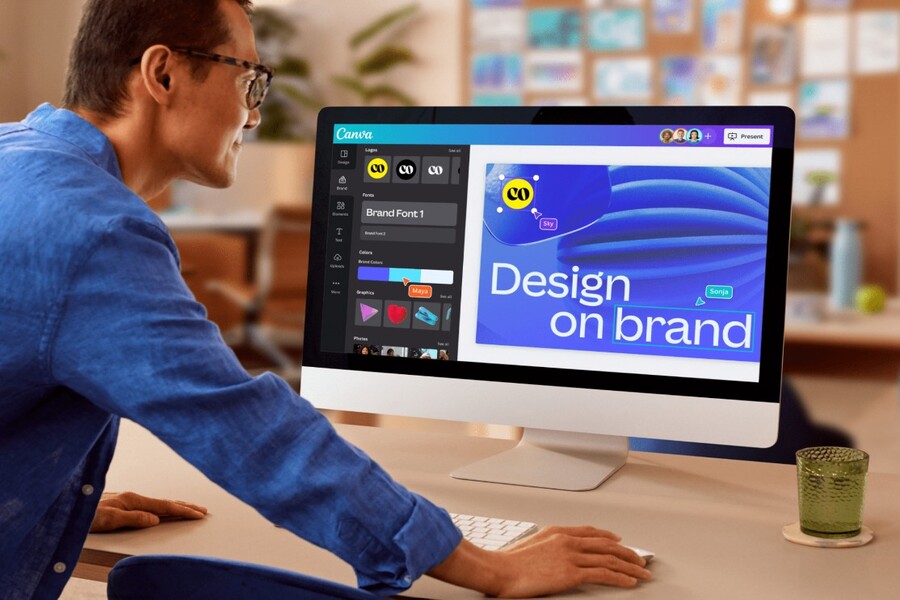
In modern design, every brand must present itself consistently, professionally, and leave a lasting impression on customers; therefore, having a well-structured brand identity is crucial. However, not every business has the resources to hire a professional design team or build a complex resource management system. Canva understands this and has integrated a powerful feature that makes managing brand imagery simpler than ever: Brand Kit .
1. What is the Brand Kit feature in Canva?
Canva's Brand Kit is a space designed for users to store, organize, and automatically apply brand identity elements to any design project. With a Brand Kit, all essential components like logos, color palettes, fonts, branding templates, etc., are centralized in one place. Upload them once, and you can use them consistently in all subsequent designs.
For businesses, this feature saves time, reduces errors, and ensures all communication content aligns with brand direction. For designers, Brand Kit streamlines workflows, minimizes repetitive tasks, and makes it easier to create consistent products. And for novice designers, Canva Brand Kit acts as an "assistant," helping them maintain consistency even without prior brand identity experience.
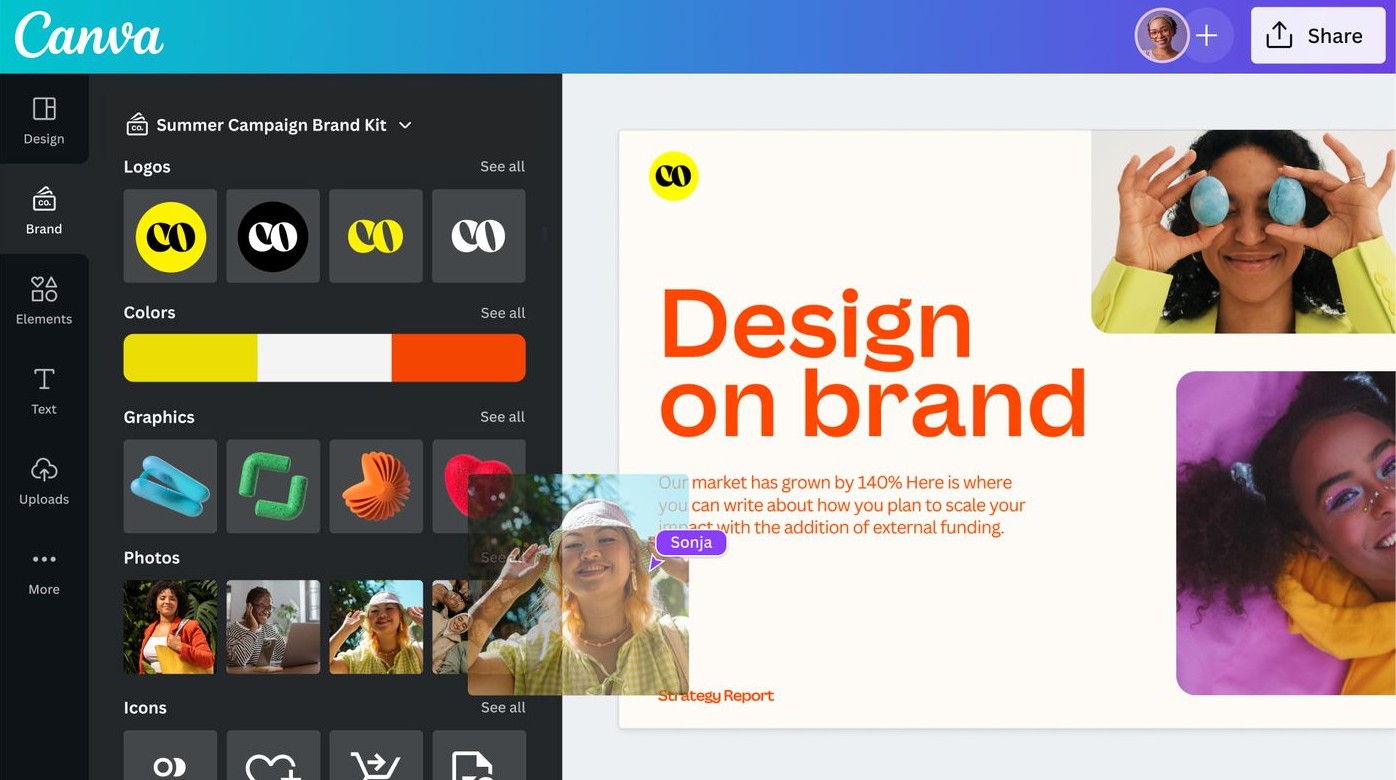
In other words, instead of having to remember color codes, fonts, or download separate logos every time you design, Brand Kit allows everything to be synchronized with a single click. This is why this feature is considered one of the most powerful and useful tools in Canva Pro.
2. Can you use Canva's Branding Kit for free?
One of the questions many new users often ask is whether they can use Brand Kit for free. The answer is: Yes , but with certain limitations.
In the free version of Canva, users can only create a very basic Brand Kit, which includes adding a maximum of one simple color palette. You won't be able to upload multiple different logos, you can't set multiple font sets, or build a full brand identity system. This means that businesses needing to manage a professional brand will often find this limitation quite inconvenient.
However, upgrading to Canva Pro unlocks the full Brand Kit feature, including uploading multiple logos, adding more color palettes, creating branded font sets, and even setting up multiple branding kits if you manage multiple businesses or work as a freelancer serving multiple clients. This makes building and managing your branding resources more comprehensive, flexible, and professional.
Simply put, the free version of Canva offers a small "taste" for users to experience Brand Kit, while Canva Pro is where this feature truly shines. For those who want to build a brand systematically, or need to manage multiple templates for their work, Canva Pro is almost indispensable.
3. How to set up your Canva Branding Suite
After logging into your Canva Pro account, setting up your Brand Kit is incredibly simple. From the Canva homepage, just select "Branding" from the left-hand menu. This is where you'll find all the space to manage your brand identity. This will take you to the Brand Kit setup page.
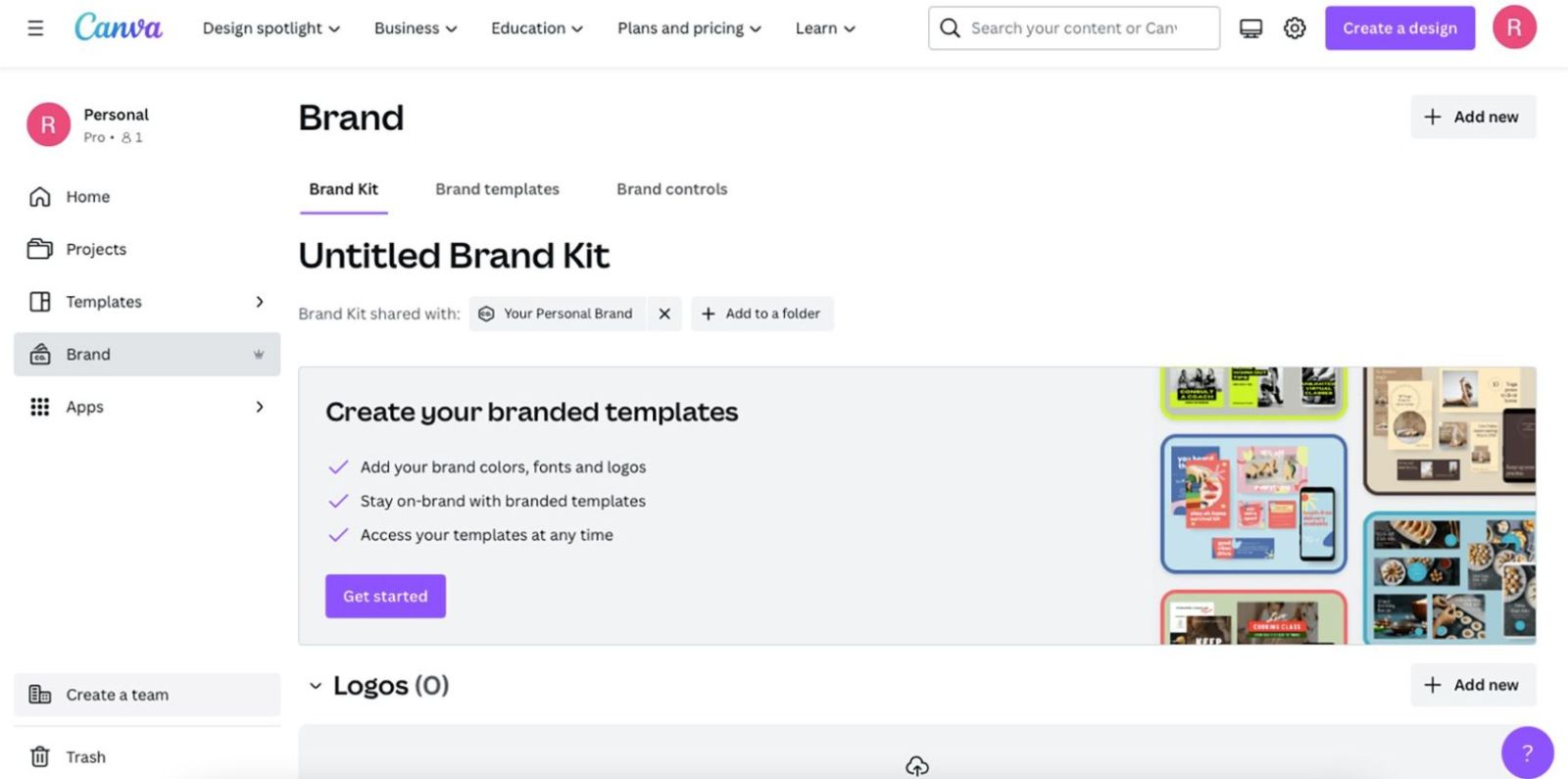
Here, the first step is to name your brand style by selecting the "Unnamed Brand Set" area . After naming it, you will begin adding all brand resources such as logo, color palette, fonts, etc., by scrolling down and manipulating each item one by one.
Canva divides its Brand Kit into three main management sections: Logo, Colors, and Fonts. You can upload each component individually in the familiar way. However, Canva also offers a better option: using an intuitive setup system by selecting "Get Started" to create a consistent brand within a single interface.
This method allows you to see design mockups displayed according to each decision you make, helping you easily visualize your brand style. The entire setup process in this interface is divided into 5 main sections, including: Profile, Logo, Colors, Fonts, and Templates.
3.1. Documents
The Profile section is the first and most basic step in setting up a Brand Kit. Here, you will enter the name of the company or brand you are building. This is not the name that will appear on the design, but rather how Canva helps you manage multiple different Brand Kits. So you can use your company name, project name, or even your personal name if you are building a personal brand.
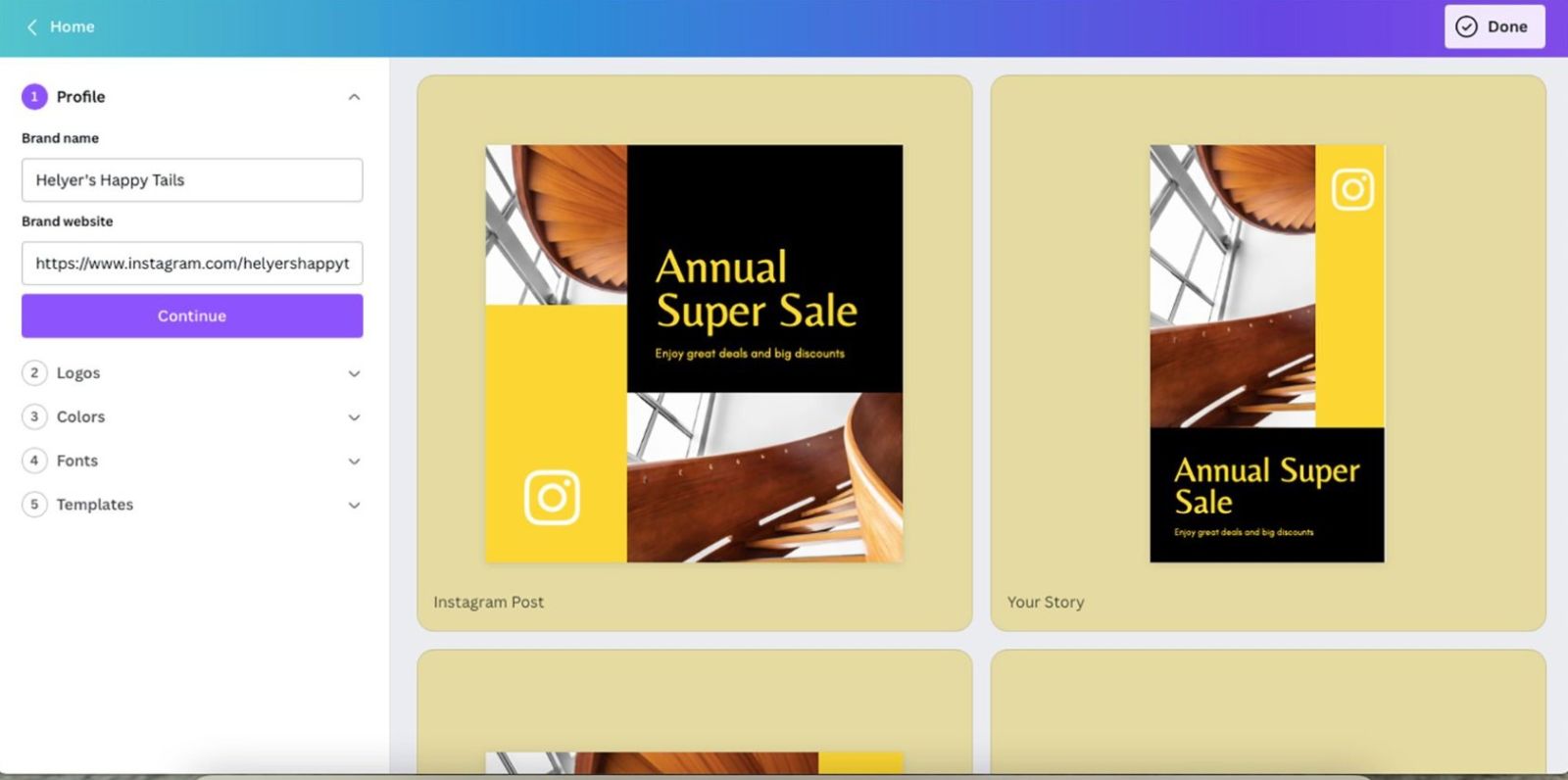
Right below, Canva lets you enter your brand's website. If your business already has an official website, adding this URL will allow Canva to automatically scan and retrieve your website's favicon. This can be convenient, but the system doesn't always retrieve the exact logo you want. For example, if you enter a social media site like Instagram, Canva might pull down the Instagram icon instead of your brand logo. Therefore, consider this when entering your website. Unless absolutely necessary or likely to cause confusion, you can skip this step.
3.2. Logo
A logo is the soul of a brand, so Canva dedicates a separate area for you to upload your logo. This is also a feature that Canva Pro users highly appreciate because of its ability to manage multiple different logos.
If you've already imported the website and Canva automatically retrieves the correct logo, you can leave it as is. However, if Canva retrieves the wrong favicon or displays it incorrectly, simply select the "X" to delete it and re-upload the correct logo file. Canva encourages users to upload logos as transparent PNG files so the system can apply them flexibly to various design templates.
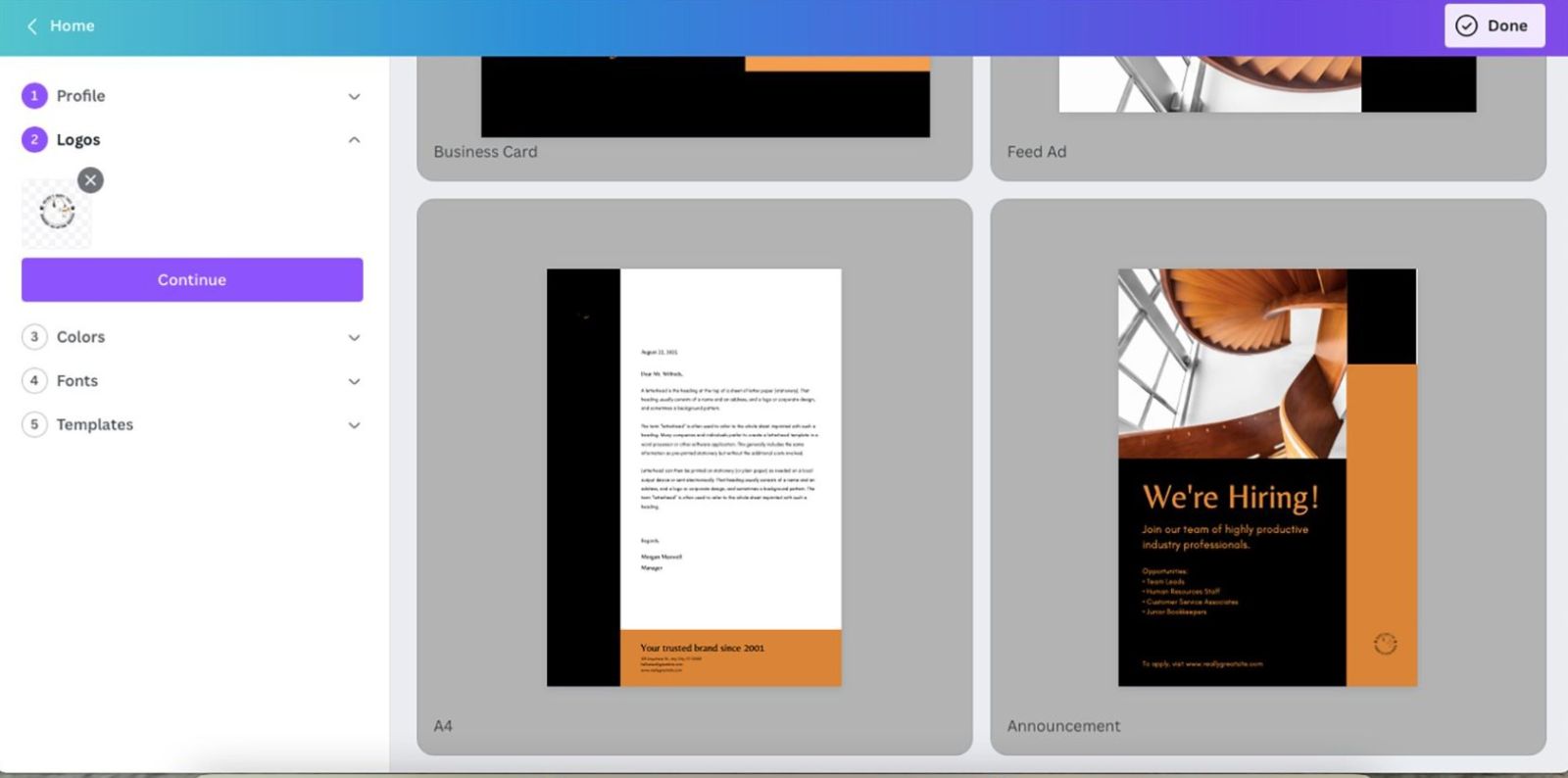
The great thing is that Canva doesn't limit logo size at this stage. You also don't need to adjust the size before uploading. The system will automatically adjust it to fit each application in the design templates.
At this stage, Canva allows you to upload a logo. However, if your brand has multiple logo versions, such as a horizontal logo, an icon logo, or a black and white logo, you can add them to the logo management area after the initial setup is complete. This is extremely useful for brands with complex brand identities, or for designers who frequently work with clients who have many logo variations.
3.3. Color
Color palettes are one of the most important elements of brand identity. To assist users, Canva provides a system of suggested color palettes based on uploaded logos. These are called native color palettes , and are usually automatically generated from the primary colors in the logo.
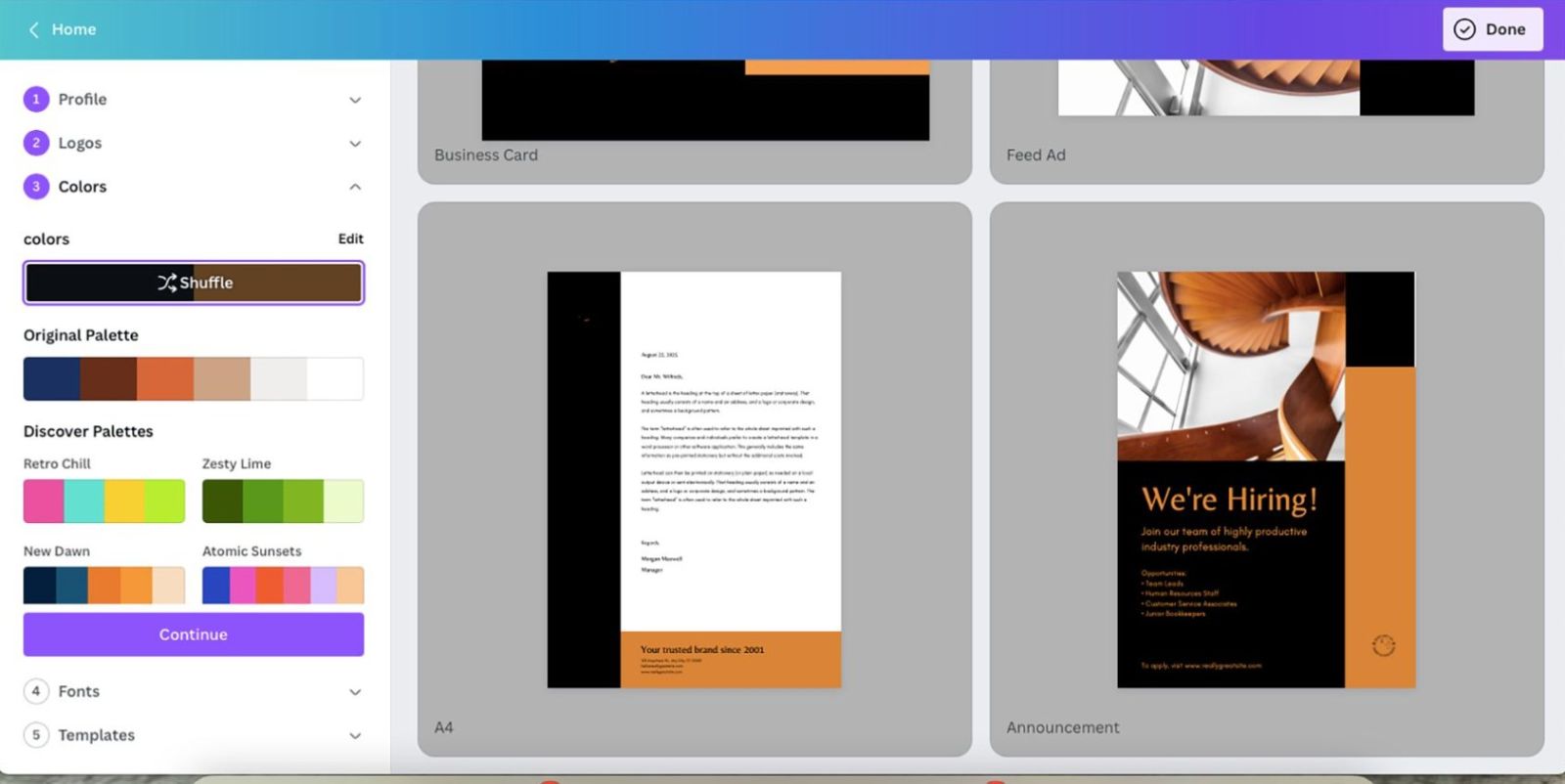
In addition, Canva also creates four other color palettes with various random themes to help users get more ideas. You can try each palette and see how they look on the design samples next to it. This is a useful feature to help you visualize the overall style before making a final decision.
Once you've chosen a suitable color palette, Canva lets you use the Shuffle feature to change the color scheme in your design. For example, if the original design uses orange as the accent color and black as the background, shuffling can reverse these two colors. This feature allows you to experiment with different styles without having to manually change them.
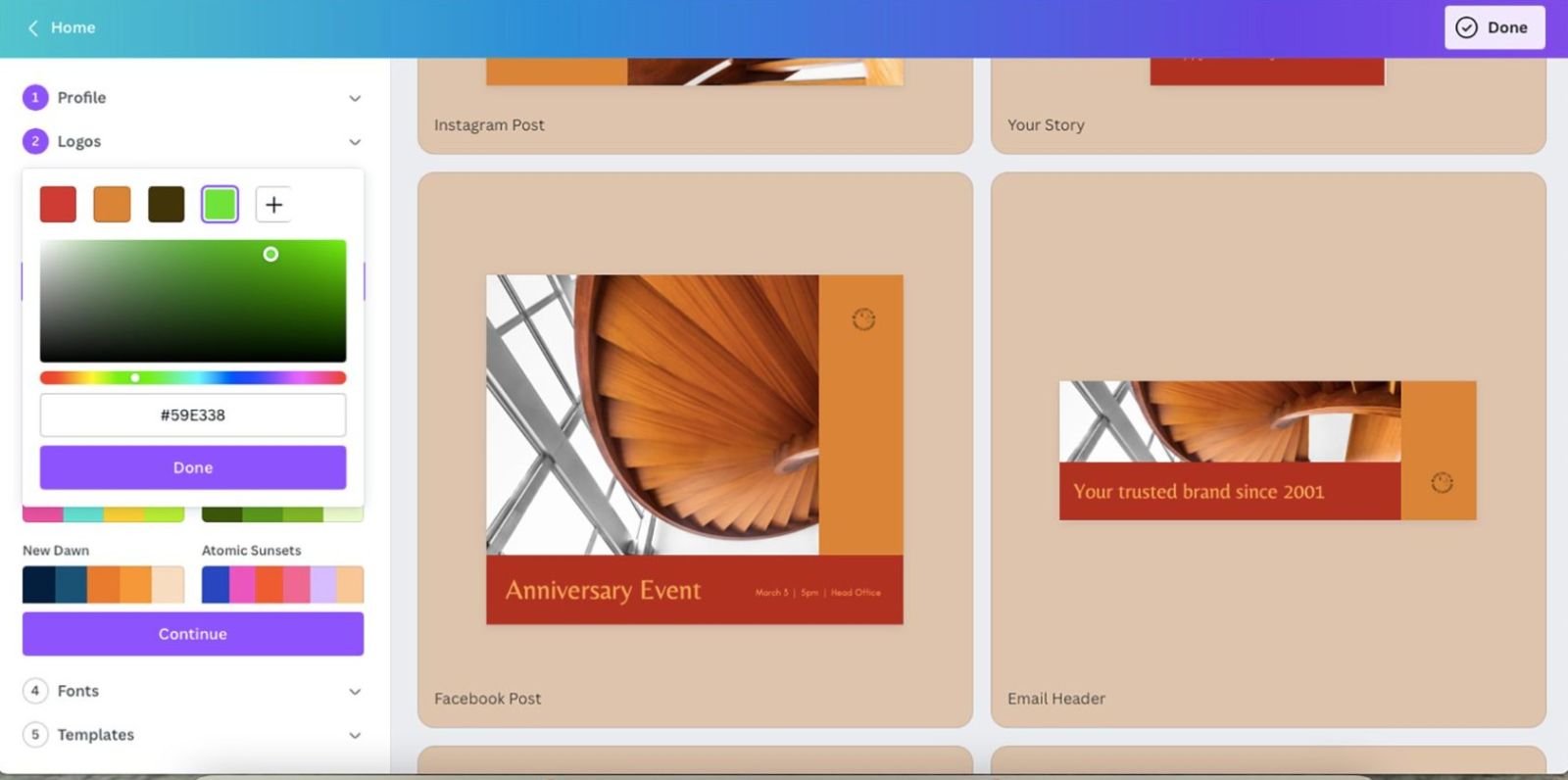
If you feel the suggested color palettes don't accurately reflect your brand direction, you can edit each color by clicking on the Edit option. Canva offers two options: select colors directly from the RGB color spectrum or import HEX color codes to ensure absolute accuracy. This is perfect if you already have a defined color palette built by a design expert.
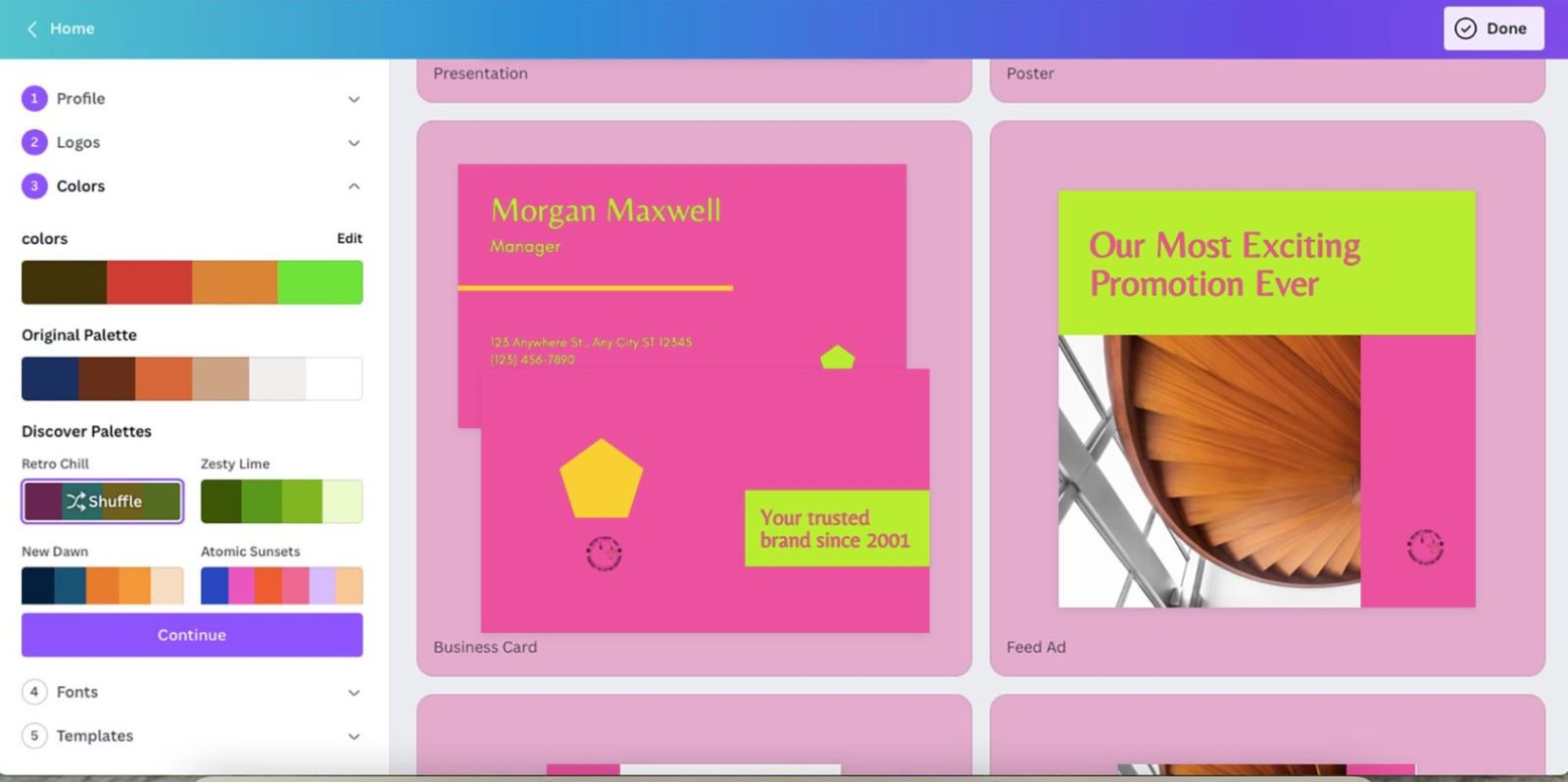
You can also add more colors to the palette by selecting the “+” sign. This is especially useful for brands with diverse branding systems, including primary, secondary, and accent colors. If you have knowledge of color theory, you can apply it to create a balanced and recognizable color palette.
3.4. Fonts
Brand fonts are a key element in defining a brand's style and tone across all its media. Canva allows you to add one or more fonts through the "Add a font" option. Here, you can choose from a library of free fonts,
Canva Pro fonts, or upload your own fonts if you've purchased a license.
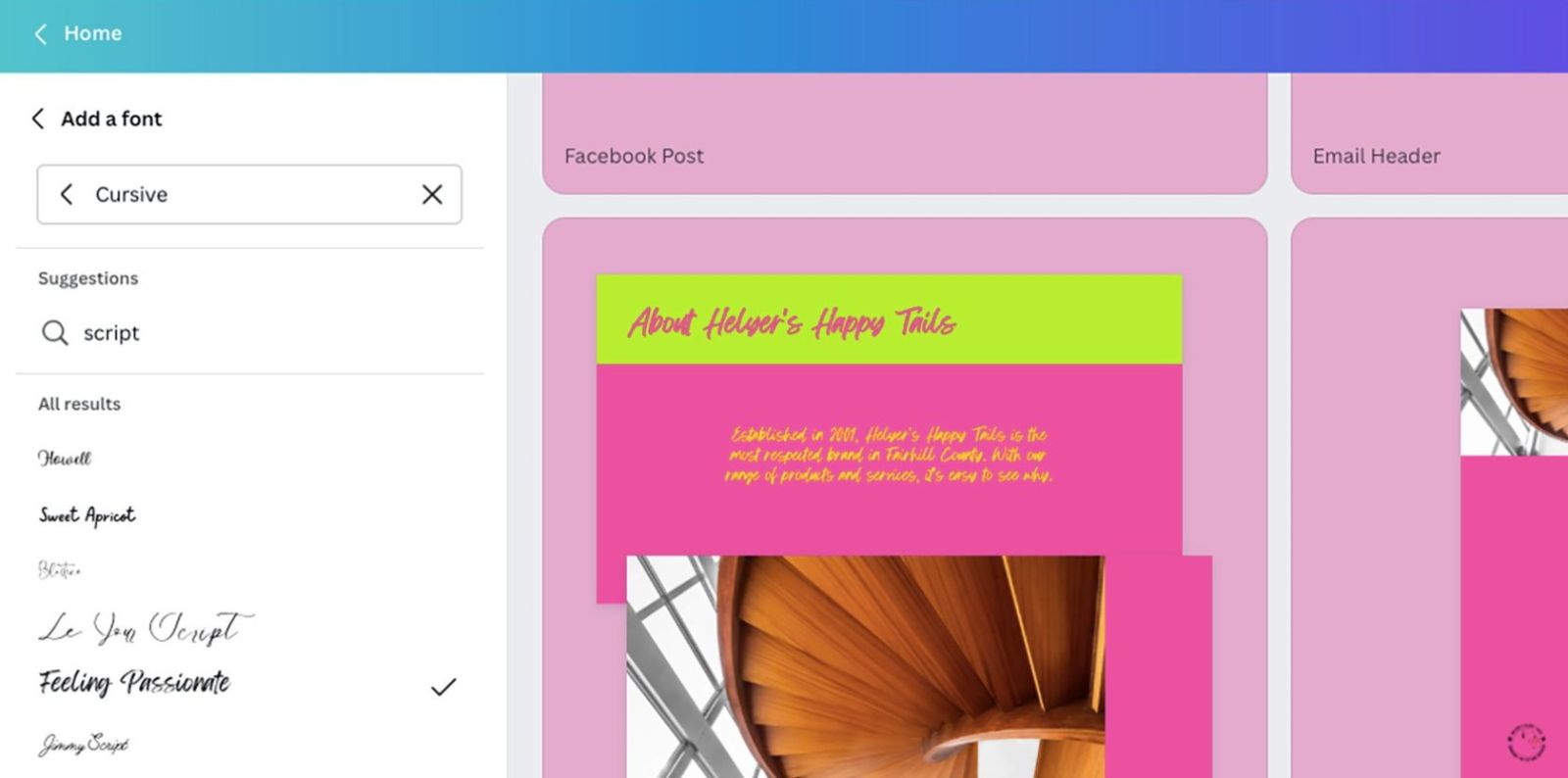
Canva supports font searching by directly typing the font name into the search bar. However, if you haven't decided on a style yet, you can search by font group such as "handwriting" or "sans serif" to save time. Each displayed font has a preview, making it easy to assess its suitability.
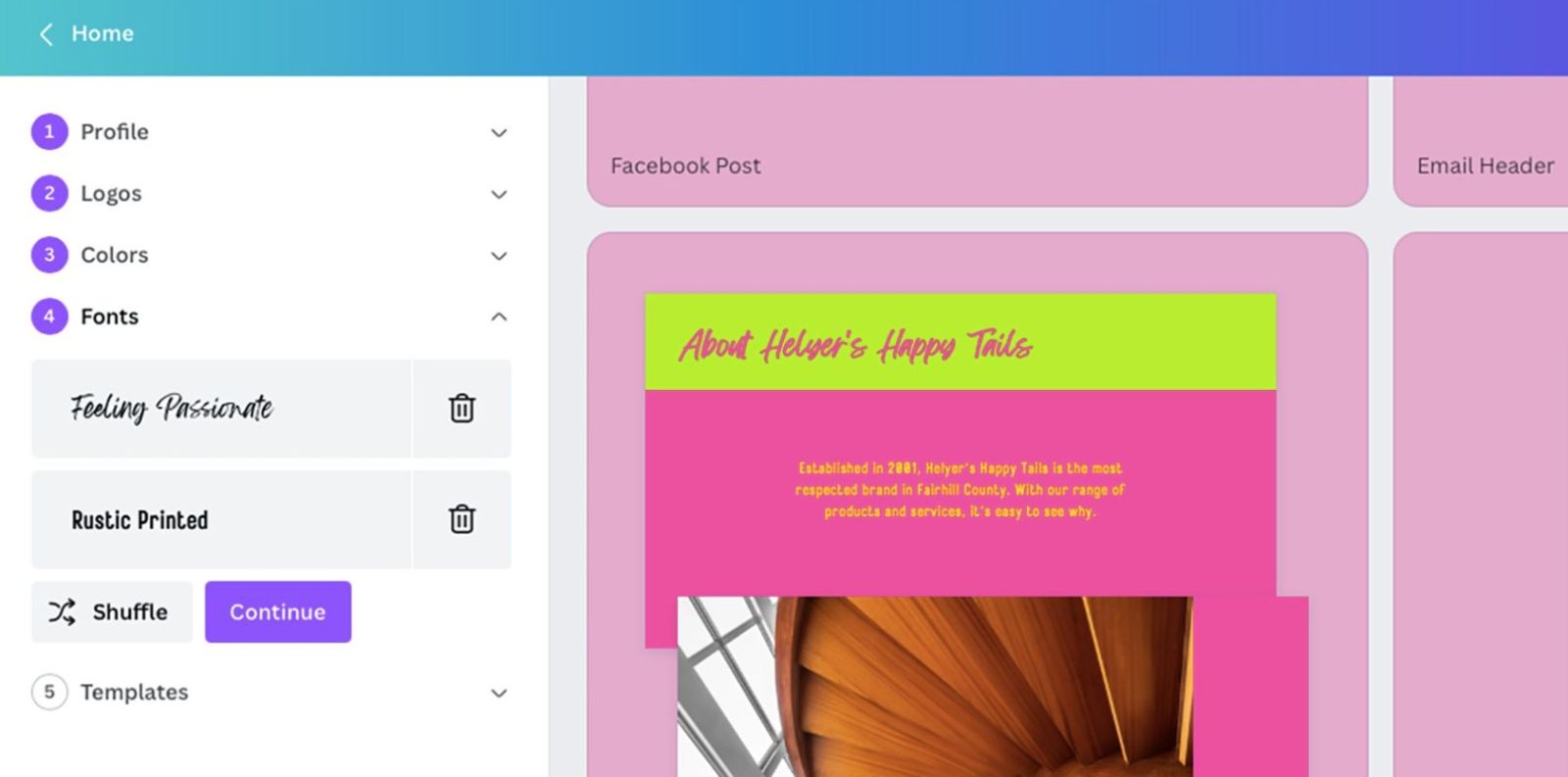
Many brands often use a primary and a secondary font. The primary font is usually highly distinctive, used for headlines, taglines, or brand highlights. Meanwhile, the secondary font is used for longer text content due to its readability. When choosing fonts, it's important to ensure the two fonts harmonize and complement each other. Canva even has a shuffle feature to suggest font combinations if you're unsure which to choose.
3.5. Template
Templates are the final step in the brand kit development process, but they play a crucial role in ensuring consistency when applying the brand to the actual design. Canva offers four basic template styles to choose from: simple, playful, minimalist, and modern. Each style reflects a distinct brand personality.
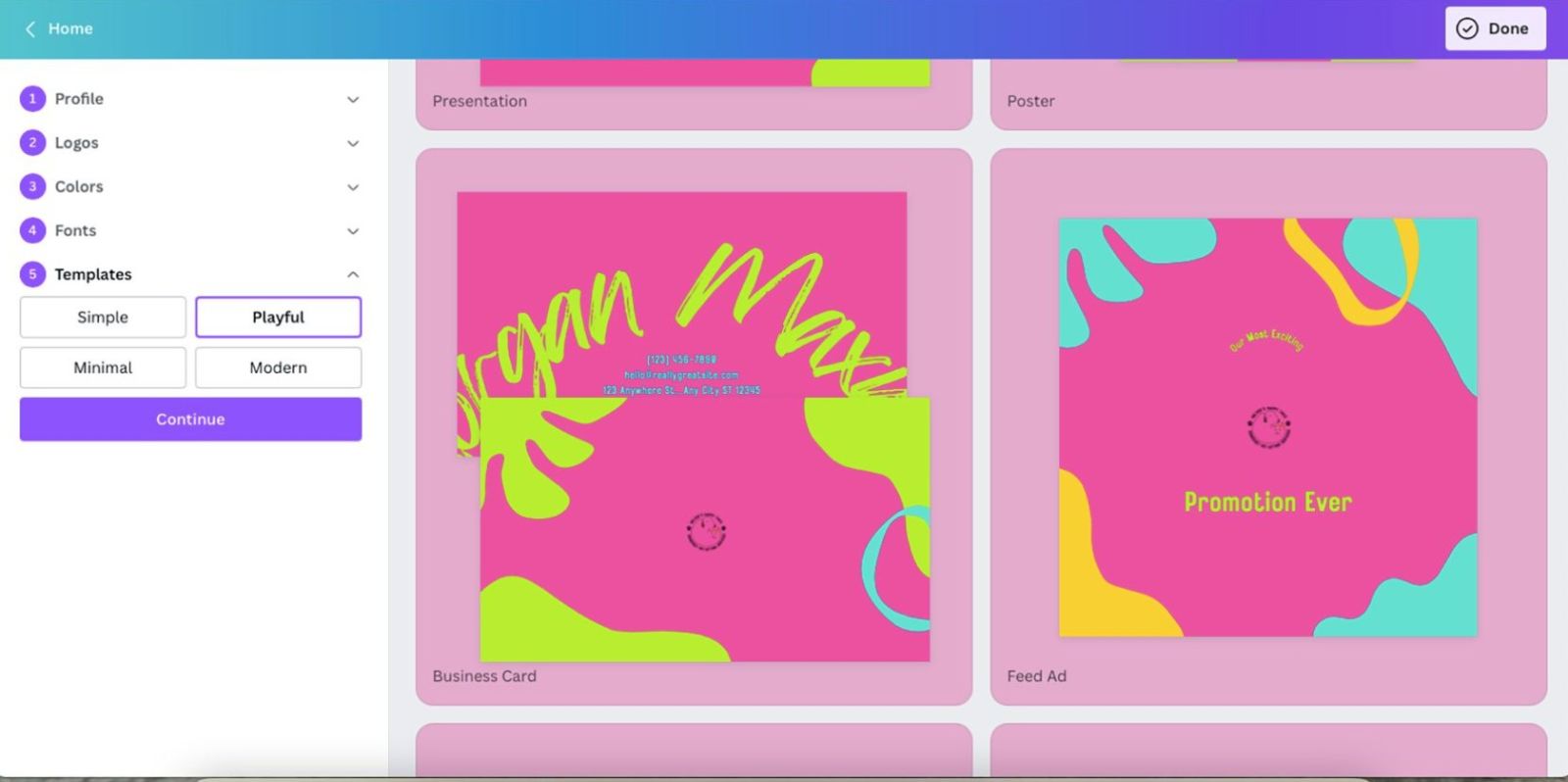
When you choose a template, you'll see all your colors, fonts, and logo applied to the design series. This step helps you assess whether the branding elements work well together. For example, if the template style is minimalist but you use an overly elaborate font, it can create a mismatch. Canva allows you to go back and edit any element until you're completely satisfied with the result.
Canva's Brand Kit feature not only simplifies brand identity management but also provides powerful synchronization across all your design projects. Whether you're a freelancer, marketer, business owner, or simply a design enthusiast, Brand Kit helps you manage your work better, work faster, and create more easily. With Canva Pro, this feature reaches its most powerful level, allowing you to build your brand comprehensively, scientifically, and effectively.
If you're looking to improve your brand image, optimize your design process, and create a professional impression on your clients, a Brand Kit is a tool you can't ignore.





















VIP Products








Best Selling Products
Capcut Pro 1 Year
39 USD
MidJourney Account
29 USD
Adobe Photoshop Copyright - Full App
120 USD
Upgrade Genuine Office 365
49 USD
Adobe Premiere Pro Account
99 USD
Copyright Adobe Lightroom Account
59 USD
ChatGPT Plus Account (GPT-4)
16 USD
Genuine Cheap Canva Pro
39 USD
Freepik Premium Account
59 USD
Upgrade Duolingo Super
29 USD
Plugin Retouch4me
69 USD
Autodesk All App Account Copyright
120 USD
Windows 10 & 11 Pro Key
36 USD
Upgrade genuine Capture One account
120 USD
Genuine Adobe Illustrator account
99 USD