Best Selling Products

Autodesk All App Account Copyright
120 USD

Upgrade genuine Capture One account
120 USD

Windows 10 & 11 Pro Key
36 USD

Upgrade Genuine Office 365
49 USD

Genuine Adobe Illustrator account
99 USD

Freepik Premium Account
59 USD

Adobe Premiere Pro Account
99 USD

Upgrade Duolingo Super
29 USD

Plugin Retouch4me
69 USD

MidJourney Account
29 USD

ChatGPT Plus Account (GPT-4)
16 USD

Copyright Adobe Lightroom Account
59 USD

Capcut Pro 1 Year
39 USD

Adobe Photoshop Copyright - Full App
120 USD

Genuine Cheap Canva Pro
39 USD
How to easily insert images into CapCut videos for beginners.
Nội dung
- 1. The current demand for image merging on CapCut video among users.
- 2. Simple guide to inserting and combining images in CapCut
- 2.1 Combining photos on CapCut using a phone
- 2.2 Image merging in CapCut using a computer
- 3. Here are some tips and tricks for inserting and combining photos into videos using CapCut that you can refer to.
Learn how to combine photos and add sound on CapCut to create unique videos. This article provides detailed instructions for both mobile phones and computers, suitable for all users.
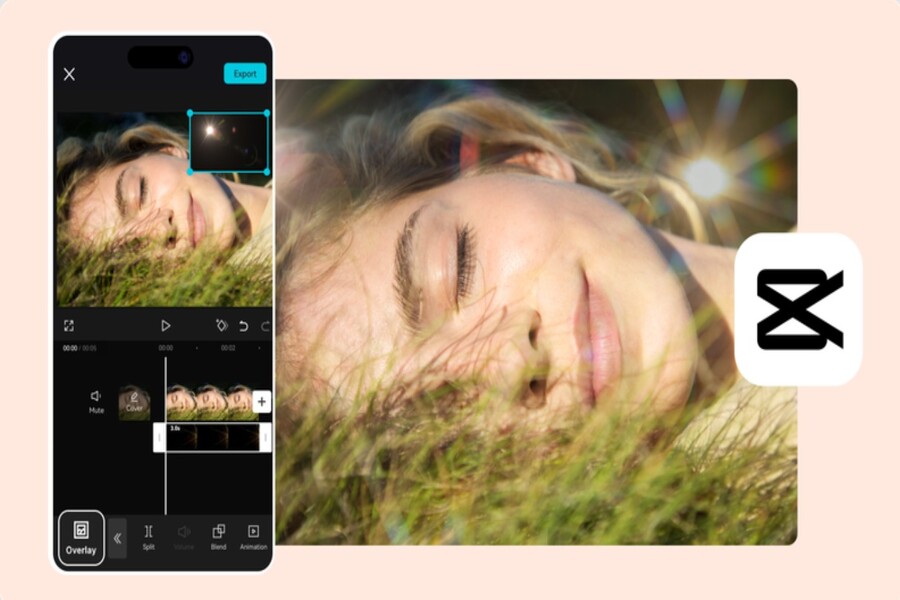
CapCut has emerged as one of the leading tools to meet this need. More than just a powerful video editing application, CapCut boasts an intuitive, user-friendly interface and numerous features that allow users to combine photos into videos in just minutes. This helps create vibrant visual stories, increasing interaction on social media platforms like TikTok, Instagram, Facebook, and YouTube.
Not limited to individual users, CapCut is also a tool of choice for businesses to create engaging marketing content, from product advertisements and service introductions to event promotional clips. Its convenience, intuitive interface, and diverse effects have made CapCut a popular platform, driving a growing demand for learning how to combine and insert images into videos. In this article, we will explore how to combine and insert images on CapCut, from basic to advanced levels, providing detailed instructions for both phones and computers, and sharing tips to make your videos more lively and professional.
1. The current demand for image merging on CapCut video among users.
Combining photos into videos has become a popular trend in creating engaging visual content on social media. Individual users wanting to preserve memories, tell family stories, showcase travel experiences, or transform friendship photos into fun clips often turn to CapCut. This application meets creative needs by allowing users to combine multiple still images, add background music, effects, and text to create a complete video product in just a few simple steps.
CapCut's photo collage feature makes it easy for users to tell stories through vivid images. A seemingly static set of photos can become engaging thanks to transition effects, zoom, pan, and the addition of suitable background music. This not only showcases personal creativity but also increases interaction with viewers on social media platforms. A video created from attractive photos and music is more likely to attract views, likes, and shares than posting each photo individually.

The popularity of CapCut has also fueled the demand for learning and sharing tips on combining photos into videos. Currently, thousands of tutorial videos, blogs, and communities online share how to create videos from photos using CapCut. Users interested in creating beautiful, fast, personalized videos that are in line with modern trends seek out these detailed guides. Besides personalizing content, photo merging is also used in business, brand promotion, and creating promotional clips for products or company events.
In summary, the demand for image merging on CapCut is increasing due to its convenience, efficiency, and high content creation potential. This is why mastering image insertion and merging has become a crucial skill for all users, from individuals and content creators to small and medium-sized businesses.
2. Simple guide to inserting and combining images in CapCut
CapCut is a powerful and user-friendly video editing application that allows you to combine multiple photos to create impressive video clips. This application can be used on both phones and computers, with an intuitive interface that makes all operations easy to perform. Below is a detailed step-by-step guide.
2.1 Combining photos on CapCut using a phone
The first step is to download and install the CapCut app from the App Store (iOS) or Google Play (Android). After opening the app, you will see a user-friendly and intuitive interface. Tap the "+ New Project" button to start creating your video. Here, you select the images you want to combine into a video. CapCut allows you to select multiple images at once, saving time and enabling continuous video creation.
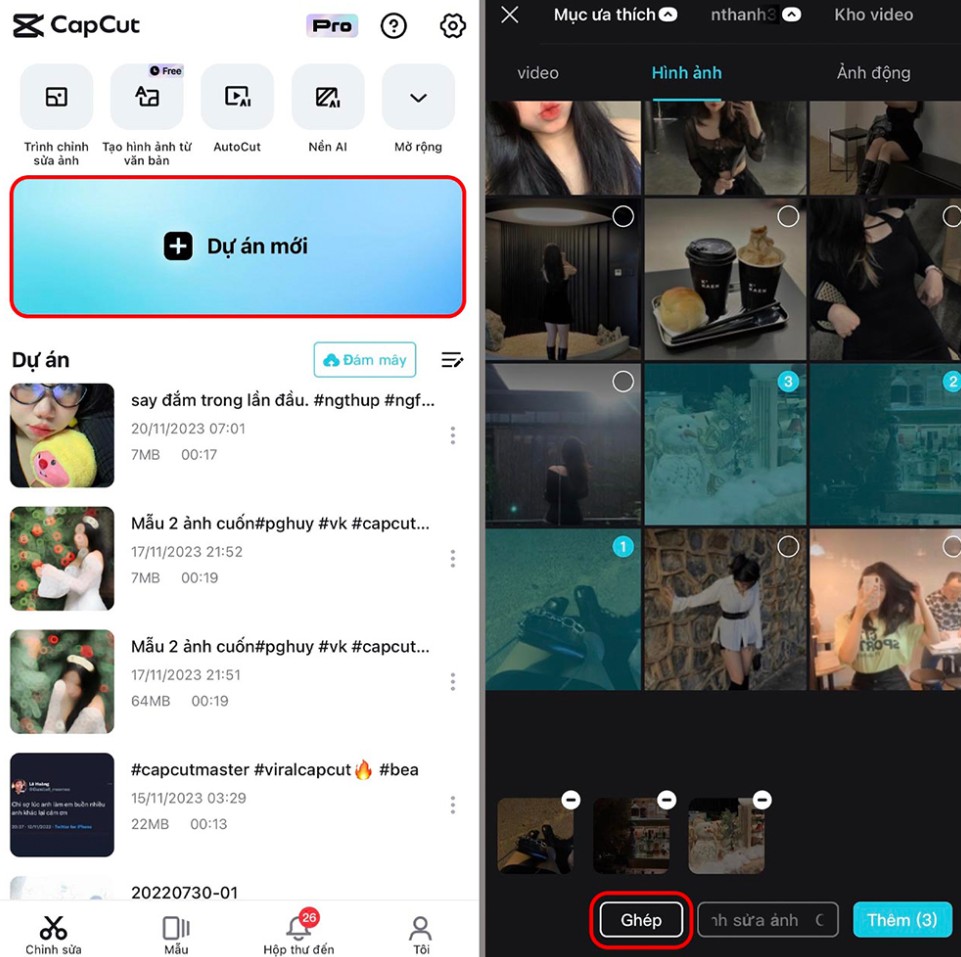
Next, you'll need to choose the aspect ratio and format that best suits your purpose. For example, a 16:9 ratio is suitable for YouTube, while a 9:16 ratio is suitable for TikTok and Instagram Reels. After selecting the ratio, click "Continue" and access the image group icon to begin editing.
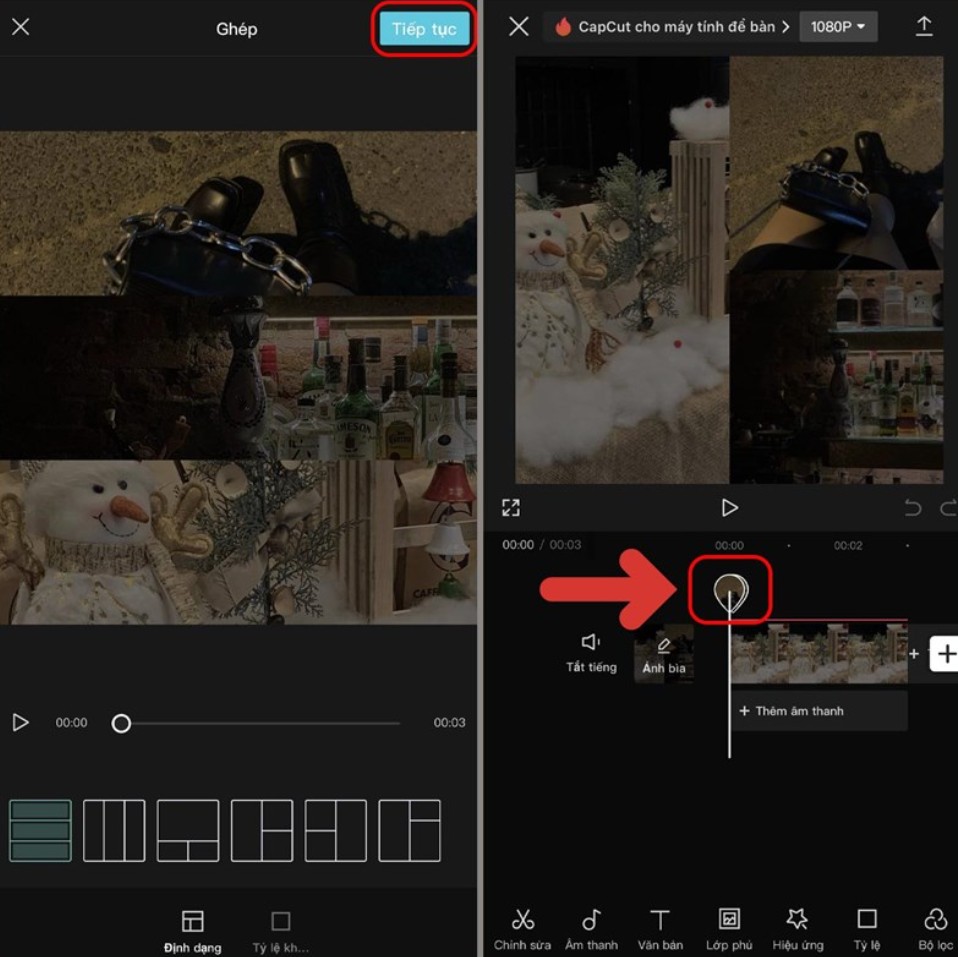
At this step, you can click on each image to adjust its size, position, or rotation as needed. CapCut provides zoom, pan, and crop tools to make your video more dynamic. Additionally, you can add background music , sound effects, or stickers to make your video more engaging. CapCut's audio features are very diverse, allowing you to choose music from your existing library or upload your own music from your phone.
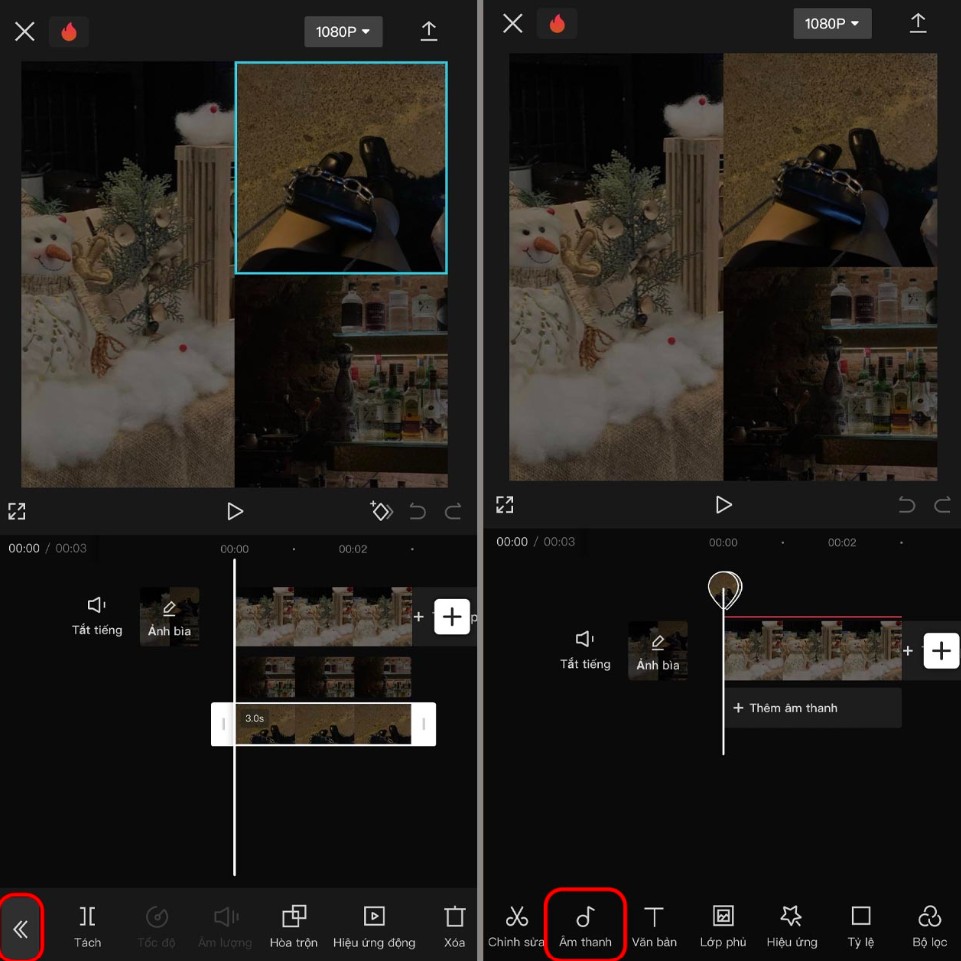
Finally, after you've finished editing, press the "Export" button to save the video to your phone's gallery. The exported video can then be shared directly to social media platforms like TikTok, Instagram, Facebook, or sent to friends and family without taking much time.

2.2 Image merging in CapCut using a computer
For users who want to create more professional videos or work on a large screen, CapCut on a computer is the ideal choice. After downloading and installing the desktop version of CapCut, click the "+ New Project" button to begin.
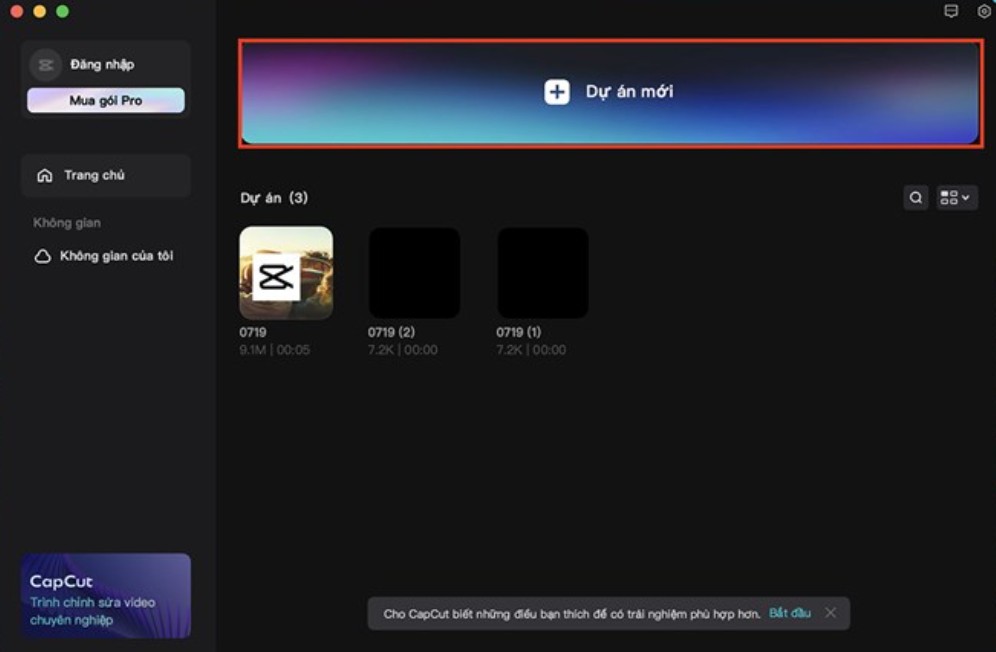
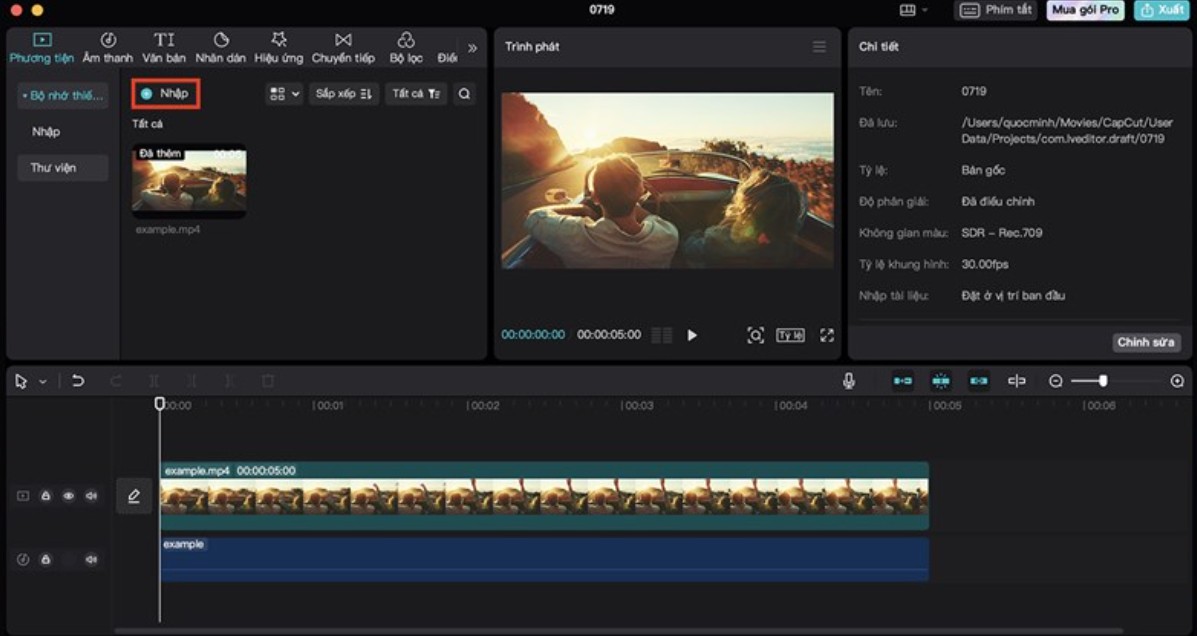
Next, click the "Import" button to upload images or videos to CapCut. You can import multiple images at once, saving time on arrangement. Then, drag and drop the images into the editing area in your desired order.
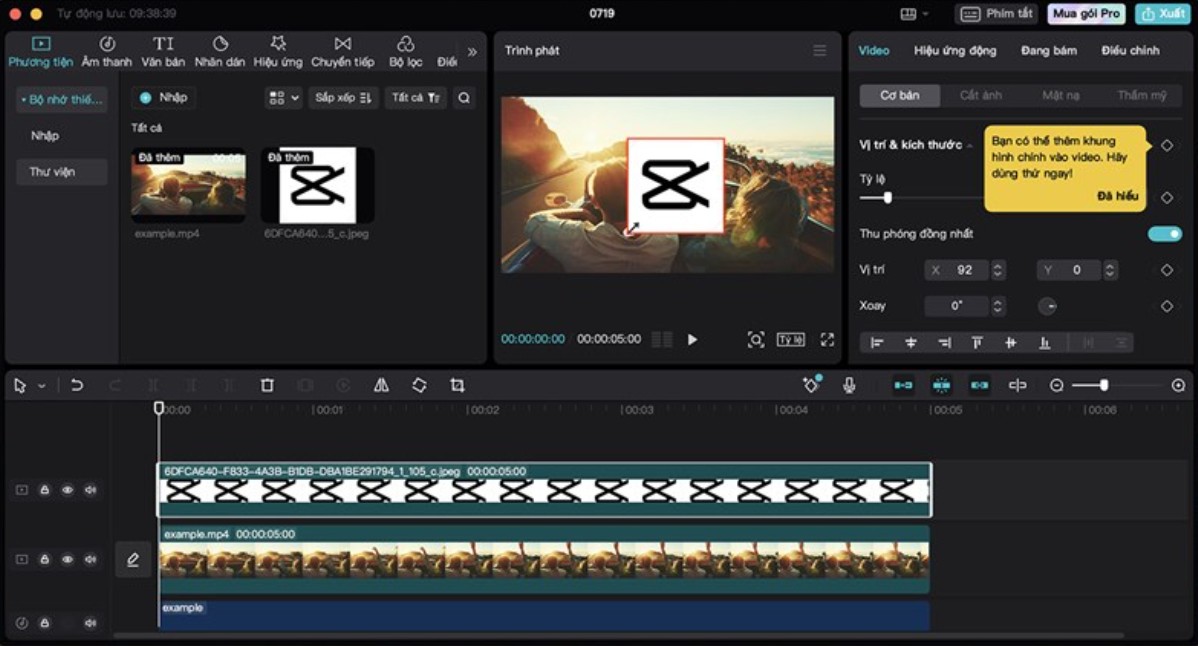
Similar to on a phone, you can add music, transition effects, text , and other elements to customize your video. CapCut on a computer allows for more detailed manipulation, resizing images, adjusting colors, adding overlays or layers to make your video more dynamic and professional.

Once finished, press the “Export” button to download the video to your computer. CapCut allows you to choose the resolution, frame rate, and video format, ensuring the final product is sharp and suitable for your needs. The exported video can be uploaded directly to YouTube, Facebook, or shared on other platforms.
3. Here are some tips and tricks for inserting and combining photos into videos using CapCut that you can refer to.
CapCut is more than just combining photos into videos; it offers many creative features to make your videos unique and engaging. Here are some important tips you should know.
One interesting way is to insert images as overlays. Instead of just displaying images sequentially, you can layer multiple images on top of each other and adjust their appearance time. This feature makes the video more vibrant and dynamic. Combining it with transition effects like fade, zoom, or spin will add emphasis to each image.
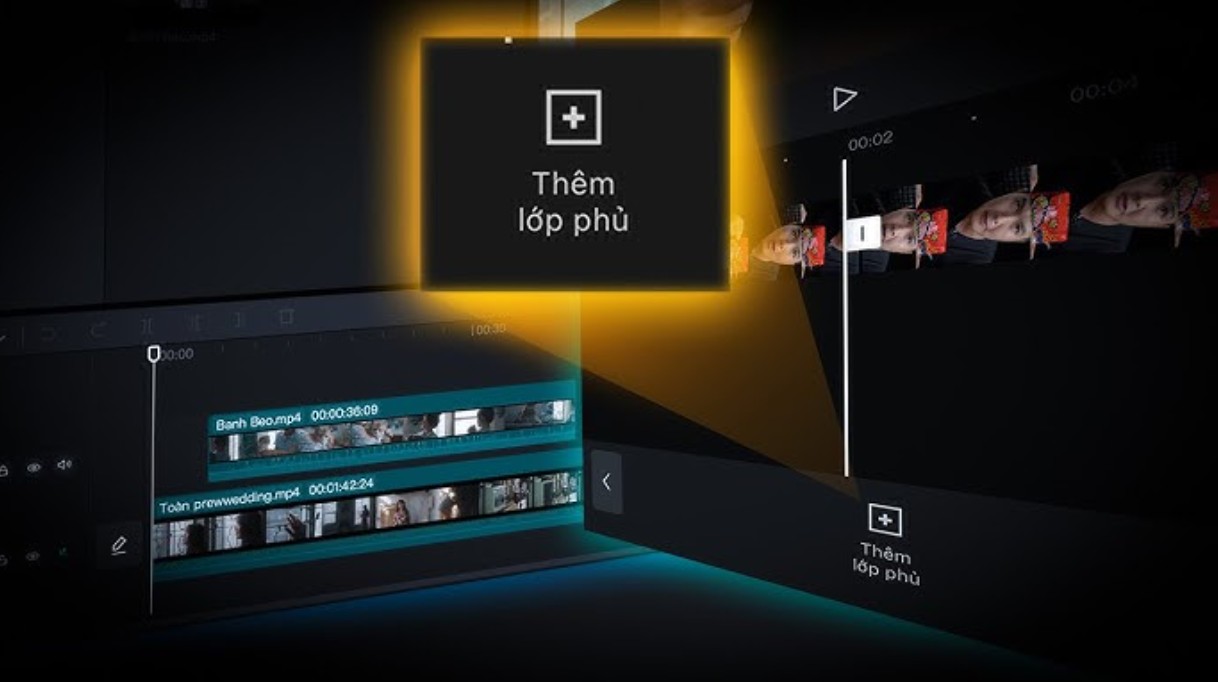
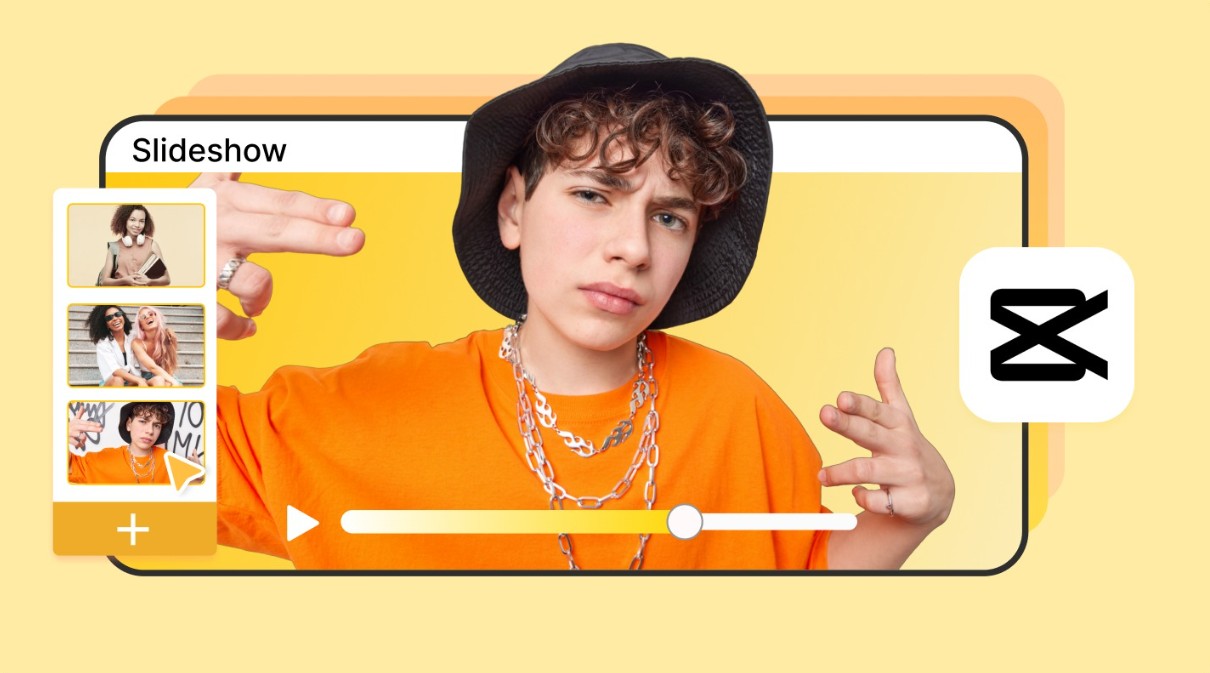
Next, you can automatically combine multiple photos into a video. CapCut has a "Slideshow" mode that allows you to automatically arrange photos, add music and effects, saving you time. However, you can also customize the display time of each photo to create your own rhythm, which is especially important if your video tells a specific story.
Using pre-made video templates is also a great tip. CapCut offers a rich library of templates, from anniversary slideshows and product promotional videos to festival templates. Using templates helps you quickly create impressive videos without needing much experience.
Audio editing also plays a crucial role in making videos more engaging. You can add background music, sound effects, or record voiceovers directly to personalize and enhance your videos. CapCut supports syncing music with transitions, resulting in a more professional and smooth video.
Finally, remember to export high-quality video. CapCut allows you to choose between Full HD or 4K resolution, ensuring your video is always sharp, with vibrant colors and clear sound. This is crucial if you want to post videos on social media platforms or use them for professional purposes such as marketing and product introductions.
Combining photos and inserting them into videos on CapCut is no longer difficult thanks to its intuitive interface and diverse supporting features. Whether you're an individual user wanting to preserve memories, a content creator wanting to create engaging videos, or a business needing to promote products, CapCut can meet your needs.





















VIP Products








Best Selling Products
Autodesk All App Account Copyright
120 USD
Upgrade genuine Capture One account
120 USD
Windows 10 & 11 Pro Key
36 USD
Upgrade Genuine Office 365
49 USD
Genuine Adobe Illustrator account
99 USD
Freepik Premium Account
59 USD
Adobe Premiere Pro Account
99 USD
Upgrade Duolingo Super
29 USD
Plugin Retouch4me
69 USD
MidJourney Account
29 USD
ChatGPT Plus Account (GPT-4)
16 USD
Copyright Adobe Lightroom Account
59 USD
Capcut Pro 1 Year
39 USD
Adobe Photoshop Copyright - Full App
120 USD
Genuine Cheap Canva Pro
39 USD