Best Selling Products

Freepik Premium Account
59 USD

Capcut Pro 1 Year
39 USD

Plugin Retouch4me
69 USD

Adobe Premiere Pro Account
99 USD

Upgrade Duolingo Super
29 USD

Upgrade Genuine Office 365
49 USD

Copyright Adobe Lightroom Account
59 USD

Genuine Cheap Canva Pro
39 USD

Autodesk All App Account Copyright
120 USD

Upgrade genuine Capture One account
120 USD

Windows 10 & 11 Pro Key
36 USD

Adobe Photoshop Copyright - Full App
120 USD

ChatGPT Plus Account (GPT-4)
16 USD

Genuine Adobe Illustrator account
99 USD

MidJourney Account
29 USD
Enabling private chat mode on Grok is simple and effectively protects your conversations.
Nội dung
- 1. What is private chat on Grok?
- 2. Benefits of enabling private chat on Grok
- 3. What do I need to prepare before enabling private chat on Grok?
- 4. Instructions on how to enable private chat on Grok using a computer.
- 5. How to enable private chat on Grok using your phone.
- 6. How to tell if Grok has enabled private chat mode.
- 7. Some important notes when using Private Chat on Grok
- 8. Frequently Asked Questions about Enabling Private Chat on Grok
- 8.1. Is there a fee to enable Private Chat on Grok?
- 8.2. Are private chats saved in the history?
- 8.3. Can Private Chat be used on both phones and computers?
- 8.4. What to do if the Private Chat icon is missing?
- 9. Conclusion
When using AI, users don''t want every conversation saved or displayed in their account history. Especially when exchanging personal, work-related, or sensitive information, proactively setting privacy settings is essential. Grok offers a Private Chat mode that allows users to better control how conversations are displayed and processed. So, how do you enable private chat mode on Grok using your phone and computer? What are the advantages of this feature, and what should you keep in mind when using it? Let''s explore the detailed instructions below to protect your chat content more effectively.
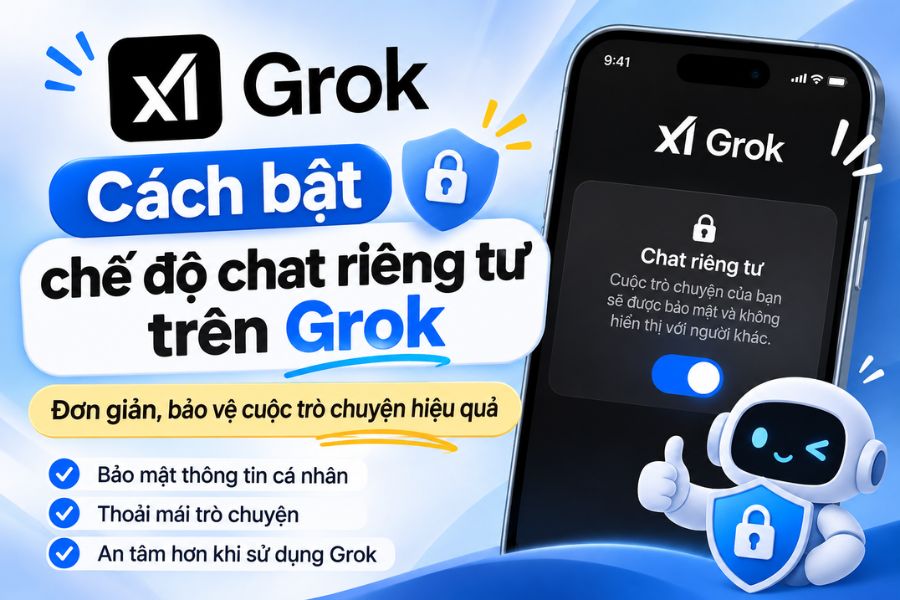
1. What is private chat on Grok?
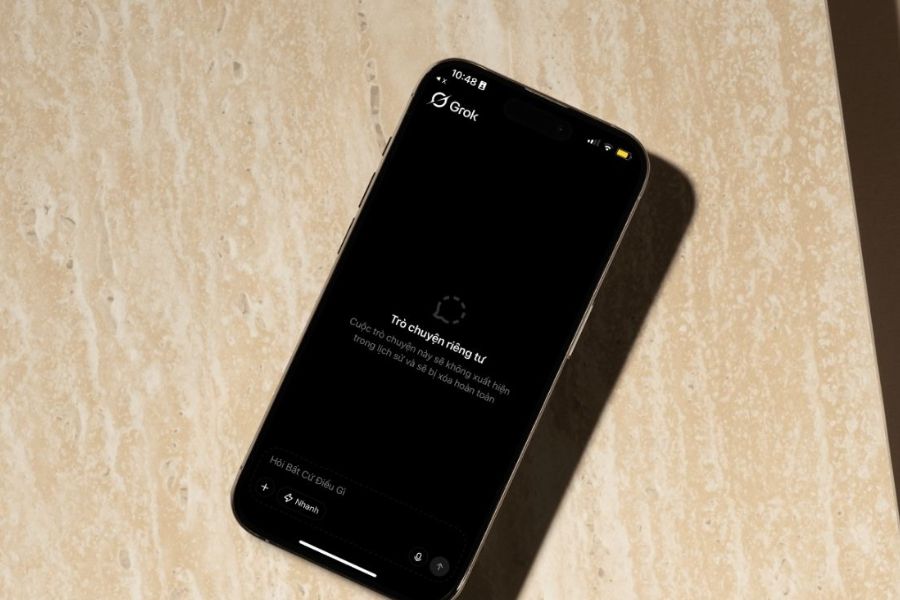
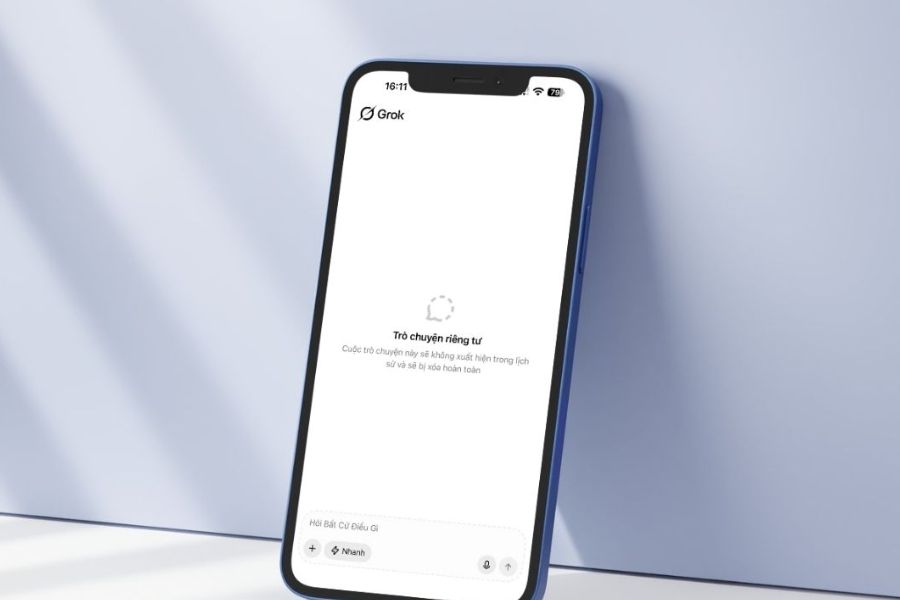
Private Chat is a chat mode designed to enhance control over personal data when using Grok. When this feature is enabled, conversations will not appear in the regular chat history list, limiting the possibility of others accidentally seeing what you've exchanged with the AI. The convenient aspect is that users can still use familiar Grok features without switching to a different account. You can still ask questions, ask the AI to write content, analyze information, or help with tasks as usual.
Some notable features of Private Chat include:
-
Restrict history visibility: Private conversations do not appear in the regular chat list.
-
Increased data control: Support for restricting the use of conversational content for model training purposes in accordance with xAI policies.
-
Easy to use: Can be activated directly on the Grok interface without needing to install any additional tools.
-
Maintaining the AI experience: Users can still interact and utilize familiar AI functions.
However, it's important to understand that Private Chat doesn't mean data is completely protected or not processed at all. Users should still avoid entering passwords, financial information, and other sensitive data into the chat.
2. Benefits of enabling private chat on Grok
Private Chat offers many benefits for those who frequently use AI to handle work or discuss personal matters. Instead of having to delete each conversation after use, you can proactively enable privacy mode from the start.
Here are the key benefits of this feature:
-
Limit storage in regular history: Private conversations don't appear as regular chat sessions, resulting in a cleaner account interface.
-
Restrict others from viewing your content: This feature is especially useful when using Grok on shared devices or in a work environment.
-
Enhanced privacy: According to xAI's policy, Private Chat content cannot be used to train AI models.
-
This does not affect chat functionality: You can still ask Grok for information searches, content writing, answers to questions, and creative support.
-
Retention period: According to published information, Private Chat data may be retained for up to 30 days before deletion, except in cases where necessary for legal, safety, or security reasons.
Thanks to the advantages mentioned above, Private Chat is a useful option when you want to use AI flexibly while still prioritizing privacy.
3. What do I need to prepare before enabling private chat on Grok?
Before proceeding, you should check some basic conditions to avoid errors during the setup process. Preparation doesn't take much time but makes the process smoother.
-
Grok Account: Ensure you have an account and are successfully logged in. Access to certain features may depend on your region, service plan, and current policies.
-
Update to the latest version of the app: If using a phone, please update the Grok or X app to the latest version.
-
Internet connection: Ensure a stable network connection so that the interface loads fully and settings are synchronized.
-
Account access: Use your personal account, which you have the authority to manage, to perform the necessary actions.
After completing these preparation steps, you can start enabling Private Chat on your device.
4. Instructions on how to enable private chat on Grok using a computer.
On the browser version, users can activate Private Chat directly within the chat interface. The process is quite simple, suitable even for first-time Grok users.
-
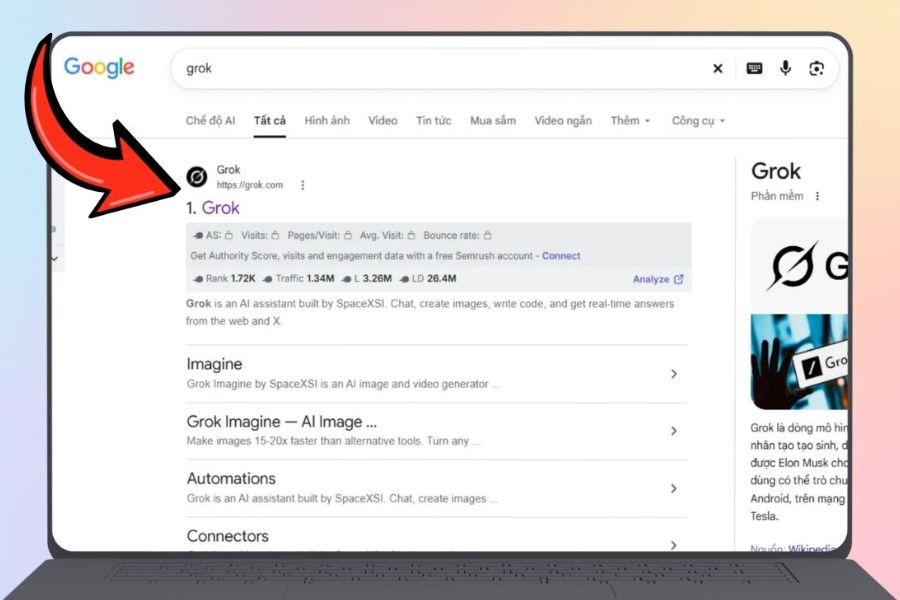
Step 1: Open your browser on your computer, go to https://grok.com/ and log in to your personal account.
-
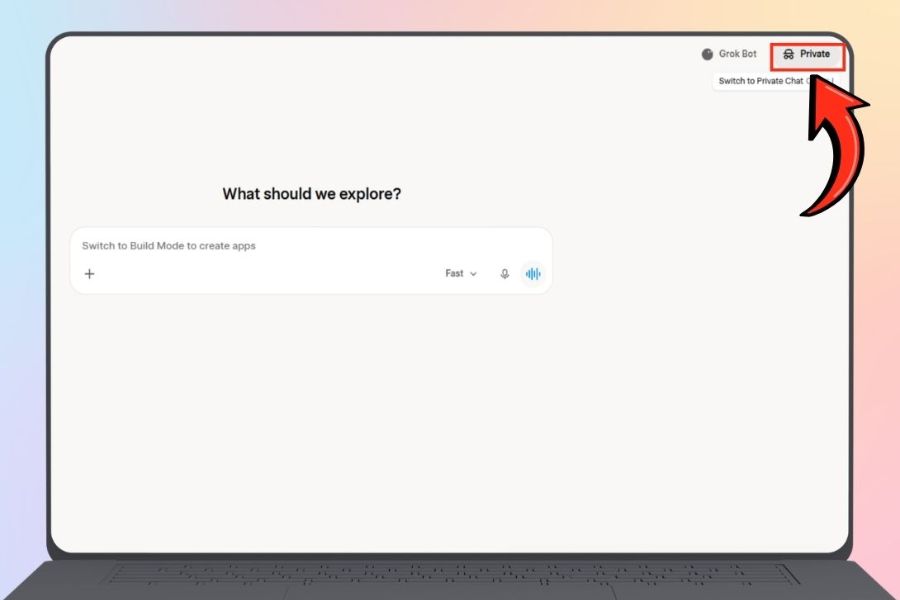
Step 2: In the chat interface, find the Private Chat icon on the right side of the screen and select it.
-
Step 3: Observe the chat interface. When the colors change from the normal mode, this indicates that Private Chat has been activated.
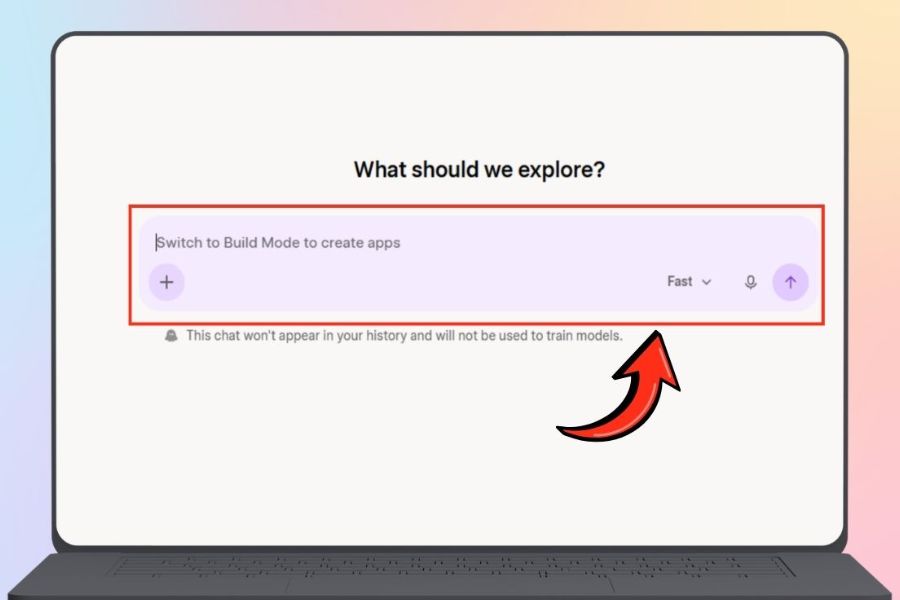
-
Step 4: Press the plus (+) icon if you want to select the Grok model that best suits your needs.
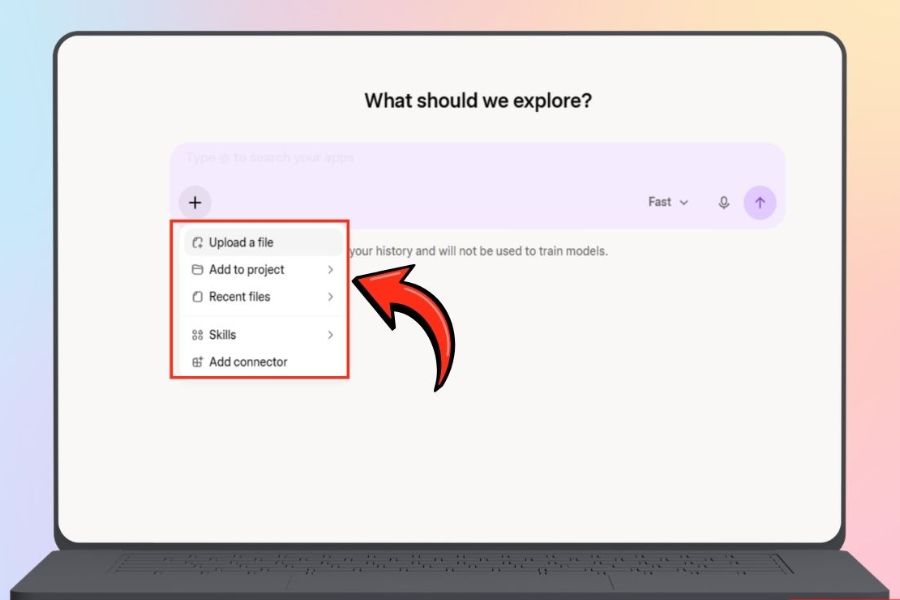
-
Step 5: Enter your question in the chat box and press Send to begin a private conversation with the AI.
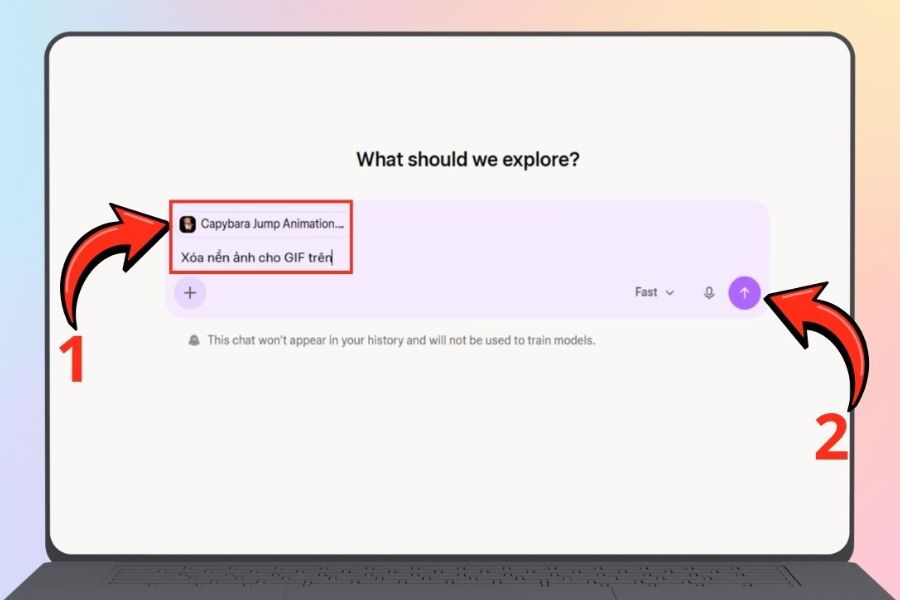
Once successfully enabled, you can continue using Grok as normal without needing to perform any further complex setup.
5. How to enable private chat on Grok using your phone.
If you frequently use AI on your phone, you can also activate Private Chat directly within the app. The process is similar to the desktop version, differing only slightly in the placement of the icons.
-
Step 1: Open the Grok app on your phone and log in to your account.
-
Step 2: In the chat interface, find the Private Chat icon in the upper right corner of the screen and select it.
-
Step 3: Check the chat interface. If the colors change, private mode has been enabled.
-
Step 4: Enter the message you want to exchange into the chat box and press Send to start using it.
With just a few taps, you can switch to private chat mode on your phone. If you can't find the Private Chat icon, try updating the app or checking your account settings.
6. How to tell if Grok has enabled private chat mode.
After completing the setup steps, you should check the operational status to ensure you are not continuing the conversation in normal mode. Grok has several visual indicators to help users easily distinguish between the two modes.
You can identify them through the following characteristics:
-
The chat interface has changed: The colors displayed are different from the regular chat interface.
-
Private Chat icon is active: Observe the icon on the screen to determine the private mode status.
-
The conversation does not appear in the regular history: This is one of the features that distinguishes Private Chat from saved chat sessions.
If you're unsure, you should double-check the icons and interface status before entering any content that needs to be restricted from display.
7. Some important notes when using Private Chat on Grok
Although Private Chat offers increased privacy control, users still need to understand the scope of protection this feature provides. Enabling private mode does not mean all data disappears immediately or is not processed at all by the system.
Here are some things you should keep in mind:
-
Do not share highly sensitive information: Avoid entering passwords, OTP codes, bank card information, or important personal data into the chatbot.
-
Check the data policy: Regulations regarding content storage and processing may be updated by xAI from time to time.
-
Do not confuse this with browser incognito mode: Private Chat and incognito mode are two different features and are not interchangeable.
-
Caution when using shared devices: You should log out of your account after completing your work to prevent unauthorized access.
-
Check the status before chatting: Make sure Private Chat is actually enabled and not just the regular chat interface.
These habits will help you use Grok more safely and proactively in protecting your personal data.
8. Frequently Asked Questions about Enabling Private Chat on Grok
8.1. Is there a fee to enable Private Chat on Grok?
Private Chat is a feature integrated into the Grok interface. However, access may vary depending on the account, region, and service policy at any given time. You should check directly on your account to see if you are eligible to use it.
8.2. Are private chats saved in the history?
Private chat conversations do not appear in the regular chat history list. However, this does not mean that the data is immediately deleted from the entire system.
8.3. Can Private Chat be used on both phones and computers?
Yes. Users can access Grok on a computer browser or mobile app to use private mode, depending on the version and support of their account.
8.4. What to do if the Private Chat icon is missing?
If you don't see this icon, you can try reloading the page, updating the app, or logging out and logging back into your account. Also, check if the current Grok interface has changed the placement of the feature.
9. Conclusion
Enabling private chat mode on Grok is quite simple, whether you're using a phone or a computer. With just a few taps on the chat interface, you can restrict the display of content in your regular chat history and be more proactive in using the AI. However, Private Chat is not an absolute security tool. To effectively protect your data, you should still limit sharing sensitive information, check the xAI privacy policy, and manage your account carefully. Hopefully, this guide will help you use Grok more conveniently, safely, and with peace of mind every day.





















VIP Products








Best Selling Products
Freepik Premium Account
59 USD
Capcut Pro 1 Year
39 USD
Plugin Retouch4me
69 USD
Adobe Premiere Pro Account
99 USD
Upgrade Duolingo Super
29 USD
Upgrade Genuine Office 365
49 USD
Copyright Adobe Lightroom Account
59 USD
Genuine Cheap Canva Pro
39 USD
Autodesk All App Account Copyright
120 USD
Upgrade genuine Capture One account
120 USD
Windows 10 & 11 Pro Key
36 USD
Adobe Photoshop Copyright - Full App
120 USD
ChatGPT Plus Account (GPT-4)
16 USD
Genuine Adobe Illustrator account
99 USD
MidJourney Account
29 USD