Best Selling Products

Adobe Premiere Pro Account
99 USD

Upgrade Genuine Office 365
49 USD

Adobe Photoshop Copyright - Full App
120 USD

Genuine Cheap Canva Pro
39 USD

ChatGPT Plus Account (GPT-4)
16 USD

Copyright Adobe Lightroom Account
59 USD

Windows 10 & 11 Pro Key
36 USD

Genuine Adobe Illustrator account
99 USD

Capcut Pro 1 Year
39 USD

Upgrade Duolingo Super
29 USD

MidJourney Account
29 USD

Upgrade genuine Capture One account
120 USD

Autodesk All App Account Copyright
120 USD

Freepik Premium Account
59 USD

Plugin Retouch4me
69 USD
Instructions on how to create adorable stickers from real photos, preserving your baby''s face, using Gemini.
Nội dung
- 1. Is it possible to create stickers that retain a baby's face using Gemini?
- 2. Preparation before creating stickers with Gemini
- 3. Instructions on creating stickers from reference images using Gemini
- 4. Tips to help stickers maintain consistent facial expressions and features.
- 5. What can I use the baby stickers for after I create them?
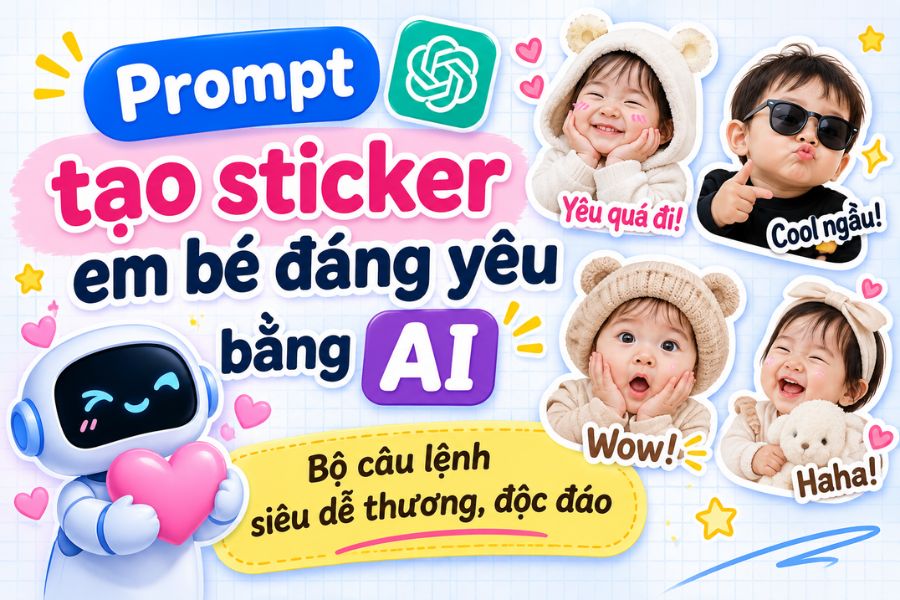
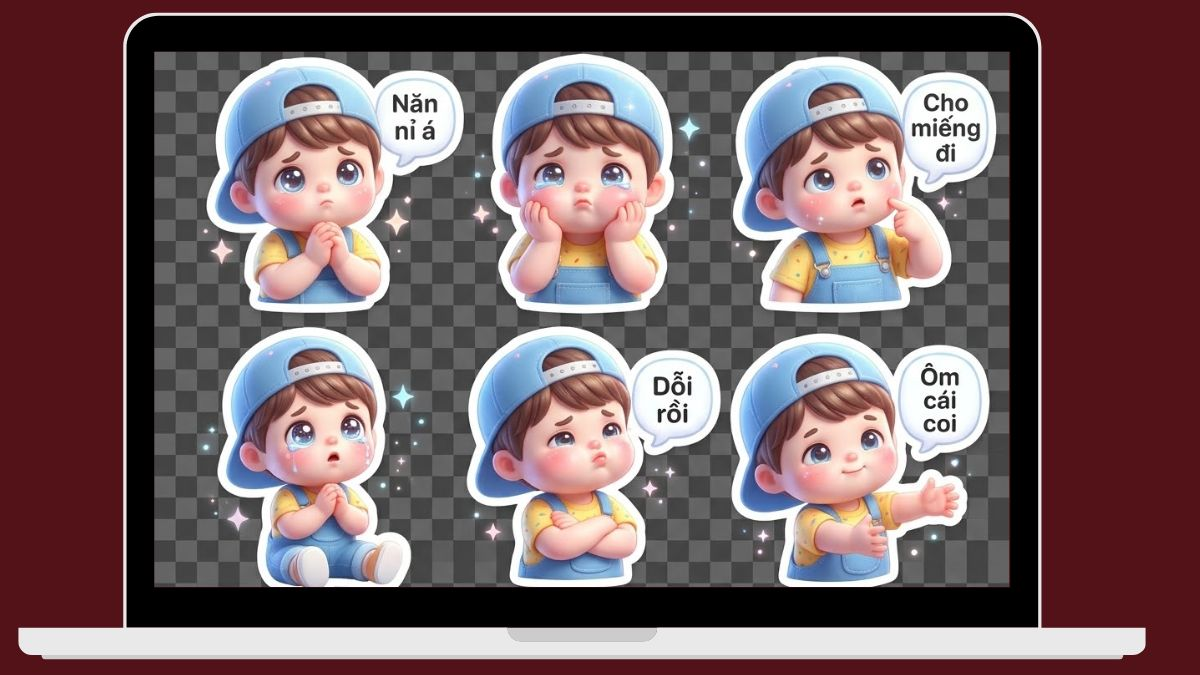
Creating stickers from baby photos using AI is a popular trend, loved for its cute little stickers, diverse expressions, and unique designs. Instead of using pre-made sticker templates, you can utilize Gemini to create a set of cartoon-style stickers, retaining the character''s distinctive features such as hairstyle, face, eyes, and smile. With just a reference image and the right command, you can create many fun expressions to use in texting, social media posts, or as decorative images. Let''s explore with Sadesign!
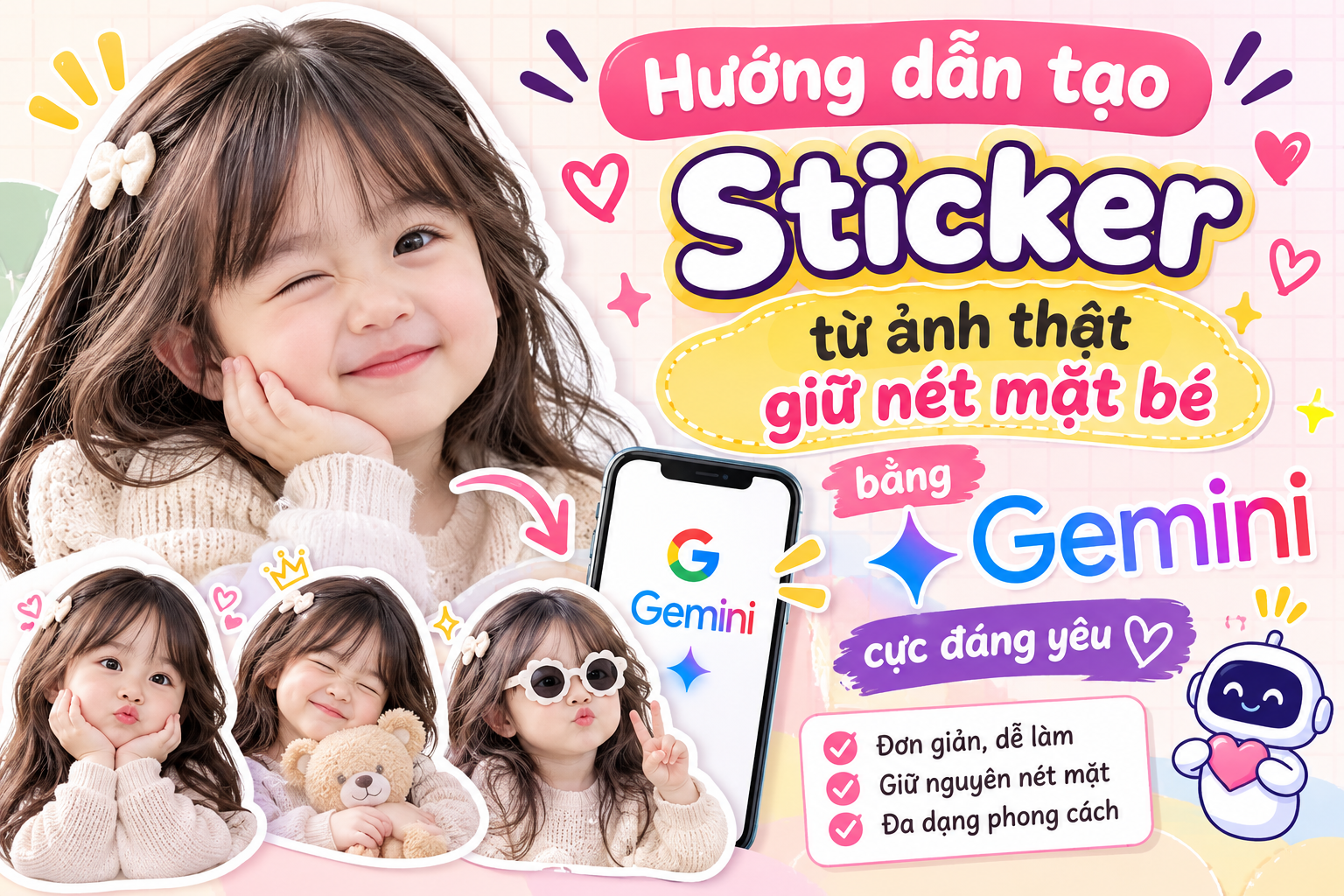
1. Is it possible to create stickers that retain a baby's face using Gemini?
Gemini supports AI-powered image creation and editing based on descriptive content, helping users build sticker sets with their own unique style. You can request the tool to create cartoon characters from reference images, while maintaining consistency in hairstyle, clothing, color, and physical features across various expressions. However, it's important to note that the ability to process images containing children depends on the safety policy and the version of the tool being used. Gemini may reject some requests to upload real photos of children for editing or image creation. Therefore, the instructions below use cartoon baby images as references and do not guarantee that Gemini will always accept real-life portraits of children. A beautiful sticker set typically has the following characteristics:
-
Maintain character identity: Consistency is maintained throughout the sticker set, including hairstyle, facial features, eye color, and other distinctive details.
-
Rich expressions: Can create states such as smiling brightly, crying, surprised, sulking, sleepy, or being spoiled.
-
Uniform style: The figures have the same head and body proportions, colors, and sculpting techniques.
-
Easy to use: Images are background-removed and saved in PNG format for convenient use across multiple platforms.
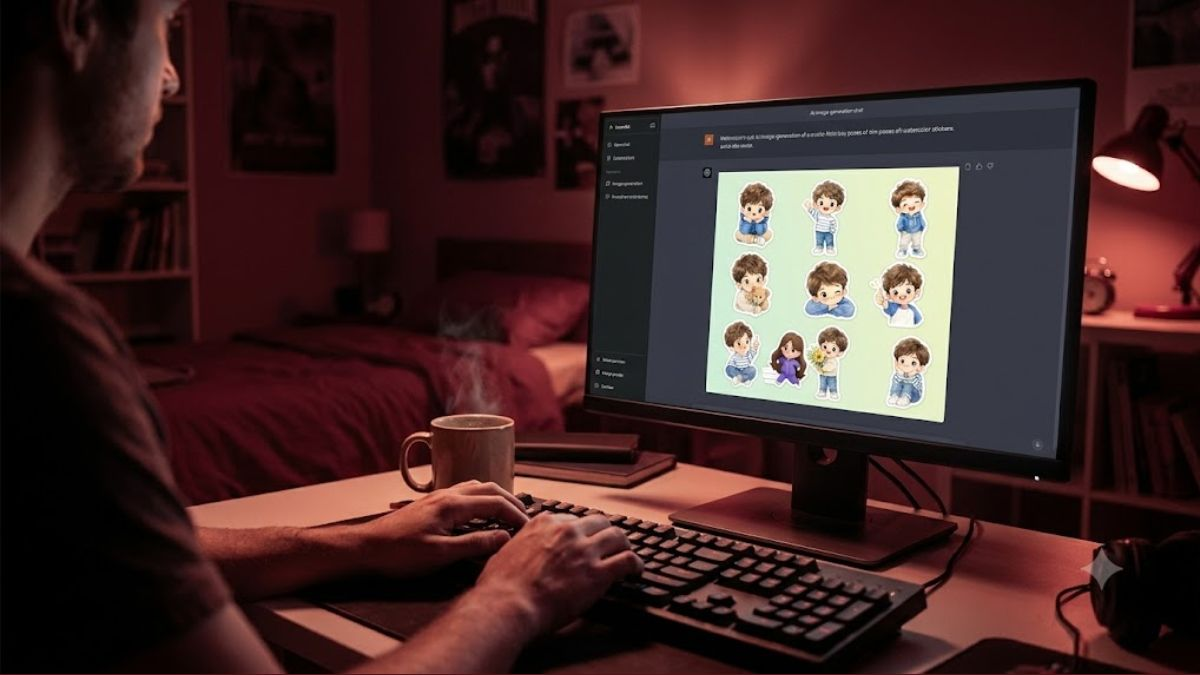
2. Preparation before creating stickers with Gemini
Before you begin, you should prepare reference images and determine the desired sticker style. This is an important step that helps the AI understand the character to be created, preventing the situation where each image has a different appearance.
For reference images:
-
Choose cartoon baby photos with clear, unobstructed faces.
-
Prioritize images with good lighting and harmonious colors.
-
Avoid images that are too small, blurry, or have too much distracting detail.
-
You should choose a character with easily recognizable hairstyle, clothing, and colors.
Regarding design style:
You can choose from many different styles depending on your preference:
-
Chibi stickers with large heads and small bodies.
-
3D stickers have soft, lovely lines.
-
Korean cartoon stickers with soft colors.
-
Hand-drawn sticker with a white border.
-
Cute stickers with funny expressions.
Additionally, prepare a list of the expressions you want to create beforehand. Clearly defining the number and content of each sticker will help make the photo set more complete.
3. Instructions on creating stickers from reference images using Gemini
Once you have everything ready, you can start using Gemini to create your sticker set. The steps are relatively simple and don't require professional design skills.
Step 1: Access Gemini and download the reference image.
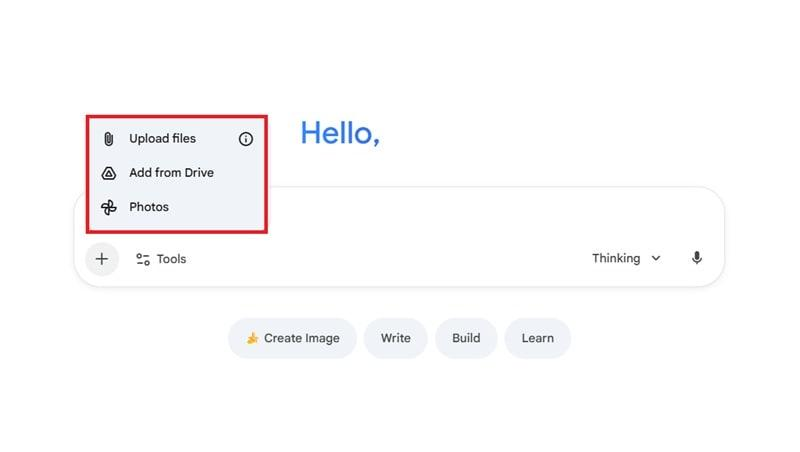
First, access the Gemini website on your browser or open the app on your phone. In the chat interface, tap the file attachment icon to upload the cartoon character image you have prepared.
You should use an image with a clear face so that the AI can easily recognize the features that need to be preserved during the sticker creation process.
Step 2: Enter the sticker creation prompt.
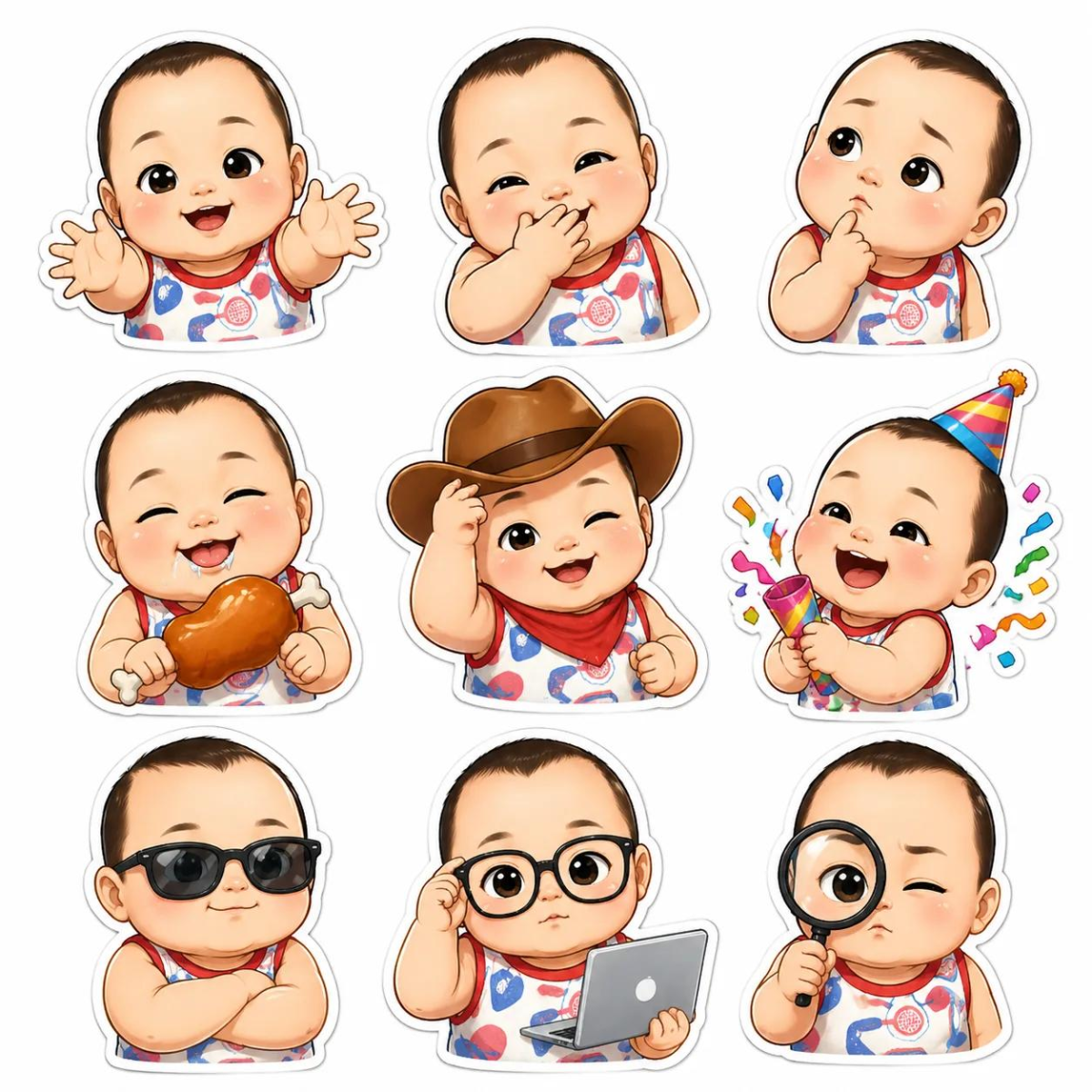
After uploading the image, enter a command describing the style and requesting the sticker to be created. The more specific the prompt, the easier it will be for the AI to understand your needs.
You can refer to the following command:
Based on the provided cartoon character images, create a set of adorable chibi stickers with 12 different expressions. Keep the character's identifying features such as their round face, hairstyle, hair color, eyes, clothing, and body proportions.
The expressions include: big smile, crying, sulking, surprise, sleepiness, making heart shapes, pouting, eating a cake, sticking out the tongue, winking, embarrassment, and joy.
Designed in a cute 3D cartoon sticker style, with bright colors and soft lines. Each expression has its own pose and emotion, but must maintain consistency in the character's appearance.
The sticker layout should be clear, with no overlapping images, a simple white background, no text, and no watermarks. Prioritize preserving the identifying features of the character in the reference image.
Step 3: Submit the request and check the results.
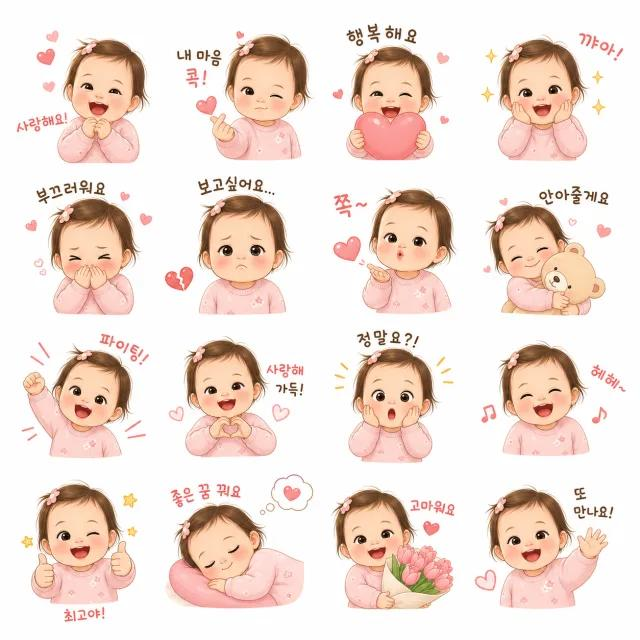
Press submit and wait for Gemini to process the request. After the image is created, check each expression to see if the character maintains a consistent appearance.
If the results are not as expected, you can continue to enter your editing requests, such as:
-
Keep the character's original hairstyle and facial features.
-
Adjust the eyes to be larger and rounder, and the expression to be more natural.
-
Do not change outfits between stickers.
-
Enhances cuteness without distorting the face.
-
Recreate the crying expression with puffy cheeks and sparkling eyes.
Step 4: Download the images to your device.
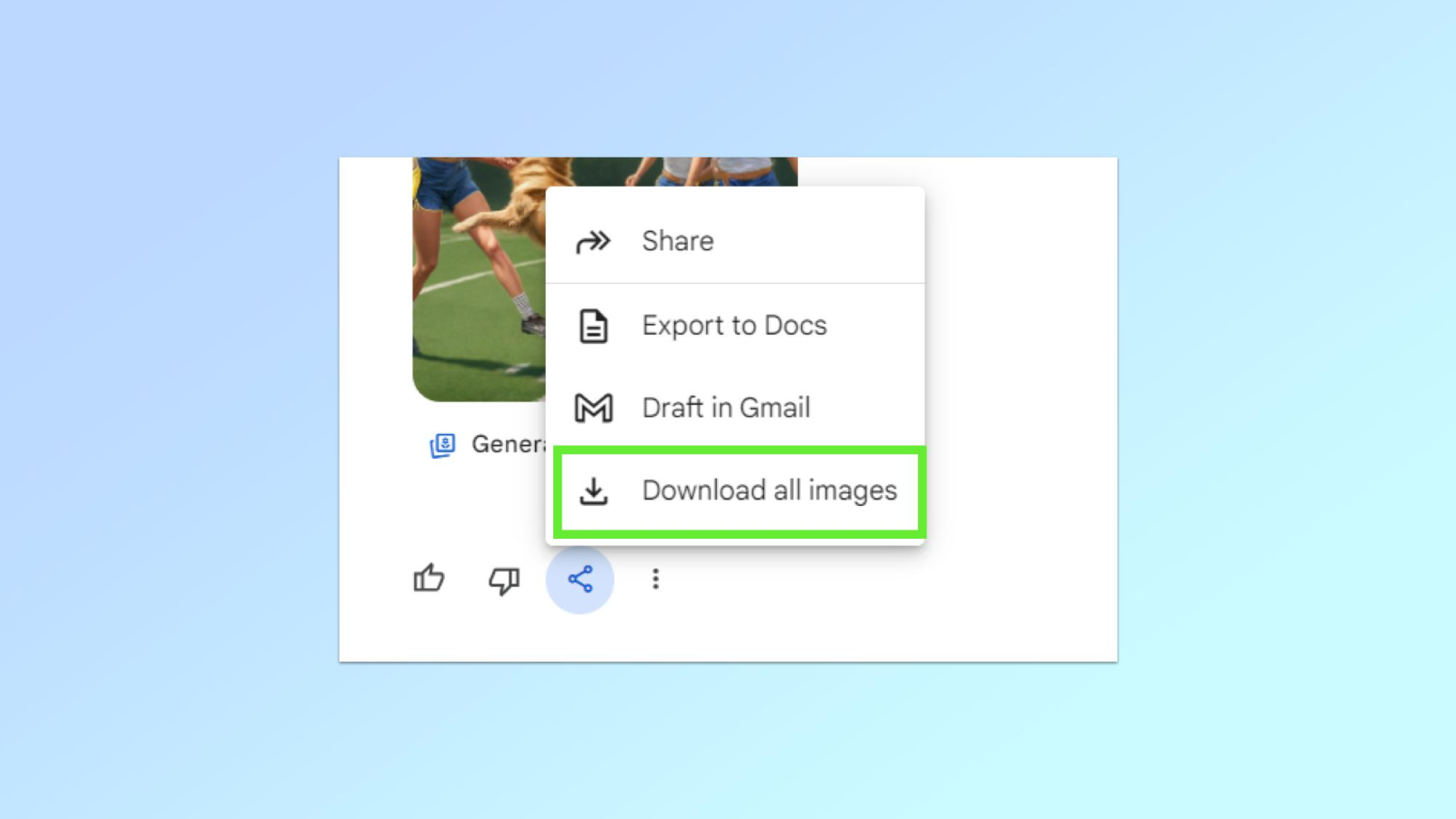
Once you're satisfied with the result, tap the image to open a larger view, then select the download icon if the interface supports it. You should save the image to a separate folder for convenient editing and use later.
Step 5: Separate the background and save the sticker using Canva.
To make stickers look neater and easier to use, you can import images into Canva to remove the background. If the sticker set has multiple characters or expressions in the same frame, crop each image separately before editing. Then, follow these steps:
-
Upload your image to Canva and select the background removal tool.
-
Adjust the separation area so as not to lose details such as hair, hands, or sticker outlines.
-
Add a white border around the character if you want to create a more prominent sticker effect.
-
Choose to download in PNG format and enable the transparent background option if your account or the feature you are using supports it.
-
Save each sticker as a separate file for easy searching.
4. Tips to help stickers maintain consistent facial expressions and features.
One common problem when creating stickers using AI is that the character's face changes between images. For example, the first sticker might have a round face, but the next one might have a longer face, and the hairstyle might no longer be the same. To minimize this, you should apply some of the following tips:
-
Provide specific identifying features: Instead of just asking to keep the face as is, describe the hairstyle, hair color, eye shape, facial features, and clothing in detail.
-
Create stickers in groups: If you want a variety of expressions, divide them into smaller groups of about 4 to 6 images. This makes it easier to check and edit each result.
-
Use the same reference image: When creating new expressions, continue to provide the original character image so the AI has a basis for maintaining the style.
-
Limit changes to too many details: Avoid asking the AI to change hairstyle, clothing, color, and body proportions simultaneously if the goal is to maintain character recognition.
-
Carefully check the small details: The eyes, mouth, hands, and outlines may have errors. You should zoom in on the image to check before downloading.
5. What can I use the baby stickers for after I create them?
Once completed, the sticker set can be used in many different creative activities. It doesn't have to be for messaging; you can also use them to decorate images or create content for social media.
-
Daily texting: Use emojis like laughing, crying, sulking, or heart emojis to liven up the conversation.
-
Photo decoration: Combine stickers with wallpapers, desk calendars, or personal photo albums.
-
Create social media content: Use stickers to decorate your TikTok videos, Instagram Reels, or Facebook posts.
-
Card design: Combine adorable expressions to create greeting cards and birthday cards.
-
Create a personalized sticker set: Save images by emotion group for easy access when needed.
6. Conclusion
Creating stickers from reference images using Gemini is a fun way to transform familiar cartoon characters into sticker sets with diverse expressions and unique styles. Simply prepare clear images, write specific prompts, and further edit them using Canva, and you can have lovely stickers to use in many situations. For high image consistency, focus on describing identifying features, use consistent reference images, and carefully check every detail before finalizing.





















VIP Products








Best Selling Products
Adobe Premiere Pro Account
99 USD
Upgrade Genuine Office 365
49 USD
Adobe Photoshop Copyright - Full App
120 USD
Genuine Cheap Canva Pro
39 USD
ChatGPT Plus Account (GPT-4)
16 USD
Copyright Adobe Lightroom Account
59 USD
Windows 10 & 11 Pro Key
36 USD
Genuine Adobe Illustrator account
99 USD
Capcut Pro 1 Year
39 USD
Upgrade Duolingo Super
29 USD
MidJourney Account
29 USD
Upgrade genuine Capture One account
120 USD
Autodesk All App Account Copyright
120 USD
Freepik Premium Account
59 USD
Plugin Retouch4me
69 USD