Best Selling Products

Copyright Adobe Lightroom Account
59 USD

Adobe Photoshop Copyright - Full App
120 USD

Capcut Pro 1 Year
39 USD

Plugin Retouch4me
69 USD

Upgrade genuine Capture One account
120 USD

ChatGPT Plus Account (GPT-4)
16 USD

Genuine Adobe Illustrator account
99 USD

Adobe Premiere Pro Account
99 USD

Windows 10 & 11 Pro Key
36 USD

Autodesk All App Account Copyright
120 USD

Upgrade Genuine Office 365
49 USD

MidJourney Account
29 USD

Genuine Cheap Canva Pro
39 USD

Upgrade Duolingo Super
29 USD

Freepik Premium Account
59 USD
Fix ChatGPT message flow errors in just a few simple steps.
Nội dung
- 1. What is the error in the ChatGPT message flow?
- 2. Causes of errors in ChatGPT message flow
- 3. How to fix errors in ChatGPT message flow
- 3.1. Refresh the page or resend the message.
- 3.2. Clear browser cache and cookies
- 3.3. Check and stabilize network connection
- 3.4. Turn off VPN and browser extensions.
- 3.5. Log out and log back into your ChatGPT account.
- 3.6. Break down the request content sent to ChatGPT.
- 3.7. Check the OpenAI server status.
- 3.8. Update your browser or the ChatGPT application.
- 4. How to prevent errors in ChatGPT messaging.
- 5. Conclusion
Are you using ChatGPT but your reply suddenly stops, a red error message appears, and you can''t continue the conversation? This is a ChatGPT message flow error, usually related to your internet connection, browser, or OpenAI server. This issue can disrupt your work, especially when you''re working on lengthy content or need to analyze data. Don''t worry! This article from Sadesign will help you identify the cause and guide you on how to quickly fix the error with just a few simple steps.

1. What is the error in the ChatGPT message flow?
A ChatGPT message stream error occurs when the transmission of responses from the OpenAI server to the user's device is interrupted. Instead of displaying a complete response, the system suddenly stops generating content and may display a red error message on the screen. This issue often occurs when the connection between the browser and the server is unstable or the request processing malfunctions.
You can identify the error through some common signs:
-
ChatGPT is responding but suddenly stops in the middle of a sentence or paragraph.
-
An error message related to the message flow appears on the screen.
-
I pressed the resubmit button, but the system still couldn't generate a complete answer.
-
The message kept showing a "processing" status but yielded no results.
-
Some conversations work normally, while others frequently encounter errors.
This situation does not mean your ChatGPT account is locked or you have lost access. In many cases, this is just a temporary issue and can be resolved by checking your connection or refreshing your session.
2. Causes of errors in ChatGPT message flow
There are many factors that can prevent ChatGPT from completing the process of creating and sending responses. Identifying the correct cause will help you choose the appropriate solution, instead of wasting time trying too many different approaches.
-
OpenAI server issues: When the system is undergoing maintenance, overloaded, or experiencing technical errors, ChatGPT may respond slowly, stop generating content, or fail to send complete answers.
-
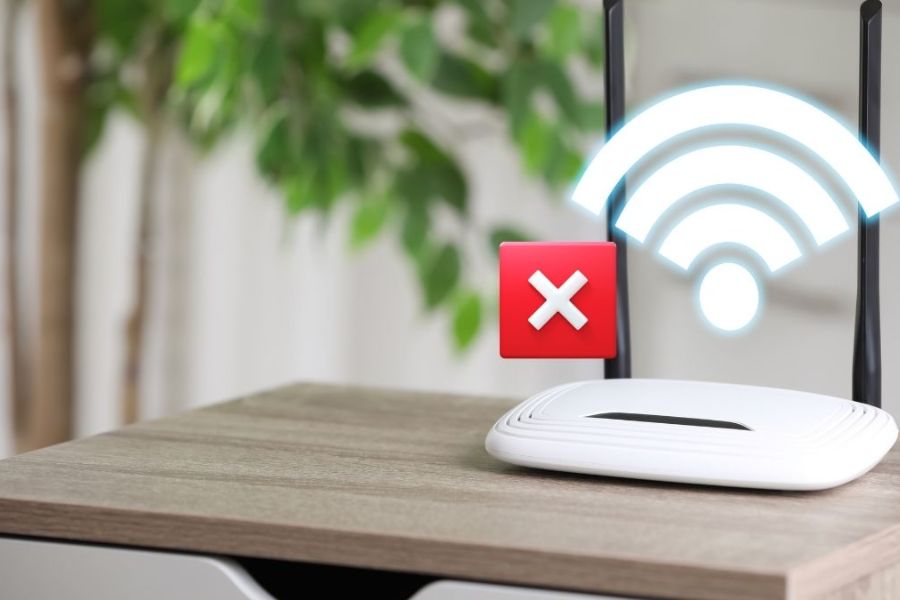
Unstable internet connection: Fluctuating Wi-Fi, weak 4G/5G network, or data packet loss can interrupt data transmission.
-
Browser caching error: The cache and cookies storing data or login session information are outdated or no longer relevant, causing conflicts when accessing ChatGPT.
-
VPN and extensions can cause conflicts: Some ad blockers, VPNs, or security extensions can interfere with the connection between your browser and the server.
-
Prompts that are too long and complex: Requests containing a lot of information, documents, or too many processing steps can prolong response times and easily lead to disruptions.
-
Outdated browser or application: Older versions are sometimes incompatible with new system changes, affecting the process of sending and receiving messages.
3. How to fix errors in ChatGPT message flow
When encountering errors, there's no need to rush to reinstall the app or change accounts. Follow the steps below, starting with the simplest ones, to save time and quickly restore functionality.
3.1. Refresh the page or resend the message.
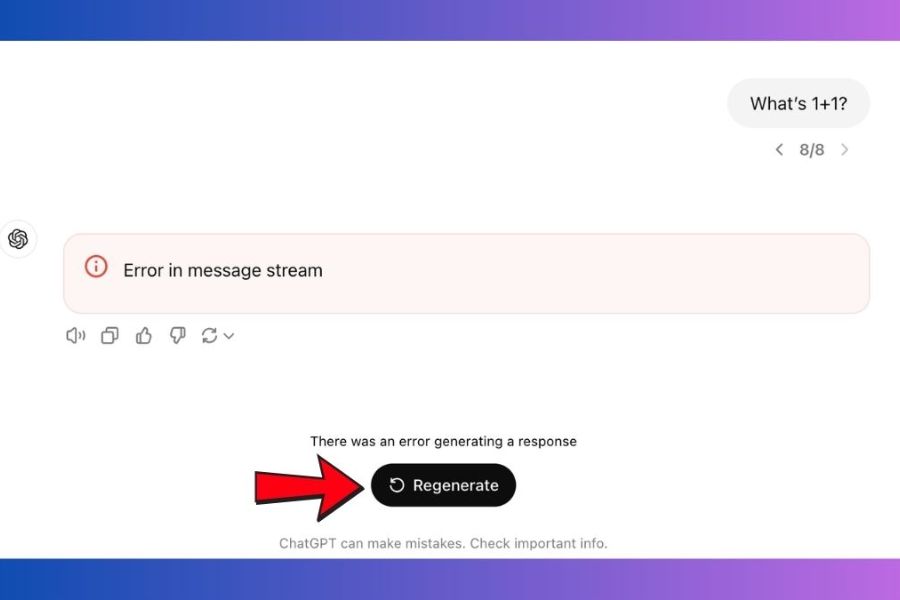
This is the first thing you should try when ChatGPT suddenly stops responding. Sometimes, the browser only experiences temporary glitches during data loading, so refreshing the page can help restore the session. Press F5 or the refresh button in your browser, wait for ChatGPT to fully load, and then resend the request. If the previous response was interrupted, select the "Regenerate" button if this option appears. If the error persists, copy the question content, open a new chat, and resend it to check.
3.2. Clear browser cache and cookies
Cache and cookies help browsers remember browsing data, but outdated or corrupted information can sometimes cause ChatGPT to malfunction. Clearing browsing data helps remove unnecessary cached files and create a new browsing session. For Google Chrome, you can do this as follows:
- Step 1: Open Google Chrome, click the three-dot icon in the upper right corner, and select Settings.
- Step 2: Select the Privacy and Security option, then click Delete browsing data.
- Step 3: In the time range section, select "From the beginning." Next, check the boxes for "Cookies and other website data" and "Files and images are cached."
- Step 4: Click Delete data to complete. Then, close the browser, reopen ChatGPT, and log in to your account to check.
Please note that deleting cookies may log you out of some websites. Therefore, make sure you remember your login information before proceeding.
3.3. Check and stabilize network connection
An unstable internet connection is one of the common reasons why ChatGPT fails to deliver complete responses. Try accessing a different website to check your connection. If the download speed is slow or you frequently lose connection, restart your Wi-Fi modem by turning it off for about 30 seconds and then back on. Alternatively, mobile phone users can switch from Wi-Fi to a 4G/5G network to check. If you are using a VPN or proxy, you should temporarily disable it and access ChatGPT directly. A stable connection will help minimize interruptions in responses while the system is processing requests.
3.4. Turn off VPN and browser extensions.
Extensions such as ad blockers, security tools, or VPNs sometimes interfere with website functionality, causing ChatGPT to have unstable connections. To check, you can open ChatGPT in incognito mode and try sending a new message. If the system works normally, check the installed extensions by going to Extensions > Manage extensions in Chrome. Next, disable each tool and reload the page to identify the conflicting extension. Once you find the cause, you can remove or disable that extension when using ChatGPT.
3.5. Log out and log back into your ChatGPT account.
A login issue can also cause problems sending and receiving messages. If your credentials have expired or are not synchronized correctly, ChatGPT may continuously report errors even if your internet connection is working properly. Click on your profile picture, select Log out, then close the tab or application you are currently using. Next, access ChatGPT again and log in using your original method. This will establish a new session and resolve any errors that may have occurred during account verification.
3.6. Break down the request content sent to ChatGPT.
Prompts that are too long, contain a lot of documents, or require handling multiple tasks simultaneously can prolong the response generation process. Instead of asking ChatGPT to do everything at once, you should break the content down into smaller parts for the system to process sequentially. For example, when analyzing a long document, ask for summaries of each chapter before synthesizing the results. For content writing, you can break it down into steps such as outlining, developing each section, and finalizing. This approach makes the conversation easier to follow and reduces the likelihood of responses being interrupted midway.
3.7. Check the OpenAI server status.
If you've tried many things but ChatGPT continues to report errors, the problem may stem from the OpenAI server system. In this case, changing browsers or restarting your device usually won't completely resolve the issue. Visit the OpenAI Status page to check ChatGPT's operational status. If you see an error message, wait for the technical team to resolve it and try accessing it again later. This also helps you distinguish between errors from your personal device and the service system, avoiding unnecessary actions.
3.8. Update your browser or the ChatGPT application.
Using an outdated browser or app version may cause compatibility issues when accessing ChatGPT. To fix this, you should check and update your software to the latest version. On Google Chrome, tap the three-dot icon, select Help > About Google Chrome to automatically check for updates. If using a phone, simply open the App Store or Google Play, search for the ChatGPT app, and tap Update if a new version is available. After updating, restart your browser or app and try sending a message to test.
4. How to prevent errors in ChatGPT messaging.
Besides understanding how to fix the problem, you should also adjust your usage habits to prevent it from recurring. The following tips will help make your conversations and work with ChatGPT more stable:
- Maintain a stable internet connection: Prioritize Wi-Fi with a strong signal or a wired connection when performing important tasks.
- Avoid sending overly long prompts: Break down complex requests into smaller steps so ChatGPT can process them easily and minimize interruptions.
- Update your browser regularly: Using the latest version improves compatibility and reduces technical errors.
- Control extensions: Install only the tools you truly need, avoiding having too many extensions interfering with your browser's functionality.
- Save important content: Copy long prompts or save drafts before sending to avoid data loss if the conversation goes wrong.
- Monitor service status: Check for notifications from OpenAI when ChatGPT frequently responds slowly or fails to send messages.
Additionally, you might consider using paid ChatGPT packages if you frequently work with the tool. Some packages offer higher usage limits and priority access during periods of high demand. However, upgrading does not guarantee the complete elimination of connection errors or server issues.
5. Conclusion
Errors in ChatGPT messaging can stem from various causes such as unstable internet connection, faulty browser cache, conflicting extensions, or OpenAI server issues. To resolve these quickly, try refreshing the page, clearing your cache and cookies, checking your network connection, or logging back into your account. Hopefully, these instructions will help you effectively troubleshoot the problem, maintain a seamless chat experience, and better utilize ChatGPT in your studies and work.





















VIP Products








Best Selling Products
Copyright Adobe Lightroom Account
59 USD
Adobe Photoshop Copyright - Full App
120 USD
Capcut Pro 1 Year
39 USD
Plugin Retouch4me
69 USD
Upgrade genuine Capture One account
120 USD
ChatGPT Plus Account (GPT-4)
16 USD
Genuine Adobe Illustrator account
99 USD
Adobe Premiere Pro Account
99 USD
Windows 10 & 11 Pro Key
36 USD
Autodesk All App Account Copyright
120 USD
Upgrade Genuine Office 365
49 USD
MidJourney Account
29 USD
Genuine Cheap Canva Pro
39 USD
Upgrade Duolingo Super
29 USD
Freepik Premium Account
59 USD