Best Selling Products

Copyright Adobe Lightroom Account
59 USD

Upgrade genuine Capture One account
120 USD

Adobe Premiere Pro Account
99 USD

Upgrade Genuine Office 365
49 USD

Autodesk All App Account Copyright
120 USD

Freepik Premium Account
59 USD

Plugin Retouch4me
69 USD

Windows 10 & 11 Pro Key
36 USD

Adobe Photoshop Copyright - Full App
120 USD

Upgrade Duolingo Super
29 USD

Capcut Pro 1 Year
39 USD

MidJourney Account
29 USD

Genuine Cheap Canva Pro
39 USD

Genuine Adobe Illustrator account
99 USD

ChatGPT Plus Account (GPT-4)
16 USD
Grammarly: The Most Accurate English Spelling and Grammar Checker
Nội dung
- 1. What is Grammarly?
- 2. Benefits of Grammarly
- 3. What are the main outstanding features of Grammarly?
- 3.1 Check for spelling errors
- 3.2 Check grammar and punctuation
- 3.3 Suggest appropriate wording
- 3.4 Compatibility across multiple platforms
- 3.5 Easy to use with Microsoft Word and Outlook email service
- 3.6 Suggestions for advanced vocabulary and sentence structure
- 3.7 Plagiarism Checking Feature
- 3.8 Check the writing style
- 3.9 Voice Checking Feature
- 3.10 Writing Planning Features
- 3.11 Keyword Analysis Features
- 3.12 Text Structure Suggestion Feature
- 4. Instructions on how to install Grammarly on your computer.
- 5. Instructions on how to install Grammarly on Word
- 6. Instructions on how to install Grammarly on the Chrome browser.
- 7. Conclusion
Nowadays, English is more prevalent and essential than ever. However, not everyone is confident in their writing skills.
1. What is Grammarly?
Grammarly is an application that checks spelling, grammar, and punctuation for English text. Developed by Grammarly, a company based in San Francisco, USA, the tool was first launched in 2009. Grammarly's main goal is to help users write more accurate and professional texts.
This tool not only detects and corrects basic errors but also provides suggestions for improving writing style, making text more coherent and understandable. From grammar checking to suggesting a rich vocabulary, Grammarly can support users at various levels.
Grammarly can be used widely across multiple platforms, including web browsers, mobile apps, and word processing software like Microsoft Word. This makes it easy for users to access and use the tool anytime, anywhere.
2. Benefits of Grammarly
One of Grammarly's biggest advantages is its ability to quickly and accurately detect spelling and grammar errors. Instead of manually checking every word, users simply press a button and receive immediate feedback. This saves time and effort, especially when writing important documents.
In addition to detecting errors, Grammarly also provides suggestions for improving writing. This tool helps users expand their vocabulary and optimize sentence structure, thereby making their writing more professional. This is especially useful for those learning English or wanting to improve their writing skills.
Grammarly can also help users detect common mistakes they might not realize, such as using words incorrectly in context. This helps writers become more confident.
3. What are the main outstanding features of Grammarly?
3.1 Check for spelling errors
One of Grammarly's most outstanding features is its spell-checking capability. Whether you use the free or premium version, this tool can detect up to 250 common spelling errors in English texts. This feature helps writers quickly identify and correct basic errors, ensuring that their writing is always accurate.
Thanks to advanced technology, Grammarly not only points out mistakes but also helps users better understand how to write correctly. This is extremely useful for those learning English or needing to write professional documents.
3.2 Check grammar and punctuation
In addition to checking spelling errors, Grammarly can also detect grammatical and punctuation errors. Grammar is a crucial element in English writing, and many people often make common mistakes. Grammarly uses intelligent algorithms to identify poorly structured sentences, helping users improve their writing skills.
When Grammarly detects grammatical errors, it not only notifies the writer but also offers solutions for correction. This helps writers become aware of problems in their expression and make adjustments accordingly.
3.3 Suggest appropriate wording
When grammar and sentence errors are detected, Grammarly provides suggestions for contextually appropriate alternative words. This feature is especially useful for those who want to improve the quality of their writing. With accurate suggestions, users can easily edit and make their sentences more coherent and natural.
Word suggestions not only improve grammar but also expand vocabulary, helping writers become more confident in expressing their ideas. This is beneficial not only for writing but also for everyday communication.
3.4 Compatibility across multiple platforms
Grammarly stands out for its flexibility and convenience, supporting users across multiple platforms. You can install the app on desktop computers or on mobile devices running Android and iOS operating systems. This allows users to check texts anytime, anywhere, from work to study.
Additionally, Grammarly offers extensions for popular web browsers such as Google Chrome, Microsoft Edge, and Safari. This makes it easy for users to utilize the tool in online activities, from writing emails to typing on websites.
3.5 Easy to use with Microsoft Word and Outlook email service
Grammarly integrates seamlessly into Microsoft Word and Outlook email services, allowing users to check spelling and grammar directly during the writing process. This saves time and effort, as you don't need to switch between applications or perform external checks. Instead, any errors are displayed and corrections suggested directly within your document, enabling quick editing without interrupting your workflow.
In addition to Microsoft Word and Outlook, Grammarly also offers extensions for many popular web browsers such as Chrome, Firefox, and Safari. The extension's user interface is very user-friendly, making it easy for users to interact and receive spell and grammar check support when composing emails or typing on websites. With the support of Grammarly, you will feel more confident communicating in English through written documents, from work emails to study materials.
3.6 Suggestions for advanced vocabulary and sentence structure
Grammarly goes beyond simply checking spelling and grammar; it also acts as an effective writing assistant. It provides rich vocabulary suggestions, helping users make their writing more engaging and avoid tedious repetition. In this way, your content is not only accurate but also more appealing, capturing the reader's attention.
Specifically, the Premium version of Grammarly offers more advanced features, such as the ability to detect errors in sentence structure. This tool can identify lengthy or unclear sentences and suggest effective alternatives. As a result, you can improve not only your grammar but also your expression, making your writing more coherent and easier to understand.
3.7 Plagiarism Checking Feature
One of Grammarly's notable features is its plagiarism check, particularly useful for those creating content or writing academic papers such as theses and research reports. This feature helps ensure your content is original and not copied from other sources. Grammarly checks your text across more than 8 million websites, helping to detect potentially duplicated passages.
Plagiarism checking not only helps protect personal reputation but also enhances the credibility of your work. Especially in academic environments, presenting original and truthful content is extremely important. Thanks to this feature, you can rest assured that your work meets ethical and professional standards.
3.8 Check the writing style
Grammarly Premium also offers a style check feature, allowing you to select the type of content you're writing from over 30 different categories such as emails, reports, blog posts, or contracts. Each style has its own requirements for expression and structure, and knowing how to tailor your content to your target audience is crucial.
When you use Grammarly's Premium plan, the tool provides specific suggestions and feedback based on your chosen writing style. This helps ensure your writing is not only grammatically correct but also appropriate for the context and purpose. With Grammarly's support, you'll produce high-quality, engaging, and accessible writing.
3.9 Voice Checking Feature
Grammarly offers a tone check feature that helps you assess how your text might be perceived by your readers. This tool analyzes the tone of your text, indicating whether it's appropriate for the context, and helps you adjust your tone accordingly. For example, if you're writing a work email, Grammarly will warn you if your tone is too informal or not formal enough.
Understanding and adjusting your tone is crucial in written communication, as it affects how your message is understood and perceived. This skill helps you create impactful content, making your writing more persuasive.
3.10 Writing Planning Features
Grammarly Premium offers a writing planning feature, allowing users to set goals for their writing. You can set goals such as text length, content type, and target audience. This feature helps you gain a clearer understanding of the writing process and work towards completing a quality piece.
Additionally, this feature helps you track your progress and receive feedback based on your set goals. This not only enhances accountability in writing but also helps you organize your work more effectively.
3.11 Keyword Analysis Features
Grammarly also supports keyword analysis, which is very useful for writers and content marketers. This feature helps you identify and optimize keyword usage in your text, thereby improving search engine rankings. In this way, your content can reach a wider audience through relevant searches.
Keyword analysis not only helps you improve SEO but also ensures that your content is valuable and relevant to your target audience. Using keywords intelligently will increase visibility and reader engagement.
3.12 Text Structure Suggestion Feature
Another standout feature of Grammarly is its ability to suggest text structure. This tool can help you organize your ideas and create a logical layout for your writing. It not only helps you determine the order of sections in your text but also offers suggestions on how to connect ideas coherently.
Having a clear and logical structure is crucial for effectively communicating your message. Grammarly helps you create easily readable and understandable texts, thereby enhancing the reader's experience.
4. Instructions on how to install Grammarly on your computer.
Grammarly is a great tool to help you check your spelling, grammar, and improve your writing style. Below is a detailed step-by-step guide to installing Grammarly on your computer.
Step 1: Download Grammarly to your computer.
First, go to the official Grammarly website at https://www.grammarly.com/desktop . There, you will see a "Free Download" button. Click this button to begin downloading the Grammarly installation file to your computer.
Step 2: Register for a Grammarly account
After downloading the installation file, you need to create a Grammarly account. Open the downloaded file and you will be guided through the registration process. Enter your name, email address, and password to create your account. Once completed, click the "Sign up" button to continue.
Step 3: Install Grammarly
Next, locate the installation file named "setup.exe" in the downloads folder on your computer. Double-click this file to begin the installation process. A window will appear; click the "Get Started" button to continue.
Step 4: Choose the options to use in Word and Outlook.
During the installation process, you'll see a question about whether you want to use Grammarly for Microsoft Word and Outlook. If you want to use Grammarly's features in these two applications, select "Yes". Otherwise, you can press "Install" to continue without integrating it into Word or Outlook.
Step 5: Log in to your Grammarly account.
Finally, after the installation is complete, you will be asked to log in to the Grammarly account you just created. Enter your email address and password, then click "Log in". Now you've completed the setup and can start using Grammarly to improve your writing skills!
With these simple steps, you can successfully install Grammarly and enjoy the benefits it offers.
5. Instructions on how to install Grammarly on Word
Grammarly is a great tool to help you improve your English writing skills right within Microsoft Word. Below is a detailed step-by-step guide to installing Grammarly in Word.
Step 1: Download the Grammarly extension.
First, go to the official Grammarly website. There, you'll find the option "Get the add-in It's free". Click on this option to start downloading the installation file. After clicking, wait a moment for the .exe file to download to your computer. Once the download is complete, find and click on the downloaded file to begin the installation.
Step 2: Begin installation
When you open the installation file, a window will appear. Click the “Get Started” button to begin the installation process. During this process, you will see an option to add the “Grammarly for Word” extension. Make sure this box is checked, then click the “Install” button to start the installation.
Step 3: Open Word and activate Grammarly
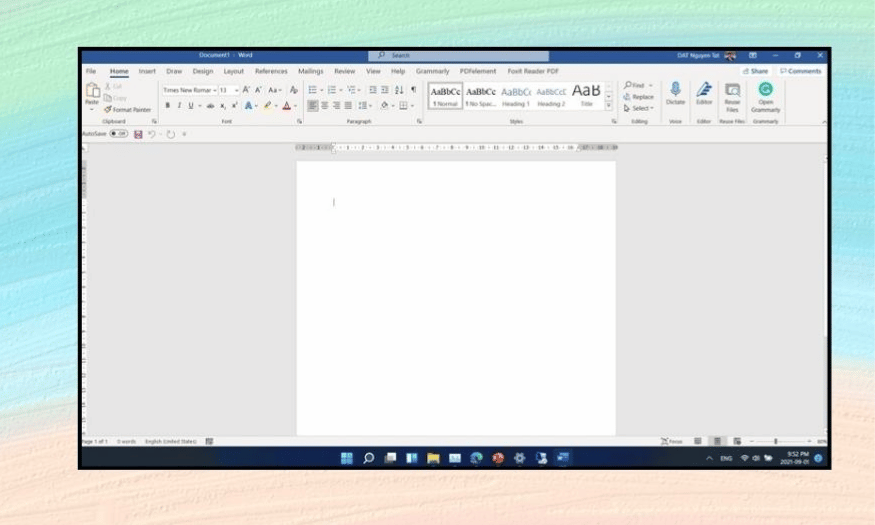
After the installation is complete, open Microsoft Word on your computer and open any document. On the Ribbon at the top of the Word window, you will see the Grammarly icon. Click this icon to activate the spell and grammar check function for English in your document.
Step 4: Log in to your Grammarly account.
When you first click the Grammarly icon, you may be prompted to sign in to your Grammarly account. Enter your email address and password, then click “Log in” to complete the process. Once successfully logged in, you’re ready to use Grammarly to improve your writing in Word!
6. Instructions on how to install Grammarly on the Chrome browser.
Grammarly is a useful tool that helps you check spelling, grammar, and improve your writing style right in the Chrome browser. Below is a detailed step-by-step guide to installing Grammarly on Chrome.
Step 1: Access the Grammarly website.
First, open your Chrome browser and go to the official Grammarly website at Grammarly.com . Once the page loads, you will see a "Add to Chrome It's free" button. Click this button to begin installing the Grammarly extension on your browser.
Step 2: Log in or register an account
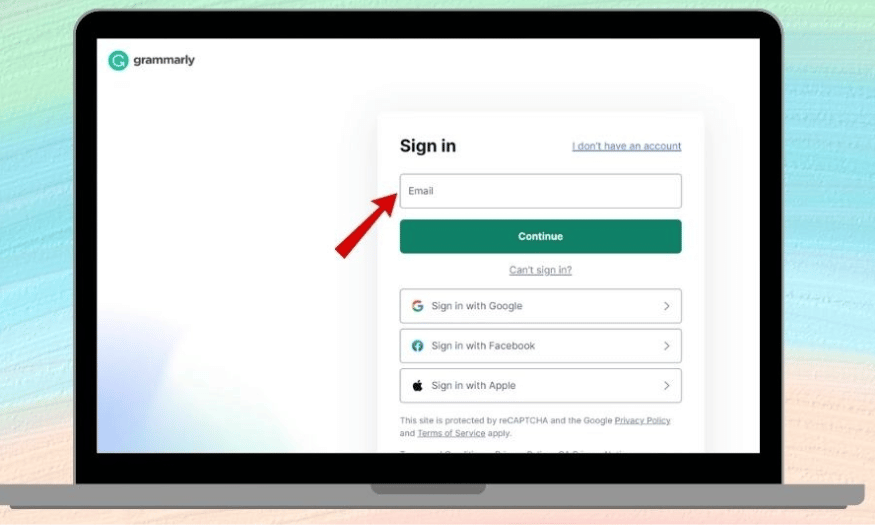
After clicking “Add to Chrome,” a new window will appear asking you to log in or register an account. If you already have a Grammarly account, select “Sign in” and enter the email address and password you used to register previously. Then, click “Continue” to log in.
If you don't already have a Grammarly account, select "I don't have an account." You will be asked to fill in the necessary information, including email, password, and username. Once completed, click "Agree and Signup" to create a new account.
Step 3: Complete the installation
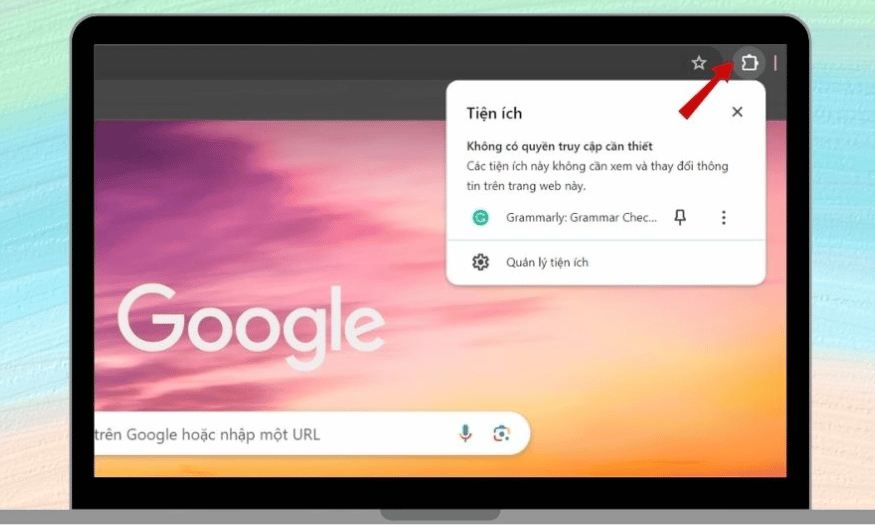
Once you have successfully registered or logged in, you will be redirected to the Grammarly main page. Simultaneously, the Grammarly extension will be automatically added to your Chrome browser.
Now you can start using Grammarly to check spelling and grammar when writing on websites, including emails, social media posts, and more. With just a few simple steps, you'll have an effective writing tool at your fingertips!
7. Conclusion
In short, Grammarly is not just a spell and grammar checker, but also a reliable companion on your journey to improving your English writing skills. With its smart and user-friendly features, Grammarly deserves to be the top choice for anyone who wants to improve the quality of their writing. Start using Grammarly today and experience the difference in every word!





















VIP Products








Best Selling Products
Copyright Adobe Lightroom Account
59 USD
Upgrade genuine Capture One account
120 USD
Adobe Premiere Pro Account
99 USD
Upgrade Genuine Office 365
49 USD
Autodesk All App Account Copyright
120 USD
Freepik Premium Account
59 USD
Plugin Retouch4me
69 USD
Windows 10 & 11 Pro Key
36 USD
Adobe Photoshop Copyright - Full App
120 USD
Upgrade Duolingo Super
29 USD
Capcut Pro 1 Year
39 USD
MidJourney Account
29 USD
Genuine Cheap Canva Pro
39 USD
Genuine Adobe Illustrator account
99 USD
ChatGPT Plus Account (GPT-4)
16 USD