Best Selling Products

Adobe Premiere Pro Account
99 USD

Copyright Adobe Lightroom Account
59 USD

Upgrade Genuine Office 365
49 USD

Upgrade Duolingo Super
29 USD

Freepik Premium Account
59 USD

Plugin Retouch4me
69 USD

MidJourney Account
29 USD

ChatGPT Plus Account (GPT-4)
16 USD

Genuine Adobe Illustrator account
99 USD

Capcut Pro 1 Year
39 USD

Upgrade genuine Capture One account
120 USD

Windows 10 & 11 Pro Key
36 USD

Autodesk All App Account Copyright
120 USD

Genuine Cheap Canva Pro
39 USD

Adobe Photoshop Copyright - Full App
120 USD
Guide on How to Create a Beautiful and Simple Timetable on Canva
Nội dung
- 1. Why you should use Canva to design a timetable
- 2. Guide on how to create a timetable on Canva
- 2.1 Step 1: Access Canva
- 2.2 Step 2: Choose a suitable timetable template
- 2.3 Step 3: Add information and edit the timetable
- 2.4 Step 4: Download and print the timetable
- 3. Notes when designing a timetable with Canva
- 4. Choose a reputable company to buy Canva Pro
- 4.1 AI Software World – A reputable address providing Canva Pro
- 4.2 Customers are always the center
- 4.3 Reasonable prices, many attractive offers
- 5. Conclusion
A beautiful timetable is not only an effective time management tool but also brings inspiration and excitement to studying and working every day. Instead of using monotonous traditional templates, you can completely design a unique timetable yourself, reflecting your personal style. Canva is a simple, easy-to-use online design platform with a diverse template library. With just a few basic steps, you can create a design that is both convenient and impressive, making schedule arrangement more interesting and scientific. Let’s explore with AI Software World the steps to create a truly beautiful and professional timetable on Canva right below.
1. Why you should use Canva to design a timetable
Canva is the perfect choice for anyone who wants to create a beautiful timetable without needing advanced design skills. With this online tool, you can turn ideas into real products in just a few minutes, saving time while bringing professionalism.
Below are the reasons why Canva has become a tool loved by many people:
Friendly interface, easy to use: Canva is designed with a simple layout and intuitive buttons, suitable for even beginners. You only need to drag, drop, and edit elements such as images, text, and colors to create a timetable according to your preferences without difficulty.
Diverse ready-made template library, saving time: Canva provides thousands of rich timetable templates with many different themes and styles. You only need to choose your favorite template, then customize the appropriate information, helping to save maximum design time from scratch. With a Pro account, you can also expand access to exclusive template collections.
Free design but high quality: Even when using a free account, you can still create beautiful designs. With just a little creativity, you will have a unique and impressive timetable without spending any cost.
Supports many other design features: Not only stopping at creating timetables, Canva also helps you design book covers, banners, posters, logos, or even professional email signatures. This is truly a comprehensive tool for those who love creativity.
Work anytime, anywhere: Canva works online on both computers and phones, allowing you to design anytime, anywhere without needing to install complicated software.
Canva not only brings convenience but also inspires creativity, helping you own timetable templates that are both beautiful and clearly express your own personality.
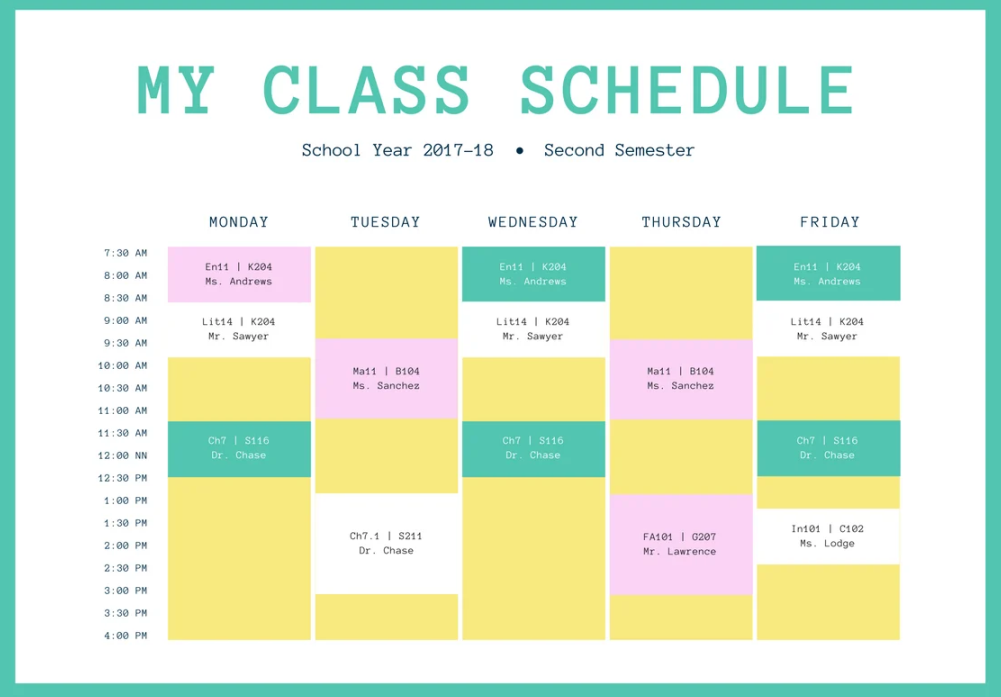
2. Guide on how to create a timetable on Canva
Canva is a prominent online design tool, loved by many people because of its simplicity, ease of use, and rich design template library. Creating a timetable on Canva not only helps you arrange your study and work time scientifically but also brings a sense of excitement every time you look at it. Below is a detailed step-by-step guide so you can easily create a beautiful, professional timetable that matches your personal style.
2.1 Step 1: Access Canva
.jpg)
First, you need to access Canva’s official website. Open your browser and type the keyword “Canva” in the Google search bar. After accessing it, you will be asked to log in or register an account. Canva supports many convenient login methods such as by email, phone number, or direct connection with Google, Facebook, or Apple ID accounts. If you do not have an account yet, it only takes about 1–2 minutes to register completely free of charge. This login helps you save the designs you have made, easily access and edit them at any time.
2.2 Step 2: Choose a suitable timetable template
After successfully logging in, on Canva’s main interface, you will see the search box at the top. Enter the keyword “Timetable” or “Schedule” if using the English interface into this box. Immediately, Canva will display thousands of diverse timetable templates with many different styles, from simple and modern to cute and creative.
With a free account, you can still access a large number of beautiful design templates. However, if you use a Canva Pro (VIP) account, you will have the right to unlock all premium templates, making your choices richer and saving design time. Once you find a template you like, you only need to click “Customize this template” to start the editing step. This is a quick way to help you avoid designing from scratch while still owning a professional product.
.jpg)
2.3 Step 3: Add information and edit the timetable
On the new design page, you can freely create with the timetable template you have chosen. Canva provides many intuitive editing tools that are easy to use and suitable even for beginners. For images, you can change their position, size, color, or add new graphic elements from the free and paid resource library that Canva provides. If you want more personalization, you can upload photos from your device and use them directly in the design.
The text content section is also extremely flexible. You can edit subject names, schedules, text colors, fonts, sizes, or line spacing to create a harmonious and easy-to-view layout. In addition, Canva also supports unique text effects such as shadows, neon, or 3D effects, helping the timetable become more vivid and outstanding. This is an important step to turn an existing template into a design that bears your personal mark.
.jpg)
2.4 Step 4: Download and print the timetable
After completing the editing, you need to save the finished product to your device for use or printing. Click the “Share” button in the upper-right corner of the screen, then select “Download”. Canva will allow you to customize several parameters before downloading, such as file format (PNG, JPG, PDF), image quality, transparent background, or file compression to reduce size.
To have a sharp timetable, you should choose high-quality PNG format or PDF if you want to print. After completing the settings, click the “Download” button and save the file to your computer or phone. If you want to print a hard copy, you can send the file to printing shops or print it yourself at home. With the image quality that Canva provides, your printed version will be clear and professional, ready to hang at your study desk, work corner, or carry with you.
(1).jpg)
3. Notes when designing a timetable with Canva
Designing a timetable with Canva not only helps you manage time effectively but also brings inspiration for studying and working every day. However, to create a product that is both beautiful and easy to use, you need to pay attention to many important factors.
Below are the points to remember to have a perfect and professional design:
Choose a timetable template suitable for the purpose of use: Before starting to design, you need to clearly define the goal of the timetable. If it is for personal use, you can choose a simple, easy-to-view template with your favorite colors. If it is used for classrooms, offices, or work groups, prioritize professional templates with clear layouts. Canva provides a diverse template library from modern and minimalist to cute, you only need to choose the template that suits your needs and edit it as desired.
Ensure information is clear and easy to read: A beautiful timetable is not only based on aesthetics but must also ensure readability. Choose clear fonts and appropriate font sizes so viewers can read quickly and avoid confusion. In addition, you should use colors to distinguish subjects, tasks, or time frames, helping users easily follow and remember. Arranging information in a logical order is also an important factor in optimizing the viewer experience.
Keep the design professional and harmonious: When designing, consider the balance between aesthetics and practicality. Colors should be coordinated harmoniously, avoiding using too many contrasting color tones that cause visual confusion. Images, icons, and graphic elements should be added subtly to highlight the content without taking up too much space. A neat and balanced layout will make the timetable both professional and attractive.
Optimize for both printed and online versions: If you intend to print the timetable, choose a suitable size and file format such as PDF or high-quality PNG. At the same time, use moderate colors so the print does not differ from the original design. For the online version, you can take advantage of elements such as links or QR codes to quickly share with friends, colleagues, or students.
Check and complete before downloading: Before saving and sharing, take time to check the content again to avoid mistakes such as wrong dates, incorrect subjects, or inaccurate information. A carefully completed timetable will show professionalism and help users feel more confident and satisfied.
.PNG)
4. Choose a reputable company to buy Canva Pro
Canva Pro is an upgraded version with many outstanding features, helping you freely create and optimize design work. However, the question is: where should you buy Canva Pro to ensure quality, safety, and reputation? The answer is AI Software World, a leading licensed software provider in Vietnam, trusted and chosen by thousands of customers.
4.1 AI Software World – A reputable address providing Canva Pro
AI Software World is a unit specializing in providing genuine licensed software such as Canva Pro, CapCut Pro, licensed Photoshop, Zoom Pro, Google One, ChatGPT Plus, and many other products. With many years of experience in the software field, the company is committed to providing reputable, transparent, and fast service along with full VAT invoices and valid documents.
Outstanding points at AI Software World:
Provides full VAT invoices for individuals and businesses.
Offers genuine products, fully updated with the latest features from Canva and other software.
A highly specialized staff team, providing dedicated and fast support throughout the usage process.
Has cooperated with many businesses and organizations at home and abroad, ensuring reputation and reliability.
Commits to service warranty, helping customers feel secure when upgrading their accounts.
4.2 Customers are always the center
When buying Canva Pro at AI Software World, you will be completely assured of product quality and after-sales service. After payment, the Canva Pro account will be activated quickly, without worrying about long waiting times.
The support team is always ready to guide installation and answer all questions, helping you easily use the software, even if you are a beginner. Dedication and professionalism in customer care are the reasons why thousands of people have chosen and trusted AI Software World.
4.3 Reasonable prices, many attractive offers
One of the strengths that makes AI Software World highly rated is its competitive and transparent pricing. The company provides Canva Pro packages at the most reasonable price on the market, accompanied by full features and support services.
In addition, AI Software World regularly has promotions and special offers, helping you save costs while still owning a high-quality Canva Pro account. This is a great opportunity to upgrade your design experience and create impressive and professional products.
5. Conclusion
Above are detailed instructions so you can easily create a beautiful, simple, and creative timetable on Canva. Hopefully, the shared information will help you not only master the design method but also know how to make use of Canva to manage time scientifically and effectively. If you want to upgrade your experience with exclusive design templates and premium features, do not hesitate to contact us to own the highest-quality and most reputable licensed Canva account.





















VIP Products








Best Selling Products
Adobe Premiere Pro Account
99 USD
Copyright Adobe Lightroom Account
59 USD
Upgrade Genuine Office 365
49 USD
Upgrade Duolingo Super
29 USD
Freepik Premium Account
59 USD
Plugin Retouch4me
69 USD
MidJourney Account
29 USD
ChatGPT Plus Account (GPT-4)
16 USD
Genuine Adobe Illustrator account
99 USD
Capcut Pro 1 Year
39 USD
Upgrade genuine Capture One account
120 USD
Windows 10 & 11 Pro Key
36 USD
Autodesk All App Account Copyright
120 USD
Genuine Cheap Canva Pro
39 USD
Adobe Photoshop Copyright - Full App
120 USD