Best Selling Products

ChatGPT Plus Account (GPT-4)
16 USD

Upgrade genuine Capture One account
120 USD

Copyright Adobe Lightroom Account
59 USD

Plugin Retouch4me
69 USD

Adobe Photoshop Copyright - Full App
120 USD

Upgrade Genuine Office 365
49 USD

Windows 10 & 11 Pro Key
36 USD

Autodesk All App Account Copyright
120 USD

Upgrade Duolingo Super
29 USD

Freepik Premium Account
59 USD

Capcut Pro 1 Year
39 USD

Genuine Adobe Illustrator account
99 USD

MidJourney Account
29 USD

Adobe Premiere Pro Account
99 USD

Genuine Cheap Canva Pro
39 USD
Guide to Choosing the Right Photo Signature App for Your Needs
Nội dung
- 1. How to choose the right photo signature app to suit your needs.
- 2. Top 5 Best Signature Creation Apps for Mobile Phones
- 2.1 SignEasy
- 2.2 Signature Maker
- 2.3 Easy Signature
- 2.4 Watermark
- 2.5 MISA eSign
- 3. How to quickly convert a handwritten signature on paper to a background-removed image file.
- 4. Important considerations for securing electronic signatures
- 5. Conclusion
Whether you''re an office worker, an online shop owner, or a freelancer who frequently exchanges documents with clients, a clear and reliable electronic signature will enhance professionalism and build trust in your work
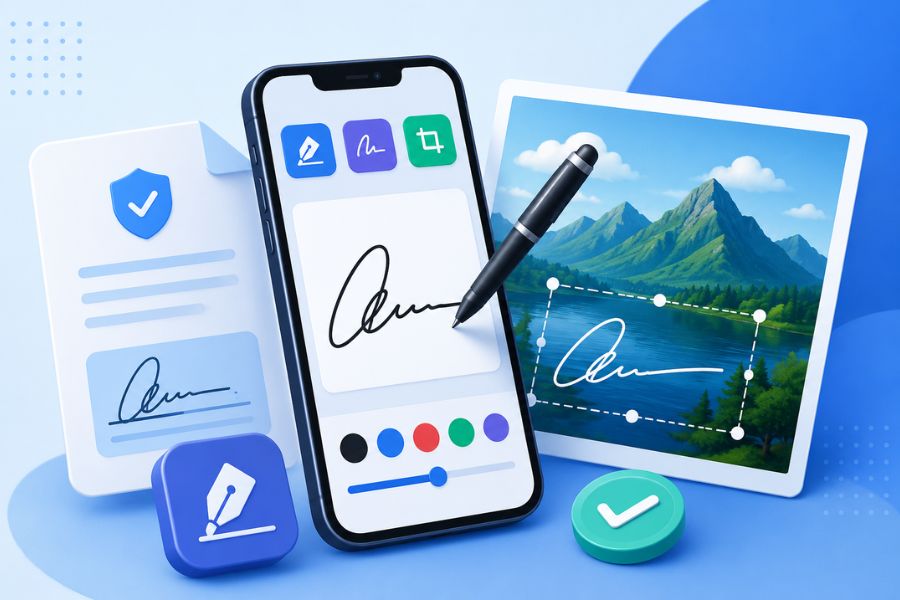
1. How to choose the right photo signature app to suit your needs.
Choosing the right app for creating signatures on photos not only speeds up the process but also ensures your signatures appear professional and clear on all documents. Each app has its own advantages in terms of features, interface, and user support. Therefore, before installing, you should consider your actual usage needs to find the tool that best meets your requirements.
-
Prioritize applications with a simple, user-friendly interface, suitable for beginners.
-
Choose an app that allows you to create signatures on photos and supports handwriting for a more natural and realistic look.
-
Test the ability to insert signatures into various image formats such as JPG, PNG, or PDF.
-
It's recommended to use an app that allows you to flexibly change the size, color, and position of your signature.
-
Prioritize apps that offer a signature template saving feature so you can reuse them multiple times without having to create new ones.
-
Choose an application that can export high-quality images to avoid blurry or pixelated signatures.
-
If you frequently work with important documents, choose applications that offer secure security and safe storage features.
-
Compare the free and paid versions to choose the solution that best suits your budget and needs.
2. Top 5 Best Signature Creation Apps for Mobile Phones
2.1 SignEasy
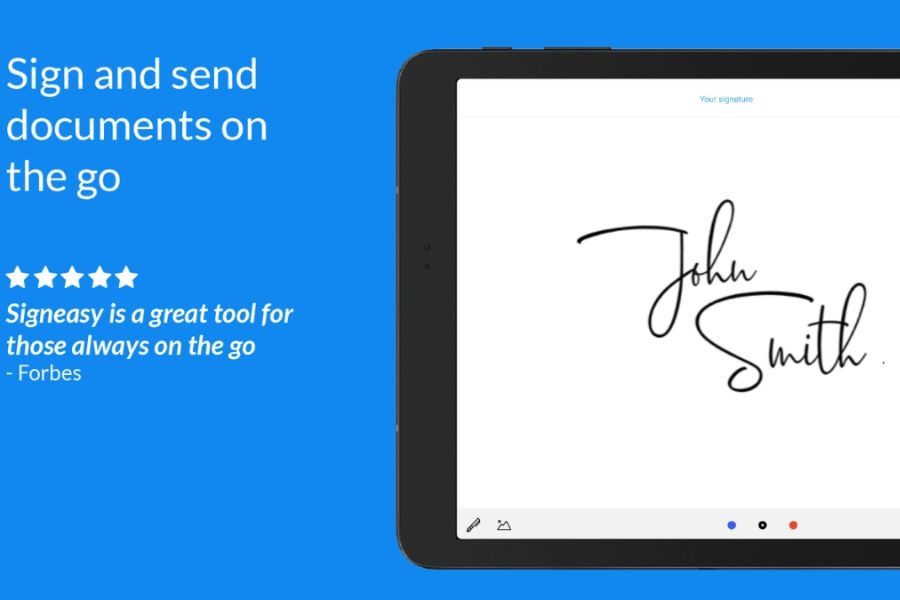
SignEasy is one of the applications chosen by many individuals and businesses when they need to sign documents online. The application supports signing on many popular formats such as PDF, Word, and Excel, making the document processing process faster and more professional. The intuitive interface is also a big plus, making it easy for users to get familiar with from the first use.
In addition to its document signing capabilities, SignEasy also functions effectively as a photo signature app , allowing you to insert signatures into important images or documents with just a few simple steps. Its synchronization with cloud storage services makes it easy to access and manage documents from anywhere, especially suitable for those who frequently work remotely.
2.2 Signature Maker
Signature Maker is the ideal choice for those who want a signature that reflects their personal style. The app allows users to freely draw their signatures by hand directly on their phone screen or create signatures from pre-designed fonts. This makes it easy to experiment with different styles to find the perfect signature for you.
Beyond simply creating signatures, Signature Maker is also a popular photo signature creation app thanks to its flexible customization options. Users can change the color, stroke thickness, or add simple effects to make their signatures stand out. This tool is suitable for both work and daily personal needs.
2.3 Easy Signature
Easy Signature scores points for its simplicity and ease of use. Upon opening the app, users can quickly create a signature without needing to go through complicated setup steps. The optimized interface ensures smooth operation, making it suitable even for those with little tech knowledge.
In addition, Easy Signature is a useful app for creating signatures on photos, especially for those who need to process documents or images quickly. The signature is reproduced quite realistically, giving a feeling similar to signing directly on paper. With its fast processing speed and small file size, it's a worthwhile option for Android and iPhone users.
2.4 Watermark
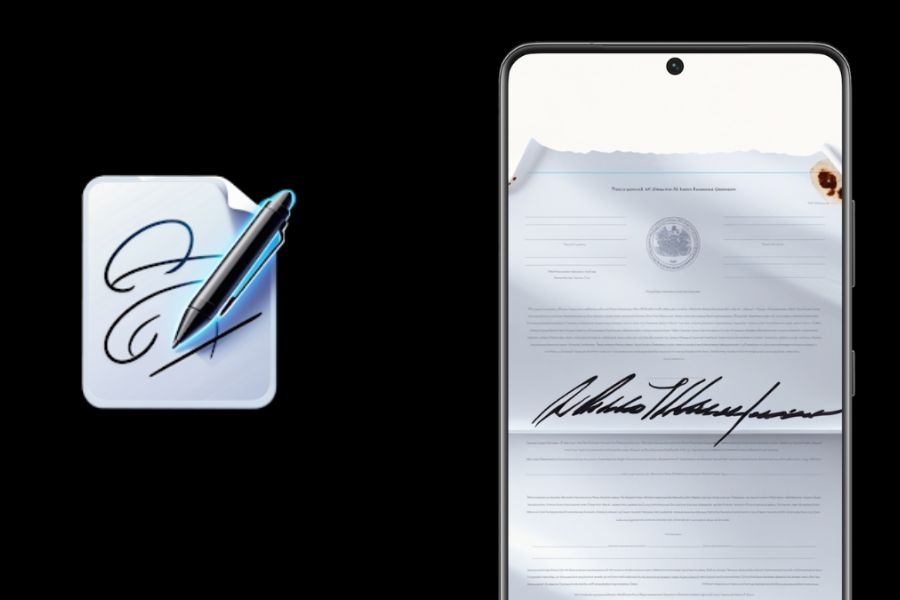
Watermark is widely known for its ability to protect image copyrights, but this application also boasts a very convenient signature creation tool. Users can easily create personal signatures and insert them directly onto product images, designs, or documents requiring copyright marking. This helps to prevent unauthorized copying and use of content.
As a powerful photo signature creation app , Watermark offers many customization options such as changing the size, position, or transparency of the signature. This allows the signature to appear harmoniously on the image while still ensuring brand or personal recognition. This tool is particularly suitable for online shop owners, photographers, and content creators.
2.5 MISA eSign
MISA eSign is a professional electronic signature solution developed for businesses and organizations in Vietnam. The application supports digital signing on various types of documents, contracts, and electronic invoices, helping to shorten processing time and improve work efficiency. The legal validity and reliability of the platform are also highly valued by many businesses.
In addition to its professional digital signature capabilities, MISA eSign can also be used as an app to create signatures on photos in various situations requiring document verification or authentication. Its advanced security system protects data and minimizes the risk of content modification after signing. This is a suitable choice for individuals and businesses needing a secure, professional, and long-term electronic signature solution.

3. How to quickly convert a handwritten signature on paper to a background-removed image file.
If you want a personalized electronic signature, you can easily convert your handwritten signature on paper into a transparent image file with just a few simple steps. This method preserves the natural, authentic look of the signature and can be used flexibly on various documents, contracts, or images requiring information verification. This is also a popular choice before using photo signature creation apps to add signatures to electronic documents.
Step 1: Sign your signature on a blank piece of paper.
Prepare a clean sheet of white paper, then sign your name with black or dark blue ink so that the signature is clearly visible. Sign in a clear area on the paper to make processing and background removal easier later.
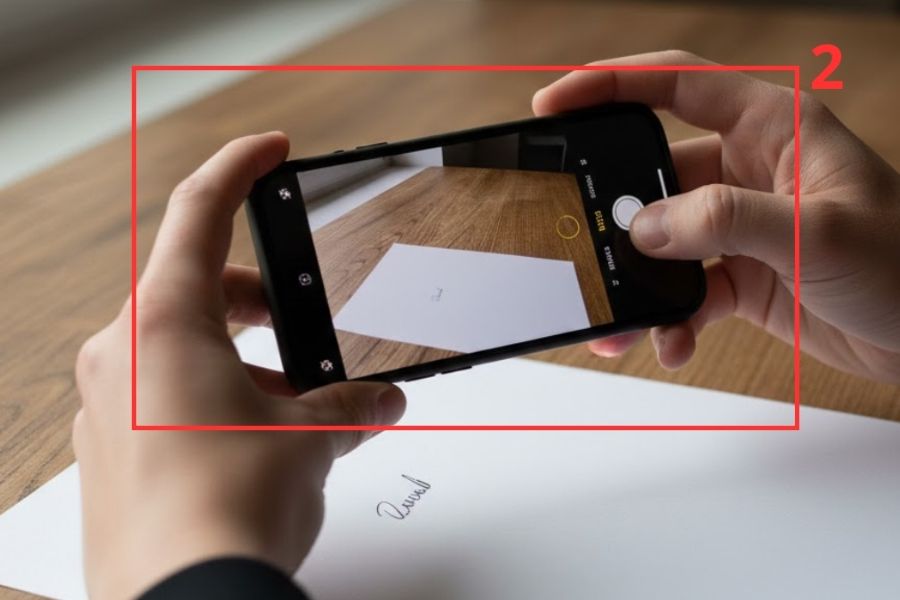
Step 2: Take a photo of your signature with your phone.
Use your phone's camera to take a picture of the signature you just created. Make sure the image is well-lit, free from blur, and has minimal shadows so that the signature is displayed sharply, helping image processing tools to recognize it more accurately.
Step 3: Upload the image to the background removal tool.
Access platforms that support automatic background removal, such as remove.bg or similar tools. Click Upload Image , select your signature image from your device, and then click Open to upload the image to the processing system.
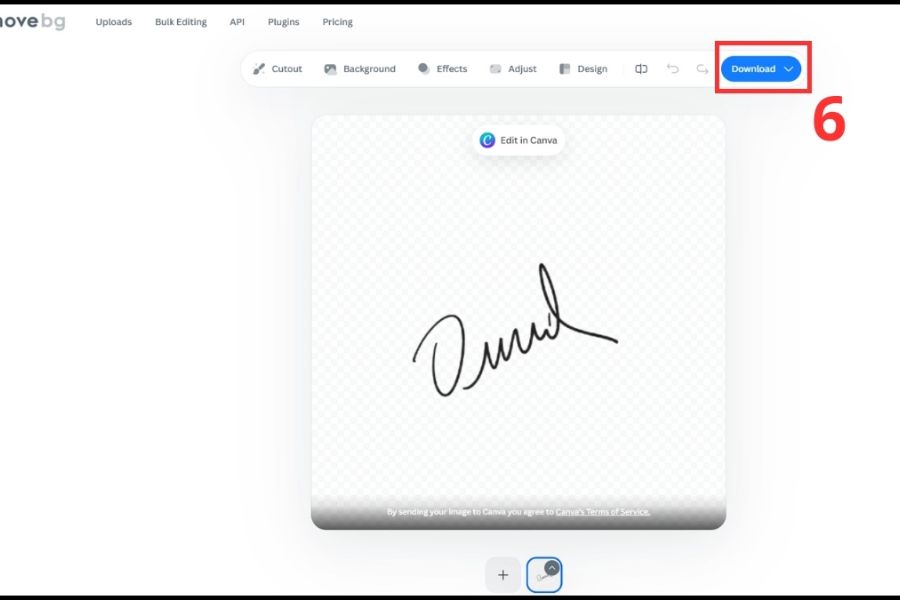
Step 4: Download the transparent background PNG file.
After the tool finishes removing the background, check the result and click Download to save it. The file is saved in transparent PNG format, making it easy to use in photo signature apps , PDF documents, electronic contracts, or personal images without affecting the design layout.
4. Important considerations for securing electronic signatures
Electronic signatures offer convenience in online work and transactions, but they also pose risks if not properly protected. Even a small oversight in storing or sharing a signature can lead to forgery, affecting personal assets and reputation. Therefore, in addition to choosing the right application, users need to proactively implement security measures to ensure their electronic signatures are always used safely.
-
Do not share the original signature file with others unless absolutely necessary.
-
Store your signature file in a secure location and avoid uploading it to public or unreliable platforms.
-
Avoid sending signature files through communication channels that lack security or data encryption mechanisms.
-
Prioritize using signature creation apps from reputable sources with positive user reviews.
-
Read the privacy policy carefully before posting or saving your signature on any platform.
-
Understanding the difference between a regular image signature and a legally valid digital signature is crucial for proper use.
-
Activate password, PIN, or biometric authentication on your phone and personal computer.
-
Regularly update your operating system and applications to patch the latest security vulnerabilities.
-
Do not use unfamiliar devices or public Wi-Fi networks when conducting important transactions involving electronic signatures.
-
Carefully review the contents of any document before signing to avoid unforeseen problems.
5. Conclusion
Choosing the right photo signature app will make the process of signing, verifying documents, and working online faster and more professional. Each application has its own advantages in terms of interface, features, storage capacity, and support for various file formats. Therefore, before deciding to use one, you should clearly define your actual needs, such as signing personal documents, processing business contracts, or editing images for work. Choosing the right tool will not only save you time but also improve your work efficiency, while creating a professional image in the eyes of partners and clients. Hopefully, the suggestions in this article will help you easily find the most suitable photo signature app for your current needs.





















VIP Products








Best Selling Products
ChatGPT Plus Account (GPT-4)
16 USD
Upgrade genuine Capture One account
120 USD
Copyright Adobe Lightroom Account
59 USD
Plugin Retouch4me
69 USD
Adobe Photoshop Copyright - Full App
120 USD
Upgrade Genuine Office 365
49 USD
Windows 10 & 11 Pro Key
36 USD
Autodesk All App Account Copyright
120 USD
Upgrade Duolingo Super
29 USD
Freepik Premium Account
59 USD
Capcut Pro 1 Year
39 USD
Genuine Adobe Illustrator account
99 USD
MidJourney Account
29 USD
Adobe Premiere Pro Account
99 USD
Genuine Cheap Canva Pro
39 USD