Best Selling Products

Genuine Adobe Illustrator account
99 USD

Upgrade Duolingo Super
29 USD

MidJourney Account
29 USD

Windows 10 & 11 Pro Key
36 USD

Upgrade genuine Capture One account
120 USD

ChatGPT Plus Account (GPT-4)
16 USD

Capcut Pro 1 Year
39 USD

Adobe Premiere Pro Account
99 USD

Copyright Adobe Lightroom Account
59 USD

Adobe Photoshop Copyright - Full App
120 USD

Genuine Cheap Canva Pro
39 USD

Upgrade Genuine Office 365
49 USD

Plugin Retouch4me
69 USD

Freepik Premium Account
59 USD

Autodesk All App Account Copyright
120 USD
Guide to Creating AI Photos on iPhone Quickly and Easily
Nội dung
- 1. What are images created using AI?
- 2. Basic requirements for creating AI images on iPhone
- 3. Why should you create AI photos on your iPhone?
- 4. How to create AI photos on iPhone quickly, simply, and easily.
- 4.1. Image PlayGround - Create images based on existing text and data
- 4.2. Genmoji App - Create super impressive emoji expressions from text
- 4.3. Apple Intelligence's Image Wand Feature - From Basic Sketches to Complete Designs
- 4.4. WOMBO Dream - AI Art Generator Application - Create images on demand
- 4.5. GPT Chat - The most popular AI application today.
- 4.6. StarryAI Application - Creating AI Art from Text
- 4.7. DeepArt Application - Transforming Photos into Art
- 4.8. Artbreeder Application - Creating and Combining Images
- 5. Some basic tips for creating better AI photos.
- 6. Frequently Asked Questions about Creating AI Photos on iPhone
- 7. Conclusion
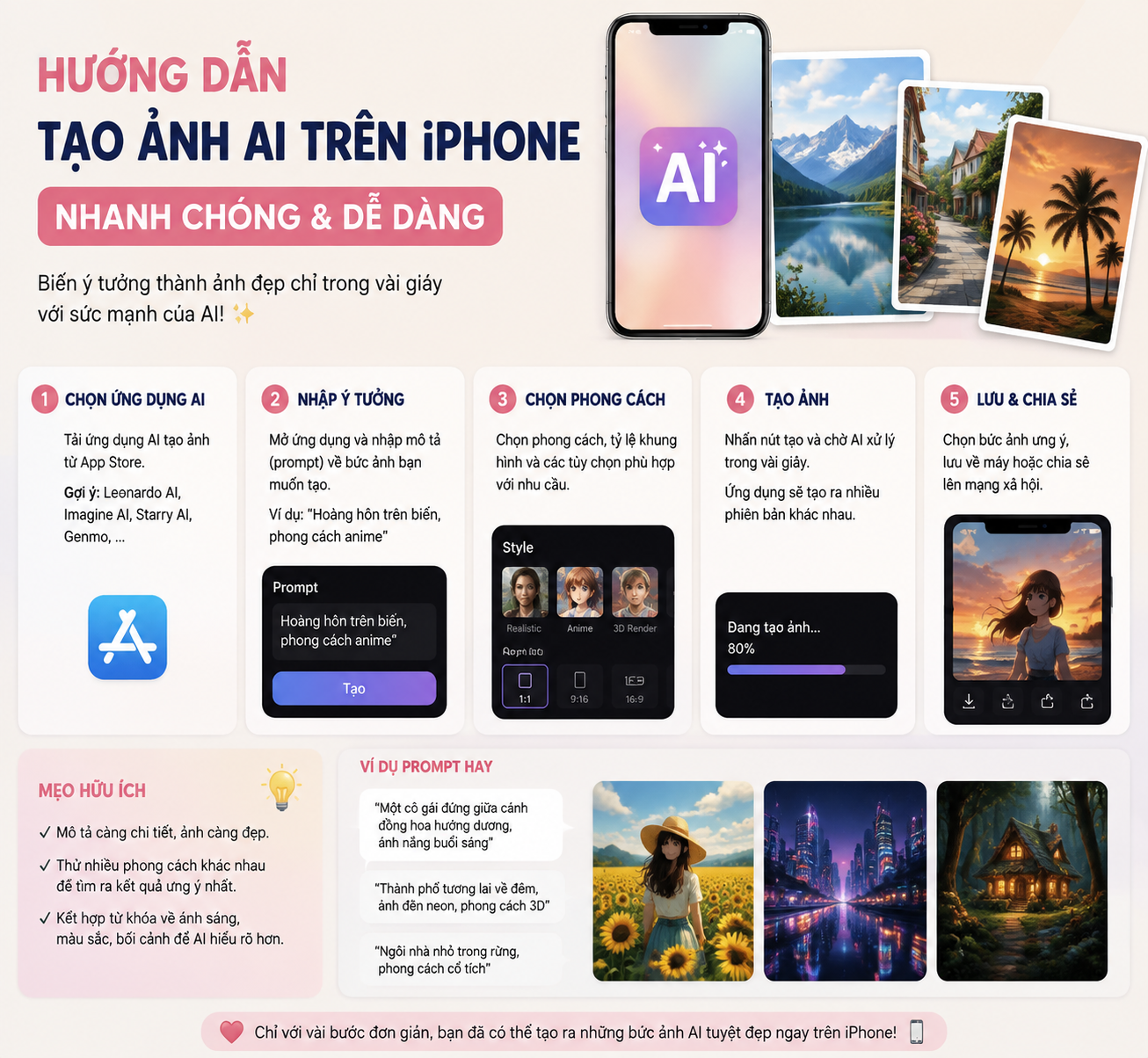
In the era of rapidly developing digital technology, artificial intelligence (AI) has become an important part of daily life.
1. What are images created using AI?
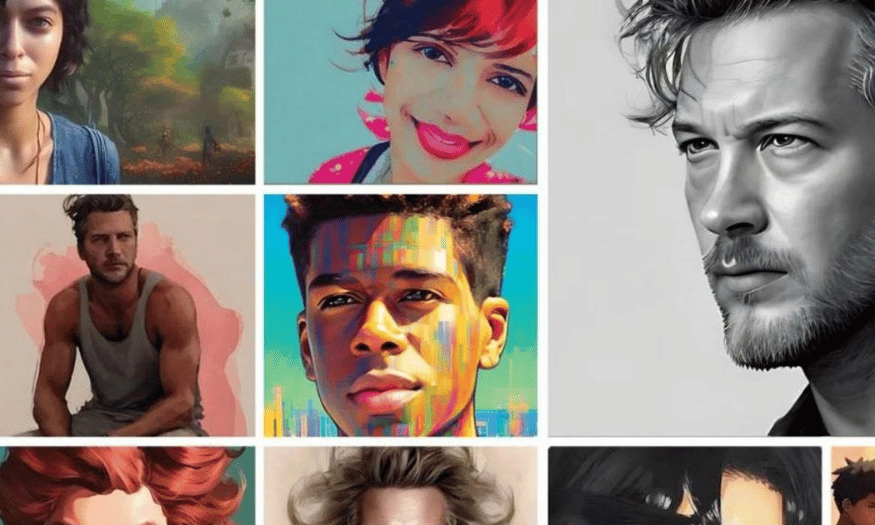
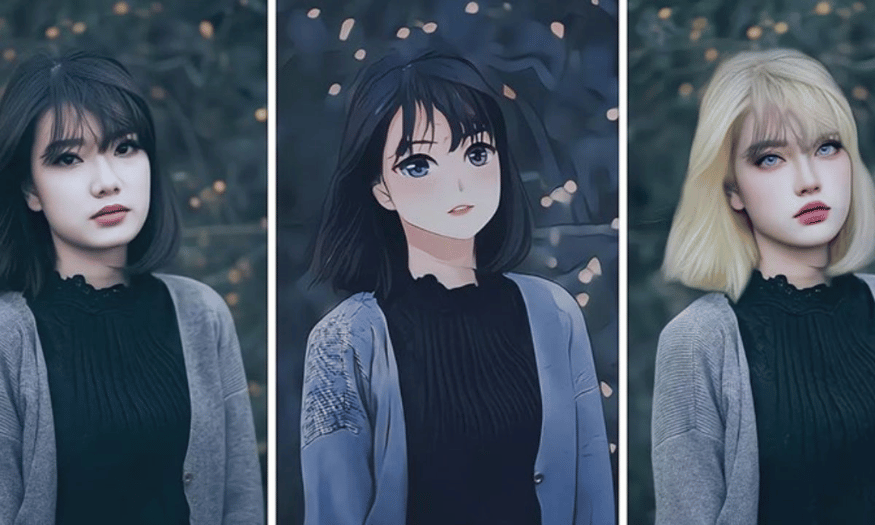
AI photography, or images created by artificial intelligence, is one of the outstanding applications of modern technology. Instead of simply editing traditional images, AI photography uses machine learning algorithms to create entirely new images from trained models. These images can reflect boundless creativity, with the ability to combine different elements to create unique and impressive visuals.
This technology is not only applicable to creating artistic images but can also be used in various other fields such as advertising, graphic design, and even film production. Thanks to the development of AI, users can easily create works of art without needing professional design skills, opening up opportunities for anyone who wants to explore their creative potential.
Furthermore, with the development of mobile applications, creating AI images has become easier than ever. With just an iPhone, you can transform the ideas in your head into vibrant and beautiful photos to share with everyone.
2. Basic requirements for creating AI images on iPhone
To begin your journey of creating AI photos on your iPhone, you need to ensure your device meets some basic requirements. First, your iPhone needs to be running iOS 15 or later. Some current apps even require iOS 16 to function optimally. Updating your operating system not only allows you to use the latest apps but also ensures better security and performance for your device.
Next, a stable internet connection is essential to access AI services. Many AI image creation apps operate on a cloud platform, so the speed and stability of your connection will directly impact your experience. Make sure you have a strong connection before you begin the creative process.
Finally, free storage space on your iPhone is also very important. Most apps require at least 200 to 500MB of free space to load and store photos. In addition, you also need to allow apps access to your photos and photo library to store your creations. For those who own an iPhone 15 Pro or later, you'll have the opportunity to experience more advanced features in AI photo creation, thanks to the device's powerful processing capabilities.
3. Why should you create AI photos on your iPhone?
Creating AI photos on an iPhone offers several significant benefits that not everyone realizes. First, the convenience of using a mobile device allows you to be creative anytime, anywhere. No need to sit in front of a computer; you can easily open the app and start creating unique photos in just minutes. This not only saves time but also encourages creativity as you can capture unexpected moments and turn them into art.
Secondly, many AI-powered image creation apps now come with user-friendly interfaces, suitable for everyone from beginners to experienced users. AI support allows you to create artwork without needing extensive design knowledge, enabling everyone to become an artist.
Ultimately, creating AI photos on your iPhone isn't just a fun hobby; it's a way to express yourself. You can transform your ideas, emotions, and experiences into vibrant images to share with friends and family. This creativity can help you connect with others, spark interesting conversations, and create memorable moments.
4. How to create AI photos on iPhone quickly, simply, and easily.
To keep up with the rapidly developing trend of AI, iPhones have integrated many modern AI-powered photo editing features. Below are ways to easily use AI in your daily life and enhance your creativity.
4.1. Image PlayGround - Create images based on existing text and data
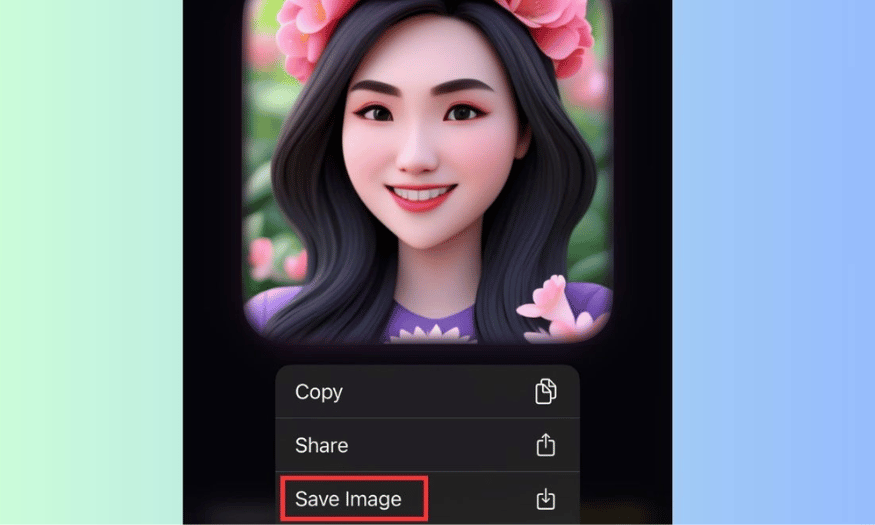
Image PlayGround is a great tool that lets you create images based on text and existing data. You can easily choose from elements such as mountains, space, astronauts, or cities. Importantly, this feature allows you to combine up to 7 different elements to create a unique image.
Step-by-step instructions:
-
Step 1: Enable the Image PlayGround feature on an iPhone 15 Pro or higher that has Apple Intelligence installed.
-
Step 2: Enter the command you want to use to create the AI character and select a face to create the character.
-
Step 3: Wait a moment for the system to process and return the results that match your command.
-
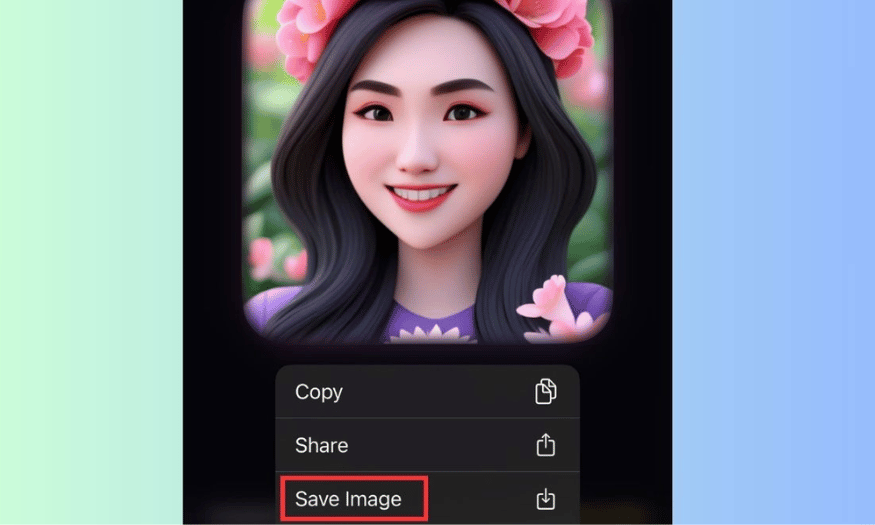
Step 4: To download the image, press and hold the image and select "Save Image".
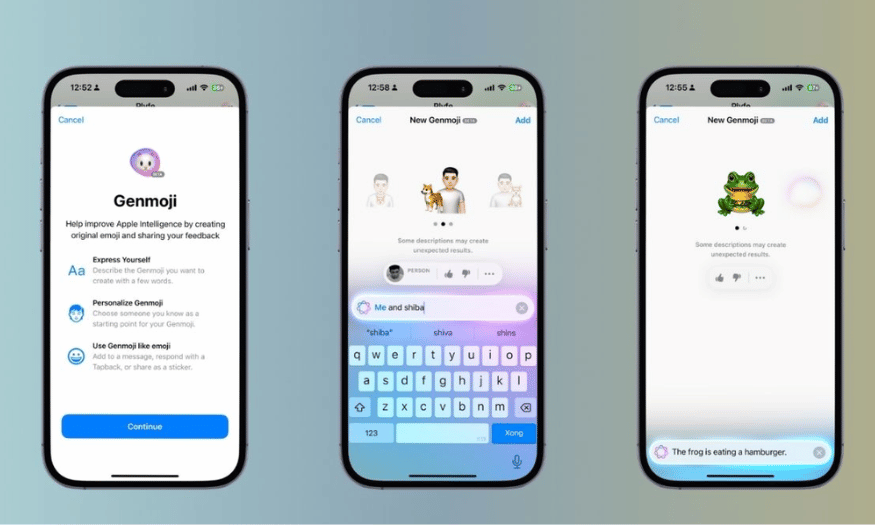
4.2. Genmoji App - Create super impressive emoji expressions from text
Genmoji is a fun playground that lets you create personalized emoji expressions from descriptive text. You can add your own face to create realistic and entertaining animated versions.
Step-by-step instructions:
-
Step 1: Open the Messages app on your iPhone.
-
Step 2: Tap the new emoji icon with the word "AI" or the Genmoji icon.
-
Step 3: Select "Create Genmoji". Enter a description in English and add your face image from your photo library or take a picture directly.
-
Step 4: Wait a few seconds for the AI to process. The system will return several interesting Genmoji variations. Tap to send or save.
4.3. Apple Intelligence's Image Wand Feature - From Basic Sketches to Complete Designs
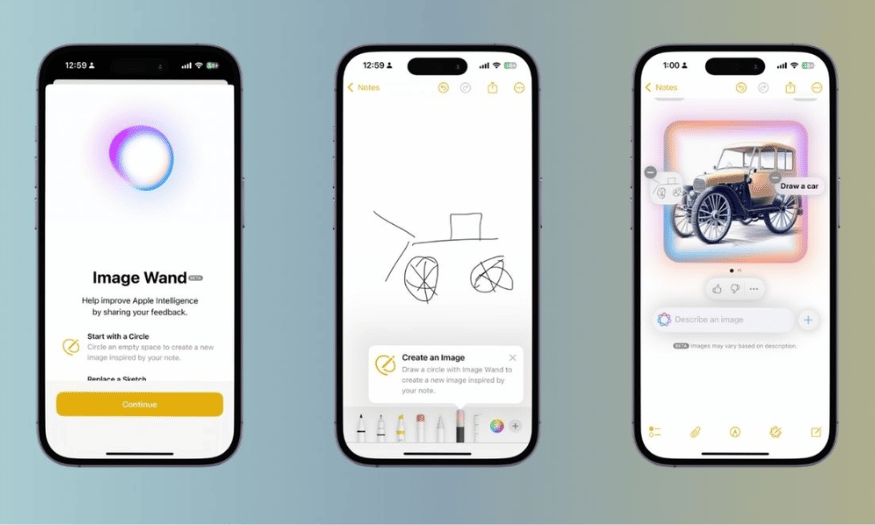
Image Wand is a fun tool in Apple Intelligence that lets you turn hand-drawn sketches into complete illustrations. Just a few doodles, and you'll have a vibrant picture.
Step-by-step instructions:
-
Step 1: Open the Notes app on your iPhone.
-
Step 2: Draw a simple sketch using the pen tool.
-
Step 3: Click on the Image Wand icon and circle the outline area you want to convert.
-
Step 4: Enter a brief description in English and choose a display style: Animation, Illustration, or Sketch.
4.4. WOMBO Dream - AI Art Generator Application - Create images on demand
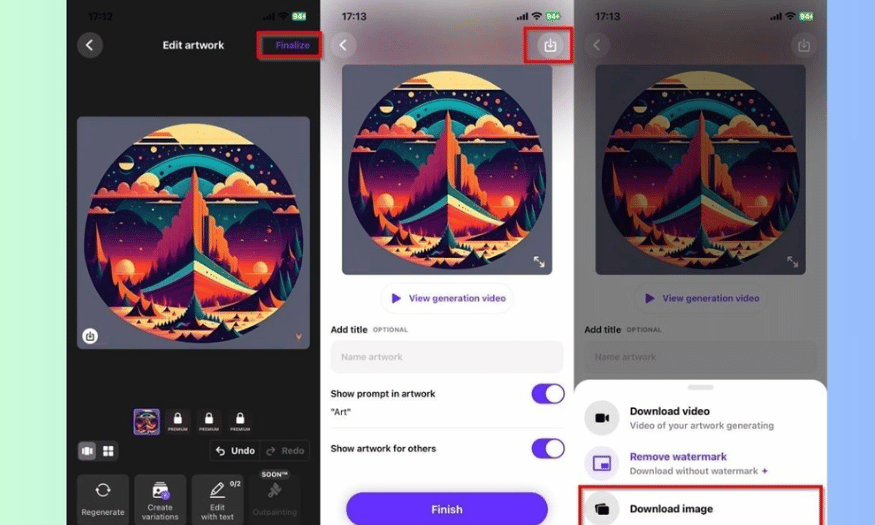
WOMBO Dream is one of the most popular AI photo editing apps. It offers over 20 different art styles, allowing you to create high-quality paintings.
Step-by-step instructions:
-
Step 1: Access the App Store and download the WOMBO Dream - AI Art Generator app.
-
Step 2: Open the app and select the "+" sign in the middle of the screen to create a new image. Choose the image size and enter your desired content in the "Enter prompt" field.
-
Step 3: Wait a while for the image to be generated. You can edit it if needed, then click the download icon to save it to your computer.
4.5. GPT Chat - The most popular AI application today.
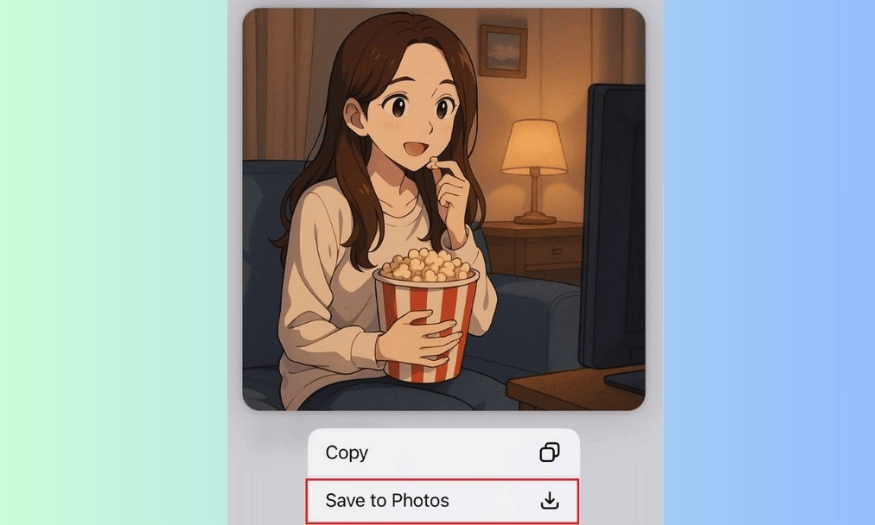
Chat GPT has been upgraded to a new version, making it easier for users to create images on iPhone. You can create AI images quickly and exactly to your needs.
Step-by-step instructions:
-
Step 1: Download the GPT Chat app and open the newly downloaded application.
-
Step 2: Enter the command to create the image you want.
-
Step 3: Wait a moment for the image to appear. If editing is needed, enter the commands as you require.
-
Step 4: To download the image, simply press and hold the image for a moment and select "Save to Photos".
4.6. StarryAI Application - Creating AI Art from Text
StarryAI is a powerful application that lets you create unique works of art from just a descriptive sentence. With many different art styles, you can easily create impressive paintings.
Step-by-step instructions:
-
Step 1: Download the StarryAI app from the App Store and open the app.
-
Step 2: Click the "Create" button to begin. Enter a description for the picture you want to create.
-
Step 3: Choose your preferred art style from the available list.
-
Step 4: Wait a moment for the AI to create the image. Once complete, you can save or share the picture.
4.7. DeepArt Application - Transforming Photos into Art
DeepArt is an app that lets you transform ordinary photos into works of art in famous styles. You can apply many different styles to create unique paintings.
Step-by-step instructions:
-
Step 1: Download the DeepArt app from the App Store and open the app.
-
Step 2: Select the photo from your photo library that you want to convert.
-
Step 3: Choose the artistic style you want to apply to the photo.
-
Step 4: Wait a few seconds for the application to process. Once complete, you can save or share your new artwork.
4.8. Artbreeder Application - Creating and Combining Images
Artbreeder is a platform that allows you to combine multiple images to create a completely new work of art. With this feature, you can easily experiment and create unique images.
Step-by-step instructions:
-
Step 1: Access Artbreeder through your iPhone browser.
-
Step 2: Click "Create" to begin and select the images you want to combine.
-
Step 3: Use the sliders to adjust the elements and combine different images.
-
Step 4: Once complete, you can save the image or share it on social media.
5. Some basic tips for creating better AI photos.
When creating AI images, using a clear and detailed prompt is key to achieving the desired results. A well-described prompt will help the AI better understand your concept, thereby creating an image that closely matches your requirements. Try to include details such as color, style, background, and the elements you want to appear in the image. For example, instead of just saying "a cat," you could describe "a white cat playing in a flower garden in the sunlight." This specificity helps the AI visualize and create a better image.
Furthermore, choosing a style that suits the intended purpose is crucial. If you're creating an avatar image, opt for a youthful, energetic style. Conversely, if you need a cover image for a book, a classic or abstract artistic style might be more appropriate. Each style conveys different emotions and messages, so consider carefully before making a decision.
Finally, avoid using blurry or underexposed images when converting real photos into AI images. The quality of the input image will directly affect the final result. A clear, well-lit image will help the AI easily recognize and reproduce important details. If you are using a personal photo, ensure it has a high resolution to avoid blurring or distortion during conversion.
6. Frequently Asked Questions about Creating AI Photos on iPhone
Many users often wonder which iPhone models can create photos using AI. Most popular apps like WOMBO Dream, ChatGPT, and Fotor support iPhones running iOS 15 and later. However, if you want to use powerful Apple Intelligence features like Image Playground, Genmoji, or Image Wand, you'll need an iPhone 15 Pro or 15 Pro Max running iOS 18. These devices are equipped with powerful hardware, allowing them to handle complex AI tasks smoothly and quickly.
Another frequently asked question is whether an internet connection is necessary for creating AI images. The answer is yes, a stable internet connection is required to create AI images. Most AI image creation tools operate on cloud processing, meaning they send requests and receive results from online servers. While some applications may allow offline image creation, the quality and features will be significantly limited. Therefore, for the best experience, ensure you are using an internet connection during the image creation process.
Furthermore, when using third-party applications to upload photos, users need to be cautious with their personal information. Avoid uploading sensitive photos or those containing private information. This not only protects your privacy but also helps avoid security risks. Always check the application's privacy policy before sharing any images to ensure that your data is securely protected.
7. Conclusion
Creating photos with AI on your iPhone is not only fun but also easier than ever. Modern apps allow you to express your creative talent without needing advanced skills. Experiment and harness the power of AI to create unique works of art, and share them with friends to explore this creative world together!





















VIP Products








Best Selling Products
Genuine Adobe Illustrator account
99 USD
Upgrade Duolingo Super
29 USD
MidJourney Account
29 USD
Windows 10 & 11 Pro Key
36 USD
Upgrade genuine Capture One account
120 USD
ChatGPT Plus Account (GPT-4)
16 USD
Capcut Pro 1 Year
39 USD
Adobe Premiere Pro Account
99 USD
Copyright Adobe Lightroom Account
59 USD
Adobe Photoshop Copyright - Full App
120 USD
Genuine Cheap Canva Pro
39 USD
Upgrade Genuine Office 365
49 USD
Plugin Retouch4me
69 USD
Freepik Premium Account
59 USD
Autodesk All App Account Copyright
120 USD