Best Selling Products

Genuine Adobe Illustrator account
99 USD

Upgrade Genuine Office 365
49 USD

Adobe Premiere Pro Account
99 USD

Plugin Retouch4me
69 USD

ChatGPT Plus Account (GPT-4)
16 USD

Capcut Pro 1 Year
39 USD

Adobe Photoshop Copyright - Full App
120 USD

Autodesk All App Account Copyright
120 USD

Freepik Premium Account
59 USD

Upgrade genuine Capture One account
120 USD

Windows 10 & 11 Pro Key
36 USD

MidJourney Account
29 USD

Copyright Adobe Lightroom Account
59 USD

Upgrade Duolingo Super
29 USD

Genuine Cheap Canva Pro
39 USD
How do I view old conversations in ChatGPT?
Nội dung
- 1. What are "archived conversations" in ChatGPT and why are they important?
- 1.1. What is the actual purpose of "storage"?
- 1.2. Why should you care about storage?
- 2. How do I find archived conversations in ChatGPT?
- 2.2. On mobile devices (iOS and Android)
- 2.3. Pro Tip: User interfaces change frequently.
- 3. Is it possible to export archived conversations or download my entire chat history?
- 3.1. How to export ChatGPT data (including archived conversations)
- 3.2. Step-by-step export process
- 3.3. Practical applications of data export
- 4. Why are archived conversations sometimes lost or inaccessible?
- 4.1. Common causes and solutions
- 4.2. When should you contact support?
- 5.1. Use case: research notebook
- 5.2. Use Case: Customer support and internal knowledge storage
- 6. Best practices for data control and security
The “Archived Chats” feature in ChatGPT helps you keep all your information secure and organized. Learn how to leverage this tool to protect your chat data and optimize your workflow.
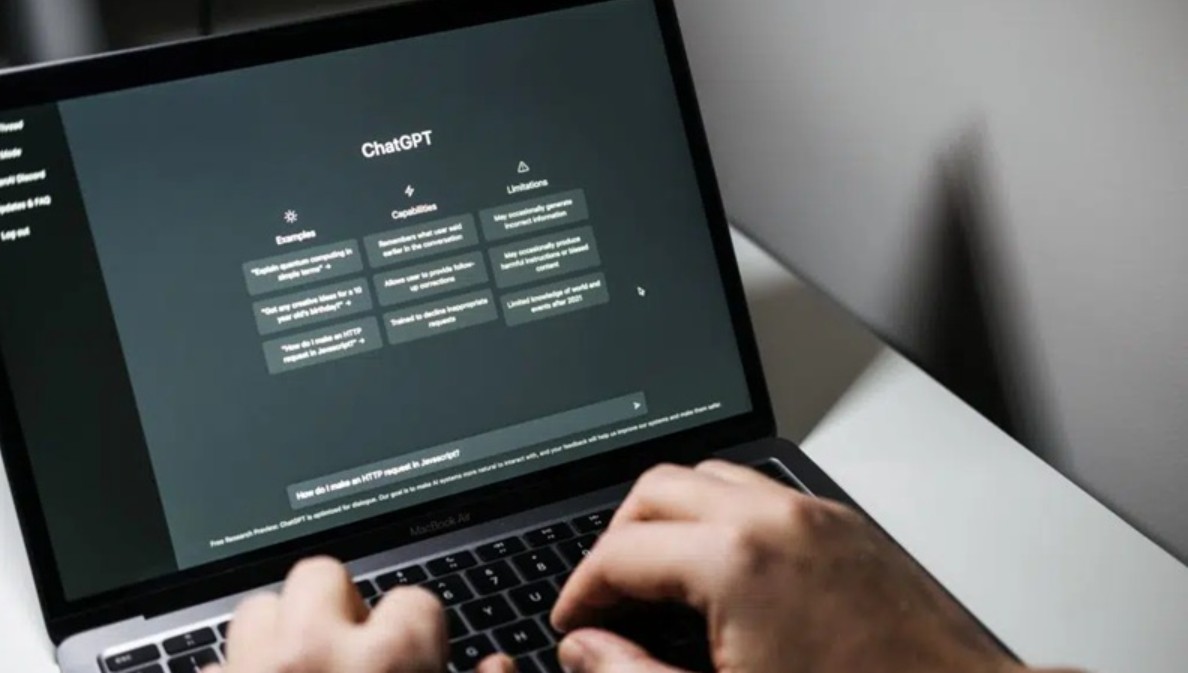
Since its launch, ChatGPT has become more than just an AI conversational tool; it's become a "knowledge assistant" for millions of people worldwide. With more and more people using ChatGPT for work, study, research, and content creation, the need to manage hundreds, even thousands, of conversations has become critical. This is where the "Archived Conversations" feature comes in, helping users organize their workspace more efficiently and scientifically while preserving all necessary data.
With ChatGPT constantly being upgraded, especially since OpenAI introduced the Memory feature , personal data controller, and new access control options, understanding how to store, retrieve, export data, and manage chats is more important than ever. This article will provide detailed guidance on how you can access, use, and protect archived chats, while also offering practical insights for professional users.
1. What are "archived conversations" in ChatGPT and why are they important?
1.1. What is the actual purpose of "storage"?
Unlike the "delete" function, when you archive a conversation, ChatGPT will hide it from the list of active conversations in the sidebar, helping to keep your workspace cleaner and more focused. However, the data from that conversation is not deleted from the system; it remains securely stored in your account and can be accessed again at any time.
Archived conversations can be searched using the built-in search tool or retrieved directly in Settings → Data Control → Archived Conversations . This helps users maintain an organized interface while ensuring workflow continuity.
In other words, archiving is a "temporarily hide but not lose data" solution suitable for those who need to clean up their chat history but still want to retain the content for later reference, comparison, or use.
1.2. Why should you care about storage?
This feature is especially useful for researchers, journalists, developers, or content creators who frequently work with multiple different conversation threads. Instead of having dozens of overlapping topics in the sidebar, archiving helps you organize your work much like managing document folders.
However, users should also note that archiving does not mean anonymization or data deletion. Archived conversations may still be included in your personal data exports or fall under OpenAI's archiving policy. Therefore, understanding how it works and managing it properly will not only help you maintain performance but also protect your privacy.
2. How do I find archived conversations in ChatGPT?
2.1. Access via the web (computer browser version)
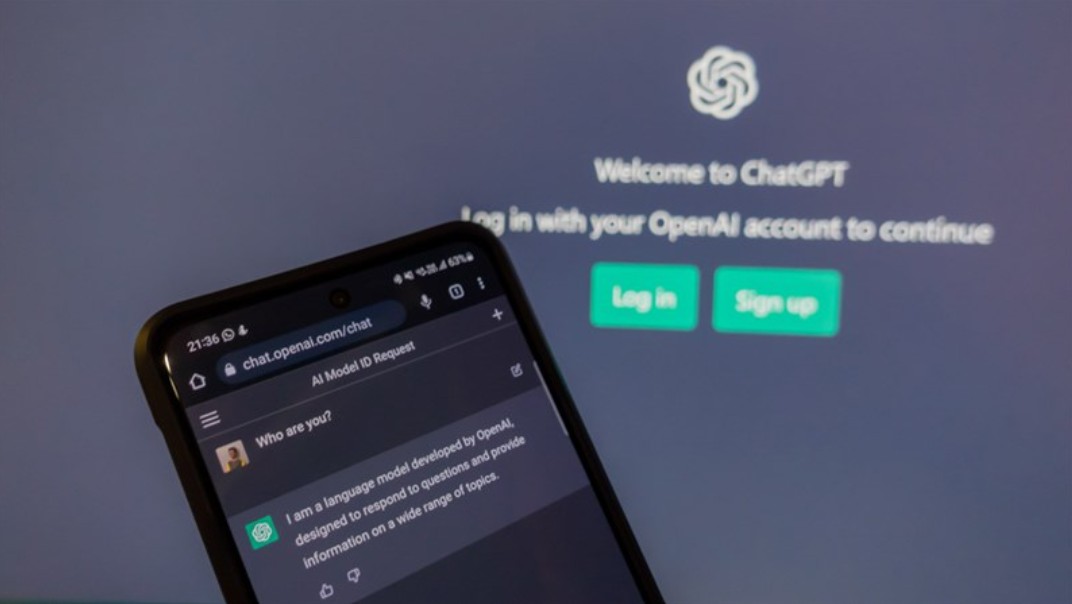
On the web version, you can interact directly through the familiar ChatGPT interface. After logging in at chat.openai.com , the left sidebar will display your entire chat history. To archive a conversation, simply hover over it, click the three-dot icon (⋯) , and then select "Archive" .
When you need to access them again, open Settings → Data Management → Archived Chats , or simply use the search bar (magnifying glass icon) to enter keywords, and ChatGPT will return results from both active and archived chats.
In some experimental or beta versions, OpenAI may change the name of this item to “Archived”, “Manage conversations”, or place it in the “Beta features” section.
2.2. On mobile devices (iOS and Android)
The mobile app version of ChatGPT also supports archiving, although the interface has a few minor differences.
After opening the app, tap the profile icon or the three-line menu in the upper left corner. In the displayed category, you will see “Archived Chats” or the “Manage” option. Here, you can view the entire list of archived chats, restore them, or permanently delete them if you wish.
Similar to the web version, you can also use the global search bar to look up archived conversations by keyword, which is especially useful when you remember a specific detail or question from an old conversation but not the title.
2.3. Pro Tip: User interfaces change frequently.
Because OpenAI constantly updates the ChatGPT interface, the location of the “Storage” option may change between versions. If you don’t see it, try opening Settings → Data Control , or tap the account icon to find advanced options.
Specifically, in some updates, this section may be merged with the “Memory & Data Control” section, where you can view all the data saved by ChatGPT, including memos, conversations, clipboard copies, and export history.
3. Is it possible to export archived conversations or download my entire chat history?
3.1. How to export ChatGPT data (including archived conversations)
OpenAI provides users with a "Export Data" option in Settings → Data Control. When you request an export, the system will aggregate all data related to your account, including your entire chat history, archived conversations, account configuration, and setup logs.
Once complete, you will receive a ZIP file via email containing a chat.html file with the conversation content. You can open this file in any browser to review your entire ChatGPT history without an internet connection.
3.2. Step-by-step export process
-
Log in to chat.openai.com .
-
Select Settings → Data Controls .
-
Select Export Data .
-
Confirm your request and wait for the system to send you an email containing the download link.
-
Download and extract the ZIP file; you will find HTML and JSON files containing the entire dialogue.
This data is particularly useful if you want to back up, analyze, or transfer data between accounts locally. For business users, it's a way to ensure compliance and transparency in the use of AI.
3.3. Practical applications of data export
Data export not only helps you preserve personal information but also opens up many other practical applications. For example, a content creation team can aggregate ideas generated from ChatGPT to build an internal inspiration library. Researchers can extract dialogue to aid in natural language analysis or user behavior analysis.
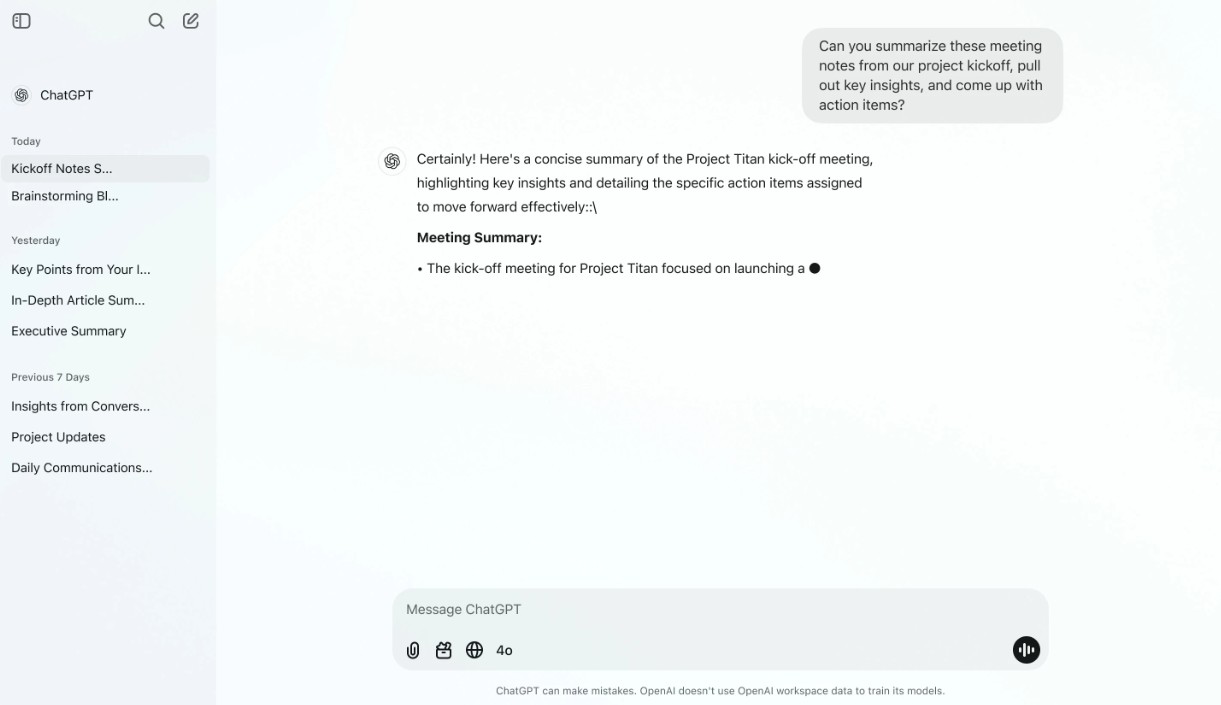
Additionally, regular backups help you proactively control your personal data, reducing risks in case of account issues or when you want to switch to a different platform.
4. Why are archived conversations sometimes lost or inaccessible?
4.1. Common causes and solutions
The inability to find or access archived conversations can stem from various causes. Sometimes, the ChatGPT interface is updated, causing the location of the "Archive" section to change, or some data is temporarily hidden due to caching errors.
Some users have reported that after logging in with their Google or Apple account, previous conversations no longer appear. This is because ChatGPT considers this a new account, not linked to the old data. The solution is to log in again using the same method you used to create the original account.
Additionally, in rare cases, if you use the "Archive All" or "Batch Delete" options, you may have accidentally moved or deleted conversations. Be sure to double-check "Settings → Data Control → Conversation Management" to ensure you haven't missed anything.
If the problem stems from a system error, you can access the OpenAI status page (status.openai.com) or the ChatGPT community forum to view the ongoing issue notification.
4.2. When should you contact support?
If you're certain conversations exist but can't find them, submit a support ticket to OpenAI. Provide details such as the time, chat title, or sample dialogue to help the technical team verify faster. If the data is sensitive, you can also submit a request through OpenAI's Privacy Portal to retrieve personal data in accordance with GDPR or CCPA regulations.
5. Practical workflow for professional users
5.1. Use case: research notebook
Researchers or professional writers can think of ChatGPT as an extended thought journal. By storing conversations by topic or timeline, they can easily retrieve past thought flows.
For example, whenever a research phase is completed, you can save all related conversations and tag them with project-identifying keywords in the title. When needed, simply type those keywords into the search bar, and ChatGPT will display all the corresponding content.
5.2. Use Case: Customer support and internal knowledge storage
For businesses using ChatGPT as a customer support or knowledge aggregation tool, conversation archiving helps teams maintain a database of responses. Older support tickets can be stored, categorized, and retrieved when needed to handle similar situations.
A consistent naming convention such as “[Support] Payment Issues 2025” or “[FAQ] OpenAI API Guide” would make it easier for the team to search, share, and learn from previous cases without having to keep every conversation visible in the sidebar.

6. Best practices for data control and security
ChatGPT is a powerful tool, but that also means you need discipline in managing your data. Here are some important principles that users should maintain:
-
View archived conversations as sensitive data. Don't confuse "archived" with "anonymization." Conversations remain stored on OpenAI servers and can be accessed via data export.
-
Perform regular data exports to ensure you have a local backup, especially if you use ChatGPT for critical work.
-
Control data export permissions if you are using a group or organization account.
-
Edit before sharing. When extracting or sending archived content to others, remove or redact personal information, passwords, or proprietary details.
These practices not only help you protect your privacy but also ensure compliance with security standards and professional ethics.
ChatGPT's " Archived Conversations" feature can be seen as a significant step forward in helping users control, organize, and protect their AI data. In a context where AI is increasingly integrated into work and life, understanding how to securely store, retrieve, and export data not only optimizes performance but also ensures transparency and personal privacy.
Whether you're a researcher, a content creator, or an office worker, effectively utilizing its data storage features will transform ChatGPT from a simple chat tool into a comprehensive personal knowledge management center. More importantly, you'll always be in control of your own data in an increasingly sophisticated and intelligent AI world.





















VIP Products








Best Selling Products
Genuine Adobe Illustrator account
99 USD
Upgrade Genuine Office 365
49 USD
Adobe Premiere Pro Account
99 USD
Plugin Retouch4me
69 USD
ChatGPT Plus Account (GPT-4)
16 USD
Capcut Pro 1 Year
39 USD
Adobe Photoshop Copyright - Full App
120 USD
Autodesk All App Account Copyright
120 USD
Freepik Premium Account
59 USD
Upgrade genuine Capture One account
120 USD
Windows 10 & 11 Pro Key
36 USD
MidJourney Account
29 USD
Copyright Adobe Lightroom Account
59 USD
Upgrade Duolingo Super
29 USD
Genuine Cheap Canva Pro
39 USD