Best Selling Products

Copyright Adobe Lightroom Account
59 USD

Windows 10 & 11 Pro Key
36 USD

Freepik Premium Account
59 USD

Upgrade genuine Capture One account
120 USD

ChatGPT Plus Account (GPT-4)
16 USD

Upgrade Genuine Office 365
49 USD

Upgrade Duolingo Super
29 USD

Genuine Cheap Canva Pro
39 USD

Autodesk All App Account Copyright
120 USD

Adobe Photoshop Copyright - Full App
120 USD

Plugin Retouch4me
69 USD

Capcut Pro 1 Year
39 USD

Adobe Premiere Pro Account
99 USD

Genuine Adobe Illustrator account
99 USD

MidJourney Account
29 USD
How to Create Polaroid Photos with AI Gemini: Have You Tried It Yet?
Nội dung
- 1. What Is a Polaroid Photo?
- 2. Where Did the Polaroid Photo Trend Originate?
- 3. What Is AI Gemini?
- 4. Why Should You Use AI Gemini to Create Polaroid Photos?
- 5.1 Step 1: Access the Gemini Application or Platform
- 5.2 Step 2: Choose the Image You Want to Edit
- 5.3 Step 3: Upload the Image to the Gemini System
- 5.4 Step 4: Enter a Prompt or Detailed Description of the Polaroid Photo Style
- 5.6 Step 6: Review the Results and Make Minor Adjustments if Necessary
- 5.7 Step 7: Download the Image and Share It with Everyone
- 6. Tips for Creating Beautiful and Natural Polaroid Photos with AI Gemini
- 7. Sample Prompts You Can Try
- 8. Benefits of Creating Polaroid Photos with AI Gemini
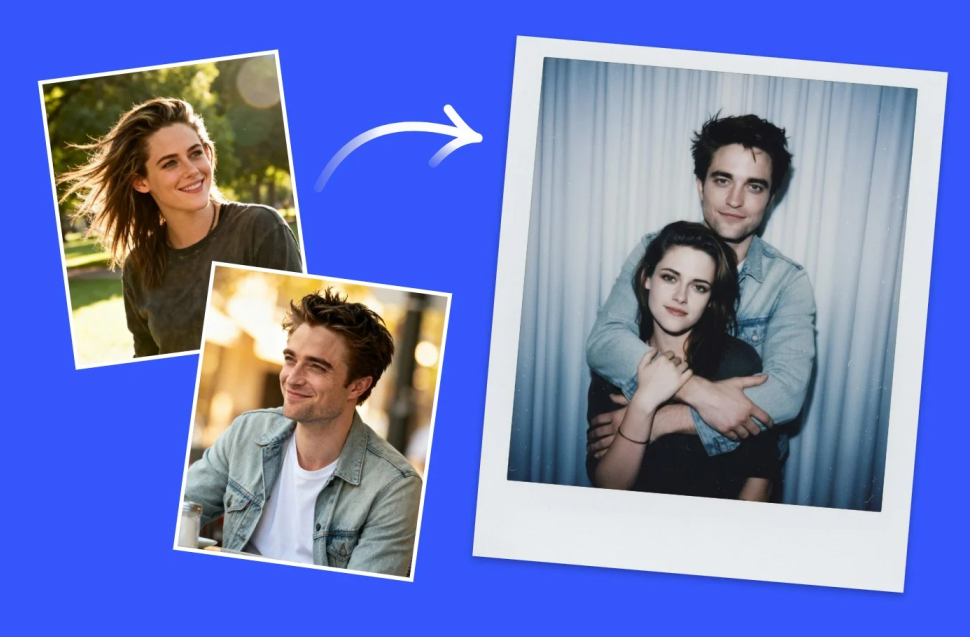
In the era of rapidly advancing AI technology, creating images is no longer something out of reach. Today, you don't need design skills or complicated software to transform your photos into nostalgic and incredibly charming Polaroid-style images. With the AI Gemini tool, every step becomes as simple and natural as chatting with a friend who understands art. Simply upload your photo, choose your desired style, and wait a moment. You will instantly have a Polaroid image that carries a classic vibe while still feeling modern and full of personality.
1. What Is a Polaroid Photo?
A Polaroid photo is an instant photograph produced by the famous Polaroid camera. When you take a picture, the photo automatically develops within seconds, featuring the iconic white border and an image with a nostalgic, gentle, and warm aesthetic.
The special charm of Polaroid photos lies in their simplicity, authenticity, and emotional appeal. Every photo has its own unique character. Without excessive editing, they still allow viewers to feel a sense of sincerity and closeness. Polaroid images evoke memories of a time before smartphones and modern editing applications, when every moment was captured spontaneously and naturally.
Today, although digital cameras have become widespread, many people still embrace the Polaroid style as a way to express their individuality. The white borders, vintage color tones, and retro feeling make these images artistic and nostalgic.

2. Where Did the Polaroid Photo Trend Originate?
The Polaroid photo trend emerged from the strong revival of nostalgic aesthetics among young people. As retro and vintage styles spread across social media, more and more users began to appreciate the simple and natural beauty of old photographs.
Around 2020, the “fake Polaroid” trend—creating simulated Polaroid photos—began to explode on platforms such as Instagram, TikTok, and Pinterest. Initially, people used editing applications like VSCO, Lightroom, or Canva to add white borders and film effects. However, manual editing was time-consuming and often failed to achieve the authentic feeling users desired.
When AI Gemini was introduced, this trend entered an entirely new phase. Instead of manually adjusting every detail, users simply enter a description of their desired style and wait a few seconds. AI then generates an image with a strong Polaroid aesthetic. This convenience quickly made creating Polaroid photos with AI Gemini a popular trend among content creators and photography enthusiasts.
3. What Is AI Gemini?
AI Gemini is a versatile artificial intelligence platform developed by Google that combines the power of language and imagery. In addition to answering questions, drafting text, and summarizing content, Gemini also stands out for its image processing and visual content creation capabilities.
Unlike conventional AI tools, Gemini can “understand” the context and emotions within an image. When you provide a detailed description, Gemini not only generates the image according to the content but also conveys the style, color tone, lighting, and mood you desire. This is precisely what makes it a perfect tool for creating Polaroid photos.
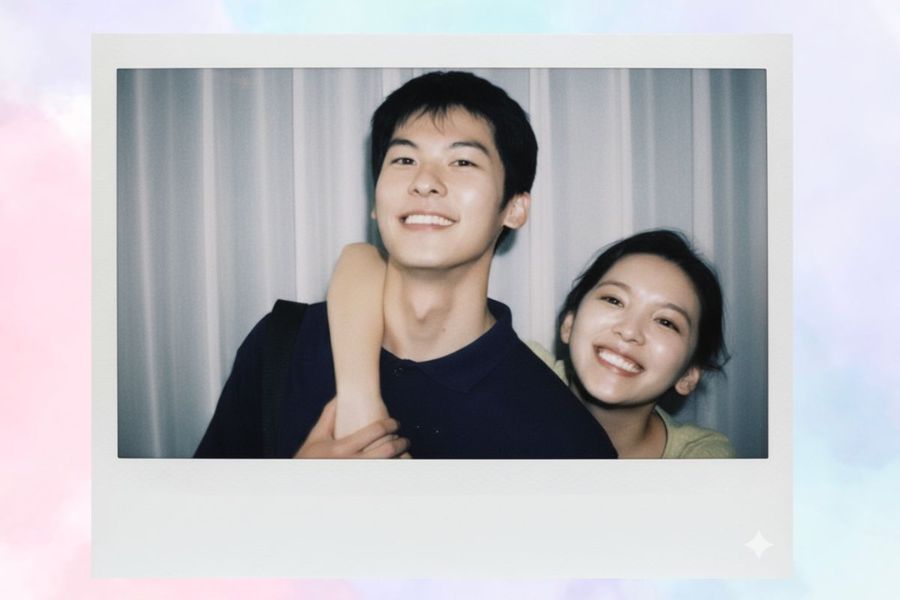
4. Why Should You Use AI Gemini to Create Polaroid Photos?
There are many reasons why AI Gemini has become a top choice for creating Polaroid photos:
The first reason is speed and convenience. Previously, you had to manually edit details such as lighting, borders, and film effects using complicated software. With Gemini, everything can be achieved through a short description. Within seconds, you receive a completed image.
The second reason is high image quality. Gemini preserves details exceptionally well. Images remain sharp and clear, while elements such as lighting, skin tones, and contrast are intelligently adjusted to appear as natural as possible.
The third reason is flexibility. You can ask the AI to create a classic white Polaroid frame or experiment with more modern styles such as pastel colors, transparent frames, or decorative patterns.
The fourth reason is easy personalization. Gemini allows you to add signatures, dates, or handwritten notes to the bottom border, making each photo feel more personal and distinctive.
5. Detailed Steps to Create Polaroid Photos with AI Gemini
To help you easily join this exciting trend, here is a step-by-step guide to creating Polaroid photos with AI Gemini. By following these simple instructions, you can quickly create nostalgic, natural, and highly artistic images.
5.1 Step 1: Access the Gemini Application or Platform
First, open the Gemini application on your phone if you are using Android or iOS. If you are using a laptop or desktop computer, you can access the web version for a more convenient experience. Then sign in with your Google account to gain full access to all features, especially AI image generation.
Gemini’s interface is highly intuitive and user-friendly, making it easy even for beginners. After signing in successfully, you will see a toolbar displaying options such as chat, search, content creation, and image editing. Select the image creation feature to begin transforming your ordinary photo into an artistic Polaroid image.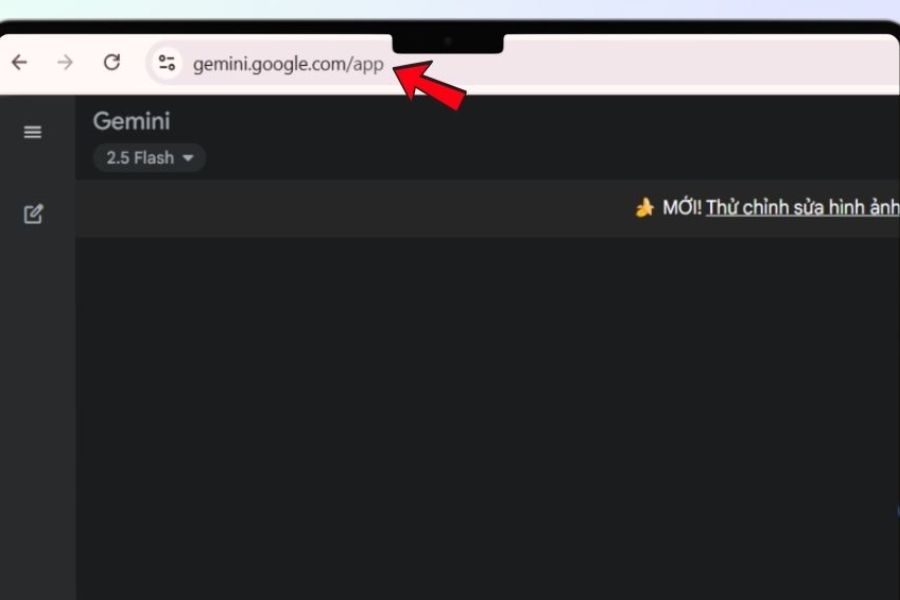
5.2 Step 2: Choose the Image You Want to Edit
Once you are inside the image creation interface, select the Upload Image option. This step allows Gemini to understand which image you want to process. Simply click the image icon or the “Upload Image” button displayed in the center of the screen.
At this stage, AI Gemini will prepare to recognize the content of the photo and get ready to apply the Polaroid style based on the description you provide in the following steps. You can choose a personal photo, portrait, group photo, or even a landscape image. As long as the image is clear, the subject is well-lit, and the composition is tidy, the results will appear more beautiful and natural.
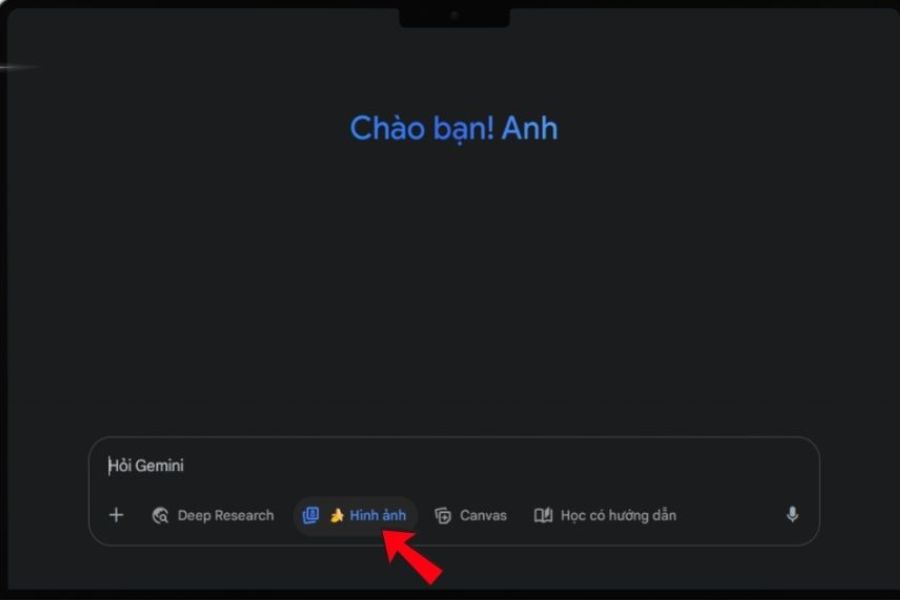
5.3 Step 3: Upload the Image to the Gemini System
Click the plus icon and select “Upload files” to upload the photo you want to transform into a Polaroid image. This can be a photo of yourself, your friends, family members, or even a picture of your favorite celebrity. Choose images with good lighting, clear colors, and no blur, as this will help the AI accurately recognize the subject and recreate the Polaroid style more smoothly.
After the image is uploaded, Gemini will automatically display a preview. You should check it again to ensure that the image is properly oriented and not cropped incorrectly. If the image has a high resolution, the AI will be able to recreate details more effectively, especially facial features and lighting elements, making your Polaroid photo look more realistic.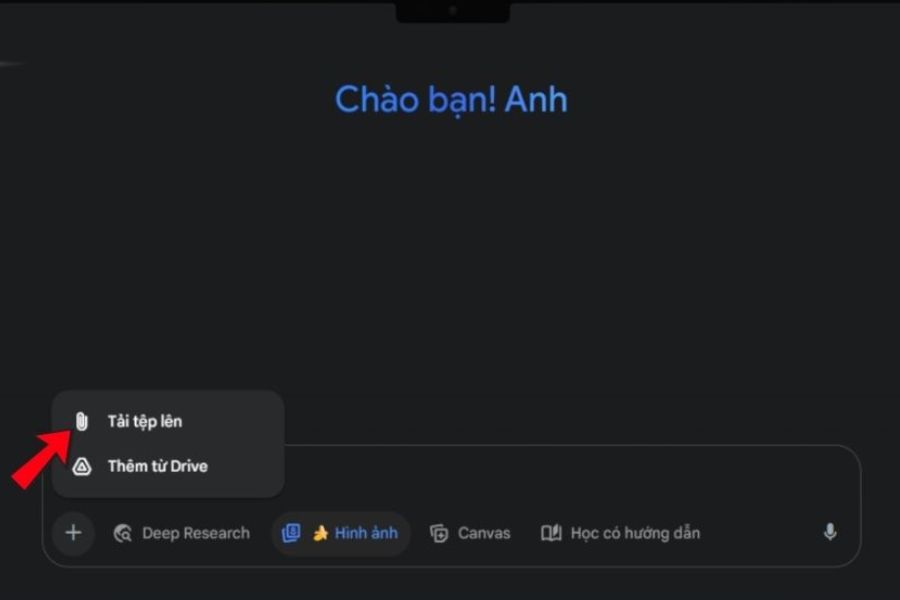
5.4 Step 4: Enter a Prompt or Detailed Description of the Polaroid Photo Style
This is the most important step in creating the Polaroid photo you envision. After uploading the image, Gemini will ask you to enter a prompt—a detailed description that helps the AI understand how you want the image to be generated. The more clearly you describe it, the more accurate and visually appealing the result will be.
For example, you can write:
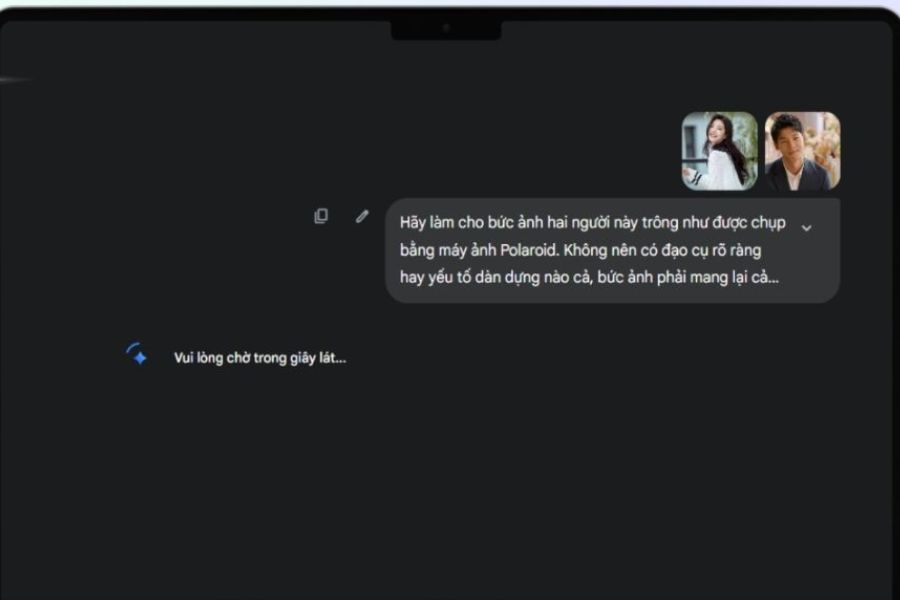
“Make this photo of two people look as if it was taken with a Polaroid camera. Create a realistic, natural, and unstaged feeling. Add a subtle blur effect and soft flash lighting while preserving the faces and the gently lit background. Do not alter facial features; simply add a white Polaroid frame with a wider bottom border for notes.”
Descriptions like this help Gemini understand whether you want a classic, natural, or modern photo style. You can experiment with different phrases such as “warm color tones,” “subtle film effect,” or “golden sunset lighting” to make the image more emotional and uniquely personal.
5.5 Step 5: Submit the Request and Wait for AI to Process the Image
Once you have finished entering the description, click the Create Image or Generate button to submit your request to the system. Gemini will begin processing the image based on the prompt, analyzing faces, lighting, color tones, and composition before applying a suitable Polaroid effect.
The waiting time usually lasts only a few seconds, but the results are well worth anticipating. The AI will generate multiple versions of the image for you to choose from. Each version may have slight differences in lighting, colors, or framing, making it easier to find the one that best matches your preferred style.
5.6 Step 6: Review the Results and Make Minor Adjustments if Necessary
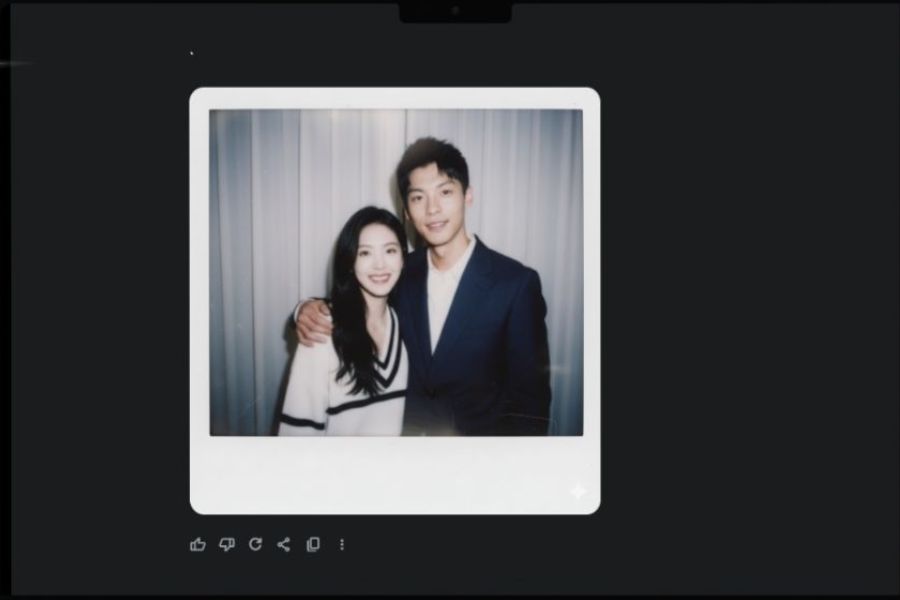
After Gemini completes the image generation process, you will see the different versions displayed directly on the screen. Take a moment to review each one and choose the image you like most. If you are not completely satisfied, you can re-enter the prompt and add details such as “light film grain,” “softer lighting,” or “thicker white borders” to have the AI generate a new version.
This flexibility is one of AI Gemini’s greatest strengths. You do not need to edit manually yet can still achieve a photo that perfectly matches your vision. Sometimes, even a small adjustment in the description can produce a significantly different and unique result. Therefore, be patient and experiment multiple times to find the Polaroid style that suits you best.
5.7 Step 7: Download the Image and Share It with Everyone
Once you have selected your favorite Polaroid photo, simply click the Download button to save it to your device. Gemini allows you to save high-quality images suitable for printing, sharing, or using as wallpapers.
You can print the image to decorate your wall, create greeting cards, personalize your study corner, or simply share it on social media to join the increasingly popular Polaroid trend. A beautiful Polaroid photo is not just an image—it is also a way to preserve emotions, memories, and express your personal aesthetic taste.
6. Tips for Creating Beautiful and Natural Polaroid Photos with AI Gemini
Creating Polaroid photos with AI Gemini is not merely about trying a new tool; it is also a process of expressing your emotions and personal style through every detail. Although Gemini is highly intelligent, you still need to provide clear instructions so the AI can fully understand your ideas. Below are some useful tips to help you create Polaroid photos that are both natural and emotionally rich.
First, choose an original image with soft lighting and a simple background. Lighting that is too harsh or too dark can make it difficult for the AI to recreate details accurately and may affect the overall color balance. Photos taken in natural light, such as near a window or outdoors in the early morning, usually deliver the best results.
Next, select an image with a clearly defined main subject, such as an individual portrait, a couple photo, or a small group photo. When the AI can accurately identify faces and composition, the resulting Polaroid image will appear more harmonious and natural. Photos that are overly cluttered or contain too many background details can make it harder for the AI to focus on the primary subject.
If you want the image to resemble a real film photograph, add requests such as “light grain effect” or “soft film effect.” These details help create depth and realism instead of an overly sharp digital appearance.
For those who love classic aesthetics, try adding descriptions such as “warm tones, soft lighting, slightly yellowed photo frame.” Gemini will then recreate the nostalgic feeling of 1980s Polaroid photographs, bringing a gentle vintage atmosphere and strong artistic appeal. On the other hand, if you prefer a more modern image, request “soft pastel tones, clean lighting, pure white frame.” This approach gives the photo a youthful, refined appearance that aligns with the minimalist style popular among young people today.
Do not forget to include small details such as handwritten notes or dates on the photo border. These accents make the Polaroid image feel more vivid and authentic while reflecting the creator’s personal touch. A simple note like “Summer 2025” or “Best trip ever” may seem minor, but it allows viewers to feel the story behind the image..jpg)
7. Sample Prompts You Can Try
To help the AI understand exactly what you want, writing a detailed prompt is extremely important. Below are some interesting examples that you can use directly or customize according to your own style:
“Portrait of a young woman in a classic Polaroid frame, thick white borders, warm color tones, soft golden lighting, blurred film effect, handwritten date on the photo border.”
“Group photo of friends laughing in a modern Polaroid style, natural lighting, thin white frame, soft pastel colors, fresh outdoor atmosphere.”
“Sunset travel photo in a vintage Polaroid style, gentle orange lighting, slightly yellowed frame, handwritten location note.”
“Morning coffee photo in a classic Polaroid frame, warm color tones, soft lighting, subtle nostalgic effect.”
You can modify the descriptions to express personal emotions, such as “morning sunlight filtering through curtains,” “a natural smile without posing,” or “an intimate and heartwarming moment.” The more vivid the description, the easier it is for AI Gemini to understand and generate results that match the emotions you wish to convey.
8. Benefits of Creating Polaroid Photos with AI Gemini
It is no coincidence that the trend of creating Polaroid photos with AI Gemini has become increasingly popular recently. This tool not only enables users to unleash their creativity but also provides many practical and emotional benefits.
The first advantage is time savings. Instead of manually editing images using complicated software, you only need to enter a description and wait a few seconds for AI Gemini to generate a finished result. Even if you do not know how to use Photoshop or Lightroom, your photos can still look as though they were processed by a professional photographer.
Another benefit is that no design skills are required. Gemini was built for everyone to use. You simply need to express your ideas through words or simple descriptions. As a result, even people who are new to technology can create Polaroid photos with their own unique style.
Another major advantage is unlimited creativity. Every time you modify a few details in the prompt, such as lighting, colors, or framing, Gemini generates a completely different result. This allows you to experiment with various styles without spending additional time or money.
Furthermore, Polaroid photos created by Gemini evoke a nostalgic and authentic feeling. Although they originate from digital images, the film effects and Polaroid frames give viewers a sense of simplicity and familiarity. Each image recalls cherished memories and encourages people to look at it for longer.
Finally, Polaroid photos are perfect for sharing and decoration. You can print them to hang on walls, create albums, make greeting cards for loved ones, or share them on social media. Polaroid images are not only visually appealing but also highly personal, allowing you to express your aesthetic preferences and emotions through every frame.
9. Conclusion
AI Gemini not only helps you create visually stunning images but also brings back the nostalgic emotions associated with the Polaroid era. Every photo generated has its own unique character, evoking the warmth and familiarity of holding film photographs in your hands. With just a few simple steps, you can transform digital images into artistic creations that carry a strong personal touch. If you love creativity and want to explore a fresh yet emotionally rich style, let AI Gemini accompany you on the journey of creating truly special Polaroid photos that are uniquely yours.





















VIP Products








Best Selling Products
Copyright Adobe Lightroom Account
59 USD
Windows 10 & 11 Pro Key
36 USD
Freepik Premium Account
59 USD
Upgrade genuine Capture One account
120 USD
ChatGPT Plus Account (GPT-4)
16 USD
Upgrade Genuine Office 365
49 USD
Upgrade Duolingo Super
29 USD
Genuine Cheap Canva Pro
39 USD
Autodesk All App Account Copyright
120 USD
Adobe Photoshop Copyright - Full App
120 USD
Plugin Retouch4me
69 USD
Capcut Pro 1 Year
39 USD
Adobe Premiere Pro Account
99 USD
Genuine Adobe Illustrator account
99 USD
MidJourney Account
29 USD