Best Selling Products

ChatGPT Plus Account (GPT-4)
16 USD

Windows 10 & 11 Pro Key
36 USD

Plugin Retouch4me
69 USD

MidJourney Account
29 USD

Adobe Premiere Pro Account
99 USD

Capcut Pro 1 Year
39 USD

Upgrade Genuine Office 365
49 USD

Adobe Photoshop Copyright - Full App
120 USD

Autodesk All App Account Copyright
120 USD

Copyright Adobe Lightroom Account
59 USD

Upgrade Duolingo Super
29 USD

Upgrade genuine Capture One account
120 USD

Freepik Premium Account
59 USD

Genuine Adobe Illustrator account
99 USD

Genuine Cheap Canva Pro
39 USD
How to disable Copilot on Microsoft Edge easily
Nội dung
- 1. Why should you consider disabling Copilot on Edge?
- 2. Method 1: Turn off the Copilot icon on the toolbar.
- 3. Method 2: Disable Copilot using Group Policy
- 4. Method 3: Disable Copilot using Registry Editor
- 4.1. Disable Copilot for the current user account.
- 4.2. Disable Copilot for all users on the computer.
- 5. Which option should I choose?
- 6. Conclusion
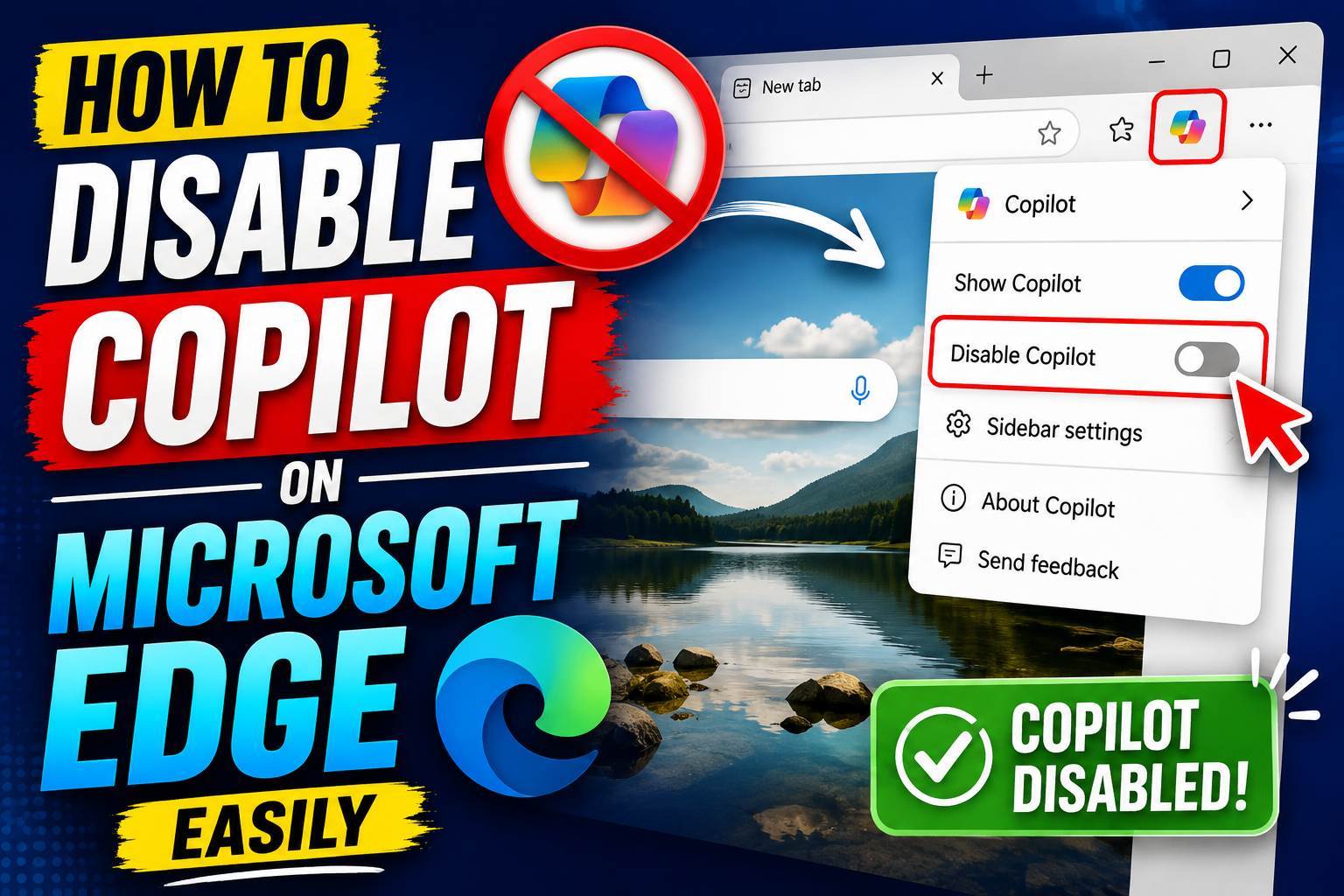
Copilot is an AI assistant built into Microsoft Edge, but not all users need this feature.
1. Why should you consider disabling Copilot on Edge?
Microsoft Edge integrates Copilot to help users search for information, summarize content, answer questions, and perform various AI tasks directly within the browser. This is a useful feature for many users, especially when needing quick information lookup or working with online documents.
However, not everyone wants to use Copilot regularly. In many cases, disabling or hiding Copilot will provide a browsing experience that better suits their actual needs.

One common reason is that Copilot, by default, sends a portion of the browsing context to Microsoft servers to process AI requests . For individual users, this is usually not a major issue because the data is processed according to Microsoft's policies. However, in business environments, government agencies, schools, or when using shared computers, many organizations have policies restricting external data sharing to ensure security.
Besides privacy concerns, many people also want to remove Copilot for reasons such as:
-
The Edge interface has become cleaner.
-
Avoid accidentally opening Copilot while you are working.
-
Reduce unnecessary AI features.
-
It's easier to concentrate on work or studies.
-
Comply with the company's IT policy.
Depending on the level of control you desire, you can choose one of the three methods below to disable Copilot in Microsoft Edge.
2. Method 1: Turn off the Copilot icon on the toolbar.
This is the easiest method and suitable for most individual users. This method doesn't completely disable Copilot , but only hides the icon from the Microsoft Edge toolbar to make the interface cleaner.
If you want to use it again later, you can easily re-enable it with just a few steps.
Step 1: Open Microsoft Edge
Launch the Microsoft Edge browser on your computer.
Then tap the three-dot icon (...) in the upper right corner and select Settings .
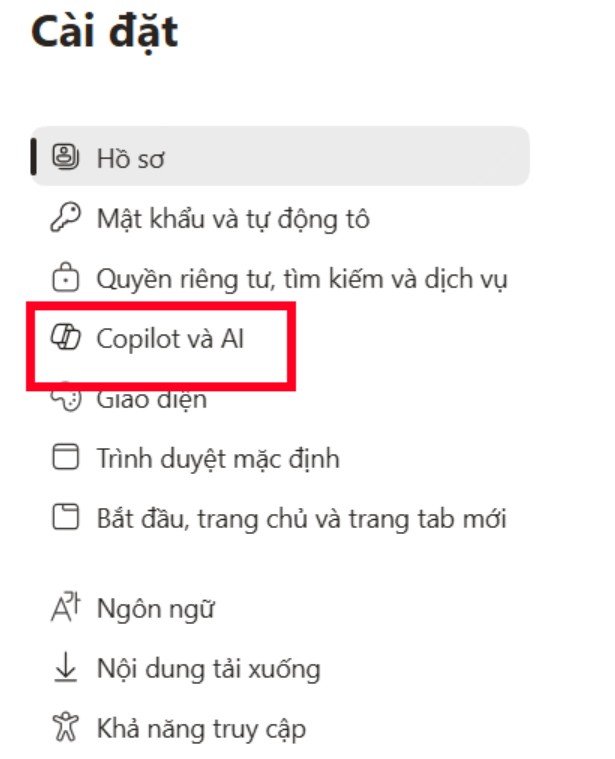
Step 2: Open the Copilot and AI section.
In the Settings window, look at the navigation bar on the left.
Select option: Copilot and AI
This is where Microsoft focuses on settings related to Copilot, as well as the AI features integrated into Edge.
Step 3: Turn off the Copilot button display.
In the settings, find the option:
The Copilot button is now in the toolbar.
Turn the switch to the Off position .
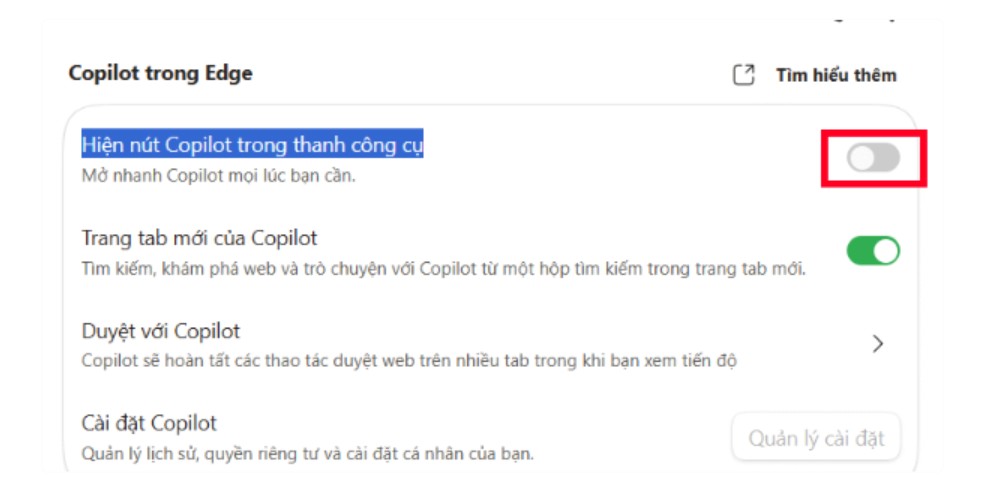
Immediately after the change, the Copilot icon will disappear from the Microsoft Edge toolbar.
It's worth noting that this only affects the display interface. The entire Copilot component remains on the system, and you can reactivate it by going back to the settings and toggling the switch.
When should this method be used?
This method is suitable if you:
-
I just want a cleaner Edge interface.
-
I don't want to see the Copilot logo.
-
No system settings adjustments are required.
-
I want to be able to switch it back on quickly when needed.
This is the safest option because it doesn't change the Windows configuration.
3. Method 2: Disable Copilot using Group Policy
If you are an IT administrator or manage multiple computers in a business, Group Policy is the most effective solution for disabling Copilot.
Unlike the first method which only hides the icon, Group Policy can apply the policy to all user accounts or multiple computers in the Active Directory system.
Note that this method is only available on Windows 11 Pro, Enterprise, and Education . Windows 11 Home users will not have the Local Group Policy Editor tool.
Step 1: Open Local Group Policy Editor
Press the key combination: Windows + R
Enter the command:
gpedit.msc
Then press Enter .
The Local Group Policy Editor window will appear.
Step 2: Navigate to the Windows Copilot policy.
In the Group Policy Editor window, navigate to the following path:
User Configuration > Administrative Templates > Windows Components > Windows Copilot
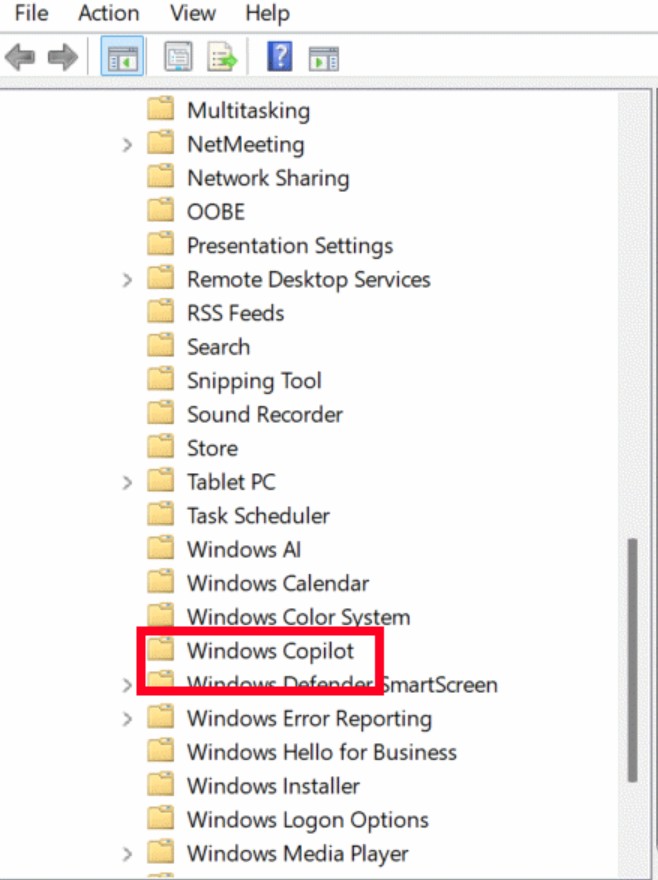
Open each folder in the order listed above to find the Windows Copilot management policy.
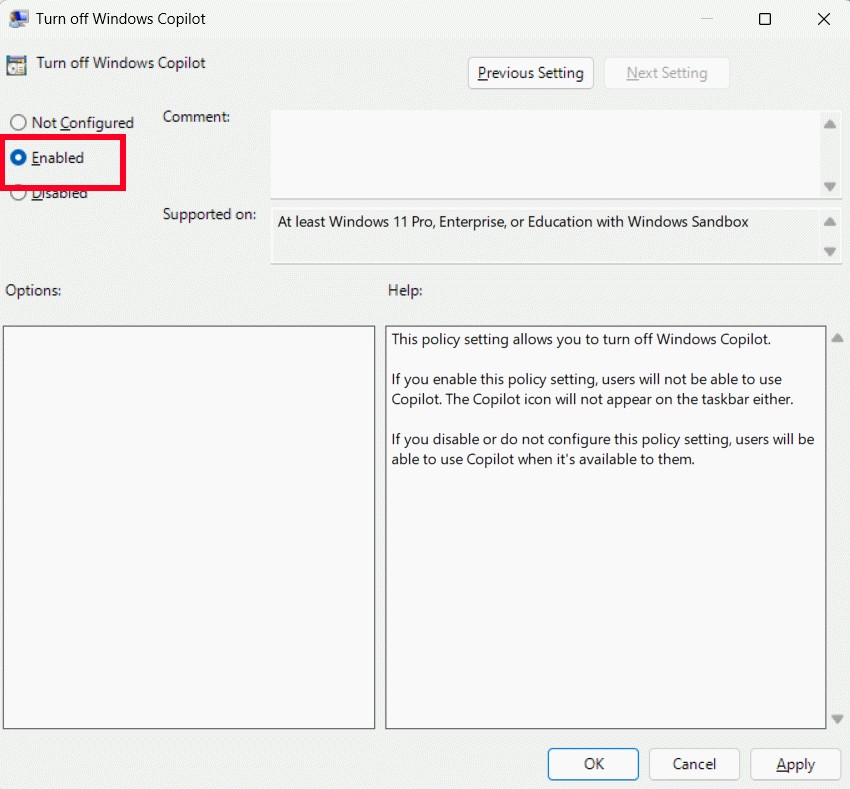
Step 3: Enable the Copilot disabling policy.
In the right-hand pane, find the item:
Turn off Windows Copilot
Double-click to open.
In the policy configuration window:
-
Select enabled
-
Press OK

Selecting "Enabled" here means enabling the policy to disable Windows Copilot , not enabling Copilot itself. This is a common point of confusion for many new Group Policy users.
Step 4: Implement the policy immediately.
To allow Windows to update its policies without waiting for the system to sync automatically, open Command Prompt with Administrator privileges .
Then run the following command exactly:
gpupdate /force
Press Enter and wait for the update process to complete.
This command forces Windows to reload the entire Group Policy immediately, allowing the changes to take effect faster.
If necessary, you can restart Microsoft Edge or log out and then log back into Windows to ensure the policy is fully applied.
Advantages of Group Policy
Group Policy is a popular choice for many businesses because:
-
Easy to deploy across multiple machines.
-
It can be managed centrally.
-
No manual Registry editing is required.
-
The configuration can be restored at any time.
-
Suitable for business and educational environments.
4. Method 3: Disable Copilot using Registry Editor
If you're using Windows 11 Home , you won't have the Local Group Policy Editor. In that case, the Registry Editor is the alternative.
This method is also suitable for users who want to control Copilot at the system level.
Before editing the Registry, it's advisable to back up the Registry or create a System Restore Point so you can restore it if something unexpected happens.
4.1. Disable Copilot for the current user account.
Step 1: Open Registry Editor
Press: Windows + R
Input:
Regedit
Press Enter .
If Windows displays the User Account Control (UAC) dialog box, select Yes .
Step 2: Navigate to the Registry key
Go to the following link:
HKEY_CURRENT_USER\\Software\\Policies\\Microsoft\\Windows
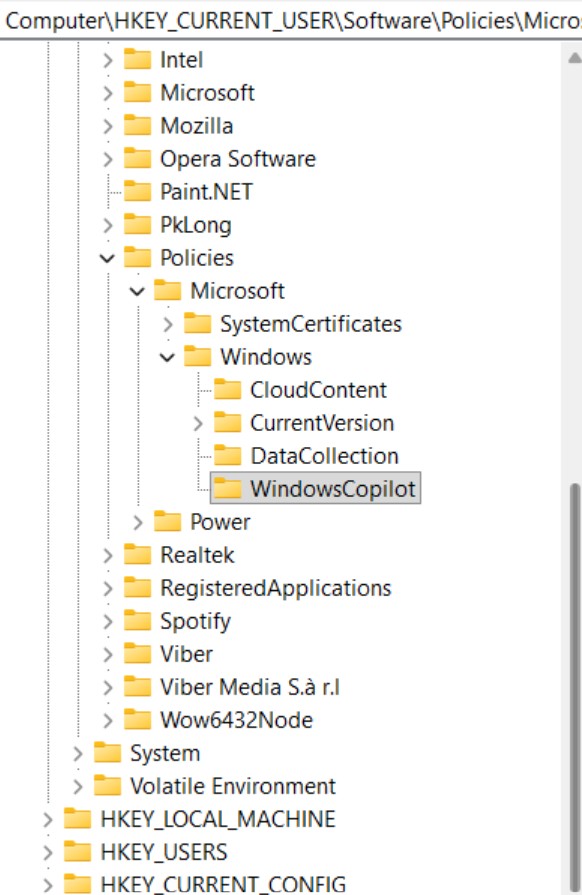
This is the Registry branch that applies to the current user account.
Step 3: Create a WindowsCopilot key if you don't already have one.
Look to the left.
If you already have the key:
WindowsCopilot
Then move on to the next step.
If you don't already have it:
-
Right-click on the Windows folder.
-
Select New
-
Select Key
-
The correct name is:
WindowsCopilot
The key name must be spelled correctly for Windows to recognize the policy.
Step 4: Create the TurnOffWindowsCopilot value
Choose a key:
WindowsCopilot
In the right-hand frame:
-
Right mouse button
-
Select New
-
Select DWORD (32-bit) Value
The correct name is:
TurnOffWindowsCopilot
Then double-click on the value you just created.
In the Value data field , enter:
1
Press OK to save the changes.
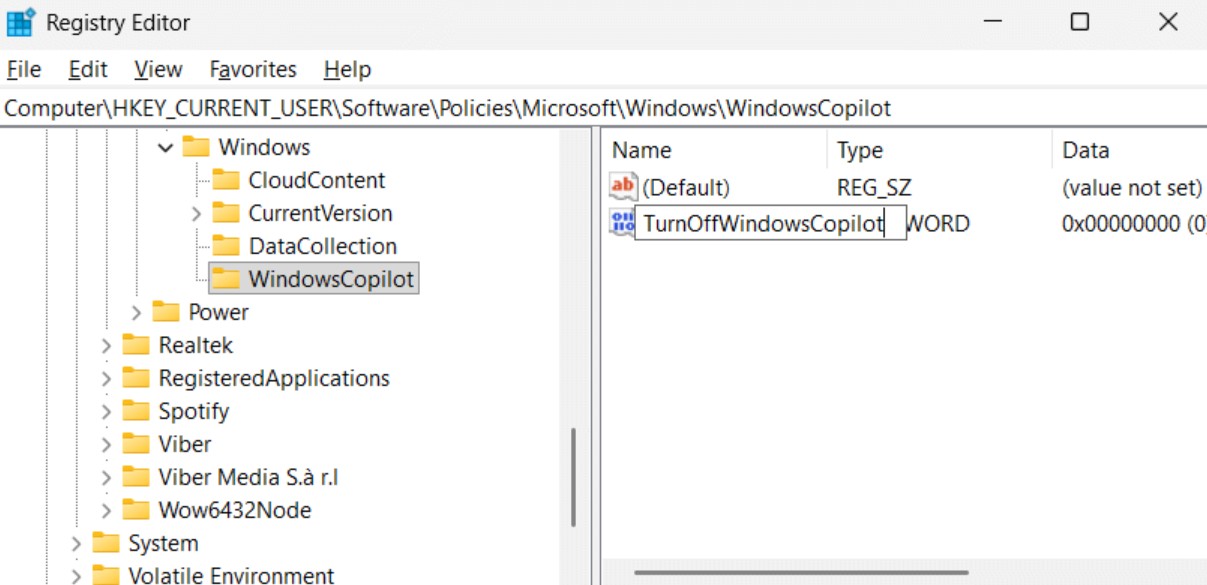
A value of 1 means that the Windows Copilot shutdown policy is enabled.
Step 5: Restart Edge
Close Registry Editor.
Then restart Microsoft Edge for the changes to take effect.
In some cases, you may need to log out or restart Windows for the system to fully update the new settings.
4.2. Disable Copilot for all users on the computer.
If you want to apply this to all user accounts on the same computer, follow all the same steps as above.
The only difference is that instead of navigating to:
HKEY_CURRENT_USER\\Software\\Policies\\Microsoft\\Windows
Please navigate to:
HKEY_LOCAL_MACHINE\\SOFTWARE\\Policies\\Microsoft\\Windows
Then continue to follow all the steps:
-
Create a WindowsCopilot key if it doesn't already exist.
-
Create a DWORD (32-bit) Value named TurnOffWindowsCopilot .
-
Set Value data to 1 .
-
Restart Microsoft Edge or Windows for the changes to take effect.
The settings in HKEY_LOCAL_MACHINE (HKLM) will apply to all users on the computer, so this is a suitable option for shared computers or systems managed by an administrator.
5. Which option should I choose?
All three methods above help you control Copilot, but they are suitable for different needs.
If you simply want a cleaner Edge interface and still want to use Copilot when needed, disabling the Copilot icon on the toolbar is a quick and easy solution.
If you are an IT administrator needing to deploy across multiple machines or want to implement a unified management policy within your business, Group Policy is the optimal solution because it is easy to manage, easy to restore, and can be deployed simultaneously.
If you're using Windows 11 Home or want to disable Copilot at the system level without Group Policy, Registry Editor is the right solution. However, proceed cautiously and back up your Registry before editing to avoid affecting other Windows settings.
6. Conclusion
Copilot is a useful AI feature in Microsoft Edge, but it's not always necessary for every user or work environment. Depending on your needs, you might simply hide the Copilot icon for a cleaner interface, or disable it entirely through Group Policy or Registry Editor to increase control and meet your organization's security requirements.
With the three methods detailed above, you can choose the one that best suits your Windows version and desired level of administration. Most importantly, follow each step correctly, especially the operations within Group Policy and the Registry, so that the changes are applied accurately and can be easily reverted if needed.





















VIP Products








Best Selling Products
ChatGPT Plus Account (GPT-4)
16 USD
Windows 10 & 11 Pro Key
36 USD
Plugin Retouch4me
69 USD
MidJourney Account
29 USD
Adobe Premiere Pro Account
99 USD
Capcut Pro 1 Year
39 USD
Upgrade Genuine Office 365
49 USD
Adobe Photoshop Copyright - Full App
120 USD
Autodesk All App Account Copyright
120 USD
Copyright Adobe Lightroom Account
59 USD
Upgrade Duolingo Super
29 USD
Upgrade genuine Capture One account
120 USD
Freepik Premium Account
59 USD
Genuine Adobe Illustrator account
99 USD
Genuine Cheap Canva Pro
39 USD