Best Selling Products

Plugin Retouch4me
69 USD

ChatGPT Plus Account (GPT-4)
16 USD

Freepik Premium Account
59 USD

Upgrade Duolingo Super
29 USD

Autodesk All App Account Copyright
120 USD

Adobe Premiere Pro Account
99 USD

Genuine Adobe Illustrator account
99 USD

Copyright Adobe Lightroom Account
59 USD

MidJourney Account
29 USD

Adobe Photoshop Copyright - Full App
120 USD

Genuine Cheap Canva Pro
39 USD

Capcut Pro 1 Year
39 USD

Windows 10 & 11 Pro Key
36 USD

Upgrade Genuine Office 365
49 USD

Upgrade genuine Capture One account
120 USD
How to Get 1TB of OneDrive Free Forever
Nội dung
- 1. Why is 1TB OneDrive so appealing?
- 2. Current OneDrive packages
- 3. How to get 1TB of OneDrive free forever
- 3.1 Step 1: Access the Office 365 Education page
- 3.2 Step 2: Choose your role
- 3.3 Step 3: Fill in the account creation information
- 3.4 Step 4: Confirm and begin
- 3.5 Step 5: Access OneDrive
- 4. Comparing the free OneDrive and the 1TB OneDrive: Which one should you choose?
- 4.1 Storage Capacity
- 4.2 Target Users
- 4.3 Tools and Features
- 4.4 Security
- 4.5 Costs
- 5. Things to note about OneDrive 1TB free forever
- 6. Upgrade your account to increase storage capacity.
- 7. Conclusion
In today''s digital age, online data storage has become an essential need. OneDrive, Microsoft''s cloud storage service, offers users up to 1TB of free, lifetime storage through a Microsoft 365 account subscription. This article will provide detailed instructions on how to get 1TB of free OneDrive storage, its benefits, and the subscription plans that best suit your needs. Let''s explore with Sadesign how to easily and effectively optimize your storage space!
1. Why is 1TB OneDrive so appealing?
OneDrive, Microsoft's cloud storage service, is more than just a place to store data. With up to 1TB of free storage for life, OneDrive becomes an ideal solution for those who need a large amount of storage space. In particular, those working in design, photography, or data analysis will clearly appreciate the value of 1TB in managing and protecting their documents.
When you sign up for a Microsoft 365 account, you not only get 1TB of OneDrive storage but also access to many other useful applications such as Office 365 and Microsoft Teams. This helps you work more efficiently, especially in the context of increasingly common remote work. The combination of these applications creates a perfect ecosystem, making it easy for you to share and collaborate.
Ultimately, getting 1TB of free OneDrive storage not only saves you money but also provides high security for your data. With backup and recovery capabilities, you can rest assured that your important information is stored safely without worrying about data loss.
2. Current OneDrive packages
OneDrive offers a variety of subscription plans to meet the needs of each user. For individuals, plans such as Microsoft 365, Microsoft 365 Basic, and Microsoft 365 Personal are designed to provide up to 1TB of storage per user at a reasonable price, starting from just 210,000 VND per month.
OneDrive isn't just for individuals; it also offers a Microsoft 365 Family plan, allowing up to six users to share a total of 6TB of storage. This is incredibly useful for families, giving each member their own space while saving money. With this plan, you only need to pay 210,000 VND per month to get massive storage for the whole family.
For businesses, OneDrive for Business offers plans such as Plan 1 with 1TB per person and Plan 2 with unlimited storage. This is an ideal solution for companies that want to secure and manage their data effectively. The 365 Business Basic and 365 Business Standard plans also provide up to 1TB of OneDrive storage per person, helping businesses easily manage information and documents securely.
3. How to get 1TB of OneDrive free forever
To get 1TB of free OneDrive storage, you need a .edu email address. Below are detailed step-by-step instructions to create an account and enjoy this storage capacity.
3.1 Step 1: Access the Office 365 Education page
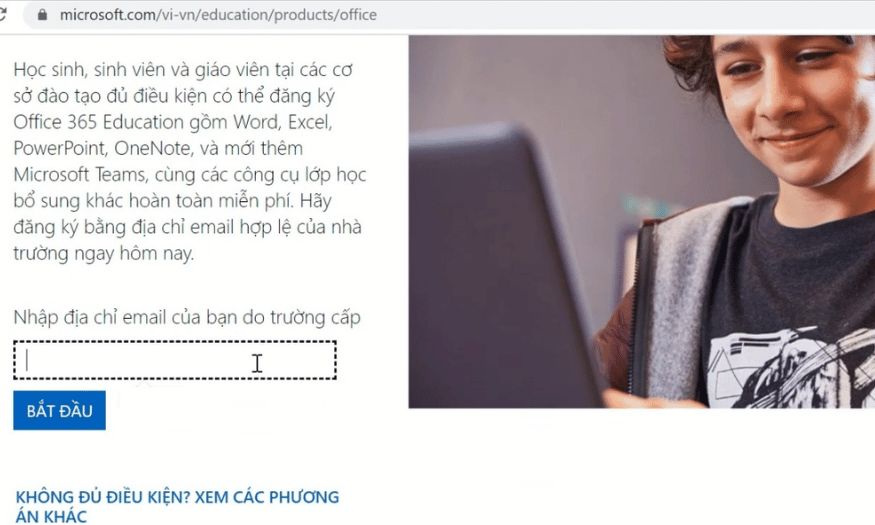
First, you need to access the Office 365 Education link . On this page, search for "Office 365 Education". Once found, you will see an option to enter your email address. Enter the .edu email address you are using and click the "Get Started" button.
Entering the correct email address is crucial, as this will be used to verify your identity. If you don't have this email address, you won't be able to receive 1TB of free storage. Make sure your email is active, as you'll need to access your inbox to receive the verification code.
3.2 Step 2: Choose your role
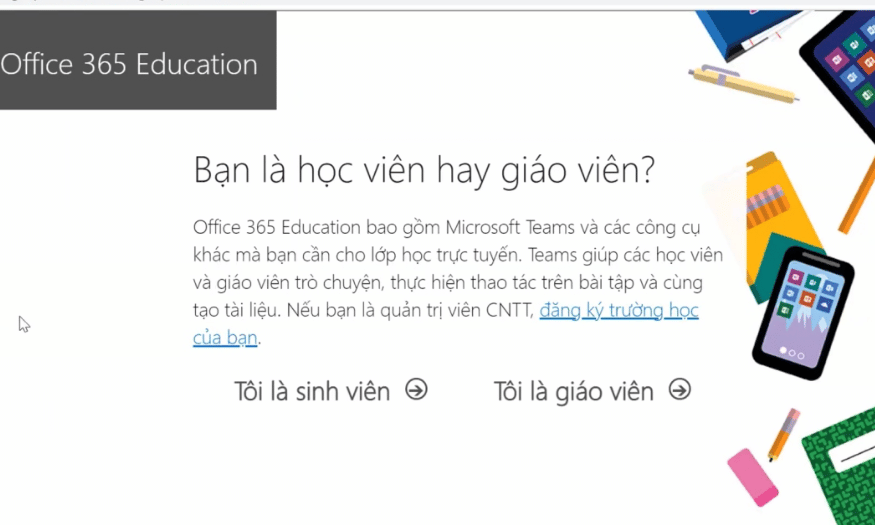
After entering your email, you will be asked to choose your role. Here, select one of two options: "I am a student" or "I am a teacher". Choosing the correct role is important, as Microsoft will verify your eligibility based on this information.
If you are a student, select the corresponding option and continue. If you are a teacher, select the option for teachers. This will give you access to tools and resources tailored to your learning or teaching needs.
3.3 Step 3: Fill in the account creation information
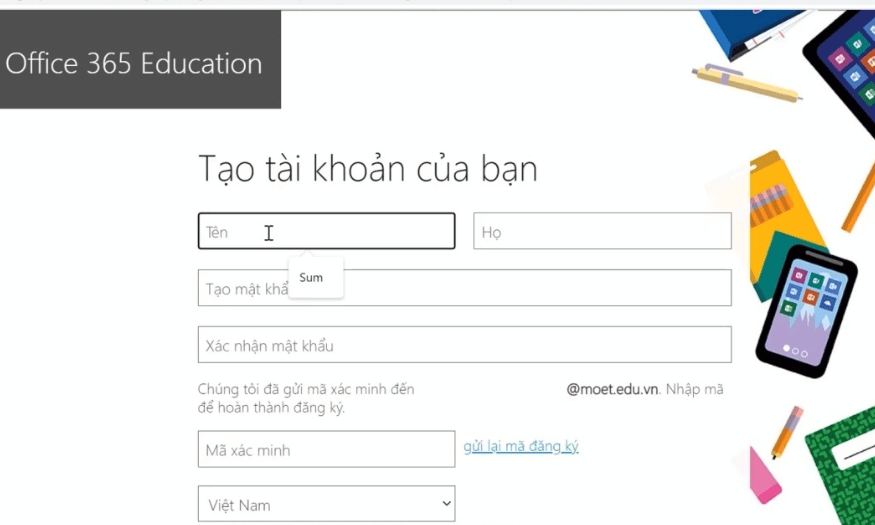
Next, you will be asked to fill in the necessary information to create an account. This information may include your first name, last name, and other personal information. Importantly, you will receive a verification code sent to the .edu email address you entered in the previous step.
Please check your inbox for the verification code. Enter this code on the registration page to confirm your account. Don't forget to select Vietnam as your country to ensure you receive the correct support and information regarding your account.
3.4 Step 4: Confirm and begin
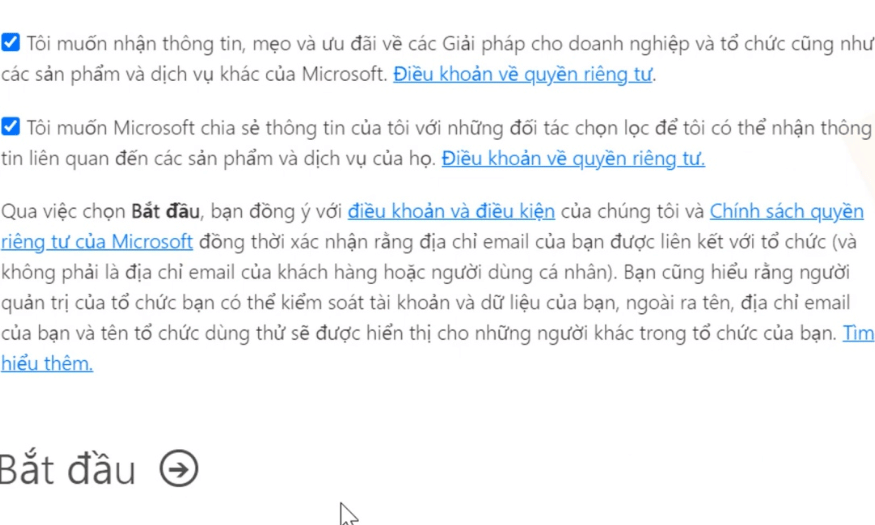
After filling in all the information, you will see two boxes to agree to the terms and conditions. Click on both boxes to confirm your agreement. Then, press the "Start" button to proceed with creating your account.
This process will take some time during the account verification and creation phase. Please be patient and wait until you receive a confirmation message from Microsoft that your account has been successfully created.
3.5 Step 5: Access OneDrive
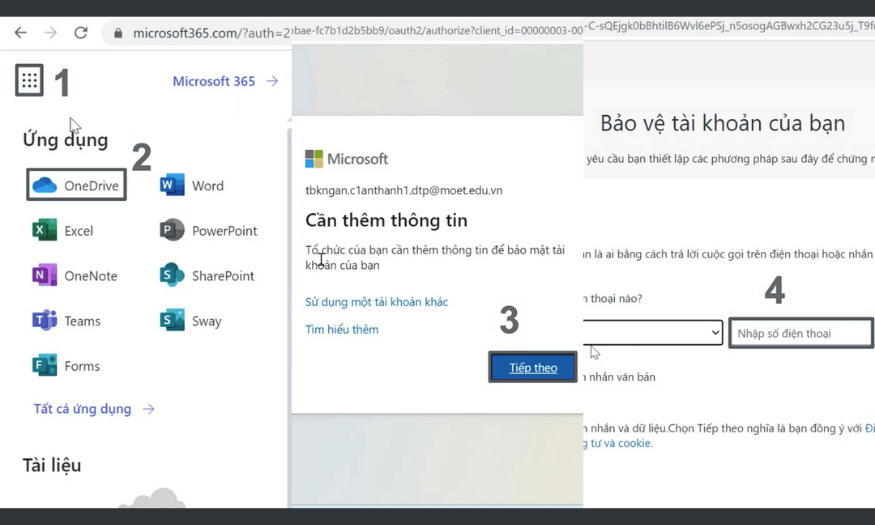
Once your account has been successfully created, you will be taken to the main Microsoft 365 interface. Here, find the icon with nine dots in the upper left corner of the screen. Click on this icon and select "OneDrive" from the list of available applications.
After accessing OneDrive, you can link your account to your phone number and view your available storage. Now you have 1TB of free OneDrive storage to securely and conveniently store documents, photos, and more!
4. Comparing the free OneDrive and the 1TB OneDrive: Which one should you choose?
After learning how to get 1TB of free OneDrive storage, many users wonder about the differences between the free version and the 1TB version. Choosing between these two options affects not only storage capacity but also features, security, and cost. Let's explore these differences in detail to make the best decision for your needs.
4.1 Storage Capacity
OneDrive is free.
The free version of OneDrive offers users a fairly limited amount of storage, usually only around 5GB. This can meet basic storage needs for small documents or images. However, if you frequently work with large files such as videos or design projects, 5GB will quickly become a frustrating limitation.
OneDrive 1TB
In contrast, OneDrive 1TB offers a massive storage space of up to 1TB. This is an ideal choice for those who need to store a lot of data, especially designers, photographers, or programmers. With 1TB, you can comfortably store documents, images, and videos without worrying about running out of space.
4.2 Target Users
OneDrive is free.
The free version is usually suitable for individual users with basic storage needs. If you only need to store some study materials or personal photos, the free version may meet your requirements.
OneDrive 1TB
For those with higher storage needs, OneDrive 1TB is an indispensable choice. Especially for those working in creative environments where security and storage capacity are top priorities, OneDrive 1TB is the perfect solution. It not only offers ample storage but also provides useful support tools.
4.3 Tools and Features
OneDrive is free.
When using the free version of OneDrive, you will only have access to basic tools such as Word, Excel, PowerPoint, OneNote, and OneDrive itself. These tools are sufficient for performing simple tasks; however, you will not have access to other advanced features.
OneDrive 1TB
With OneDrive 1TB, you'll enjoy more premium features, including Clipchamp video editor and Microsoft Designer image editing tools. These features make it easy to create and edit content directly on the platform, enabling unlimited creativity.
4.4 Security
OneDrive is free.
The free version offers a lower level of security compared to the 1TB version. Your data may be more vulnerable, especially if you don't regularly back up or protect your account.
OneDrive 1TB
OneDrive 1TB offers enhanced security thanks to its anti-malware mechanisms and other safety features. This is crucial for those who work with sensitive data or need a secure environment to store information.
4.5 Costs
OneDrive is free.
The great thing about free OneDrive is that you don't have to pay any fees. This is a great option for those who don't want to spend money on storage services.
OneDrive 1TB
However, to use OneDrive 1TB, you will need to pay a fee starting from 489,000 VND/year. This is a reasonable price when you compare it to the storage capacity and features you receive. Investing in OneDrive 1TB is a smart way to ensure you have enough space and tools to work efficiently.

5. Things to note about OneDrive 1TB free forever
When you decide to sign up for a free, perpetual 1TB OneDrive subscription, there are a few important points to keep in mind to ensure you get the most out of this service. First, make sure you complete the registration process through Microsoft's official website. This not only helps you avoid scams but also protects your personal information. Signing up from unofficial sources can lead to your information being stolen or your account being locked without a clear reason.
Secondly, while the free 1TB OneDrive plan offers many benefits, you need to understand that free plans don't receive the same level of customer support as paid plans. This means that if you encounter problems or need help, you may not receive a timely response as you would with a paid plan. Be prepared to troubleshoot minor issues yourself or seek help from the user community if necessary.
Finally, one of the most important issues is information security. When using OneDrive, you should keep your account safe by not sharing your login information with anyone. This helps protect your personal data and ensures that no one can access your account without permission. Use additional security measures such as two-factor authentication to further enhance the security of your account. This way, you can have greater peace of mind when storing important data on OneDrive.
6. Upgrade your account to increase storage capacity.
If you're looking to expand your storage capacity, upgrading your account at Sadesign is a great option. With the Office 365 + OneDrive 1TB upgrade, you'll get not only more storage but also full access to office applications like Word, Excel, PowerPoint, and Outlook. This gives you greater flexibility in your work and the ability to store your data securely.
In addition to providing massive storage capacity, upgrading your account at Sadesign offers many other benefits. You'll receive the latest versions of applications, along with advanced security features to protect your data more effectively. Furthermore, using OneDrive 1TB makes it easy to share documents and collaborate, and it automatically synchronizes data between devices, ensuring you always have the most up-to-date information.
If you don't upgrade your account through the regular process, upgrading via Sadesign still offers a great experience at a reasonable price of only 599,000 VND per year. Sadesign's support team is always ready to assist you during the installation and usage process, ensuring you won't encounter any difficulties. Upgrade your account now to enjoy the benefits this service offers!
7. Conclusion
Getting 1TB of free OneDrive storage forever not only saves you money but also provides convenience in managing and securing your data. With the detailed instructions above, we hope you will easily create an account and enjoy the benefits that OneDrive offers. Remember that protecting your personal information and avoiding sharing your account is very important. Check out other tips to enhance your OneDrive experience. Good luck!





















VIP Products








Best Selling Products
Plugin Retouch4me
69 USD
ChatGPT Plus Account (GPT-4)
16 USD
Freepik Premium Account
59 USD
Upgrade Duolingo Super
29 USD
Autodesk All App Account Copyright
120 USD
Adobe Premiere Pro Account
99 USD
Genuine Adobe Illustrator account
99 USD
Copyright Adobe Lightroom Account
59 USD
MidJourney Account
29 USD
Adobe Photoshop Copyright - Full App
120 USD
Genuine Cheap Canva Pro
39 USD
Capcut Pro 1 Year
39 USD
Windows 10 & 11 Pro Key
36 USD
Upgrade Genuine Office 365
49 USD
Upgrade genuine Capture One account
120 USD