Best Selling Products

Adobe Premiere Pro Account
99 USD

Upgrade genuine Capture One account
120 USD

Freepik Premium Account
59 USD

Windows 10 & 11 Pro Key
36 USD

Upgrade Genuine Office 365
49 USD

Genuine Adobe Illustrator account
99 USD

Capcut Pro 1 Year
39 USD

Adobe Photoshop Copyright - Full App
120 USD

Autodesk All App Account Copyright
120 USD

ChatGPT Plus Account (GPT-4)
16 USD

MidJourney Account
29 USD

Genuine Cheap Canva Pro
39 USD

Copyright Adobe Lightroom Account
59 USD

Plugin Retouch4me
69 USD

Upgrade Duolingo Super
29 USD
How to Create Gradient Colors in Canva in a Flash
Nội dung
- 1. What are gradient colors?
- 2. Canva - The ultimate color matching tool
- 3. Benefits of using Canva to create gradient colors
- 4. The simplest and most beautiful way to create gradient colors in Canva.
- 4.1 Quick Guide
- 4.2 Detailed Instructions
- 5. Besides gradients, what other colors can Canva create?
- 5.1 Solid Color
- 5.2 Pastel Colors
- 5.3 Bold Color
- 5.4 Contrasting Colors
- 5.5 Complementary Color
- 6. Tips for using Canva to create the most accurate colors.
- 7. Conclusion
In graphic design, color plays an extremely important role, influencing the emotions and attention of the viewer. One of the prominent trends today is the use of gradient colors, which helps create depth and appeal in design products. Canva, with its user-friendly interface, has become a favorite tool for many designers, from beginners to professionals. In this article, Sadesign will explore how to create gradient colors simply and quickly in Canva, helping you improve your design efficiency without spending a lot of time.
1. What are gradient colors?
Gradient colors are a unique style of color created by gradually blending one color into one or more other colors. This smooth color transition effect not only brings harmony but also makes the design more vibrant. When you look at a painting or design using gradient colors, you can perceive movement and depth, which makes it impossible for the viewer's eyes to look away from the artwork.
There are three common types of gradients, each offering a different feel and presentation. Linear gradients create a color transition along straight lines, often used to create simple yet sophisticated backgrounds. Radial gradients, conversely, start from a central point and spread outwards, giving the impression of radiating light. Finally, angular gradients offer a color transition based on rotation, creating unique and interesting visuals. With this versatility, gradients become a powerful tool in the hands of designers.
Gradients aren't limited to using similar colors; you can combine contrasting or highly contrasting colors to create striking effects. Using gradients enhances the aesthetic value of a design, creating a stronger impact on the viewer.
2. Canva - The ultimate color matching tool
Canva has become one of the most popular graphic design tools thanks to its user-friendly interface. With its many powerful features, Canva not only helps users create professional designs but also offers excellent color matching capabilities. The tool provides a range of pre-made gradient color templates, allowing you to easily select and adjust them to your liking.
One of Canva's strengths is its color customization capabilities. You can start with a background color and then add gradient colors with just a few clicks. Canva provides you with a rich color palette and intuitive editing tools, making it easy to create unique gradients tailored to each specific project. Whether you're a beginner or an experienced designer, Canva perfectly meets your design needs.
Furthermore, Canva integrates sharing and collaboration features, allowing you to work with teammates in real time. This not only saves time but also improves design efficiency. You can discuss and adjust colors together, creating top-notch products without encountering any difficulties in the color matching process.

3. Benefits of using Canva to create gradient colors
Using Canva to create gradient colors offers several significant advantages. First, ease of use is one of its most outstanding features. With a drag-and-drop interface, you can quickly create gradients without needing in-depth design knowledge. This saves time and effort, allowing you to focus on content creation instead of worrying about technical details.
Secondly, Canva offers a rich library of ready-made design templates and gradients, making it easy to get inspired and begin. Whether you're designing for an event, a product, or a social media post, you can find suitable templates. This not only saves you time but also ensures your designs are always on trend.
Finally, Canva offers incredibly flexible color customization options. You can easily adjust brightness, saturation, and other parameters to create the perfect gradients for your designs. With these powerful and versatile tools, Canva is truly a great choice for anyone wanting to explore the world of color in graphic design.
4. The simplest and most beautiful way to create gradient colors in Canva.
If you're looking to make your Canva designs stand out, creating text with two different colors is a fun and effective technique. This trick not only makes the text in your design more vibrant but also creates a focal point that attracts the viewer's attention. In this section, we'll explore the simplest and most beautiful way to create a gradient color scheme in Canva.
4.1 Quick Guide
Start by accessing your Canva account. On the main interface, you can search for available design templates or select "Create Design" to begin a new project. When the editing interface opens, find the "Color" box on the toolbar. Here, you'll have the opportunity to choose from a range of available gradient colors or customize the colors to your liking. Finally, once you've selected a gradient color, adjust the parameters to achieve the desired color transition effect.
4.2 Detailed Instructions
Step 1: Access Canva
First, open your browser and go to the Canva website. Log in to your account. If you don't have an account yet, create a free one. On the main interface, you'll see a "Search" box at the top. Click on this box to search for available design templates. You can also select "Create Design" to start a new project. Choose a design size that suits your needs, for example, a social media post, flyer, or book cover.

Step 2: Open the color tool
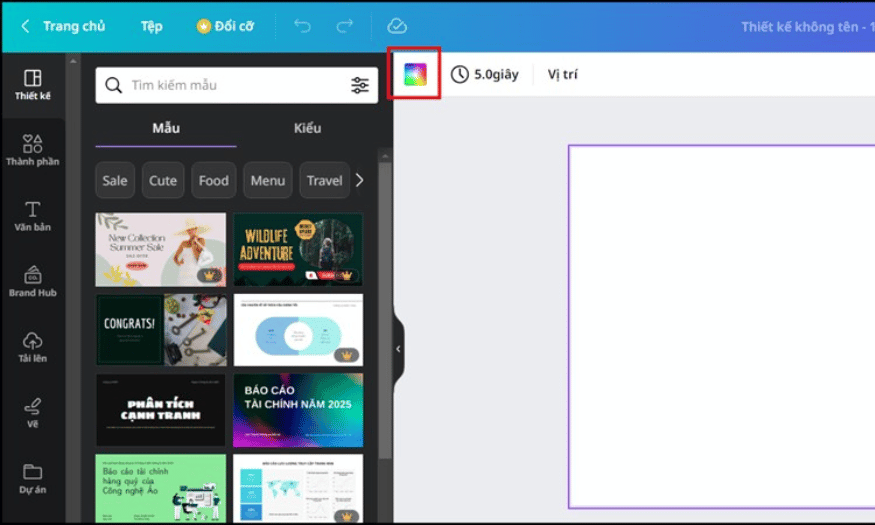
When the editing interface appears, pay attention to the toolbar on the left. Find and click on the "Color" box to open the color adjustment tool for your design. Here, you will see many color options, allowing you to easily change the background color, text color, or any part of the design. Take some time to explore the available color options; this will give you an overview of what can be done.
Step 3: Select or create a gradient color
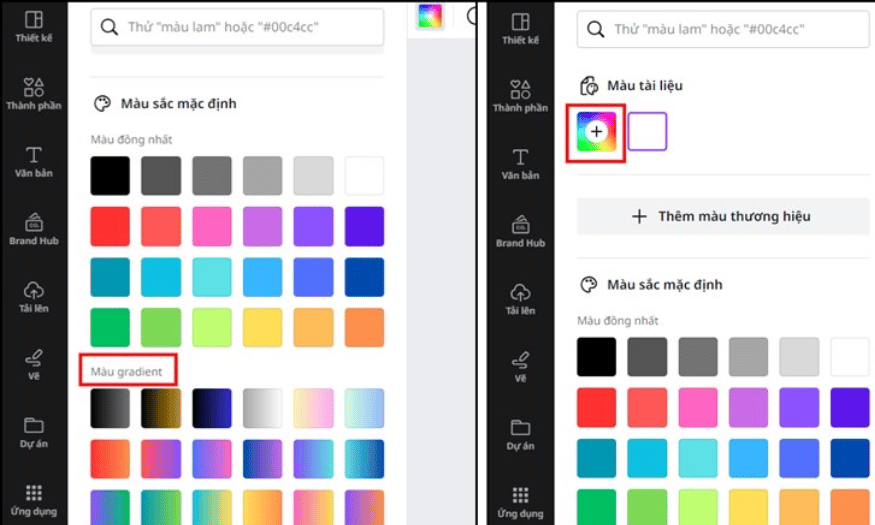
In the color section, you can scroll down to see the available gradient colors that Canva offers. If you want to create a custom gradient, tap the “+” sign. A color palette will appear, allowing you to select different colors to create a unique gradient effect. Experiment with different colors to find the perfect combination for your design. You can choose bright colors to create a striking effect or dark colors to convey deeper emotions.
Step 4: Adjust the gradient color
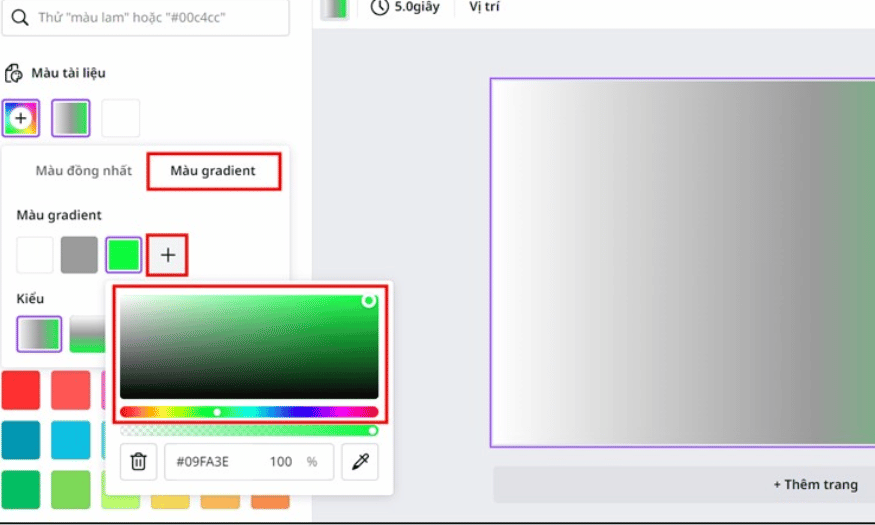
After selecting your gradient colors, begin adjusting them to your liking. Canva allows you to change the position and proportion of the colors within the gradient, helping you create unique color transition effects. The design will automatically change colors as you adjust the parameters, so keep an eye on the preview to ensure the desired effect is achieved. Continue adjusting until you are satisfied with the final result.
By following the steps above, you can easily create impressive gradient colors for your designs, making them stand out and be more eye-catching. Experiment and be creative to create unique works that you love!
5. Besides gradients, what other colors can Canva create?
Canva isn't limited to just creating gradient colors. This tool also allows you to create many different color types, from solid colors to complex effects. Below are instructions on how to create five other popular color types in Canva.
5.1 Solid Color
Monochromatic colors are pure colors, without any transitions or blending. To create a monochromatic design in Canva, start by opening your design and selecting the area you want to change the color of. Click the "Color" box on the toolbar, then choose your desired color from the available color palette. You can adjust the brightness and saturation of the color using the sliders to achieve your desired shade.
After choosing a color, be sure to check its contrast with other elements in the design. Monochromatic colors are often used to create a background or to highlight specific elements, so consider this carefully before deciding on a color.
5.2 Pastel Colors
Pale colors are soft and gentle tones that create a relaxing and pleasant feeling. To create a pale color in Canva, first select the base color you want to turn into a pale color. Click on the "Color" box and choose a color from the color palette. Then, you can reduce the saturation and darkness of the color to create a lighter shade.
Pale colors are often used in designs for children, health-related products, or social media posts with a gentle theme. Experiment with different shades to find the perfect combination for your design.
5.3 Bold Color
Bold colors are often used to draw attention and create emphasis in a design. To create bold colors in Canva, start by choosing a base color you like. Adjust the saturation to enhance the color's strength. Once you've chosen your desired color, apply it to design elements such as text, images, or backgrounds.
Bold colors are very effective at creating emphasis and attracting attention. Be careful when using bold colors, as overuse can make the design look cluttered. Combine them with lighter colors to create balance.
5.4 Contrasting Colors
Contrasting colors are colors that are opposite to each other, helping to highlight elements in a design. To create contrasting colors in Canva, first choose the primary color you want to use. Then, you can use the color wheel to find the contrasting color. Click on the "Color" box and select a contrasting color from the color palette or create a custom color.
Using contrasting colors will help your design elements stand out and enhance visual appeal. This is a useful technique when designing posters, banners, or other promotional materials.
5.5 Complementary Color
Color coordination refers to colors that complement each other, creating harmony in a design. To create color coordination in Canva, start by selecting a primary color. Then, use the color wheel to find complementary colors, usually the opposite colors. Click on the "Color" box and select a color coordination from the available color palette.
Color coordination is often used to create balance and harmony in a design. Make sure you don't use too many different colors, as this can make the design look cluttered. The perfect combination will make your work more impressive and appealing.
6. Tips for using Canva to create the most accurate colors.
When working with Canva, choosing the right colors not only makes your design appealing but also conveys the right message. First, pay attention to your brand or project's color palette. Canva allows you to store your personal color palette, making it easy to access and apply consistent colors across all your designs. This not only increases brand recognition but also creates harmony in your design output.
Secondly, use Canva's color matching tool to find unique color combinations. This tool offers many pre-designed color schemes, from classic palettes to modern trends. You can also experiment with the auto-color generation feature, which lets you input a specific color and receive matching color combinations. This saves you time and helps you discover impressive color combinations you might not have thought of before.
Finally, don't forget to check the contrast between the colors in your design. Canva provides tools to help you assess contrast, ensuring that the text will be easy to read on a colored background. This is crucial, especially when designing for online platforms where viewers may use various devices. Make sure that the colors you choose are not only visually appealing but also help viewers easily access the information in your design.
7. Conclusion
Creating gradient colors in Canva is not only simple but also opens up many creative possibilities for designers. With easy-to-understand instructions, you can quickly apply this technique to your projects, from posters and banners to social media posts. Experiment and find the colors you love to make your designs stand out. With Canva, creating beautiful artwork has never been easier!





















VIP Products








Best Selling Products
Adobe Premiere Pro Account
99 USD
Upgrade genuine Capture One account
120 USD
Freepik Premium Account
59 USD
Windows 10 & 11 Pro Key
36 USD
Upgrade Genuine Office 365
49 USD
Genuine Adobe Illustrator account
99 USD
Capcut Pro 1 Year
39 USD
Adobe Photoshop Copyright - Full App
120 USD
Autodesk All App Account Copyright
120 USD
ChatGPT Plus Account (GPT-4)
16 USD
MidJourney Account
29 USD
Genuine Cheap Canva Pro
39 USD
Copyright Adobe Lightroom Account
59 USD
Plugin Retouch4me
69 USD
Upgrade Duolingo Super
29 USD