Best Selling Products

Windows 10 & 11 Pro Key
36 USD

Adobe Premiere Pro Account
99 USD

Genuine Cheap Canva Pro
39 USD

Copyright Adobe Lightroom Account
59 USD

Adobe Photoshop Copyright - Full App
120 USD

Plugin Retouch4me
69 USD

Upgrade Duolingo Super
29 USD

Autodesk All App Account Copyright
120 USD

Capcut Pro 1 Year
39 USD

Upgrade Genuine Office 365
49 USD

Freepik Premium Account
59 USD

Upgrade genuine Capture One account
120 USD

MidJourney Account
29 USD

ChatGPT Plus Account (GPT-4)
16 USD

Genuine Adobe Illustrator account
99 USD
How to Use ChatGPT to Create PowerPoint Presentation Slides
Nội dung
- 1. Why should you create slides using ChatGPT?
- 2. Important notes when using ChatGPT to create slides
- 3. Method 1: Creating a complete PowerPoint file from scratch
- 4. Method 2: Converting existing documents into PowerPoint
- 5. Addresses for affordable and reliable ChatGPT Plus upgrades.
- 5.1. Upgrade directly from the OpenAI homepage.
- 5.2. Upgrading ChatGPT Plus at SaDesign – A Cost-Effective Solution
- 5.3. Payment methods for upgrading to ChatGPT Plus at SaDesign
- 6. Conclusion
Creating PowerPoint presentations is no easy task. From formatting slides and tailoring content to organizing a coherent flow of ideas, the entire process is often tedious and time-consuming.
1. Why should you create slides using ChatGPT?
In the digital age, speed and efficiency are key to success, especially when preparing important presentations. This is where ChatGPT becomes an invaluable tool, saving you time and effort. Beyond its ability to answer questions and assist with planning, ChatGPT is particularly powerful in creating presentation content. This tool can quickly transform disjointed ideas or dry documents into a professional, eye-catching, and logically structured set of slides.
Interestingly, there are no fixed limits to how you can use ChatGPT to create slides. You can ask the AI to build a presentation outline, summarize complex information into concise bullet points, or write detailed notes for the presenter. With just a few precise commands (prompts), you can transform a blank page into a complete, well-structured slide presentation ready to present in minutes. This is the optimal solution for those who want to simplify the presentation preparation process while still ensuring professionalism and impact.
2. Important notes when using ChatGPT to create slides
While ChatGPT can help you create slides quickly, to ensure your presentation is truly professional and effective, you need to keep the following points in mind:
-
Verify information to avoid errors: ChatGPT can sometimes generate "illusory" or completely inaccurate content. Therefore, before using it, you should double-check the figures, evidence, and important content. This is especially important for academic presentations, business reports, or other types of presentations.
-
Clearly define your goals and target audience: Presentation style, word choice, and visuals need to be adjusted based on the listener. For example, slides for business partners will need to be professional and minimalist, while a presentation for students can use bright colors and accessible language.
-
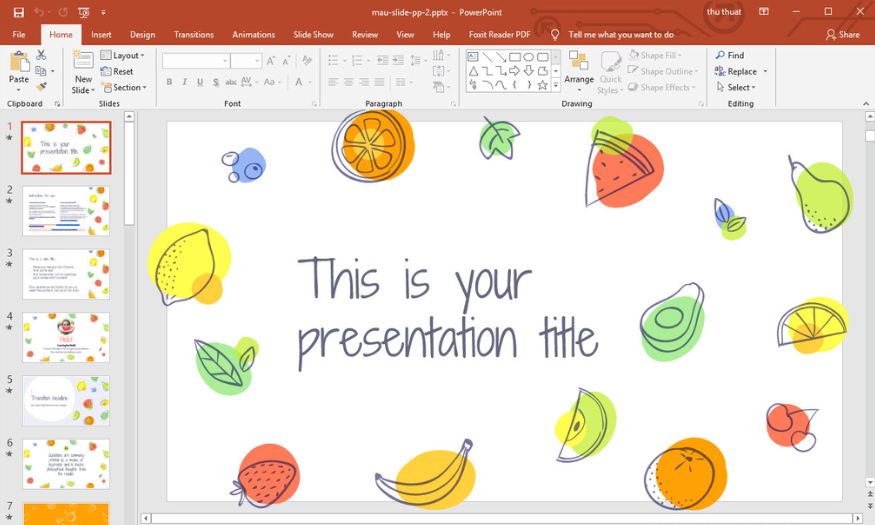
Personalize the design and layout: ChatGPT supports the content, but the design still needs your fine-tuning to match your brand or personal style. Choose a consistent template, font, and color scheme to make your slides both visually appealing and professional.
-
Focus on images and illustrations: A presentation will be more impressive and memorable with visual aids. You can combine this with AI image creation tools like DALL·E, Canva AI, or Freepik to find high-quality illustrations, instead of relying solely on text.
3. Method 1: Creating a complete PowerPoint file from scratch
With ChatGPT, you can create a complete PowerPoint file in a single chat without having to design each slide yourself. This feature is especially powerful for ChatGPT Plus users , thanks to its ability to analyze data and export files directly. This process not only saves time but also optimizes presentation preparation. From brainstorming and content creation to creating speaker notes, everything can be done right within ChatGPT.
To make the most of this feature, you need to follow a step-by-step process: from creating a detailed outline , developing full content for each slide, requesting ChatGPT to export the PowerPoint file, and finally refining the design. This method is particularly suitable for those who want a complete set of slides from scratch, while ensuring a logical and professional presentation structure.
Step 1: Create a detailed outline
First, open a new chat with ChatGPT and ask the AI to outline your presentation. It's crucial to be specific about your requirements , including the number of slides, the topic, and the desired level of detail. Avoid using placeholders like "Slide 1: Content"; instead, ask ChatGPT to provide clear and informative bullet points.
For example:
"Create a six-slide PowerPoint presentation on time management skills. Each slide should have a title and three detailed bullet points, without using placeholders."
You can further customize your presentation by specifying factors such as tone (professional, humorous, modern, etc.) or presentation length, allowing ChatGPT to create suitable content.
Step 2: Develop detailed content for each slide.
After creating an outline, ask ChatGPT to elaborate further. At this stage, you can ask the AI to write complete arguments , explanations, or even presenter notes. This is especially useful if you want clear speaker notes to support your presentation.
Example prompt:
"Please write detailed content for each slide above, and add a speaker's note of approximately 50-70 words for each slide."
The result is a complete set of content that can be easily converted into slides without spending a lot of time on manual editing.
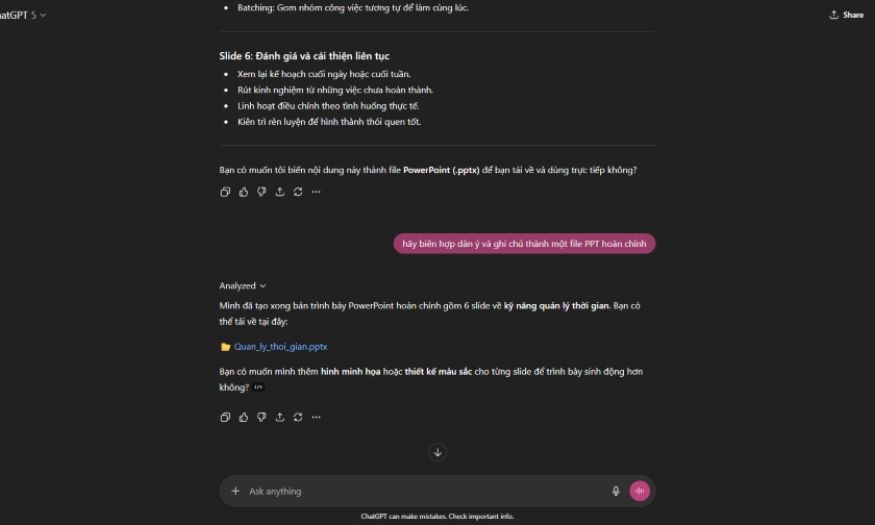
Step 3: Ask ChatGPT to create the PowerPoint file.
Once the content is ready, ask ChatGPT to compile the outline and notes into a complete PowerPoint file . ChatGPT will provide a direct download link. This step will save you considerable time, especially if you don't want to manually edit the content in PowerPoint.
Example prompt:
"Create a PowerPoint file based on the content you've prepared, using a modern layout, a white background, and a clear, easy-to-read font."
Step 4: Customize and finalize the slides
After downloading the file, open PowerPoint and select "Enable Editing" to begin editing. This is the step where you personalize your presentation:
-
Adjust the font, color, and theme to be consistent with the brand style or intended use.
-
Rearrange the layout so that the content is displayed more clearly and visually.
-
Add images, charts, or videos to make your slides more engaging.
-
Finally, save the final version and test the slideshow to check its smoothness before using it officially.
Important notes when applying this method
Although ChatGPT Plus delivers more accurate and optimized results, AI can still generate misleading or "illusory" content . Therefore, you should carefully check every piece of information, data, and evidence on your slides before presenting, especially in academic or business presentations. Also, don't forget to add personal touches to your design to avoid a formulaic presentation and showcase your unique style.
4. Method 2: Converting existing documents into PowerPoint
If you already have Word, PDF, or other documents, converting them into slides using ChatGPT will save you time copying and pasting and ensure a logical presentation structure. ChatGPT's file upload feature works with both free (limited) and ChatGPT Plus accounts, supporting popular formats like .docx, .pdf, .txt, and large file sizes (up to ~512MB with common settings). Instead of manually compressing content, you simply let the AI "read" the document and ask it to summarize, divide the content into slides, and add speaker notes.
The advantage of this method is that it retains the main points from the original document, shortens the text to suit the slides, and arranges the content in a logical flow, saving the creator effort in drafting, while also making it easy to customize the design after having the basic PowerPoint file.
Step 1: Upload the file
Open a new chat in ChatGPT, click the pin/attach icon on the input bar, and select “Upload from computer” to upload a Word, PDF, or other document. Before uploading, give the file a clear name (e.g., Marketing_Plan_Q3_2025.docx ) for easy reference in subsequent requests. If the document is too long, consider splitting it into smaller files by chapter/section so that the AI can analyze each part more accurately.
A quick note: with scanned PDF files, ChatGPT may have difficulty extracting text. Converting the PDF to selectable text (OCR) or providing a .docx file will yield better results. If the file contains large images, compressing them before uploading will help reduce file size and avoid exceeding the limit.
Step 2: Create an outline from the document.
After the file is uploaded, ask ChatGPT to create a presentation outline based on that content. Specify the desired number of slides, the length of each bullet point (e.g., maximum 30–40 words), the target audience, and the tone (professional, informal, persuasive, etc.). Example prompt: “Based on the uploaded file, create a 12-slide summary for a business audience, with each slide containing three concise bullet points, a title for each slide, and a short summary sentence for the introduction.”
You can also request ChatGPT to separate content according to headings in the original text (Heading 1/2) to maintain logical structure, or request a hierarchy of ideas (main idea → supporting points) for easier conversion into slides. If you want to optimize for SEO or include important keywords, request an additional "keywords to appear" field for the AI to consider when writing the title and summary.
Step 3: Refine and finalize
Once you have the outline, ask ChatGPT to expand/condense each slide, add speaker notes, or convert long sections into charts, bullet points, or checklists. If the document contains data, instruct the AI to extract the data table and suggest a suitable chart (bar, line, or pie chart) along with instructions on creating the chart in PowerPoint. For example, the editing prompt might say: “Condense slide 4 to two bullet points, add a 50–70 word speaker note, and suggest a bar chart illustrating quarterly revenue.”
At the same time, ask the AI to suggest a design style (minimalist, modern, image-rich) and a main color code or font that matches the brand. Don't forget to request alt-text for images so that the slides are properly understood, and request captions and sources for any data extracted from original documents to avoid errors or copyright issues.
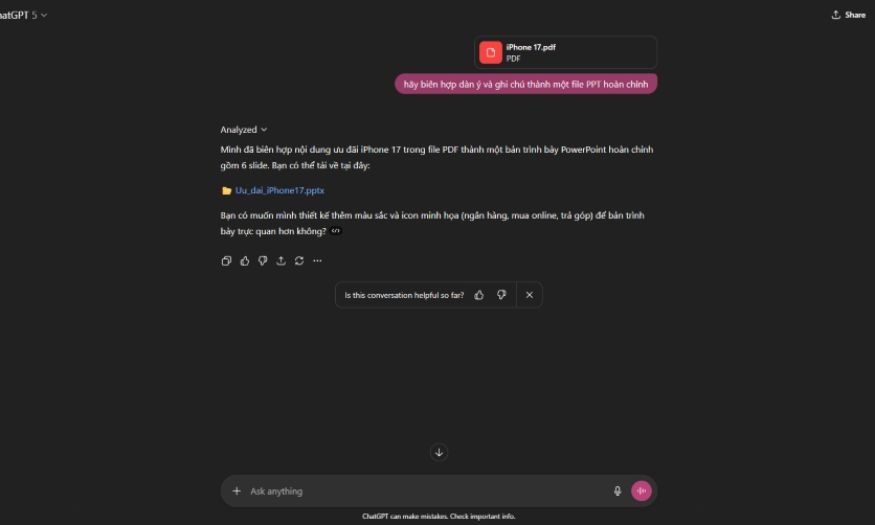
Step 4: Complete the product
Once all content has been approved, request ChatGPT to edit the outline and notes into a PowerPoint file (.pptx) and download it via the link provided by the AI. After downloading, open the file in PowerPoint, select "Enable Editing ," check each slide, adjust the font, color, and layout to match your brand or desired template. This is the time to add/change high-quality images, insert realistic charts, and ensure the aesthetic appeal before saving the final version.
Before finalizing, thoroughly review the content: verify data, correct spelling errors, remove any AI-generated or misleading information, and test the slides in presentation mode to ensure the pacing matches the speaker's notes. Save the final version in both .pptx and .pdf formats for easy sharing.
Important notes when applying this method
ChatGPT automates the conversion process but doesn't completely replace human review. Always check the accuracy of the information, adjust the design to match the brand, and ensure clarity for the audience. Only when AI is combined with your fine-tuning will your presentation truly be professional and persuasive.
5. Addresses for affordable and reliable ChatGPT Plus upgrades.
Upgrading your ChatGPT Plus account is a common need for many users today, especially those who frequently work on projects requiring high processing speeds, powerful upgrade features, or access to the latest models like GPT-4. However, many people are still wondering whether to upgrade directly on the OpenAI website or choose a third-party service to save costs while ensuring reliability. Below are the most popular upgrade options and methods currently available, along with a detailed analysis of their advantages and disadvantages to help you make an informed decision.
5.1. Upgrade directly from the OpenAI homepage.
This is the most legitimate and transparent upgrade method , suitable for those who want absolute security and to use the service directly from the developer. You simply log into your OpenAI account, select the ChatGPT Plus package , and proceed with payment.
-
Advantage:
-
Absolute safety and security are guaranteed because payments are made directly with OpenAI.
-
The service package price is transparent and fixed , currently at $20 USD/month , equivalent to approximately 500,000 – 520,000 VND depending on the exchange rate.
-
The payment is updated immediately after successful payment, with no waiting time or intermediaries.
-
-
Disadvantages:
-
The cost is high , especially for individual users or small businesses.
-
The payment process is complicated , requiring international credit cards (Visa/Mastercard/Amex), which poses difficulties for many users in Vietnam.
-
Domestic payment methods such as bank transfers or e-wallets are not supported.
-
5.2. Upgrading ChatGPT Plus at SaDesign – A Cost-Effective Solution
If you're looking for an affordable ChatGPT Plus upgrade , SaDesign is one of the top choices. This reputable software company specializes in providing AI-related services, graphic design software, and especially ChatGPT Plus at a much more competitive price than upgrading directly through OpenAI.
-
Key advantages:
-
Prices are 50-70% cheaper than the $20/month price listed on the OpenAI website, resulting in significant long-term cost savings for users.
-
Supports multiple convenient payment methods , including:
-
We are committed to protecting customer information and will not share data with third parties.
-
The upgrade process is quick, and the support team is enthusiastic and ready to answer any questions.
-
Suitable for both individuals and businesses , especially those needing to upgrade a large number of ChatGPT Plus accounts.
-
-
Disadvantages:
-
Since it's a third-party service, you need to choose a reputable provider to avoid risks.
-
It's important to double-check the information before making a payment to ensure transparency.
-
SaDesign is a reliable choice thanks to its long-standing brand and numerous positive user reviews. However, you should still keep your receipts or transaction history to ensure your rights are protected when you need support.
5.3. Payment methods for upgrading to ChatGPT Plus at SaDesign
One of SaDesign's strengths is its diverse payment methods , making it easy for users to choose the most suitable option:
-
Bank transfer:
You can transfer funds directly to SaDesign's business account:
-
MB Bank
-
Account number: 3966 999 9999
-
Account holder: SADESIGN Co., Ltd.
-
-
E-wallets: Supports payments via popular e-wallets such as Momo, ZaloPay, and VietPay , convenient for users without bank cards.
-
Visa and Paypal: For customers requiring international payments, SaDesign still supports domestic/international Visa payments or Paypal , ensuring speed and security.
6. Conclusion
By uploading your source documents, you can transform raw text into a polished presentation in just a few simple steps, significantly saving time on formatting and summarizing content. ChatGPT not only optimizes your slide creation process but also provides many creative ideas, helping you convey your message clearly, visually, and impressively. Instead of struggling with every small detail, you can now focus on the most important part: the story you want to tell and the value you bring to your audience. With ChatGPT, creating PowerPoint slides is no longer a chore but becomes an enjoyable, fast, and efficient experience.





















VIP Products








Best Selling Products
Windows 10 & 11 Pro Key
36 USD
Adobe Premiere Pro Account
99 USD
Genuine Cheap Canva Pro
39 USD
Copyright Adobe Lightroom Account
59 USD
Adobe Photoshop Copyright - Full App
120 USD
Plugin Retouch4me
69 USD
Upgrade Duolingo Super
29 USD
Autodesk All App Account Copyright
120 USD
Capcut Pro 1 Year
39 USD
Upgrade Genuine Office 365
49 USD
Freepik Premium Account
59 USD
Upgrade genuine Capture One account
120 USD
MidJourney Account
29 USD
ChatGPT Plus Account (GPT-4)
16 USD
Genuine Adobe Illustrator account
99 USD