Best Selling Products

Upgrade genuine Capture One account
120 USD

Adobe Premiere Pro Account
99 USD

Autodesk All App Account Copyright
120 USD

Genuine Adobe Illustrator account
99 USD

Copyright Adobe Lightroom Account
59 USD

Upgrade Duolingo Super
29 USD

Freepik Premium Account
59 USD

ChatGPT Plus Account (GPT-4)
16 USD

Adobe Photoshop Copyright - Full App
120 USD

Plugin Retouch4me
69 USD

Upgrade Genuine Office 365
49 USD

MidJourney Account
29 USD

Genuine Cheap Canva Pro
39 USD

Windows 10 & 11 Pro Key
36 USD

Capcut Pro 1 Year
39 USD
Simple Guide to Creating Videos Using ChatGPT - Anyone Can Do It
Nội dung
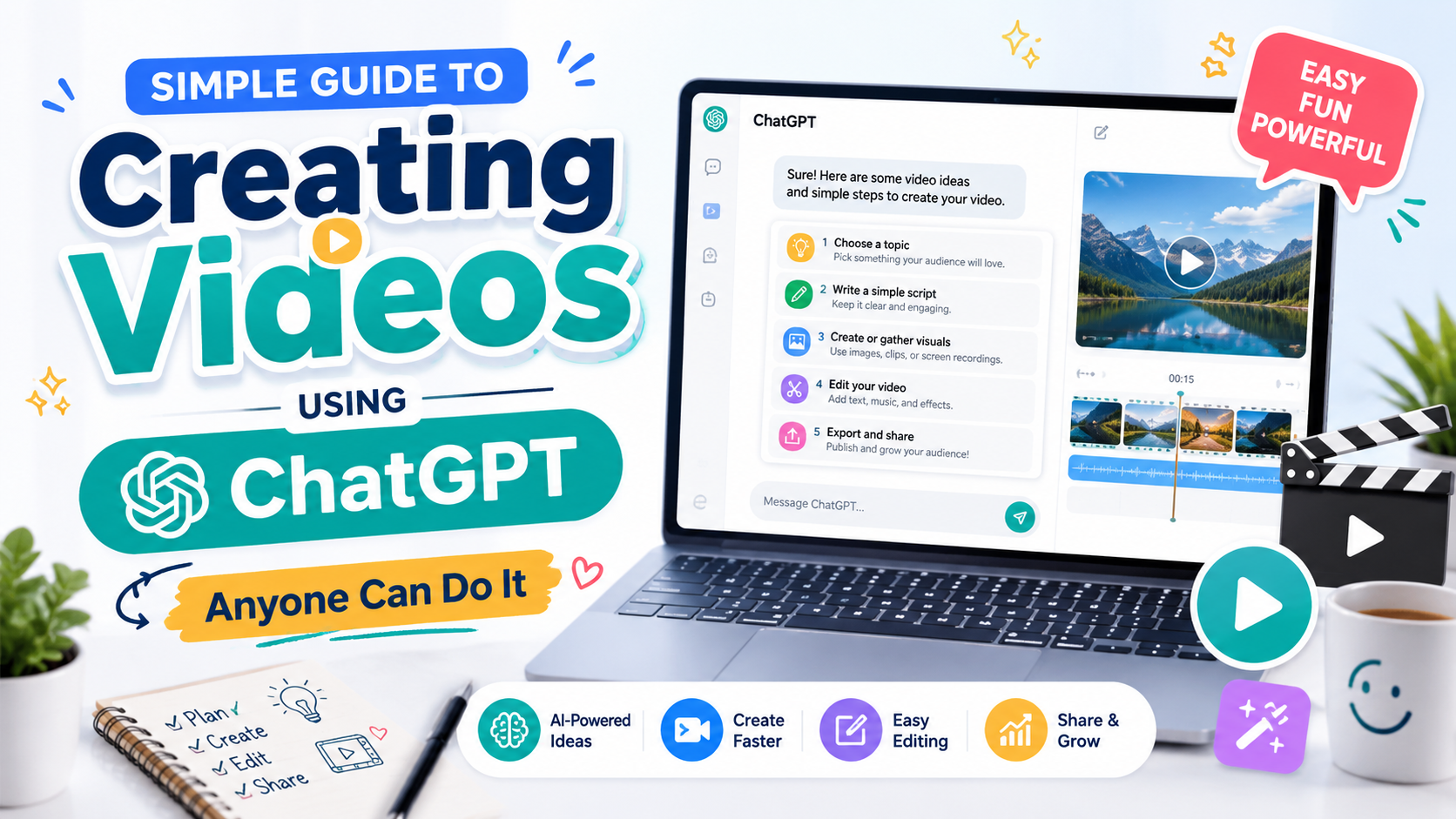
Today, even if you're not technically savvy or have professional video editing experience, you can still create impressive videos yourself.
1. Does ChatGPT support video creation?
Currently, ChatGPT goes beyond simply supporting content writing; it can also create complete videos when integrated with specialized AI tools. Simply provide your idea or desired topic, and ChatGPT will collaborate with image, voice, and video editing platforms to deliver a professional product quickly and efficiently.
Here are some of the standout features when creating videos using ChatGPT:
-
Automated script creation: Simply enter a topic or brief description, and ChatGPT will suggest detailed, engaging scripts tailored to your target audience.
-
Natural-sounding text-to-speech: AI technology transforms content into realistic spoken words, supporting multiple languages and accents.
-
Creating illustrations with AI: When combined with tools like DALL·E or Midjourney, ChatGPT can generate vivid, relevant images.
-
Automatic video editing: ChatGPT can integrate with video editing platforms such as Pictory, InVideo, VEED , or Visla , helping to combine images, audio, and effects into a complete video.
-
Integrated into a single platform: Most steps can be performed directly within ChatGPT via GPTs or third-party plugins, providing a seamless and time-efficient experience.
2. Create videos using ChatGPT via Invideo.
One of the simplest and most popular ways to create videos using ChatGPT is to combine it with Video Maker by Invideo AI . This is a tool specializing in automatic text-based video editing, ideal for beginners or anyone who wants to create videos quickly without needing advanced technical skills. In just a few steps, you can turn your ideas into a complete video, full of professional images, sound, and effects.
Step 1: Access Invideo AI via ChatGPT or directly on the website.
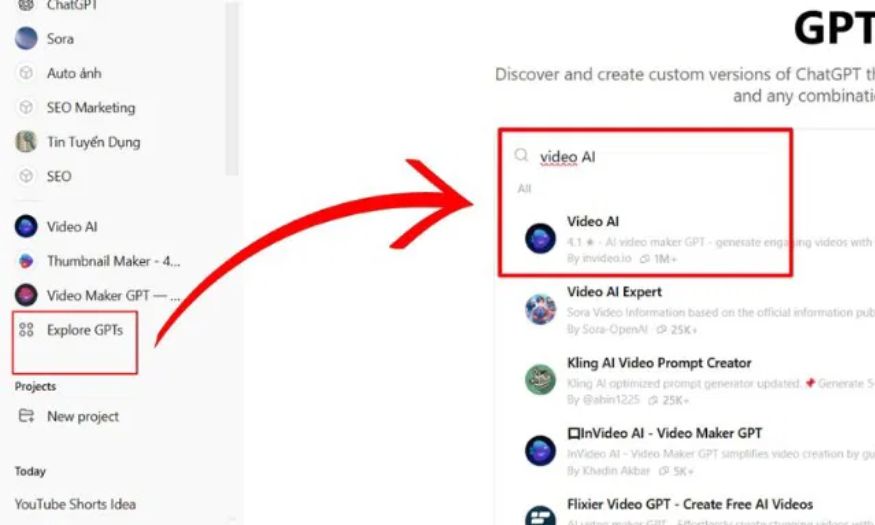
First, open ChatGPT and go to Explore GPTs . In the search bar, type " Video AI " and select the Video AI by Invideo.io tool . This is the quickest way to start working with Invideo directly within the ChatGPT interface.
Alternatively, if you want to access it directly, you can go to the link: https://invideo.io/ai/video-gpt/ and click "Get started now" . This way, you can directly access the Invideo AI platform to experience advanced features without going through ChatGPT.
Step 2: Enter the video topic or idea.
After accessing the workspace interface, you will see suggested topics from Invideo AI such as marketing videos, product tutorials, service introduction videos, etc. If you don't have a specific idea yet, you can choose one of these suggestions to get started.
If you already have an idea, simply enter a detailed description in the chat box. ChatGPT will analyze the content and automatically suggest a suitable scenario, saving you time and ensuring your content is well-structured and on track.
Step 3: Adjust and optimize the scenario.
After ChatGPT sends back the summary or script, read it carefully and check if the content meets your expectations. If there are any aspects you are not satisfied with, you can request ChatGPT to make revisions such as changing the writing style, adding creative ideas, or removing content.
Once you're satisfied with the script, simply text "OK" to confirm. ChatGPT will then move on to the next step, beginning the automated video editing process.
Step 4: Get the video link and log in to Invideo.
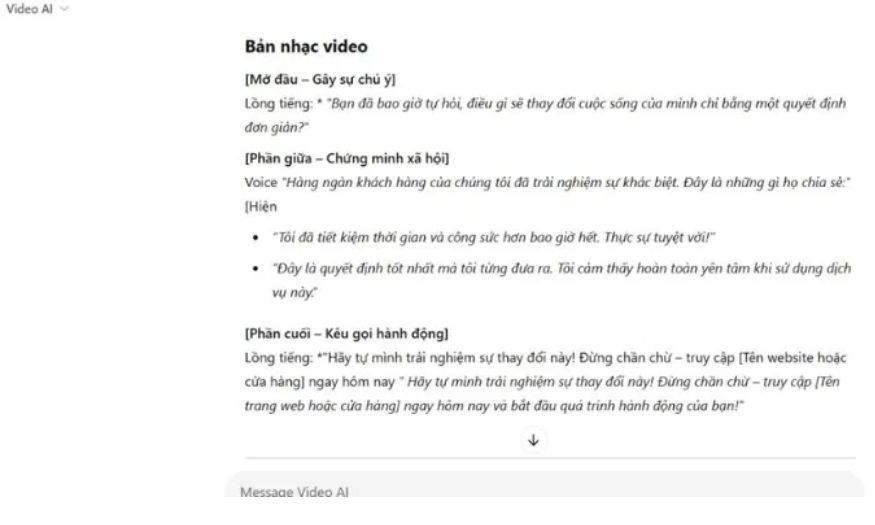
Once complete, ChatGPT will send you a video link . If you already have an Invideo account, simply click the link to access the workspace and view the automatically edited video.
If you don't have an account yet, the system will ask you to create one. The registration process is quite quick, taking only a few minutes before you can continue editing and perfecting your video.
Step 5: Edit the video to personalize it.
In Invideo's editor, you can customize your videos to your own style. Some notable features include: changing images, adjusting background videos, adding transition effects, or inserting your brand logo.
This is a crucial step to ensure the video reflects your personal style or aligns with your marketing campaign. Once complete, don't forget to click "Save Changes" to save all your modifications.
Step 6: Export and download the video to your device.
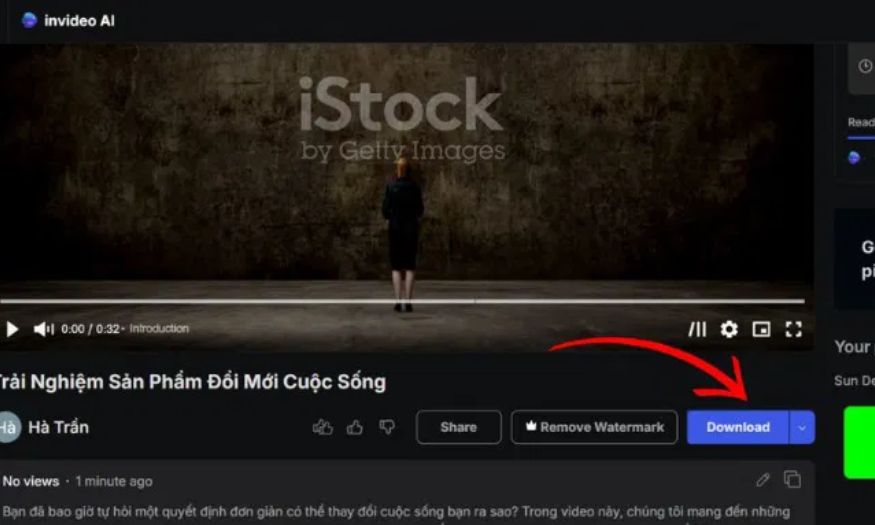
Once the video is complete, simply select "Download" to export it. Before downloading, you can customize settings such as resolution, file format, or audio quality to ensure the video meets your desired standards.
Finally, tap “Download” and save the video to your device. Now you have a professional video, ready to share on platforms like TikTok, YouTube, Facebook, or use for promoting your products or services.
3. Create videos using GPT via VEED
Besides Invideo, you can also easily create videos using ChatGPT through VEED , a powerful and flexible online video editing platform. With Video GPT by VEED , you can save considerable time thanks to its ability to automatically write scripts, suggest images, add voiceovers, and edit videos in just minutes. This is an ideal choice for beginners or content creators who want to produce high-quality videos without needing professional video editing skills.
Step 1: Find and activate Video GPT by VEED on ChatGPT
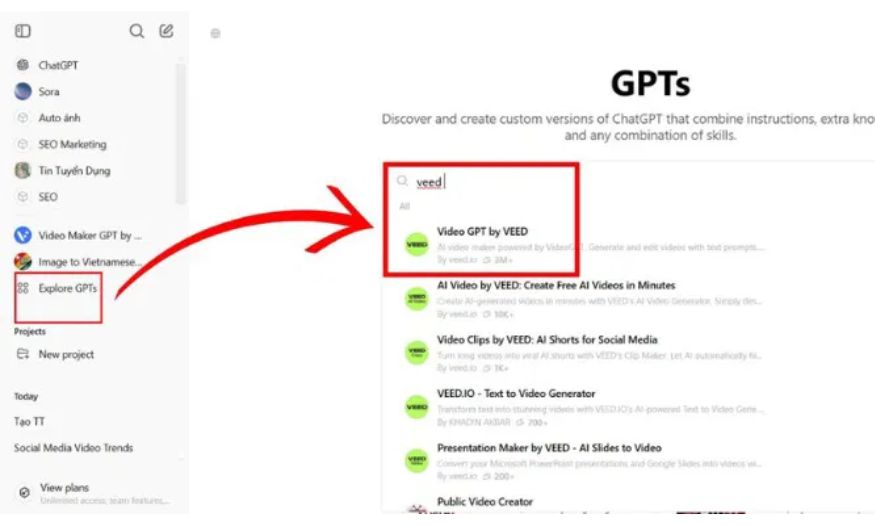
First, open ChatGPT and access the Explore GPTs section . In the search bar, enter the keyword "VEED" . When the results appear, select "Video GPT by VEED" to begin the video creation process.
This method allows you to directly connect ChatGPT and the VEED platform, thereby optimizing the entire video production process within a single interface, which is very convenient and saves time.
Step 2: Enter the video details.
At this stage, you need to provide ChatGPT with crucial information so that the AI understands your requirements and can guide the video content. Provide detailed descriptions of: the video topic , target audience , video purpose (product introduction, education, entertainment, etc.), desired length , and any other special requirements.
ChatGPT will use the data you provide to build a complete video script , ensuring the content aligns with your goals and is engaging for viewers.
Step 3: Review and adjust the script
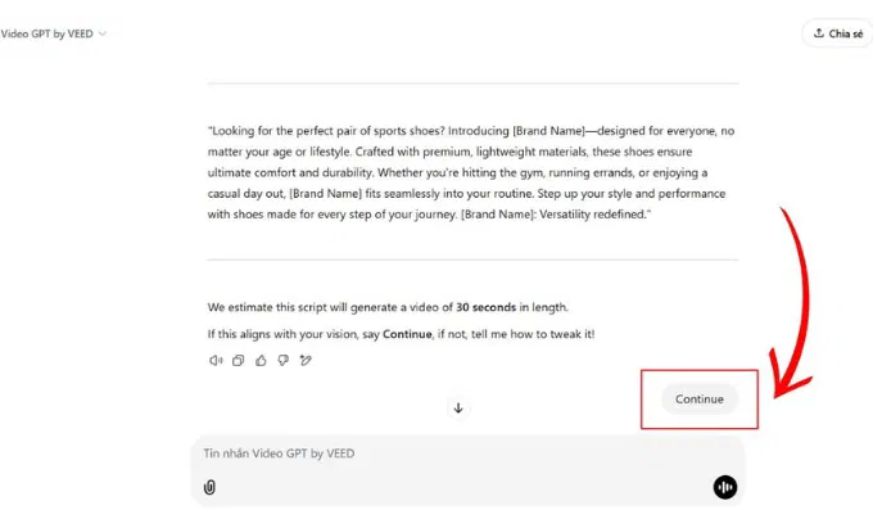
After the script is created, ChatGPT will send you a detailed draft for your review. This is when you need to carefully read, evaluate, and request revisions if necessary, such as adding information, changing the presentation style, or shortening the content.
Once you're satisfied with the script, simply click "Continue" and ChatGPT will automatically move to the video editing step. This saves time while ensuring the video accurately reflects your vision.
Step 4: Get the video preview link
Once the video editing process is complete, ChatGPT will provide a direct link to the processed video on VEED. Simply click on this link to preview the video.
This is a crucial review step, helping you assess the overall image, sound, and composition before proceeding with detailed editing.
Step 5: Edit the video on VEED
In VEED's editing interface, you'll have a range of intuitive tools to personalize your videos . You can quickly add subtitles, insert background music, change the voiceover, adjust visual effects, or cut and splice footage.
Thanks to its user-friendly interface and drag-and-drop functionality, even those without video editing experience can create professional-looking videos in a short amount of time.
Step 6: Complete and export the video
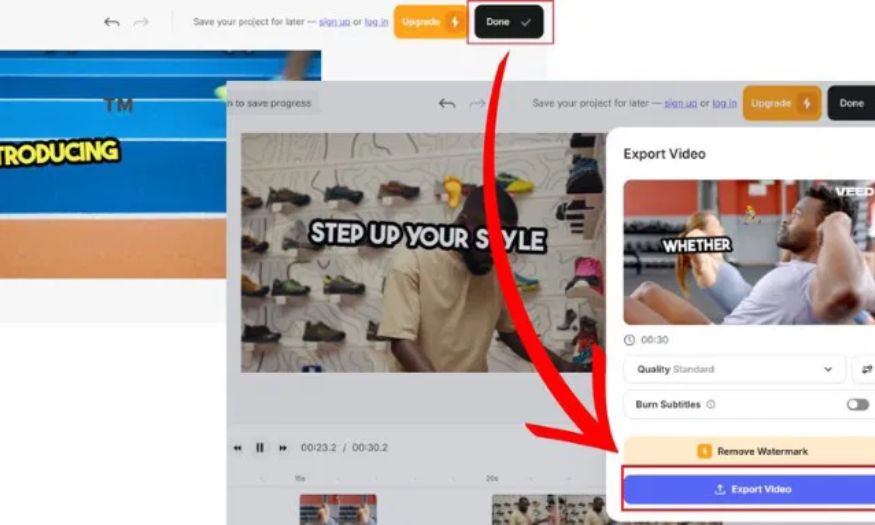
Once you've finished all the edits, tap "Done" in the upper left corner of the screen to end the editing process. Next, select "Export Video" to start exporting the video file.
In this step, VEED will optimize video quality according to your chosen settings, ensuring sharp video that meets your needs.
Step 7: Download the video to your device.
Finally, simply tap “Download” , select a popular format like MP4 , and confirm the download. The completed video will be saved directly to your device, ready to share on platforms like TikTok, YouTube, Facebook , or use for marketing campaigns, training, or internal communications.
4. How to create videos using ChatGPT via Pictory
Pictory is a standout tool that helps you create videos from text in just minutes. It's the perfect choice for those who want to create content summaries, promotional videos, or professional communication videos. When integrated with ChatGPT , this process becomes fast, intuitive, and fully automated, allowing you to easily turn your ideas into finished products without needing video editing skills.
Step 1: Access and activate GPT Picture
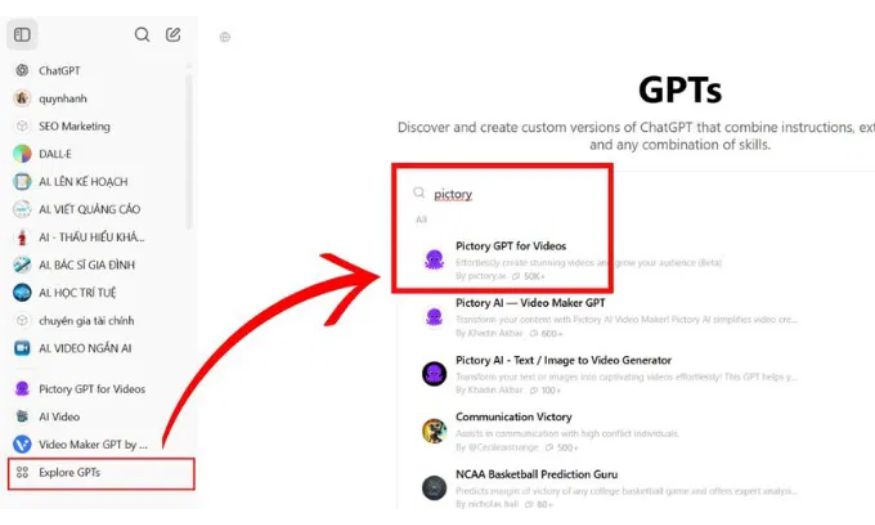
Open ChatGPT , select Explore GPTs from the toolbar. In the search box, enter the keyword "Pictory" . A list of related applications will then appear; select the first one to begin the video creation process.
Enabling GPT directly within ChatGPT allows you to manage the entire process from scriptwriting to video editing without switching between platforms, saving you time and effort.
Step 2: Start a conversation with GPT
After selecting an application, press "Start Chat" to open the chat interface. At this point, GPT Pictory is ready to receive your request and guide you step-by-step to create your video.
This is where you can share your ideas, goals, and desired video style. The user-friendly chat interface makes it easy for even beginners to navigate without difficulty.
Step 3: Enter the information and request ChatGPT to create the script.
Provide important information to help ChatGPT understand your needs, including:
-
Video topics: For example, product reviews, knowledge sharing, or service promotions.
-
Target audience: To help ChatGPT optimize its tone and content delivery.
-
Video purpose: Increase brand awareness, boost sales, or provide education.
-
Desired duration: Determine a suitable length, usually from 30 seconds to 5 minutes.
After receiving the data, ChatGPT will automatically create a detailed script . If the content isn't to your liking, you can request revisions until you're completely satisfied. Once the script is complete, confirm it so ChatGPT can begin the video editing process.
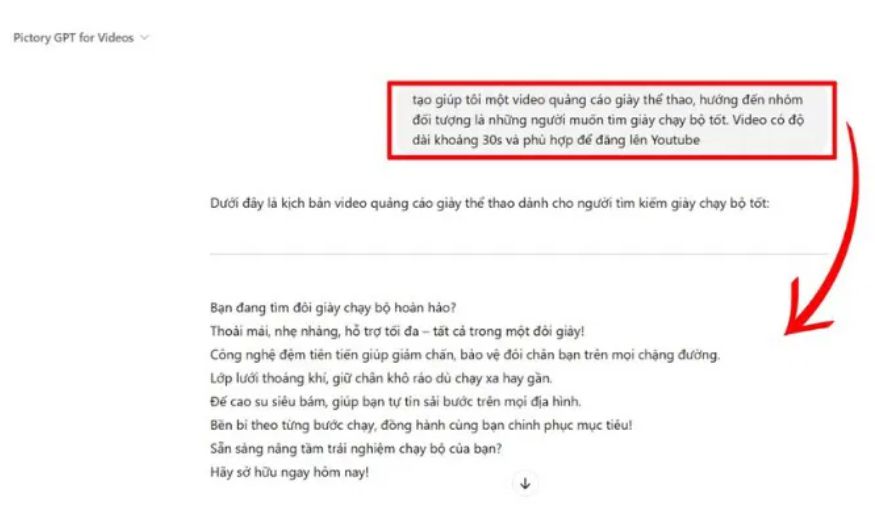
Step 4: Connect ChatGPT to the Pictory platform
At this step, the system will ask you to allow ChatGPT to connect directly with Pictory . Click “Allow” to synchronize data and allow the tool to process video based on the scenario you just confirmed.
This connection allows ChatGPT and Pictory to work together seamlessly, automatically adding appropriate images, effects, and voiceovers, transforming text-based scripts into lively videos.
Step 5: Get the link and watch the complete video.
After the video editing process is complete, ChatGPT will send you a direct link . Click on this link to open the finished video.
Here, you can preview the video, assess the image quality, sound, and overall content. If editing is needed, Pictory allows you to go back and change certain elements such as color, font, or frame layout.
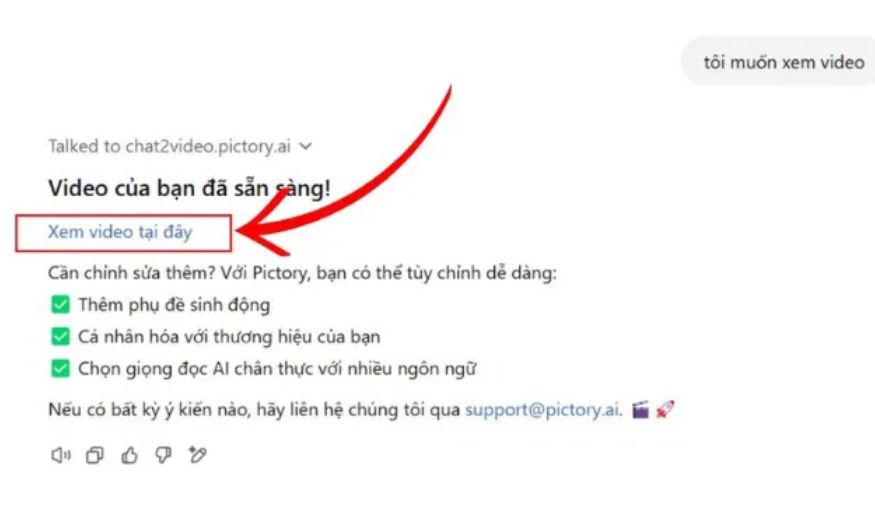
5. Create videos using ChatGPT via Visla
Visla is an AI-powered video editing tool integrated into the GPT ecosystem, allowing you to create dynamic, professional videos with just a few simple steps. When combined with ChatGPT , the entire process from ideation and content creation to video presentation becomes easy and seamless. This is an ideal choice for both beginners and content creators looking to optimize production time.
Step 1: Activate Visla in ChatGPT
From the main ChatGPT interface , select "Explore GPTs" . In the search bar, type "Visla" , then select the first application that appears in the list.
This will allow you to connect directly to the Visla video editing tool without accessing an external platform, saving time and centralizing the entire process in one workspace.
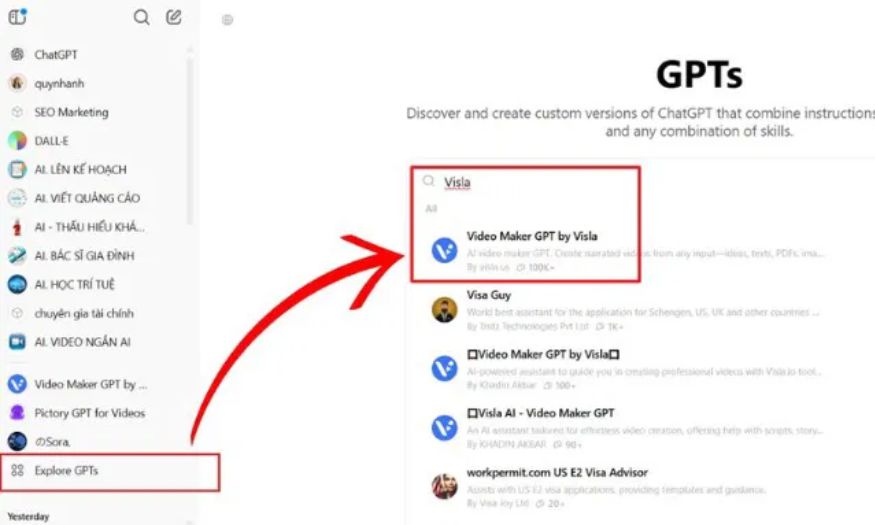
Step 2: Start a conversation with ChatGPT and Visla
Click “Start chat” to begin the conversation. ChatGPT and Visla will then work together to support you from scriptwriting to creating a complete video.
The chat interface is designed to be simple and intuitive, making it easy for beginners to get started without needing any specialized knowledge of video editing.
Step 3: Enter basic information to build the script.
Provide important information so ChatGPT can understand your request, including:
-
Video topics: For example, product promotion, knowledge sharing, brand introduction.
-
Desired video length: Typically 30 seconds to 5 minutes, depending on the purpose.
-
Target audience: Clearly define your target audience so ChatGPT can create a script that is appropriate in terms of tone and content.
Based on this data, ChatGPT will automatically generate a detailed video script , ensuring the content is coherent, engaging, and on track.
Step 4: Confirm to begin video editing.
Once the script is complete, ChatGPT will ask if you want to proceed with creating a video based on the script you just built.
-
Type the command "Create video from the above script" and press "Confirm" to confirm.
-
Immediately afterward, Visla will begin the automated video editing process, combining images, effects, and sound that are appropriate for the content.
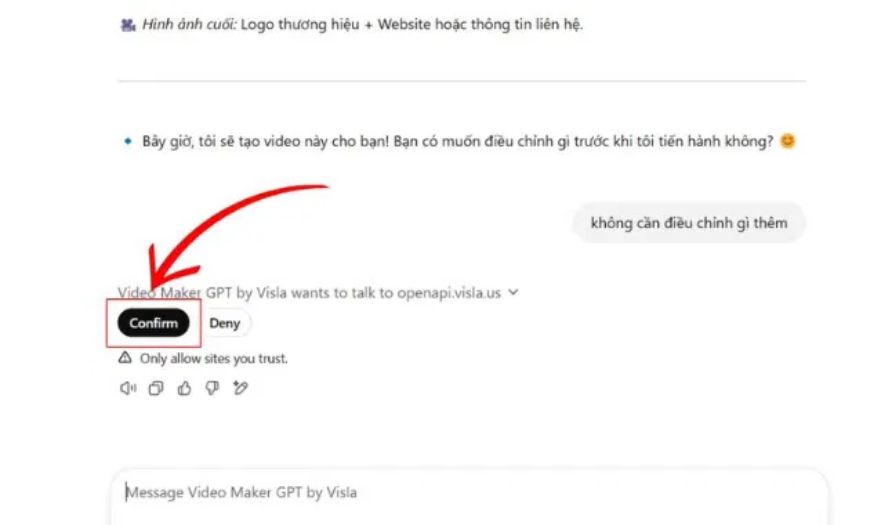
Step 5: Get the video preview link
Once the processing is complete, ChatGPT will send a video link . You can:
-
Click "Watch video" to see the complete build.
-
Select “Save to edit” if you want to save the video and make further edits later.
This step helps you assess the overall video before proceeding with detailed adjustments.
Step 6: Log in and enter the video claim code.
To edit videos, you need to log in to your Visla workspace using your email or Google account.
-
After logging in, enter the video claim code provided by ChatGPT to open the video directly in the editor.
-
This is an important step to ensure your videos are synchronized and easy to edit.
Step 7: Edit the video using visual tools.
In Visla's editing interface, you can freely customize your video to your liking:
-
Editing footage: Remove unnecessary segments or rearrange the sequence for better organization.
-
Add text and subtitles: Enhance professionalism and convey your message clearly.
-
Adding background music and motion effects makes videos more lively and engaging.
The operations are designed with intuitive drag-and-drop functionality , making it easy for beginners to use while still delivering high-quality results.
Step 8: Export and download the video to your device.
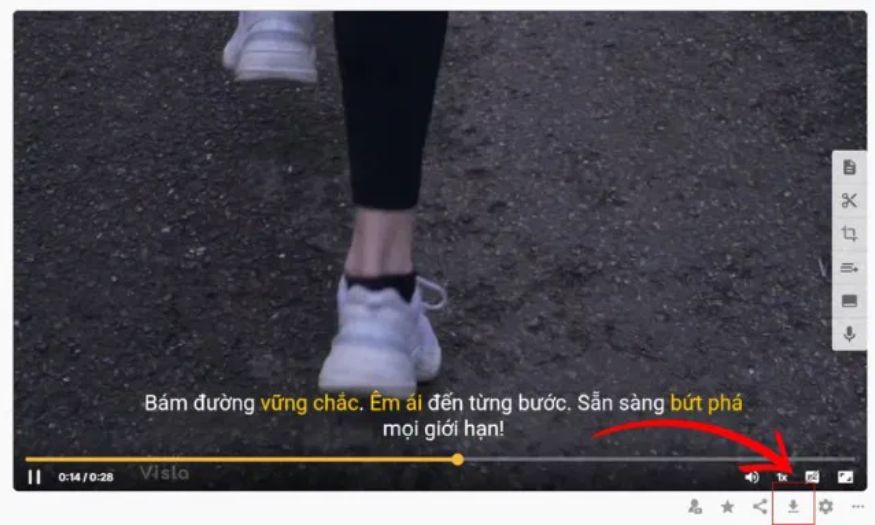
Once you're satisfied with the video, tap "Export ," then select "Download" to save the video to your device.
-
You can choose settings such as file format (MP4, MOV, etc.) or resolution to suit the uploading platform like YouTube, TikTok, or Facebook.
-
Once uploaded, the video is ready to be shared or used for marketing, training, or internal communication purposes.
6. Conclusion
Creating videos using ChatGPT has become a smart and simple option for anyone wanting to produce quality content. You don't need in-depth video editing knowledge; just an idea and a few basic steps are enough to create a video with vivid images, sound, and effects. However, to make your video truly stand out and attract viewers, you should invest in content moderation, personalizing your presentation style, and ensuring the legality of the images and sounds used. By combining artificial intelligence with personal creativity, you can create videos that are not only professional but also have a unique style, ready to captivate audiences in the digital age.





















VIP Products








Best Selling Products
Upgrade genuine Capture One account
120 USD
Adobe Premiere Pro Account
99 USD
Autodesk All App Account Copyright
120 USD
Genuine Adobe Illustrator account
99 USD
Copyright Adobe Lightroom Account
59 USD
Upgrade Duolingo Super
29 USD
Freepik Premium Account
59 USD
ChatGPT Plus Account (GPT-4)
16 USD
Adobe Photoshop Copyright - Full App
120 USD
Plugin Retouch4me
69 USD
Upgrade Genuine Office 365
49 USD
MidJourney Account
29 USD
Genuine Cheap Canva Pro
39 USD
Windows 10 & 11 Pro Key
36 USD
Capcut Pro 1 Year
39 USD