Best Selling Products

Capcut Pro 1 Year
39 USD

Adobe Photoshop Copyright - Full App
120 USD

Upgrade genuine Capture One account
120 USD

Autodesk All App Account Copyright
120 USD

Plugin Retouch4me
69 USD

Adobe Premiere Pro Account
99 USD

ChatGPT Plus Account (GPT-4)
16 USD

Upgrade Duolingo Super
29 USD

Windows 10 & 11 Pro Key
36 USD

Copyright Adobe Lightroom Account
59 USD

Genuine Adobe Illustrator account
99 USD

Freepik Premium Account
59 USD

MidJourney Account
29 USD

Genuine Cheap Canva Pro
39 USD

Upgrade Genuine Office 365
49 USD
How to Use Figma in ChatGPT: Elevate Your Design Experience
Nội dung
- 1. What is Figma and why is it important in the design world?
- 2. What can ChatGPT do for designers?
- 3. Guide to Using Figma in ChatGPT
- 3. Step 1: Open ChatGPT and go to the App Settings section
- 3.2 Step 2: Select Figma in the application list
- 3.3 Step 3: Log in to Figma and allow access
- 3.4 Step 4: Choose the access scope suitable for your needs
- 3.5 Step 5: Confirm the connection and check its operation
- 3.6 Step 6: Use ChatGPT to analyze and create content for the Figma file
- 3.7 Step 7: Revoke permissions and manage security when needed
- 4. Practical notes through situations of using ChatGPT in Figma
- 5. How to write smart prompts when using ChatGPT for design
- 6. AI Software World – A reputable place to upgrade ChatGPT Plus at the cheapest price in Vietnam
- 7. Conclusion
In an era of rapidly developing technology, combining artificial intelligence into design is gradually becoming a popular trend. The two most outstanding tools today are Figma and ChatGPT, which together create a perfect duo for designers.
1. What is Figma and why is it important in the design world?
Figma is a user interface design platform (UI/UX) that works directly on the browser, allowing you to create, edit, and share designs anywhere without needing to install complex software. Thanks to its online working feature, Figma helps designers, developers, BAs, or clients work together on the same design file, track changes in real time, and communicate directly right in the file. This is the difference that helps Figma become a “national” tool in the field of digital product design today.
One of the factors that makes Figma stand out is its smart component system, allowing reuse of design elements while still ensuring consistency for the entire project. Besides, the interactive prototype feature helps you simulate user flows and test product experiences right on the design without writing a single line of code. Thanks to that, Figma is not only an interface design tool, but also a bridge between ideas and users’ real experiences.
Compared with traditional tools such as Adobe XD or Sketch, Figma has a superior advantage in collaboration ability and teamwork speed. Users do not need to send files back and forth or worry about version conflicts, everything is automatically saved on the cloud. This is exactly what makes Figma the top choice of design teams, BAs, and startups that want to work quickly, flexibly, and effectively in the modern digital environment.
.jpg)
2. What can ChatGPT do for designers?
ChatGPT is gradually becoming a useful “virtual design assistant” for every designer thanks to its ability to understand natural language and respond intelligently. Instead of spending hours thinking of ideas or writing content for interfaces, you only need to describe your requirements in a few short sentences, and ChatGPT will suggest everything from layout, color tone, to the message that fits the design style. With strong contextual thinking ability, ChatGPT helps you define the goals and creative direction more clearly for each project.
Besides, ChatGPT also provides strong support in the brainstorming process and UX copywriting – two stages that often take designers the most time. You can ask ChatGPT to create content for CTA buttons, product descriptions, or suggest ways to present information more concisely and attractively. When combined with Figma, ChatGPT can play the role of a companion content writer, helping you complete an interface that is not only visually beautiful but also conveys the message clearly and effectively.
For example, when you design a landing page for an English learning app, ChatGPT can suggest a color palette suitable for the brand, choose a modern font style, or write an attractive description that encourages users to register. If you need ideas for the homepage layout, simply ask ChatGPT to create the prompt “modern, friendly layout for young users” and you will immediately have specific suggestions to sketch on Figma. Thanks to that flexibility, ChatGPT has become an indispensable tool that helps designers optimize creativity and save time in every project.
3. Guide to Using Figma in ChatGPT
3. Step 1: Open ChatGPT and go to the App Settings section
First, open ChatGPT on the browser or app you usually use. Log in with your account to make sure all changes and connections are saved correctly under your username. When entering the main interface, find the settings icon or your avatar in the upper-left corner, then click it to open the settings menu.
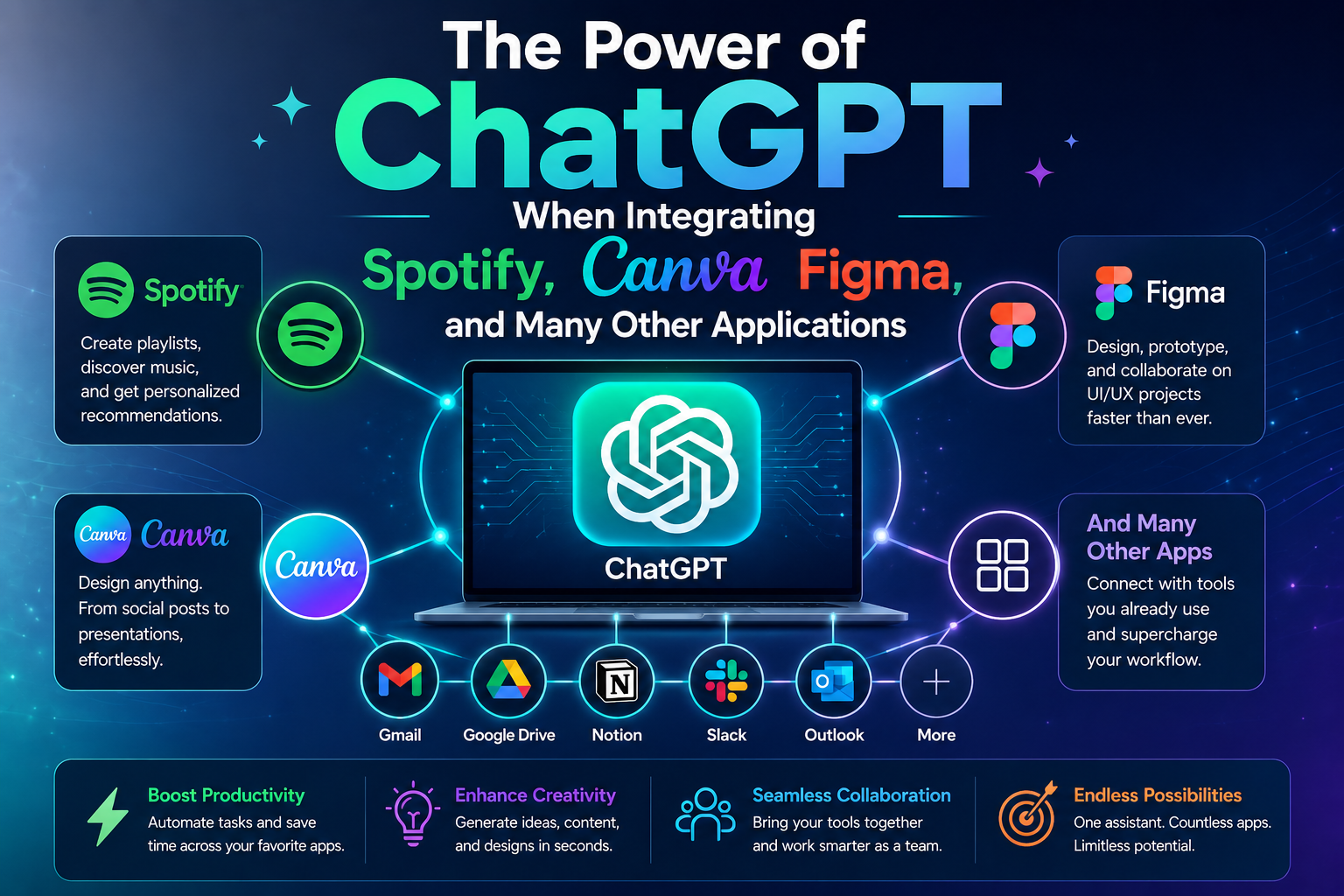
In the settings menu, select Apps and Connectors. This is where ChatGPT lists external applications that you can connect, for example Canva, Spotify, and Figma. Starting from here helps you manage access permissions clearly and safely before proceeding to link with Figma.
3.2 Step 2: Select Figma in the application list
When the Apps and Connectors window appears, look at the list of application icons and find the Figma box with its recognizable colorful logo. Click the Figma box to open the connection description page, where you will see information about the permissions Figma requires and the features ChatGPT will be able to perform when access is allowed.
The description page will briefly present functions such as viewing files, listing projects, or creating comments. Read this section carefully to clearly understand the scope of access. If you find it reasonable, click the Connect button to continue the authorization step.
.jpg)
3.3 Step 3: Log in to Figma and allow access
After selecting the connection, the window will switch to Figma’s login page. If you are not logged in, enter your email and password or use the login method via Google or your company’s SSO. Logging in helps confirm your identity and ensures that you are granting permission to the correct account.
After logging in, Figma will display a screen requesting permission for ChatGPT. Here, you will see detailed permissions such as reading files, editing, or managing comments. Consider the level of permission suitable for your actual needs before clicking Allow.
.jpg)
3.4 Step 4: Choose the access scope suitable for your needs
In some cases, Figma allows you to choose a specific access scope, for example only allowing access to one project or one specific file. If you only want ChatGPT to analyze or suggest, choose read-only permission. If you need ChatGPT to make changes directly on the file, choose editing permission but only on a test file or copied file.
Choosing the correct scope helps secure information and limit risks. For sensitive projects, you should create a copy of the file and grant permission to that copy instead of granting permission to the original file.
.jpg)
3.5 Step 5: Confirm the connection and check its operation
When permission granting is complete, return to ChatGPT and check in Apps and Connectors; you will see Figma showing the status Connected. Open a new chat window and try a simple command such as asking ChatGPT to list files or frames from a Figma link that you have shared.
If ChatGPT returns a list or frame previews, the connection is working normally. If there is no response, check the permissions on Figma again, try logging out and logging in again, then repeat the process.
.jpg)
3.6 Step 6: Use ChatGPT to analyze and create content for the Figma file
When the connection is ready, you can ask ChatGPT to summarize the file structure, suggest UX improvements, or create microcopy versions for buttons and notifications. For example, ask ChatGPT to summarize three points that need optimization for the onboarding screen or suggest five variations for a call-to-action button.
ChatGPT will rely on the file content that it is allowed to read to return specific suggestions. You can manually copy those suggestions into Figma or, if the integration supports direct editing, let ChatGPT insert content into text layers according to your request.
3.7 Step 7: Revoke permissions and manage security when needed
If you want to disconnect after testing, go to the Figma settings section in your account or return to Apps and Connectors in ChatGPT and select Disconnect. This will immediately cut off ChatGPT’s access to files and projects.
In addition, if you notice any unusual activity, change your Figma password and check the applications that have been granted permission. Always prioritize limited permission granting and use copied files for sensitive tests to protect your project data.
4. Practical notes through situations of using ChatGPT in Figma
The true power of combining ChatGPT and Figma does not only lie in the connection ability, but also in specific usage situations that help designers save time, increase productivity, and be more creative at work. When you are starting a new interface design project, ChatGPT can become a powerful collaborator. Simply describe the type of application, user group, and style you are aiming for, and ChatGPT will suggest screen structure, arrange layout components, and main functional areas. Instead of having to start from a blank sheet of paper, you already have a framework guide to test and refine directly in Figma.
When entering the interface content writing stage, ChatGPT continues to prove its role in UX Writing. It can help you create natural, concise microcopy suitable for the user context. Small lines such as “Sign up now”, “Try again”, “Forgot your password?” may seem simple, but they greatly affect the overall experience. ChatGPT helps you try many versions at once, compare tone of voice, and choose the best expression. Especially when writing welcome messages, error notifications, or usage instructions, this AI helps the content become more natural and friendly while still maintaining professionalism.
Another interesting application is that ChatGPT supports you in naming and describing features in Figma. Sometimes designers have great ideas but feel confused when expressing them briefly and clearly. ChatGPT can help present design ideas in coherent language, creating logical, easy-to-read, and easy-to-understand descriptions for clients or developers. Besides, ChatGPT also helps simulate user flow, meaning the user’s behavioral flow in the product. You only need to describe the user’s goal, and ChatGPT will rewrite interaction scenarios, thereby helping you detect confusing points and adjust reasonably in each screen.
Finally, ChatGPT supports UX analysis and optimization. When you provide screenshots or describe a Figma file, ChatGPT can point out unreasonable points in the user journey, suggest button placement, or improve color contrast. This is especially useful when you work independently without a UX team supporting you. Combining ChatGPT with Figma is like having a UX expert always accompanying you, helping you refine every small detail to bring the best experience to users.
.jpg)
5. How to write smart prompts when using ChatGPT for design
Using ChatGPT effectively depends a lot on how you write prompts. A good prompt is like the way you clearly assign tasks to a capable colleague: the more specific you are, the closer the result will be to your expectation. Three important elements in a smart prompt are clarity, context, and result orientation. “Clarity” means stating exactly what you want ChatGPT to do. “Context” helps AI understand the design environment, style, or goal you are aiming for. “Result orientation” means you need to specify the expected output, for example: describing a layout, writing text, or suggesting ideas.
An effective prompt structure can begin with the role, goal, and specific conditions. For example: “Act as a UX Designer. Suggest a layout for the onboarding screen of a finance app, using a navy blue color tone, minimalist style, and focusing on a friendly experience.” This prompt helps ChatGPT understand exactly the role to take on, the design goal, and the desired style. The returned result will be more specific and easier to apply directly into Figma without needing many edits.
Below are some useful prompt groups that designers can use every day. When you need layout suggestions, you can ask: “Suggest a layout for the homepage of a food ordering app, prioritizing the search section at the top and promotions in the middle.” If you want to write UX copy, try: “Write 5 versions for a registration button, with a friendly tone, encouraging new users to join.” When you need to optimize a landing page, the prompt can be: “Analyze the landing page of a smartwatch product, suggest how to rearrange the CTA and testimonial sections to increase conversion rate.” And if you want to generate a component description, ask: “Describe in detail the product card component in an e-commerce app, including image, name, price, and buy now button.”
When writing prompts, the more specific you are, the more accurately ChatGPT will work. Do not hesitate to add details such as target users, desired emotions, or brand style. Each small line of description can help ChatGPT “understand” the project like a member of the design team, thereby bringing more creative, refined, and easy-to-deploy suggestions in Figma.
.jpg)
6. AI Software World – A reputable place to upgrade ChatGPT Plus at the cheapest price in Vietnam
If you are looking for a place to upgrade genuine ChatGPT Plus at a reasonable price, AI Software World is the leading trustworthy choice. This provider specializes in offering premium licensed software such as ChatGPT Plus, Canva Pro, Photoshop Full App, CapCut Pro, Google One, and many other tools, meeting the needs of studying, working, and content creation. With a professional technical team and many years of experience, AI Software World guarantees 100% genuine products, with full VAT invoices, clear licenses, suitable for both individuals and businesses. Their reputation has been confirmed through thousands of customers both in Vietnam and internationally.
Not only ensuring quality, AI Software World also stands out thanks to its extremely competitive pricing. Users can easily upgrade ChatGPT Plus without needing an international card or worrying about additional costs. After payment, you will receive detailed instructions on how to activate the account and use the premium features of GPT-5. The support team is always available 24/7 to help customers handle every situation quickly and wholeheartedly. This is the optimal solution for anyone who wants to experience licensed, stable, and most cost-saving ChatGPT Plus today in Vietnam.
7. Conclusion
The combination between ChatGPT and Figma is opening a smarter way of working for designers. ChatGPT does not replace humans, but plays the role of a companion who helps you think faster, write better, and complete interfaces better. When you clearly understand how to take advantage of the power of AI in Figma, you will easily create beautiful products with depth and a strong personal mark. Design in the future will not only rely on skills, but also on the ability to combine human creativity and artificial intelligence to bring users the greatest experience.





















VIP Products








Best Selling Products
Capcut Pro 1 Year
39 USD
Adobe Photoshop Copyright - Full App
120 USD
Upgrade genuine Capture One account
120 USD
Autodesk All App Account Copyright
120 USD
Plugin Retouch4me
69 USD
Adobe Premiere Pro Account
99 USD
ChatGPT Plus Account (GPT-4)
16 USD
Upgrade Duolingo Super
29 USD
Windows 10 & 11 Pro Key
36 USD
Copyright Adobe Lightroom Account
59 USD
Genuine Adobe Illustrator account
99 USD
Freepik Premium Account
59 USD
MidJourney Account
29 USD
Genuine Cheap Canva Pro
39 USD
Upgrade Genuine Office 365
49 USD