Best Selling Products

Upgrade Duolingo Super
29 USD

Adobe Premiere Pro Account
99 USD

Plugin Retouch4me
69 USD

Upgrade genuine Capture One account
120 USD

Capcut Pro 1 Year
39 USD

Genuine Adobe Illustrator account
99 USD

Upgrade Genuine Office 365
49 USD

Windows 10 & 11 Pro Key
36 USD

Autodesk All App Account Copyright
120 USD

Genuine Cheap Canva Pro
39 USD

Copyright Adobe Lightroom Account
59 USD

ChatGPT Plus Account (GPT-4)
16 USD

Adobe Photoshop Copyright - Full App
120 USD

MidJourney Account
29 USD

Freepik Premium Account
59 USD
How to Use Gamma AI with Google Slides, Figma, and Loom to Triple Your Slide Creation Speed
Nội dung
- 1. Things You Need to Know About Gamma AI
- 1.1 What is Gamma AI and Why It Has Become a Phenomenon in the Creative Industry
- 1.2 Why Gamma AI Has Created a Buzz in the Content Creation Community
- 1.3 Outstanding Benefits That Make Gamma AI So Popular
- 2. How to Integrate Gamma AI with Google Slides
- 2.1 Step 1: Prepare Content in Gamma AI
- 2.2 Step 2: Export to Google Slides
- 2.3 Step 3: Optimize Slides with the Gamma Slides Enhancer Add-On
- 3. Integrating Gamma AI with Figma to Turn Ideas into Professional Designs
- 3.1 Step 1: Connect Your Gamma AI Account to Figma
- 3.2 Step 2: Automatically Convert Slides into Design Frames in Figma
- 3.3 Step 3: Collaborate and Finalize in Figma
- 4. Integrating Gamma AI with Loom for More Engaging Presentations Than Ever Before
- 4.1 Step 1: Create a Complete Presentation in Gamma AI
- 4.2 Step 2: Connect Your Loom Account to Start Recording
- 4.3 Step 3: Record and Share Instantly in Seconds
- 5. Combined Benefits of Integrating Gamma AI with Google Slides, Figma, and Loom
- 5.1 Comparison Table
- 5.2 Practical Applications in Education
- 5.3 Practical Applications in Marketing
- 5.4 Practical Applications in Business
- 6. Frequently Asked Questions
- 6.1 Is Gamma AI Free?
- 6.2 Can I Use Gamma AI on Mobile?
- 6.3 Does Gamma AI Integration Require Technical Skills?
- 7. Conclusion
Gamma AI is opening a new era for slide creation with outstanding speed and significantly improved quality. When you know how to combine Gamma AI with Google Slides, Figma, and Loom, the creative process becomes much faster thanks to its ability to automatically design, optimize layouts, beautify content, and support visual presentations.

1. Things You Need to Know About Gamma AI
1.1 What is Gamma AI and Why It Has Become a Phenomenon in the Creative Industry
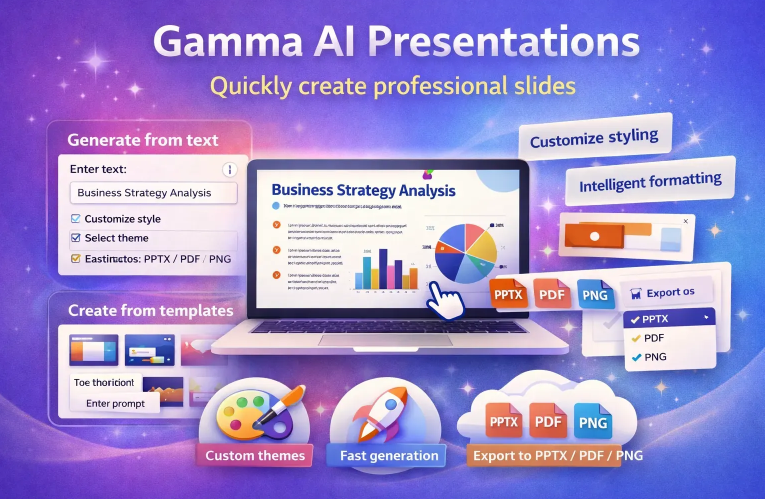
Gamma AI is an artificial intelligence platform that helps users create presentations, documents, and designs with just a few simple steps without requiring experience in visual design or layout composition. The appeal of Gamma AI comes from its ability to understand content context and automatically transform dry descriptions into visually appealing slide decks with a professional style. As a result, users save time, shorten the creative process, and focus more on ideas instead of struggling to edit every small detail.
1.2 Why Gamma AI Has Created a Buzz in the Content Creation Community
The explosive popularity of Gamma AI comes from the real efficiency it delivers, allowing anyone—from marketers and teachers to businesspeople and content creators—to produce high-quality presentations in a short amount of time. Instead of spending hours designing or searching for suitable visuals, users simply input data and let AI automatically optimize every element, from layout and colors to illustrations. This is exactly why Gamma AI has quickly become a favorite tool spreading rapidly throughout the creative community.
1.3 Outstanding Benefits That Make Gamma AI So Popular
Create complete slides or documents in a very short time to improve productivity
Automatically adjust layout, colors, and visuals to ensure aesthetics and consistency
Provide many beautiful and user-friendly templates suitable for various presentation purposes
Allow exporting content to familiar platforms such as Google Slides, PowerPoint, or Loom for more flexible sharing
(1).jpg)
2. How to Integrate Gamma AI with Google Slides
2.1 Step 1: Prepare Content in Gamma AI
First, log into your Gamma AI account and create a new project. Then input the content you want to turn into slides, such as an idea description, marketing plan, lesson, or key report arguments. Once data entry is complete, the system automatically analyzes the content and suggests a suitable structure, giving you a clear and coherent draft presentation in just seconds. You can freely refine it further by adding illustrations, editing titles, or inserting visual elements to make slides more dynamic before moving to the next step.
Gamma AI automatically analyzes content and suggests optimized structure
Automatically selects layout, color schemes, and styles that fit the topic
Allows editing each section before publishing
Helps save time on manual layout arrangement
2.2 Step 2: Export to Google Slides
Once you finish your presentation in Gamma AI, simply select the Export feature, choose Google Slides, and the system will automatically convert all content into Google Slides format within seconds. A new link will open directly in your browser so you can continue editing immediately. The most impressive part is that every element—from colors and visuals to charts and fonts—is preserved, ensuring a seamless transition without losing the aesthetic quality of the original design.
Quick export with just a few clicks
Preserves the entire original style and layout from Gamma AI
Supports direct opening in Google Slides for further editing
No need for manual format conversion or downloads
2.3 Step 3: Optimize Slides with the Gamma Slides Enhancer Add-On
After your presentation is available in Google Slides, you can further enhance its quality by installing the Gamma Slides Enhancer extension from Google Workspace Marketplace. This add-on works like a smart design assistant, automatically adding more engaging elements to your slides without requiring too much effort. With title suggestions, AI-generated visuals, and brand color synchronization, your entire deck becomes more vivid, professional, and aligned with your brand direction.
Suggests engaging titles suited to each slide’s content
Automatically adds AI visuals and animated charts
Synchronizes brand identity colors across the entire deck in seconds
Makes slides more creative without requiring design skills
(1).jpg)
3. Integrating Gamma AI with Figma to Turn Ideas into Professional Designs
If you use Figma for design or marketing work, combining it with Gamma AI will dramatically accelerate your creative workflow. Instead of rebuilding layouts or designing each frame from scratch, you can transform an entire presentation from Gamma AI into a visual design project in Figma within minutes. This combination allows you to expand ideas faster, create more consistent mockups, and shorten production time for marketing campaigns or design projects.
3.1 Step 1: Connect Your Gamma AI Account to Figma
To get started, simply open the Integrations section in your Gamma AI account, choose Connect to Figma, and grant access permissions. Once the two platforms are linked, you can transfer data between Gamma AI and Figma using simple drag-and-drop actions or direct export. This eliminates manual file downloads and reduces formatting errors when working across multiple tools.
Quick connection with no complicated setup
Supports automatic data synchronization between platforms
Eliminates manual downloads and format conversion
Allows flexible project switching depending on workflow needs
3.2 Step 2: Automatically Convert Slides into Design Frames in Figma
As soon as you select Export to Figma, all slides from Gamma AI are converted into clearly structured frames in Figma, making it easy to continue design development. The system preserves structure, text arrangement, and visuals so you do not need to rebuild everything from scratch. This feature is especially useful when transforming presentations into website interfaces, app layouts, promotional posters, or other visual assets for marketing campaigns.
Slides are converted into corresponding frames while preserving layout
Completely eliminates manual interface rebuilding
Easily reused for landing pages, banners, or mockups
Saves time for design teams when expanding project scope
3.3 Step 3: Collaborate and Finalize in Figma
Once slides are imported into Figma, your design team can refine colors, alignment, vector effects, and layouts to fit communication goals. Figma supports real-time collaboration, allowing multiple members to edit and comment simultaneously, making workflow faster and more transparent. Sharing designs with clients also becomes easier since you only need to send a link instead of heavy files or screenshots.
Supports real-time collaboration between multiple team members
Makes it easy to add effects and optimize layout design
Allows clients to review and comment directly via link
Shortens approval time and reduces expectation mismatches
(1).jpg)
4. Integrating Gamma AI with Loom for More Engaging Presentations Than Ever Before
If Google Slides and Figma help you create visual content, Loom brings your presentation to life by turning static information into emotionally engaging videos. By combining Gamma AI with Loom, you not only get beautiful slides but also tell your story authentically through voice and visuals. This is an ideal solution for online training, product demos, internal reports, or any situation where you want to deliver messages persuasively without advanced video editing skills.
4.1 Step 1: Create a Complete Presentation in Gamma AI
Start by preparing your content clearly in Gamma AI, from layout and illustrations to color style. Thanks to automatic suggestions, each slide is optimized for clarity and effective delivery. Once complete, simply choose Present with Loom in the publishing menu to move to recording. This stage lays the foundation for a polished and coherent video presentation.
Easy slide creation in a short time with AI assistance
Automatically optimizes layout for better video presentation
Allows editing and refinement before switching to Loom
Creates a solid structure for clear and engaging videos
4.2 Step 2: Connect Your Loom Account to Start Recording
The first time you use it, you will be asked to grant connection permissions between Gamma AI and Loom so the two platforms can work directly together. After authorization, Loom’s recording interface opens with your Gamma AI slides already displayed for easy control. You can enable webcam view, record voice narration, or present slides only to maintain focus on the content.
Fast and secure connection with no technical complexity
Supports webcam, screen recording, and voice narration
Allows easy layout adjustment for webcam and slides
Creates the feeling of a live presentation even with pre-recorded video
4.3 Step 3: Record and Share Instantly in Seconds
When recording begins, Loom automatically syncs your narration with each slide from Gamma AI, making the final video smooth and professionally edited. After stopping, processing takes only seconds, giving you a high-quality video ready for training, sales, onboarding, or public sharing. You can download the MP4 file, upload directly to YouTube, or share a Loom link instantly with colleagues or clients.
Automatically synchronizes narration with slides
Smooth professional quality without post-editing
Fast sharing via link or downloadable file
Saves production time while maintaining professional standards
(3).jpg)
5. Combined Benefits of Integrating Gamma AI with Google Slides, Figma, and Loom
The combination of Gamma AI with the three most powerful tools for presentation, design, and recording creates a seamless and highly efficient content workflow. With this integration, you can create slides, convert designs, and record presentation videos professionally in just a few steps, saving significant time and effort.
5.1 Comparison Table
Tool | Main Role | Benefits When Integrated with Gamma AI
Google Slides | Presentation and content sharing | Automatically create slides and optimize layouts in minutes
Figma | Interface design and editing | Convert slides into visual designs for editing and collaboration
Loom | Recording and video presentation | Turn slides into engaging videos that are easy to share and review
5.2 Practical Applications in Education
The Gamma AI – Google Slides – Loom combination helps teachers save lesson preparation time while creating more engaging classes.
Teachers create lessons quickly in Gamma AI with optimized layouts and visuals
Export to Google Slides for classroom or online presentation
Record lessons with Loom for replay or remote learning
Optimize preparation time while maintaining teaching quality across multiple classes
5.3 Practical Applications in Marketing
Marketers can use this trio to create campaigns quickly, visually, and professionally for clients.
Draft campaign slides in Gamma AI for fast concept development
Transfer to Figma for banner, visual, or mockup refinement
Record strategy explanation videos with Loom for clients or colleagues
Accelerate workflow from concept to final product while maintaining consistency
5.4 Practical Applications in Business
Product teams and departments can use this toolset for reporting, presentations, and video content storage.
Compile reports from raw data in Gamma AI with clear visual layouts
Export to Google Slides for board meetings or key presentations
Record recap videos with Loom for storage, sharing, or internal training
Reduce preparation time and improve team communication efficiency
.jpg)
6. Frequently Asked Questions
6.1 Is Gamma AI Free?
Gamma AI offers a free trial version with basic features for creating slides and designs quickly. The free version limits project quantity, templates, and advanced export options such as Google Slides, Figma, or Loom integration. To unlock full capabilities, including seamless integrations and advanced layout optimization tools, you need to upgrade to Pro or register through an official account from AI Software World. This is ideal for marketers, designers, and educators who frequently create professional presentations.
6.2 Can I Use Gamma AI on Mobile?
You can absolutely access and use Gamma AI on mobile thanks to its responsive web interface. Everything from viewing slides and editing content to adding visuals and layout suggestions works smoothly on smaller screens. This is especially convenient when working outside the office, reviewing presentations before speaking, or sending drafts to colleagues. However, desktop screens still provide a more complete experience for advanced tasks.
6.3 Does Gamma AI Integration Require Technical Skills?
Integrating Gamma AI with Google Slides, Figma, and Loom is simple and requires no advanced technical expertise. Setup steps are clearly guided inside your Gamma AI account. You simply log in, grant permissions, and choose the project to export. Setup usually takes only a few minutes, after which you can work seamlessly without formatting issues or layout loss. This makes it suitable for both beginners and experienced users.
7. Conclusion
When you master the combination of Gamma AI with Google Slides, Figma, and Loom, you build a much smarter and more efficient creative workflow. Each tool offers a unique advantage: Google Slides enables flexible editing and collaboration, Figma ensures visual consistency and aesthetics, while Loom helps deliver content through dynamic and engaging video presentations. As a result, you can significantly shorten design time while still producing professional, coherent, and highly persuasive presentations.





















VIP Products








Best Selling Products
Upgrade Duolingo Super
29 USD
Adobe Premiere Pro Account
99 USD
Plugin Retouch4me
69 USD
Upgrade genuine Capture One account
120 USD
Capcut Pro 1 Year
39 USD
Genuine Adobe Illustrator account
99 USD
Upgrade Genuine Office 365
49 USD
Windows 10 & 11 Pro Key
36 USD
Autodesk All App Account Copyright
120 USD
Genuine Cheap Canva Pro
39 USD
Copyright Adobe Lightroom Account
59 USD
ChatGPT Plus Account (GPT-4)
16 USD
Adobe Photoshop Copyright - Full App
120 USD
MidJourney Account
29 USD
Freepik Premium Account
59 USD