Best Selling Products

Genuine Adobe Illustrator account
99 USD

Upgrade genuine Capture One account
120 USD

Upgrade Genuine Office 365
49 USD

Windows 10 & 11 Pro Key
36 USD

Adobe Photoshop Copyright - Full App
120 USD

Adobe Premiere Pro Account
99 USD

Capcut Pro 1 Year
39 USD

Genuine Cheap Canva Pro
39 USD

Autodesk All App Account Copyright
120 USD

Copyright Adobe Lightroom Account
59 USD

Plugin Retouch4me
69 USD

Freepik Premium Account
59 USD

MidJourney Account
29 USD

ChatGPT Plus Account (GPT-4)
16 USD

Upgrade Duolingo Super
29 USD
Photoshop Zalo Messages: The Art of Professional Mobile Interface Editing
Nội dung
- 1. The mechanism of structuring the Zalo messaging interface in a graphical environment.
- 1.1. Font System and Text Size
- 1.2. Rules for shading and rounding chat bubbles
- 1.3. Layered Structures and Grid Systems
- 2. Image data preparation process before editing
- 2.1. Selecting high-quality screenshot templates
- 2.2. Setting up the workspace in Adobe Photoshop
- 3. Techniques for altering message content without leaving a trace.
- 3.1. Frequency Separation Method in Background Message Processing
- 3.2. Adjusting line and character spacing (Leading & Tracking)
- 4. Adjust color and lighting for maximum realism.
- 4.1. Applying Noise and Grain to Surface Synchronization
- 4.2. Anti-aliasing and edge softening
- 5. Applying AI technology to image optimization.
- 5.1. Automating object deletion with Content-Aware Fill
- 5.2. Improve the quality of low-resolution screenshots.
- 6. Introducing the innovative support solution at Appvip.ai
- 7. Common mistakes and how to fix them when designing messages.
- 7.1. Discrepancies in message timing and status
- 7.2. Errors in displaying punctuation and emojis
- 8. Optimize your publishing files for social media platforms.
- 8.1. Choosing the appropriate file output format
- 8.2. Adjusting the aspect ratio for each platform
- 9. Summary
A detailed guide on how to professionally photoshop Zalo messages using Adobe Photoshop and AI tools.
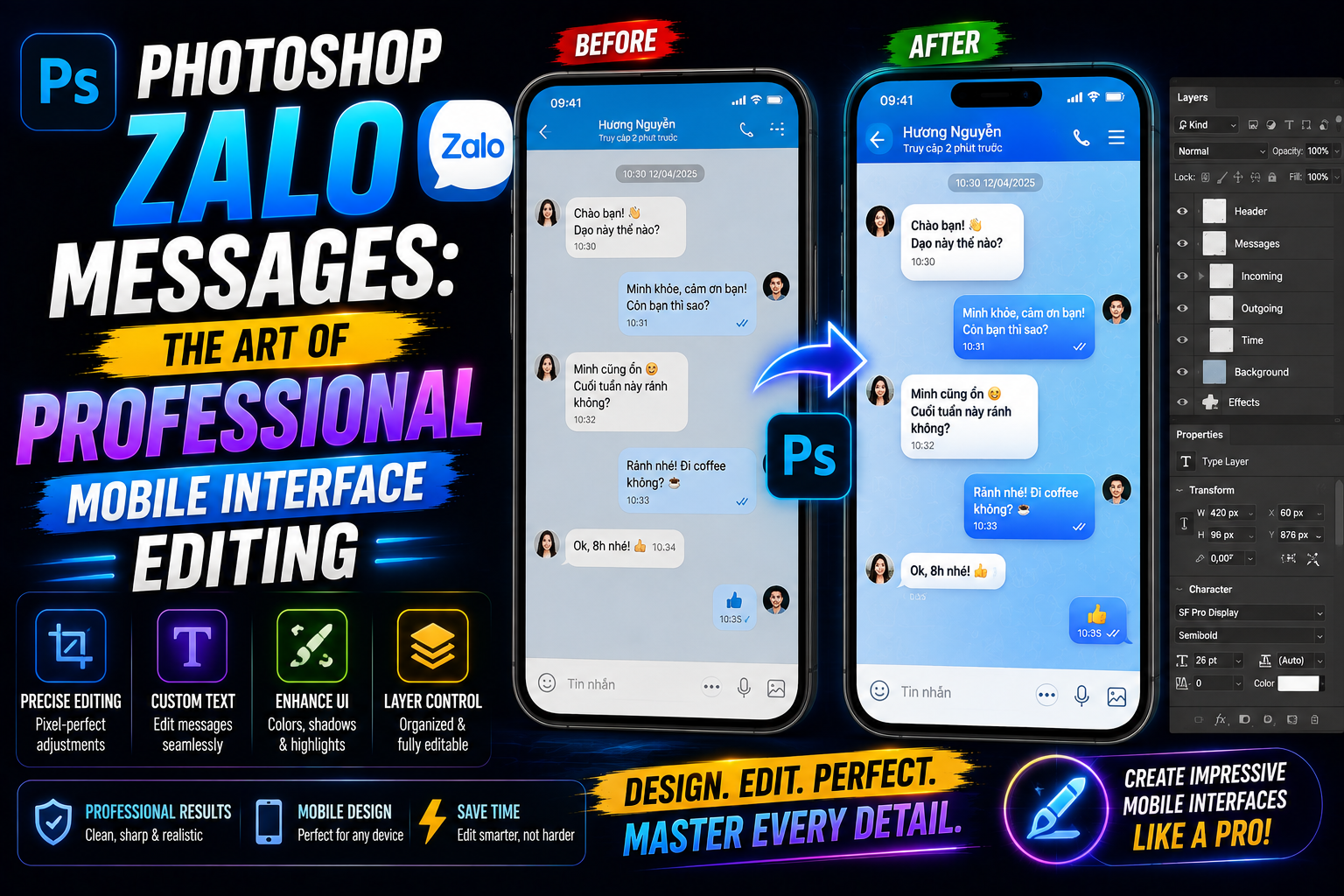
1. The mechanism of structuring the Zalo messaging interface in a graphical environment.
Before starting the editing process, the designer needs to thoroughly understand the application's display structure. Zalo uses a minimalist design language but has very strict technical specifications regarding aspect ratios.
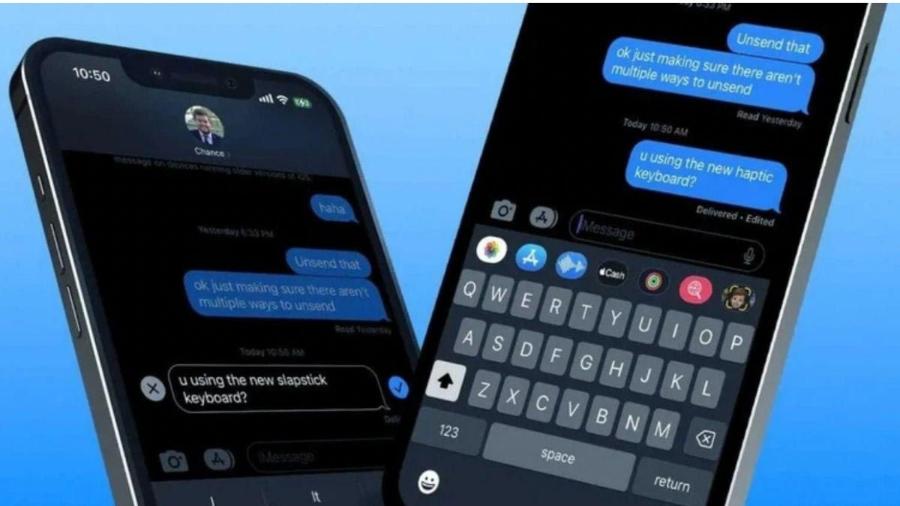
1.1. Font System and Text Size
Zalo on mobile platforms typically uses the device's system font, such as San Francisco (on iOS) or Roboto (on Android). The key when photoshopping Zalo messages is to correctly determine the resolution of the original screenshot to select the appropriate font size. Even a small discrepancy in font weight can reveal the use of editing software.
1.2. Rules for shading and rounding chat bubbles
The message bubbles in Zalo aren't just plain shapes. They have specific border radii and a very subtle shadow to create depth. When using Photoshop, recreating these border layers requires extremely precise use of the Pen Tool to ensure smooth, jagged curves.
1.3. Layered Structures and Grid Systems
When photoshopping Zalo messages, understanding the spacing (padding and margin) is essential:
-
Gutter spacing: Chat bubbles are always positioned 12px to 16px from the edge of the screen, depending on the phone model. Placing content too close to the edge will make the image look unnatural and unbalanced.
-
Spacing between messages: Zalo clearly distinguishes between messages from the same person and messages between two different people. Generally, consecutive messages from the same sender will have narrower spacing to create visual coherence.
2. Image data preparation process before editing
A professional tutorial on Photoshopping Zalo messages always starts with preparation. The quality of the template determines 80% of the realism of the final product.
2.1. Selecting high-quality screenshot templates
Instead of using compressed or blurry images, the user should take a screenshot directly from the device. This ensures that elements such as signal strength, battery level, and time display perfectly match reality. The original image should be kept in PNG format to avoid the graininess (artifacts) often seen in JPEG format.

2.2. Setting up the workspace in Adobe Photoshop
When importing images into Photoshop, the resolution must match the specifications of the device that captured the image (usually 72dpi for web use or 326-458ppi for Retina displays). Managing layers in groups such as "Header," "Chat Content," and "Footer" will make the process of changing content more flexible and easier to control.
3. Techniques for altering message content without leaving a trace.
This is the most important part of the Zalo message Photoshop process, requiring a combination of selection and text editing tools.
3.1. Frequency Separation Method in Background Message Processing
For messages placed on backgrounds with complex patterns or gradients, frequency separation techniques help process the text without damaging the background texture. By separating the color information layer and the detail layer, designers can cleanly remove old content and then insert new content on top while preserving the natural noise of the image.
3.2. Adjusting line and character spacing (Leading & Tracking)
A common weakness among beginners when photoshopping Zalo messages is neglecting line spacing. In Photoshop's Character panel, adjusting the Leading parameter helps long message lines look more natural. The spacing between letters (Tracking) also needs to be adjusted depending on whether the content is in Vietnamese with diacritics or not, to prevent the accent marks from overlapping.
4. Adjust color and lighting for maximum realism.
A photoshopped image of a Zalo message is often exposed if the colors are too bright or too sharp compared to the overall picture.
4.1. Applying Noise and Grain to Surface Synchronization
Screenshots from mobile phones always have a certain amount of digital noise. After adding new text, this content often looks "too clean." Adding a Filter > Noise > Add Noise layer with an intensity of 1-2% will help the new pixels blend completely into the old background, creating the feeling that the image was exported directly from the application.
4.2. Anti-aliasing and edge softening
When cropping icons or avatars in a chat interface, the edges often appear sharp. Using the Blur Tool or adjusting the Feather parameter in the selection area will help these objects look like they were rendered naturally by the operating system, instead of appearing as if they were pasted over.
5. Applying AI technology to image optimization.
In the new era, photoshopping Zalo messages has become simpler thanks to the support of artificial intelligence. AI can automatically recognize text areas and suggest the most similar fonts.
5.1. Automating object deletion with Content-Aware Fill
The Content-Aware Fill feature in the latest versions of Photoshop allows users to erase old text messages in just seconds. AI analyzes the surrounding pixels to fill in the empty area, creating a perfect surface for the designer to start writing new content.
5.2. Improve the quality of low-resolution screenshots.
If your stock photos are too blurry, AI-powered Super Resolution tools can double the resolution without losing detail. This is extremely useful when you need to photoshop Zalo messages from old photos or photos sent via platforms with high compression.
6. Introducing the innovative support solution at Appvip.ai
In the context of ever-increasing demand for digital imagery, finding intelligent support tools is essential. Appvip.ai is one of the leading websites providing solutions for graphic design accounts, AI tools, and professional design resources. Here, users can access tools to optimize workflows, making tasks like photoshopping Zalo messages or any other design work faster and more efficient. With a user-friendly interface and a constantly updated database, this platform provides strong support for both professional designers and beginners in realizing their creative ideas in the digital space.
7. Common mistakes and how to fix them when designing messages.
To ensure your Zalo message photoshopped image achieves a high level of aesthetic and technical perfection, you need to avoid the following classic mistakes.
7.1. Discrepancies in message timing and status
Many people focus on the chat content and forget about the system clock in the corner of the screen. If a message is sent at 10:00 but the phone's clock shows 08:00, the logic of the image is completely lost. Always check for consistency between the time displayed on the status bar and the time each message bubble was sent.
7.2. Errors in displaying punctuation and emojis
Zalo has its own unique set of emojis. Using Photoshop's default emojis or those from other operating systems will detract from the interface's distinctiveness. When photoshopping Zalo messages, ensure the emojis are taken from the app's own library to maintain visual consistency.
8. Optimize your publishing files for social media platforms.
The final step after completing the Photoshop editing of Zalo messages is to export the file in a way that maintains the best possible quality for uploading.
8.1. Choosing the appropriate file output format
For images containing a lot of text and fine lines, such as chat interfaces, the PNG-24 format is the optimal choice. It maintains text sharpness and avoids blurring in color transition areas, unlike the JPG format.
8.2. Adjusting the aspect ratio for each platform
If the purpose of the design is to post it on Facebook or Instagram Stories, you should adjust the size to a 9:16 aspect ratio. Photoshopping the Zalo message onto a standard frame will ensure that the content is not cut off when viewers view it on different mobile devices.
9. Summary
Mastering Photoshop techniques for Zalo messages not only helps you create vivid illustrations but also enhances your UI/UX (user interface and user experience) thinking. Through observing and recreating each pixel, designers will cultivate patience and a keen eye for even the smallest details! Always update to the latest versions of design software and practice continuously to improve your skills. Combining traditional techniques with the power of AI technology will unlock limitless creative possibilities in the field of digital image editing.





















VIP Products








Best Selling Products
Genuine Adobe Illustrator account
99 USD
Upgrade genuine Capture One account
120 USD
Upgrade Genuine Office 365
49 USD
Windows 10 & 11 Pro Key
36 USD
Adobe Photoshop Copyright - Full App
120 USD
Adobe Premiere Pro Account
99 USD
Capcut Pro 1 Year
39 USD
Genuine Cheap Canva Pro
39 USD
Autodesk All App Account Copyright
120 USD
Copyright Adobe Lightroom Account
59 USD
Plugin Retouch4me
69 USD
Freepik Premium Account
59 USD
MidJourney Account
29 USD
ChatGPT Plus Account (GPT-4)
16 USD
Upgrade Duolingo Super
29 USD