Best Selling Products

Genuine Adobe Illustrator account
99 USD

Windows 10 & 11 Pro Key
36 USD

Capcut Pro 1 Year
39 USD

MidJourney Account
29 USD

Adobe Photoshop Copyright - Full App
120 USD

Plugin Retouch4me
69 USD

Genuine Cheap Canva Pro
39 USD

Autodesk All App Account Copyright
120 USD

Upgrade Duolingo Super
29 USD

Upgrade Genuine Office 365
49 USD

Freepik Premium Account
59 USD

ChatGPT Plus Account (GPT-4)
16 USD

Adobe Premiere Pro Account
99 USD

Upgrade genuine Capture One account
120 USD

Copyright Adobe Lightroom Account
59 USD
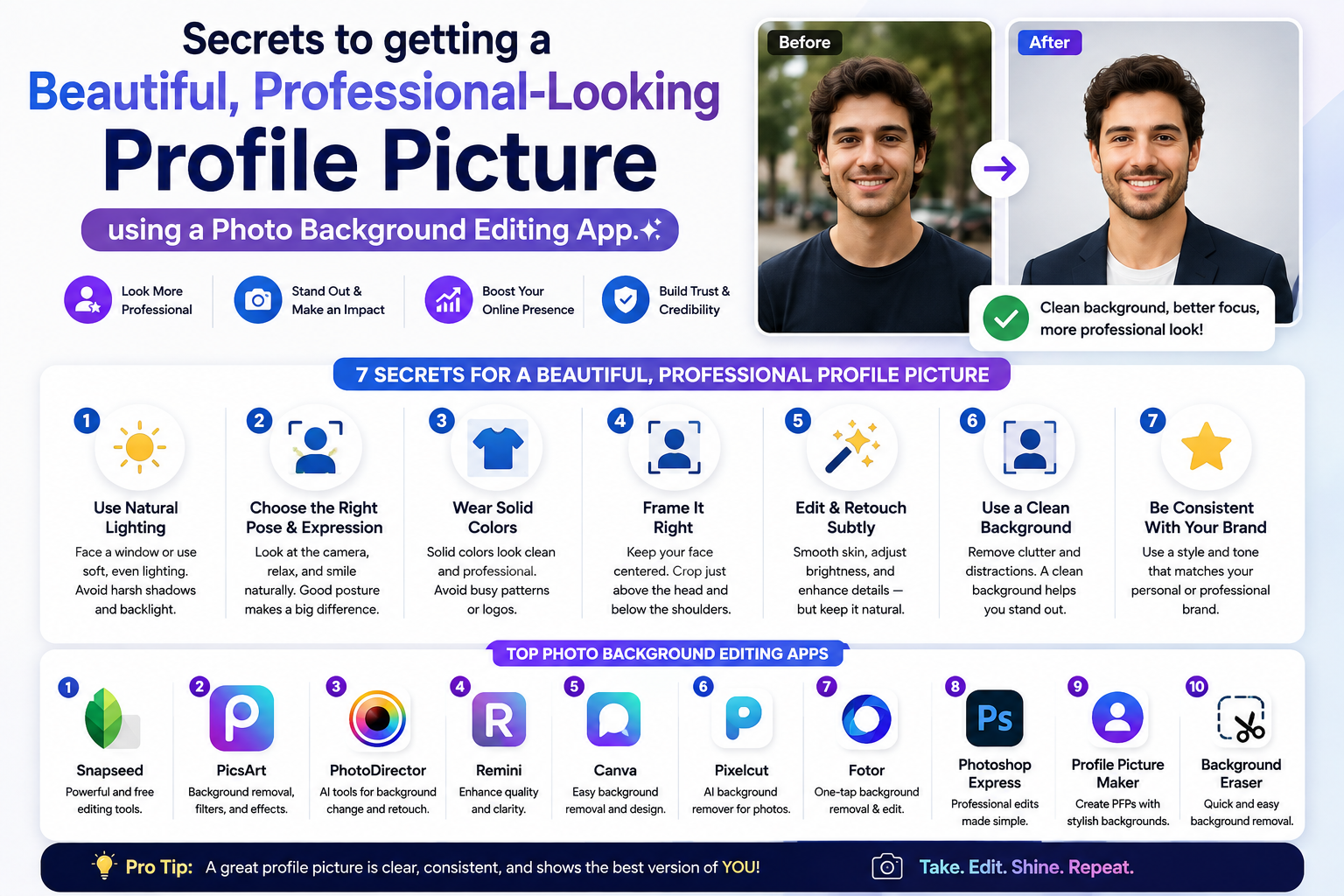
Secrets to getting a beautiful, professional-looking profile picture using a photo background editing app.
Nội dung
- 1. Why should you use an app to edit the background of your ID photo?
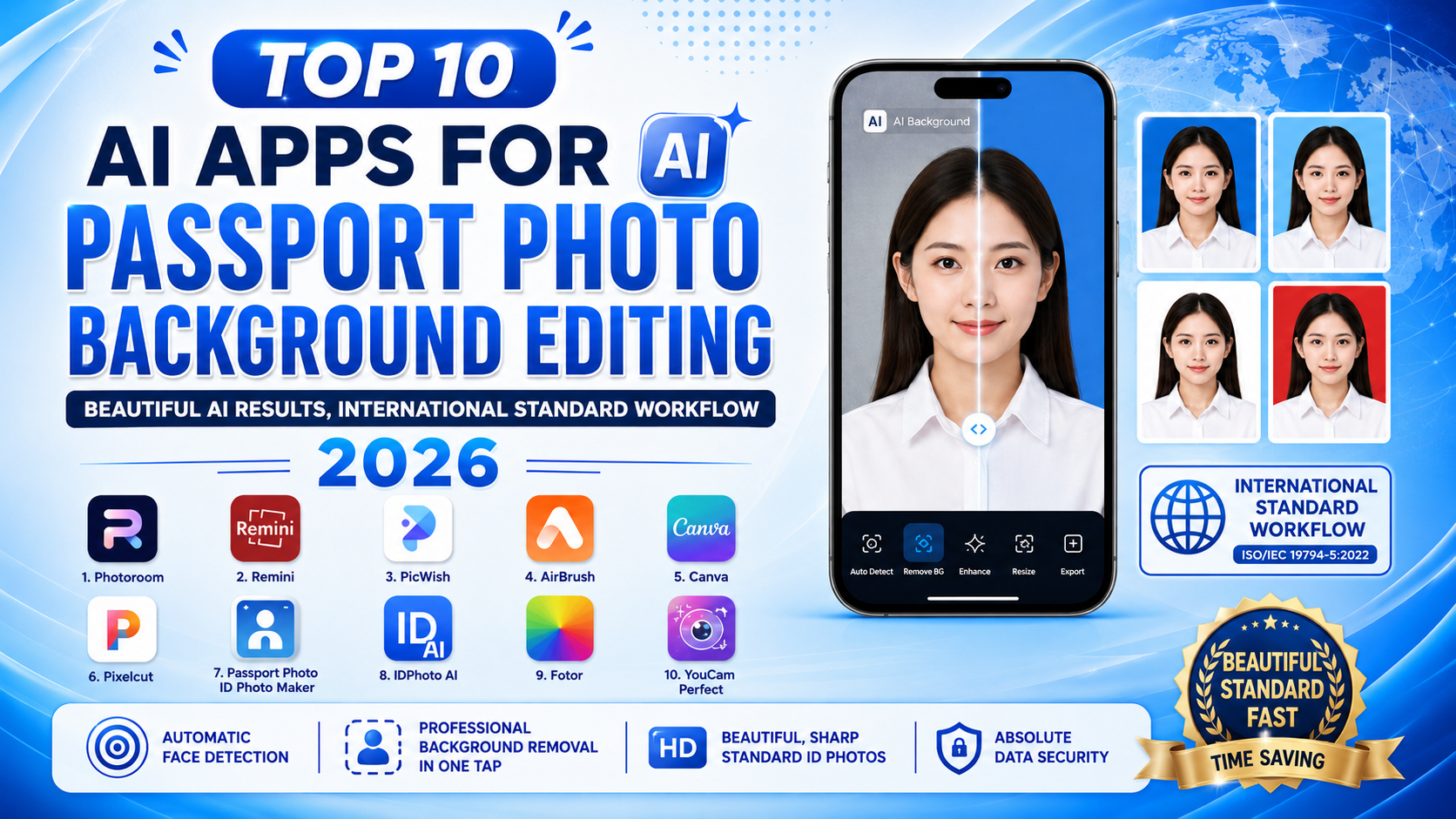
- 2. Top apps for editing ID photo backgrounds using AI currently available.
- 2.1. PhotoRoom - The King of Background Removal with AI Technology
- 2.2. Picsart - The nation's favorite multi-purpose photo editor
- 2.3. ID Photo Maker - A dedicated application for profile pictures
- 2.4. CanVa - Design ID photos quickly and easily with one touch.
- 2.5. Remove.bg - A fast background removal solution from websites to apps.
- 3. Detailed instructions on how to adjust the background of your ID photo to look like it was done professionally at a photo studio.
- 3.1 Step 1: Prepare and take high-quality original photos
- 3.2 Step 2: Proceed to separate and change the background using the app.
- 3.3 Step 3: Adjust facial proportions and image size
- 3.4 Step 4: Fine-tune lighting and export the file
- 4. Mandatory regulations regarding ID photo backgrounds you need to remember.
- 5. Common errors when using photo editing apps for ID photos and how to fix them .
- 6. Conclusion
With just a phone and a quality photo background editing app, you can create outstanding ID photos yourself.
1. Why should you use an app to edit the background of your ID photo?
Using mobile apps to edit ID photos offers many advantages over traditional photography methods:
-
Save time and money: You don't need to spend money on gas, expensive photo shoots, and printing at a shop. Just sit at home, take advantage of natural light, and do a few things on your phone.
-
Flexibility in terms of time and space: You can take and edit photos whenever it suits you, whether it's the middle of the night or early morning. You can also take dozens of shots until you find the perfect angle.
-
Precise AI background removal technology: Modern apps today integrate artificial intelligence (AI). The ability to recognize hair, shoulders, and clothing to remove the old background is incredibly smooth, without smudging or unevenness.
-
Integrating multiple natural beauty tools: Besides changing background color, these apps also help you adjust lighting, smooth skin, remove minor blemishes, and even assist in adding formal shirts and vests to your outfits.
2. Top apps for editing ID photo backgrounds using AI currently available.
To help you avoid confusion among the thousands of apps on the App Store and Google Play, here are detailed reviews of the most popular photo background editing apps for ID photos .
2.1. PhotoRoom - The King of Background Removal with AI Technology
If you're looking for an app that can remove backgrounds incredibly quickly and accurately, down to the smallest detail, PhotoRoom is the first answer.
-
Key advantage: Utilizing an intelligent edge-scanning algorithm, it automatically removes the background in less than 3 seconds. After background removal, you can easily add blue or white to meet international passport photo standards.
-
User experience: The interface is intuitive and user-friendly, even for those who are not tech-savvy.
2.2. Picsart - The nation's favorite multi-purpose photo editor
Picsart is no longer an unfamiliar name to image creation enthusiasts. For ID photo creation, this application demonstrates remarkable power.
-
How it works: You use the "Remove BG" tool or the "Cutout" selection feature. Picsart's AI will recognize the human subject very well. Then, you just need to add a solid-colored background behind them.
-
Pros: Picsart has a powerful "Retouch" tool that helps you smooth skin, whiten teeth, adjust glasses, or fix a crooked jacket, making the overall photo look incredibly polished.

2.3. ID Photo Maker - A dedicated application for profile pictures
Unlike typical photo editing apps, ID Photo Maker is designed for a single purpose: creating legally compliant ID photos.
-
Key features: The application provides pre-set standard sizes such as 2x3, 3x4, 4x6, or passport sizes for specific countries.
-
Smart background change: Automatically recognizes faces and quickly replaces the background with white or map blue. This app also supports stacking multiple ID photos on one page for easy printing.
2.4. CanVa - Design ID photos quickly and easily with one touch.
Many people think Canva is only for creating presentation slides or designing posters, but the AI-powered background removal feature in Canva Pro is actually an extremely powerful tool for creating ID photos.
-
Procedure: Upload your portrait photo to the canvas -> Select "Edit Photo" -> Select "Background Removal Tool". Then, change the color of the design page to cyan or white.
-
Advantage: You can precisely manage image dimensions in millimeters or centimeters, ensuring that the file will not be incorrectly sized when exported for printing.
2.5. Remove.bg - A fast background removal solution from websites to apps.
If your phone's memory is full and you don't want to install more apps, Remove.bg is the perfect solution thanks to its incredibly powerful web version.
-
Features: This is a tool specifically designed for background removal. Simply upload your image, and the system will automatically process it and return a transparent PNG image.
-
Editing the background of your ID photo: After removing the background, tap the "Edit" button on the screen, select "Color," and tap blue or white to complete your ID photo.
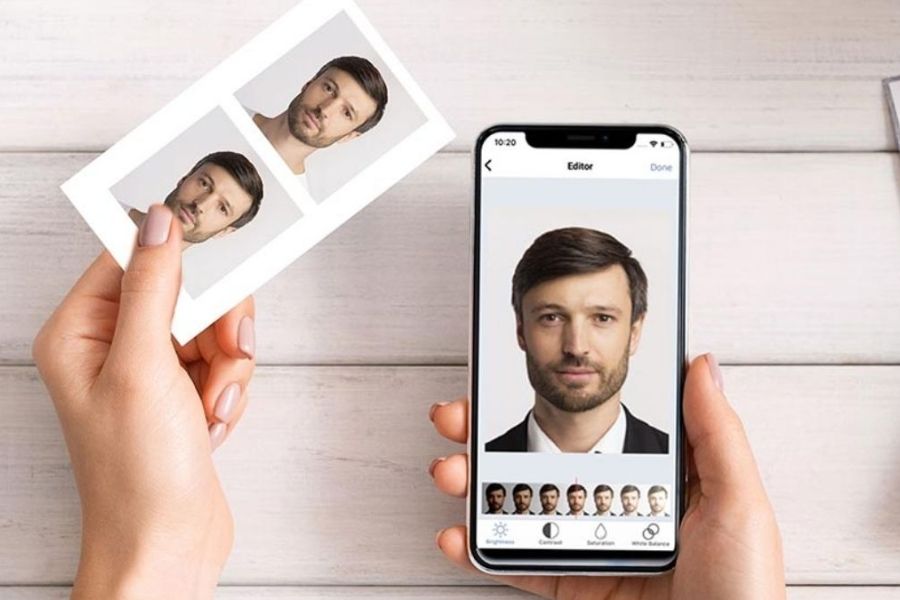
3. Detailed instructions on how to adjust the background of your ID photo to look like it was done professionally at a photo studio.
To get a perfect 10-point quality ID photo, relying solely on the camera isn't enough. You need to combine good original photography techniques with a proper editing process following these steps:
3.1 Step 1: Prepare and take high-quality original photos
The foundation of a good ID photo is a clear, high-quality original image file. When taking a photo at home with your phone, keep the following in mind:
-
Lighting: Stand facing a large window to receive natural light, which will help illuminate your face evenly, avoiding shadows on one side of your nose or under your eyes.
-
Camera angle: Ask a family member to take the picture for you or use a tripod. Hold the phone at eye level, 1.2m - 1.5m away from your body. Absolutely do not use the front camera for selfies as it will distort facial details.
-
Posture and attire: Sit up straight, relax your shoulders, and look directly into the camera. Wear a collared shirt (white or a contrasting dark color) and neatly tuck your hair behind your ears.
3.2 Step 2: Proceed to separate and change the background using the app.
Open your chosen photo editing app (e.g., PhotoRoom or Picsart). Upload the photo you just took. Use the automatic background removal feature. Zoom in on the image to carefully check sensitive transition areas such as hairline and shoulder edges. If the AI accidentally removes part of the shirt, use the "Restore" brush to retouch it. Choose a new background color (dark blue for regular ID photos, or white for passport or visa photos).
3.3 Step 3: Adjust facial proportions and image size
A common mistake when making your own ID photo is making the face too small or too large for the frame. Follow the rule of proportion: the face should occupy approximately 70% - 80% of the entire photo. Crop the photo to the size you need (3x4 cm or 4x6 cm).
3.4 Step 4: Fine-tune lighting and export the file
Adjust the brightness, contrast, and saturation so that the skin tone looks rosy and natural. Finally, choose the highest output quality (HD or Ultra HD) in JPEG or PNG format to avoid pixelation when printing.

4. Mandatory regulations regarding ID photo backgrounds you need to remember.
Each type of administrative document has its own strict standards regarding images. Understanding these regulations will help you avoid having your application rejected unnecessarily.
-
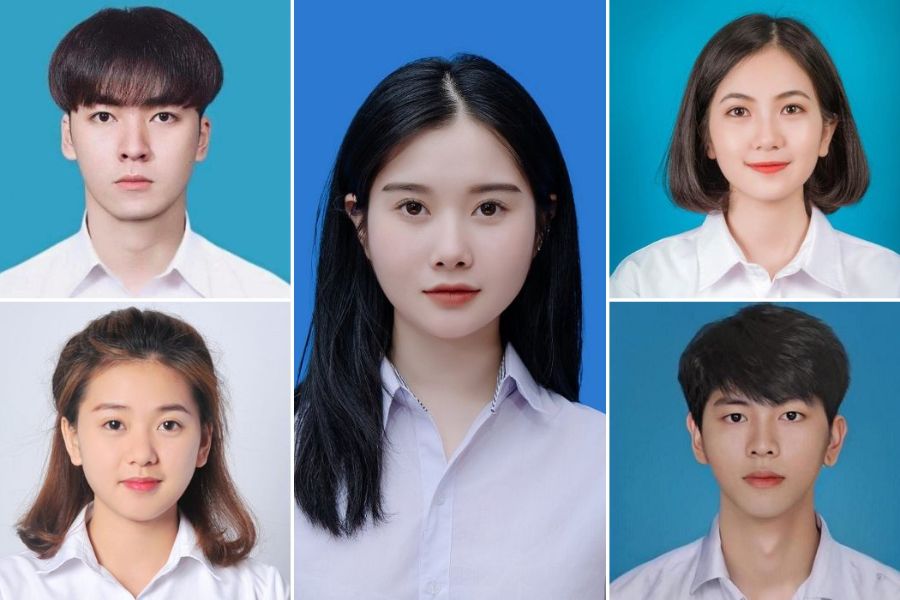
When should you use a white background? A white background is currently the mandatory standard for photos on National Identity Cards, Passports, and Visas for most countries (USA, Europe, Japan, South Korea, etc.). With a white background, you absolutely must not wear a white shirt that matches the background color, as this will make you blend into the background.
-
When to use a green screen? A green screen (usually cobalt blue or dark blue) is commonly used for job applications, student IDs, driver's licenses, or photos for college applications and insurance documents. When using a green screen, choose a soft shade of green, avoiding overly bright colors that might darken the face.
5. Common errors when using photo editing apps for ID photos and how to fix them .
Even though modern apps are very smart, incorrect operation can still make your photos look "fake." Be aware of the following mistakes to avoid them:
-
Jagged hair edges and background color bleeding: This error occurs when your hair is too messy or the lighting during shooting is too bright. How to fix it: Neatly comb your hair before shooting. In the app, use the "Feather/Smooth" tool to soften the edges after cropping the background.
-
The subject and background colors don't match: Sometimes you take a photo under warm yellow lighting, but then combine it with a cool blue background, creating a disconnect between the subject and the background. How to fix it: Use a color filter or adjust the temperature of the portrait to harmonize with the new background color.
-
Blurred images after saving: Some free apps often compress image file sizes significantly when you export them. Solution: Always check the output quality settings in the app, or prioritize using apps that allow exporting high-quality original files to ensure sharpness when printing.
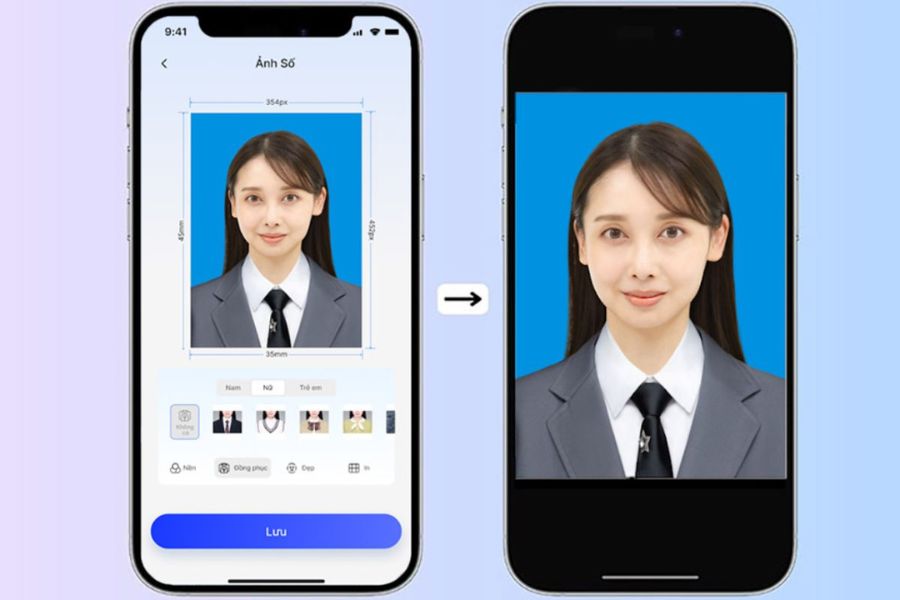
6. Conclusion
Designing the perfect profile picture is no longer a difficult challenge for anyone. Thanks to the powerful assistance of smart AI- powered photo editing apps , you can easily transform impromptu photos taken at home into professional, sharp, and aesthetically pleasing ID photos. This not only saves you a significant amount of money but, more importantly, gives you absolute confidence every time you open your passport or employee ID card. Download one of these apps to your phone and experience the feeling of being your own "photographer" today!





















VIP Products








Best Selling Products
Genuine Adobe Illustrator account
99 USD
Windows 10 & 11 Pro Key
36 USD
Capcut Pro 1 Year
39 USD
MidJourney Account
29 USD
Adobe Photoshop Copyright - Full App
120 USD
Plugin Retouch4me
69 USD
Genuine Cheap Canva Pro
39 USD
Autodesk All App Account Copyright
120 USD
Upgrade Duolingo Super
29 USD
Upgrade Genuine Office 365
49 USD
Freepik Premium Account
59 USD
ChatGPT Plus Account (GPT-4)
16 USD
Adobe Premiere Pro Account
99 USD
Upgrade genuine Capture One account
120 USD
Copyright Adobe Lightroom Account
59 USD