Best Selling Products

Genuine Adobe Illustrator account
99 USD

Capcut Pro 1 Year
39 USD

Upgrade Duolingo Super
29 USD

Upgrade Genuine Office 365
49 USD

ChatGPT Plus Account (GPT-4)
16 USD

Plugin Retouch4me
69 USD

Adobe Photoshop Copyright - Full App
120 USD

MidJourney Account
29 USD

Windows 10 & 11 Pro Key
36 USD

Genuine Cheap Canva Pro
39 USD

Adobe Premiere Pro Account
99 USD

Copyright Adobe Lightroom Account
59 USD

Autodesk All App Account Copyright
120 USD

Upgrade genuine Capture One account
120 USD

Freepik Premium Account
59 USD
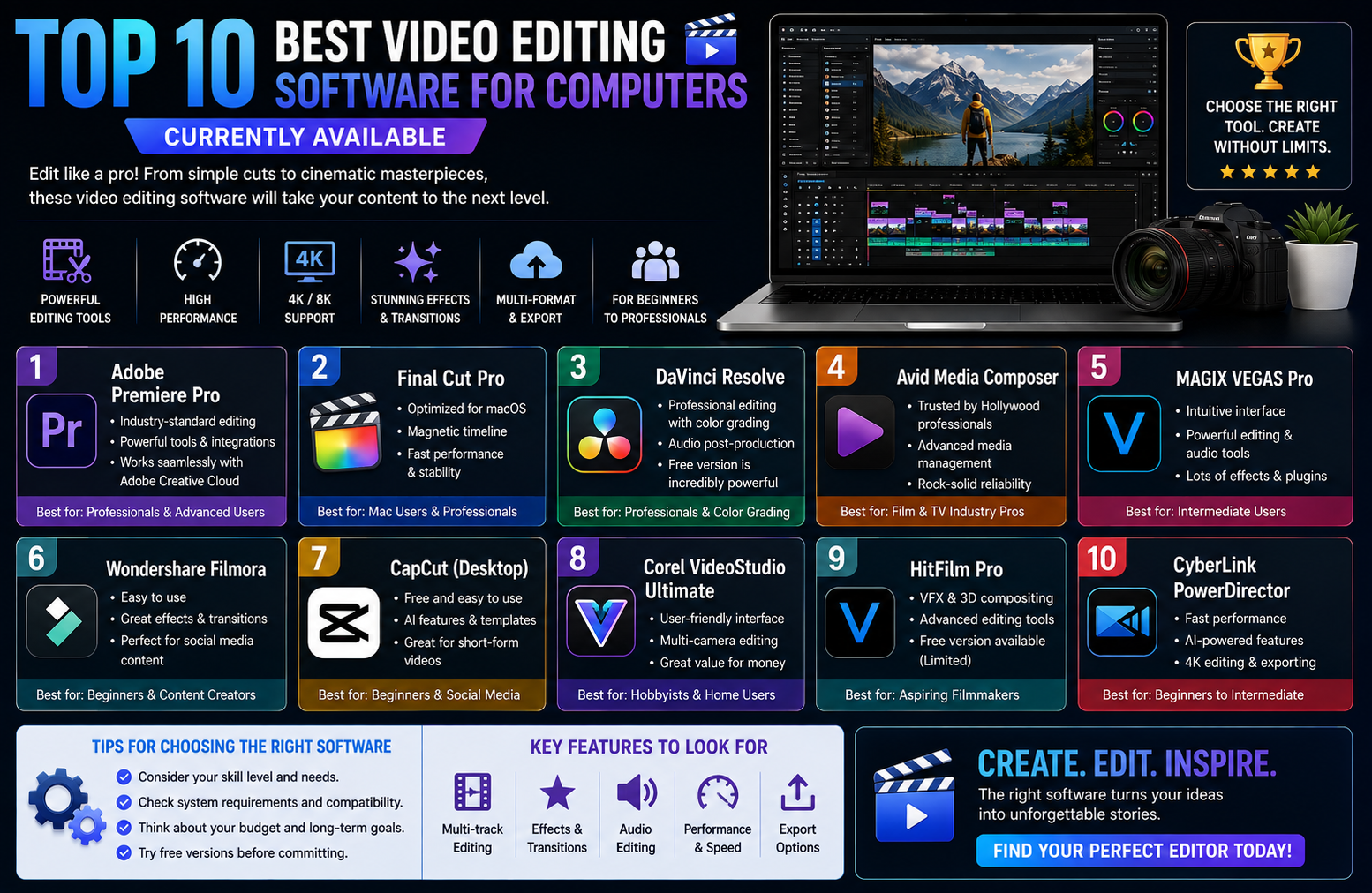
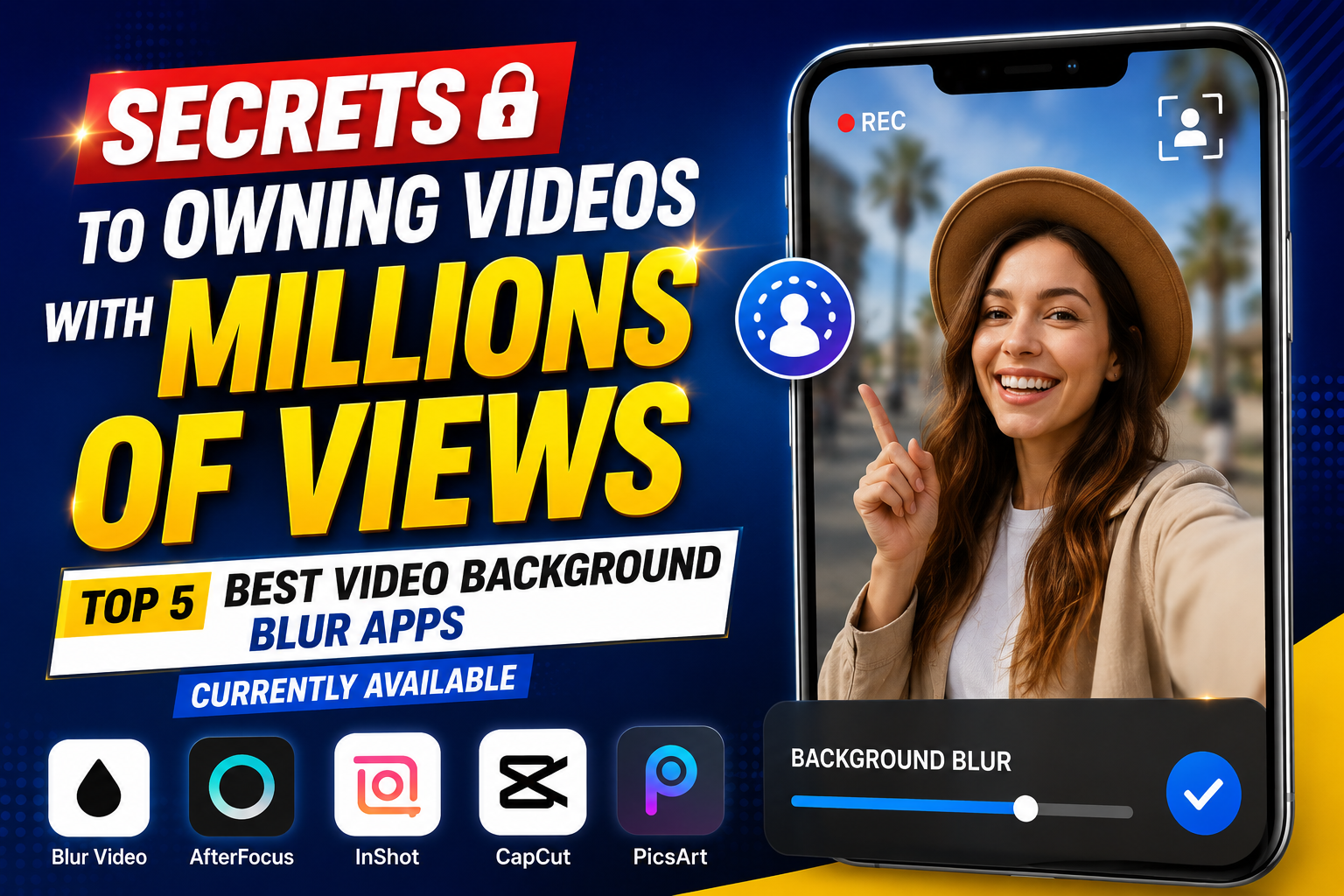
Secrets to Owning Videos with Millions of Views: Top 5 Best Video Background Blur Apps Currently Available
Nội dung
- 1. Why should you use a video background blurring app?
- 2. Detailed review of the top video background blurring apps currently available.
- 2.1. CapCut - The king of background blur apps on mobile phones
- 2.2. BeautyPlus - The assistant that perfectly captures the visual beauty of vloggers.
- 2.3. KineMaster - Professional editor for engineers
- 2.4. Adobe Premiere Rush - Hollywood-level graphics within your reach
- 2.5. VEED.IO - Online background blurring solution that requires no installation.
- 3. Basic steps to create a beautiful and natural-looking video background blur.
- 4. Conclusion
Using a video background blur app is the quickest way to hide a messy room, remove unnecessary details in the background, and upgrade your video quality to cinematic standards in just a few taps.
1. Why should you use a video background blurring app?
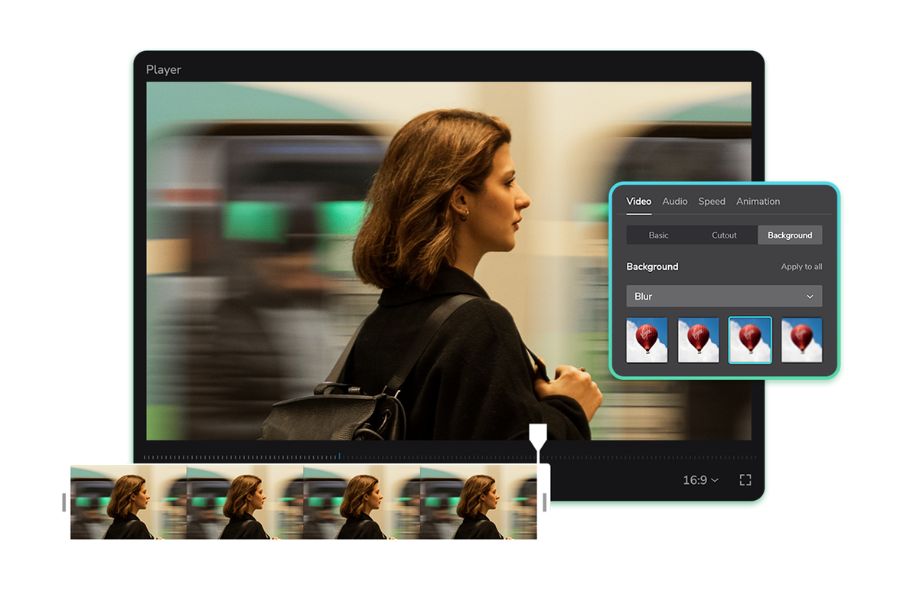
The bokeh effect not only makes videos more visually appealing but is also a powerful visual language weapon to keep viewers engaged. When the background is subtly blurred, the audience's eyes automatically focus entirely on you and the content you are conveying. Applying background blur technology effectively solves issues related to filming space, providing maximum freedom for content creators, from semi-professional to professional.
-
Enhance professionalism : Gives videos depth and makes them look like they were shot with an expensive, professional DSLR camera.
-
Concealing flaws : Subtly hide cluttered spaces, passersby, or irrelevant backgrounds.
-
Highlight the subject : Make your facial expressions, the product you're reviewing, or your instructional movements stand out clearly.
-
Visual stimulation : Reduces visual information clutter, helping viewers avoid distractions while following the main content of the clip.
-
Cost-effective : No need to invest in complex lighting equipment or a studio; just a phone and supporting software are all you need.
-
Style building : Create a personal touch with unique color palettes and opacity, and maintain a consistent brand identity across the entire channel.
-
Increased retention rates : Viewers are easily attracted to clean, tidy visuals, which helps increase the average video viewing time.
2. Detailed review of the top video background blurring apps currently available.
The world of video editing apps is incredibly diverse, but to find an app that blurs video backgrounds smoothly and easily, here are some of the best, trusted by millions of creators. Each app has its own strengths, suitable for different user needs and devices.
2.1. CapCut - The king of background blur apps on mobile phones
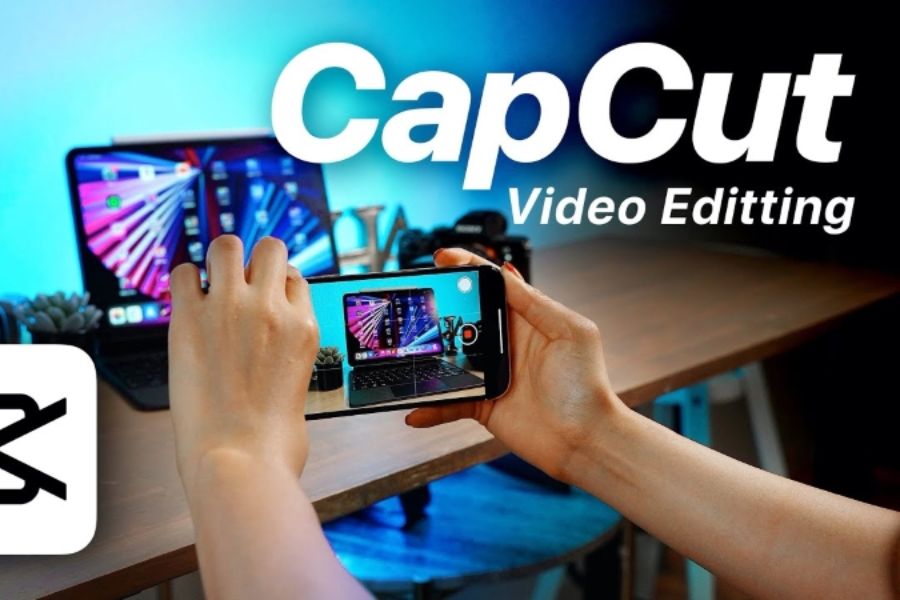
If you're a content creator on TikTok or Reels, CapCut is definitely the first software you should download to handle background editing. This software integrates cutting-edge artificial intelligence algorithms, optimizing the editing process with just a few simple drag-and-drop actions.
-
Intelligent AI algorithm : Automatically and accurately recognizes body shapes to blur surrounding areas, minimizing errors such as image distortion or blurry hair.
-
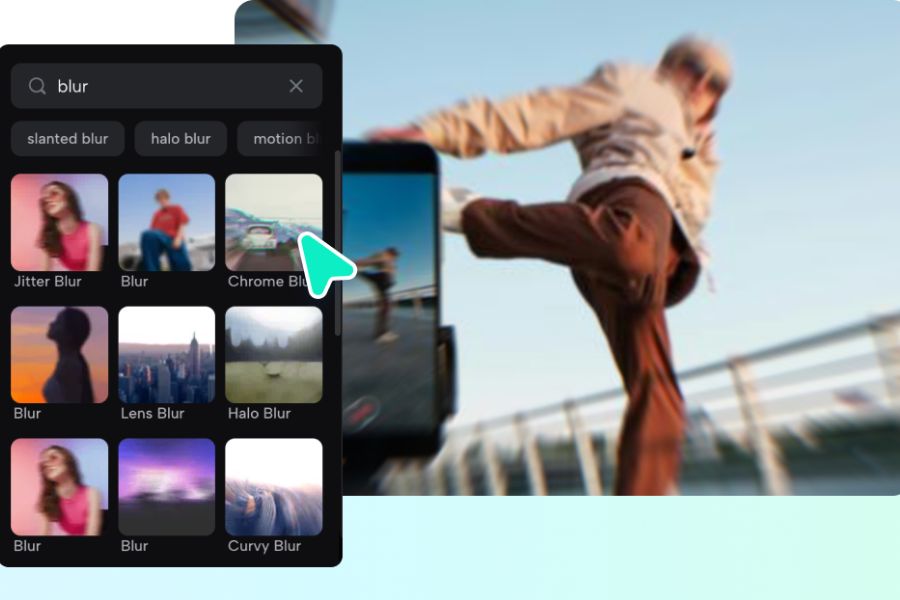
Diverse effects library : Offers various blur styles such as fog blur, motion blur, and artistic halo effects.
-
Cross-platform editing : Works smoothly on iPhone and Android phones, and there's also a more advanced software version for computers.
-
Completely free : Basic background removal features are free and no watermarks are added when exporting videos in high resolution.
-
Optimized storage : Smooth video processing, preventing lag or memory overload on mid-range phones.
-
Music library and templates available : Easily mix trending music and automatically synchronize blur effects to the rhythm of the sound.
-
Large user community : It's easy to find detailed tutorial videos on YouTube or TikTok itself to learn from.
2.2. BeautyPlus - The assistant that perfectly captures the visual beauty of vloggers.
Not only is BeautyPlus famous for its ability to take stunning selfies, but it's also an incredibly useful option for women who want to blur the background in close-up videos. It's a lifesaver for impromptu vlog shoots in low-light conditions or with too many distracting details.
-
Intelligent background separation : Excellent recognition of hair, eyeglasses, and shoulders, creating a natural-looking boundary between the person and the background.
-
Integrated beauty filter : Simultaneously blurs the background and automatically applies makeup, brightens skin, reduces dark spots, and slims the face.
-
Intuitive interface : The blur adjustment sliders are designed to be minimalist and intuitive, making it easy for even beginners to use.
-
Optimized for short vlogs : Perfect for story content, short clips introducing cosmetics, fashion, or lifestyle.
-
Live recording feature : Allows you to apply background blur effects while recording video, instead of waiting for post-production.
-
AR animated stickers : Add cute glitter effects or color filters around the highlighted subject.
-
Fast file export support : Extremely impressive processing speed for short videos, saving directly to your computer without reducing the original resolution.
2.3. KineMaster - Professional editor for engineers
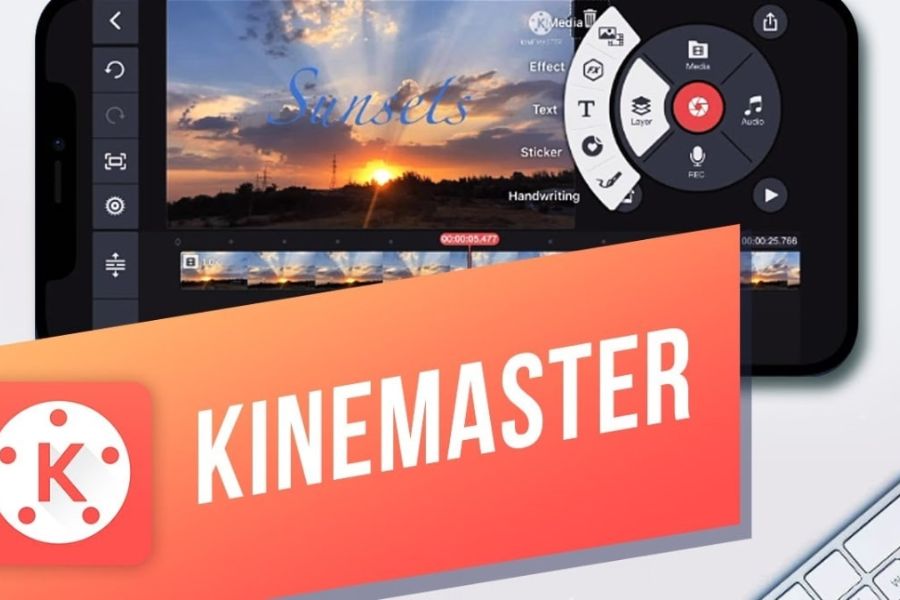
For those who want more control over each frame and need a powerful tool, KineMaster is the answer to the background blur problem. This application mimics the interface of professional video editing software, providing unlimited creative space.
-
Multi-layer editing : Easily add Gaussian Blur or Mosaic effects to any location or timestamp.
-
Powerful Keyframe feature : Allows for manual but extremely smooth motion blur that follows moving objects in the video.
-
Green screen (Chroma Key) support : Professional background separation just like in real film studios, allowing for the integration of new backgrounds.
-
High-quality publishing : Supports exporting video in resolutions up to 4K Ultra HD at a professional 60fps frame rate.
-
High-end audio mixer : Allows for frequency separation and noise filtering in parallel with image processing and blurring effects.
-
Extensive resource store : Offers thousands of exclusive blur transition effects, fonts, and artistic overlays.
-
Precise speed adjustment : Supports fast forwarding or slow-motion video while maintaining background blur effects that closely follow the subject.
2.4. Adobe Premiere Rush - Hollywood-level graphics within your reach
Coming from the renowned Adobe family, Premiere Rush is the perfect miniaturized version for creating cinematic-style videos with a blurred background. This application inherits the best features of its PC counterpart, Premiere Pro, but is perfectly optimized for touch operation.
-
Cinematic blur : The blur effect is processed using advanced algorithms, creating a gradual blurring effect from the foreground to the background with great depth.
-
Cloud synchronization : Easily transfer unfinished projects from your phone to your computer to continue refining and improving them.
-
Advanced color toolset : Allows for color correction using advanced presets combined with background blur to create artistic films.
-
No loss of quality : Maintains the sharpness of the main subject, without color blurring or pixelation after applying blurring filters.
-
Smart drag-and-drop interface : Arrange video segments and blur effect layers scientifically using a magnetic toolbar.
-
Supports various aspect ratios : Automatically resizes videos to fit YouTube, TikTok, or Instagram formats with just one click.
-
AI-powered audio : Automatically reduces background music volume when it detects the voice of the main subject in the video.
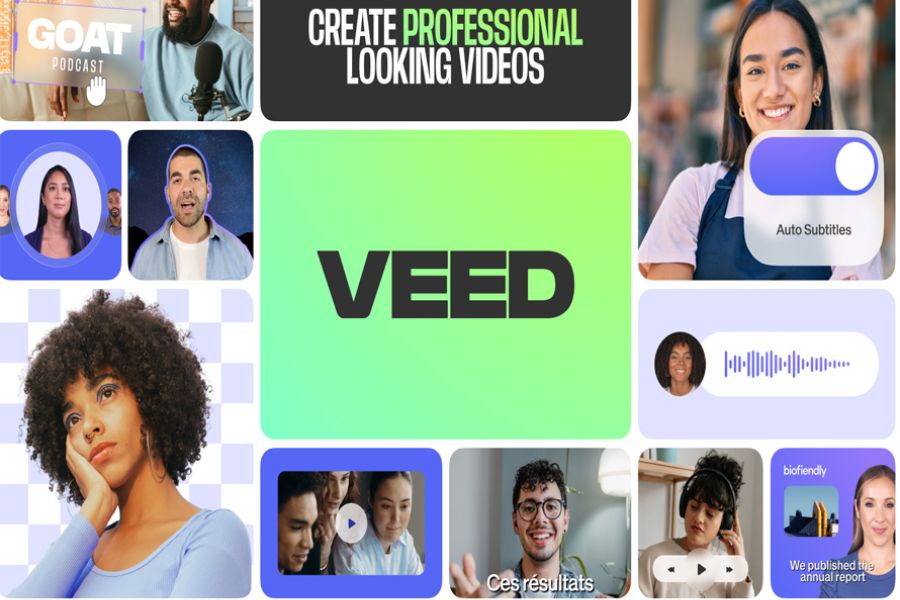
2.5. VEED.IO - Online background blurring solution that requires no installation.
If your device is out of storage or you're too lazy to download apps, use VEED.IO, a next-generation AI tool that handles cluttered backgrounds with just one click in your web browser. This is the perfect choice for office workers or those who need to quickly edit videos on their computers.
-
Remove backgrounds with one click : Simply upload your video, select the "Remove background" feature, and choose the "Blur" mode; the system will handle the rest.
-
Cloud-based processing : The entire rendering process takes place on VEED's servers, preventing your device from overheating or lagging.
-
Adding subtitles : Convenient when you want to both blur the background and have AI automatically recognize your speech and add scrolling subtitles.
-
Quick sharing : Export videos directly to social media platforms or create quick viewing links immediately after editing.
-
No hardware requirements : Even low-end computers or tablets can run smoothly through the web browser.
-
Screen recording feature : Supports simultaneous screen recording and webcam recording, blurring the background behind you.
-
Available design templates : Provide eye-catching frames and progress bars to incorporate into videos with blurred backgrounds.
3. Basic steps to create a beautiful and natural-looking video background blur.
To create a beautiful, cinematic-quality video with a blurred background, choosing the right app isn't enough. You also need to know a few editing tips to prevent the subject from looking artificial or showing any flaws. The process below applies the most common overlay formula, helping you achieve a perfect background blur effect on most mobile apps currently available.
-
Step 1: Choose a suitable distance when filming : When filming a video, stand 1 to 2 meters away from the wall or background to create physical distance, making it easier for the AI tool to distinguish between people and scenery.
-
Step 2: Load the video into a new project : Open your favorite app (for example, CapCut), tap the new project icon, select the original clip you want to edit from your library, and add it to your main timeline.
-
Step 3: Apply the full-frame blur effect : Find the "Video Effects" section, select the "Blur" or "Gaussian Blur" effect, then drag the slider to match the entire duration of the original video.
-
Step 4: Use the subject overlay feature : Select the "Overlay" feature or add a new video layer, insert the original video directly over the video below, then select the "Crop" or "Remove Background" tool to keep the subject sharp against a blurred background.
-
Step 5: Fine-tune the blur settings appropriately : Adjust the blur slider (Opacity/Intensity) in the bottom layer to a level between 15% and 30% to create a natural, subtle blur. Absolutely avoid pulling it to the maximum level, as this will make the video look artificial and lose its realistic depth.
-
Step 6: Check for strong movement details : Review the entire video in preview mode, paying attention to areas such as the gaps between fingers, hair, or when the subject moves quickly to ensure the AI doesn't miss capturing the background.
-
Step 7: Export and save the finished video : Select a minimum resolution of 1080p and a frame rate of 30fps or higher, press export file, and wait for the system to complete processing before uploading to social media platforms.
4. Conclusion
Creating visually stunning, professional-looking videos has never been easier thanks to video background blurring apps . Whether you're a beginner or a professional editor, these tools can perfectly meet your needs, from basic to advanced. Download a suitable app today to upgrade the look of your social media channel!





















VIP Products








Best Selling Products
Genuine Adobe Illustrator account
99 USD
Capcut Pro 1 Year
39 USD
Upgrade Duolingo Super
29 USD
Upgrade Genuine Office 365
49 USD
ChatGPT Plus Account (GPT-4)
16 USD
Plugin Retouch4me
69 USD
Adobe Photoshop Copyright - Full App
120 USD
MidJourney Account
29 USD
Windows 10 & 11 Pro Key
36 USD
Genuine Cheap Canva Pro
39 USD
Adobe Premiere Pro Account
99 USD
Copyright Adobe Lightroom Account
59 USD
Autodesk All App Account Copyright
120 USD
Upgrade genuine Capture One account
120 USD
Freepik Premium Account
59 USD