
Best Selling Products
Adobe Photoshop Copyright - Full App
120 USD
Adobe Premiere Pro Account
99 USD

ChatGPT Plus Account (GPT-4)
16 USD
Autodesk All App Account Copyright
120 USD
Upgrade genuine Capture One account
120 USD
Upgrade Genuine Office 365
49 USD

Freepik Premium Account
59 USD
Genuine Adobe Illustrator account
99 USD
Genuine Cheap Canva Pro
39 USD
Copyright Adobe Lightroom Account
59 USD
Plugin Retouch4me
69 USD

Capcut Pro 1 Year
39 USD
Windows 10 & 11 Pro Key
36 USD

MidJourney Account
29 USD
Upgrade Duolingo Super
29 USD
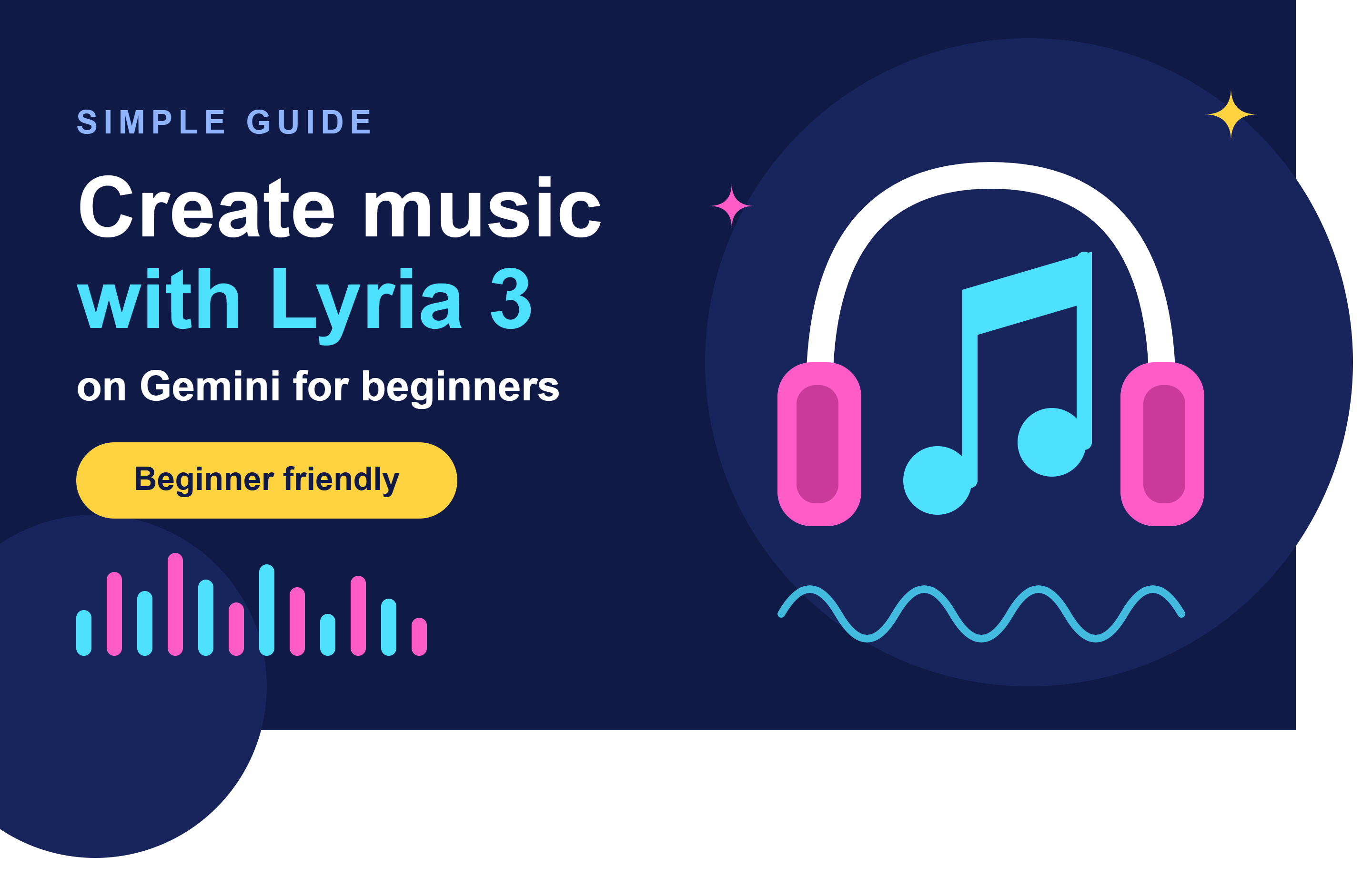
Simple guide to creating music using Lyria 3 on Gemini for beginners.
Nội dung
- 1. What is Lyria 3?
- 2. How does Lyria 3 work in Gemini?
- 3. Instructions on creating music using Lyria 3 on Gemini
- 3.1. Access Gemini and open the music creation feature.
- 3.2. Choose a musical sample or enter your own composition ideas.
- 3.3. Write a clear and specific music creation prompt.
- 3.4. Create music from images or videos if supported.
- 3.5. Listen, adjust, and save the track.
- 4. Tips for creating great and personalized music using Lyria 3
- 5. Things to note when using Lyria 3 on Gemini
- 6. Conclusion
AI-powered music creation is opening up many new creative avenues, even for those with no prior music education or experience with professional software. With Lyria 3 on Gemini, you can transform a few lines of description into unique melodies, from soothing lo-fi tunes to songs with lyrics perfectly suited to your video. Instead of spending hours searching for background music, you can proactively create sounds based on your own ideas. So, what features does Lyria 3 offer, and how do you create music using this tool? Let''s explore the detailed guide below with Sadesign!
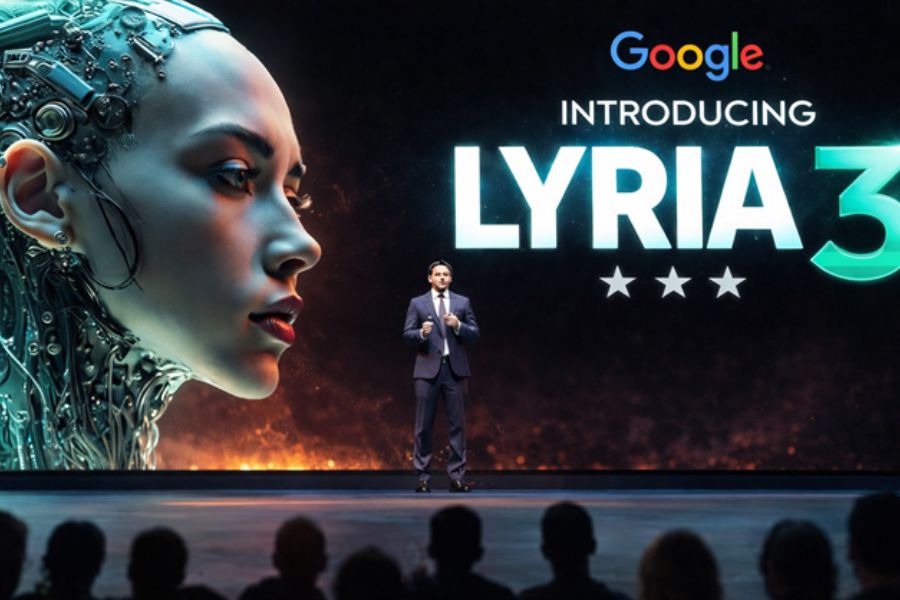
1. What is Lyria 3?
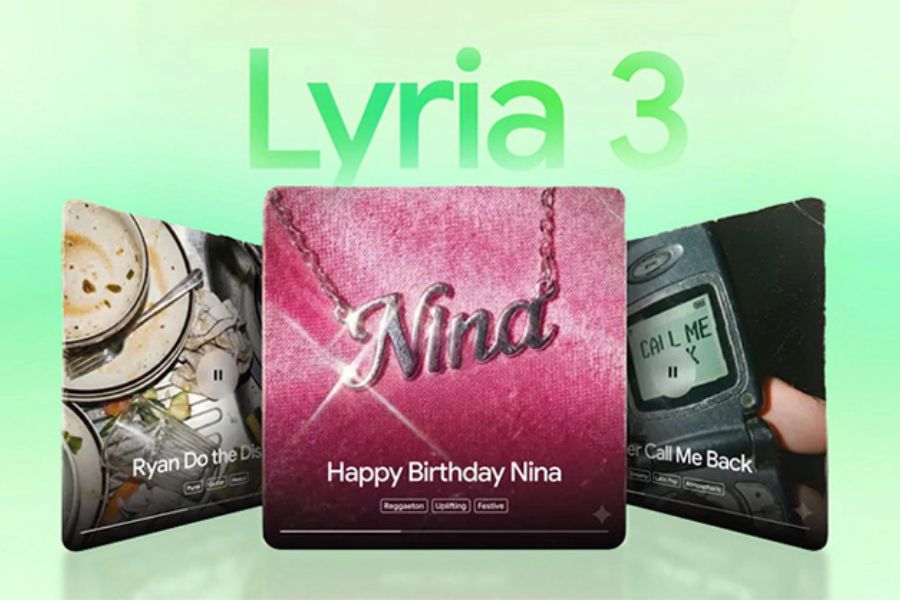
Lyria 3 is an AI music creation model developed by Google DeepMind, designed to help users create sounds from natural language requests. You don't need to know how to play a musical instrument, read sheet music, or do complex orchestration. Simply describe the genre, emotion, rhythm, and desired content, and the AI can create music that matches your idea. This is a useful option for TikTok and YouTube content creators, video creators, or anyone who wants to try their hand at music in a simpler way. Lyria 3 is integrated into the Gemini experience, allowing users to create music directly within the familiar chat interface. Depending on the features available to your account and region, you can create music from text descriptions, refer to available suggestions, or use images and videos as inspiration.
Some of the highlights of Lyria 3 include:
-
Create music from descriptions: Transform ideas into melodies that match your desired genre and mood.
-
Songwriting support: We help you create songs with lyrics based on a topic you provide.
-
Versatile styles: Experiment with pop, acoustic, EDM, lo-fi, piano, or electronic music.
-
Content creation support: Create music suitable for short videos, vlogs, podcasts, and many other creative ideas.
-
Accessible: Beginners can start with simple descriptions that don't require in-depth musical knowledge.
2. How does Lyria 3 work in Gemini?
Lyria 3 uses AI technology to analyze requests and generate corresponding musical content. When you input a prompt, the system identifies key elements such as style, instruments, tempo, emotion, and theme. From there, the model creates a melody and sound components that match the request. The quality of the result depends significantly on how you describe your idea, so the more specific the prompt, the easier it is to guide the music to your liking. For example, if you input a request to create relaxing background music with piano, a slow tempo, and a peaceful atmosphere, the AI will build the music based on these characteristics. If you want an upbeat song for a travel video, you can change it to an electronic pop style, with a fast tempo and a cheerful melody.
To make the most of Lyria 3, you should pay attention to the following factors:
-
Genre: Clearly define whether you want to create pop, rock, jazz, lo-fi, or classical music.
-
Emotion: Describe whether the music has a joyful, profound, suspenseful, or inspiring tone.
-
Musical instruments: Choose piano, guitar, drums, violin, or a combination of instruments.
-
Vocals and lyrics: Clearly state your preference for vocals or instrumental music only.
-
Usage context: Tell AI which music is suitable for video commercials, vlogs, social media posts, or relaxation time.
3. Instructions on creating music using Lyria 3 on Gemini
To begin composing, you need to access Gemini and check if your account has been enabled for music creation. The interface and names of the items may vary depending on the version, region, or account type.
3.1. Access Gemini and open the music creation feature.
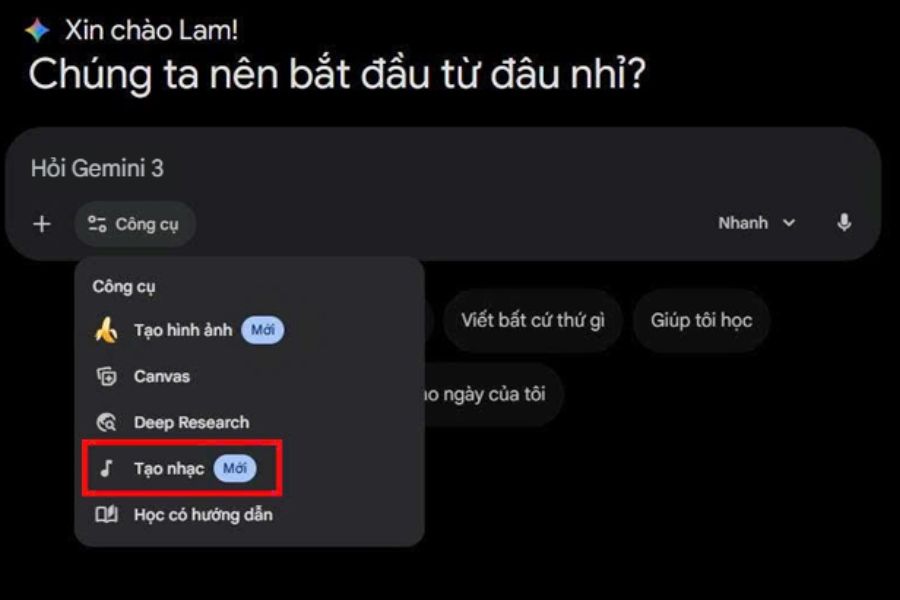
First, open your browser and go to https://gemini.google.com/ . Log in with your Google account, then check the available tools in the chat interface. If you see the "Create Music" option, click on it to start using the AI-powered songwriting feature.
If you can't find this option, you should check your account's support, your language, and the feature's rollout information in your region. Not all accounts have the same interface or usage limitations.
3.2. Choose a musical sample or enter your own composition ideas.
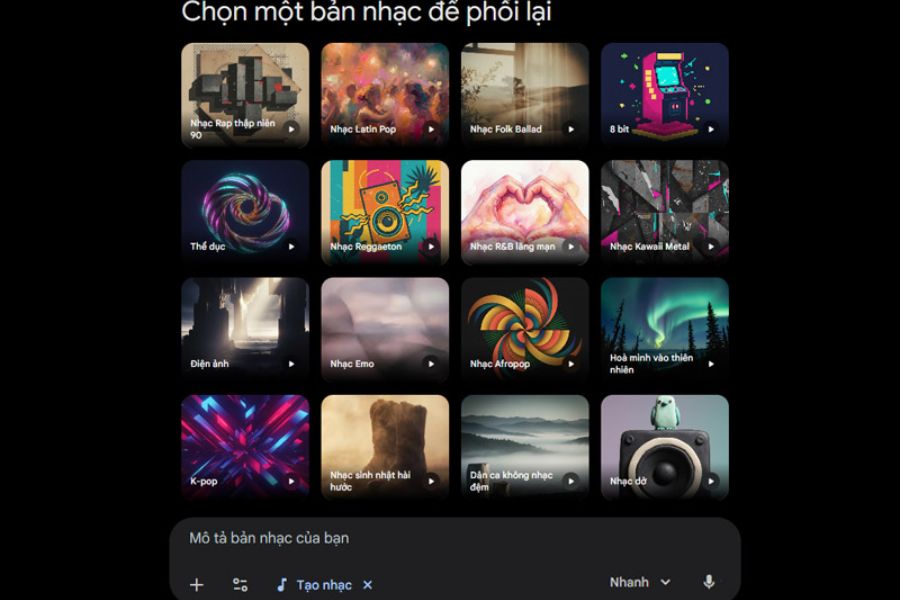
After opening the music creation feature, observe the suggestions or sample tracks if the interface provides them. This is a quick way to familiarize yourself with the AI's creative capabilities before building your own requirements. You can choose an idea that closely matches your needs and then adjust the genre, mood, or content to create a more suitable result.
If you want complete control, enter a prompt describing the music you want to create. You don't need to write too much, but you should clearly state the key characteristics instead of just a general statement like "create a good song." For example, you could request a gentle lo-fi track with warm piano notes, soft drums, a slow tempo, and a relaxing feel, suitable for listening while studying or working.
3.3. Write a clear and specific music creation prompt.
Prompts are a crucial part of Lyria 3's understanding of what kind of music you want to listen to. A clearly defined request will help the AI choose a more suitable style and mood. When first using it, you can build prompts using the formula: music genre + mood + instrument + rhythm + purpose.
You can refer to some prompts below:
Prompt creates relaxing music:
"Creating a gentle lo-fi track, with warm piano tones combined with soft drums and soothing background sounds. The slow tempo and deep melody evoke a sense of peace, perfect for studying, reading, and working in the evening."
Prompt creates music for travel videos:
“Compose a cheerful, fast-paced electronic pop track incorporating guitar, drums, and modern synthesizers. The melody has a spirit of exploration, freedom, and energy, perfectly suited to a video documenting a trip with friends.”
Prompt to create a Vietnamese song:
“Create an acoustic pop song in Vietnamese about youthful friendship. The lyrics should be relatable and emotionally rich, the melody catchy, and it should incorporate acoustic guitar and piano. The song should have a warm, positive atmosphere, perfect for sharing beautiful memories.”
After entering the prompt, review the description and then submit the request. If the result is not as expected, you can write a new prompt or adjust some elements to try again.
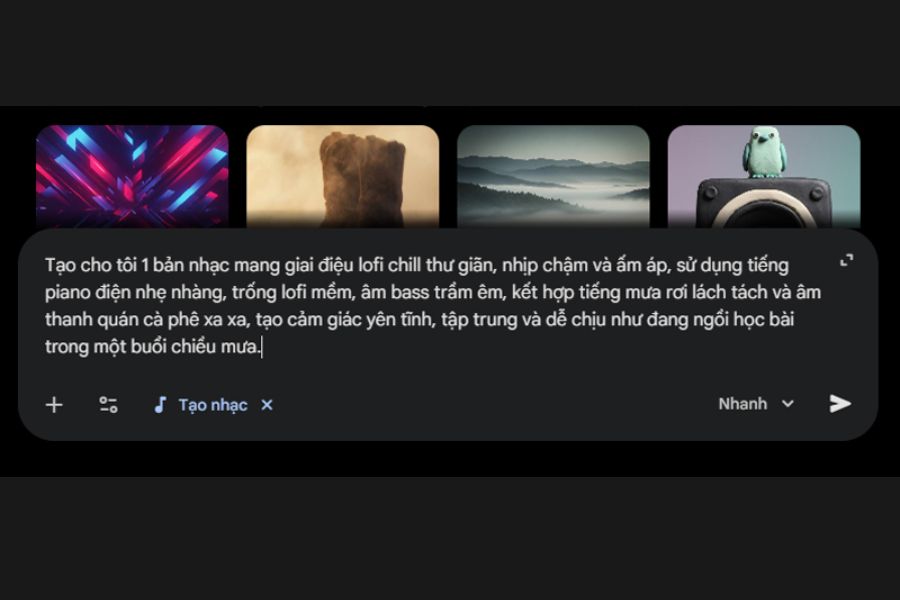
3.4. Create music from images or videos if supported.
In addition to written descriptions, some AI-powered music creation experiences can support using images or videos as inspiration. If your Gemini interface has a suitable file upload option, select the image or video you want to use and then add your audio style requirements. For example, with a sunset image at sea, you could request a slow, acoustic piece using guitar and piano, evoking a romantic, peaceful feeling. With an outdoor travel video, you could choose an upbeat, fast-paced background music to enhance the sense of excitement.
3.5. Listen, adjust, and save the track.
Once Gemini has created the result, listen to the entire piece of music to assess the melody, rhythm, and suitability for your intended use. Don't rush to use the first version if you feel the music doesn't quite capture the right emotion or match the video's content.
You can further fine-tune the track with specific requests such as increasing the tempo, decreasing drum volume, highlighting the piano, or switching from electronic to acoustic style. Once you're satisfied, use the play, share, or download options if the interface supports them.
4. Tips for creating great and personalized music using Lyria 3
To make your music sound natural, unique, and relevant to the content, you should spend time developing a prompt instead of relying solely on short requirements. Each time you try, adjust a few elements to easily identify the most suitable style.
-
Define your purpose from the start: The background music for a sales video needs a different tempo than relaxing music or music for a travel vlog.
-
Describe the specific emotion: Instead of writing "great music," try using phrases like warm, nostalgic, mysterious, or energetic.
-
Avoid incorporating too many contrasting styles: A prompt that simultaneously requests slow music and extremely fast tempos can result in a performance that doesn't align with the intended concept.
-
Create multiple versions: Try changing the instruments, tempo, or arrangement to find the perfect version.
-
Check the sound quality: Listen carefully to the beginning, transitions, and ending to ensure the music meets your needs.
5. Things to note when using Lyria 3 on Gemini
Although creating music with AI is relatively simple, you should still understand the tool's limitations for more effective use. The automatically generated results may not fully meet your expectations, especially when the prompt is vague or contains complex requirements.
-
Check access permissions: Features, music creation limitations, and options may vary by account, region, and rollout time.
-
Copyright Notice: It should not be assumed that all AI music is permitted for all purposes. Please read the terms and conditions applicable to your specific case.
-
Avoid asking for exact reproduction: Instead of requesting an exact reproduction of an existing song, describe the general musical characteristics you want to reference.
-
Review your content before posting: If the song has lyrics, listen back to identify any inappropriate words or unnatural pronunciation.
-
Don't rely solely on the first result: Experiment and refine to find the best version.
6. Conclusion
Lyria 3 brings a new approach to AI-powered music creation right within Gemini. With just a clearly defined prompt, you can experiment with various genres, emotions, and sound ideas without needing to be proficient in music production techniques. For best results, define your purpose, choose a suitable style, and patiently adjust the requirements after each creation. By knowing how to utilize the tool, you can save time finding background music and expand your creative possibilities for videos, podcasts, or personal projects.











VIP Products


Best Selling Products
Adobe Photoshop Copyright - Full App
120 USD
Adobe Premiere Pro Account
99 USD
ChatGPT Plus Account (GPT-4)
16 USD
Autodesk All App Account Copyright
120 USD
Upgrade genuine Capture One account
120 USD
Upgrade Genuine Office 365
49 USD
Freepik Premium Account
59 USD
Genuine Adobe Illustrator account
99 USD
Genuine Cheap Canva Pro
39 USD
Copyright Adobe Lightroom Account
59 USD
Plugin Retouch4me
69 USD
Capcut Pro 1 Year
39 USD
Windows 10 & 11 Pro Key
36 USD
MidJourney Account
29 USD
Upgrade Duolingo Super
29 USD