Best Selling Products
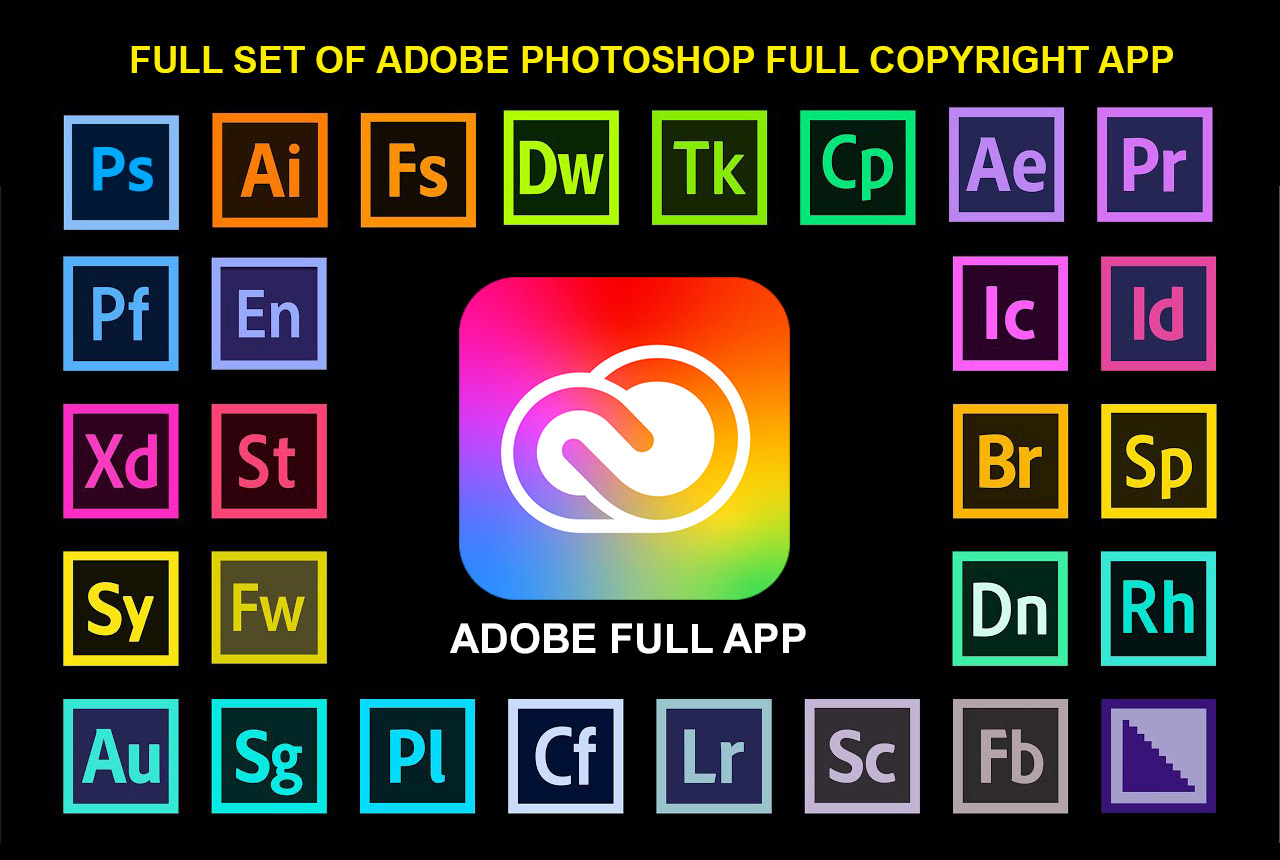
Adobe Photoshop Copyright - Full App
120 USD
Plugin Retouch4me
69 USD
Genuine Adobe Illustrator account
99 USD
Capcut Pro 1 Year
39 USD
Copyright Adobe Lightroom Account
59 USD
Upgrade genuine Capture One account
120 USD
Autodesk All App Account Copyright
120 USD
Genuine Cheap Canva Pro
39 USD

ChatGPT Plus Account (GPT-4)
16 USD

Freepik Premium Account
59 USD
Windows 10 & 11 Pro Key
36 USD
MidJourney Account
29 USD
Upgrade Duolingo Super
29 USD
Upgrade Genuine Office 365
49 USD
Adobe Premiere Pro Account
99 USD
How to use Nano Banana 2 to create beautiful, sharp, and professional-looking photos.
Nội dung
- 1. What is Nano Banana 2?
- 2. What are the outstanding features of Nano Banana 2?
- 2.1. Create images quickly and easily, try out many ideas.
- 2.2. Support for creating images with text content
- 2.3. Maintain consistent character and style.
- 2.4. Customize images for various purposes.
- 3. How to use Nano Banana 2 to create professional photos
- 3.1. Accessing Nano Banana 2 on Gemini
- 3.2. Write a prompt that clearly describes the image.
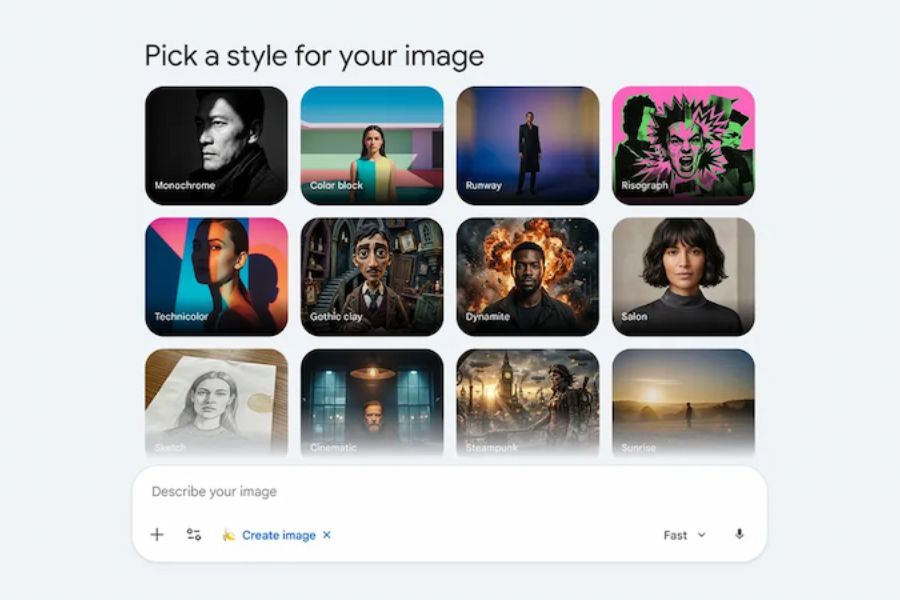
- 3.3. Choose the appropriate style and aspect ratio.
- 3.4. Creating images and checking results
- 3.5. Refine the image using the following command.
- 3.6. Save and use images appropriately.
- 4. Tips for writing prompts to help Nano Banana 2 create better images.
- 4.1. Provide specific descriptions instead of general terms.
- 4.2. Prioritize one main idea in each image.
- 4.3. Use reference images when high accuracy is required.
- 5. Useful Nano Banana 2 prompts you should try
- 5.1. Prompt creates professional portrait photos.
- 5.2. Prompt for creating product images for sale
- 5.3. Banner Design Prompt
- 6. Notes on using Nano Banana 2
- 7. Conclusion
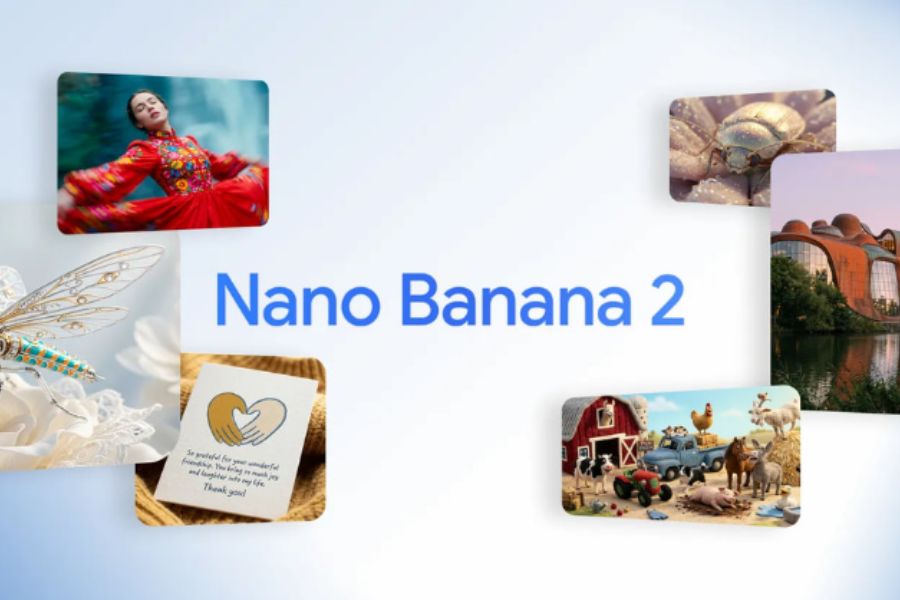
Google continues to make waves in the field of artificial intelligence with Nano Banana 2, an image creation model that combines fast processing speed with high image quality. This tool helps users transform ideas into visual images with simple commands, from artistic portraits and advertising posters to professional product images. No graphic design software expertise is required; you can still actively create and edit images as desired. So how do you use Nano Banana 2 to create beautiful, sharp, and captivating images? Let''s explore the detailed instructions below with Sadesign.
1. What is Nano Banana 2?
Nano Banana 2, also known as Gemini 3.1 Flash Image, is an AI image creation and editing tool developed by Google. The tool allows users to create images from text descriptions, modify details in existing images, and experiment with various creative styles without requiring advanced design skills. Thanks to its fast processing speed and natural language understanding, Nano Banana 2 is suitable for a wide range of needs, including social media content creation, advertising image design, illustration, and creative idea development. Some notable capabilities of Nano Banana 2 include:
-
Create images from descriptions using natural language.
-
Adjust the colors, lighting, layout, and background.
-
Supports creating images with text for design purposes.
-
Maintain the characteristics of characters and objects across multiple images.
-
Customize the aspect ratio according to your needs.
2. What are the outstanding features of Nano Banana 2?
2.1. Create images quickly and easily, try out many ideas.
Nano Banana 2 is developed with a Flash-oriented approach, focusing on responsiveness so users can quickly see results and make adjustments as desired. You can try many styles, change colors, or refresh the layout without having to repeat the entire design process. This is especially useful when creating multiple images for social media, product advertisements, or marketing campaigns.
2.2. Support for creating images with text content
For those who frequently design posters, banners, or advertising images, the ability to display text within images is a significant advantage. Nano Banana 2 can support incorporating headlines, slogans, and short content into designs according to the described layout. However, you should still carefully check spelling, Vietnamese diacritics, and displayed information before using the images officially.
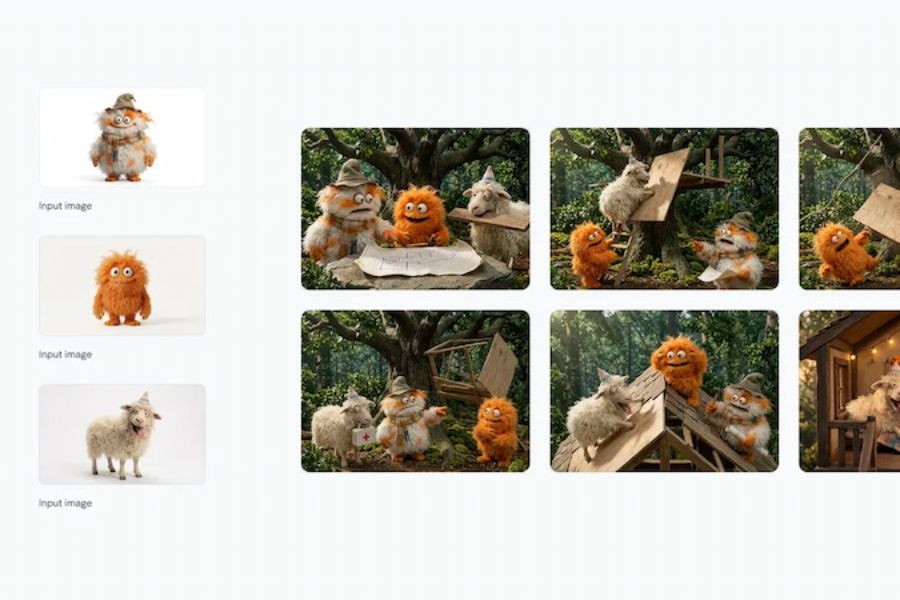
2.3. Maintain consistent character and style.
When building themed photo sets or creating storytelling content, maintaining consistent character appearances across images is crucial. Nano Banana 2 helps preserve features like hairstyles, clothing, colors, and style across multiple image creations. For more consistent results, use reference images and reiterate key identifying features in subsequent commands.
2.4. Customize images for various purposes.
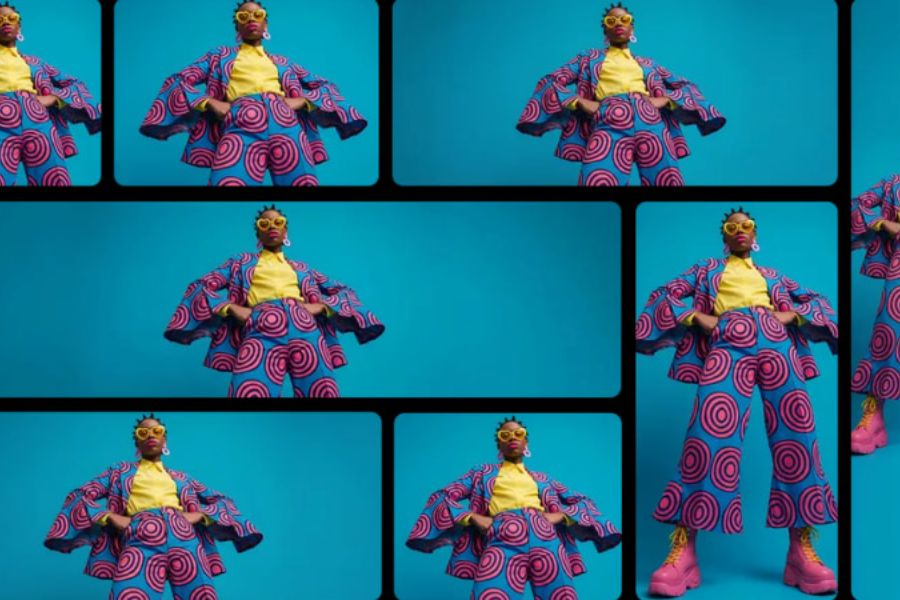
Nano Banana 2 can support a wide range of creative needs, from article illustrations to product photos and artistic portraits. Users can describe the shooting angle, lighting, materials, colors, and aspect ratio to guide the results. This allows the resulting images to be more suitable for their intended use, although the actual output quality will depend on the settings and account limitations.
3. How to use Nano Banana 2 to create professional photos
3.1. Accessing Nano Banana 2 on Gemini
First, you need to access Gemini to begin the image creation process. Log in with your Google account, then find the image creation feature in the chat interface. Options may vary depending on the time and account type, so check the mode you are using before submitting your request.
-
Access Gemini .
-
Log in using your Google account.
-
Find the image creation feature in the interface.
-
Choose the mode that best suits your needs.
3.2. Write a prompt that clearly describes the image.
The prompt is a crucial factor in determining whether the resulting image closely matches the original concept. Instead of simply entering a general statement like "create a beautiful girl image," you should specifically describe the subject, clothing, background, lighting, shooting angle, and desired style. The clearer the command, the better the AI can create a result that meets your requirements.
An effective prompt should include:
-
Subject: The person, object, or scene that needs to appear.
-
Context: Location, space, and time.
-
Style: Realistic photography, cinematography, or illustration.
-
Lighting: Natural light or studio lighting.
-
Composition: The angle of the shot and the position of the subject.
-
Quality: Clear details, harmonious colors, and realistic texture.
3.3. Choose the appropriate style and aspect ratio.
After defining your concept, describe your desired visual style and aspect ratio. Portrait photos are typically best suited to vertical layouts, while website banners require horizontal space for headlines and content. Defining the intended use from the outset will ensure a well-structured image and minimize the need for extensive cropping and editing later.
-
Portrait photography: Prioritize vertical composition to highlight the subject.
-
Product photos: Use a clean background and clear lighting.
-
Banner ads: Choose a horizontal layout and leave space for text.
-
Social media photos: Choose an aspect ratio that suits the platform you're posting to.
3.4. Creating images and checking results
Once you've finalized the prompt, send a request for Gemini to generate the image. After receiving the result, you should check important details such as faces, hands, handwriting, product shape, and compositional balance. If you find any errors, describe exactly what needs fixing so the AI can focus on addressing them instead of recreating the entire image.
-
Check the sharpness of the main subject.
-
Compare the image with the original requirements.
-
Detects discrepancies or distortions in details.
-
Please correct each specific error.
3.5. Refine the image using the following command.
One effective way to use Nano Banana 2 is to edit images step by step. If the result is already good but the lighting isn't right or the background is too cluttered, you can simply request changes to that part and keep the rest of the details. This approach gives you better control over the creative process and avoids unwanted changes to the main subject.
You can refer to commands such as:
-
"Make the lighting more natural, keeping the faces and clothing as they are."
-
"Change the backdrop to a beige studio, but don't change the product."
-
"Enhances subject clarity while preserving true-to-life colors."
-
"Leave space on the left for the ad title."
3.6. Save and use images appropriately.
After finalizing the image, use the download option provided on Gemini to save it to your device. Before uploading, you should check the size, resolution, and display compatibility on the target platform. For images used for advertising or sales, compare key details with the actual product to minimize discrepancies that could mislead customers.
-
Save the image at a quality that suits your needs.
-
Check the images on the actual upload interface.
-
Match the colors to your brand's style if needed.
-
Verify the rights to use images and related identifying elements.
4. Tips for writing prompts to help Nano Banana 2 create better images.
4.1. Provide specific descriptions instead of general terms.
Requests like "beautiful," "high-quality," or "professional" are often insufficient for AI to accurately understand your needs. Replace them with specific descriptions of lighting, color, texture, and composition. For example, instead of requesting a beautiful product image, you could describe a bag placed on a display stand, a minimalist cream background, and soft studio lighting.
4.2. Prioritize one main idea in each image.
A prompt containing too many subjects, styles, and effects can make the layout look cluttered. To make the image stand out, identify the main subject first, then add the details that are truly necessary. If you want to try different ideas, you can create separate versions for easy comparison and selection.
4.3. Use reference images when high accuracy is required.
Reference images help the AI better understand the character's appearance, product shape, or the design style you're aiming for. When uploading images, specify which parts should remain unchanged and which can be modified. For example, if you want to change the background of the product image, request that the original product's colors, style, and identifying details be preserved.
5. Useful Nano Banana 2 prompts you should try
You can start with the prompt templates below and then adjust them to your actual needs.
5.1. Prompt creates professional portrait photos.
"Create a portrait of a young woman with a natural expression, elegant attire, soft window lighting, and a minimalist background. The composition focuses on the face, with realistic skin tones, clearly defined hair texture, a professional photographic style, and a slight depth of field."
5.2. Prompt for creating product images for sale
“Create an advertising image of a women's handbag placed on a cream-colored display stand. Use soft studio lighting, natural shadows, a minimalist background, and an elegant composition. Maintain the shape, color, material, and details of the bag as in the reference image, without adding unnecessary accessories.”
5.3. Banner Design Prompt
“Design a modern-style advertising banner with beige and light brown tones. Place the product on the right, leaving ample space on the left for the headline. Ensure harmonious lighting, balanced layout, sharp images, and minimize unnecessary decorative details. Do not add text beyond the required content.”
6. Notes on using Nano Banana 2
Despite its ability to support rapid image creation, Nano Banana 2 may still produce inaccurate details or fail to fully meet requirements. Therefore, users should view AI as a supporting tool rather than skipping the proofreading and refinement steps. Especially for images used in business, authenticity and accuracy should be paramount.
-
Check the handwriting: Ensure the brand name, price, and advertising information are accurate.
-
Compare with the actual product: Avoid using images that differ significantly from the actual goods.
-
Choose the right resolution: Consider your display needs for websites, social media, or print.
-
Protecting personal data: Exercise caution when uploading photos containing private information to AI tools.
-
Check for usage rights: Pay attention to copyright, real-life images, and trademark elements in the output product.
7. Conclusion
Nano Banana 2 makes the process of creating images with AI more convenient, even for those without design experience. Simply access Gemini, write a clear prompt, choose a suitable style, and fine-tune every detail, and you can create images for various purposes. Start with simple ideas, experiment with commands, and carefully check the results to effectively harness the creative capabilities of Nano Banana 2.






VIP Products
Best Selling Products
Adobe Photoshop Copyright - Full App
120 USD
Plugin Retouch4me
69 USD
Genuine Adobe Illustrator account
99 USD
Capcut Pro 1 Year
39 USD
Copyright Adobe Lightroom Account
59 USD
Upgrade genuine Capture One account
120 USD
Autodesk All App Account Copyright
120 USD
Genuine Cheap Canva Pro
39 USD
ChatGPT Plus Account (GPT-4)
16 USD
Freepik Premium Account
59 USD
Windows 10 & 11 Pro Key
36 USD
MidJourney Account
29 USD
Upgrade Duolingo Super
29 USD
Upgrade Genuine Office 365
49 USD
Adobe Premiere Pro Account
99 USD