Best Selling Products
Upgrade genuine Capture One account
120 USD
Upgrade Genuine Office 365
49 USD
Genuine Adobe Illustrator account
99 USD
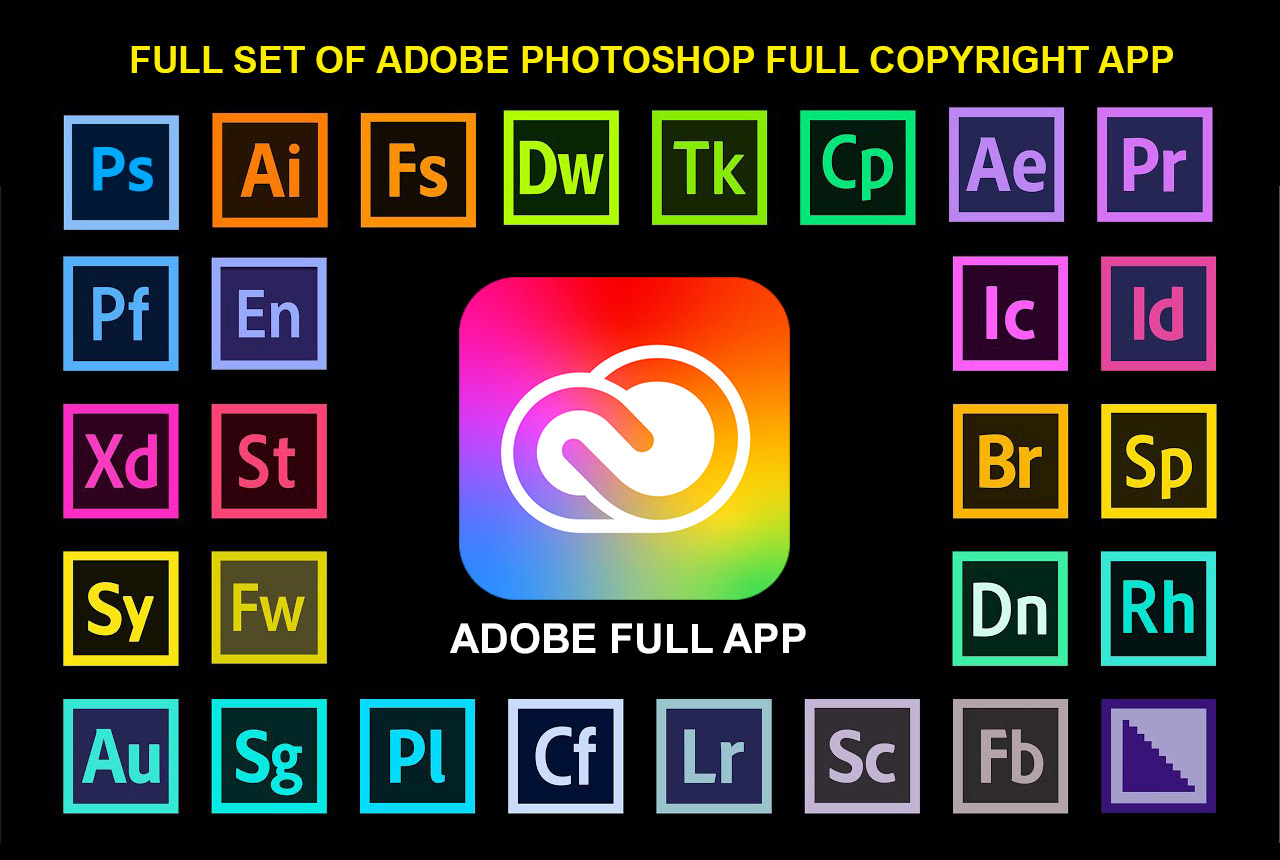
Adobe Photoshop Copyright - Full App
120 USD
Copyright Adobe Lightroom Account
59 USD
Upgrade Duolingo Super
29 USD
Autodesk All App Account Copyright
120 USD
Genuine Cheap Canva Pro
39 USD

Freepik Premium Account
59 USD
Capcut Pro 1 Year
39 USD

ChatGPT Plus Account (GPT-4)
16 USD
Adobe Premiere Pro Account
99 USD
Windows 10 & 11 Pro Key
36 USD
Plugin Retouch4me
69 USD

MidJourney Account
29 USD
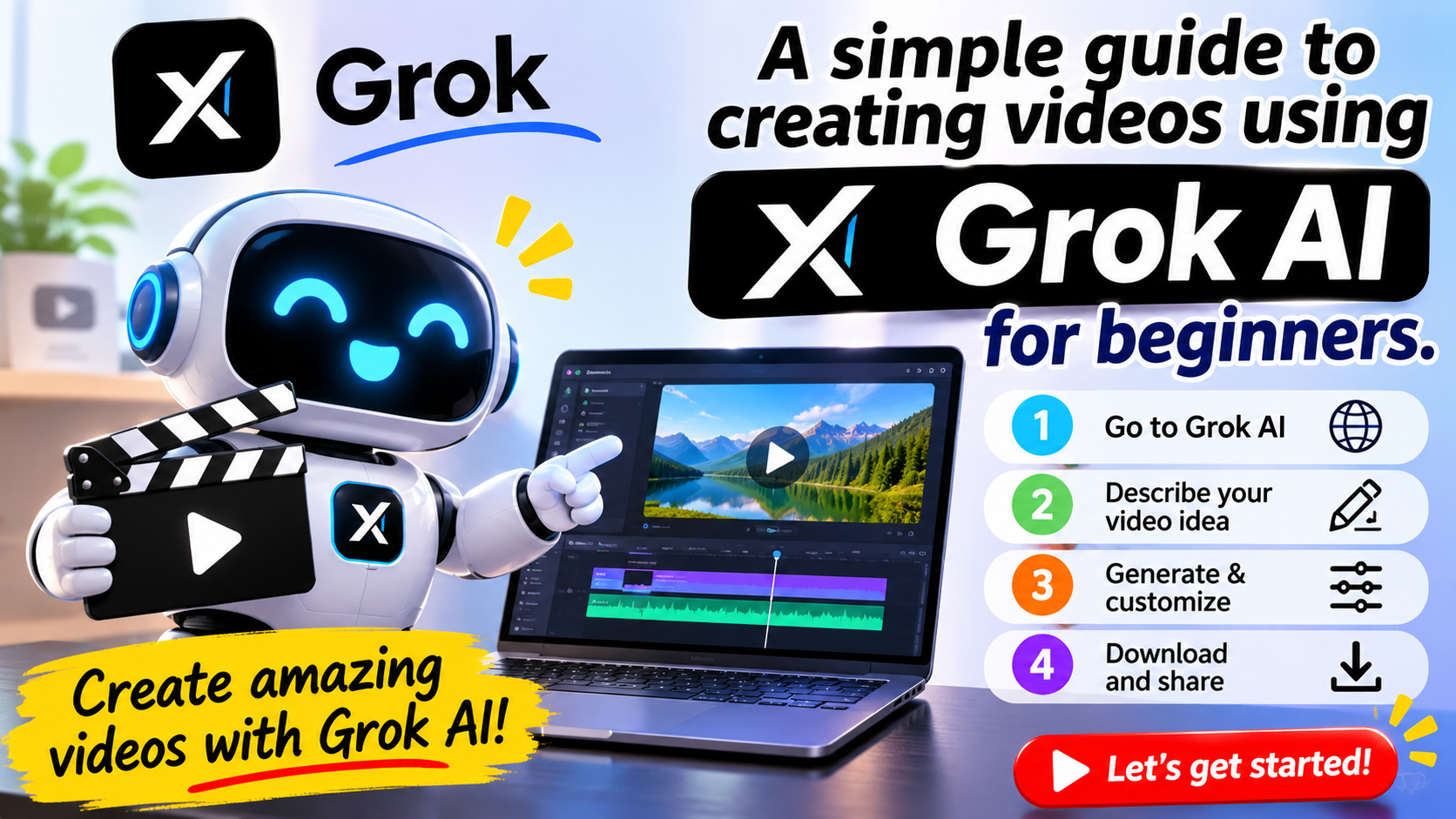
A simple guide to creating videos using Grok AI for beginners.
Nội dung
- 1. What is Grok AI?
- 2. Simple guide to creating videos using Grok AI
- Step 1: Access Grok AI
- Step 2: Open Grok Imagine
- Step 3: Enter the prompt or upload an image.
- Step 4: Select video creation mode
- Step 5: Wait for the system to generate the video.
- Step 6: Save and share the video
- 3. Key features of Grok Imagine
- 4. Tips for writing better video creation prompts using Grok AI
- 5. Common mistakes when creating videos using Grok AI
- 6. Things to note when using Grok AI to create videos
- 7. Conclusion
Want to transform a still image into a dynamic moving video or create a unique clip from just a few lines of text? Grok AI will help you realize your creative ideas in a simple way, even if you have no video editing experience. With Grok Imagine, you can try creating videos from images or text, combining motion and sound depending on the supported features. In this article, let''s explore with Sadesign how to create videos using Grok AI step-by-step, its outstanding features, and tips for writing prompts to make your finished product more natural and engaging.
1. What is Grok AI?
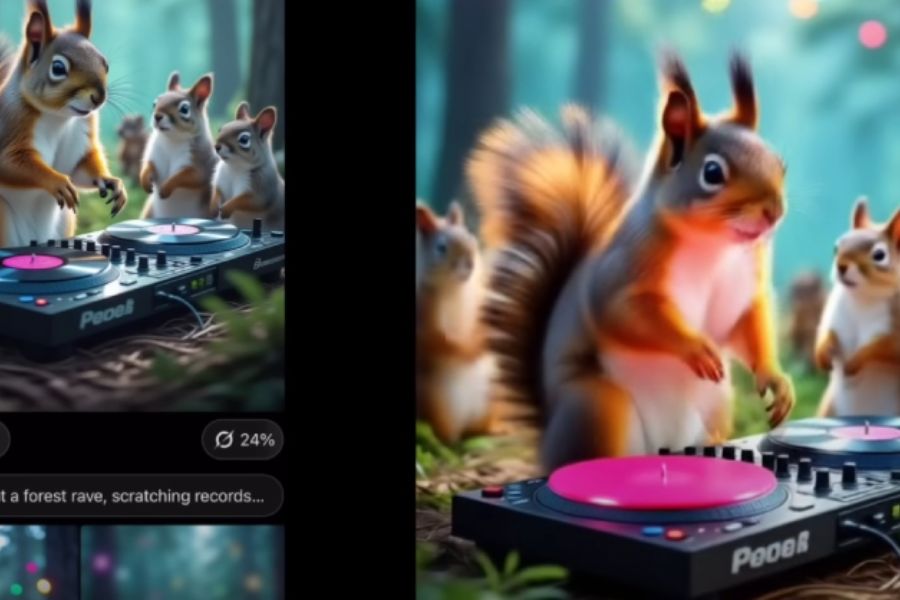
Grok AI is an artificial intelligence assistant developed by xAI, supporting users in information searching and content creation. Grok Imagine, in particular, is a feature for creating images and videos using AI, allowing you to transform ideas into visually appealing clips without having to handle the entire filming and editing process yourself. This tool is suitable for content creators, online shop owners, or anyone who wants to experiment with new video production methods. Some of Grok AI's highlights for video creation include:
-
Turn photos into videos: Create motion from existing images, making the scene more lively.
-
Creating content from text: Use descriptive statements to define the subject, context, and action in the video.
-
Audio support: Some modes can create videos with sound, enhancing the realism of the final product.
-
Versatile styles: Allows for experimentation with various ways of expression depending on the available options.
-
Time saving: Reduces manual animation steps, suitable for short video production.
Depending on the app version, region, and account, features may vary. Therefore, you should check the actual interface to determine which options are supported.
2. Simple guide to creating videos using Grok AI
To begin, you just need to prepare an idea or image that you want to turn into a video. The process is relatively easy to learn, but you should clearly describe the content so that the AI understands your wishes and produces the right result.
Step 1: Access Grok AI
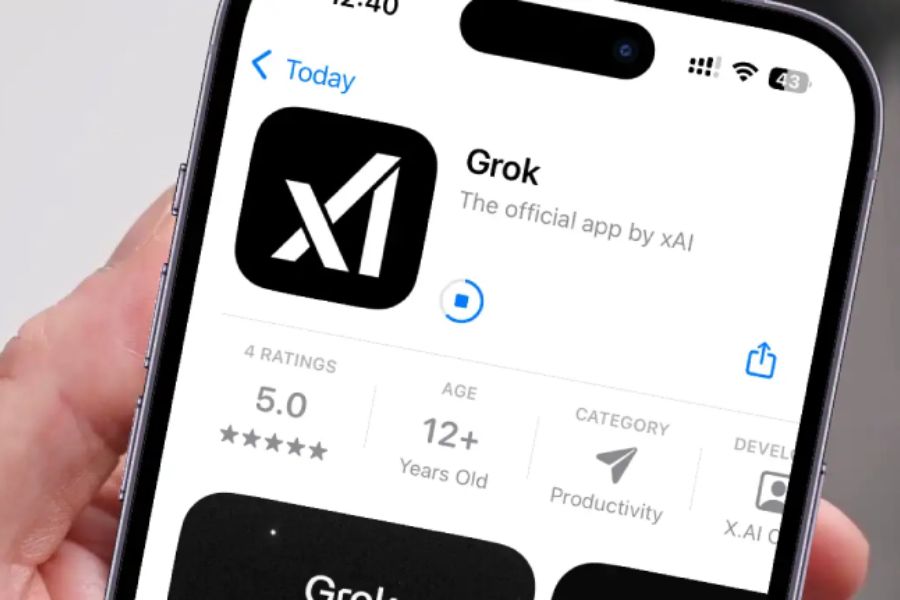
First, access Grok through its official website or app compatible with your device. Then, log in to your account and check if the video creation feature is available.
-
Open the official Grok website or app.
-
Log in to your account following the instructions.
-
Check the app version if you're using a phone.
-
Ensure a stable internet connection while creating videos.
If you can't find the video creation feature, you should check for updates and account support. The options may not be the same for all versions or regions.
Step 2: Open Grok Imagine
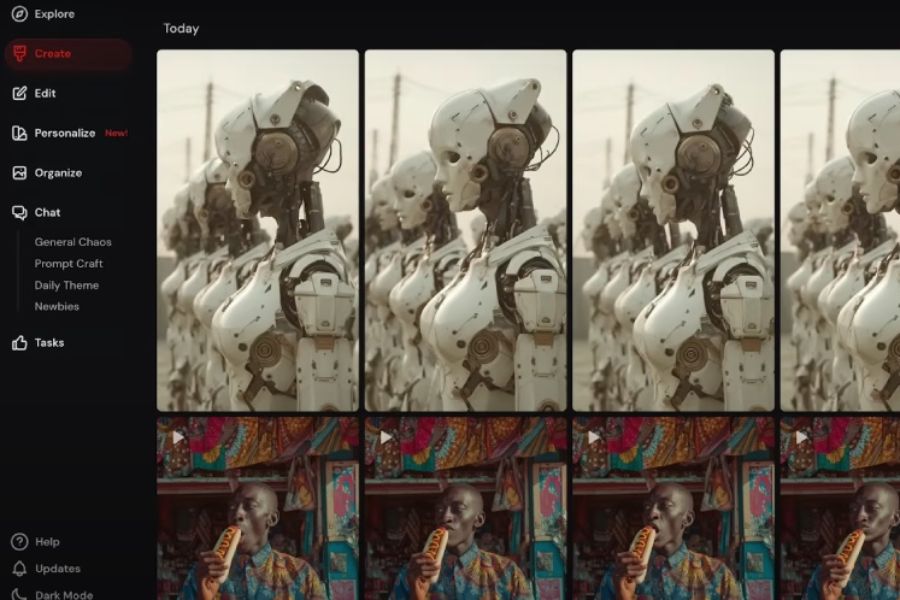
After logging in, find the Imagine section on the Grok interface if your account is supported. This is the area for creating images and videos using artificial intelligence. The interface may change from version to version, so observe the options displayed on the screen.
Once you've successfully accessed the site, familiarize yourself with the command input area and content creation tools. If you want to turn existing images into videos, prepare the images you need beforehand to make the process easier.
Step 3: Enter the prompt or upload an image.
This is a crucial step that determines the direction of the video. You can enter commands for the AI to create content based on your ideas, or upload images from your device for the system to add motion to them.
-
Choose images with a clear subject, an easy-to-view composition, and appropriate lighting.
-
Provide a detailed description of the characters, objects, or scenes that appear in the video.
-
Specify the desired action and movement.
-
Add visual style, lighting, or emotion as needed.
For example, you could enter the prompt: “A white cat lies by the window, gently turning its head to look outside, curtains softly fluttering in the breeze, gentle morning sunlight, natural movement, cinematic style.” A clear command will give the AI more specific direction. However, the results may still differ from expectations, so you should try adjusting the description if the video doesn't meet your requirements.
Step 4: Select video creation mode
After entering content or uploading images, look for the video creation option, such as Make Video, if the interface displays it. Some versions may offer modes like Normal, Fun, Custom, or Spicy for users to choose a style that suits them.
-
Normal: Suitable for general videos, aiming for a balanced presentation.
-
Fun: Suitable for humorous content, funny expressions, or entertaining ideas.
-
Custom: Allows you to customize the display based on the provided options.
-
Spicy: Aims towards bolder content within the service's policy framework.
The names and number of modes may vary by version. You should read the feature descriptions before selecting and comply with Grok AI's content guidelines.
Step 5: Wait for the system to generate the video.
After confirming the request, Grok AI will begin processing the content. Completion time depends on system status, request complexity, and account usage limits. While waiting, maintain a stable internet connection and avoid repeatedly resending requests until the previous task is complete.
Once the video is created, review the entire finished product to check for motion, image, and sound. If you notice any distorted details or unnatural-looking actions, you can adjust the prompt and create a new version.
Step 6: Save and share the video
Once you're satisfied with the result, use the download or share options provided on the interface. Before posting a video to TikTok, Facebook Reels, or YouTube Shorts, you should check the image quality, aspect ratio, and audio to ensure the content displays appropriately.
-
Remove unnecessary sections if the editing tool supports it.
-
Add subtitles to make it easier for viewers to follow the content.
-
Adjust the volume and choose the music that suits you.
-
Please double-check the information and images before posting them publicly.
You can also use other video editing apps to finalize the product. For product promotional videos, ensure that the AI-generated images do not distort the actual color, style, or features of the product.
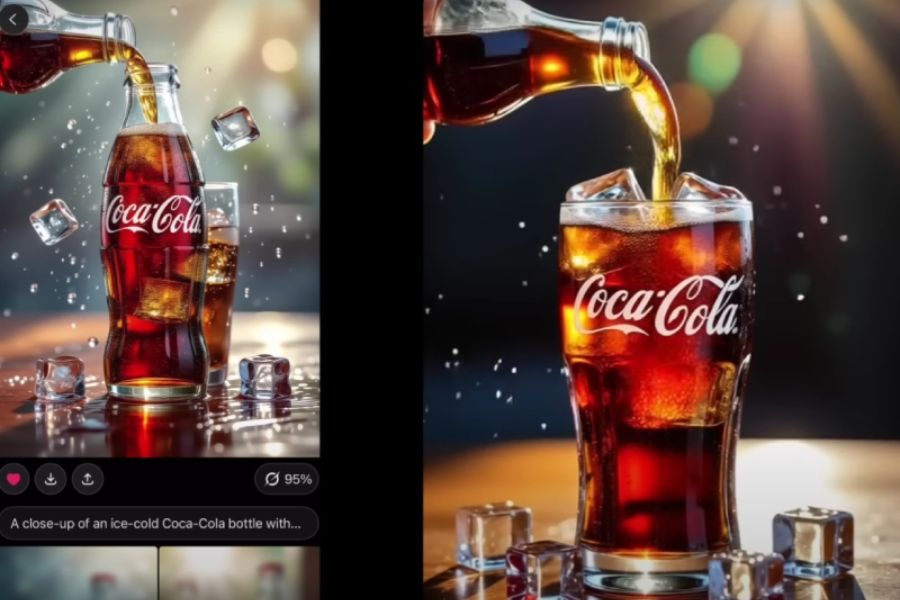
3. Key features of Grok Imagine
Grok Imagine has garnered attention for its ability to support content creation from text and images. Instead of manually setting up each movement, you can describe the desired outcome and the AI will handle most of the initial steps. This is especially useful when you need to experiment with many video ideas in a short amount of time. Notable features of the tool include:
-
Create videos from still images: Add motion to landscape photos, pets, character illustrations, or product images.
-
Creative from prompts: Transforming written descriptions into visual content based on your ideas.
-
Audio integration: Some modes support creating audio to accompany the video, making the viewing experience more immersive.
-
Experiment with different styles: Change the commands and options to find the most suitable way to express yourself.
-
Short video creation support: Provides materials for entertainment content, product introductions, or social media posts.
Despite its many advantages, Grok Imagine can still produce inaccurate details. You should check the final product and make further adjustments as needed instead of relying entirely on the AI-generated result.
4. Tips for writing better video creation prompts using Grok AI
An effective prompt doesn't necessarily have to be long, but it needs to accurately describe the main point. If you only enter general requests like "create a beautiful video," the AI will have plenty of room to interpret itself, and the result may not match the original idea. You can improve the prompt in the following ways:
-
Clearly describe the subject: Identify the main character, object, or scene.
-
Use specific verbs: For example, walk slowly, turn around, smile, or the petals sway gently.
-
Define the context: Add details about time, lighting, weather, and space.
-
Style options: You can request realistic, animated, cinematic, or minimalist advertising images.
-
Maintain consistency in content: Focus on one main action to avoid making the video look cluttered.
For example, if you want to create a video showcasing a handbag, you could enter: “A cream-colored handbag placed on a light-colored wooden table, soft sunlight streaming in from the window, the camera slowly moving closer, the decorative bow gently swaying, realistic imagery, smooth movement, minimalist fashion advertising style.” This command defines the subject, color, lighting, and movement, thus helping the AI to orient itself more clearly. You can also change each detail after each attempt to find the best version.
5. Common mistakes when creating videos using Grok AI
During use, you may encounter issues such as the video creation button not being found, slow processing times, or the final product not matching the description. Instead of repeating the entire process, identify the cause to choose the appropriate solution.
-
The Imagine option is missing. Check your app version, account, and feature support in your region.
-
Video processing is taking too long: Check your internet connection, wait for the current task to complete, and try again later if the system is overloaded.
-
Unnatural movement: Simplify the prompt, reduce the number of actions, and focus on one main movement.
-
The image is not as intended: Choose a clearer input image or one that more specifically depicts the subject, colors, and background.
-
Unable to download video: Check your storage space, file permissions, and download options.
If the problem persists, please refer to Grok's official support guide. You should also check your account usage limits, as some features may be restricted by your current service plan or policy.
6. Things to note when using Grok AI to create videos
AI makes content creation easier, but users still need to control the quality and appropriateness of videos before sharing them. Especially when using content for advertising or commercial purposes, you should carefully check the images, audio, and usage rights. Some important points to note include:
-
Do not upload private images or sensitive data without fully understanding how the service handles your information.
-
Do not use other people's images to create fake, misleading, or privacy-violating content.
-
Comply with Grok's policy regarding sensitive content and video creation limits.
-
Review the information, audio, and images before publishing them publicly.
-
Please refer to the current terms of use if you wish to use the video for commercial purposes.
Using AI responsibly will help you leverage the technology effectively while building content that resonates with your audience and aligns with your channel's long-term growth goals.
7. Conclusion
Creating videos with Grok AI is a simple way to turn ideas into visual content without needing extensive video editing experience. With just a clear command or a suitable image, you can experiment with various movements and creative styles. Start with short videos, adjust the prompt with each try, and carefully check the final product before sharing. When combined with basic editing skills, Grok AI will give you even more ideas for creating entertaining videos, developing your social media channel, or showcasing products in a more engaging way.








VIP Products
Best Selling Products
Upgrade genuine Capture One account
120 USD
Upgrade Genuine Office 365
49 USD
Genuine Adobe Illustrator account
99 USD
Adobe Photoshop Copyright - Full App
120 USD
Copyright Adobe Lightroom Account
59 USD
Upgrade Duolingo Super
29 USD
Autodesk All App Account Copyright
120 USD
Genuine Cheap Canva Pro
39 USD
Freepik Premium Account
59 USD
Capcut Pro 1 Year
39 USD
ChatGPT Plus Account (GPT-4)
16 USD
Adobe Premiere Pro Account
99 USD
Windows 10 & 11 Pro Key
36 USD
Plugin Retouch4me
69 USD
MidJourney Account
29 USD