
Best Selling Products
Upgrade genuine Capture One account
120 USD

Capcut Pro 1 Year
39 USD

MidJourney Account
29 USD
Genuine Adobe Illustrator account
99 USD

ChatGPT Plus Account (GPT-4)
16 USD

Copyright Adobe Lightroom Account
59 USD
Windows 10 & 11 Pro Key
36 USD
Adobe Photoshop Copyright - Full App
120 USD

Adobe Premiere Pro Account
99 USD
Autodesk All App Account Copyright
120 USD
Upgrade Genuine Office 365
49 USD
Genuine Cheap Canva Pro
39 USD

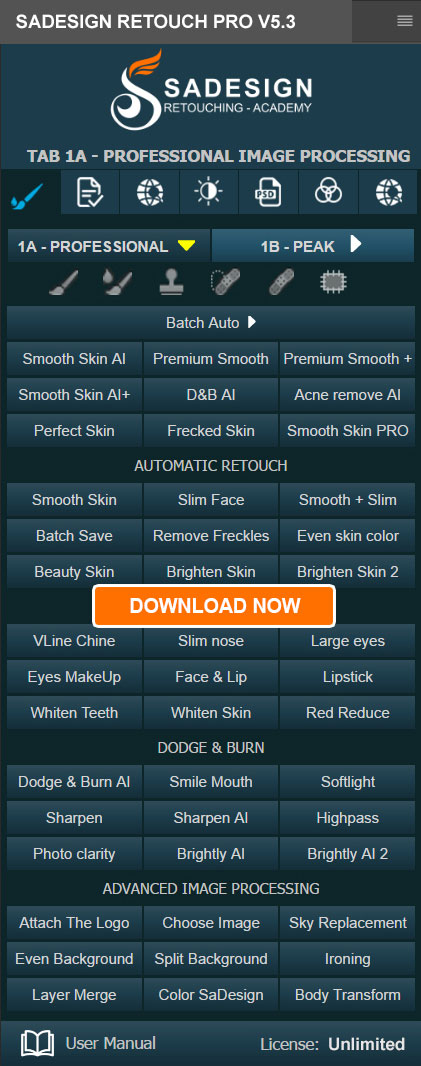
Plugin Retouch4me
69 USD

Upgrade Duolingo Super
29 USD

Freepik Premium Account
59 USD
Fix formatting loss errors when copying from ChatGPT to Word.
Nội dung
- 1. How to fix the table formatting loss error when copying from ChatGPT to Word
- 2. How to fix mathematical formula errors when copying from ChatGPT to Word
- 3. How to fix font and black background errors when copying from ChatGPT to Word
- 4. How to fix line break errors when copying from ChatGPT to Word
- 5. Tips to minimize formatting errors when copying from ChatGPT to Word
- 6. Conclusion
Do you often use ChatGPT to write articles, compile documents, or process spreadsheets, but find it time-consuming to edit the content when copying it to Microsoft Word? Errors such as missing table borders, mathematical formulas turning into strange characters, font changes, black backgrounds appearing, or unusual line breaks can make your documents look unprofessional. Instead of manually editing each section, you can apply some simple tricks to keep the content neatly displayed and properly formatted. In this article, let''s explore with Sadesign how to fix formatting errors when copying from ChatGPT to Word to save time and improve work efficiency.

1. How to fix the table formatting loss error when copying from ChatGPT to Word
Tables created by ChatGPT often contain many rows, columns, and related data. When copied directly to Word, the content may be compressed into a single paragraph, lose its borders, or no longer be aligned as originally intended. To address this, you can convert the text into a table directly within Word by following the steps below.
Step 1: Copy the table from ChatGPT
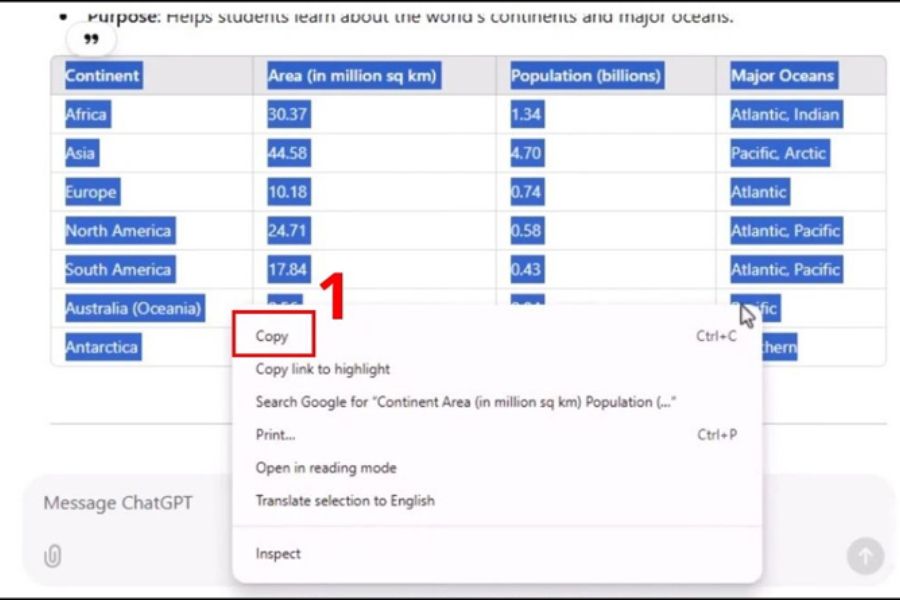
Access the conversation containing the data table, then highlight all the content you want to extract and press Ctrl + C. You should carefully check to avoid missing column headers or data rows at the end of the table.
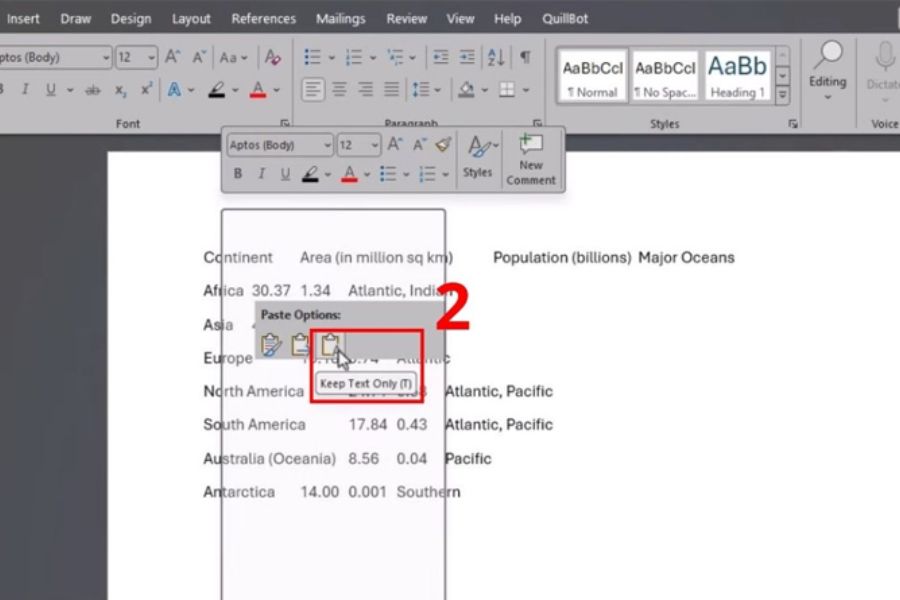
Step 2: Paste the content into Word
Open your Word document, place the cursor where you want to insert the table, right-click, and select the appropriate paste option. If the table has formatting errors, you can select Keep Text Only to remove unnecessary formatting before converting it.
Step 3: Convert the text to a table
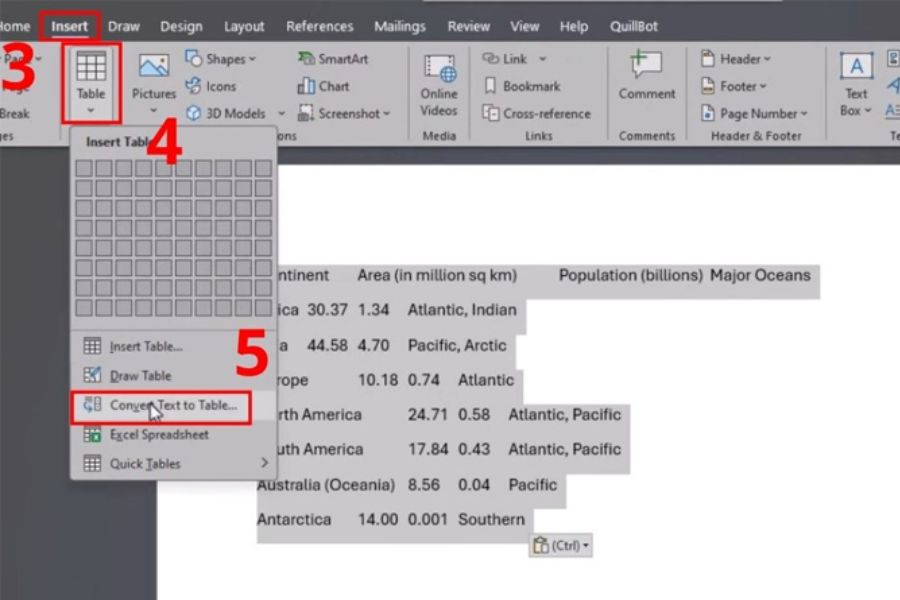
Highlight the pasted data, then select Insert > Table > Convert Text to Table. In the dialog box that appears, check the number of columns and choose an appropriate data separator, such as a tab or comma if the content is divided using these characters.
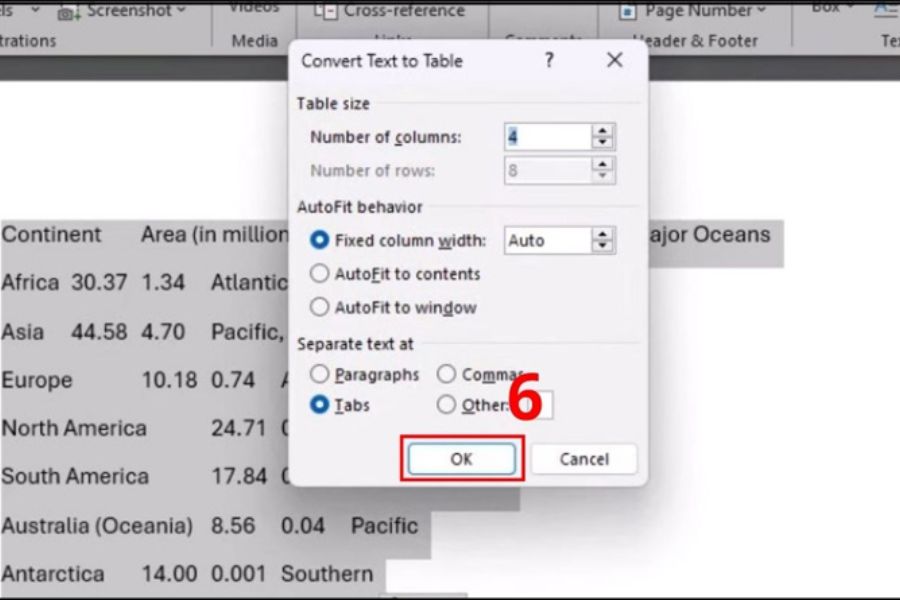
Step 4: Complete and edit the table
Click OK to convert the text into a table. Then you can adjust column widths, alignment, bold header rows, and add borders to make the table easier to read. If the original data isn't clearly separated, revise the content before converting to avoid incorrectly merged cells.
2. How to fix mathematical formula errors when copying from ChatGPT to Word
Mathematical formulas are one of the most common types of errors when copying from ChatGPT to Word. Expressions containing fractions, square roots, integrals, or Greek symbols are sometimes displayed as LaTeX code instead of the complete formula. To resolve this, you should ask ChatGPT to export the formula in a suitable format and use the Equation tool available in Word.
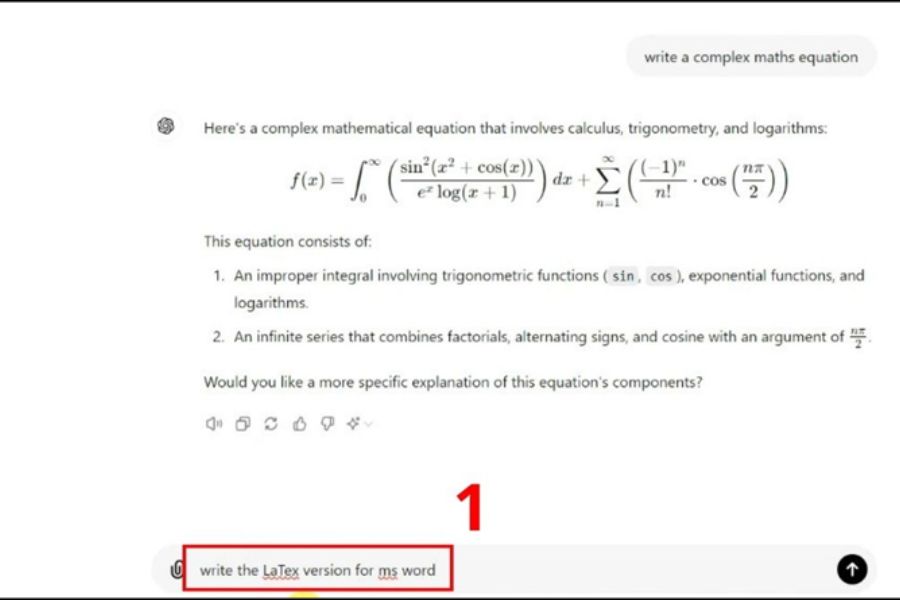
Step 1: Ask ChatGPT to generate the LaTeX formula.
Enter your request for ChatGPT to provide the formula in LaTeX code, while preserving all necessary mathematical symbols and parentheses. This method is particularly useful for complex expressions where manual input can easily lead to errors.
Step 2: Copy the formula code
Copy the LaTeX code generated by ChatGPT. You should copy the exact formula content, avoiding the addition of irrelevant explanations that might prevent Word from converting correctly.
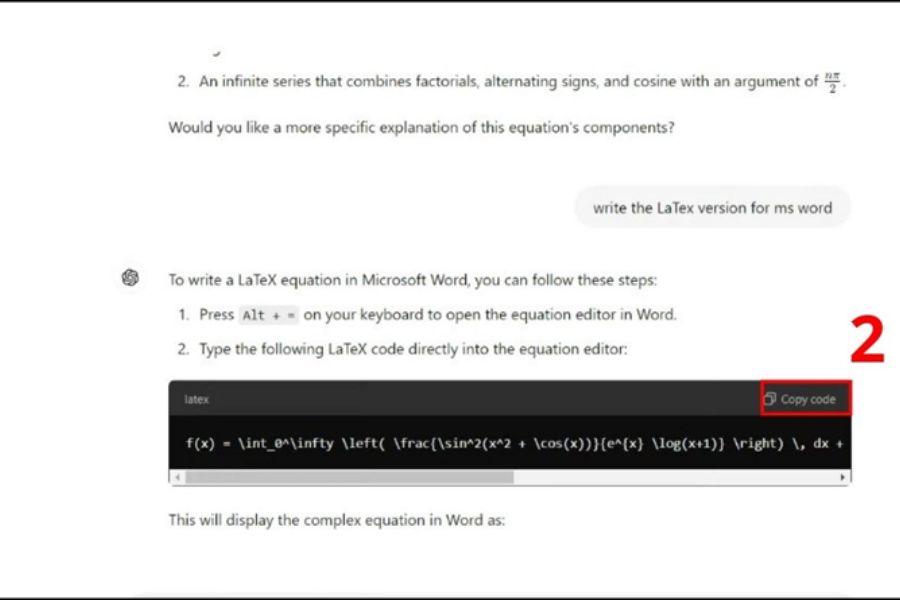
Step 3: Open the formula input area in Word.
In a Word document, place the cursor where you want to insert the formula and press Alt + = to open the Equation area. This tool helps you enter and present mathematical expressions directly in Word.
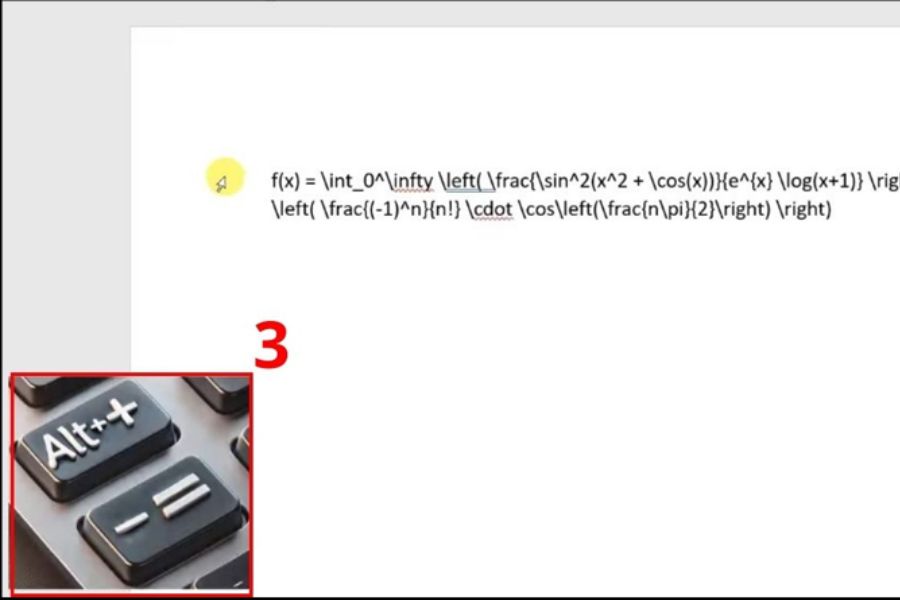
Step 4: Convert LaTeX code into formulas
Paste the code into the Equation field. If your Word version supports LaTeX input, select LaTeX mode in the Equation or Convert tab, then change the formula to Professional format to display it in a standard mathematical layout. Finally, double-check the fractions, exponents, subscripts, and special symbols before using them.
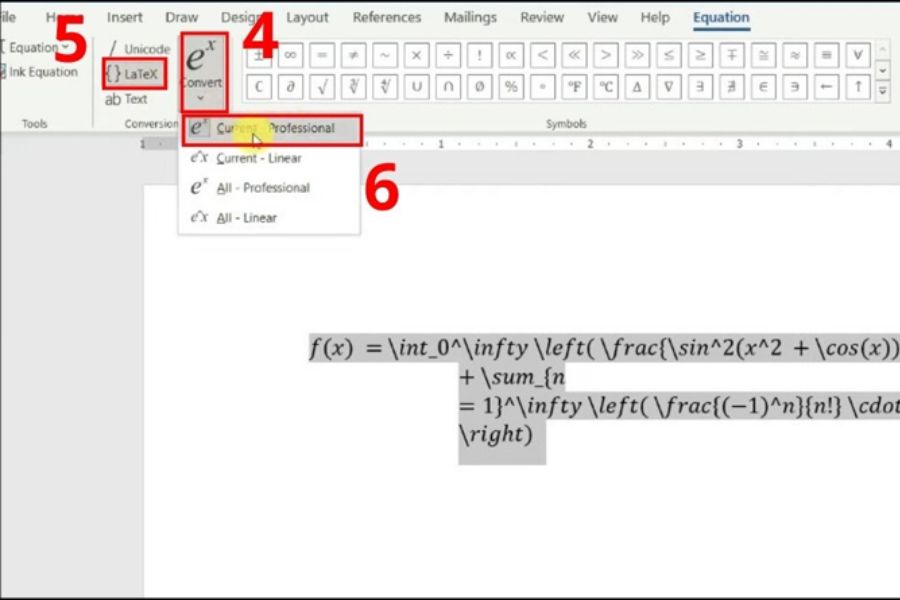
3. How to fix font and black background errors when copying from ChatGPT to Word
After pasting content from ChatGPT, you might notice the font changes, Vietnamese diacritics are displayed unevenly, or a black or gray background appears behind the text. This is often related to formatting copied from the browser, the font style in the target document, or the background color applied to the text. You can try the following methods to make the text more readable.
Method 1: Paste text without formatting.
Copy the content from ChatGPT using Ctrl + C, then try pressing Ctrl + Shift + V if your application and environment support plain text pasting. Some versions of Word don't support this shortcut by default, so you can right-click the paste location and select Keep Text Only in Paste Options. The pasted content will use the formatting of the Word document instead of retaining most of the formatting from the source.
Method 2: Use Notepad to remove formatting
If the text still appears with a colored background or unusual font style, copy the content from ChatGPT to Notepad on Windows. This application removes most of the rich formatting, retaining only the basic text. Next, copy the text from Notepad to Word and choose a suitable font such as Arial or Times New Roman.
Method 3: Remove unwanted background color and formatting.
If the text has been pasted into Word but still has a black or gray background, highlight the problematic section. In the Home tab, check the Text Highlight Color, Shading, and Font Color options to remove the inappropriate background or text color. You can also use Clear All Formatting to remove the formatting directly, then reapply the desired font style, size, and color.
4. How to fix line break errors when copying from ChatGPT to Word
Line break errors cause a sentence to be split into multiple paragraphs or create unusual gaps between lines, making the document disjointed. This can stem from how the content is copied, the available line break characters, or paragraph settings in Word. To fix this, you should check the text structure before applying any bulk editing operations.
Step 1: Request ChatGPT to export the content in complete chunks.
You can enter a request like: "Please present the content in continuous paragraphs, only starting a new line at the end of a paragraph and not breaking sentences midway." This helps to avoid unnecessarily splitting the text into small parts from the beginning.
Step 2: Check for line breaks in Word
After pasting the content, go to the Home tab and click the ¶ (Show/Hide) icon to display the formatting marks. Observe whether the text contains too many paragraph breaks or line breaks. If so, delete the unnecessary marks and reconnect any misplaced sentences.
Step 3: Adjust the paragraph
Highlight the erroneous content, open the Paragraph dialog box, and check the Before and After spacing, as well as the Line Spacing settings. You can adjust the spacing to a suitable level for smoother lines and paragraphs. However, you should not mechanically delete all line breaks, as this may erase headings, lists, and paragraph boundaries.
5. Tips to minimize formatting errors when copying from ChatGPT to Word
To avoid having to edit documents multiple times, you should choose a copying method appropriate for each type of content. Regular text, data tables, and mathematical formulas have different structures, so the same pasting method cannot always be used.
-
Choose the correct paste option: Use Keep Text Only when you want to remove unnecessary formatting; prioritize keeping the formatting when you need to preserve the existing layout.
-
Check the font before finalizing: Agree on the font, size, color, and line spacing to make the document look more professional.
-
Do not copy tables and formulas in the same way: Tables need to have their row and column structure checked; formulas need to be converted using the Equation tool if LaTeX code is included.
-
Use Styles for headings: Apply Heading 1, Heading 2, and other available formatting styles to maintain a consistent layout and facilitate the creation of an automatic table of contents.
-
Check the content after pasting: Compare the data, special symbols, Vietnamese diacritics, and paragraphs to detect errors before sending or printing the document.
-
Save a copy before making bulk edits: This allows you to restore the original content if the find-and-replace or format conversion changes the text structure.
6. Conclusion
Formatting errors when copying from ChatGPT to Word can manifest in various ways, from distorted tables and incorrectly displayed mathematical formulas to altered fonts, background colors, and line breaks. However, you can completely resolve these issues by selecting the correct paste options, converting tables and formulas using Word's tools, and checking paragraph formatting before finalizing the document. By applying the right methods for each type of content, you will significantly save editing time and create clearer, more consistent, and more professional documents.















VIP Products




Best Selling Products
Upgrade genuine Capture One account
120 USD
Capcut Pro 1 Year
39 USD
MidJourney Account
29 USD
Genuine Adobe Illustrator account
99 USD
ChatGPT Plus Account (GPT-4)
16 USD
Copyright Adobe Lightroom Account
59 USD
Windows 10 & 11 Pro Key
36 USD
Adobe Photoshop Copyright - Full App
120 USD
Adobe Premiere Pro Account
99 USD
Autodesk All App Account Copyright
120 USD
Upgrade Genuine Office 365
49 USD
Genuine Cheap Canva Pro
39 USD
Plugin Retouch4me
69 USD
Upgrade Duolingo Super
29 USD
Freepik Premium Account
59 USD