Best Selling Products

Adobe Premiere Pro Account
99 USD

Adobe Photoshop Copyright - Full App
120 USD

Genuine Adobe Illustrator account
99 USD

ChatGPT Plus Account (GPT-4)
16 USD

Autodesk All App Account Copyright
120 USD

Plugin Retouch4me
69 USD

Upgrade Duolingo Super
29 USD

Windows 10 & 11 Pro Key
36 USD

Freepik Premium Account
59 USD

Upgrade Genuine Office 365
49 USD

Genuine Cheap Canva Pro
39 USD

Capcut Pro 1 Year
39 USD

Upgrade genuine Capture One account
120 USD

MidJourney Account
29 USD

Copyright Adobe Lightroom Account
59 USD
Simple Guide to Using AI Functions in Google Sheets 06/14/2025 – 923
Nội dung
- 1. Introduction to AI Functions in Google Sheets
- 2. Tips for Using AI Functions in Google Sheets with Full Features
- 3. Benefits of Using AI Functions in Google Sheets
- 4. Which Fields Can AI Functions in Google Sheets Be Applied To
- 5. How to Use AI Functions in Google Sheets
- 5.1 Using AI Functions to Summarize a Cell or Range of Input Information
- 5.3 Using AI Functions to Generate New Text
- 5.4 Using AI Functions to Translate Text
- 6. Limitations of AI Functions in Google Sheets
- 7. Conclusion
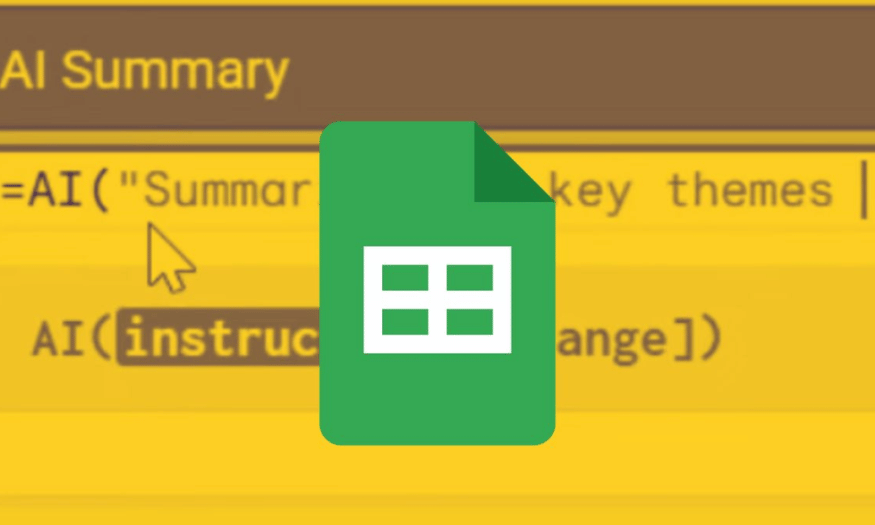
In the digital technology era, applying artificial intelligence (AI) to office tools has become more popular than ever. Google Sheets, with its flexible data processing capabilities, has now integrated many AI functions to help users optimize their workflow. From automating simple tasks to analyzing complex data, AI functions in Google Sheets not only save time but also enhance work efficiency. In this article, Appvip will guide you on how to use these AI functions in the simplest and most effective way.
1. Introduction to AI Functions in Google Sheets
The AI function in Google Sheets is a major step forward in applying artificial intelligence technology to familiar office tools. Google has developed and integrated this feature to help users automate everyday tasks such as generating text, summarizing content, categorizing information, and analyzing data. With the help of AI, users can save time and improve work efficiency, especially in tasks that require accuracy and attention to detail.
One of the AI function's standout strengths is its natural language processing capability. This means you can enter requests in ordinary language, and Google Sheets will understand and carry out the task quickly. This feature not only helps users reduce the pressure of drafting text or analyzing data but also opens up new possibilities for extracting information from various sources.
Currently, the AI function is only available to those participating in Google Workspace's Alpha testing program, which makes exploring and applying this feature more exciting. Although still in the testing phase, what the AI function offers has already shown great potential to change the way we interact with data. Let's dive deeper into how to use this AI function and the benefits it brings.
.png)
2. Tips for Using AI Functions in Google Sheets with Full Features
To make the most of the AI function in Google Sheets, you need to master how to use the features it offers. First, you can start by automatically generating text from available data. Just enter a few keywords or a specific request, and the AI function will help you draft content coherently and appropriately. This can be very useful for writing reports, summarizing ideas, or compiling important documents.
Next, the AI function also lets you summarize content quickly. Especially in a busy work environment, having to process a large amount of information can be difficult. With the AI function, you just need to enter the text you want summarized, and the tool will return a concise version that still ensures all necessary content is included. This not only helps save time but also supports you in making faster and more accurate decisions.
Finally, the content classification feature is also a highlight of the AI function in Google Sheets. You can easily classify data according to different criteria, thereby easily creating statistical tables. This is very useful for analyzing data trends or tracking performance at work. With just a few clicks, you can turn complex information into visual, easy-to-understand tables.
3. Benefits of Using AI Functions in Google Sheets
One of the biggest benefits of using the AI function in Google Sheets is its ability to automate workflows. Instead of having to perform time-consuming manual tasks, you can let AI handle that work, thereby allowing you to focus on more important tasks. This not only boosts work productivity but also reduces stress for users.
The AI function also helps improve accuracy at work. One of the major challenges in data processing is human error. However, with AI technology, the possibility of errors can be significantly reduced. AI can process and analyze data accurately, thereby providing more reliable predictions and analysis. This is very important in fields such as finance, marketing, or market research.
Finally, applying the AI function also opens up many opportunities for users to learn and develop new skills. As you become familiar with AI features, you not only improve your data processing abilities but also develop critical thinking and analytical skills. These skills are not only useful in your current job but can also help you go further in your future career.
.png)
4. Which Fields Can AI Functions in Google Sheets Be Applied To
The AI function in Google Sheets can be widely applied across many different fields, from business and education to research and product development. In business, analyzing sales data, predicting consumer trends, and optimizing workflows are very common applications. Thanks to its automation and data analysis capabilities, businesses can make better strategic decisions.
In education, the AI function can help teachers draft teaching materials, summarize lessons, and categorize student feedback. This not only helps teachers save time but also improves teaching quality. Students can also take advantage of these tools to research and complete assignments more effectively.
Additionally, in research, the AI function helps analyze complex data, generate reports, and summarize research results. Researchers can save time processing data and focus on developing creative solutions. The flexibility and applicability of the AI function in Google Sheets truly bring many benefits to users in every profession.
The AI function in Google Sheets gives users outstanding abilities to summarize information from many different cells. With just a few simple steps, you can create accurate summaries quickly, saving time and effort at work. Let's go through each step in detail to make the most of this feature.
5. How to Use AI Functions in Google Sheets
5.1 Using AI Functions to Summarize a Cell or Range of Input Information
Step 1: First, identify the cell where you want to display the summary result. Double-click on that cell and start entering the function by typing "=AI". Then open the parenthesis by pressing "(". This step is necessary for Google Sheets to recognize that you're using the AI function. This creates a workspace for you, where you'll provide information for the AI function to process.
Step 2: Next, you need to enter the specific request you want the AI function to perform. Make sure you write the request in quotation marks (" ") so Google Sheets can clearly understand the meaning. For example, you could write "Summarize the content" or "Summarize the information from the cells." This not only helps the AI function understand the task correctly but also ensures the final result matches your expectations.
Step 3: After entering the request, type a "," to continue. Next, select the range of cells you want the AI function to summarize. This can be a contiguous or non-contiguous range of cells, depending on your data. Once selected, enter the ")" symbol and press "Enter" to complete setting up the AI function. This is when you're ready to see what the AI function can do.
Step 4: Click on the cell containing the AI function you just entered and select "Generate and insert." This action will activate the AI function and start the process of analyzing the input cells you specified. This is an important step to ensure the data is processed accurately and effectively.
Step 5: Once the information summary appears in the cell where you entered the AI function, move your cursor to the bottom-right corner of the cell. You'll see a "+" symbol. Click and drag downward to apply the AI function to the following rows. This allows you to quickly create multiple summaries for different cell ranges without having to re-enter the function.
Step 6: Finally, you'll see a column of summary information generated by AI. These results will give you an overview of the data you provided. Using the AI function to summarize information not only saves time but also improves accuracy in data processing.
.png)
5.2 Sentiment Analysis Using AI Functions in Google Sheets
The AI function in Google Sheets doesn't just help you summarize information — it can also analyze different sentiments, returning results that can be positive, negative, or neutral. Below is a step-by-step guide to help you perform this analysis effectively.
Step 1: Double-click on the cell where you want to display the analysis result. Enter the AI function and specify your request to Gemini, for example "Analyze the sentiment of the responses." This helps clearly define the task AI needs to perform, thereby improving the accuracy of the result.
Step 2: After entering the request, click and drag to select the range of cells containing the information you want to analyze. Press Enter to close the function. This step will let the AI function know what data needs to be analyzed, thereby producing a result matching your request.
Step 3: Click on the cell containing the AI function and select "Generate and insert." This action will activate AI's analysis process. You'll see a spinning circle, indicating that AI is working to provide you with the most accurate responses.
Step 4: Drag the "+" symbol at the bottom-right corner of the cell down to the cells below to apply the AI function to other rows. This way, you'll have a column of result information that Gemini has analyzed, helping you easily track and compare different sentiments.
.png)
5.3 Using AI Functions to Generate New Text
Besides sentiment analysis, you can also ask the AI function to generate new text based on available data. Below is an example of how to write a simple email.
Step 1: Enter the AI function, followed by your request, and select the range of input information. For example, you could request "Write an email about a product review." Then press Enter to close the AI function. This will help AI clearly understand the content you want.
Step 2: Click on the cell containing the AI function again and select "Generate and insert." This will activate AI to generate text based on the request you entered. You'll see AI start working to create suitable content.
Step 3: Drag the "+" symbol down to apply the AI function to the cells below. The result on screen will be a simple email, which may reference specific categories in your review. This not only helps you save time but also ensures that the generated content is coherent and accurate.
.png)
5.4 Using AI Functions to Translate Text
Although Google Sheets already has its own text translation tool, using the AI function to translate text can produce results that are more accurate in meaning and more contextually correct. If you're interested in this feature, follow the steps below.
Step 1: Enter the AI function and type your request to translate into the language you want, for example "Translate to English." Specifying the language will help AI better understand the task you're requesting.
Step 2: Select the cell containing the text you want to translate and press Enter. This is an important step to provide input data for the AI function, helping it know which text needs to be translated.
Step 3: Click on the cell containing the AI function and select "Generate and insert" to carry out the translation. You'll see AI start the translation process, and after a short while, the result will appear on screen.
Step 4: Format the AI function for the cells below to get results for other pieces of text. This helps you extend translation capability to many different passages without having to re-enter the function, saving you time and effort.
.png)
6. Limitations of AI Functions in Google Sheets
Using the AI function in Google Sheets opens up many exciting possibilities for users, but it also comes with some notable limitations. One of the biggest limitations is that the AI function can only provide responses in text form. This means you can't create other data formats like images or charts, making it harder to present information. Users only receive plain text results, which may not meet all data analysis and visualization needs.
In addition, the AI function cannot access the entire Google Sheets file or other files in Google Drive. This limits the ability to extract data from multiple sources, making it more complicated to consolidate information. If you need to analyze data from multiple spreadsheets or documents, you'll have to manually copy and paste the information, which can be time-consuming and prone to errors.
Finally, users also cannot easily undo and redo the AI function. If you want to adjust a function you've already entered, you'll have to regenerate the entire output. This is not only inconvenient but also reduces work efficiency. Furthermore, the AI function has both short-term and long-term limits; once you reach the long-term limit, you'll have to wait about 24 hours before you can use it again. These factors need to be carefully considered to ensure you make the most of the features the AI function offers.
7. Conclusion
Using the AI function in Google Sheets brings many benefits to users, from reducing the amount of manual work to enhancing data analysis and prediction capabilities. By becoming familiar with and applying AI functions, you'll not only improve your spreadsheet skills but also open up many new opportunities for extracting information and making decisions. Start exploring and applying these advanced technologies today to optimize your workflow!





















VIP Products








Best Selling Products
Adobe Premiere Pro Account
99 USD
Adobe Photoshop Copyright - Full App
120 USD
Genuine Adobe Illustrator account
99 USD
ChatGPT Plus Account (GPT-4)
16 USD
Autodesk All App Account Copyright
120 USD
Plugin Retouch4me
69 USD
Upgrade Duolingo Super
29 USD
Windows 10 & 11 Pro Key
36 USD
Freepik Premium Account
59 USD
Upgrade Genuine Office 365
49 USD
Genuine Cheap Canva Pro
39 USD
Capcut Pro 1 Year
39 USD
Upgrade genuine Capture One account
120 USD
MidJourney Account
29 USD
Copyright Adobe Lightroom Account
59 USD