Best Selling Products

Autodesk All App Account Copyright
120 USD

Adobe Photoshop Copyright - Full App
120 USD

ChatGPT Plus Account (GPT-4)
16 USD

Capcut Pro 1 Year
39 USD

Upgrade Genuine Office 365
49 USD

Copyright Adobe Lightroom Account
59 USD

Genuine Cheap Canva Pro
39 USD

Windows 10 & 11 Pro Key
36 USD

Adobe Premiere Pro Account
99 USD

Genuine Adobe Illustrator account
99 USD

Upgrade Duolingo Super
29 USD

MidJourney Account
29 USD

Plugin Retouch4me
69 USD

Upgrade genuine Capture One account
120 USD

Freepik Premium Account
59 USD
The Simplest Way to Cancel an iCloud Plan on iPhone, iPad, and Mac
Nội dung
- 1. Some Special Features of iCloud
- 2. Cases in Which You Should Cancel an iCloud Plan
- 3. How to Cancel an iCloud Plan Quickly
- 4. Notes When Canceling an iCloud Plan
- 4.1 Back Up Data Carefully
- 4.2 Check Your Current iCloud Storage
- 4.3 Identify Devices Using iCloud
- 4.4 Cancel Services Related to iCloud
- 4.5 Notes About Notifications
- 5. Some Frequently Asked Questions
- 5.1 Will Data Be Lost When Canceling an iCloud Plan?
- 5.2 Can a Canceled iCloud Plan Be Restored?
- 5.3 Which iCloud Plan Should You Choose?
- 6. Conclusion
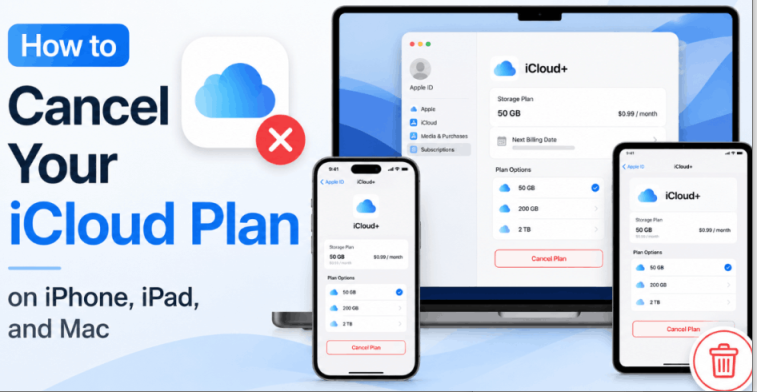
Are you looking for a way to cancel your iCloud plan on your iPhone, iPad, or Mac but do not know where to start? Do not worry! In this article, Appvip will guide you through each specific and easy-to-understand step so that you can do this quickly and effectively. Canceling an iCloud plan not only helps you save money but also helps you manage your storage space better. Let’s explore!
1. Some Special Features of iCloud
iCloud is one of the most prominent cloud services that Apple provides to its users, with the aim of creating a seamless connection between Apple devices such as the iPhone, iPad, and Mac. First launched in 2011, iCloud is not only an online storage space but also a smart ecosystem that allows users to easily transfer, back up, and synchronize data between devices.
When you purchase a new Apple device, Apple gives you 5GB of free iCloud storage, allowing you to store important data such as photos, videos, documents, contacts, and calendars. This is very useful for protecting personal data and ensuring that you never lose precious memories.
However, with users’ increasing storage needs today, 5GB is often not enough. When your iCloud storage is full, you will face two options: upgrade to a paid iCloud+ plan or delete some old data to free up space. Apple offers a variety of iCloud+ plans with different storage capacities, ranging from 50GB to 2TB, helping users easily find an option that suits their needs.
.png)
2. Cases in Which You Should Cancel an iCloud Plan
iCloud storage is not fully used: If you have fully backed up important data and do not regularly use iCloud features, maintaining a large storage plan is unnecessary. Canceling the plan and returning to the free 5GB plan will help you save monthly costs without affecting your data.
Switching to another cloud storage service: The cloud storage service market is currently very diverse, with many free and paid options such as Google Drive, Dropbox, and OneDrive. If you find another service that better suits your needs, switching services is entirely possible and may provide more benefits.
Managing data directly on the device: Some users want complete control over their data and do not want to depend on cloud services. They can use portable hard drives, memory cards, or other storage devices for backups. However, this method also carries risks, such as data loss if the device is damaged or lost.
Changing devices or operating systems: When you decide to switch to a new device or another operating system, such as from iOS to Android, you may no longer need to use iCloud. In this case, canceling the iCloud plan is necessary to avoid being charged.
(1).png)
3. How to Cancel an iCloud Plan Quickly
Step 1: Open the Settings Application
First, to begin the process of canceling your iCloud plan, you need to open the Settings application on your device. Whether you are using an iPhone, iPad, or Mac, the Settings interface is always easy to access. When the application opens, pay attention to the top of the screen, where your Apple account name is displayed. Tap this account name to continue.
After tapping your account, a list of options will appear. Find and select iCloud to access the settings related to this cloud storage service. Here, you will see an overview of the iCloud storage you are using, along with options to manage and adjust your storage plan.
.png)
Step 2: Manage iCloud Storage
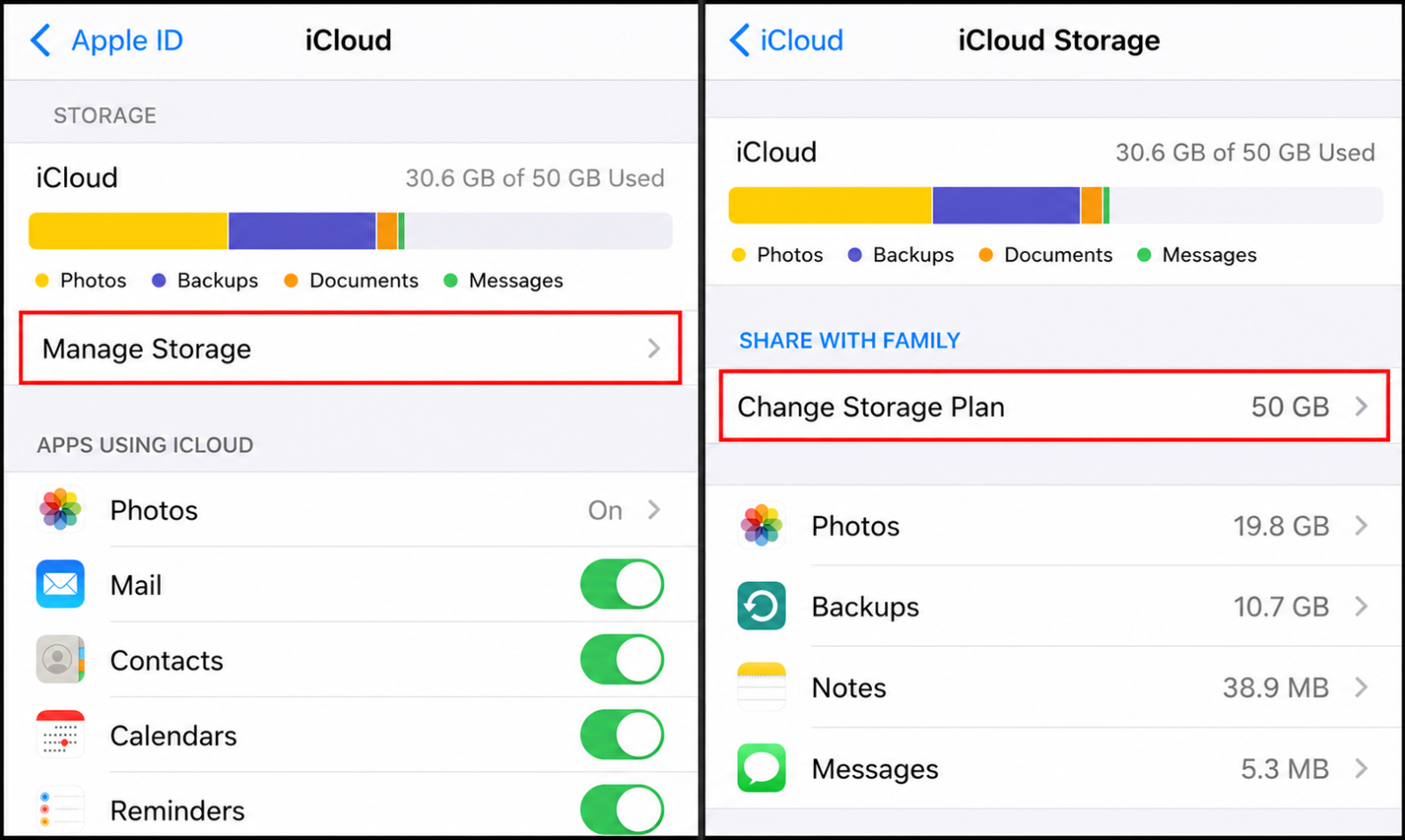
Once you have entered the iCloud interface, find and tap Manage Storage. Here, you will see an overall view of how your iCloud storage is being used. You can see which applications or services are taking up a large amount of storage. After identifying them clearly, continue by tapping Change Storage Plan to begin the process of canceling your current plan.
The interface will display the storage plans offered by Apple, from the free 5GB plan to paid plans with larger storage capacities. You can view details of the plans and their corresponding costs. This is a good time to consider whether you need to upgrade. If you decide to cancel your current plan, select the option to cancel the plan and return to the free plan.
Step 3: Cancel the iCloud Plan
To cancel your currently subscribed iCloud plan, you will need to tap Downgrade Options. The system will then ask you to confirm the change to the free 5GB plan. Tap this option and follow the instructions to complete the plan cancellation process. This will help you save monthly costs and use only the storage capacity needed for important data.
After completion, you will receive a confirmation notification stating that your storage plan has been canceled. Note that canceling the plan does not cause your data to be lost, but you will need to ensure that your data does not exceed 5GB to avoid data loss in the future.
.png)
4. Notes When Canceling an iCloud Plan
4.1 Back Up Data Carefully
Before deciding to cancel your iCloud plan, the first and most important thing is to ensure that you have fully backed up all your important data. Data such as photos, videos, documents, contacts, and calendars are valuable things that you do not want to lose. You should back up this data to a computer or portable hard drive or use other cloud storage services such as Google Drive or Dropbox. This not only helps protect personal information but also provides peace of mind when canceling your iCloud plan.
Check whether you have backed up all the necessary files before canceling the plan. If any data has not been backed up, make sure to do this before proceeding. A complete backup will help you avoid unnecessary problems, especially when you need to access the data in the future.
4.2 Check Your Current iCloud Storage
After backing up your data, you should spend some time carefully checking the amount of iCloud storage you are currently using. This not only helps you understand your current storage status but also helps you evaluate whether you truly need a storage plan as large as your current one. If your iCloud storage still has plenty of free space, downgrading or completely canceling the plan may be a reasonable choice.
Reviewing storage usage also helps you identify which files are taking up the most space. If there are unnecessary files, you can delete them to free up space. This will help you manage storage resources more effectively.
4.3 Identify Devices Using iCloud
Another important note is to identify all the devices that are using your iCloud account. This not only helps you control the devices but also ensures that you make the necessary changes on all devices so that the plan cancellation process goes smoothly. List devices such as your iPhone, iPad, Mac, or any other device that you have connected to your iCloud account.
Once you have a list of the devices, check whether they are using any iCloud services. If they are, you need to decide whether you should continue using these services. This will help you avoid unnecessary inconvenience after canceling the plan.
4.4 Cancel Services Related to iCloud
If you are using services related to iCloud, such as iCloud Photo Library, iCloud Drive, or iCloud Backup, you need to check and cancel or adjust these services before canceling the plan. Canceling the plan without completing these steps may cause you to continue being charged or encounter certain problems when using iCloud later.
Make sure that you have turned off these services or transferred the data from these services to another storage location. This not only helps you save money but also ensures that your data is not lost when you no longer use iCloud.
4.5 Notes About Notifications
Finally, after completing all the necessary steps in the iCloud plan cancellation process, users will receive several notifications related to changes in the plan or storage capacity. Read these notifications carefully to better understand the changes you will experience.
Normally, the notification will include information about when the plan will officially be canceled, as well as the terms related to switching between different service plans. Clearly understanding this information will help you manage your iCloud account more effectively and avoid unexpected problems in the future.
.png)
5. Some Frequently Asked Questions
5.1 Will Data Be Lost When Canceling an iCloud Plan?
When you cancel an iCloud plan, one of the biggest questions is whether your data will be lost. The good news is that this plan cancellation process will not cause any data stored on your device to be lost. All photos, documents, and personal information will remain unchanged. However, if you have not created a backup before canceling, you may face the risk of data loss if the device encounters a problem or is reset. Therefore, to protect your precious memories and information, make sure to create a complete backup before canceling the plan!
5.2 Can a Canceled iCloud Plan Be Restored?
Did you know that restoring a canceled iCloud plan is entirely possible? If, after some time, you realize that you need to return to the service plan you canceled, you only need to follow steps similar to those used when canceling the plan. Apple allows users to easily change their iCloud storage plans at any time, depending on their usage needs. This means that you can change your decision and upgrade the plan again to ensure that you always have enough storage space for all important data.
5.3 Which iCloud Plan Should You Choose?
Choosing a suitable iCloud plan is not only based on the amount of money you have but also depends greatly on your usage needs. If you are a regular user who does not frequently take photos or record videos, the free 5GB plan provided by Apple may already be sufficient for basic storage needs. However, if you are a photography or video enthusiast or regularly store many documents, you should consider upgrading to larger plans such as 50GB, 200GB, or even 2TB.
In addition, if you are using the Family Sharing feature, the 2TB plan will be an excellent choice for sharing storage space with multiple family members. Choosing the appropriate plan will help you make the most of the iCloud service while also helping protect your data.
.png)
6. Conclusion
Canceling an iCloud plan is not complicated if you have reviewed the instructions above. However, before making this decision, carefully consider it to avoid losing important data. Hopefully, the information above will help you manage your iCloud account effectively and safely.





















VIP Products








Best Selling Products
Autodesk All App Account Copyright
120 USD
Adobe Photoshop Copyright - Full App
120 USD
ChatGPT Plus Account (GPT-4)
16 USD
Capcut Pro 1 Year
39 USD
Upgrade Genuine Office 365
49 USD
Copyright Adobe Lightroom Account
59 USD
Genuine Cheap Canva Pro
39 USD
Windows 10 & 11 Pro Key
36 USD
Adobe Premiere Pro Account
99 USD
Genuine Adobe Illustrator account
99 USD
Upgrade Duolingo Super
29 USD
MidJourney Account
29 USD
Plugin Retouch4me
69 USD
Upgrade genuine Capture One account
120 USD
Freepik Premium Account
59 USD