Best Selling Products

Windows 10 & 11 Pro Key
36 USD

Freepik Premium Account
59 USD

Genuine Adobe Illustrator account
99 USD

MidJourney Account
29 USD

Genuine Cheap Canva Pro
39 USD

Upgrade Genuine Office 365
49 USD

Autodesk All App Account Copyright
120 USD

Upgrade genuine Capture One account
120 USD

Capcut Pro 1 Year
39 USD

Adobe Photoshop Copyright - Full App
120 USD

Adobe Premiere Pro Account
99 USD

ChatGPT Plus Account (GPT-4)
16 USD

Plugin Retouch4me
69 USD

Copyright Adobe Lightroom Account
59 USD

Upgrade Duolingo Super
29 USD
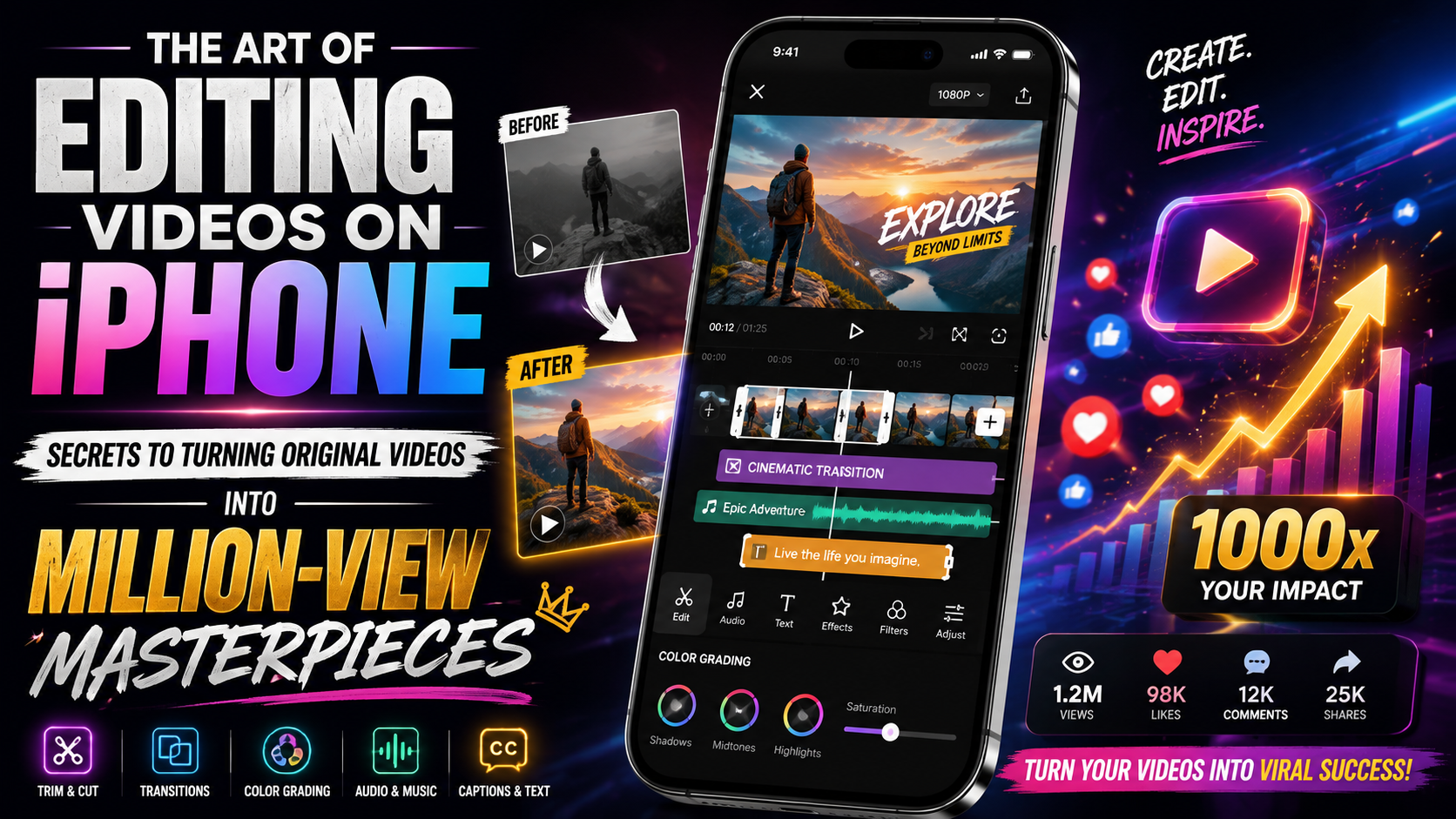
The art of editing videos on iPhone: Secrets to turning original videos into million-view masterpieces.
Nội dung
- 1. Why is the iPhone the "key" to cutting-edge mobile filmmaking today?
- 2. Instructions on editing clips on iPhone using the default tools
- 2.1 Step 1: Trim and shape the length
- 2.2 Step 2: Adjusting the layout and rotating (Crop & Rotate)
- 2.3 Step 3: The magic of adjusting light and color
- 3. Top iPhone video editing apps, from basic to professional.
- 3.1. CapCut - The king of short videos and the TikTok trend.
- 3.2. iMovie - Apple's official mini-studio.
- 3.3. VN Video Editor - The perfect balance between simplicity and professionalism
- 3.4. LumaFusion - The pinnacle of professional video editing on iOS
- 4. A 5-step process for creating a video that captivates viewers from the very first seconds.
- 4.1 Step 1: Filtering and Rough Cutting
- 4.2 Step 2: Create rhythm with music and sound (Sound Design)
- 4.3 Step 3: Transition effects and visual effects
- 4.4 Step 4: Insert text, subtitles, and overlay images
- 4.5 Step 5: Final color grading and publishing
- 5. Classic mistakes to avoid when editing videos on iPhone
- 6. Conclusion
With just a few taps, editing clips on your iPhone will completely transform every frame, turning everyday moments into cinematic films.
1. Why is the iPhone the "key" to cutting-edge mobile filmmaking today?
Before you start editing, understand the power you have at your disposal. Apple isn't just selling you a phone; they're giving you a mini-studio. The processing power of Apple Silicon chips (from the A-series to the higher-end models) allows iPhones to render 4K video at lightning speed, something many office computers struggle with.
-
Color-accurate display ecosystem: The Super Retina XDR display on the iPhone boasts extremely high color accuracy. This ensures that whatever color settings you use on your phone, viewers on other devices will see the same accurate results.
-
Cinematic Mode: This feature allows for background blur and flexible focus adjustment even after recording is complete . This exclusive feature makes editing clips on the iPhone a professional experience comparable to a DSLR camera.
-
Optimization by developers: Top video editing apps always prioritize optimizing the interface and performance for the iOS operating system, resulting in a smooth, lag-free experience.
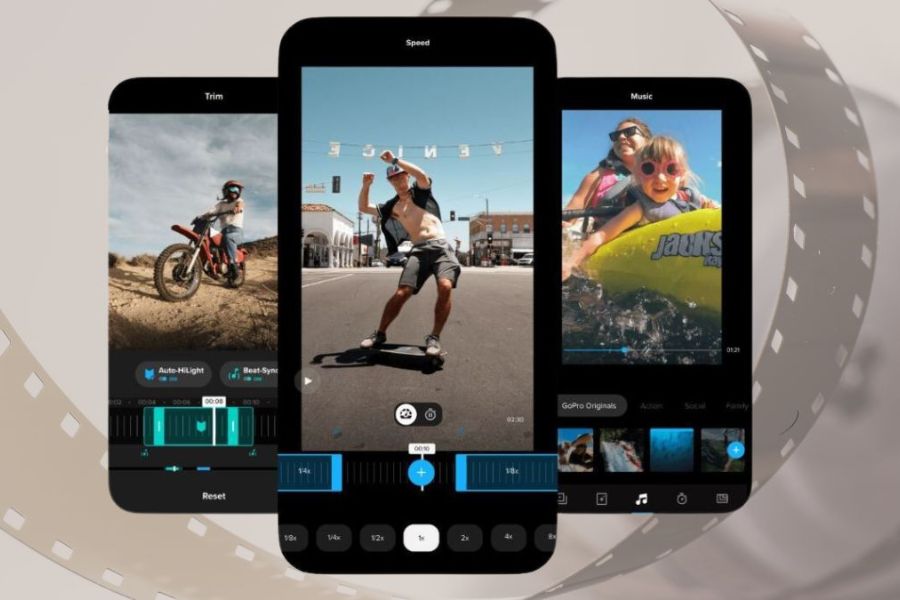
2. Instructions on editing clips on iPhone using the default tools
Many iPhone users often overlook the editing tools available in the Photos app. This is a regrettable mistake because these default features are extremely powerful, quick, and do not degrade the original video quality.
2.1 Step 1: Trim and shape the length
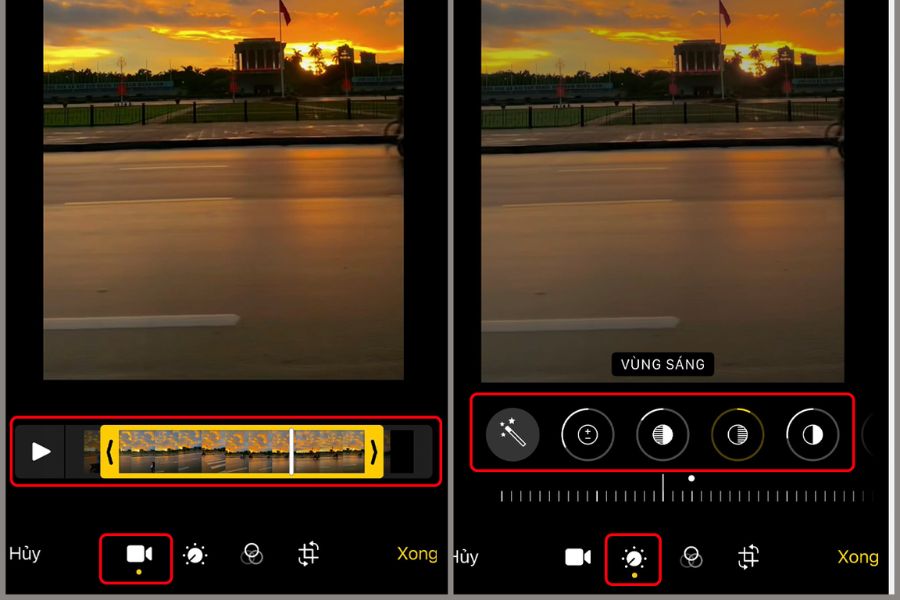
A good video is one without unnecessary details. To trim a video, open the clip in the Photos app -> select Edit .
-
Pull the two ends of the yellow frame to remove any shaky or superfluous opening and closing sections.
-
Tip: Cut sharply. Keep the video fast-paced, focusing immediately on the main content to keep viewers engaged in the first 3 seconds.
2.2 Step 2: Adjusting the layout and rotating (Crop & Rotate)
The rotating square icon at the bottom will help you correct angle errors:
-
Rotate video: Quickly switch between portrait and landscape video orientation.
-
Crop: Zoom in to remove unwanted objects that encroach on the edges of the frame, or readjust the composition according to the rule of thirds to guide the viewer's gaze.
2.3 Step 3: The magic of adjusting light and color
Instead of using pre-made filters that reduce the naturalness of the image, manually adjust the following parameters in the section with the sun icon:
-
Exposure & Highlights: Reduce slightly if the video is overexposed (loss of detail in the sky or lighting areas).
-
Shadows: Increase the range to restore details hidden in shadows.
-
Contrast: Slightly increase to create depth, helping to separate image elements and make them sharper.
-
Saturation & Vibrance: iPhones typically display neutral colors. Slightly increase the vibrancy to make skin tones, skies, or foliage appear more vivid without looking washed out.
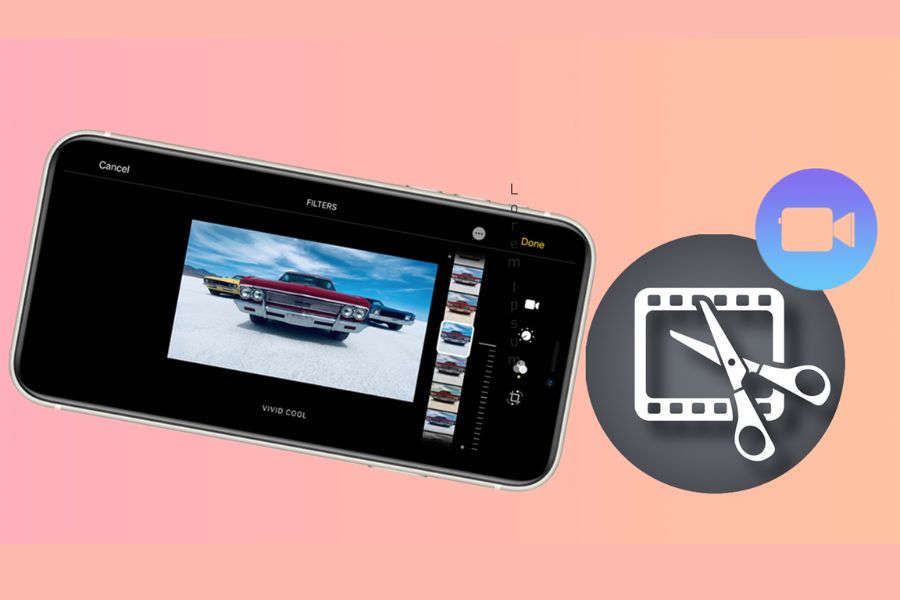
3. Top iPhone video editing apps, from basic to professional.
When the default tools no longer satisfy your creativity, that's when you need specialized apps. Below are some of the most popular titles on the App Store, categorized by specific needs:
3.1. CapCut - The king of short videos and the TikTok trend.
There's no denying CapCut's widespread popularity. If your goal is to create trending videos on social media platforms, this is a must-have app.
-
Advantage:
-
A vast collection of trendy transition effects and filters.
-
The Auto Captions feature accurately recognizes Vietnamese speech up to 95%, saving you hours of typing.
-
Millions of templates are available; just choose your photos/clips and you'll instantly have a super cool, music-synchronized, pulsating video.
-
-
Suitable for: TikTokers, Reels Creators, and beginners who want to create great videos quickly.
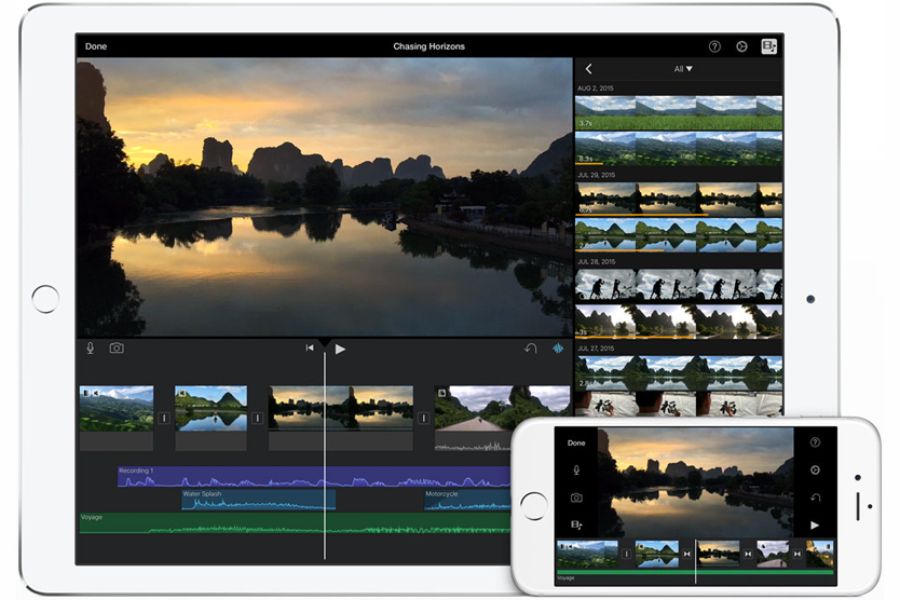
3.2. iMovie - Apple's official mini-studio.
Developed by Apple itself, iMovie offers absolute minimalism and smoothness, and is completely free, with no ads or watermarks.
-
Advantage:
-
The intuitive drag-and-drop interface is ideal for creating storytelling videos and long-form travel vlogs.
-
Supports exporting high-quality video while preserving the original iPhone format.
-
We have a variety of unique Hollywood-style movie trailer templates available.
-
-
Suitable for: Students, and basic vloggers who need a clean, ad-free app.
3.3. VN Video Editor - The perfect balance between simplicity and professionalism
VN (Vlog Now) is an application highly rated by mobile filmmakers because it offers computer-like features but with a very mobile-friendly interface.
-
Advantage:
-
It supports a multi-track timeline, allowing you to layer multiple videos, images, and effects on top of each other.
-
The Curve Speed adjustment tool helps you create smooth fast-forward/slow-motion effects (Speed Ramp) like in action movies.
-
Allows importing external color LUTs for professional color grading.
-
-
Suitable for: Those who want to seriously learn about filmmaking techniques and gain deep control over each frame.
3.4. LumaFusion - The pinnacle of professional video editing on iOS
This is a paid app (one-time purchase), but it's absolutely worth every penny if you want to turn your iPhone into a real video editing machine.
-
Advantage:
-
Full range of advanced features: Keyframing (creating motion for objects), Chroma Key (separating green screen), in-depth audio adjustment with Equalizer.
-
It smoothly processes large video files from DSLR cameras, exporting them without loss of quality.
-
-
Suitable for: Professional YouTubers, mobile filmmakers, and those providing mobile phone-based video and photography services.
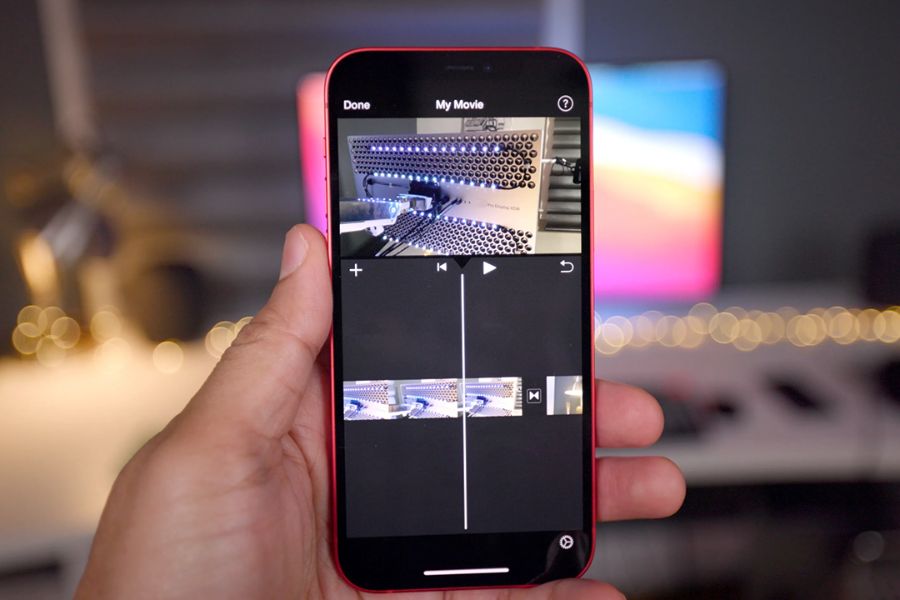
4. A 5-step process for creating a video that captivates viewers from the very first seconds.
Regardless of which software you choose to edit clips on your iPhone , following a structured workflow will help you avoid confusion and save a lot of time.
4.1 Step 1: Filtering and Rough Cutting
Import all the clips you've recorded into the app. Then, trim out all the "junk" footage (such as camera shutter clicks, refocusing, or shaky footage). Arrange the clips in a logical narrative: Beginning -> Development -> Climax -> Ending.
4.2 Step 2: Create rhythm with music and sound (Sound Design)
Half of a video's success lies in the viewer's ears.
-
Choose appropriate background music: Energetic travel videos need upbeat, cheerful music; videos for reflection or healing need gentle, lofi music.
-
Edit to the beat: Pay attention to the drum beats or note changes in the music to place the video cut points there. The synchronization between the visuals and the sound will create immense visual satisfaction for the viewer.
-
Adding sound effects (SFX): A "woosh" sound during a quick scene transition, a "ting" sound when text appears, or birdsong in a nature scene will make your video 10 times more lively.
4.3 Step 3: Transition effects and visual effects
Avoid overusing flashy transition effects. The golden rule is: The best transitions are those the viewer doesn't notice.
-
Use the available camera movements (Pan, Tilt, Zoom) during filming to stitch the clips together.
-
If using app effects, choose smooth effects such as Dissolve , Fade, or Smooth Slide .
4.4 Step 4: Insert text, subtitles, and overlay images
-
Subtitles: The current trend is for viewers to browse social media with the sound muted. Therefore, adding subtitles helps them understand the video content without turning on the sound. Choose a Vietnamese font that is error-free, easy to read (such as Montserrat or Helvetica), and add a border or shadow to make it stand out in every frame.
-
Sticker/B-roll: Add illustrations, memes, or fun icons to increase interaction and entertainment value in your videos.
4.5 Step 5: Final color grading and publishing
This step imbues the video with emotion. You can apply subtle color filters and check the overall brightness to ensure consistent color across the clips. When exporting the video, prioritize selecting 1080p or 4K resolution and 30fps or 60fps frame rate for maximum video smoothness.
5. Classic mistakes to avoid when editing videos on iPhone
Even seasoned video creators sometimes make these basic mistakes, causing their videos to lose their professional look:
-
Over-editing: Adding too many flying stickers, overly flashy color filters, or constantly laggy transition effects will strain viewers' eyes and distract them from the main content. Remember: "Less is more."
-
Ignore audio quality: Viewers might patiently watch a video with slightly blurry images, but they'll turn it off immediately if the audio is distorted or the background music is too loud to drown out the dialogue (voiceover). Always adjust the background music volume to -15dB to -20dB if there is dialogue.
-
Incorrect aspect ratio: Uploading horizontal (16:9) videos to TikTok/Reels or vice versa will leave unsightly black bars. Determine this from the start: Shoot vertically and use a 9:16 aspect ratio for short-form videos; shoot horizontally and use a 16:9 aspect ratio for longer YouTube videos.
-
Forgetting to remove the app logo: At the end of each CapCut video, there's usually a thumbnail containing the app logo. Remember to select that thumbnail and delete it before exporting the video to ensure your product looks as professional and "clean" as possible.
6. Conclusion
Technology is created to serve humanity, and the iPhone in your hand is the universal key that unlocks a world of limitless creativity. Editing videos on an iPhone isn't as difficult as you think; it doesn't require you to be a tech genius, it just needs your patience and unique personality. Every frame you record, every cut you make, is a way to preserve your youth, share values, and connect with the world. Don't let beautiful footage sit idle in your photo album. Open your phone, select a few moments, apply the instructions above, and start creating your first million-view masterpiece today!





















VIP Products








Best Selling Products
Windows 10 & 11 Pro Key
36 USD
Freepik Premium Account
59 USD
Genuine Adobe Illustrator account
99 USD
MidJourney Account
29 USD
Genuine Cheap Canva Pro
39 USD
Upgrade Genuine Office 365
49 USD
Autodesk All App Account Copyright
120 USD
Upgrade genuine Capture One account
120 USD
Capcut Pro 1 Year
39 USD
Adobe Photoshop Copyright - Full App
120 USD
Adobe Premiere Pro Account
99 USD
ChatGPT Plus Account (GPT-4)
16 USD
Plugin Retouch4me
69 USD
Copyright Adobe Lightroom Account
59 USD
Upgrade Duolingo Super
29 USD