Best Selling Products
Windows 10 & 11 Pro Key
36 USD
Freepik Premium Account
59 USD
Upgrade genuine Capture One account
120 USD
Capcut Pro 1 Year
39 USD

ChatGPT Plus Account (GPT-4)
16 USD
Copyright Adobe Lightroom Account
59 USD
Genuine Adobe Illustrator account
99 USD
Upgrade Genuine Office 365
49 USD
Upgrade Duolingo Super
29 USD
Autodesk All App Account Copyright
120 USD
Adobe Premiere Pro Account
99 USD
Plugin Retouch4me
69 USD

MidJourney Account
29 USD
Adobe Photoshop Copyright - Full App
120 USD
Genuine Cheap Canva Pro
39 USD
Top 6 Web Design Software for Designers and Beginners
Nội dung
- 1. Adobe Photoshop: Professional image editing tool
- 2. Sketch: UI/UX design software
- 3. Lunacy: Cross-platform interface design solution
- 4. GIMP: Free image editing software
- 5. Notepad++: Source code editor for those learning web programming
- 6. SiteSpinner: Create websites with drag-and-drop
- 7. How to choose the right web design software
- 8. Conclusion
Discover 6 outstanding web design software tools: Photoshop, Sketch, Lunacy, GIMP, Notepad++ and SiteSpinner. Learn about their features, pros and cons, and how to choose the right tool for your needs.
1. Adobe Photoshop: Professional image editing tool
Adobe Photoshop is an image editing and graphic design software used by many designers. In web design, Photoshop mainly handles image processing, creating advertising banners, designing product images and building graphic components for interfaces.
One of Photoshop's outstanding strengths is its system of layers, masks and image editing tools. Users can remove backgrounds, composite images, adjust colors, change lighting or create effects to make products stand out. The software also supports many popular image formats, helping designers prepare suitable assets to upload to websites.
For example, when building an online store, a designer can use Photoshop to process product photos, create homepage banners and design illustrations for promotional campaigns. After being finalized, the images are exported in a format suitable for display on the website.
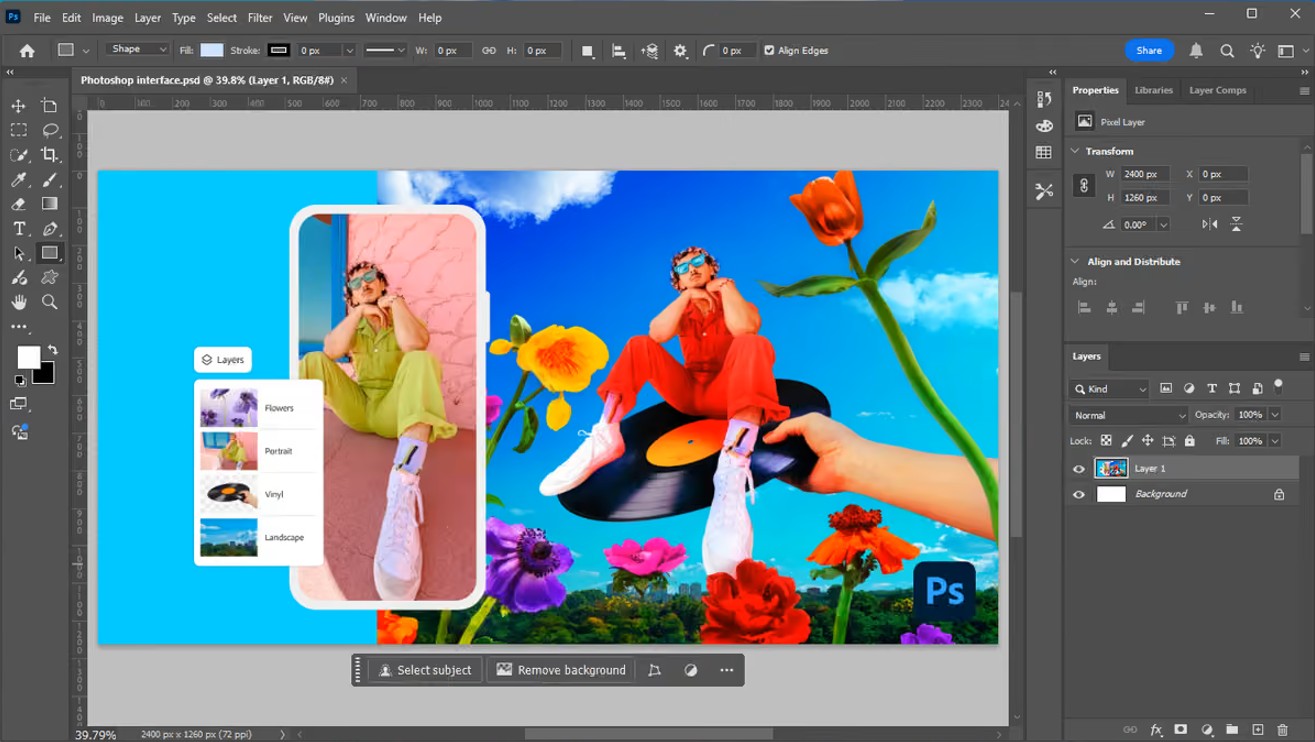
Pros: Photoshop has a powerful set of image editing tools, supports many professional design workflows and provides AI features for some creative tasks.
Cons: The software uses a subscription-based paid model and is not a dedicated tool for building an entire website. Photoshop also cannot replace interface programming or user experience testing.
Photoshop is suitable for designers who frequently process images, digital content creators and web projects that require high-quality images.
2. Sketch: UI/UX design software
Sketch is a tool focused on user interface (UI) and user experience (UX) design. The software helps designers build website layouts, create interface components and simulate how users interact with a product before programming.
With Sketch, designers can create multiple screens such as the homepage, about page, product page, login page or shopping cart. Frequently used components such as buttons, navigation bars and product cards can be built into shared components. This makes editing the interface more convenient and consistent.
Another useful feature is creating interactive prototypes. Designers can link screens together to simulate button clicks or page transitions, thereby doing a preliminary check of the user flow before handing the design over to developers.
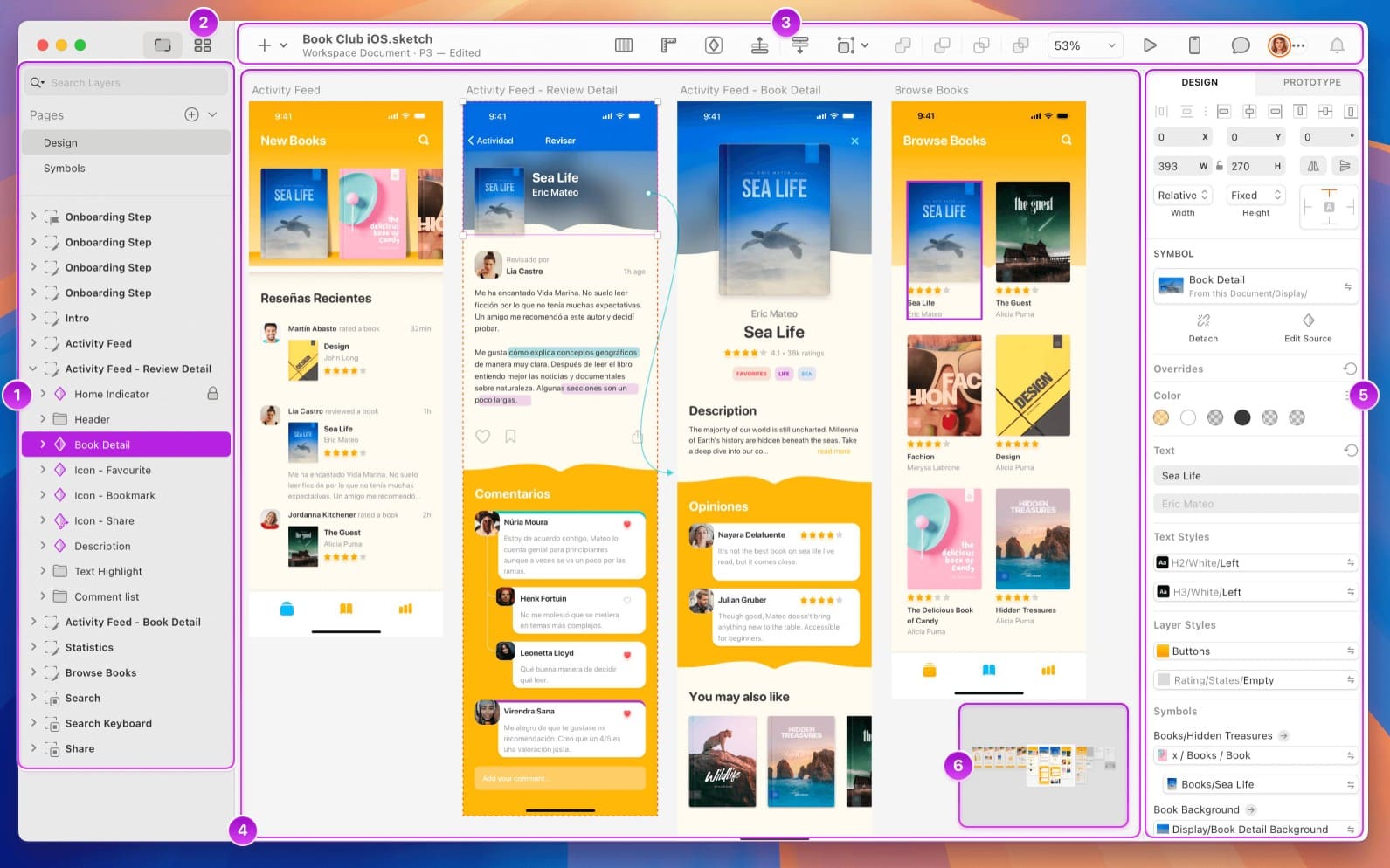
Pros: Sketch is strong in interface design, managing shared components and building design systems. This tool is useful in projects that need to maintain consistency across many pages.
Cons: The main design application is for macOS. Windows users can view and check some content through web features, but cannot fully replace the design application on Mac. Sketch also does not automatically turn a design into a complete website.
Sketch is an option worth considering for designers who use Mac computers, especially when their work focuses on website and app interfaces.
3. Lunacy: Cross-platform interface design solution
Lunacy is graphic design and UI/UX design software developed by Icons8. The standout point of this tool is its support for Windows, macOS and Linux, giving users more choices of working devices.
Lunacy allows you to create website layouts, design interface components, build prototypes and use built-in graphic resources. Users can search for icons, illustrations and photos to include in their designs without having to create every component from scratch.
The software also provides AI-assisted tools for some image processing tasks. These features can help save time when preparing assets or finalizing a design.
For instance, when designing a website to introduce a service, you can use Lunacy to create the homepage frame, arrange headings, images, contact buttons and content sections. Then, you can create additional screens to ensure the whole website has a consistent style.
Pros: Supports multiple operating systems, has built-in graphic resources and is suitable for beginners learning interface design. The software also supports working with some design formats from other tools.
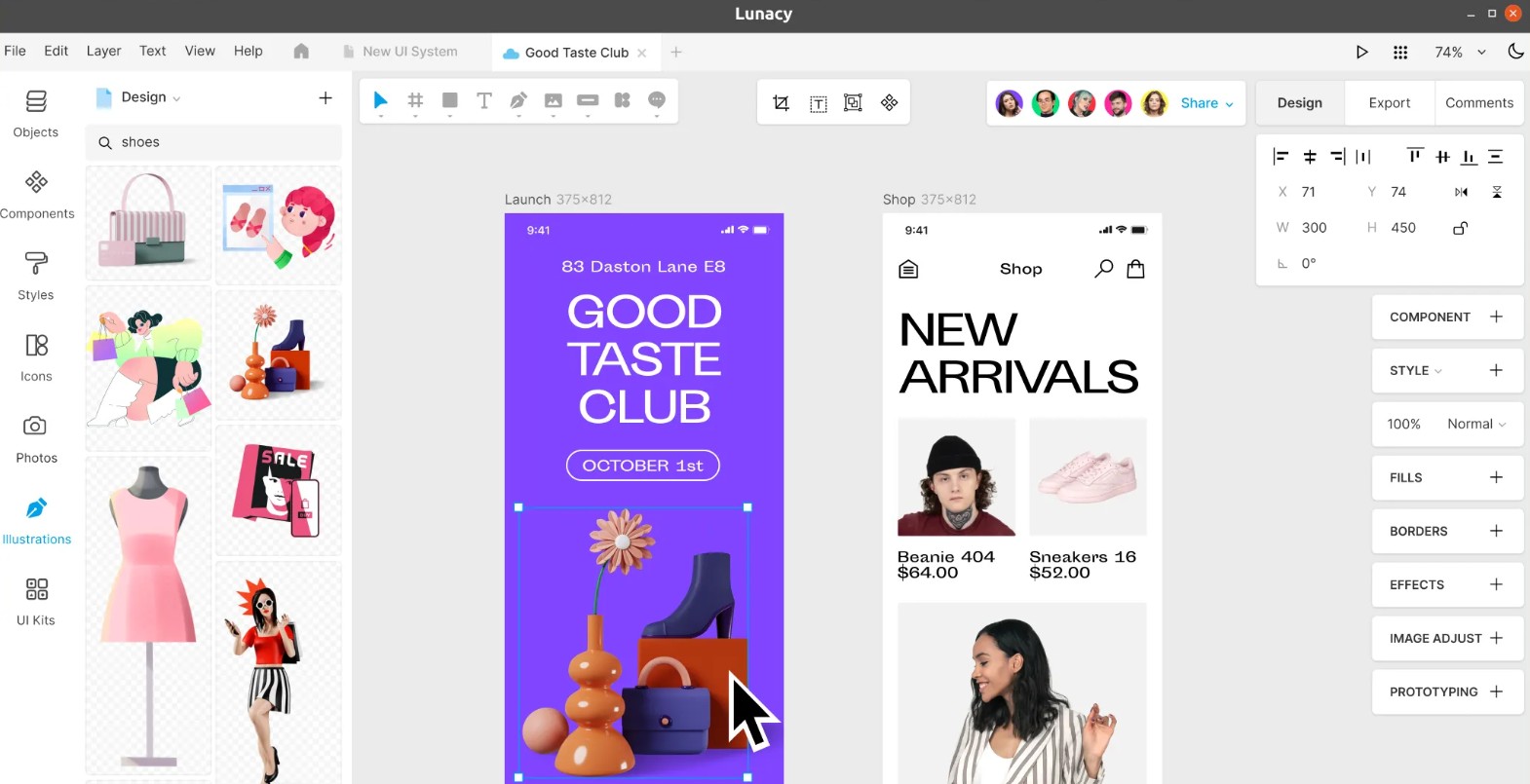
Cons: Lunacy still mainly serves interface design and does not replace the entire website programming and deployment process. Some features, resources or collaboration capabilities may depend on current usage conditions.
If you are looking for a UI/UX design tool on Windows or Linux, Lunacy is a choice worth trying before investing in more specialized solutions.
4. GIMP: Free image editing software
GIMP is open-source image editing software, suitable for those who need to process images but want to limit software costs. In web design, GIMP can handle many tasks similar to common image editing tools.
Users can crop images, resize them, adjust colors, composite multiple images, add text and process backgrounds. The software supports working with image layers, making it possible to edit each component separately without changing the entire original image.
For example, a blogger can use GIMP to create featured images for articles, edit illustrations, combine icons and add titles. These images can then be exported in a suitable format for use on the website.
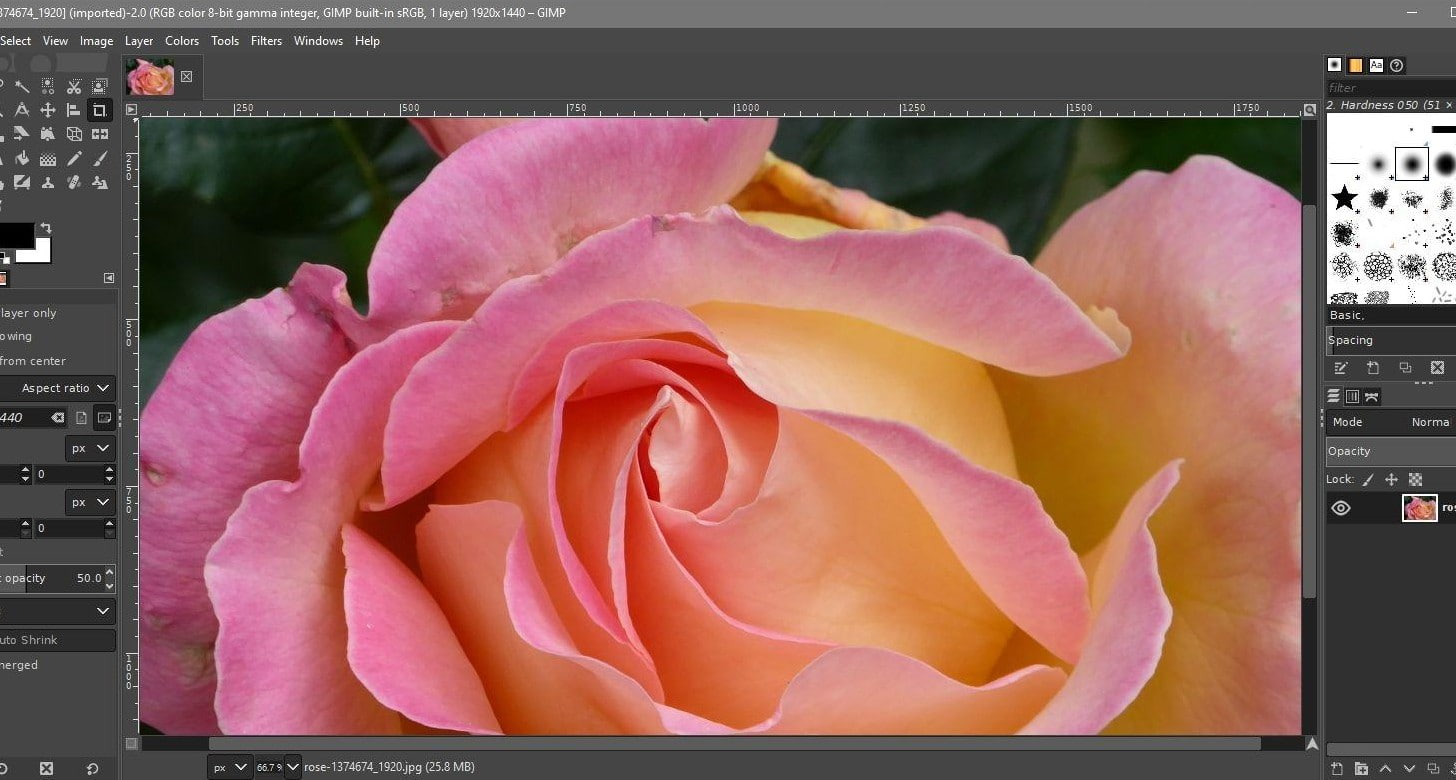
Pros: GIMP is free, open-source and has many useful image editing tools. It is a suitable choice for beginners learning design, students or people building personal websites.
Cons: GIMP does not focus on UI/UX design, prototyping or interface system management. Beginners may also need time to get familiar with the tool layout and editing workflow.
If your need is mainly image editing for websites, GIMP can handle many basic tasks well. Meanwhile, Photoshop is worth considering more if you need an in-depth image editing workflow or are working in an environment that uses the Adobe ecosystem.
5. Notepad++: Source code editor for those learning web programming
Notepad++ is different from the software above because it is not a visual image or interface design tool. The software is a free source code editor for Windows, supporting many programming languages and featuring syntax highlighting to make code easier to read.
In web design, Notepad++ can be used to write HTML, CSS and JavaScript. HTML creates the content structure, CSS formats the interface, and JavaScript adds interactive functions.
For example, you can create an HTML file to build an introduction page, write CSS to adjust colors and spacing, then add JavaScript for buttons or simple operations. When finished, you open the page in a browser to check the result.
Notepad++ supports opening multiple files at once and editing code quickly. This is a useful advantage when you need to fix a small piece of code in a website or learn how the components of a web page work.
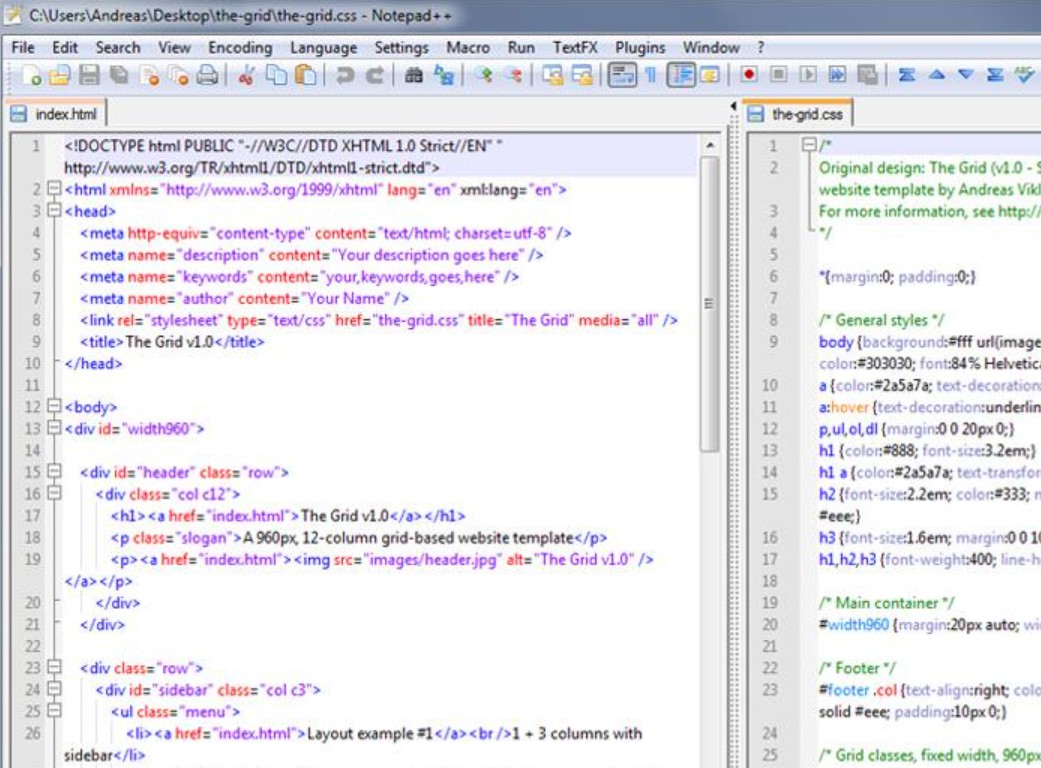
Pros: The software is free, lightweight, starts quickly and is suitable for learning the fundamentals of web source code.
Cons: Notepad++ does not provide a complete visual development environment, does not automatically ensure that code runs correctly and does not come with every necessary testing tool. Users still need a browser and other supporting tools to check the website.
Notepad++ is suitable for beginners learning HTML/CSS, people who want to understand website structure or those who need to edit simple source code.
6. SiteSpinner: Create websites with drag-and-drop
SiteSpinner is website-building software with a visual approach. Instead of writing all the source code by hand, users can arrange text, images and page components using drag-and-drop.
This approach is suitable for people who want to focus on layout and content without much programming knowledge. The software provides functions for arranging components, basic image editing and creating web pages according to the desired design.
For example, an individual who wants to build a website introducing a service can use SiteSpinner to place the heading, add images, present contact information and arrange content sections. Afterwards, the user can publish the website to a hosting service suitable for the supported configuration.
Pros: Visual operation, easy to picture the result and reduces the need to write code for basic layout tasks.
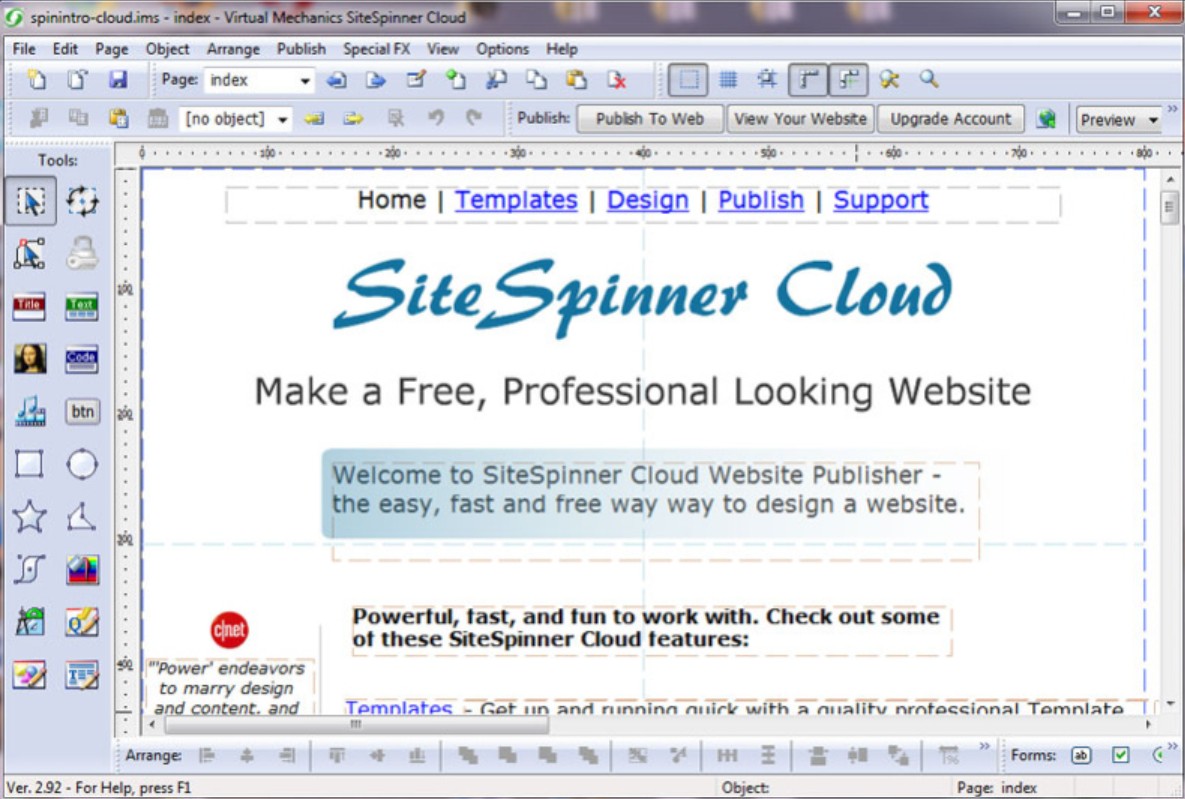
Cons: The level of flexibility, customization and maintenance process may not meet the needs of every modern project. Before choosing, you should check mobile display capability, source code export, compatibility and the usage conditions of the current version.
SiteSpinner is suitable for simple projects that need to create a website visually. For large websites, with many functions or requiring long-term expansion, you should carefully evaluate its capabilities before deciding.
7. How to choose the right web design software
To choose the right tool, you should start from your work goals rather than only caring about which software has the most features.
If you focus on image editing and creating banners, Photoshop or GIMP will be suitable. If you need to design the interface before programming, consider Sketch or Lunacy. If you want to write website code yourself, Notepad++ can support the process of learning HTML, CSS and JavaScript. Meanwhile, SiteSpinner is aimed at people who want to create web pages through visual operations.
You should also consider your operating system, budget and teamwork capability. Photoshop and Sketch have paid plans, while GIMP and Notepad++ are free options. Lunacy has many usage options, while the cost and conditions of SiteSpinner need to be checked against the current version.
More importantly, remember that software is only a supporting tool. A good website also depends on layout thinking, the ability to organize content, page loading speed, accessibility and the experience across multiple devices.
Licensed software
8. Conclusion
No software can completely replace all the other tools. The choice should be based on your project goals, current skills, operating system and budget. If you are just starting out, you can try Lunacy for interface design, GIMP for image editing and Notepad++ to get familiar with HTML/CSS. As your work develops, you can add more specialized tools according to actual needs.




VIP Products
Best Selling Products
Windows 10 & 11 Pro Key
36 USD
Freepik Premium Account
59 USD
Upgrade genuine Capture One account
120 USD
Capcut Pro 1 Year
39 USD
ChatGPT Plus Account (GPT-4)
16 USD
Copyright Adobe Lightroom Account
59 USD
Genuine Adobe Illustrator account
99 USD
Upgrade Genuine Office 365
49 USD
Upgrade Duolingo Super
29 USD
Autodesk All App Account Copyright
120 USD
Adobe Premiere Pro Account
99 USD
Plugin Retouch4me
69 USD
MidJourney Account
29 USD
Adobe Photoshop Copyright - Full App
120 USD
Genuine Cheap Canva Pro
39 USD