Best Selling Products

Plugin Retouch4me
69 USD

Autodesk All App Account Copyright
120 USD

Copyright Adobe Lightroom Account
59 USD

Upgrade genuine Capture One account
120 USD

Adobe Photoshop Copyright - Full App
120 USD

MidJourney Account
29 USD

Upgrade Genuine Office 365
49 USD

Genuine Adobe Illustrator account
99 USD

Upgrade Duolingo Super
29 USD

Genuine Cheap Canva Pro
39 USD

ChatGPT Plus Account (GPT-4)
16 USD

Adobe Premiere Pro Account
99 USD

Freepik Premium Account
59 USD

Windows 10 & 11 Pro Key
36 USD

Capcut Pro 1 Year
39 USD
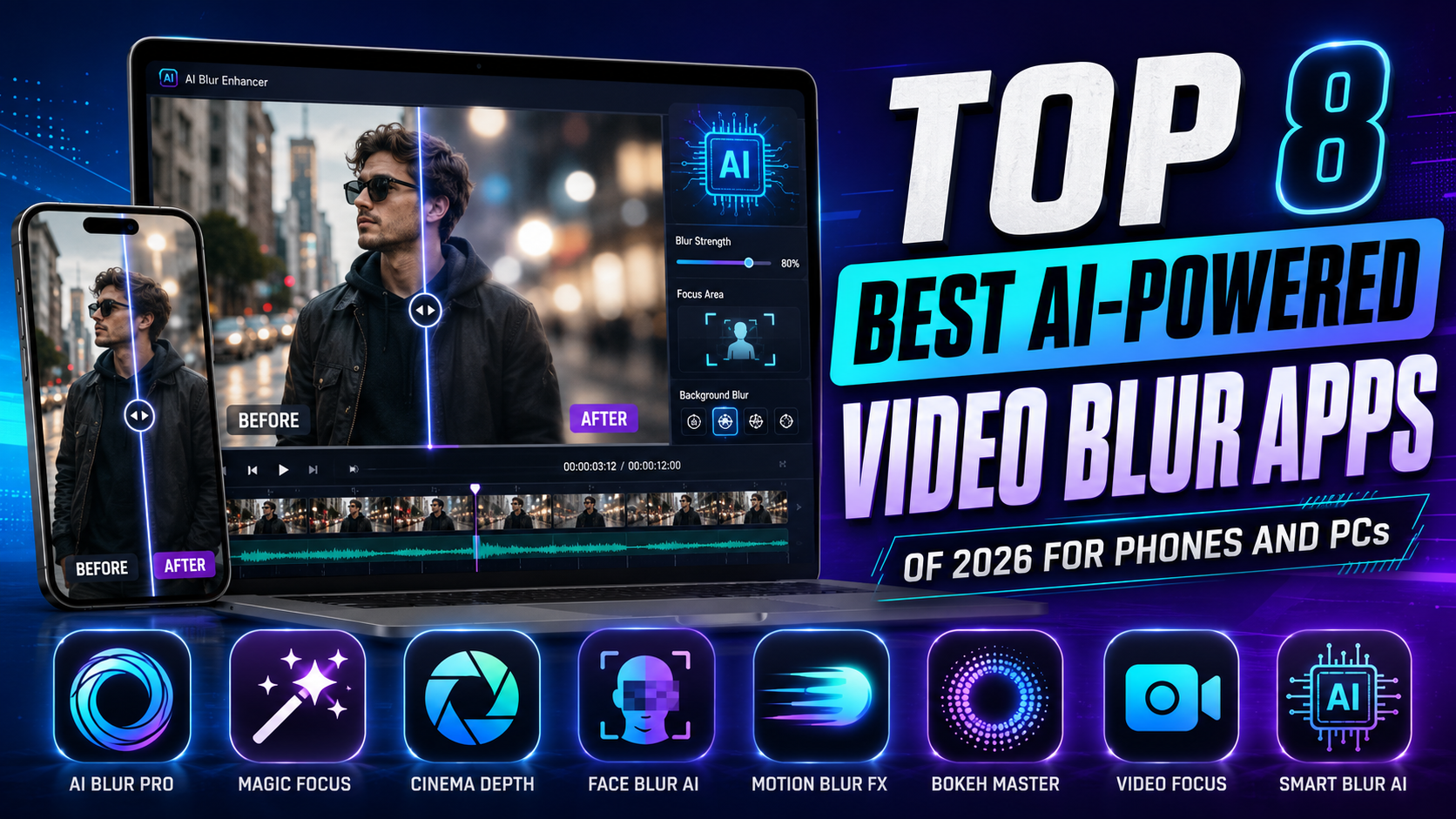
Top 8 Best AI-Powered Video Blur Apps of 2026 for Phones and PCs
Nội dung
- 1. List of the Most Popular Video Blurring Apps on Mobile Phones
- 1.1 CapCut - A Versatile Video Editing Tool with AI Blur Filters
- 1.2 Blur Video - Advanced Application for Customizing Blurred Areas on Demand
- 1.3 InShot - A Streamlined Video Editor for Everyone
- 1.4 KineMaster - Professional Multilayer Video Editing Software
- 2. Software and Platforms for High-Quality Video Blurring on Computers
- 2.1 CapCut Desktop - Upgraded Version for High-Speed Processing
- 2.2 Wondershare Filmora - A Tool for Creating Cinematic Background Blur Effects
- 2.3 Adobe Premiere Pro - The Standard for Video Editing with Advanced Masking Tools
- 2.4 Clipchamp - A Convenient Online Editor from Microsoft
- 3. Discover Innovative AI Technology at Appvip.ai
- 4. Detailed Instructions on How to Blur Videos Using a Mobile App
- 5. Tips to Make Video Blur Effects Look Natural
- 6. Future Trends in Automating Blurring Techniques
- 7. New Breakthroughs in Optimizing End-User Experience
- 8. Conclusion
A compilation of top AI-powered professional video blurring apps. Detailed instructions on how to easily blur faces, backgrounds, and hide sensitive information.
1. List of the Most Popular Video Blurring Apps on Mobile Phones
Using mobile devices to shoot and post-produce videos live makes the content production process incredibly flexible, fitting the pace of modern social media platforms.
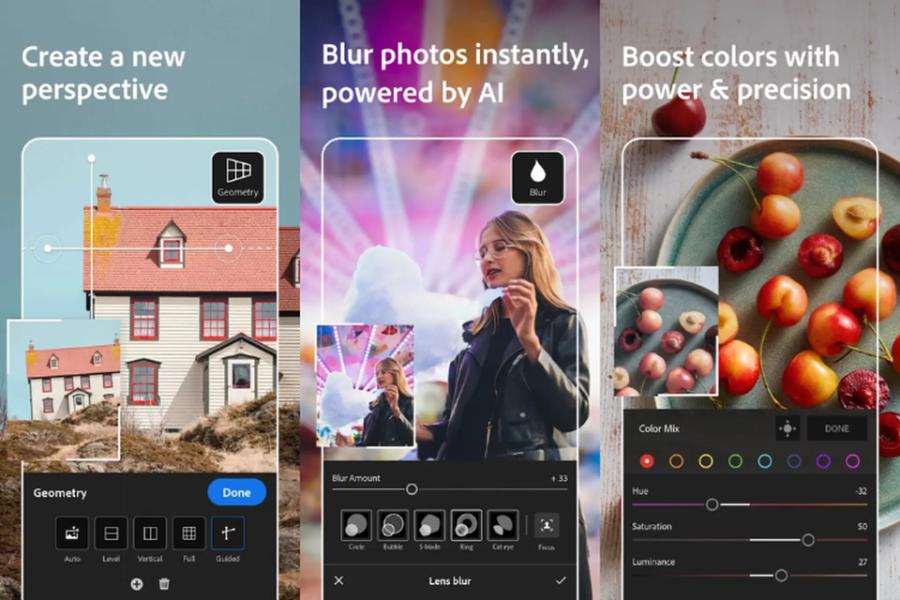
1.1 CapCut - A Versatile Video Editing Tool with AI Blur Filters
CapCut maintains its leading position thanks to its extremely accurate object recognition capabilities. The blurring feature on this app allows users to manipulate specific areas or the entire frame with just a few taps.
-
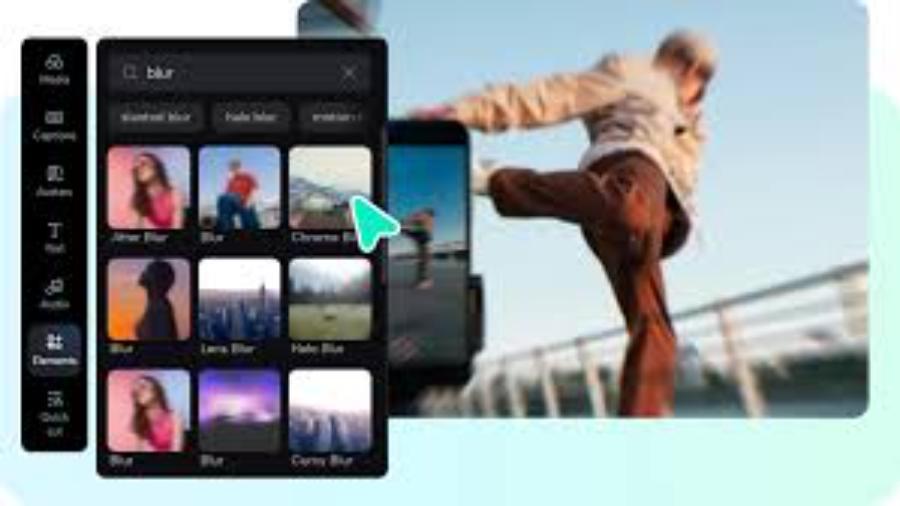
Advantages: Integrates a rich library of effects such as Blur, Halo Blur, and Pixelate; automatically tracks facial movements for continuous blurring.
-
Disadvantage: Requires a stable internet connection to load new effects.
-
Suitable for: Content creators on TikTok, Instagram Reels, and YouTube Shorts.
1.2 Blur Video - Advanced Application for Customizing Blurred Areas on Demand
Blur Video offers a solution focused on blurring the background and addressing camera angles that reveal personal information.
-
Advantages: Supports multiple modes such as Free Form Blur, Fun Blur, and Pixelate Blur.
-
Disadvantage: File export speed depends heavily on the configuration of each phone model.
-
Suitable for: People who need to conceal license plates, confidential documents, or the faces of passersby.
1.3 InShot - A Streamlined Video Editor for Everyone
InShot simplifies all post-production steps thanks to its extremely user-friendly flat interface. Background blurring or subject blurring features are integrated directly into the main toolbar.
-
Advantages: Customizable opacity levels using intuitive sliders, high-resolution file export without loss of original quality.
-
Disadvantage: The motion blur filter options are not very diverse.
-
Suitable for: Beginners who want to learn simple video editing for personal use.
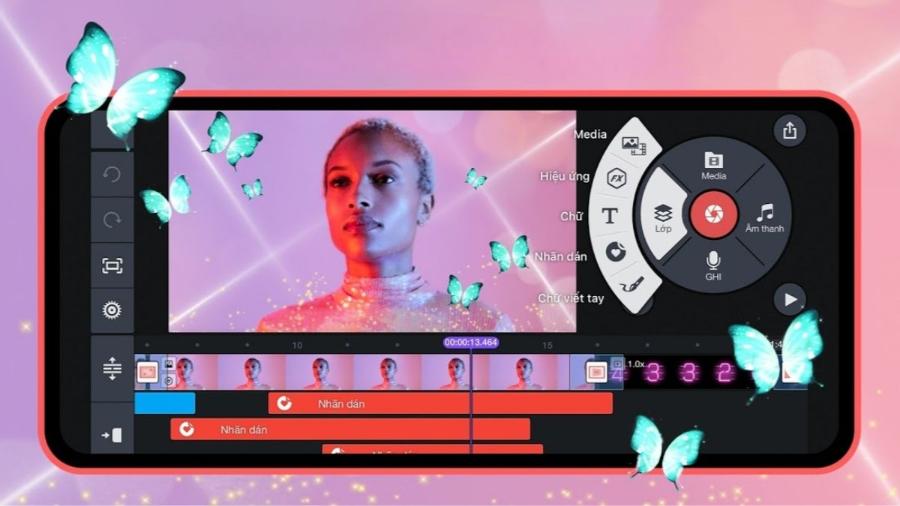
1.4 KineMaster - Professional Multilayer Video Editing Software
KineMaster provides an in-depth workspace with a powerful layering system, allowing for precise control over blurring effects over time.
-
Advantages: Allows the combination of Keyframe functionality to control the blur area's smooth movement following the object.
-
Disadvantage: The free version includes a brand watermark in the corner of the video.
-
Suitable for: Vloggers and content designers who need fine-tuned control over every movement.
2. Software and Platforms for High-Quality Video Blurring on Computers
Computers are always the preferred choice for long-term projects requiring resolutions from Full HD to 4K, along with the ability to perform complex graphics calculations.
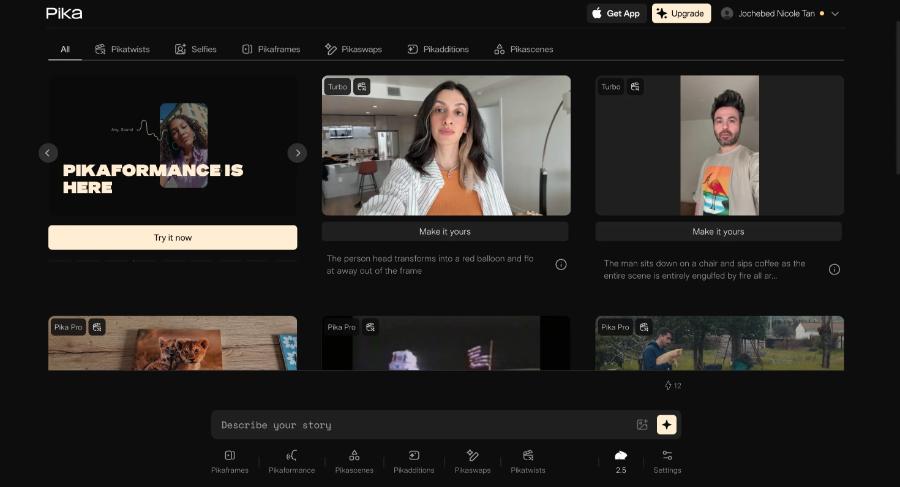
2.1 CapCut Desktop - Upgraded Version for High-Speed Processing
CapCut on PC inherits all the intelligence from the mobile version but expands its capabilities to leverage the hardware power of the CPU and GPU.
-
Advantages: Handles blur effects on large frames extremely smoothly, supports drag-and-drop functionality, and allows managing multiple timelines simultaneously.
-
Disadvantage: The cache memory takes up a relatively large amount of space after prolonged use.
-
Suitable for: YouTubers and marketers who need to process videos quickly and professionally.
2.2 Wondershare Filmora - A Tool for Creating Cinematic Background Blur Effects
Filmora incorporates AI Portrait technology that recognizes human shapes and creates incredibly natural depth of field.
-
Advantages: Simulates a bokeh effect similar to shooting with a professional camera; features a high-quality grain blur filter.
-
Disadvantage: A fee is required to remove the copyright logo when exporting the video.
-
Suitable for: Educational content creators, product introduction videos.
2.3 Adobe Premiere Pro - The Standard for Video Editing with Advanced Masking Tools
Premiere Pro offers Gaussian Blur in combination with Tracking Mask, creating a superior motion-tracking blur effect.
-
Advantages: Absolute customization of opacity, blur areas, and motion acceleration.
-
Disadvantages: Requires users to undergo specialized training and own a powerful computer.
-
Suitable for: Professional filmmakers, television editors.
2.4 Clipchamp - A Convenient Online Editor from Microsoft
Clipchamp works directly in your browser or the built-in Windows application, providing an extremely fast frame blurring editing experience.
-
Advantages: Requires minimal installation resources, and the Blur Fill effect creates a vivid background blur effect.
-
Disadvantage: Requires a constant internet connection to work.
-
Suitable for: Office workers who need to quickly edit video reports and presentations.
3. Discover Innovative AI Technology at Appvip.ai
The remarkable development of artificial intelligence is completely changing the way media content is produced. Accessing the website appvip.ai gives users the opportunity to experience an advanced AI technology ecosystem, automating many complex post-production processes.
At appvip.ai , intelligent algorithms assist in image processing, background removal, automatic subject recognition, and video optimization in a short amount of time. This solution helps users optimize production costs and improve the visual quality of their products without requiring highly specialized technical skills.
4. Detailed Instructions on How to Blur Videos Using a Mobile App
The process of setting up a blur effect requires meticulous attention to filter selection and object targeting. Below are 5 standard steps for mobile applications:
Step 1 (Load Project): Open the video blurring app, create a new project, and select the video file you want to modify from your device's library.
Step 2 (Add a blur effect): Select Effects > Video Effects > Search for the keyword "Blur" and choose a suitable blur style.
Step 3 (Setting the timestamp): Extend the blur effect layer on the Timeline to match the time period you want to blur in the video.
Step 4 (Setting up an overlay or mask): Use the Mask or Overlay feature to precisely select the area of the face, personal information, or background that you want to blur.
Step 5 (Check and Export): Review all the motion, adjust the blur to a suitable level, and export the video in 1080p or 4K quality.
5. Tips to Make Video Blur Effects Look Natural
Applying effects correctly can make a film look sophisticated, while overuse can be irritating to the viewer.
-
Adjust the blur level appropriately: Keep the blur level between 15% and 30% to create a realistic feel, avoiding pushing it to the maximum level which will blur the entire scene.
-
Monitor movement carefully: Carefully check the edges of the blurred area as the subject moves to ensure there is no frame distortion.
-
Ensure proper lighting and camera angle: A camera angle with good contrast helps the AI software easily distinguish the boundary between the subject and the area to be blurred.
-
Choose the appropriate blur style: Use pixel blur for secure information and Gaussian blur for background blurring.
6. Future Trends in Automating Blurring Techniques
Deep learning models are constantly improving their ability to analyze spatial context in every frame of footage. Depth mapping allows software to automatically differentiate between near and far layers without manual intervention. This technology promises to make video blurring smoother, creating high-quality, cinematic products quickly and easily.

7. New Breakthroughs in Optimizing End-User Experience
The advancement of cloud data processing systems combined with artificial intelligence is completely eliminating hardware barriers. Users can now manipulate video blurring directly on browser platforms without worrying about lag or memory overload.
The intelligent algorithm automatically analyzes resolution, recognizes facial expressions, and dynamically adjusts the blur ratio according to different scenes. This feature helps to preserve the authenticity of the subject's features to the maximum extent, while processing the edges much more smoothly than previous manual methods.
This trend of integrating AI automation tools not only shortens editing time by dozens of times, but also opens up opportunities for everyone to create impressive films.
8. Conclusion
Using the right video blurring app to suit your needs will significantly optimize post-production time and enhance the aesthetic value of each frame. The support of modern AI technology and flexible tools is key to elevating the quality of media content in the digital age.





















VIP Products








Best Selling Products
Plugin Retouch4me
69 USD
Autodesk All App Account Copyright
120 USD
Copyright Adobe Lightroom Account
59 USD
Upgrade genuine Capture One account
120 USD
Adobe Photoshop Copyright - Full App
120 USD
MidJourney Account
29 USD
Upgrade Genuine Office 365
49 USD
Genuine Adobe Illustrator account
99 USD
Upgrade Duolingo Super
29 USD
Genuine Cheap Canva Pro
39 USD
ChatGPT Plus Account (GPT-4)
16 USD
Adobe Premiere Pro Account
99 USD
Freepik Premium Account
59 USD
Windows 10 & 11 Pro Key
36 USD
Capcut Pro 1 Year
39 USD