Best Selling Products

Upgrade genuine Capture One account
120 USD

Genuine Cheap Canva Pro
39 USD

Autodesk All App Account Copyright
120 USD

Genuine Adobe Illustrator account
99 USD

Upgrade Genuine Office 365
49 USD

Freepik Premium Account
59 USD

Upgrade Duolingo Super
29 USD

Windows 10 & 11 Pro Key
36 USD

ChatGPT Plus Account (GPT-4)
16 USD

Adobe Premiere Pro Account
99 USD

Capcut Pro 1 Year
39 USD

Plugin Retouch4me
69 USD

Copyright Adobe Lightroom Account
59 USD

Adobe Photoshop Copyright - Full App
120 USD

MidJourney Account
29 USD
Top 8 Best AI-Standard Background Blur Video Apps for 2026
Nội dung
- 1. Top Proven Video Background Blur Apps on Mobile
- 1.1 CapCut — The Nation's Background Blur App With AI Technology
- 1.2 Blur Video & Photo — A Specialist in Custom Blur Effect Processing
- 1.3 InShot — A Streamlined Video Editing Tool for Beginners
- 1.4 KineMaster — The Power of Professional Multi-Layer Editing
- 2. The Best Video Background Blur Software and Online Platforms for Computers
- 2.1 CapCut Desktop — Graphics-Processing Power for PC and Mac
- 2.2 Wondershare Filmora — A Premium AI Background Removal and Blur Tool
- 2.3 Unscreen Pro — A Fast Online Background-Removal and Blurring Solution
- 2.4 Clipchamp — Microsoft's Integrated Online Video Editor
- 3. The Breakthrough AI Technology Platform at Appvip.ai
- 4. A Detailed Guide to Using a Video Background Blur App Properly
- 5. Important Notes for a Smooth, Natural Background-Blur Video
- 6. Future Development Trends in Video Background Blur Technology
- 7. Closing Thoughts
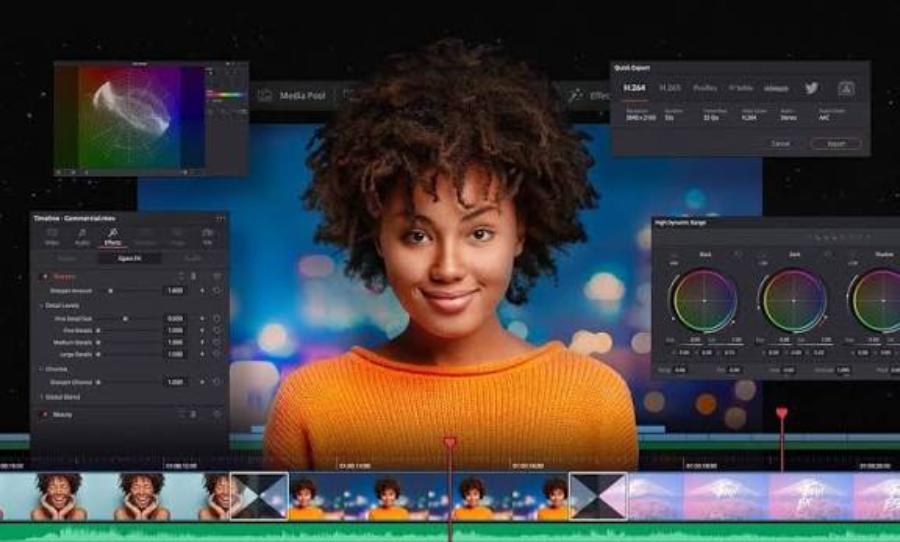
A roundup of the top professional AI-powered video background blur apps, helping create sharp Bokeh effects on both phone and computer.
1. Top Proven Video Background Blur Apps on Mobile
Editing directly on a mobile phone is the top choice thanks to its convenience, flexibility, and time savings when publishing content to social media platforms.
.jpg)
1.1 CapCut — The Nation's Background Blur App With AI Technology
CapCut maintains its leading position in the short-video editing segment thanks to an extremely smart subject-recognition algorithm. The background-blur feature on CapCut is built in through the Effects filter set or the in-depth background editing tool (Canvas/Background).
Pros: Accurate person edge-separation, support for a variety of blur effects such as Blur (standard blur), Halo Blur, and Motion Blur. Instant image processing speed, fully optimized for vertical video format.
Cons: Some high-quality blur filters require a Pro account upgrade.
Best for: Creators making content for TikTok, Facebook Reels, and YouTube Shorts.
1.2 Blur Video & Photo — A Specialist in Custom Blur Effect Processing
For iOS and Android users who need a solution focused specifically on blur techniques for both photos and video, Blur Video & Photo provides a flexible, customizable system of brushes and masks.
Pros: Allows blurring of a custom selected area, blurring in a fixed shape (circle, square), or tracking a moving subject.
Cons: The interface is filled with ads in the free version, and export time is longer for high-resolution videos.
Best for: People who need to hide sensitive information, license plates, or blur part of the background for a specific artistic purpose.
1.3 InShot — A Streamlined Video Editing Tool for Beginners
InShot is well known for its intuitive interface, directly integrating a background-removal and quick background-blurring tool right on the main editing screen.
Pros: Easy to use, allows flexible blur-level adjustment with a slider, and supports many standard social-media aspect ratios.
Cons: The automatic background-separation capability isn't quite smooth enough if the subject moves too fast or wears clothing that matches the background color.
Best for: Beginners just starting out with video shooting and editing who need simple, quick background adjustments.
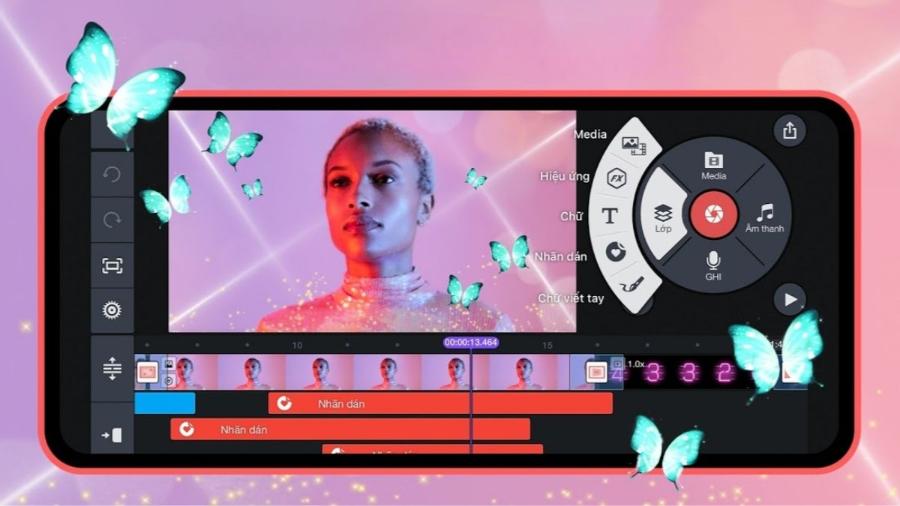
1.4 KineMaster — The Power of Professional Multi-Layer Editing
KineMaster offers a workspace similar to computer software, with multi-layer editing (Layers) capability and a variety of blur effects.
Pros: Supports smart layer compositing, customizable blur-effect curves over time (Keyframe), and detailed layer management.
Cons: The interface is relatively complex for casual users, and there's a watermark in the trial version.
Best for: People making videos with a complex structure who need careful control over every blur movement.
2. The Best Video Background Blur Software and Online Platforms for Computers
When working with large video files or requiring sharp 4K resolution, dedicated software and web platforms for computers are the superior choice.
.jpg)
2.1 CapCut Desktop — Graphics-Processing Power for PC and Mac
The computer version of CapCut takes full advantage of CPU and GPU hardware power, making applying the background-blur effect many times smoother than on the mobile version.
Pros: Integrates a Chroma Key feature, AI-based automatic portrait recognition, and a massive library of blur effects that's completely free.
Cons: Cache storage size increases quickly when editing long projects.
Best for: YouTubers and professional film editors who need precise control on a large screen.
2.2 Wondershare Filmora — A Premium AI Background Removal and Blur Tool
Filmora integrates an AI Portrait feature, allowing it to recognize a person's shape and automatically separate the background to apply a background-blur effect without needing a green screen.
Pros: Extremely natural background-blur effect, with a simulated Bokeh lens mode like a professional DSLR camera.
Cons: The free version leaves a watermark on the output video.
Best for: Educational content creators and professional product-introduction videos.
2.3 Unscreen Pro — A Fast Online Background-Removal and Blurring Solution
Unscreen is a tool that runs entirely in a web browser, automatically removing a video's background in seconds thanks to artificial intelligence. After separating the background, users can easily insert the desired blur effect.
Pros: No need to install heavy software, fully automatic operation with just a file upload.
Cons: The paid version's cost is relatively high for individual users.
Best for: Office workers and marketers who need to quickly process short video clips without graphics software on hand.
2.4 Clipchamp — Microsoft's Integrated Online Video Editor
Clipchamp is directly integrated into the Windows ecosystem as well as a web version, offering in-depth intervention capability with the Blur Fill effect.
Pros: Syncs with a Microsoft account, doesn't take up device storage, high-quality grain-blur and glass-blur effects.
Cons: Fully dependent on internet connection speed when uploading video.
Best for: Windows users who want to edit SEO-standard videos quickly and safely.
3. The Breakthrough AI Technology Platform at Appvip.ai
The emergence of the appvip.ai ecosystem marks a new step forward in applying AI to the digital content creation process. The website appvip.ai provides a collection of leading artificial intelligence solutions, optimizing tasks from image editing and video optimization to automating post-production steps..jpg) Through the advanced tools at appvip.ai, automatically detecting a subject, processing background blur, removing noise, or creating a virtual background all become simpler than ever. Users don't need to possess complex technical skills to produce cinema-standard footage in a short amount of time, helping save costs and boost work efficiency.
Through the advanced tools at appvip.ai, automatically detecting a subject, processing background blur, removing noise, or creating a virtual background all become simpler than ever. Users don't need to possess complex technical skills to produce cinema-standard footage in a short amount of time, helping save costs and boost work efficiency.
4. A Detailed Guide to Using a Video Background Blur App Properly
The process of creating a smooth background-removal effect requires precisely combining effect selection with overlay creation. Below are the standardized practical steps on a typical video background blur app:
Step 1 (Import the data file): Launch the app, select a new project, and load the original video that needs editing onto the Timeline.
Step 2 (Apply the blur effect): Go to Effects > Select Video Effects > Select the Blur effect. Stretch the blur effect bar to cover the entire duration of the video.
Step 3 (Add the subject overlay layer): Select the Overlay feature > Add the same original video as a second layer, aligning it so it matches exactly with the background video beneath it.
Step 4 (Separate the person from the background): Select the video on the overlay layer > Use the Cutout/Remove Background tool. The AI system will automatically keep the subject and remove the background of the overlay layer, revealing the blurred background video layer underneath.
Step 5 (Fine-tune and export the file): Adjust the Blur Intensity on the original video so it looks as natural as possible (usually around 15%–30%). Check the edges around the person and proceed to export the video in 1080p or 4K format.
5. Important Notes for a Smooth, Natural Background-Blur Video
Applying a video background blur app correctly will elevate a piece of content, but overusing it can create an artificial feel or edge bleeding around the subject.
(1).jpg)
Contrast between the subject and the background: Choose a shooting angle so there's enough distance between the person and the wall/background behind them. This helps the AI more easily separate out details like hair and clothing.
Adequate lighting: Clear ambient lighting reduces noise, helping the AI algorithm recognize the outline more accurately.
The subject's movement speed: Limit overly fast movements or constant hand/arm waving, as the app may not keep up, leading to the blurred background overlapping onto the arms or legs.
A moderate blur level: Avoid pushing the blur-intensity slider to the maximum. A gentle blur of 20% to 35% always creates the most realistic Depth of Field, similar to large-aperture camera lenses.
6. Future Development Trends in Video Background Blur Technology
The strong shift in computer graphics technology is making the background-removal process smarter and more intuitive. Notable is the integration of Deep Learning models capable of analyzing spatial depth in real time. Instead of only recognizing static outlines, next-generation algorithms automatically build a detailed Depth Map for each frame.
This allows users to flexibly adjust focus even after filming is complete, accurately simulating the background-blur effect of large-aperture lenses. In addition, the ability to smoothly process individual hair strands, fast movement, or clothing that matches the background color has also improved dramatically. Hardware optimization on mobile devices promises to turn AI background-blur technique into a default feature, helping maximally simplify the professional video production process.
7. Closing Thoughts
Choosing the right video background blur app suited to your device and usage needs will make your media content more professional and eye-catching. Flexibly combining mobile tools, PC software, and breakthrough support from advanced AI solutions is the key to breaking through content quality in the digital era.





















VIP Products








Best Selling Products
Upgrade genuine Capture One account
120 USD
Genuine Cheap Canva Pro
39 USD
Autodesk All App Account Copyright
120 USD
Genuine Adobe Illustrator account
99 USD
Upgrade Genuine Office 365
49 USD
Freepik Premium Account
59 USD
Upgrade Duolingo Super
29 USD
Windows 10 & 11 Pro Key
36 USD
ChatGPT Plus Account (GPT-4)
16 USD
Adobe Premiere Pro Account
99 USD
Capcut Pro 1 Year
39 USD
Plugin Retouch4me
69 USD
Copyright Adobe Lightroom Account
59 USD
Adobe Photoshop Copyright - Full App
120 USD
MidJourney Account
29 USD