Best Selling Products

Genuine Cheap Canva Pro
39 USD

MidJourney Account
29 USD

Upgrade Genuine Office 365
49 USD

Genuine Adobe Illustrator account
99 USD

Copyright Adobe Lightroom Account
59 USD

Upgrade Duolingo Super
29 USD

ChatGPT Plus Account (GPT-4)
16 USD

Plugin Retouch4me
69 USD

Autodesk All App Account Copyright
120 USD

Capcut Pro 1 Year
39 USD

Adobe Photoshop Copyright - Full App
120 USD

Freepik Premium Account
59 USD

Windows 10 & 11 Pro Key
36 USD

Upgrade genuine Capture One account
120 USD

Adobe Premiere Pro Account
99 USD
What are the differences between Canva and Google Slides? Which is the better presentation tool?
Nội dung
- 1. Canva and Google Slides from an overview
- 2. When is Canva a better choice?
- 2.1 You are creating more than one presentation.
- 2.2 You want a more flexible image editor.
- 2.3 You want to reuse the same design for multiple different formats.
- 3. When is Google Slides a better choice?
- 3.1 The presentation is a shared working document.
- 3.2 Your source material is already available in Google Workspace
- 3.3 The final delivery step is a Google Slides file.
- 3.4 Access rights, offline work, and official data sources
- 4. Comparisons regarding artificial intelligence are no longer as simple as they used to be.
- 4.1 Artificial Intelligence on Canva
- 4.2 Gemini in Google Slides
- 5. Which tool should I choose?
- 6. Frequently Asked Questions
From slide design and template libraries to collaboration capabilities, Canva and Google Slides both have their own strengths. But which tool is truly right for your needs? This article will help you see the differences between these two popular platforms.
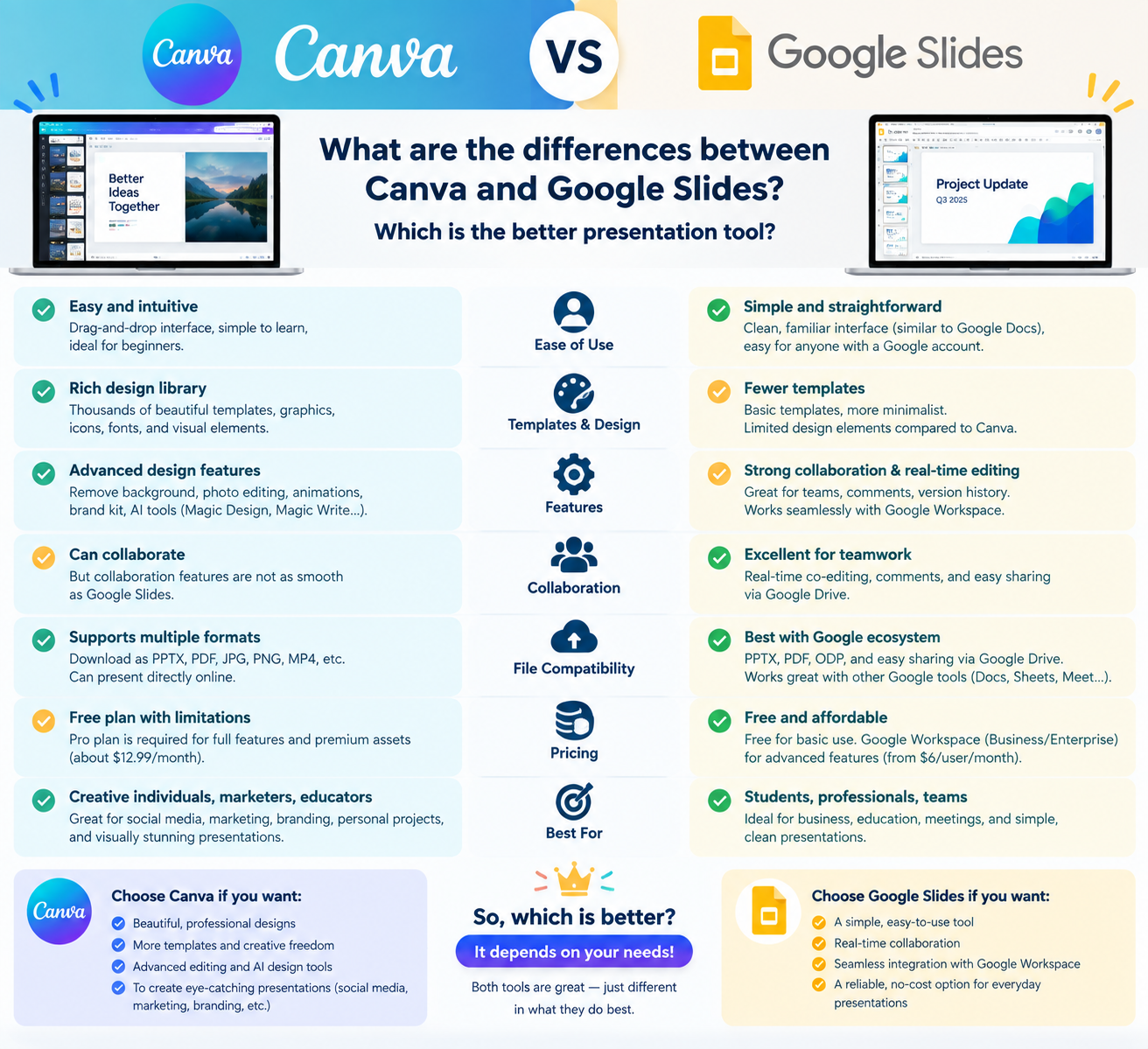
1. Canva and Google Slides from an overview
Before delving into specific use cases, a holistic view of the two platforms across various criteria will help you better understand the core differences between them.
|
| Canva | Google Slides |
|---|---|---|
| Best suited for | This presentation is part of a broader visual content production process. | This presentation is part of the Workspace collaboration process. |
| Design system | Sample library, image resources, diverse media, and a multi-format ecosystem. | The themes, layouts, and slide templates are reusable. |
| Collaboration | Edit directly, comment, and share via link. | Direct editing, commenting, sharing, and version history on Drive. |
| Connection data | Canva has built-in charting and data tools. | Charts, tables, and slides are linked directly from Sheets and other Google files. |
| Artificial intelligence | Create designs and media with editable results; some new features are still in the testing phase. | Create complete presentations and slides, rewrite content, create images, and reference data from Drive on suitable plans. |
| Hand over | Present directly in Canva or export the file; careful checking is required when exporting to PowerPoint, as it is complex. | The handover was almost entirely intact to a team already familiar with Slides, Drive, and Meet. |
| The main trade-off | More visual options also mean more design decisions. | The image production environment is more limited compared to Canva. |
2. When is Canva a better choice?
2.1 You are creating more than one presentation.
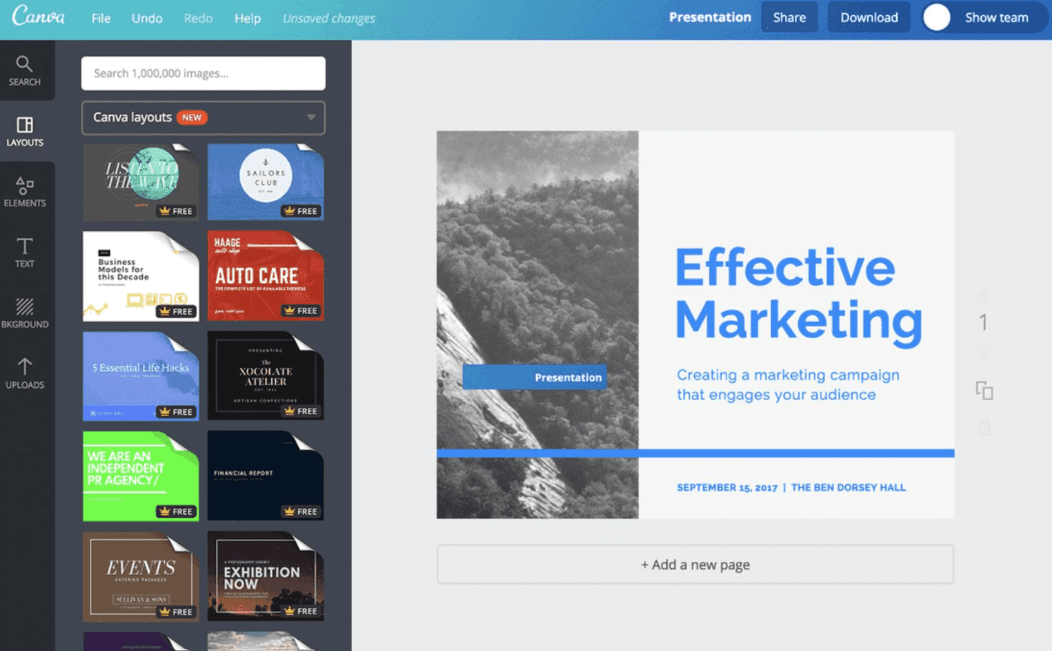
Canva is more than just a slide editor; it's a comprehensive visual content platform. Within a single workspace, a team can build presentations, design social media images, create one-page flyers, short videos, and many other assets for a campaign. This makes Canva particularly useful when consistency across multiple content formats is more important than a specialized presentation workflow.
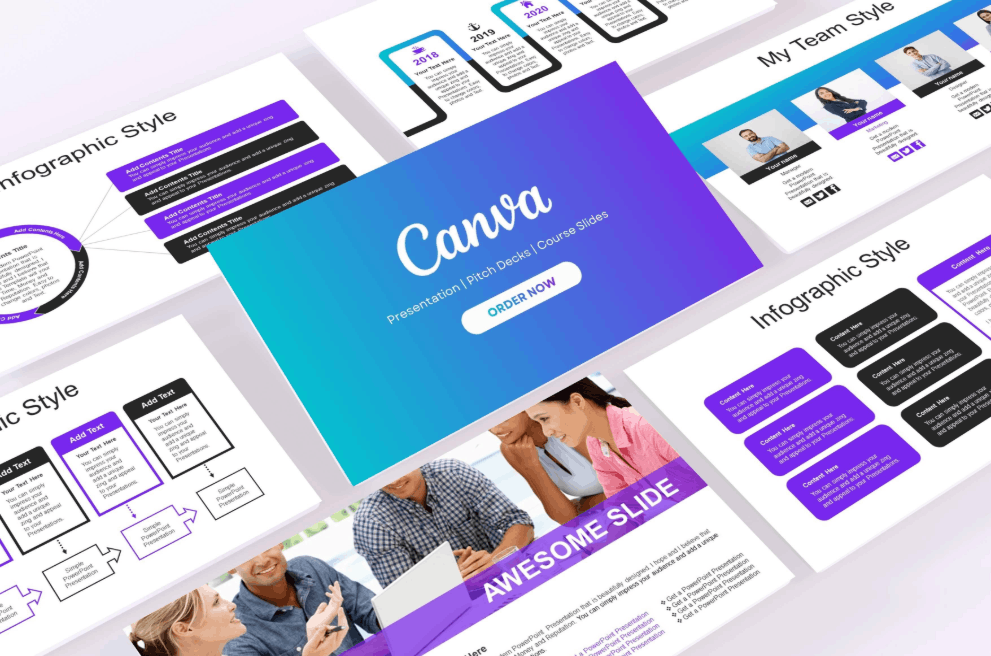
In addition, Canva's library of design templates, ready-made image libraries, illustrations, motion effects, and layout tools offer more visual possibilities. This doesn't mean every presentation created with Canva is automatically better. It simply means that non-design professionals have more starting materials and more ways to adjust the content without leaving the editor.
2.2 You want a more flexible image editor.
Canva offers a wider range of tools for staging design pages with photography, illustration, video, audio, animation, and various graphic elements. This is often a more natural choice for product launch presentations, events, company profiles, or branded proposals where slides need to showcase a strong visual identity.
However, this diversity also comes with the price of too many choices. A large library of resources and design templates can speed up production, but it can also lead to inconsistent slides if the team mixes many styles without a clear design system. Paid packages for teams add more branding management features, but you should compare those features with your organization's actual needs before deciding.
2.3 You want to reuse the same design for multiple different formats.
A presentation often goes beyond just slides; it can become a PDF file, a social media carousel post, an event display, or a set of images for a promotional campaign. Canva is built to serve this very reusability. If the presentation is just one of many outputs in a larger content package, this reusability is often far more important than the differences between two simple slide editors.
3. When is Google Slides a better choice?
3.1 The presentation is a shared working document.
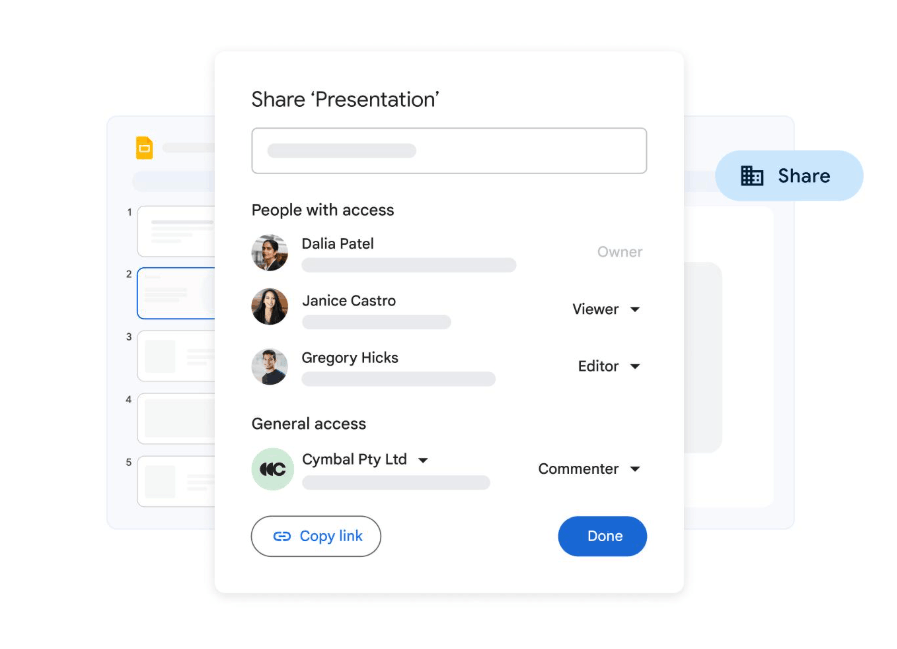
Google Slides works best when presentations are edited through multiple rounds of feedback from multiple people. Sharing, commenting, simultaneous editing, and version history are all part of the same process many people are familiar with using Docs and Sheets. Canva also supports direct editing and commenting, so collaboration isn't unique to Google. The difference lies in the fact that Google Slides prevails when the entire workflow surrounding it is already running within the Workspace ecosystem.
3.2 Your source material is already available in Google Workspace
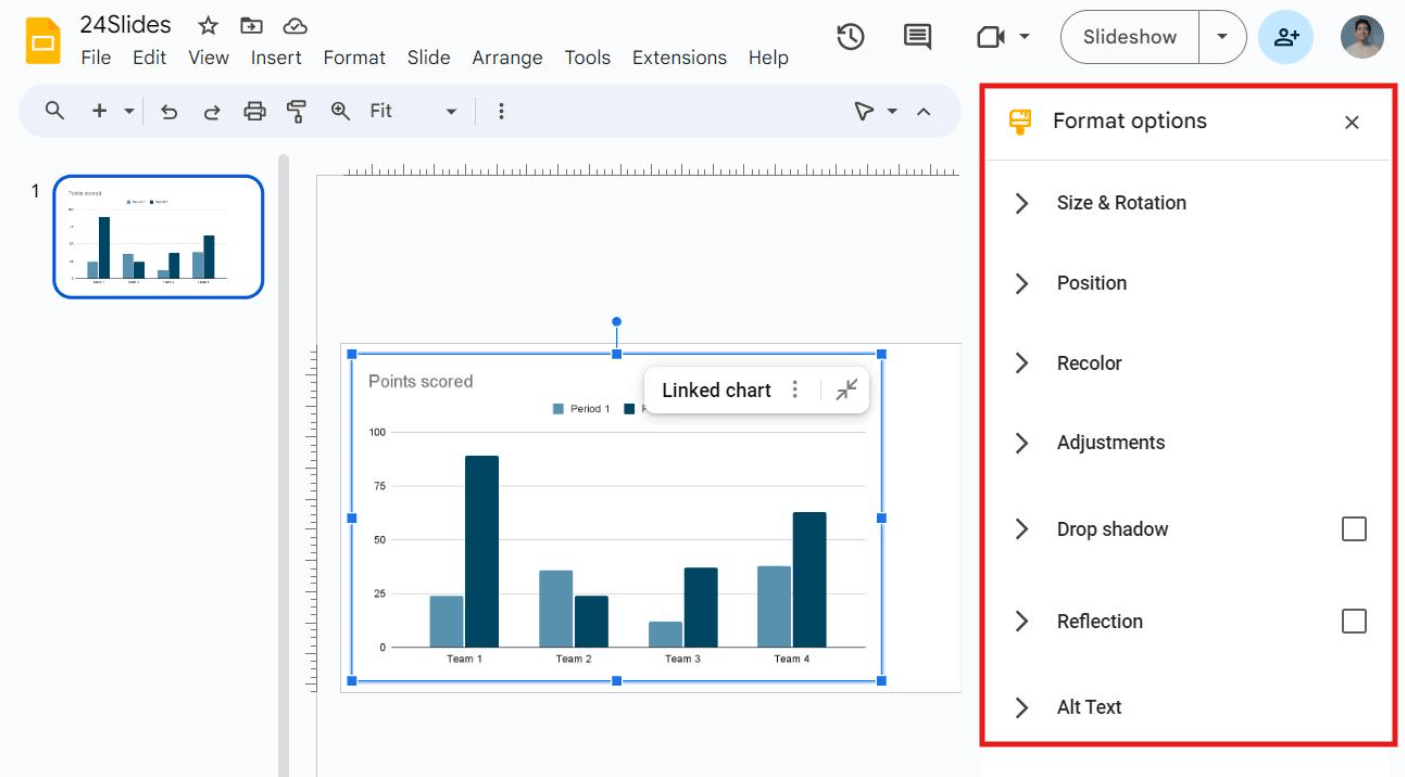
Google Slides allows direct linking of charts, tables, and slides from Sheets and other presentation files. When the source data changes, the editor simply updates the linked objects instead of rebuilding from scratch. Google also has an important access permission note: those with permission to view the target presentation can still see the linked objects, even if they don't have permission to open the source file. Therefore, the presentation should be viewed as a public version of the data, not a security boundary around the original chart.
Linked objects still need to be manually refreshed and should be reviewed one last time before presentation. You should test beforehand for scenarios such as when the source document owner changes sharing permissions, when the data range of the chart changes, or when a collaborator creates a copy of the presentation.
3.3 The final delivery step is a Google Slides file.
If clients, colleagues, or leaders will be commenting directly on the slides, building the presentation directly within the slides will help you avoid an unnecessary format conversion step. Exporting from Canva to PowerPoint and then importing it back into Slides is still possible, but custom fonts, effects, animations, videos, presenter notes, charts, and layouts may change during the conversion between formats. For important presentations, you should experiment with a representative sample before committing to this approach.
3.4 Access rights, offline work, and official data sources
Google Slides uses Drive's access levels, which include viewers, commenters, and editors. This makes the original Slides file the legitimate official data source, as document review and ownership are already in place within Workspace. A Canva design can still be shared and collaboratively edited, but when converted to a copy in Slides, it becomes a completely separate, editable document. Changes will not automatically sync between the two products.
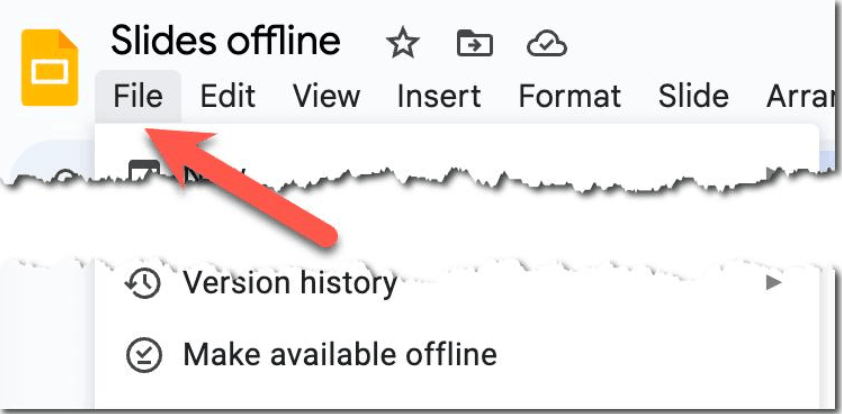
Google Slides can work offline, but this feature needs to be set up beforehand on your computer, using Chrome or Edge browsers with the Google Docs Offline extension. System administrators can disable this feature, and only one account per browser profile can have offline mode enabled at a time. If you need to present while traveling or in a location with an unstable network connection, proactively set up offline mode for that specific presentation and test it before leaving a location with a stable connection.
4. Comparisons regarding artificial intelligence are no longer as simple as they used to be.
The old notion that Canva excels in visual AI while Google Slides only supports text is no longer accurate. Both platforms now have the ability to create and edit presentations using AI, but their approaches differ depending on their respective ecosystems.
4.1 Artificial Intelligence on Canva
Canva's Magic Design feature can suggest editable presentation templates based on a provided description, image, or content, while other Canva AI tools handle content writing and media creation. Free and educational accounts typically offer a limited amount of AI access per month, while a paid subscription is required to fully utilize Canva's next-generation AI features. Some Pro resources that appear in automatically generated designs may also require replacement or payment if you are using a free account.
You shouldn't decide to purchase a service package based solely on an AI demo. Carefully check the specific tools, monthly usage limits, brand control features, and resource licensing terms applicable to your account, region, and organization.
4.2 Gemini in Google Slides
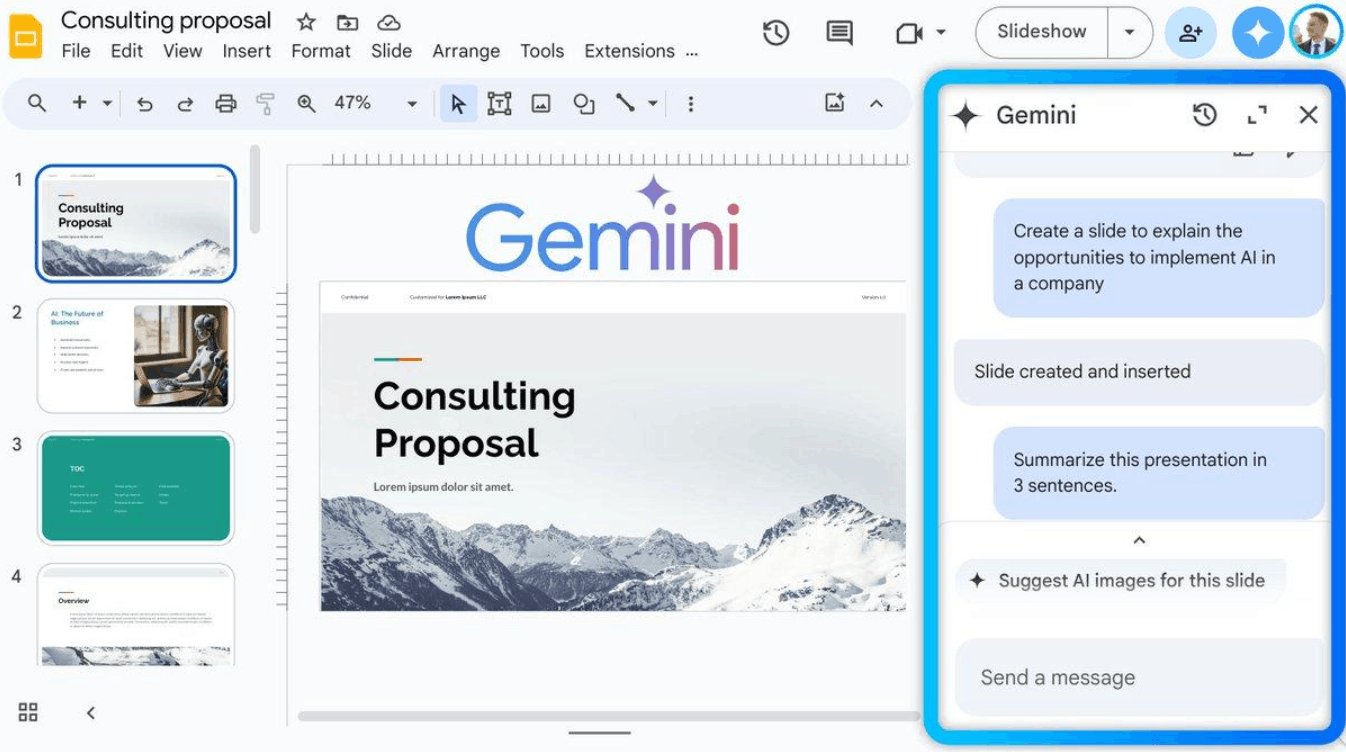
On eligible Google Workspace or Google AI plans, Gemini can create a complete, editable presentation, build or edit individual slides, create and edit images, and reference files in Drive. The full presentation creation process described by Google is currently only available on computers and only supports English. Individual account users may only be able to access this feature through the Google Workspace Experiments program, rather than it being available to all free accounts.
Gemini is still prone to errors, and access to this feature may vary depending on administrator settings and deployment progress. You should confirm that this feature is actually available to those who will be directly giving the presentation, and not just to an account used for initial testing and evaluation.
When comparing AI results between two platforms, don't rely on a single demo command. Give both tools the same brief prompt and source material, then compare whether the outline accurately reflects your actual argument or is just generic content, whether the facts from the source material are accurate and traceable, how much of the content is actually editable, whether the visual system is consistent across ten or more slides, how quickly the reviewer can make an accurate change, and whether the final file retains its format when delivered to the audience. AI can speed up the first draft on both platforms, but that doesn't eliminate the need for fact-checking, streamlining overly text-heavy slides, and practicing before the presentation.
5. Which tool should I choose?
Canva is a good choice when your presentation is part of a larger set of visual assets, when the variety of design templates, image libraries, and image experimentation capabilities are central to the project, when a marketing or creative team will be primarily responsible for the final design, and when you plan to adapt that content to various formats later.
Google Slides is a good choice when a presentation will be edited by multiple people within Google Workspace, when charts or data tables need to remain connected to Google Sheets, when the reviewer or final presenter wants to receive a single original slide file, and when the presentation is an ongoing work document rather than a completed campaign product.
In many cases, some teams intentionally choose to combine both tools. They design a polished visual system in Canva, then transfer the results to Slides for review or delivery. This approach is perfectly reasonable, but it's important to note that this isn't a perfect, lossless conversion process. You should clearly define which tool will hold the final editable file, test the format conversion early, and avoid last-minute format changes.
In general, Canva is often a better environment for large-scale visual content production, while Google Slides is generally better for a presentation running within the Google Workspace ecosystem. Both now offer significant collaboration and AI features, so those capabilities alone are no longer sufficient to make a final choice. The most logical starting point is still clearly defining where everyone will edit, review, present, and reuse that presentation, as the answer to this question is far more helpful than comparing the number of design templates or reviewing a few individual AI demos.
6. Frequently Asked Questions
Can both Canva and Google Slides enable real-time collaboration?
Yes. Both platforms support direct editing, commenting, and sharing via links. Google Slides has a clear advantage as the rest of the workflow already uses Drive, Docs, Sheets, and Meet.
Can Gemini create a complete presentation on Google Slides?
Yes, provided your account and service plan meet the eligibility requirements. Google has announced a process that allows you to create complete, editable presentations, along with tools to create and edit individual slides. You should check accessibility and language support directly on your account.
Can I transfer a presentation from Canva to Google Slides?
You can export your presentation from Canva and import it into Google Slides, but the conversion process may alter fonts, effects, animations, media, or layout. Experiment with a sample presentation and carefully check each slide before final delivery.





















VIP Products








Best Selling Products
Genuine Cheap Canva Pro
39 USD
MidJourney Account
29 USD
Upgrade Genuine Office 365
49 USD
Genuine Adobe Illustrator account
99 USD
Copyright Adobe Lightroom Account
59 USD
Upgrade Duolingo Super
29 USD
ChatGPT Plus Account (GPT-4)
16 USD
Plugin Retouch4me
69 USD
Autodesk All App Account Copyright
120 USD
Capcut Pro 1 Year
39 USD
Adobe Photoshop Copyright - Full App
120 USD
Freepik Premium Account
59 USD
Windows 10 & 11 Pro Key
36 USD
Upgrade genuine Capture One account
120 USD
Adobe Premiere Pro Account
99 USD